# Introduction
[](https://simlab-soft.com/help/uploads/images/gallery/2022-02/picoall.png)
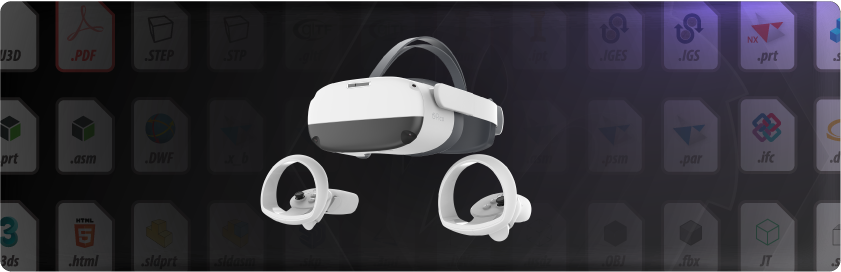
In this book we are going to learn all the techniques for sharing 3D/CAD models into Pico VR devices and creating interactive VR Experiences for it.
There are several ways to create and share your own VR Experiences for the Pico VR devices. In this document we are going to discuss following topics:
---
#### [](https://simlab-soft.com/help/uploads/images/gallery/2022-02/artboard-7-copy-4.png)Transfer any **3D/CAD model** to Pico VR Devices
This method is fast, reliable, and super easy for sharing models from different file formats into Pico VR devices, We will use SimLab VR Studio to read any 3D/CAD model and in few clicks it can be on your Pico VR device.
[**Start Now**](https://simlab-soft.com/help/link/111#bkmrk-page-title)
---
#### [](https://simlab-soft.com/help/uploads/images/gallery/2022-02/artboard-7-copy.png)Create **interactive VR Experiences** for Pico VR Devices
Create all types of 3D VR Experiences without any coding. create VR visualization, interactive VR Experiences, VR training series and much more..
[**Start Now**](https://simlab-soft.com/help/link/112#bkmrk-page-title)
---
#### [](https://simlab-soft.com/help/uploads/images/gallery/2022-02/artboard-7-copy-2.png)Share models directly from **SketchUp** into Pico VR Devices
One click to share any SketchUp scene into the Pico VR device directly.
[**Start Now**](https://simlab-soft.com/help/link/114#bkmrk-page-title)
---
#### [](https://simlab-soft.com/help/uploads/images/gallery/2022-02/artboard-7-copy-3.png)Share models directly from **Rhino** into Pico VR Devices
One click to share any Rhino scene into the Pico VR device directly.
[**Start Now**](https://simlab-soft.com/help/link/115#bkmrk-page-title)
---
#### [](https://simlab-soft.com/help/uploads/images/gallery/2022-02/artboard-9-copy.png)Share Your VR Experiences **with others**
You can use [SimLab VR Viewer](https://www.simlab-soft.com/technologies/simlab-showroom.aspx) to share your scenes with your colleagues, clients, and others
[**Start Now**](https://simlab-soft.com/help/link/117#bkmrk-page-title)
---
#### **[](https://simlab-soft.com/help/uploads/images/gallery/2022-02/artboard-9-copy-2.png)Enhance** the Quality of Your VR Experiences
Different settings and features are available to enhance the quality and the performance of your VR Experiences.
[**Start Now**](https://simlab-soft.com/help/link/119#bkmrk-page-title)
---