# Rhino to Pico VR

[![rhinotopico.png](https://simlab-soft.com/help/uploads/images/gallery/2022-02/scaled-1680-/rhinotopico.png)](https://simlab-soft.com/help/uploads/images/gallery/2022-02/rhinotopico.png)

In the following steps we are going to learn how to share our designs directly from Rhino into Pico VR device.

We are going to use **[<span style="color: #3366ff;">SimLab VR Plugin for Rhino</span>](https://www.simlab-soft.com/3d-plugins/vr_plugins/rhino_vr.aspx)** to do that.

### Download and setup the Extension

1. Go to[ **<span style="color: #3366ff;">SimLab VR Plugin for Rhino</span>**](https://www.simlab-soft.com/3d-plugins/vr_plugins/rhino_vr.aspx), then download the plugin on your desktop (windows or macOS).
2. Open Rhino.
3. On the ribbon then **Right Click &gt; Show Toolbar &gt; SimLab VR.  
    [![rhinoplug.png](https://simlab-soft.com/help/uploads/images/gallery/2022-02/scaled-1680-/rhinoplug.png)](https://simlab-soft.com/help/uploads/images/gallery/2022-02/rhinoplug.png)**

### Sharing Models

1. Open your model on Rhino.  
    [![Introduction copy 13.png](https://simlab-soft.com/help/uploads/images/gallery/2022-02/scaled-1680-/introduction-copy-13.png)](https://simlab-soft.com/help/uploads/images/gallery/2022-02/introduction-copy-13.png)  
    <p class="callout info">The 3D model used in this example can be found here. [**Download Link**](https://simlab-soft.com/help/attachments/7)</p>
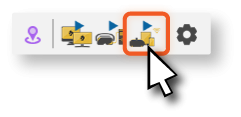
2. Click on Sync with Wireless Device.  
    [![Asset 10.png](https://simlab-soft.com/help/uploads/images/gallery/2022-02/scaled-1680-/asset-10.png)](https://simlab-soft.com/help/uploads/images/gallery/2022-02/asset-10.png)
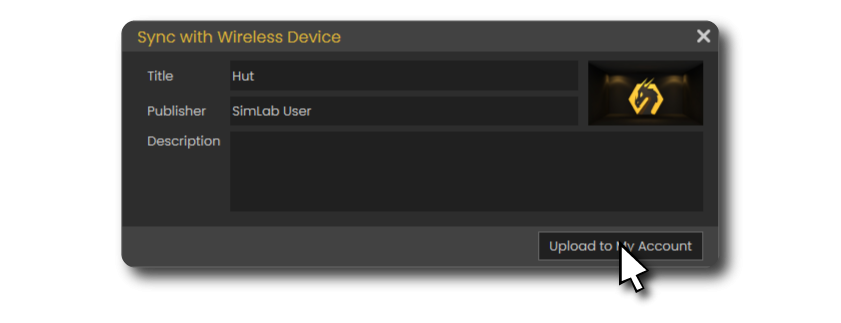
3. Fill out the information then click on **Upload to My Account.**[![upload.png](https://simlab-soft.com/help/uploads/images/gallery/2022-02/scaled-1680-/upload.png)](https://simlab-soft.com/help/uploads/images/gallery/2022-02/upload.png)
    
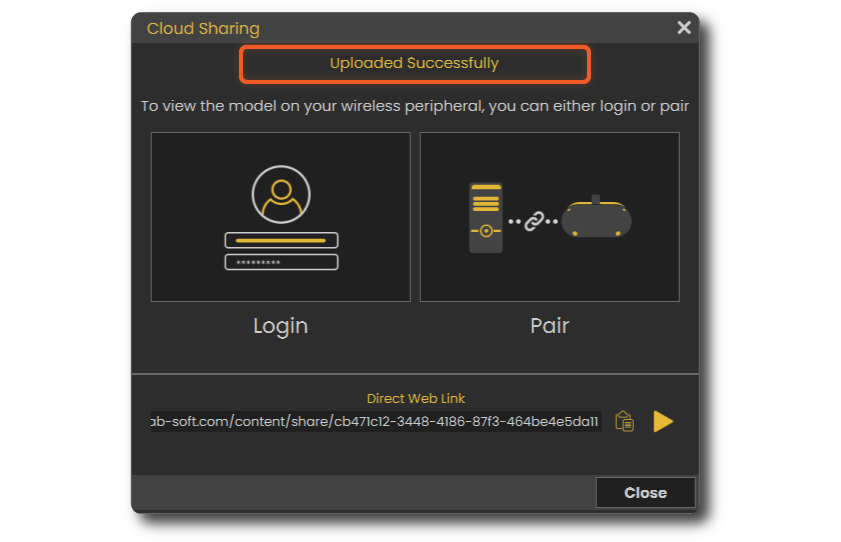
    It will take few moments then it should say that its **Uploaded Successfully.**
    
    [![upload copy.png](https://simlab-soft.com/help/uploads/images/gallery/2022-02/scaled-1680-/upload-copy.png)](https://simlab-soft.com/help/uploads/images/gallery/2022-02/upload-copy.png)
### Advanced VR Creation

If you want to create interactive VR Experiences with better environments, visual effects, use different 3D file types, create training sessions, quizzes and more. You can use SimLab VR Studio,[ **<span style="color: #3366ff;">Learn more</span>**.](https://simlab-soft.com/help/link/112#bkmrk-page-title)

#### You can learn how to enhance the quality by enabling shadows on the Pico VR[ <span style="color: #3366ff;">**here**</span>.](https://simlab-soft.com/help/link/119#bkmrk-page-title)