# Introduction
[](https://simlab-soft.com/help/uploads/images/gallery/2022-02/questall.png)
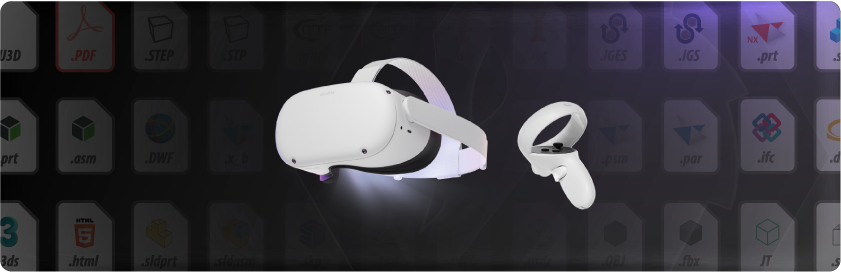
In this book we are going to learn all the techniques for sharing 3D/CAD models to Oculus Quest and creating interactive VR Experiences for it.
There are several ways to create and share your own VR Experiences for the Oculus Quest:
---
#### [](https://simlab-soft.com/help/uploads/images/gallery/2022-02/artboard-7-copy-4.png)Transfer any **3D/CAD model** to Oculus Quest
This method is fast, reliable, and super easy for sharing models from different file formats to Oculus Quest, We will use SimLab VR Studio to read any 3D/CAD model and in few clicks it can be viewed on Oculus Quest.
[**Start Now**](https://simlab-soft.com/help/link/103#bkmrk-page-title)
---
#### [](https://simlab-soft.com/help/uploads/images/gallery/2022-02/artboard-7-copy.png)Create **interactive VR Experiences** for Oculus Quest
Create all types of 3D VR Experiences without any coding. create VR visualization, interactive VR Experiences, VR training series and much more...
[**Start Now**](https://simlab-soft.com/help/link/104#bkmrk-page-title)
---
#### [](https://simlab-soft.com/help/uploads/images/gallery/2022-02/artboard-7-copy-2.png)Share models directly from **SketchUp** into Oculus Quest
One click to share any SketchUp scene into the Oculus Quest directly.
[**Start Now**](https://simlab-soft.com/help/link/108#bkmrk-page-title)
---
#### [](https://simlab-soft.com/help/uploads/images/gallery/2022-02/artboard-7-copy-3.png)Share models directly from **Rhino** into Oculus Quest
One click to share any Rhino scene into the Oculus Quest directly.
[**Start Now**](https://simlab-soft.com/help/link/110#bkmrk-page-title)
---
#### [](https://simlab-soft.com/help/uploads/images/gallery/2022-02/artboard-9-copy.png)Share Your VR Experiences **with others**
You can use [SimLab VR Viewer](https://www.simlab-soft.com/technologies/simlab-showroom.aspx) to share your scenes with your colleagues, clients, and others
[**Start Now**](https://simlab-soft.com/help/link/116#bkmrk-page-title)
---
#### **[](https://simlab-soft.com/help/uploads/images/gallery/2022-02/artboard-9-copy-2.png)Enhance** the Quality of Your VR Experiences
Different settings and features are available to enhance the quality and the performance of your VR Experiences.
[**Start Now**](https://simlab-soft.com/help/link/118#bkmrk-page-title)
---