# Responses
# AI Agent
### [ ](https://simlab-soft.com/help/uploads/images/gallery/2026-03/5Y3response-aiagent-reset.png)AI Agent Reset Chat History
[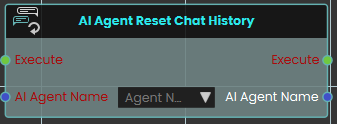](https://simlab-soft.com/help/uploads/images/gallery/2026-03/FTTimage.png)The **AI Agent Reset Chat History** node enables the system to clear and reset the ongoing conversation history for a specific AI Agent. It is typically used when you want the AI to start a completely fresh interaction or switch to a new scenario without being influenced by the context of any prior messages.
###  AI Agent Send Message
[](https://simlab-soft.com/help/uploads/images/gallery/2026-03/jCDimage.png)
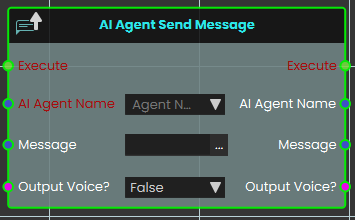
The **AI Agent Send Message** node enables the system to send a specific text message to an assigned AI Agent for processing. The **Output Voice?** boolean parameter that dictates how the AI agent will deliver its response:
- **False:** The AI agent will respond with text.
- **True:** The AI agent will process the text message and respond with generated voice audio.
###  AI Agent Send Voice Message
Has one of your scene’s AI agents deliver a pre-recorded voice file to a user.
#### What it does
This node tells the AI agent you name to play a voice file for a user. You choose which agent speaks, who hears it, and which sound file to use. It’s a handy way to have an agent greet someone, give an instruction, or read out a scripted message without typing live text.
The node only sends the message — it doesn’t change the agent, the user, or the voice file in any way. Every value you feed in is also handed straight back out, so you can pass the same agent, user, or file along to the next node in your sequence.
#### Inputs
Port
Type
What to connect
**Execute**
Trigger
Wire this from the previous node’s Execute output.
**AI Agent Name**
Text
The name of the AI agent that should speak. Pick one of the agents set up in your scene.
**User**
User
The person who should hear the message. Leave it on **Host Only** to send it just to the host, or connect a user to target someone specific.
**Voice File**
Text
The name of the voice file the agent should play.
**Output Voice?**
True / false
Set to `true` to have the message played aloud as voice, or `false` to send it without sound. Defaults to `true`.
#### Outputs
Port
Type
What you get
**Execute**
Trigger
Fires once the node has finished.
**AI Agent Name**
Text
The same agent name you connected, passed along so you can reuse it.
**User**
User
The same user you connected, passed along unchanged.
**Voice File**
Text
The same voice file name you connected, passed along unchanged.
**Output Voice?**
True / false
The same true/false setting you connected, passed along unchanged.
#### Example
**AI Agent Name** input
`Guide`
**User** input
Host Only
**Voice File** input
`welcome_message.wav`
**Output Voice?** input
`true`
**Voice File** output
`welcome_message.wav`
### [](https://simlab-soft.com/help/uploads/images/gallery/2024-08/response-value-number-add.png) AI Agent Start Listen
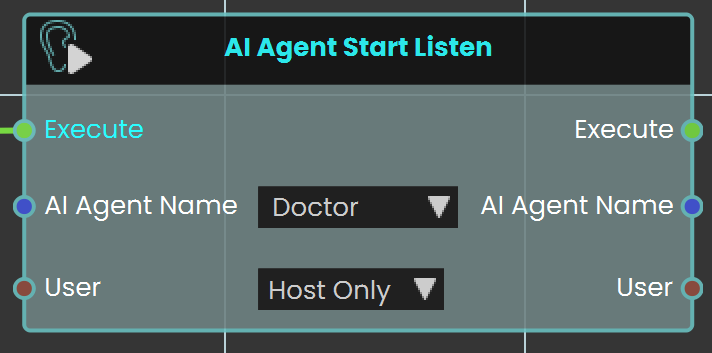
The **AI Agent Start Listen node** is used to make the AI start listening to the user. When activated, this node enables the AI to process and listen to spoken input from the user, allowing for interactive conversations and commands within the VR environment.
#### Example
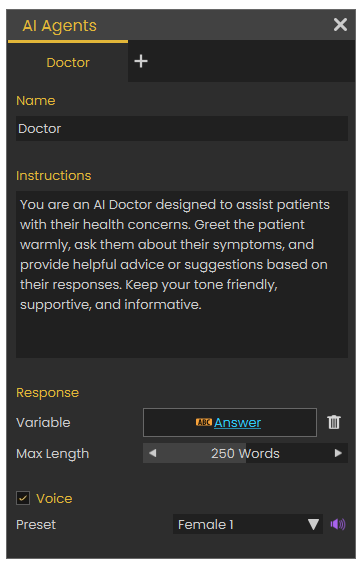
In this example, an AI Doctor is set up in the AI Agents window. This window can be accessed by clicking the Interaction icon in the viewport menu, then select the AI Agents, and then add the AI name with the desired instructions in the Instructions field. A variable is created to store the AI's responses.
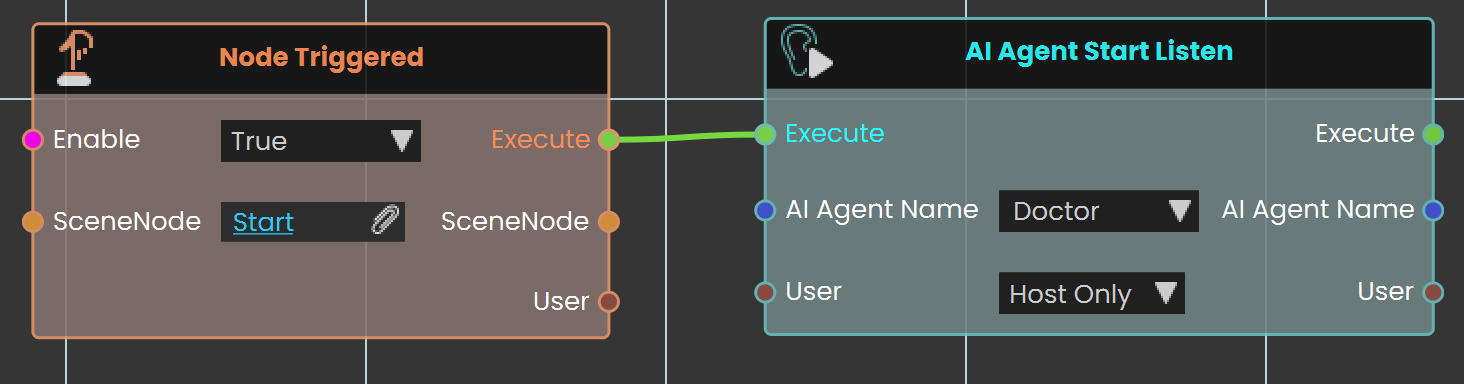
The **AI Agent Start Listen node** is used to make the AI Agent named Doctor start listening to the user when the object named "Start" is triggered. This setup enables the AI to process and listen to user input as soon as the trigger event is activated.
---
### [](https://simlab-soft.com/help/uploads/images/gallery/2024-08/response-value-number-add.png) AI Agent Stop Listen
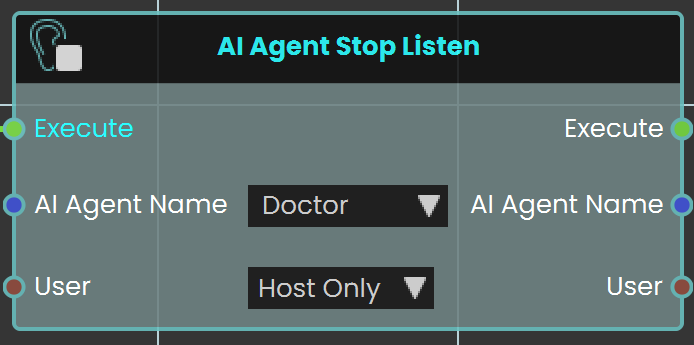
The **AI Agent Stop Listen node** is used to make the AI stop listening to the user. When activated, this node halts the AI’s ability to process further user input, allowing the AI to respond based on the information gathered up to that point.
#### Example

In this example, an AI Doctor is set up in AI Agents window. This window can be accessed by clicking the Interaction icon in the viewport menu, then select the AI Agents, and then add the AI name with the desired instructions in the Instructions field. A variable is created to store the AI's responses.
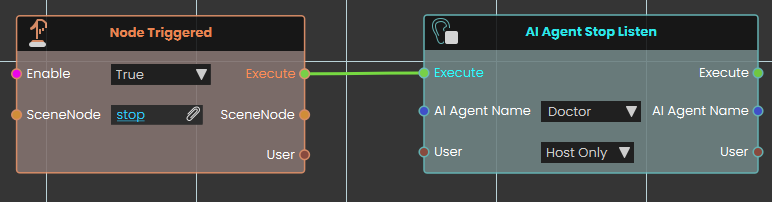
The **AI Agent Stop Listen node** is used to stop the AI Agent from listening to the user when the "Stop" trigger event occurs. This allows the AI agent named Doctor to respond based on the input received before listening was stopped.
### [](https://simlab-soft.com/help/uploads/images/gallery/2024-08/response-value-number-add.png) AI Agent Stop Listen (Text)
[](https://simlab-soft.com/help/uploads/images/gallery/2026-03/Gldimage.png)
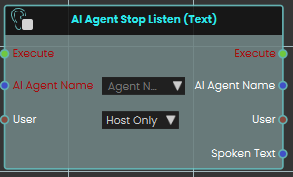
The **AI Agent Stop Listen (Text) node** is used to make the AI stop listening to the user. When activated, this node halts the AI’s ability to process further user input, allowing the AI to respond based on the information gathered up to that point.
This node has an extra output "Spoken Text", when the node is activated, it outputs the input audio in text format.
---
### [](https://simlab-soft.com/help/uploads/images/gallery/2024-08/response-value-number-add.png) Has Valid AI Key
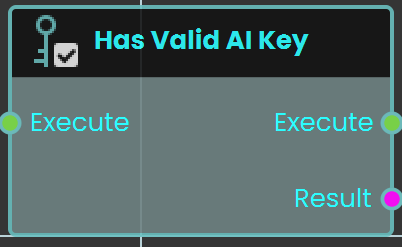
The **Has Valid AI Key** node checks whether a valid AI key is available for AI-related features in Sim Lab Composer. This node ensures that AI functionalities can operate properly by verifying the presence of an active and valid AI key.
#### Example
[](https://simlab-soft.com/help/uploads/images/gallery/2025-02/lXbimage.png)
In this example, the **Has Valid AI Key** node is used at the start of the scene to check if the user has an activated AI key. The node is connected to a **Branch** node, where the **False** output (indicating no valid AI key) triggers a message in front of the user, informing them that the AI key must be activated.
---
###  Set AI Key
Gives your experience an AI key, so its AI agents can answer without each user having to enter a key of their own.
#### What it does
Choose a key in the **AI Key** field. The list shows the AI keys saved on your SimLab account, by name and provider. To add one, pick **New key** at the end of the list, or create it on your [SimLab account page](https://www.simlab-soft.com/hub/account) under **API Keys** → **AI**. The experience keeps only a reference to the key, not the key itself.
When the node runs, it fetches the key from SimLab, checks it with the AI provider, and makes it available to every AI agent that uses that provider. The person running the experience must be **signed in** to SimLab — with any account, not necessarily yours. **Success** tells you whether it worked. It is `false` when the field is empty, when the key can’t be fetched (nobody is signed in, or the key was removed, switched off or has expired), or when the provider rejects the key. In a multi-user session, the key is fetched and used only by the host, who talks to the AI for everyone; the other participants never receive the key itself.
If an AI agent has no key for its provider — this node wasn’t run, or its key didn’t work — the agent falls back to the OpenAI key the person running the experience entered in the Viewer’s settings, if they have one.
#### Inputs
Port
Type
What to connect
**Execute**
Trigger
Wire this from the previous node’s Execute output.
**AI Key**
Text
The key to use. Pick one of your saved AI keys from the list, or create one with **New key**. The saved key already knows its provider.
#### Outputs
Port
Type
What you get
**Execute**
Trigger
Fires once the key has been fetched and checked with the AI provider, usually a moment after the node starts. It fires whether or not the key worked, so check **Success**.
**Success**
True / false
`true` if the key is ready for your AI agents. `false` if the field was empty, the key couldn’t be fetched, or the provider rejected the key. For the other participants in a multi-user session, it tells you whether the host could fetch the key.
#### Example
**Execute** input
Wired from the **Scene Start** event
**AI Key** input
The saved key “Patient Sim – OpenRouter”, picked from the list
**Success** output
`true`
#### Tips
- **Don’t keep a pasted key.** If you paste a provider key straight into the field, Composer offers to store it on SimLab for you — accept. If you decline, the key itself travels inside the experience file, and the node shows a warning.
- **Gemini, OpenRouter and other providers.** Create the key as an OpenAI key with **Custom endpoint** set to the provider’s address, then give the agent the matching **Provider** in **Set AI Agent Model**. The addresses are listed under *Using AI Providers and API Keys in SimLab Composer* on this page.
- **Set the key once, at the start.** Run this node from **Scene Start**, then use **Success** (or the **Has Valid AI Key** node) to tell the user when AI features aren’t available.
- **Older experiences** may contain the previous version of this node, which had a separate **Provider** input and took the key itself. It keeps working; new graphs should use this one.
###  **Set AI Agent Model**
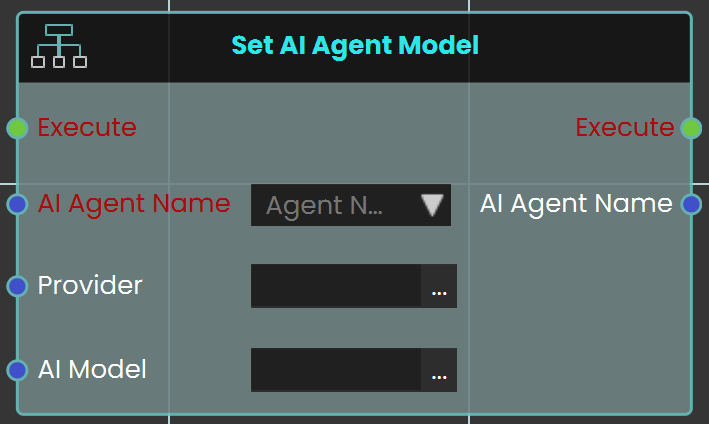
The **Set AI Agent Model** node is used to assign a specific AI provider and model to an AI agent in your VR experience. This ensures the AI agent will operate using the selected provider and model for any interactions that occur in the scene. You can choose the AI agent you have created, specify the provider (OpenAI, Gemini, or OpenRouter), and define the model name.
#### Example
[](https://simlab-soft.com/help/uploads/images/gallery/2025-07/XCzimage.png)
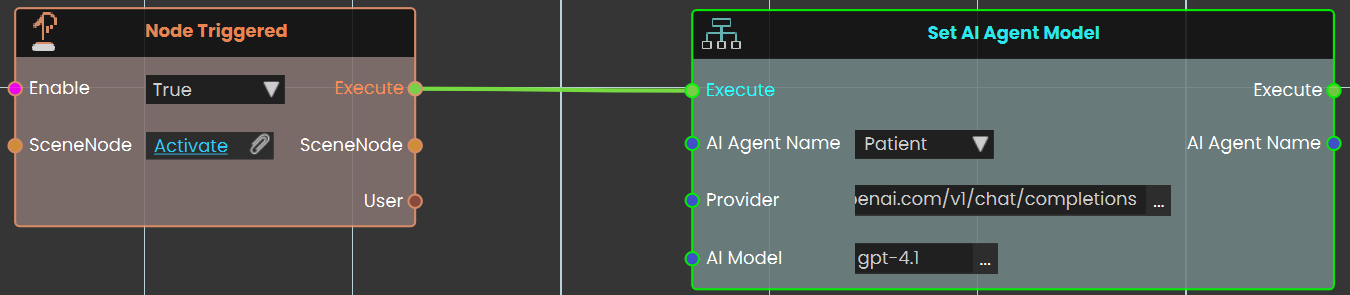
In this example, the **Set AI Agent Model** node is triggered by pressing a button in the VR scene. When the button is clicked, the node assigns the “Patient” AI agent to the OpenAI provider and sets the model to GPT‑4. This setup allows the AI agent to function with the defined provider and model as soon as the event is triggered.
Check this **[tutorial](http://youtube.com/watch?v=qzqNtXBTGY4)** for more about this node.
---
### Using AI Providers and API Keys in SimLab Composer
The AI agents in your VR experiences can use **OpenAI**, or any provider with an OpenAI-compatible address such as **Google Gemini** and **OpenRouter**. Setting one up takes three steps:
1. **Save the key.** On your [SimLab account page](https://www.simlab-soft.com/hub/account), open **API Keys** → **AI** → **New AI key** (or pick **New key** in the Set AI Key node). Paste the key from your provider. For OpenAI, that’s all. For another provider, open **Custom endpoint** and enter its **Base URL** from the list below.
2. **Set AI Key** — pick that saved key in the node, so the experience gives it to its agents.
3. **Set AI Agent Model** — set the agent’s **Provider** to the matching **Provider URL** below, and choose a model.
**The two addresses must match exactly.** An agent uses the key whose Base URL, followed by `/chat/completions`, is its Provider URL. If they differ even slightly, the agent doesn’t get your key and falls back to the OpenAI key the person running the experience entered in the Viewer’s settings, if any.
#### Providers and models
The models below are examples. Providers add and retire models often, so check your provider for the current names.
**1. OpenAI**
- **Base URL:** leave Custom endpoint empty
- **Provider URL:** `https://api.openai.com/v1/chat/completions`
- **Models:** `gpt-4.1`, `gpt-4`, `gpt-3.5-turbo`
**2. Google Gemini**
- **Base URL:** `https://generativelanguage.googleapis.com/v1beta/openai`
- **Provider URL:** `https://generativelanguage.googleapis.com/v1beta/openai/chat/completions`
- **Models:** `gemini-2.0-flash`
**3. OpenRouter**
- **Base URL:** `https://openrouter.ai/api/v1`
- **Provider URL:** `https://openrouter.ai/api/v1/chat/completions`
- **Models:** `nvidia/llama-3.3-nemotron-super-49b-v1:free`
#### What each key can do
- **OpenAI keys** work with chat, text-to-speech and speech-to-text.
- **Gemini and OpenRouter keys** work with text chat only.
# New Page
# Scene
# Scene
### [](https://simlab-soft.com/help/uploads/images/gallery/2024-08/response-value-number-add.png) Capture Picture
[](https://simlab-soft.com/help/uploads/images/gallery/2024-09/N18am3image.png)
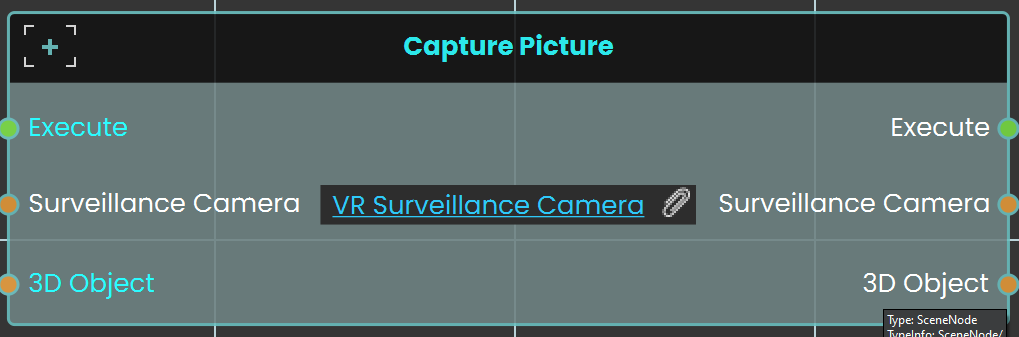
The **Capture Picture node** is used to capture an image from a camera within the scene, and the captured image can then be displayed on a 3D object within the scene. This allows the user to take snapshots and show them in the VR environment, such as displaying a captured image on a screen or other surface.
#### Example
[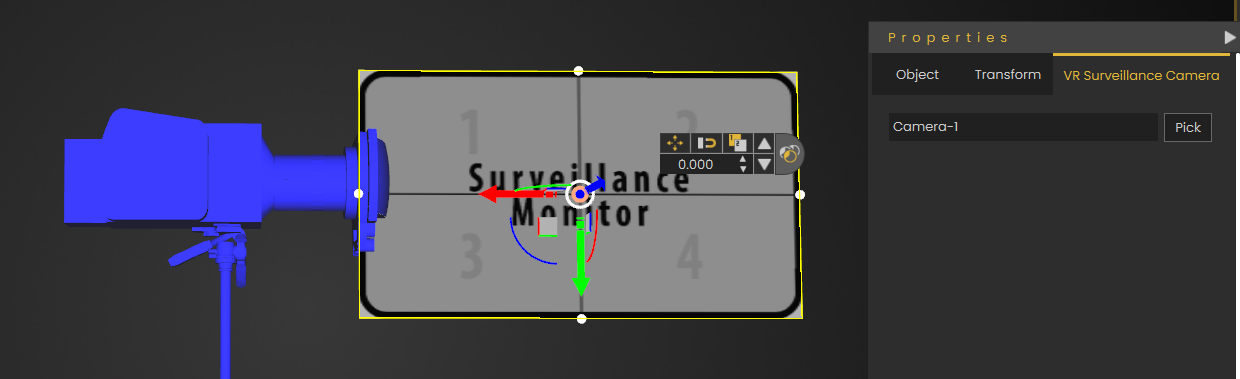](https://simlab-soft.com/help/uploads/images/gallery/2024-09/Xn9image.png)
A **Surveillance Monitor** is first created to display the captured images. This monitor is then attached to the VR camera.
[](https://simlab-soft.com/help/uploads/images/gallery/2024-08/add-example.jpg)
In this example, the **Capture Picture Node** is used to capture an image on a picture frame model when the user triggers the Activate event. Before that, the Cast SceneNode is used to identify the picture frame as a 3D object, as the Capture Picture Node only works with 3D objects.
# New Page
# User \ Controller
# User \\ Transform
### [](https://simlab-soft.com/help/uploads/images/gallery/2024-08/response-value-number-add.png) Teleport To Camera
[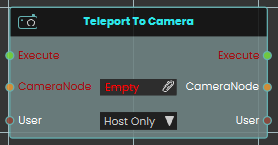](https://simlab-soft.com/help/uploads/images/gallery/2024-08/add-node.jpg)
The **Teleport To Camera** node enables the user to teleport to a new location by assigning a camera in the **CameraNode** field. Once the teleportation is executed, the user is moved to the position and orientation defined by the specified camera.
#### Example
[](https://simlab-soft.com/help/uploads/images/gallery/2024-08/A1Fimage.png)
In this example, a **Teleport To Camera** response is used to move the user to a new location once the object named Activate is triggered. When triggered, the sound named Teleport\_Sound will play, and the user will be teleported to the location of the camera assigned in the Teleport To Camera node.
# Data Types\Number\Operations
---
#### [](https://simlab-soft.com/help/uploads/images/gallery/2024-08/response-value-number-add.png) Add
[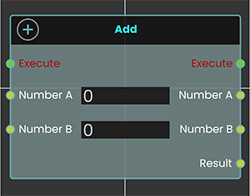](https://simlab-soft.com/help/uploads/images/gallery/2024-08/add-node.jpg)
The **Add** response enables user to add two values by either typing in a numerical value in Number A and Number B field or by attaching a value or a variable node to those ports, then once the response is executed the resulting value can be acquired through the **Result** port.
#### Example
[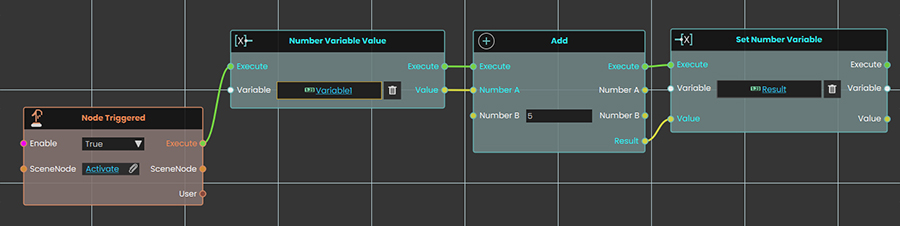](https://simlab-soft.com/help/uploads/images/gallery/2024-08/add-example.jpg)
In this Example an **Add Response** is used to add the values of 5 to the value of Variable1 once the user triggers the object named Activate, and the result of the addition is then written in a variable named Result, which can then be connected to a variable writer to be displayed during the VR Experience.
---
### [](https://simlab-soft.com/help/uploads/images/gallery/2024-08/response-value-number-add.png) Ceiling
[](https://simlab-soft.com/help/uploads/images/gallery/2024-08/add-node.jpg)
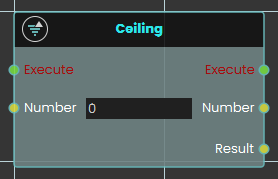
The **Ceiling** response enables the user to round up a value by either typing in a numerical value in the Number A field or by attaching a value or a variable node to that port. Then once the response is executed, the smallest integral value greater than or equal to the input value can be acquired through the **Result** port.
#### Example
[](https://simlab-soft.com/help/uploads/images/gallery/2025-09/vFhimage.png)
In this example, a **Ceiling Response** is used to round up the value of Variable1 to the smallest integral value greater than or equal to it once the user triggers the object named Activate. The result of the ceiling operation is then written in a variable named Result, which can then be connected to a variable writer to be displayed during the VR Experience.
---
### [](https://simlab-soft.com/help/uploads/images/gallery/2024-08/response-value-number-add.png) Divide
[](https://simlab-soft.com/help/uploads/images/gallery/2024-08/add-node.jpg)
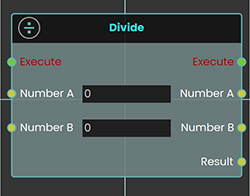
The **Divide** response enables user to divide a value by another value, by either typing in a numerical value in Number A and Number B field or by attaching a value or a variable node to those ports, then once the response is executed the resulting value can be acquired through the **Result** port.
#### Example
[](https://simlab-soft.com/help/uploads/images/gallery/2024-08/add-example.jpg)
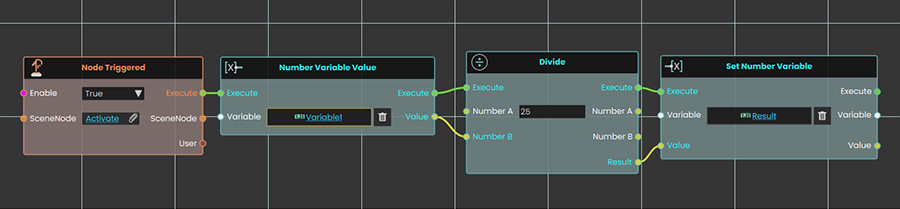
In this Example a **Divide Response** is used to divide the number 25 by the value of the variable named "Variable1" and the result of the division is then written in a variable named Result, which can then be connected to a variable writer to be displayed during the VR Experience.
---
### [](https://simlab-soft.com/help/uploads/images/gallery/2024-08/response-value-number-add.png) Floor
[](https://simlab-soft.com/help/uploads/images/gallery/2024-08/add-node.jpg)
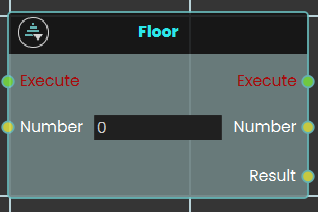
The **Floor** response enables the user to round down a value by either typing in a numerical value in the Number A field or by attaching a value or a variable node to that port. Then once the response is executed, the largest integral value less than or equal to the input value can be acquired through the **Result** port.
#### Example
[](https://simlab-soft.com/help/uploads/images/gallery/2024-08/VmLimage.png)
In this example, a **Floor Response** is used to round down the value of Variable1 to the largest integral value less than or equal to it once the user triggers the object named Activate. The result of the floor operation is then written in a variable named Result, which can then be connected to a variable writer to be displayed during the VR Experience.
---
[](https://simlab-soft.com/help/uploads/images/gallery/2024-08/response-value-number-add.png) Modulo
[](https://simlab-soft.com/help/uploads/images/gallery/2024-08/add-node.jpg)
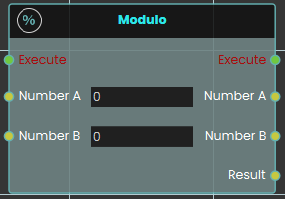
The **Modulo** response enables the user to find the remainder of a division by either typing in numerical values in the Number A and Number B fields or by attaching values or variable nodes to those ports. Then once the response is executed, the modulus of the input value with respect to the divisor can be acquired through the **Result** port.
#### Example
[](https://simlab-soft.com/help/uploads/images/gallery/2024-08/sptimage.png)
In this example, a **Modulo Response** is used to calculate the remainder when the value of the variable named Variable1 is divided by the value of Variable2, once the user triggers the object named Activate. The result of the modulo operation is then written in a variable named Result, which can then be connected to a variable writer to be displayed during the VR Experience.
---
### [](https://simlab-soft.com/help/uploads/images/gallery/2024-08/response-value-number-add.png) Multiply
[](https://simlab-soft.com/help/uploads/images/gallery/2024-08/add-node.jpg)
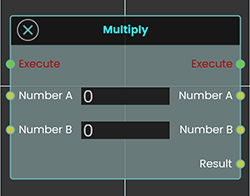
The **Multiply** response enables user to multiply two values by either typing in a numerical value in Number A and Number B field or by attaching a value or a variable node to those ports, then once the response is executed the resulting value can be acquired through the **Result** port.
#### Example
[](https://simlab-soft.com/help/uploads/images/gallery/2024-08/add-example.jpg)
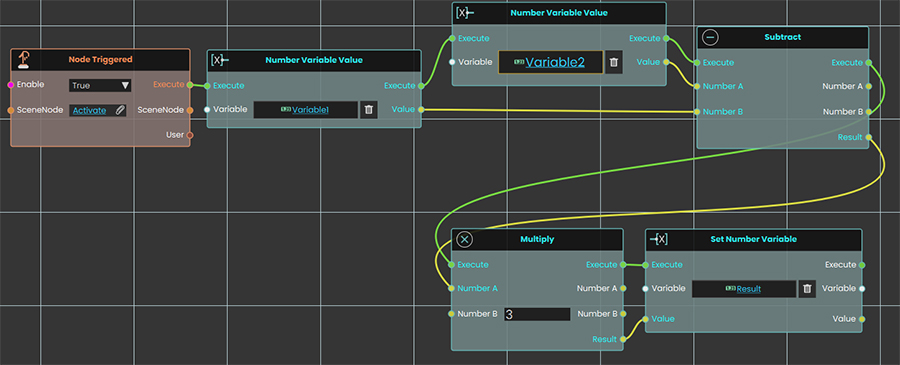
In this Example a **Subtract Response** is used to subtract the value of Variable1 from the value of the Variable2, then a **Multiply Response** is used to multiply the subtraction result by 3 once the user triggers the object named Activate, and the result of the multiplication is then written in a variable named Result, which can then be connected to a variable writer to be displayed during the VR Experience.
---
### [](https://simlab-soft.com/help/uploads/images/gallery/2024-08/response-value-number-add.png) Square Root
[](https://simlab-soft.com/help/uploads/images/gallery/2024-08/add-node.jpg)
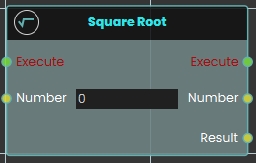
The **Square Root** response enables the user to calculate the square root of a value by either typing in a numerical value in the Number field or by attaching a value or a variable node to that port. Then once the response is executed, the square root of the input value can be acquired through the **Result** port.
#### Example
[](https://simlab-soft.com/help/uploads/images/gallery/2024-08/hUtimage.png)
In this example, a **Square Root** response is used to calculate the square root of the value of Variable1 once the user triggers the object named Activate. The result of the square root operation is then written in a variable named Result, which can then be connected to a variable writer to be displayed during the VR Experience.
---
### [](https://simlab-soft.com/help/uploads/images/gallery/2024-08/response-value-number-add.png) Subtract
[](https://simlab-soft.com/help/uploads/images/gallery/2024-08/add-node.jpg)
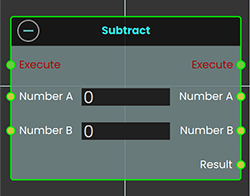
The **Subtract** response enables user to subtract a value from another by either typing in a numerical value in Number A and Number B field or by attaching a value or a variable node to those ports, then once the response is executed the resulting value can be acquired through the **Result** port.
#### Example
[](https://simlab-soft.com/help/uploads/images/gallery/2024-08/add-example.jpg)
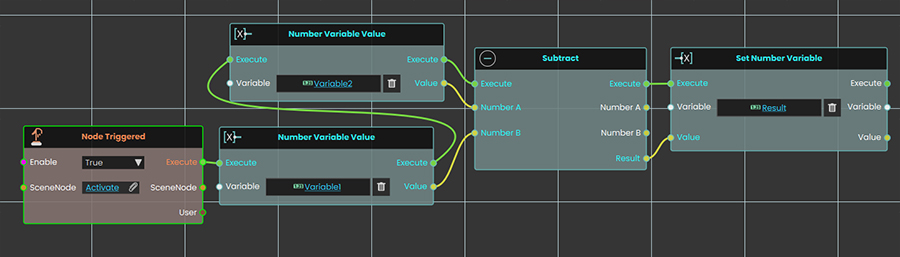
In this Example a **Subtract Response** is used to subtract the value of Variable1 from the value of the variable named Variable2, once the user triggers the object named Activate, and the result of the subtraction is then written in a variable named Result, which can then be connected to a variable writer to be displayed during the VR Experience.
---
# Data Types\Number\ Variable
---
## [](https://simlab-soft.com/help/uploads/images/gallery/2024-08/response-value-number-add.png) Set
Has two options:
### [](https://simlab-soft.com/help/uploads/images/gallery/2024-08/response-value-number-add.png)Set Number Variable By Expression[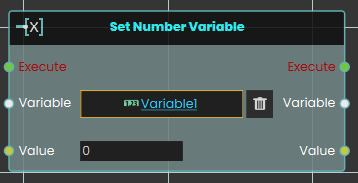](https://simlab-soft.com/help/uploads/images/gallery/2024-08/add-node.jpg)
The **Set number variable** response enables user to set a value by either typing in a numerical value in the value field or by attaching a value or a variable node to that port. Then once the response is executed, the variable value can be acquired through the **Value** port.
#### Example
[](https://simlab-soft.com/help/uploads/images/gallery/2024-08/Bdhimage.png)
In this example, a **Set number variable** is used to assign the value of Variable1 once the user triggers the object named Activate, and the new value is then written in a variable named Result, which can then be connected to a variable writer to be displayed during the VR Experience.
### [](https://simlab-soft.com/help/uploads/images/gallery/2024-08/response-value-number-add.png)Set Number Variable By Expression
[](https://simlab-soft.com/help/uploads/images/gallery/2024-08/add-node.jpg)
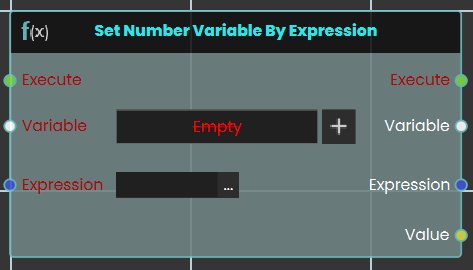
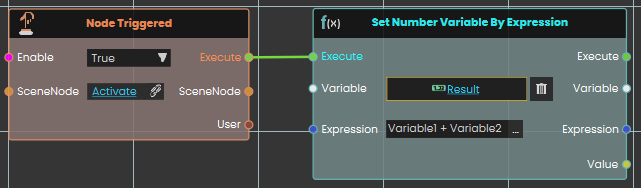
The **Set number variable by expression** response enables user to set a value by either typing in an expression in the expression field or by attaching a value or a variable node to that port. Then once the response is executed, the variable value can be acquired through the **Value** port.
#### Example
[](https://simlab-soft.com/help/uploads/images/gallery/2024-08/Bdhimage.png)
In this example, a **Set Number Variable By Expression** is used to set the result of the sum of Variable1 and Variable2 once the user triggers the object named Activate. The new value is then written in the Result variable, which can be connected to a variable writer to be displayed during the VR Experience.
---
### [](https://simlab-soft.com/help/uploads/images/gallery/2024-08/response-value-number-add.png) Decrement Number Variable
[](https://simlab-soft.com/help/uploads/images/gallery/2024-08/add-node.jpg)
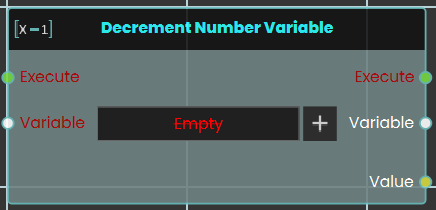
The **Decrement Number Variable** response enables the user to decrease a variable's value by 1 each time the event connected to it is triggered. Once the response is executed, the updated value can be acquired through the **Value** port.
#### Example
[](https://simlab-soft.com/help/uploads/images/gallery/2024-08/hUtimage.png)
In this example, a **Decrement Number Variable** response is used to decrease the value of Variable1 by 1 once the user triggers the object named Activate. The result of the decrease number variable operation is then written in a variable named Result, which can then be connected to a variable writer to be displayed during the VR Experience.
---
[](https://simlab-soft.com/help/uploads/images/gallery/2024-08/response-value-number-add.png) Increment Number Variable
[](https://simlab-soft.com/help/uploads/images/gallery/2024-08/add-node.jpg)
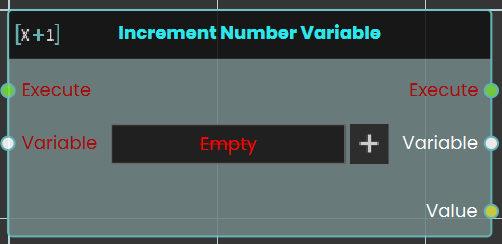
The **Increment Number Variable** response enables the user to increase a variable's value by 1 each time the event connected to it is triggered. Once the response is executed, the updated value can be acquired through the **Value** port.
#### Example
[](https://simlab-soft.com/help/uploads/images/gallery/2024-08/hUtimage.png)
In this example, a **Increment Number Variable** response is used to increase the value of Variable1 by 1 once the user triggers the object named Activate. The result of the decrease number variable operation is then written in a variable named Result, which can then be connected to a variable writer to be displayed during the VR Experience.
---
[](https://simlab-soft.com/help/uploads/images/gallery/2024-08/response-value-number-add.png) Get
[](https://simlab-soft.com/help/uploads/images/gallery/2024-08/add-node.jpg)
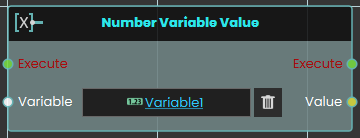
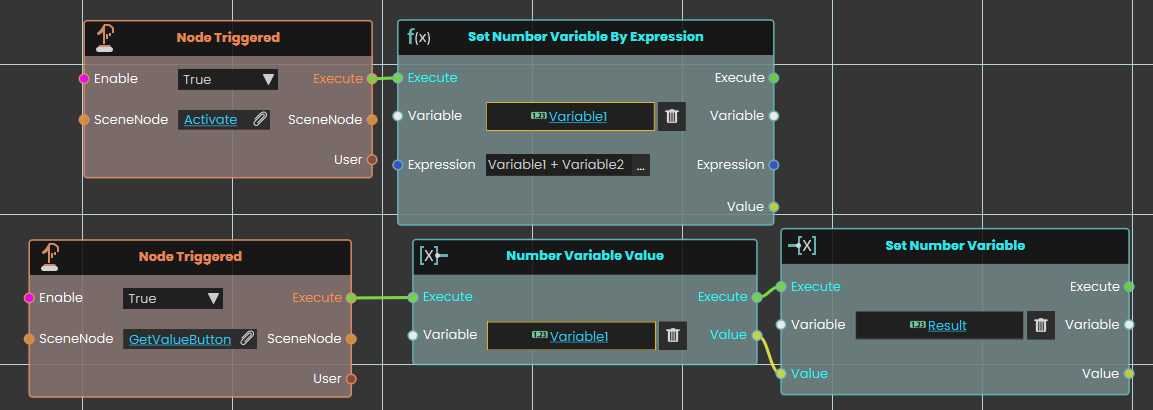
The **Number Variable Value** response enables the user to get a variable's value each time the event connected to it is triggered. Once the response is executed, the updated value can be acquired through the **Value** port.
#### Example
[](https://simlab-soft.com/help/uploads/images/gallery/2024-08/o5himage.png)
In this example, a **Number Variable Value** response is used to get the new value for Variable1 after it was changed by **Set Number Variable By Expression** once the user triggers the object named GetValueButton. The value of the number variable is then written in a variable named Result, which can then be connected to a variable writer to be displayed during the VR Experience.
---
# Data Types\Number\ Compare
### [](https://simlab-soft.com/help/uploads/images/gallery/2024-08/response-value-number-add.png) Equal (Number)
[](https://simlab-soft.com/help/uploads/images/gallery/2024-08/add-node.jpg)
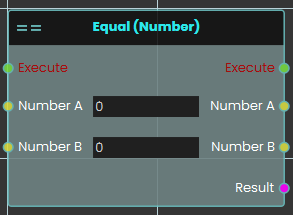
The **Equal (Number)** response enables the user to compare two values by either typing in a numerical value in the Number A and Number B fields or by attaching a value or a variable node to those ports. Then once the response is executed, the result of the comparison can be acquired through the **Result** port.
#### Example
[](https://simlab-soft.com/help/uploads/images/gallery/2024-08/S2himage.png)
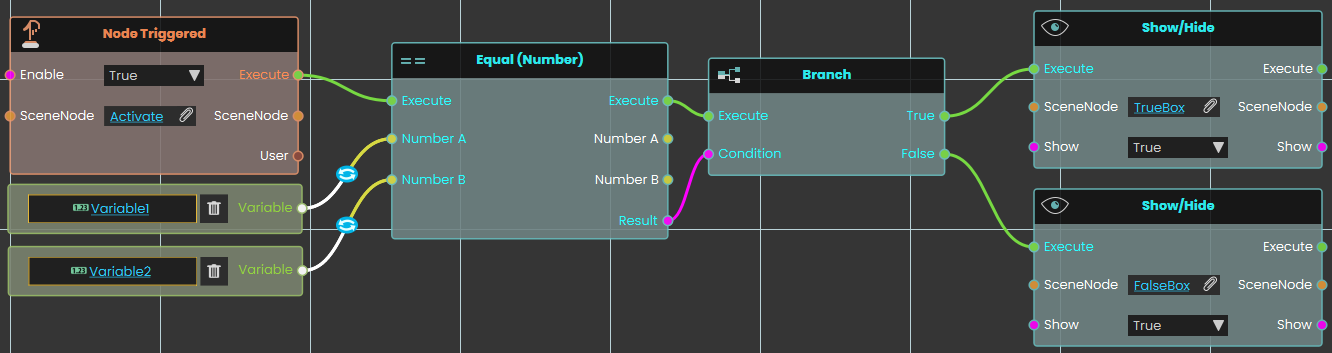
In this example, an **Equal Response** response is used to compare the value of Variable1 with the value of Variable2 once the user triggers the object named Activate. The result of the comparison can be acquired through the **Result** port. We have connected this Result port to the **Branch** node, and if the result of the branch is True, the TrueBox will show; if the result is False, the FalseBox will show.
---
### [](https://simlab-soft.com/help/uploads/images/gallery/2024-08/response-value-number-add.png) Greater (Number)
[](https://simlab-soft.com/help/uploads/images/gallery/2024-08/add-node.jpg)
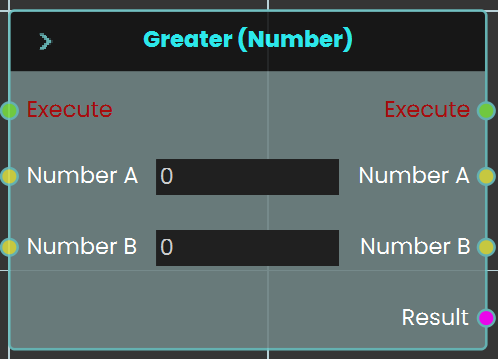
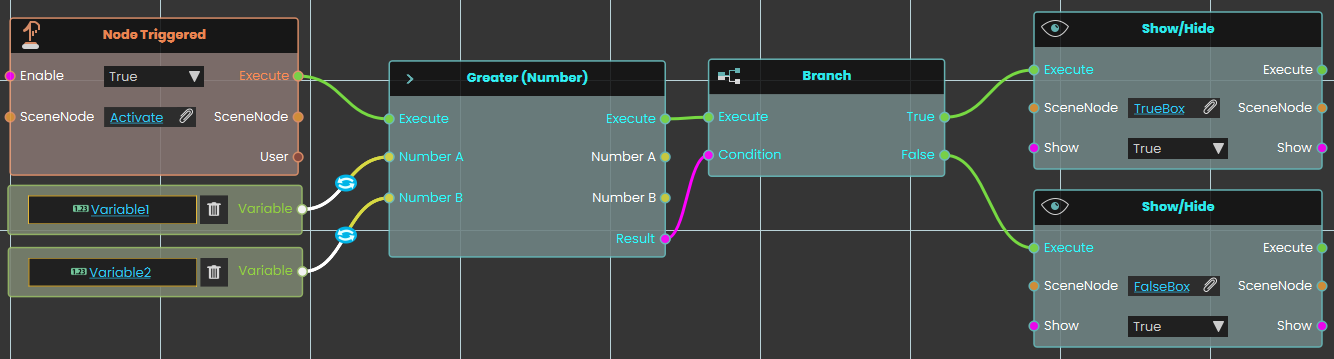
The **Greater** response enables the user to compare two values to determine if one is greater than the other by either typing in a numerical value in the Number A and Number B fields or by attaching a value or a variable node to those ports. Then once the response is executed, the result of the comparison can be acquired through the **Result** port.
#### Example
[](https://simlab-soft.com/help/uploads/images/gallery/2024-08/gMmimage.png)
In this example, a **Greater Response** is used to compare the value of Variable1 with the value of Variable2 once the user triggers the object named Activate. The result of the comparison can be acquired through the Result port. We have connected this Result port to the Branch node, and if the result of the branch is True, the TrueBox will show; if the result is False, the FalseBox will show.
---
### [](https://simlab-soft.com/help/uploads/images/gallery/2024-08/response-value-number-add.png) Greater Or Equal (Number)
[](https://simlab-soft.com/help/uploads/images/gallery/2024-08/add-node.jpg)
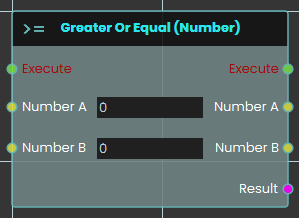
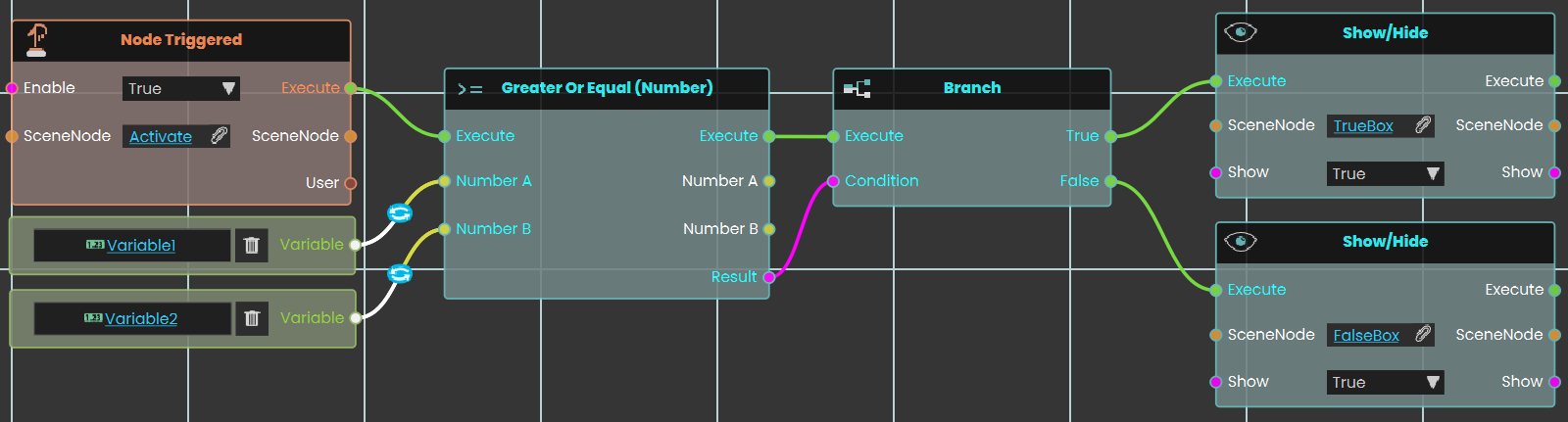
The **Greater Or Equal** response enables the user to compare two values to determine if one is greater than or equal to the other by either typing in a numerical value in the Number A and Number B fields or by attaching a value or a variable node to those ports. Then once the response is executed, the result of the comparison can be acquired through the **Result** port.
#### Example
[](https://simlab-soft.com/help/uploads/images/gallery/2024-08/dmcimage.png)
In this example, a **Greater Or Equal Response** is used to compare the value of Variable1 with the value of Variable2 once the user triggers the object named Activate. The result of the comparison can be acquired through the Result port. We have connected this Result port to the Branch node, and if the result of the branch is True, the TrueBox will show; if the result is False, the FalseBox will show.
---
### [](https://simlab-soft.com/help/uploads/images/gallery/2024-08/response-value-number-add.png) Less (Number)
[](https://simlab-soft.com/help/uploads/images/gallery/2024-08/add-node.jpg)
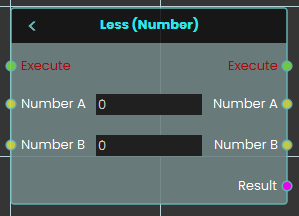
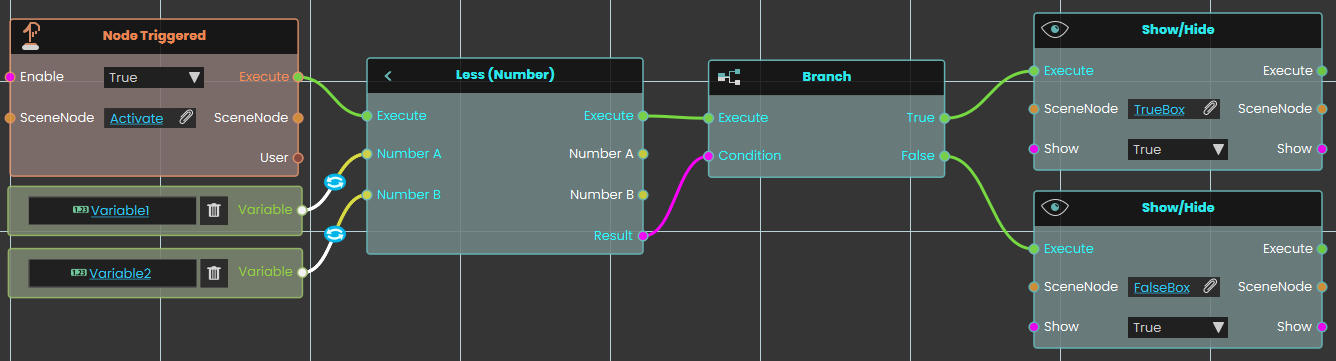
The **Less** response enables the user to compare two values to determine if one is less than the other by either typing in a numerical value in the Number A and Number B fields or by attaching a value or a variable node to those ports. Then once the response is executed, the result of the comparison can be acquired through the **Result** port.
#### Example
[](https://simlab-soft.com/help/uploads/images/gallery/2024-08/fxoimage.png)
In this example, a **Less** is used to compare the value of Variable1 with the value of Variable2 once the user triggers the object named Activate. The result of the comparison can be acquired through the Result port. We have connected this Result port to the Branch node, and if the result of the branch is True, the TrueBox will show; if the result is False, the FalseBox will show.
---
### [](https://simlab-soft.com/help/uploads/images/gallery/2024-08/response-value-number-add.png) Less Or Equal (Number)
[](https://simlab-soft.com/help/uploads/images/gallery/2024-08/add-node.jpg)
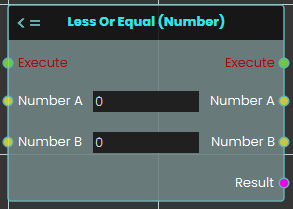
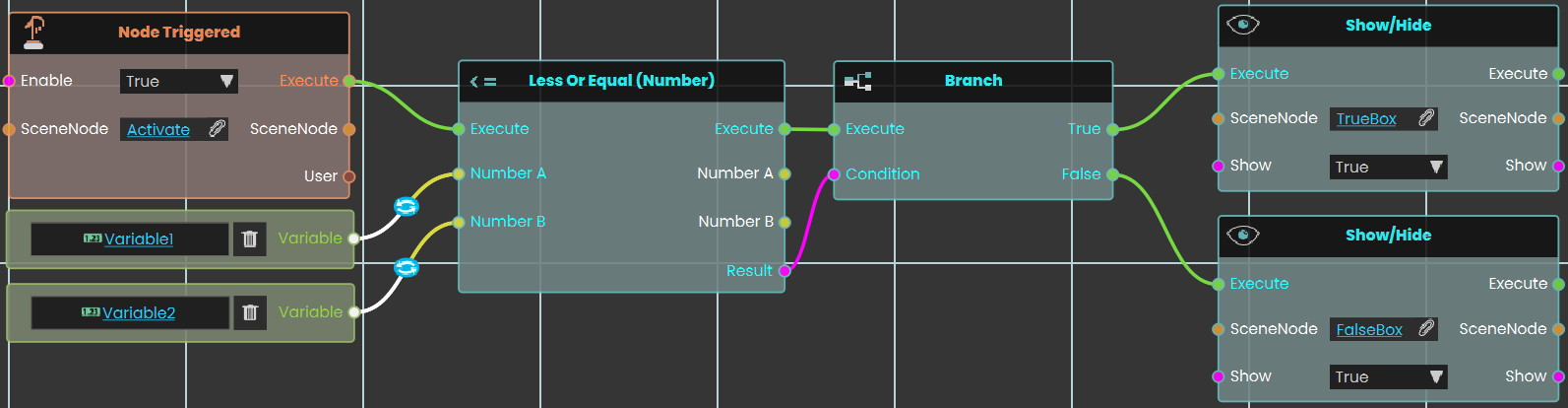
The **Less Or Equal** response enables the user to compare two values to determine if one is less than or equal to the other by either typing in a numerical value in the Number A and Number B fields or by attaching a value or a variable node to those ports. Then once the response is executed, the result of the comparison can be acquired through the **Result** port.
#### Example
[](https://simlab-soft.com/help/uploads/images/gallery/2024-08/V5nimage.png)
In this example, a **Less** is used to compare the value of Variable1 with the value of Variable2 once the user triggers the object named Activate. The result of the comparison can be acquired through the Result port. We have connected this Result port to the Branch node, and if the result of the branch is True, the TrueBox will show; if the result is False, the FalseBox will show.
---
### [](https://simlab-soft.com/help/uploads/images/gallery/2024-08/response-value-number-add.png) Not Equal (Number)
[](https://simlab-soft.com/help/uploads/images/gallery/2024-08/add-node.jpg)
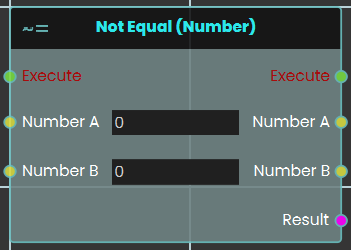
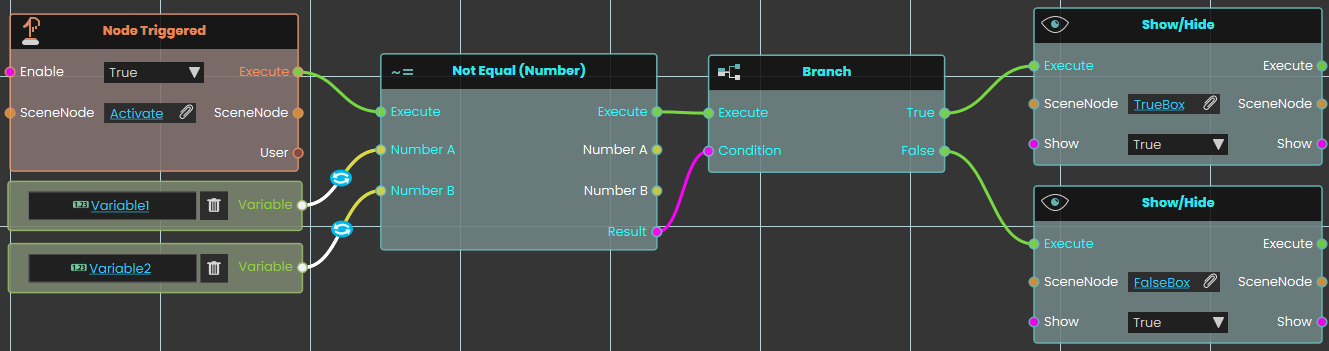
The **Not Equal** response enables the user to compare two values to determine if they are different by either typing in a numerical value in the Number A and Number B fields or by attaching a value or a variable node to those ports. Then once the response is executed, the result of the comparison can be acquired through the **Result** port.
#### Example
[](https://simlab-soft.com/help/uploads/images/gallery/2024-08/SiNimage.png)
In this example, a **Not Equal** is used to compare the value of Variable1 with the value of Variable2 once the user triggers the object named Activate. The result of the comparison can be acquired through the Result port. We have connected this Result port to the Branch node, and if the result of the branch is True, the TrueBox will show; if the result is False, the FalseBox will show.
---
# Data Types\Number\ Conversion
### [](https://simlab-soft.com/help/uploads/images/gallery/2024-08/response-value-number-add.png) Number To String
[](https://simlab-soft.com/help/uploads/images/gallery/2024-08/add-node.jpg)
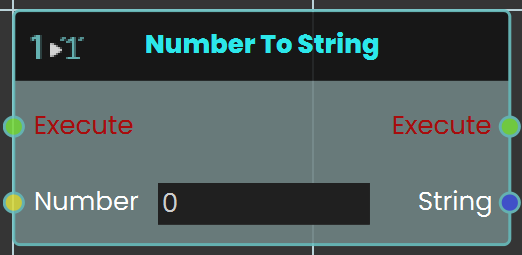
The **Number to String** node enables the user to convert a numerical value to a string by either typing in a numerical value in the Number field or by attaching a value or a variable node to that port. Then once the conversion is executed, the resulting string can be acquired through the **String** port.
---
###  String To Number
Turns a piece of text into a number you can do math with or compare.
#### What it does
This node reads the text you give it and hands back the matching number. For example, the text `“42”` comes back as the number `42`, and `“3.14”` comes back as `3.14`. Negative values like `“-7”` work too. This is handy when a value arrives as text—say from something the user typed—but you need it as a real number for calculations or comparisons.
The conversion only works when the text actually looks like a number. If you pass in something that isn’t a number, such as `“hello”`, you get no number back (an empty result). The original text is never changed—you simply get a new number value. This node is the reverse of the “Number To String” node on the same page.
#### Inputs
Port
Type
What to connect
**Execute**
Trigger
Wire this from the previous node’s Execute output.
**String**
Text
The text you want turned into a number, such as `“42”` or `“3.14”`.
#### Outputs
Port
Type
What you get
**Execute**
Trigger
Fires once the node has finished.
**Number**
Number
The number that matches the text. If the text isn’t a number, you get an empty result.
#### Example
**String** input
`“3.14”`
**Number** output
`3.14`
#### Tips
- Make sure the text really is a number. Extra characters like spaces or a currency sign can leave you with an empty result.
- If a value reaches you as text but you need to add, subtract, or compare it, run it through this node first.
# Data Types\Number\ Expression
This node can evaluate an expression, then[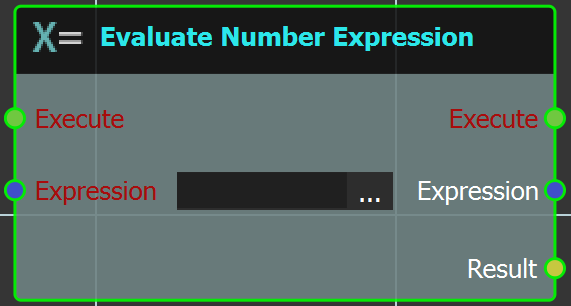](https://simlab-soft.com/help/uploads/images/gallery/2025-09/hulkomeeqn57image.png)
the result of this evaluation can be used to activate other responses.
####
#### Example
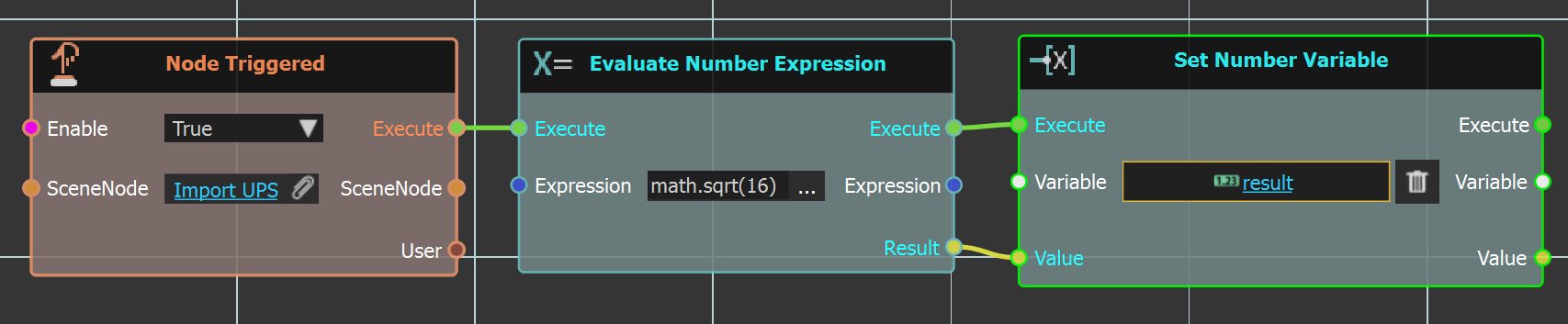
In the example below when the "**Import\_UPS**" geometry is clicked "**Evaluate Number Expression**" is executed. The expression is simple math.sqrt(16), and the result is linked to the "**Set Number Variable**" node, in "**result**" variable. This variable is then linked to a "Variable Writer" to display it.
[](https://simlab-soft.com/help/uploads/images/gallery/2025-09/7ynimage.png)
# Data Types \ Json \ JsonObject
A JSON object is a collection of named fields — for example `{"name": "Sam", "age": 42}`. Each field has a name (sometimes called a *key*) and a value. The nodes on this page let you build objects, set or read fields by name, inspect them, and turn them into plain text you can store, send, or print.
## What's on this page
- **Create** — start a brand-new object, either empty or from a piece of text.
- **Set a field** — add or change a named field on an object (one node per value type).
- **Read a field** — pull the value of a named field back out (one node per value type).
- **Inspect** — list every field's name, or find out what kind of value a field holds.
- **Convert** — turn the whole object into a single piece of text.
**About fields:** field names are case-sensitive — `"Name"` and `"name"` are different. Setting a value on a field that already exists replaces the old value; setting one with a new name adds the field.
---
## Create
###  Create Json Object
Makes a fresh, empty JSON object. Use this as the starting point when you want to build a record from scratch.
#### What it does
This node produces a brand-new JSON object with nothing in it: `{}`. From there you'd typically wire it into one or more **Set Json Object Field** nodes to fill it with named fields.
#### Inputs
Port
Type
What to connect
**Execute**
Trigger
Wire this from the previous node's **Execute** output. The node only runs when triggered.
#### Outputs
Port
Type
What you get
**Execute**
Trigger
Fires after this node finishes. Wire it into whatever should run next.
**JsonObject**
JSON object
A new, empty object `{}`.
#### Tips
- **Chain it.** Wire this node's **JsonObject** output into the **JsonObject** input of a **Set Json Object Field** node to add the first field.
- **Or start from text.** If you already have your data as a string like `{"name": "Sam"}`, use **Create Json Object From String** instead.
###  Create Json Object From String
Reads a piece of text written in JSON object form and turns it into a real JSON object you can work with.
#### What it does
Useful when the data arrived as text — for example from a file you read, a message someone sent, or a value pasted into a configuration. The node parses the text and gives you back a proper JSON object that the other JSON nodes can use.
#### Inputs
Port
Type
What to connect
**Execute**
Trigger
Wire this from the previous node's **Execute** output.
**String**
Text
The text to parse. It must look like a JSON object — that is, start with `{` and end with `}`, with comma-separated `"name": value` pairs.
#### Outputs
Port
Type
What you get
**Execute**
Trigger
Fires after this node finishes.
**String**
Text
The same text you passed in (in case the next node needs it as well).
**JsonObject**
JSON object
The parsed object.
#### Example
**String** input
`{"name": "Sam", "age": 42}`
**JsonObject** output
`{"name": "Sam", "age": 42}` — now a real JSON object
#### Tips
- **Match the format.** If the text is malformed (a missing brace, unquoted field name, extra comma, etc.) the node won't be able to parse it.
- **Reverse direction.** To go the other way and turn an object *into* text, see **Json Object To String** further down this page.
---
## Set a field
These seven nodes all do the same thing — set a named field on a JSON object — but each one accepts a different kind of value. Pick the one that matches what you're storing.
If the field already exists on the object, its value is replaced. If it doesn't exist, the field is added. The original object isn't modified; what comes out is a new object with the change applied.
### Set Json Object Field (String)
Sets a text field on a JSON object.
#### What it does
This node takes a JSON object, a field name, and a piece of text, and gives you back a new object with that field set to the text.
#### Inputs
Port
Type
What to connect
**Execute**
Trigger
Wire this from the previous node's **Execute** output.
**JsonObject**
JSON object
The object to update. Often comes from a **Create Json Object** node or from a previous step.
**Name**
Text
The name of the field to set. If the field already exists its value is replaced; if not, it's added.
**Value**
Text
The text to store under that name.
#### Outputs
Port
Type
What you get
**Execute**
Trigger
Fires after this node finishes.
**JsonObject**
JSON object
The updated object with your field set.
**Name**
Text
The same name you passed in.
**Value**
Text
The same text you passed in.
#### Example
**JsonObject** input
`{"name": "Sam", "age": 42}`
**Name** input
`"city"`
**Value** input
`"Portland"`
**JsonObject** output
`{"name": "Sam", "age": 42, "city": "Portland"}`
### Set Json Object Field (Number)
Sets a numeric field on a JSON object.
#### What it does
Same as the text version, but the value being stored is a number. Works with whole numbers and decimals; positive or negative.
#### Inputs
Port
Type
What to connect
**Execute**
Trigger
Wire this from the previous node's **Execute** output.
**JsonObject**
JSON object
The object to update.
**Name**
Text
The name of the field to set.
**Value**
Number
The number to store under that name.
#### Outputs
Port
Type
What you get
**Execute**
Trigger
Fires after this node finishes.
**JsonObject**
JSON object
The updated object with your field set.
**Name**
Text
The same name you passed in.
**Value**
Number
The same number you passed in.
#### Example
**JsonObject** input
`{"width": 800, "height": 600}`
**Name** input
`"depth"`
**Value** input
`24`
**JsonObject** output
`{"width": 800, "height": 600, "depth": 24}`
### Set Json Object Field (Boolean)
Sets a true/false field on a JSON object.
#### What it does
Same idea as the other Set variants, but the value being stored is a true/false.
#### Inputs
Port
Type
What to connect
**Execute**
Trigger
Wire this from the previous node's **Execute** output.
### Set Json Object Field (JsonObject)
Sets a field whose value is another JSON object.
#### What it does
Stores a JSON object as the value of a named field — useful for grouping related sub-fields together. The original outer object isn't modified; you get a new object with the nested one attached under your chosen name.
#### Inputs
Port
Type
What to connect
**Execute**
Trigger
Wire this from the previous node's **Execute** output.
**JsonObject**
JSON object
The outer object to update.
**Name**
Text
The name of the field to set.
**Value**
JSON object
The inner object to store under that name.
#### Outputs
Port
Type
What you get
**Execute**
Trigger
Fires after this node finishes.
**JsonObject**
JSON object
The updated outer object with the inner object nested under your field name.
**Name**
Text
The same name you passed in.
**Value**
JSON object
The same inner object you passed in.
#### Example
**JsonObject** input
`{"user": {"id": 7}}`
**Name** input
`"config"`
**Value** input
`{"dark": true}`
**JsonObject** output
`{"user": {"id": 7}, "config": {"dark": true}}`
### Set Json Object Field (JsonArray)
Sets a field whose value is a JSON array.
#### What it does
Stores a JSON array (a list) as the value of a named field — useful for fields that hold a collection of related items, like tags, scores, or coordinates.
#### Inputs
Port
Type
What to connect
**Execute**
Trigger
Wire this from the previous node's **Execute** output.
**JsonObject**
JSON object
The object to update.
**Name**
Text
The name of the field to set.
**Value**
JSON array
The array to store under that name. See the **JSON Arrays** page for nodes that build one.
#### Outputs
Port
Type
What you get
**Execute**
Trigger
Fires after this node finishes.
**JsonObject**
JSON object
The updated object with the array stored under your field name.
### Set Json Object Field (SceneNode)
Sets a field whose value is a scene node — an object in your SimLab scene like a robot, a part, or a marker.
#### What it does
Stores a reference to a scene node under a named field. The reference points to the live object — not a copy — so other nodes that read this field later receive the actual scene node.
#### Inputs
Port
Type
What to connect
**Execute**
Trigger
Wire this from the previous node's **Execute** output.
**JsonObject**
JSON object
The object to update.
**Name**
Text
The name of the field to set.
**SceneNode**
Scene node
The scene node to reference under that name. Comes from a node like **Get Scene Node** or a previous step that produced one.
#### Outputs
Port
Type
What you get
**Execute**
Trigger
Fires after this node finishes.
**JsonObject**
JSON object
The updated object with the scene node reference attached.
### Set Json Object Field (User)
Sets a field whose value is a User — a participant in a VR/AR session.
#### What it does
Stores a reference to a User under a named field. The reference points to the live participant; other nodes that read this field later receive the actual User.
#### Inputs
Port
Type
What to connect
**Execute**
Trigger
Wire this from the previous node's **Execute** output.
**JsonObject**
JSON object
The object to update.
**Name**
Text
The name of the field to set.
**User**
User
The User to reference under that name.
#### Outputs
Port
Type
What you get
**Execute**
Trigger
Fires after this node finishes.
**JsonObject**
JSON object
The updated object with the User reference attached.
---
## Read a field
These five nodes all pull the value of a single field back out of a JSON object. You pick the field by its name. Each variant returns the value as a specific type — pick the one that matches what you stored.
The object isn't modified — the value is read out, the object stays the same.
### Get Json Object Field (String)
Reads one field from a JSON object as text.
#### What it does
Returns the value of the field with the given name. Use this when that field's value is a piece of text.
#### Inputs
Port
Type
What to connect
**Execute**
Trigger
Wire this from the previous node's **Execute** output.
**JsonObject**
JSON object
The object to read from. Must not be empty.
**Name**
Text
Which field to read. Names are case-sensitive.
#### Outputs
Port
Type
What you get
**Execute**
Trigger
Fires after this node finishes.
**JsonObject**
JSON object
The same object you passed in.
**Name**
Text
The same name you asked for.
**Value**
Text
The value stored under that name.
#### Example
**JsonObject** input
`{"name": "Sam", "age": 42, "city": "Portland"}`
**Name** input
`"city"`
**Value** output
`"Portland"`
### Get Json Object Field (Number)
Reads one field from a JSON object as a number.
#### What it does
Returns the value of the field with the given name. Use this when that field's value is a number.
#### Inputs
Port
Type
What to connect
**Execute**
Trigger
Wire this from the previous node's **Execute** output.
**JsonObject**
JSON object
The object to read from. Must not be empty.
**Name**
Text
Which field to read.
#### Outputs
Port
Type
What you get
**Execute**
Trigger
Fires after this node finishes.
**JsonObject**
JSON object
The same object you passed in.
**Name**
Text
The same name you asked for.
**Value**
Number
The number stored under that name.
#### Example
**JsonObject** input
`{"width": 1920, "height": 1080, "fps": 60}`
**Name** input
`"height"`
**Value** output
`1080`
### Get Json Object Field (Boolean)
Reads one field from a JSON object as a true/false value.
#### What it does
Returns the value of the field with the given name. Use this when that field's value is a true/false.
#### Inputs
Port
Type
What to connect
**Execute**
Trigger
Wire this from the previous node's **Execute** output.
### Get Json Object Field (JsonObject)
Reads one field from a JSON object as another JSON object (a nested object).
#### What it does
Returns the value of the field with the given name. Use this when that field's value is itself a JSON object — for example a sub-section like `"config"` or `"user"`. Once you have the nested object, the other Read-a-field nodes can read its individual fields.
#### Inputs
Port
Type
What to connect
**Execute**
Trigger
Wire this from the previous node's **Execute** output.
**JsonObject**
JSON object
The outer object to read from. Must not be empty.
**Name**
Text
Which field to read.
#### Outputs
Port
Type
What you get
**Execute**
Trigger
Fires after this node finishes.
**JsonObject**
JSON object
The same outer object you passed in.
**Name**
Text
The same name you asked for.
**Value**
JSON object
The inner object stored under that name.
#### Example
**JsonObject** input
`{"user": {"id": 7}, "config": {"dark": true}}`
**Name** input
`"config"`
**Value** output
`{"dark": true}`
### Get Json Object Field (JsonArray)
Reads one field from a JSON object as a JSON array (a list).
#### What it does
Returns the value of the field with the given name. Use this when that field's value is a JSON array.
#### Inputs
Port
Type
What to connect
**Execute**
Trigger
Wire this from the previous node's **Execute** output.
**JsonObject**
JSON object
The object to read from. Must not be empty.
**Name**
Text
Which field to read.
#### Outputs
Port
Type
What you get
**Execute**
Trigger
Fires after this node finishes.
**JsonObject**
JSON object
The same object you passed in.
**Name**
Text
The same name you asked for.
**Value**
JSON array
The array stored under that name.
#### Example
**JsonObject** input
`{"sizes": [10, 20], "colors": ["red", "blue"]}`
**Name** input
`"colors"`
**Value** output
`["red", "blue"]`
---
## Inspect
These two nodes don't read a specific field — they tell you *about* the object's structure. Use them when you don't know in advance what fields the object contains, or when you need to find out what type of value a field holds before reading it.
###  Get Json Object Names
Gives you the list of field names in the object.
#### What it does
Returns each field name in the object, one after another. Handy when you want to step through every field using a loop construct or for-each pattern, or when you don't know what's in the object up front.
#### Inputs
Port
Type
What to connect
**Execute**
Trigger
Wire this from the previous node's **Execute** output.
**JsonObject**
JSON object
The object whose field names you want.
#### Outputs
Port
Type
What you get
**Execute**
Trigger
Fires after this node finishes.
**JsonObject**
JSON object
The same object you passed in.
**Names**
Text
Each field name in turn.
#### Example
**JsonObject** input
`{"name": "Sam", "age": 42, "city": "Portland"}`
**Names** output
`"name", "age", "city"`
#### Tips
- **Use with Get.** Pair this with one of the **Get Json Object Field** nodes (or with **Get Json Field Type**) to inspect every field in turn.
- **Empty objects.** If the object has no fields, no names are produced.
###  Get Json Field Type
Tells you what kind of value a named field holds.
#### What it does
Returns the type of the field's value as a short piece of text: `"String"`, `"Number"`, `"Boolean"`, `"JsonObject"`, or `"JsonArray"`. Use this when an object's fields can hold different kinds of values and you need to decide which **Get** node to use.
#### Inputs
Port
Type
What to connect
**Execute**
Trigger
Wire this from the previous node's **Execute** output.
**JsonObject**
JSON object
The object containing the field. Must not be empty.
**Name**
Text
Which field to check.
#### Outputs
Port
Type
What you get
**Execute**
Trigger
Fires after this node finishes.
**JsonObject**
JSON object
The same object you passed in.
**Name**
Text
The same name you asked for.
**Type**
Text
The type of the field's value, as a short name.
#### Example
**JsonObject** input
`{"name": "Sam", "age": 42, "active": true}`
**Name** input
`"age"`
**Type** output
`"Number"`
---
## Convert
###  Json Object To String
Turns the entire object into a single piece of text.
#### What it does
Produces a text representation of the whole object, written in JSON form. Useful when you need to save the object to a file, send it to another system, or put it somewhere that only accepts text.
The original object isn't modified — you get the same object back plus a text version.
#### Inputs
Port
Type
What to connect
**Execute**
Trigger
Wire this from the previous node's **Execute** output.
**JsonObject**
JSON object
The object to convert.
#### Outputs
Port
Type
What you get
**Execute**
Trigger
Fires after this node finishes.
**JsonObject**
JSON object
The same object you passed in.
**Result**
Text
The text version of the object.
#### Example
**JsonObject** input
`{"name": "Alice", "score": 95}`
**Result** output
`'{"name": "Alice", "score": 95}'`
#### Tips
- **Reverse direction.** To go back from text to an object, use **Create Json Object From String** at the top of this page.
---
## Related
- **JSON Arrays** — the matching page for working with ordered lists of items.
# Data Types \ Json \ JsonArray
A JSON array is an ordered list of items — for example `["apple", "cherry", "banana"]`. The nodes on this page let you build arrays, add to them, read items back out, inspect them, and turn them into plain text you can store, send, or print.
## What's on this page
- **Create** — start a brand-new array, either empty or from a piece of text.
- **Add a value** — append an item to the end of an existing array (one node per item type).
- **Read an element** — pull an item back out by its position (one node per item type).
- **Inspect** — find out the size, the valid positions, or the type of an item.
- **Convert** — turn the whole array into a single piece of text.
**About indexes:** positions in a JSON array start at **1**, not 0. The first item is at index 1, the second at index 2, and so on.
---
## Create
###  Create Json Array
Makes a fresh, empty JSON array. Use this as the starting point when you want to build a list from scratch.
#### What it does
This node produces a brand-new JSON array with nothing in it: `[]`. From there you'd typically wire it into one or more **Add Json Array Value** nodes to fill it with items.
#### Inputs
Port
Type
What to connect
**Execute**
Trigger
Wire this from the previous node's **Execute** output. The node only runs when triggered.
#### Outputs
Port
Type
What you get
**Execute**
Trigger
Fires after this node finishes. Wire it into whatever should run next.
**JsonArray**
JSON array
A new, empty array `[]`.
#### Tips
- **Chain it.** Wire this node's **JsonArray** output into the **JsonArray** input of an **Add Json Array Value** node to put the first item in.
- **Or start from text.** If you already have your data as a string like `[1, 2, 3]`, use **Create Json Array From String** instead.
###  Create Json Array From String
Reads a piece of text written in JSON array form and turns it into a real JSON array you can work with.
#### What it does
Useful when the data arrived as text — for example from a file you read, a message someone sent, or a value pasted into a configuration. The node parses the text and gives you back a proper JSON array that the other JSON nodes can use.
#### Inputs
Port
Type
What to connect
**Execute**
Trigger
Wire this from the previous node's **Execute** output.
**String**
Text
The text to parse. It must look like a JSON array — that is, start with `[` and end with `]`, with items separated by commas.
#### Outputs
Port
Type
What you get
**Execute**
Trigger
Fires after this node finishes.
**String**
Text
The same text you passed in (in case the next node needs it as well).
**JsonArray**
JSON array
The parsed array.
#### Example
**String** input
`[1, 2, 3]`
**JsonArray** output
`[1, 2, 3]` — now a real JSON array
#### Tips
- **Match the format.** If the text is malformed (a missing bracket, an extra comma, etc.) the node won't be able to parse it.
- **Reverse direction.** To go the other way and turn an array *into* text, see **Json Array To String** further down this page.
## Add a value
These five nodes all do the same thing — add a value to the end of a JSON array — but each one accepts a different kind of value. Pick the one that matches what you're adding.
None of them modify the original array. What comes out is a new array with the extra item on the end.
### Add Json Array Value (String)
Adds a piece of text to the end of a JSON array.
#### What it does
This node takes a JSON array and a piece of text, and gives you back a new array with the text added on the end.
#### Inputs
Port
Type
What to connect
**Execute**
Trigger
Wire this from the previous node's **Execute** output.
**JsonArray**
JSON array
The list you want to add to. Often comes from a **Create Json Array** node or from a previous step.
**Value**
Text
The piece of text you want to append.
#### Outputs
Port
Type
What you get
**Execute**
Trigger
Fires after this node finishes.
**JsonArray**
JSON array
The updated array with your text added at the end.
**Value**
Text
The same text you passed in.
#### Example
**JsonArray** input
`["apple", "cherry"]`
**Value** input
`"banana"`
**JsonArray** output
`["apple", "cherry", "banana"]`
### Add Json Array Value (Number)
Adds a number to the end of a JSON array.
#### What it does
Same as the text version, but for numbers. Works with whole numbers and decimals; positive or negative.
#### Inputs
Port
Type
What to connect
**Execute**
Trigger
Wire this from the previous node's **Execute** output.
**JsonArray**
JSON array
The list you want to add to.
**Value**
Number
The number you want to append.
#### Outputs
Port
Type
What you get
**Execute**
Trigger
Fires after this node finishes.
**JsonArray**
JSON array
The updated array with your number added at the end.
**Value**
Number
The same number you passed in.
#### Example
**JsonArray** input
`[20, -5]`
**Value** input
`3`
**JsonArray** output
`[20, -5, 3]`
### Add Json Array Value (Boolean)
Adds a true/false value to the end of a JSON array.
#### What it does
Same idea as the other Add variants, but the value being appended is a true/false.
#### Inputs
Port
Type
What to connect
**Execute**
Trigger
Wire this from the previous node's **Execute** output.
**JsonArray**
JSON array
The list you want to add to.
**Value**
Boolean (true/false)
The value you want to append.
#### Outputs
Port
Type
What you get
**Execute**
Trigger
Fires after this node finishes.
**JsonArray**
JSON array
The updated array with the true/false added at the end.
**Value**
Boolean
The same value you passed in.
#### Example
**JsonArray** input
`[true, false]`
**Value** input
`true`
**JsonArray** output
`[true, false, true]`
### Add Json Array Value (JsonObject)
Adds a JSON object to the end of a JSON array.
#### What it does
Useful for building a list of records — for example a list of scores, settings, or scene items, where each entry has several named fields.
#### Inputs
Port
Type
What to connect
**Execute**
Trigger
Wire this from the previous node's **Execute** output.
**JsonArray**
JSON array
The list you want to add to.
**Value**
JSON object
The object you want to append. See the **JSON Objects** page for nodes that build one.
#### Outputs
Port
Type
What you get
**Execute**
Trigger
Fires after this node finishes.
**JsonArray**
JSON array
The updated array with the object added at the end.
**Value**
JSON object
The same object you passed in.
#### Example
**JsonArray** input
`[{"score": 10}]`
**Value** input
`{"score": 8}`
**JsonArray** output
`[{"score": 10}, {"score": 8}]`
### Add Json Array Value (JsonArray)
Adds another JSON array as a single entry — producing a nested list.
#### What it does
The inner array is added as *one* item. The outer array's size grows by one regardless of how many items are inside the array you're adding. This is how you build grids, rows-of-rows, or any nested structure.
#### Inputs
Port
Type
What to connect
**Execute**
Trigger
Wire this from the previous node's **Execute** output.
**JsonArray**
JSON array
The outer list you want to add to.
**Value**
JSON array
The array to add as one entry inside the outer one.
#### Outputs
Port
Type
What you get
**Execute**
Trigger
Fires after this node finishes.
**JsonArray**
JSON array
The updated outer array with the inner array added at the end.
**Value**
JSON array
The same inner array you passed in.
#### Example
**JsonArray** input
`[[7, 4]]`
**Value** input
`[9, 2]`
**JsonArray** output
`[[7, 4], [9, 2]]`
---
## Read an element
These five nodes all pull a single item back out of a JSON array. You pick the item by its position (its **Index**). Each variant returns the value as a specific type — pick the one that matches what you stored.
The array isn't modified — the value is read out, the array stays the same.
### Get Json Array Element (String)
Reads one item from a JSON array as text.
#### What it does
Returns the item at the position you specify. Use this when the item at that position is a piece of text.
#### Inputs
Port
Type
What to connect
**Execute**
Trigger
Wire this from the previous node's **Execute** output.
**JsonArray**
JSON array
The array to read from. Must not be empty.
**Index**
Integer
Which position to read. The first item is at `1`.
#### Outputs
Port
Type
What you get
**Execute**
Trigger
Fires after this node finishes.
**JsonArray**
JSON array
The same array you passed in.
**Index**
Integer
The same position you asked for.
**Value**
Text
The item at that position.
#### Example
**JsonArray** input
`["apple", "banana", "cherry", "avocado"]`
**Index** input
`3`
**Value** output
`"cherry"`
### Get Json Array Element (Number)
Reads one item from a JSON array as a number.
#### What it does
Returns the item at the position you specify. Use this when the item at that position is a number.
#### Inputs
Port
Type
What to connect
**Execute**
Trigger
Wire this from the previous node's **Execute** output.
**JsonArray**
JSON array
The array to read from. Must not be empty.
**Index**
Integer
Which position to read. Starts at 1.
#### Outputs
Port
Type
What you get
**Execute**
Trigger
Fires after this node finishes.
**JsonArray**
JSON array
The same array you passed in.
**Index**
Integer
The same position you asked for.
**Value**
Number
The number at that position.
#### Example
**JsonArray** input
`[12, 47, 88, 103, 256, 411]`
**Index** input
`5`
**Value** output
`256`
### Get Json Array Element (Boolean)
Reads one item from a JSON array as a true/false value.
#### What it does
Returns the item at the position you specify. Use this when the item at that position is a true/false value.
#### Inputs
Port
Type
What to connect
**Execute**
Trigger
Wire this from the previous node's **Execute** output.
**JsonArray**
JSON array
The array to read from. Must not be empty.
**Index**
Integer
Which position to read. Starts at 1.
#### Outputs
Port
Type
What you get
**Execute**
Trigger
Fires after this node finishes.
**JsonArray**
JSON array
The same array you passed in.
**Index**
Integer
The same position you asked for.
**Value**
Boolean
The true/false value at that position.
#### Example
**JsonArray** input
`[true, false, true, true, false, false, true]`
**Index** input
`6`
**Value** output
`false`
### Get Json Array Element (JsonObject)
Reads one item from a JSON array as a JSON object.
#### What it does
Returns the item at the position you specify. Use this when each item in the array is a JSON object (a record with named fields). Once you have the object, the nodes on the **JSON Objects** page can read individual fields.
#### Inputs
Port
Type
What to connect
**Execute**
Trigger
Wire this from the previous node's **Execute** output.
### Get Json Array Element (JsonArray)
Reads one item from a JSON array as another JSON array (a nested array).
#### What it does
Returns the item at the position you specify. Use this when each item in the outer array is itself an array — for example a grid or a list of points.
#### Inputs
Port
Type
What to connect
**Execute**
Trigger
Wire this from the previous node's **Execute** output.
---
## Inspect
These three nodes don't read items out of the array — they tell you *about* it. Use them when you need to know how big the array is, what positions are valid, or what kind of item is at a given position.
###  Get Json Array Size
Tells you how many items are in the array.
#### What it does
Returns the total number of items as a number. An empty array returns `0`.
#### Inputs
Port
Type
What to connect
**Execute**
Trigger
Wire this from the previous node's **Execute** output.
**JsonArray**
JSON array
The array to measure.
#### Outputs
Port
Type
What you get
**Execute**
Trigger
Fires after this node finishes.
**JsonArray**
JSON array
The same array you passed in.
**Size**
Number
How many items the array contains.
#### Example
**JsonArray** input
`["red", "green", "blue"]`
**Size** output
`3`
###  Get Json Array Indices
Gives you the list of valid positions in the array.
#### What it does
Returns each valid index in the array, one after another — `1, 2, 3, …` up to the array's size. Handy when you want to step through every item using a loop construct or for-each pattern.
#### Inputs
Port
Type
What to connect
**Execute**
Trigger
Wire this from the previous node's **Execute** output.
**JsonArray**
JSON array
The array whose positions you want.
#### Outputs
Port
Type
What you get
**Execute**
Trigger
Fires after this node finishes.
**JsonArray**
JSON array
The same array you passed in.
**Indices**
Integer
Each valid position in turn (`1`, then `2`, then `3`, …).
#### Example
**JsonArray** input
`["red", "green", "blue"]`
**Indices** output
`1, 2, 3`
#### Tips
- **Use with Get.** Pair this with one of the **Get Json Array Element** nodes to read every item in turn.
- **Empty arrays.** If the array is empty, no indices are produced.
###  Get Json Array Element Type
Tells you what kind of item is stored at a given position.
#### What it does
Returns the type of the item at the position you specify, as a short piece of text: `"String"`, `"Number"`, `"Boolean"`, `"JsonObject"`, or `"JsonArray"`. Use this when an array can hold different kinds of items and you need to decide which **Get** node to use.
#### Inputs
Port
Type
What to connect
**Execute**
Trigger
Wire this from the previous node's **Execute** output.
**JsonArray**
JSON array
The array containing the item. Must not be empty.
**Index**
Integer
Which position to check. Starts at 1.
#### Outputs
Port
Type
What you get
**Execute**
Trigger
Fires after this node finishes.
**JsonArray**
JSON array
The same array you passed in.
**Index**
Integer
The same position you asked for.
**Type**
Text
The type of the item at that position, as a short name.
#### Example
**JsonArray** input
`[3.14, 2.71, 1.41, 1.62, 0.57, 6.28]`
**Index** input
`5`
**Type** output
`"Number"`
---
## Convert
###  Json Array To String
Turns the entire array into a single piece of text.
#### What it does
Produces a text representation of the whole array, written in JSON form. Useful when you need to save the array to a file, send it to another system, or put it somewhere that only accepts text.
The original array isn't modified — you get the same array back plus a text version.
#### Inputs
Port
Type
What to connect
**Execute**
Trigger
Wire this from the previous node's **Execute** output.
**JsonArray**
JSON array
The array to convert.
#### Outputs
Port
Type
What you get
**Execute**
Trigger
Fires after this node finishes.
**JsonArray**
JSON array
The same array you passed in.
**Result**
Text
The text version of the array.
#### Example
**JsonArray** input
`["red", "green", "blue"]`
**Result** output
`'["red", "green", "blue"]'`
#### Tips
- **Reverse direction.** To go back from text to an array, use **Create Json Array From String** at the top of this page.
---
## Related
- **JSON Objects** — the matching page for working with records that have named fields.
# Data Types \ String \ Operations
---
### [](https://simlab-soft.com/help/uploads/images/gallery/2025-09/qObimage.png) Add String
[](https://simlab-soft.com/help/uploads/images/gallery/2025-09/LKmimage.png)
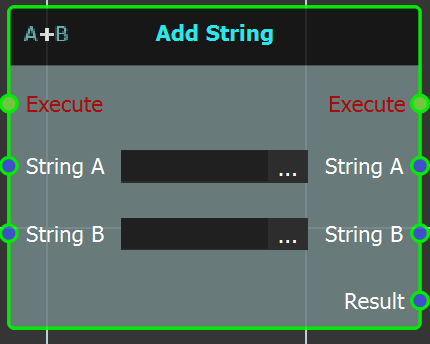
This node can be used to add two strings to each other.
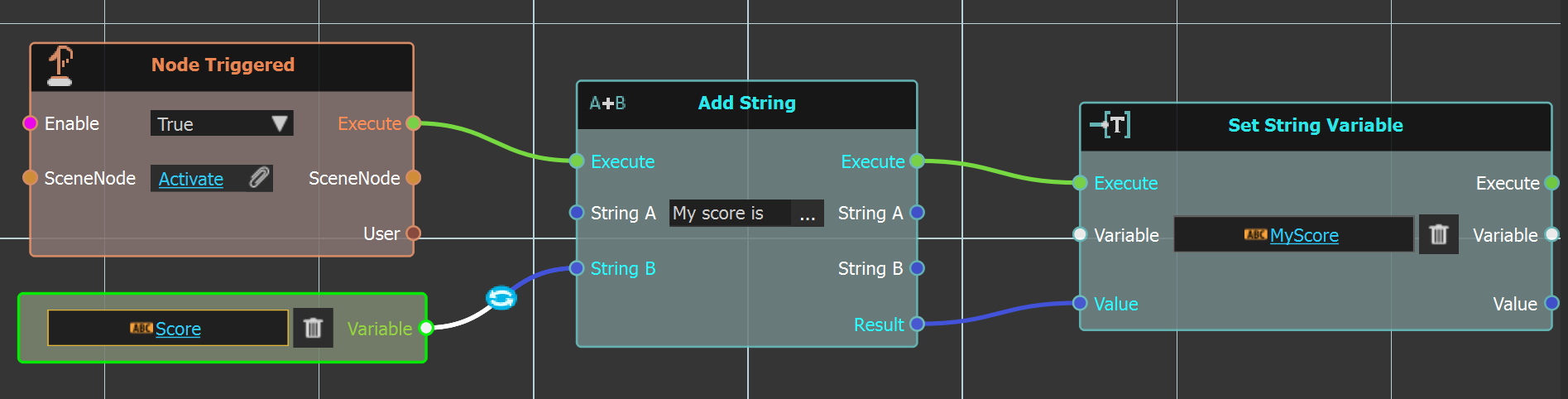
In the below example a **Score** string variable is input to this node, along with **My Score is** string filled in. The result is input to a Set String Variable node, into another string variable name **MyScore** which is linked to a Variable Writer in the scene to be displayed.
#### Example
[](https://simlab-soft.com/help/uploads/images/gallery/2025-09/EsXimage.png)
---
### [](https://simlab-soft.com/help/uploads/images/gallery/2024-08/response-value-number-add.png) Find
[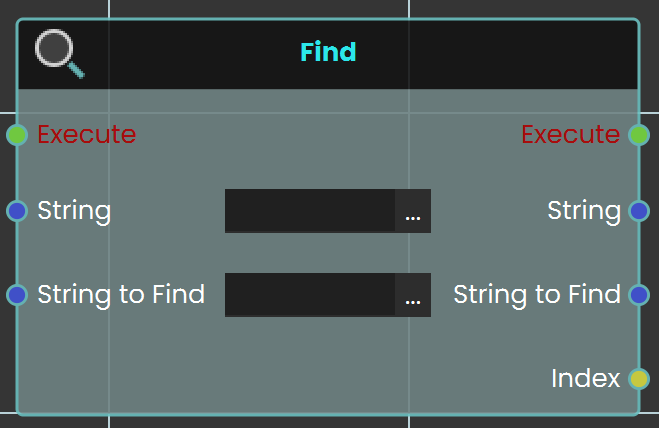](https://simlab-soft.com/help/uploads/images/gallery/2024-08/add-node.jpg)The "**Find**" node is used to search for a specific word, group of letters, or substring within a larger sentence or string value. If the specified text is found, the node returns the number of characters from the beginning of the string to the start of the found text. If the specified text is not found, the node returns -1. This allows users to detect and locate specific content inside a string.
#### Example
[](https://simlab-soft.com/help/uploads/images/gallery/2024-08/add-example.jpg)
In this example, the **Find node** is used to search for the word "apple" in a string variable with the initial value "I like apple pie." When the user triggers the object, the Variable with Initial node retrieves the string, and the Find node looks for the word "apple." The resulting index is then stored in a number variable named "Value" using the Set Number Variable node, which can then be connected to a Variable Writer to display the result during the VR experience. If "apple" is found, the Value variable stores the position where "apple" starts in the sentence. If not found, the Value variable is set to -1.
---
### [ ](https://simlab-soft.com/help/uploads/images/gallery/2025-09/response-value-string-lowercase.png)Lower Case
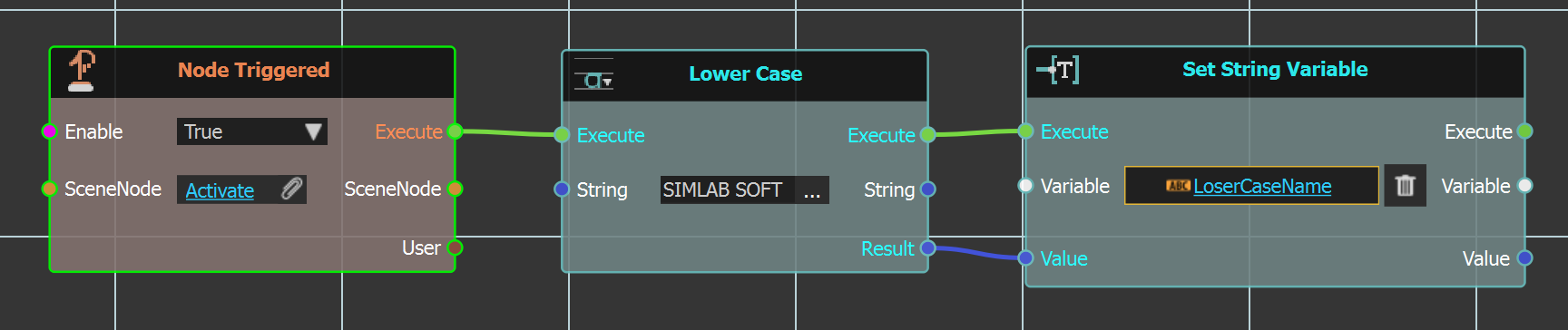
The "**Lower Case**" can be used to 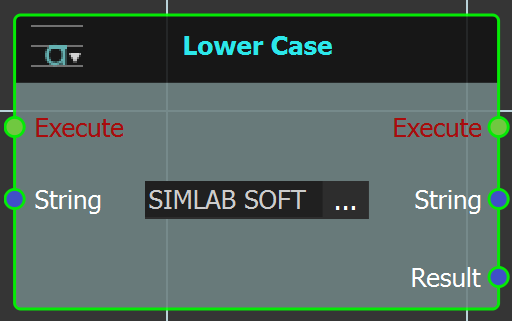covert an upper case string to lower case, as shown in the example below.
In this example the string "SIMLAB SOFT" is input inside this node, which is executed when **Activate** scene node is triggered. This will result in updating the valued of LowerCaseName string variable to be simlab soft.
#### Example
[](https://simlab-soft.com/help/uploads/images/gallery/2025-09/iz7image.png)
---
### [](https://simlab-soft.com/help/uploads/images/gallery/2025-09/pIoimage.png)Replace
**Replace** node can be used to replace specific **Target[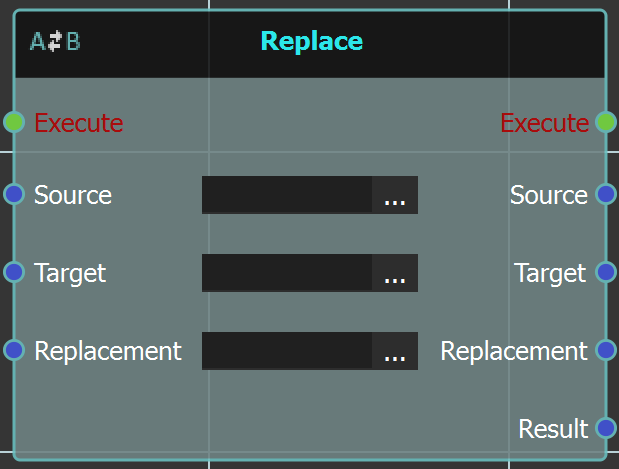](https://simlab-soft.com/help/uploads/images/gallery/2025-09/2yoimage.png)** text string from a **Source** text string with the **Replacement** string.
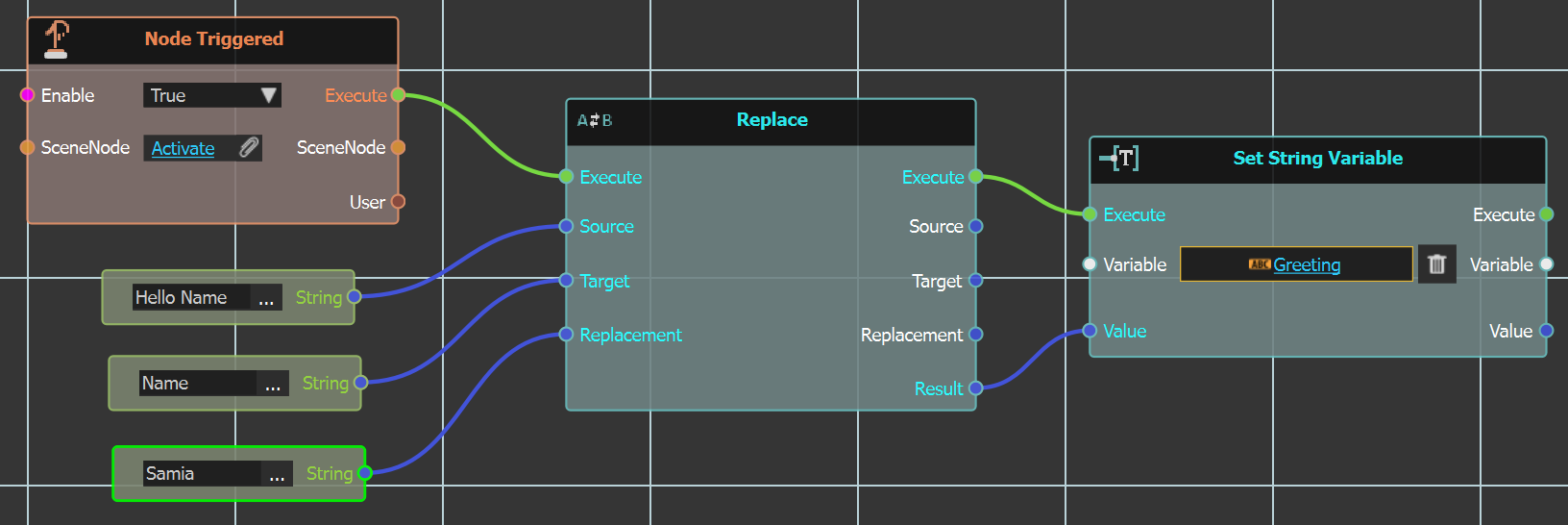
In the below example the node is executed upon clicking **Activate** node, and has three string inputs. Source which is main string "Hello Name". Target string which is "Name", and Replacement string which is Samia.
The Result greeting from this will be "Hello Samia".
#### Example
[](https://simlab-soft.com/help/uploads/images/gallery/2025-09/QeXimage.png)
---
### [ ](https://simlab-soft.com/help/uploads/images/gallery/2025-09/BDvimage.png)String Length
This node returns the length of a given string.
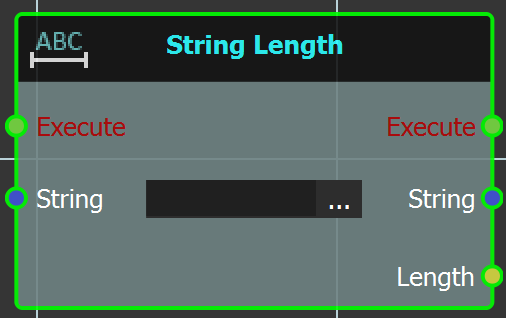
In the example below the node is triggered by
clicking **Activate** geometry, and it's filled with a long paragraph string. The length result is stored in variable **Result** in the **Set Number Variable** node.
#### Example
[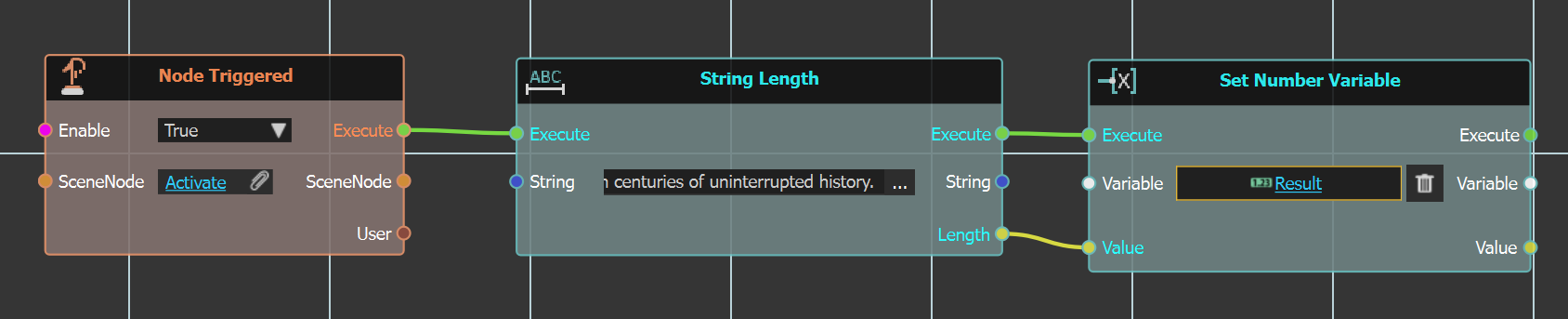](https://simlab-soft.com/help/uploads/images/gallery/2025-09/1rQimage.png)
---
### [](https://simlab-soft.com/help/uploads/images/gallery/2025-09/SKCimage.png)[ ](https://simlab-soft.com/help/uploads/images/gallery/2025-09/BDvimage.png)Upper Case
Contrary to the "**Lower Case**" node this node coverts a loser case string to upper case, as shown in the example below.[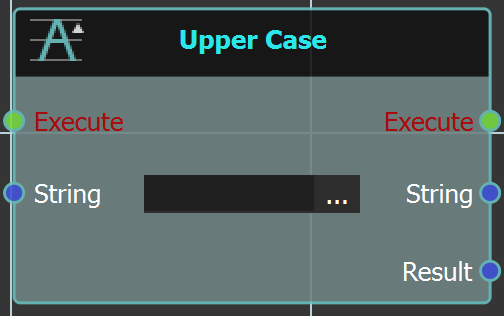](https://simlab-soft.com/help/uploads/images/gallery/2025-09/8F5image.png)
In this example the string "simlab soft" is input inside this node, which is executed when **Activate** scene node is triggered. This will result in updating the valued of UpperCaseName string variable to be SIMLAB SOFT.
####
#### Example
[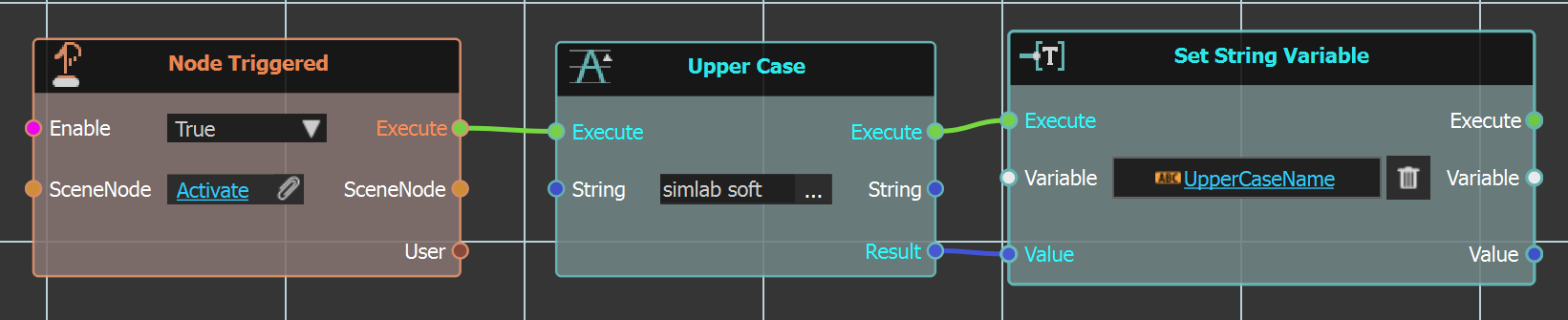](https://simlab-soft.com/help/uploads/images/gallery/2025-09/t3Wimage.png)
# Data Types \ String \ Compare
---
### [](https://simlab-soft.com/help/uploads/images/gallery/2025-09/SM6image.png) Equal (String)
A compare node that takes two input strings and compares them if equal or not. [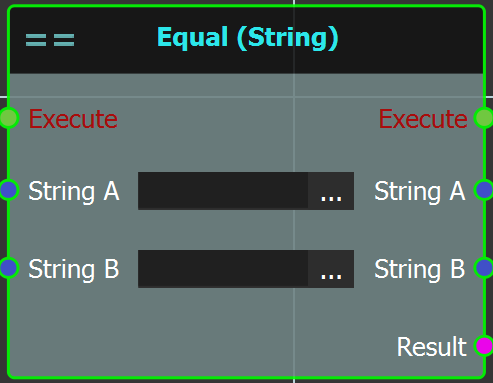](https://simlab-soft.com/help/uploads/images/gallery/2025-09/jxpimage.png)
####
####
####
#### Example
In the example below, two not equal strings has been input to this node, thus the output result would be false. The output is used as an input to Show/Hide node for a sphere, that won't be shown in this case.
[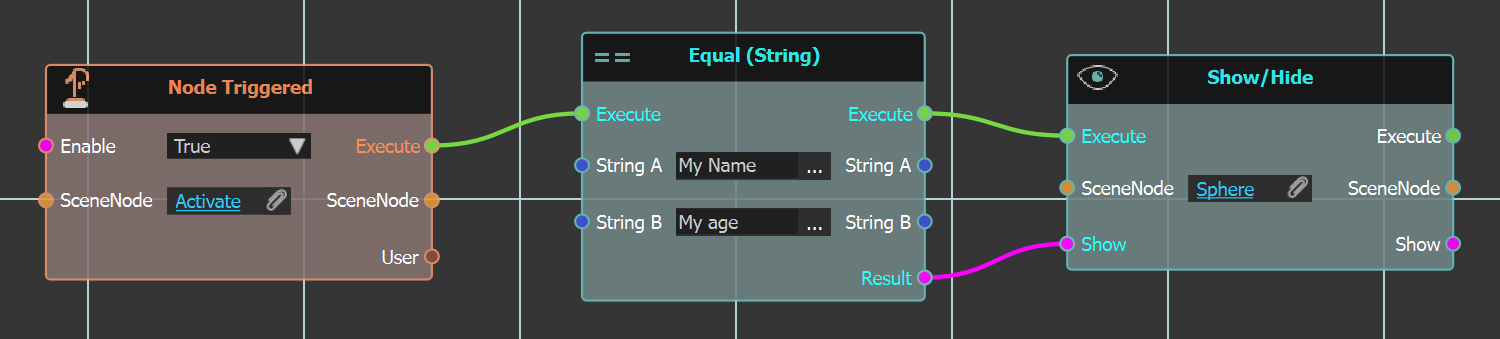](https://simlab-soft.com/help/uploads/images/gallery/2025-09/asNimage.png)
---
### [ ](https://simlab-soft.com/help/uploads/images/gallery/2025-09/ycFimage.png)Not Equal
Contrary to the previous node this one compares
two input strings for not being equal.[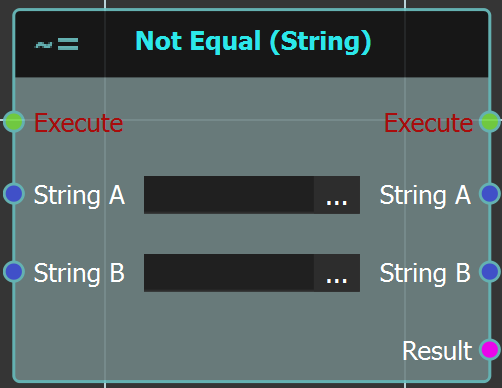](https://simlab-soft.com/help/uploads/images/gallery/2025-09/uhbimage.png)
#### Example
In the example below, two equal strings has been input to this node, thus the output result would be false. The output is used as an input to Show/Hide node for a sphere. In this case the sphere will be shown.
[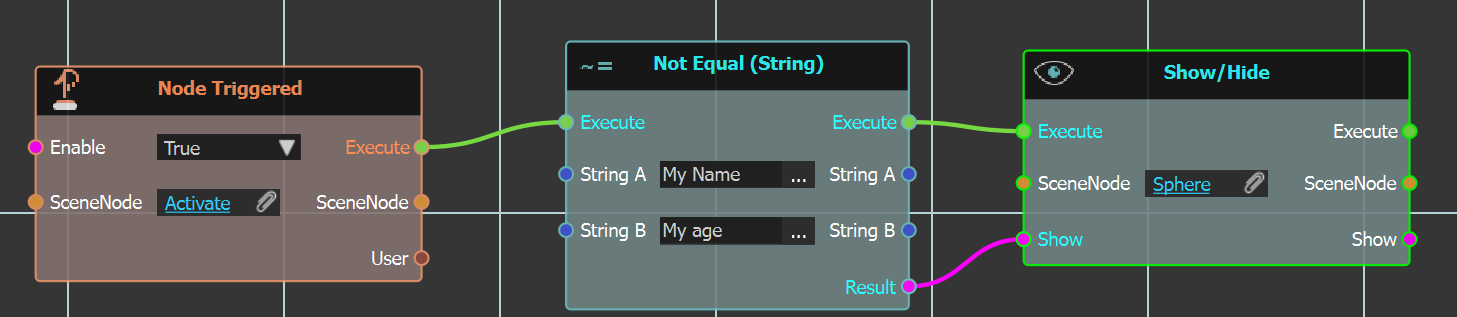](https://simlab-soft.com/help/uploads/images/gallery/2025-09/Renimage.png)
# Data Types \ String \ Variable
---
### [ ](https://simlab-soft.com/help/uploads/images/gallery/2025-09/xa2image.png)Set
With this string variable node a user can set a string variable by Value or Expression.
#### [ ](https://simlab-soft.com/help/uploads/images/gallery/2025-09/N7himage.png)Set String Variable
Using this node a string variable is set by value, as shown in the example below. The **Greeting** variable is set using string input node with "**Good day sir!**"
[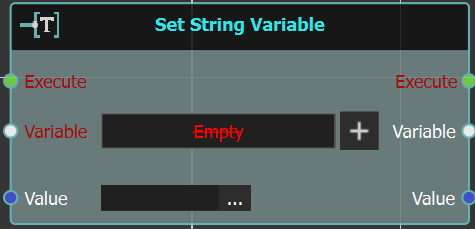](https://simlab-soft.com/help/uploads/images/gallery/2025-09/berimage.png)
#### Example
[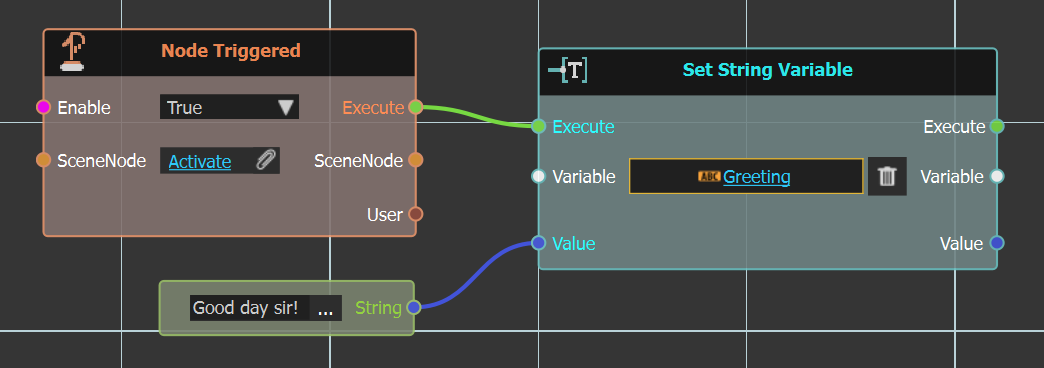](https://simlab-soft.com/help/uploads/images/gallery/2025-09/993image.png)
#### [ ](https://simlab-soft.com/help/uploads/images/gallery/2025-09/U5mimage.png)Set String Variable By Expression
Using this node a string variable is set by expression, as shown in the example below. The **Name** variable is set using an expression input node with string.lower() expression.
[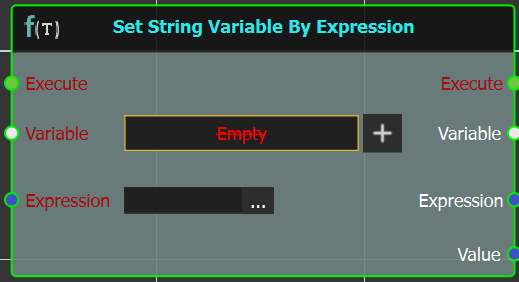](https://simlab-soft.com/help/uploads/images/gallery/2025-09/vizimage.png)
#### Example
[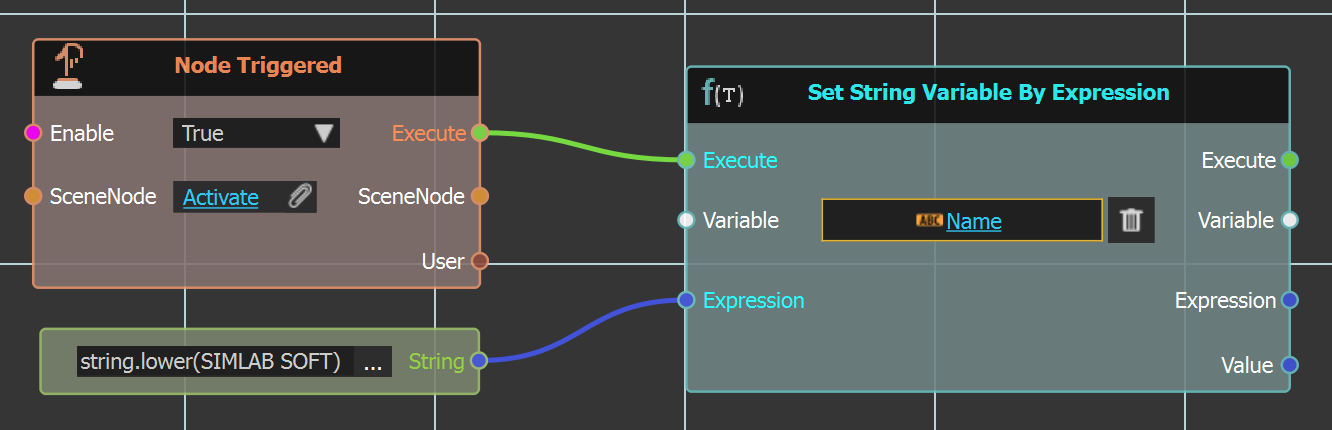](https://simlab-soft.com/help/uploads/images/gallery/2025-09/ihsimage.png)
---
### [ ](https://simlab-soft.com/help/uploads/images/gallery/2025-09/WWvimage.png)Get
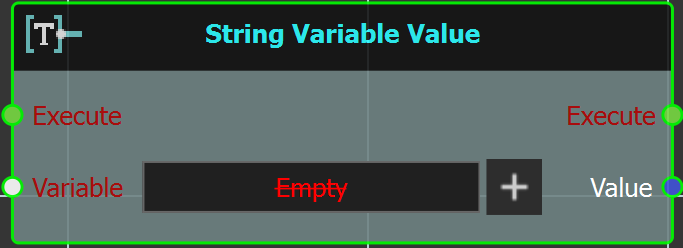This node is used to get a string variable value. As shown in the example below, the string variable **Greeting** is gotten as input to this node.
#### Example
[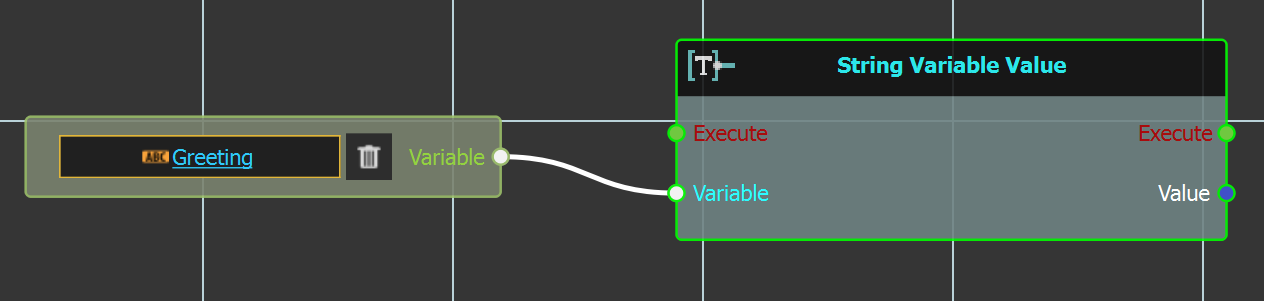](https://simlab-soft.com/help/uploads/images/gallery/2025-09/Ljeimage.png)
# Data Types \ String \ Expression
---
###  Evaluate String Expression
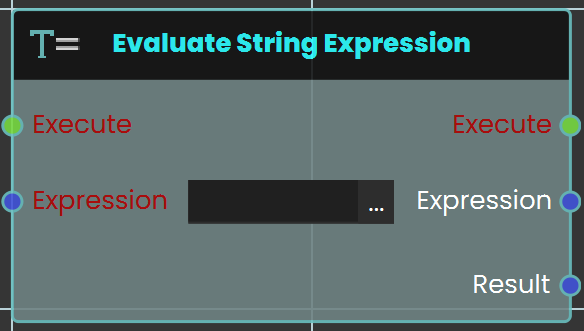The **Evaluate String Expression** response enables the system to implement an expression in Lua language. Supported expressions can be found at this **[link](https://devdocs.io/lua~5.4/)**. Once the response is executed, the expression result can be acquired through the Result port.
####
#### Example
In this example, an **Evaluate String Expression** response enables the system to execute a Lua expression. Once the response is executed, the result of the expression can be retrieved through the **Result** port and can be displayed using a variable writer during the VR Experience.

---
# Data Types \Color
---
### [ ](https://simlab-soft.com/help/uploads/images/gallery/2025-09/uF3image.png)Color To RGB
[](https://simlab-soft.com/help/uploads/images/gallery/2025-09/Zjrimage.png)
This node converts colors to their RGB components. After that changes can be done to these components.
#### Example
In the below example "**Node Triggered**" node is linked to "**First\_drawer**" geometry that when clicked the "**Get Material Color**" node gets "**Drill\_material**". In "**Color To RGB**" node the color of this material is converted to its RGB components, and then a value of "**1**" is added to its Green component. The RGB components are converted back to color using "**RGB To Color**" node, and the material color is set in the "**Set Material Color**" node.
[](https://simlab-soft.com/help/uploads/images/gallery/2025-09/nLvimage.png)
Below is the effect of changing material color components.
[](https://simlab-soft.com/help/uploads/images/gallery/2025-09/QiVimage.png)[](https://simlab-soft.com/help/uploads/images/gallery/2025-09/GpFimage.png)
---
### [ ](https://simlab-soft.com/help/uploads/images/gallery/2025-09/Jxoimage.png)RGB To Color
As in the above example, "**RGB To Color**" converts
RGB components back to color.[](https://simlab-soft.com/help/uploads/images/gallery/2025-09/mxfimage.png)
# Data Types\Boolean\ Expression
---
This node can be used to generate values (true or false) that can
trigger events throughout the interactive experience.[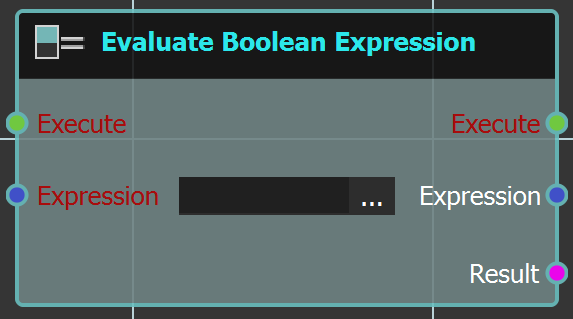 ](https://simlab-soft.com/help/uploads/images/gallery/2025-09/wieimage.png)
#### Example
In the example below when "**3DGeom-7**" is clicked, the expression in "**Evaluate Boolean Expression**" node is checked to execute the node after or not. In this case the expression is simple "**==**" which is true, so the "**3DGeom-7**" geometry will be set to Grabbable.
[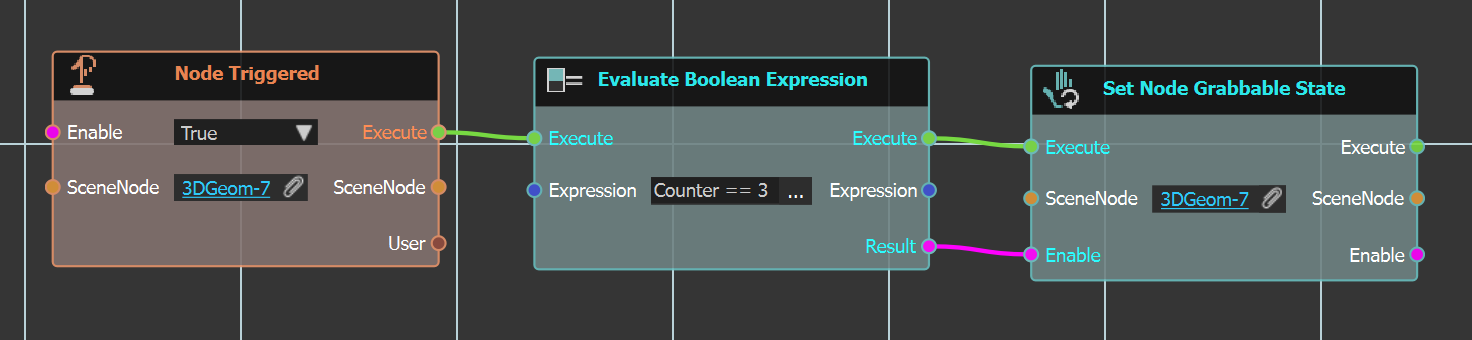](https://simlab-soft.com/help/uploads/images/gallery/2025-09/GCtimage.png)
# Data Types\Time
---
### [ ](https://simlab-soft.com/help/uploads/images/gallery/2025-09/93yimage.png)Time Interval
This node calculates the time difference between[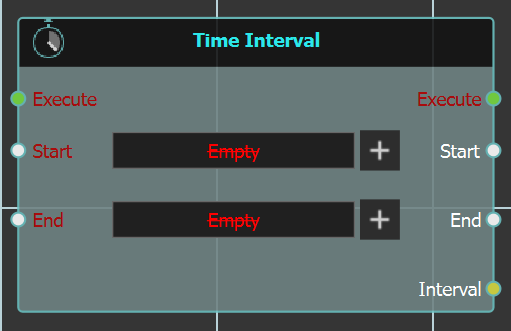](https://simlab-soft.com/help/uploads/images/gallery/2025-09/Gakrr5image.png)
"**Start**", and "**End**" times. It stores the result in
an integer "**Interval**" out put.
###
---
### [](https://simlab-soft.com/help/uploads/images/gallery/2025-09/ZqZimage.png)Update Time Variable
[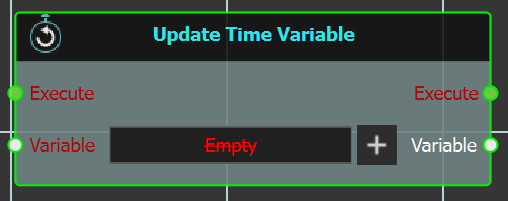](https://simlab-soft.com/help/uploads/images/gallery/2025-09/FvKimage.png)
This node can be used to store time variables.
#### Example
The example below demonstrates the use of both time nodes above. In it the value of "**inisial\_time**" variable is updated upon Scene Start. Then when "**Box**" geometry is clicked the value of "**current\_time**" variable is updated. Then the "**Time Interval**" node is executed, where "**result**" variable is calculated as difference between both times.
[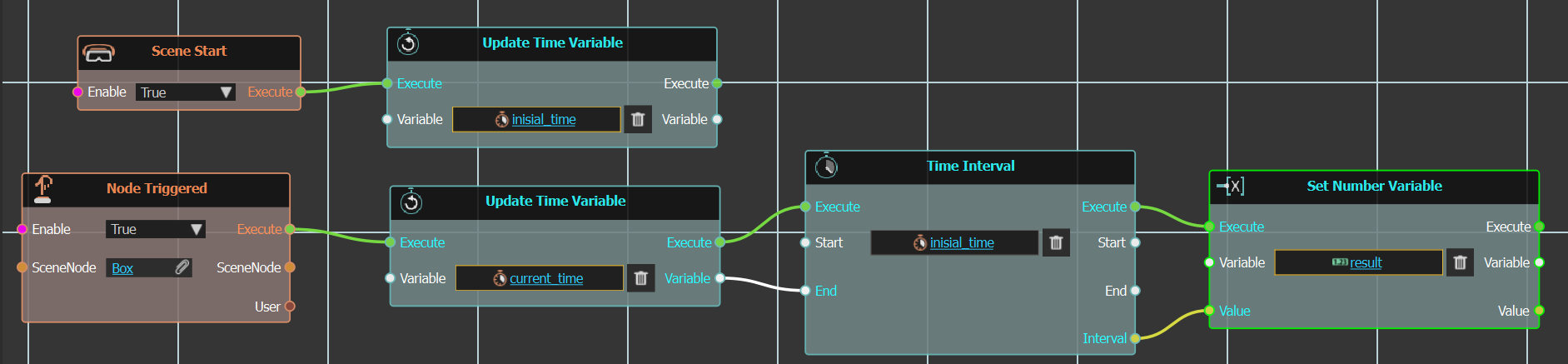](https://simlab-soft.com/help/uploads/images/gallery/2025-09/xvWimage.png)
In the experience the "**result**" variable is connected to[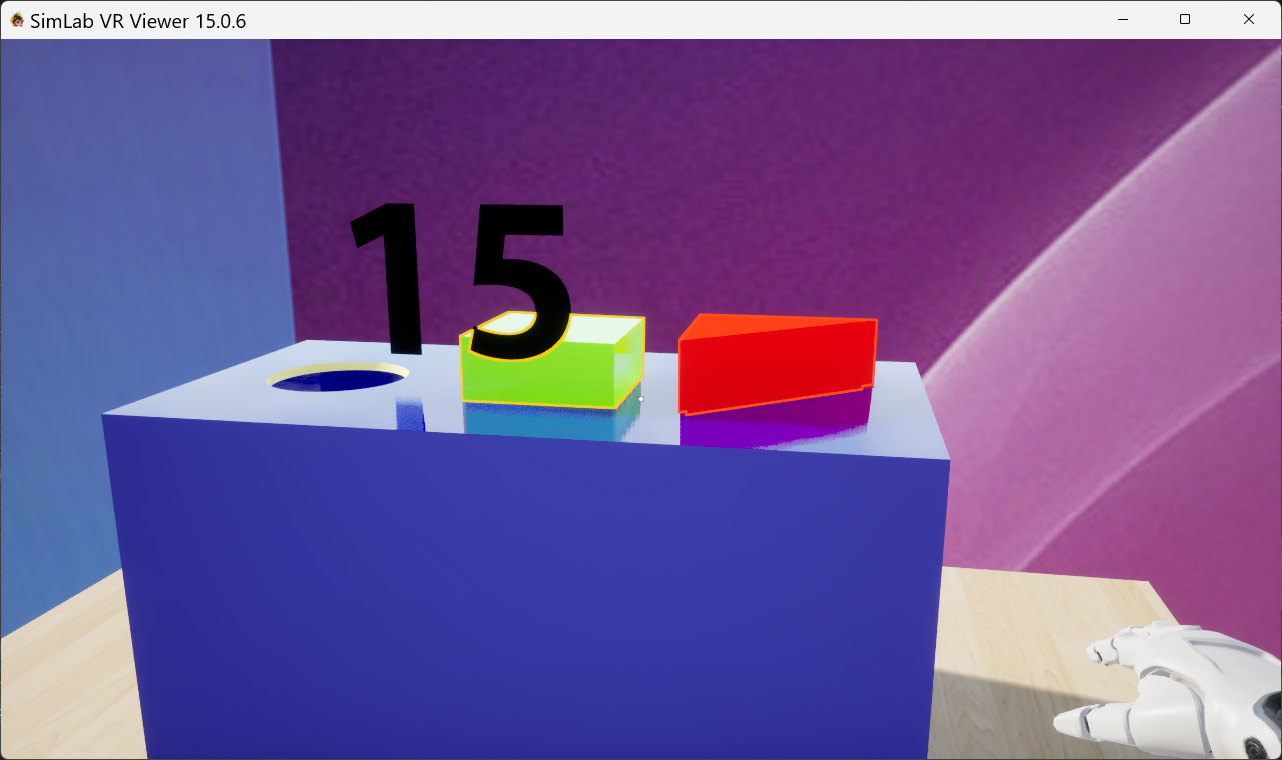](https://simlab-soft.com/help/uploads/images/gallery/2025-09/NxPimage.png)
a Variable writer to display its value.
# Scene State
---
###  Apply SceneState
This node can be used to apply a scene state when an[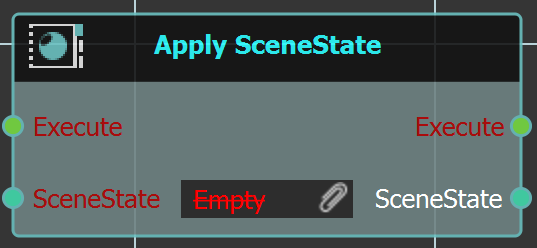](https://simlab-soft.com/help/uploads/images/gallery/2025-09/YOwimage.png)
action is done in the 3D area.
#### Example
In the below example when "**Body\_9**" is clicked the "**BlueColor\_pump**" scene state is applied.
[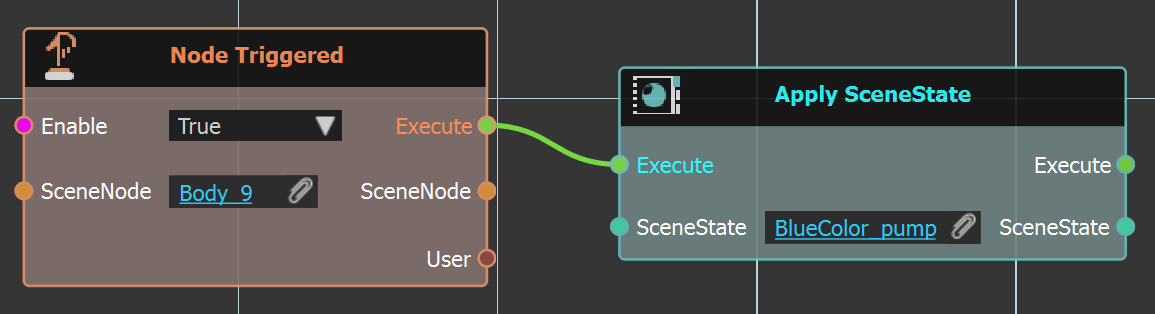](https://simlab-soft.com/help/uploads/images/gallery/2025-09/CPiimage.png)
---
###  Find SceneState By Name
In complicated scenes with large number of scene [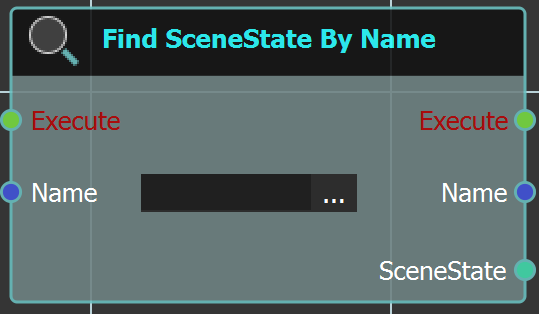](https://simlab-soft.com/help/uploads/images/gallery/2025-09/lgmimage.png)
states, this node can come in handy. The user can use
this node to search for a scene state and then apply
it or do any action with it.
#### Example
In the example below this node is used to search for "GreenColor\_pump" and then applied the scene state.
[](https://simlab-soft.com/help/uploads/images/gallery/2025-09/548image.png)
# Sequence
---
### Attach Sequence To
[Creating sequences](https://simlab-soft.com/help/books/simlab-composer-help/page/sequence-timeline) can be done from animating an object in the scene. This sequence can be attached to Hand or an Object in VR.
#### Hand
With sequences available in the Sequences Library, a sequence can be attached to the Hand in VR experience using this node in Dynamic Training Builder.
#### Example
Check this [tutorial ](https://www.youtube.com/watch?v=YkPAQTO5GKE)for the example below, where Boolean expressions were created and upon checking the Boolean Expression a sequence is attached to Hand.
[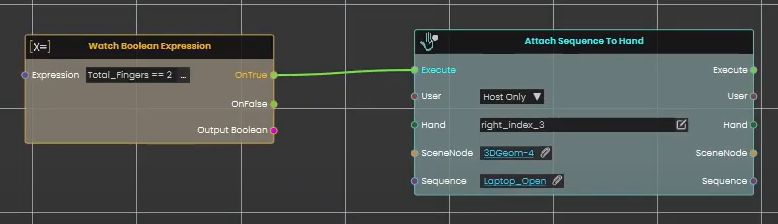](https://simlab-soft.com/help/uploads/images/gallery/2025-09/EtGimage.png)
#### Object
This node can be used to connect a controller grabbable object to a sequence in VR.
#### Example
In the example below the "Switch" sequence is attached to "Handle" object, when Controller "Gloves" geometry moves it. In this example a simple grabbable sequence can do the job, but this is just to demonstrate use of this node.
[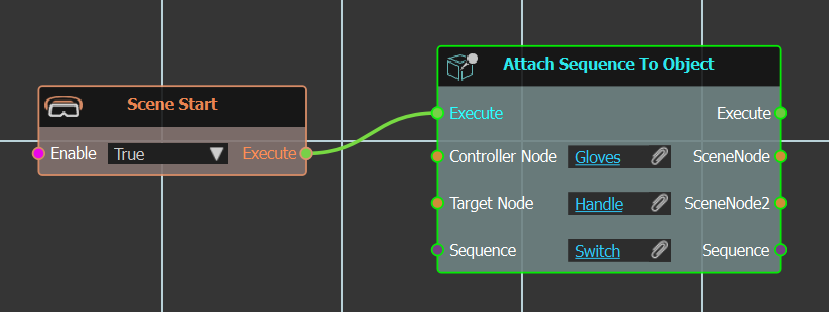](https://simlab-soft.com/help/uploads/images/gallery/2025-09/HOwimage.png)
[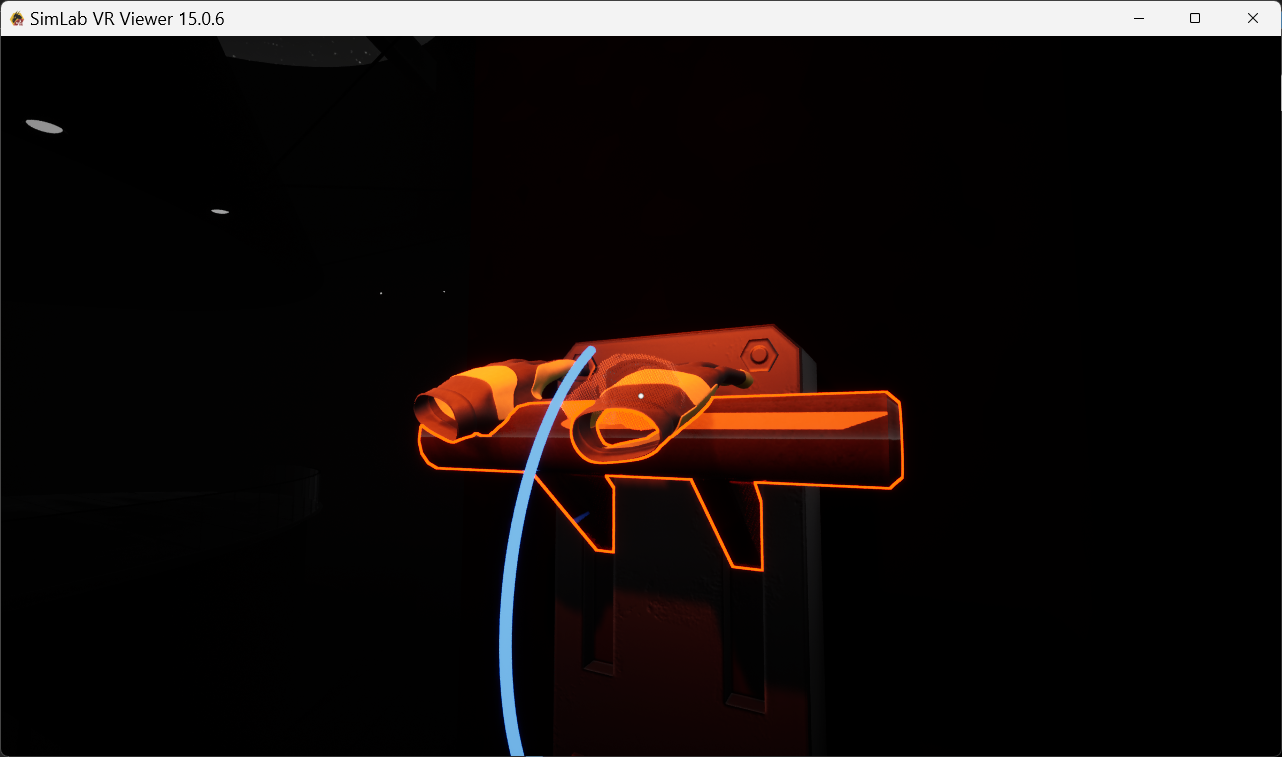](https://simlab-soft.com/help/uploads/images/gallery/2025-09/Y4ximage.png)
#### Example 2
In this example we have a path for a box to walk along being controlled by a magnet.
[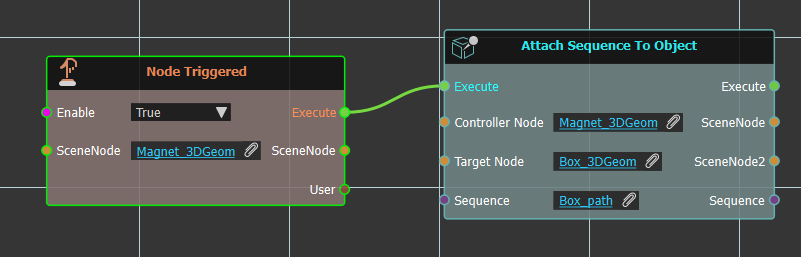](https://simlab-soft.com/help/uploads/images/gallery/2025-09/5Cnimage.png)
[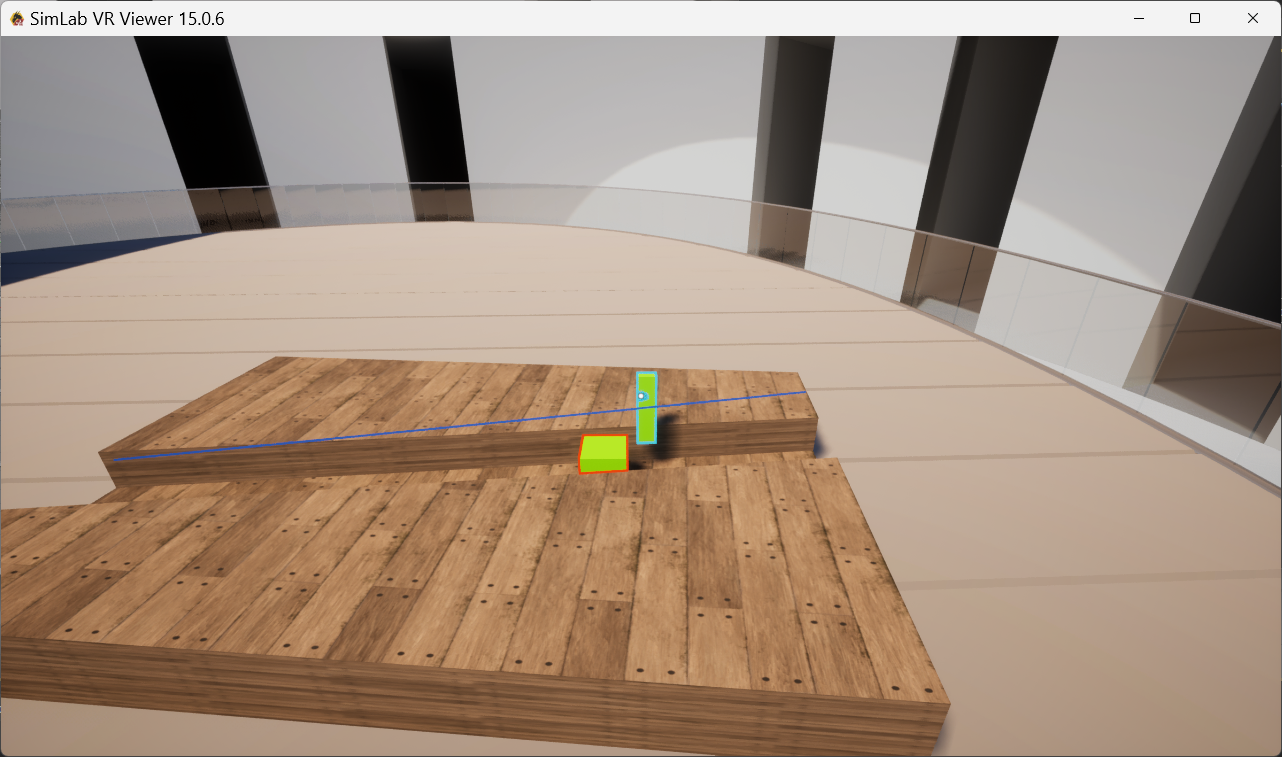](https://simlab-soft.com/help/uploads/images/gallery/2025-09/095image.png)
---
###  Detach Sequence
Releases a sequence that was attached to a scene object, so it is no longer linked to that object.
#### What it does
If you previously attached a sequence to an object in your scene, this node breaks that link. After it runs, the sequence stands on its own again and no longer follows the object it was attached to.
The sequence itself is not deleted or changed — only the attachment is removed. The same sequence comes back out of the node, so you can keep using it in the steps that follow.
#### Inputs
Port
Type
What to connect
**Execute**
Trigger
Wire this from the previous node’s Execute output.
**Sequence**
Sequence
The sequence you want to detach — the one that is currently attached to a scene object.
#### Outputs
Port
Type
What you get
**Execute**
Trigger
Fires once the node has finished.
**Sequence**
Sequence
The same sequence, now detached — ready to use in the next steps.
#### Example
**Sequence** input
The `Open Door` sequence that was attached to the door handle
**Sequence** output
The same `Open Door` sequence, no longer linked to the handle
#### Tips
- Use this to undo an earlier “Attach Sequence To” step when you no longer want the sequence to stay tied to that object.
---
### Playback Controls
Used to control sequence behavior.
#### Continue
##### Same Direction
The selected sequence will continue[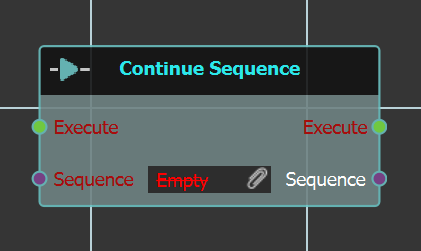](https://simlab-soft.com/help/uploads/images/gallery/2025-09/GDxj0simage.png)
to play in the same direction.
##### Set Direction
[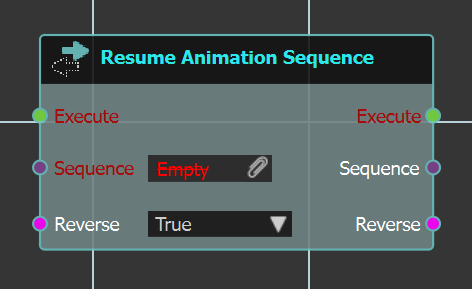](https://simlab-soft.com/help/uploads/images/gallery/2025-09/Niaimage.png)With this node the user can change the selected sequence direction, by selecting Reverse to True.
##### Example
In the below example a number of the above Playback Controls are used. Here on "**Scene Start**","**Play Sequence**" response is executed for "Elevator\_Up" sequence. Followed by a 1 second "**Delay**", then "**Stop Sequence**" for another one second "**Delay**". Then the sequence is continued, followed by another "**Delay**" then "**Resume Animation Sequence**" from start.
[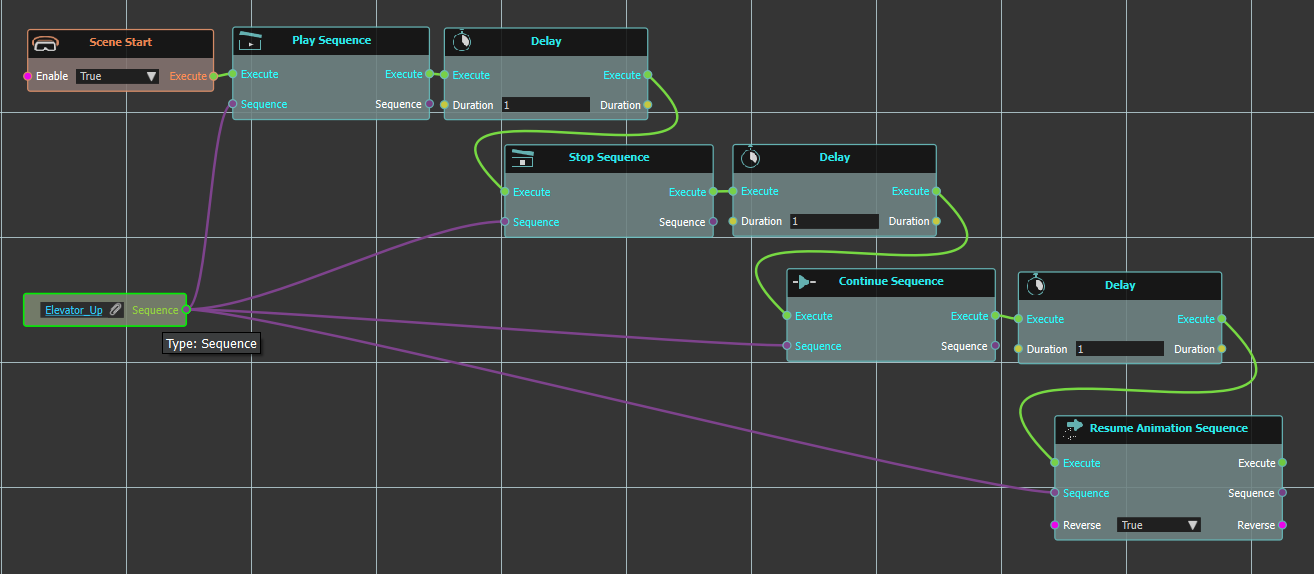](https://simlab-soft.com/help/uploads/images/gallery/2025-10/iEZimage.png)
#### Play
##### Play Sequence/Play Sequence From Start
Both controls will play animation sequence, one from current position, and the other -as the name implies- will play it from start.
#### Reverse
##### Reverse
Reverse sequences starts the animation sequence in the reverse mode (from the last frame). The reverse control will start from the last frame not from the current (because it reverses the overall animation)
In the below example the "Elevator\_Up" sequence upon clicking "Elevator\_panel(2)" geometry will be played from start. So if the elevator at that time was at the top position, it would go down then -as the sequence implies- would go up, then wait for 5 seconds, then "Reverse Sequence" that is go down from last frame.
[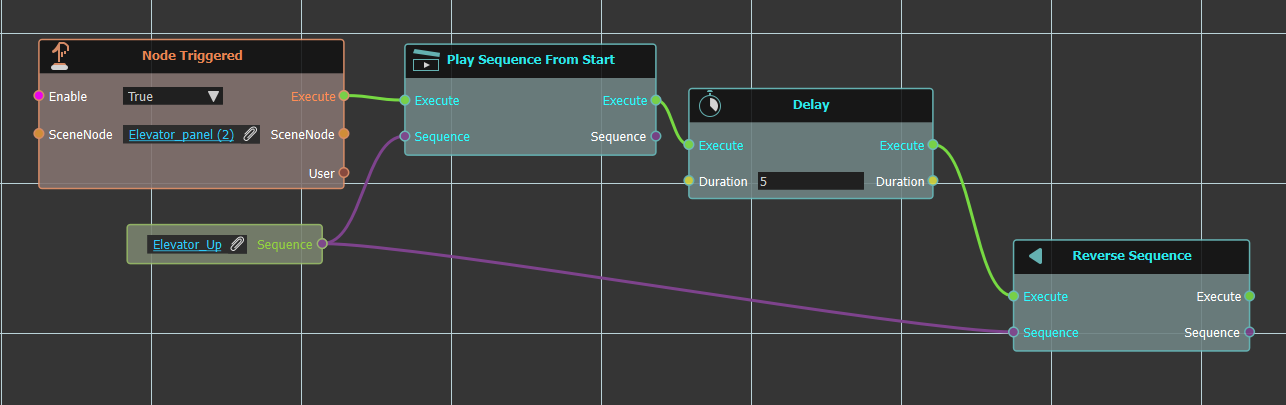](https://simlab-soft.com/help/uploads/images/gallery/2025-10/TSAimage.png)
####
####
####
####
##### Reverse From End
This control will start the sequence from the end, even if it hasn’t been played yet.
[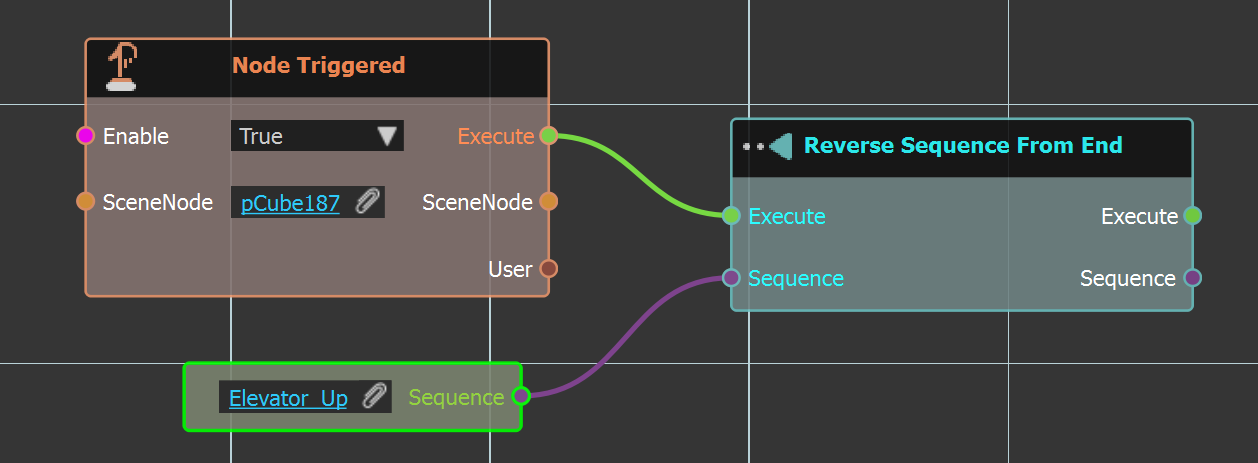](https://simlab-soft.com/help/uploads/images/gallery/2025-10/QSBimage.png)
#### Flip
Flip sequences flips current animation (that is, forward animation will be backward , backward animation will be forward). Think about it like we are opening a door and we pause the animation in the middle, flip control will return the door back from the current frame to original start position.
#### Stop
Stopes the animation sequence, as shown in examples presented in this section.
---
###  Animate to Sequence Frame
Smoothly moves the objects in a sequence to where they sit on its first or last frame, over a time you choose.
#### What it does
This node takes every object the sequence moves and glides it from wherever it is right now to its pose on the sequence’s first or last frame. The movement takes **Duration** seconds and eases in and out, so it starts and stops gently. Everyone in the session sees the same movement.
This is different from **Set Sequence Current Frame**, which jumps the sequence to a frame number instantly. It is also different from playing or reversing the sequence, because the objects travel straight to the target pose instead of replaying every step in between. For example, if the “Elevator\_Up” sequence was stopped halfway, animating to its `Last` frame brings the elevator smoothly up to the top from where it stopped. With **Completion** you can also stop part of the way; `0.5` moves the objects halfway to the target pose. The sequence itself isn’t changed.
#### Inputs
Port
Type
What to connect
**Execute**
Trigger
Wire this from the previous node’s Execute output.
**Sequence**
Sequence
The sequence whose objects you want to move.
**Duration**
Number
How long the movement takes, in seconds. Defaults to `1`. Use `0` to move the objects there at once. Can’t be negative.
**Completion**
Number
How far to go toward the target pose, from `0` (don’t move) to `1` (all the way, the default). For example, `0.5` stops halfway. A number above `1` counts as `1`.
**Frame**
Choice
Which end of the sequence to move to: **First** (the pose at the start) or **Last** (the pose at the end, the default).
#### Outputs
Port
Type
What you get
**Execute**
Trigger
Fires right away, as soon as the movement starts. It doesn’t wait for the movement to finish.
**Sequence**
Sequence
The same sequence, passed along for the next steps.
**Duration**
Number
The same **Duration** you entered.
**Completion**
Number
The same **Completion** you entered.
#### Example
**Sequence** input
The `Elevator_Up` sequence
**Duration** input
`3`
**Completion** input
`1`
**Frame** input
`Last`
**Sequence** output
The same `Elevator_Up` sequence, with the elevator gliding up to its top position over 3 seconds
**Duration** output
`3`
**Completion** output
`1`
#### Tips
- To run a step only after the movement ends, follow this node with a **Delay** as long as the **Duration**.
- Stop the sequence before you use this node. If the sequence is still playing, its playback keeps moving the same objects and wins over the glide.
- Only movement is animated (position, rotation and size). Color, light and show/hide changes in the sequence aren’t applied.
- The sequence’s current frame stays where it was, so **Get Sequence Current Frame** still reports the old frame after the glide.
---
### Playback Properties
#### Current Frame
##### Get Sequence Current Frame
This node will get the value of the current sequence frame, the user can then use this value in any operation. In the example below the value of the current sequence frame is stored in "Current\_Frame" variable, which is set to the "VR Variable Writer" in the scene to display its value.
[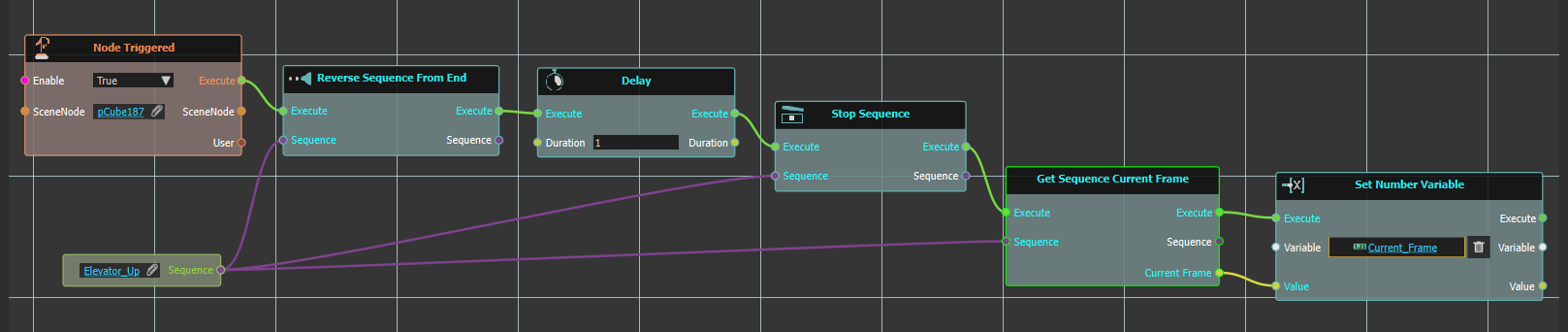](https://simlab-soft.com/help/uploads/images/gallery/2025-10/0ESimage.png)
[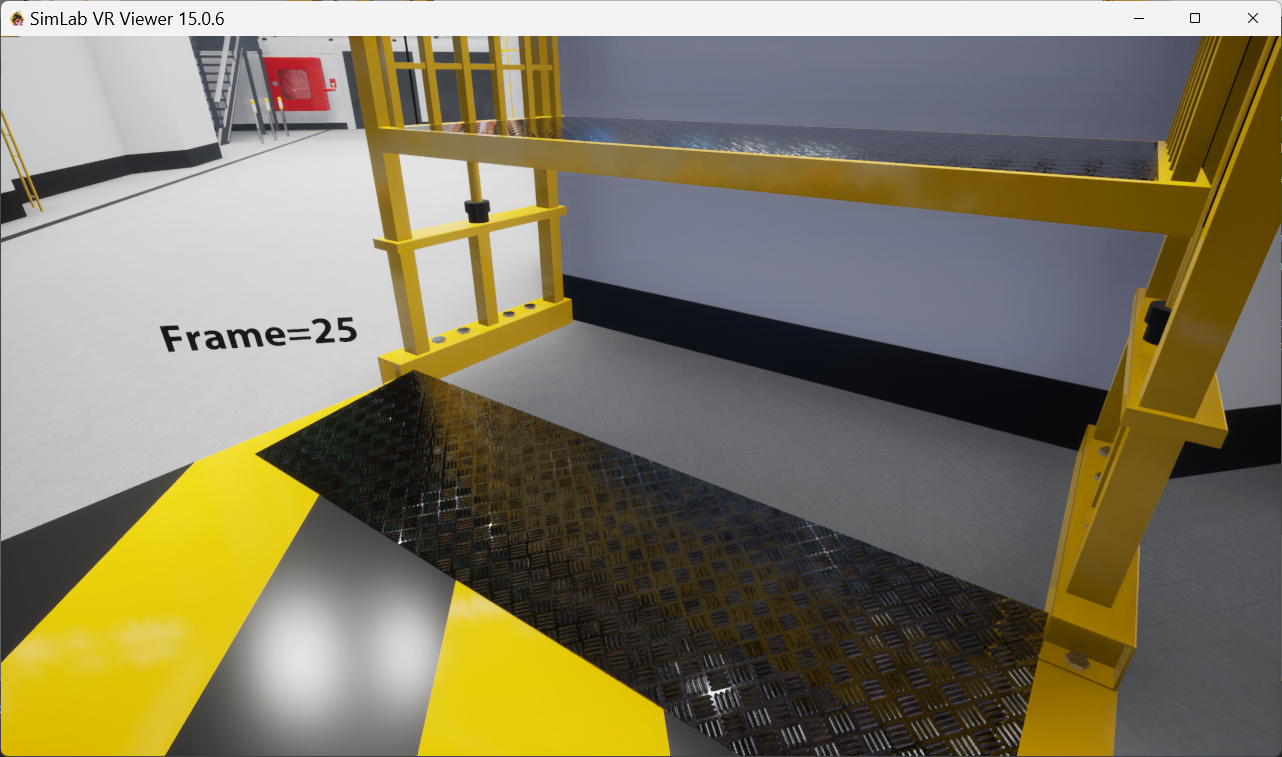](https://simlab-soft.com/help/uploads/images/gallery/2025-10/eqmimage.png)
#####
##### Set Sequence Current Frame
If the user wants to go to a specific frame in the sequence this is the function to use. In the below example upon clicking node the sequence current frame is set to 10.
[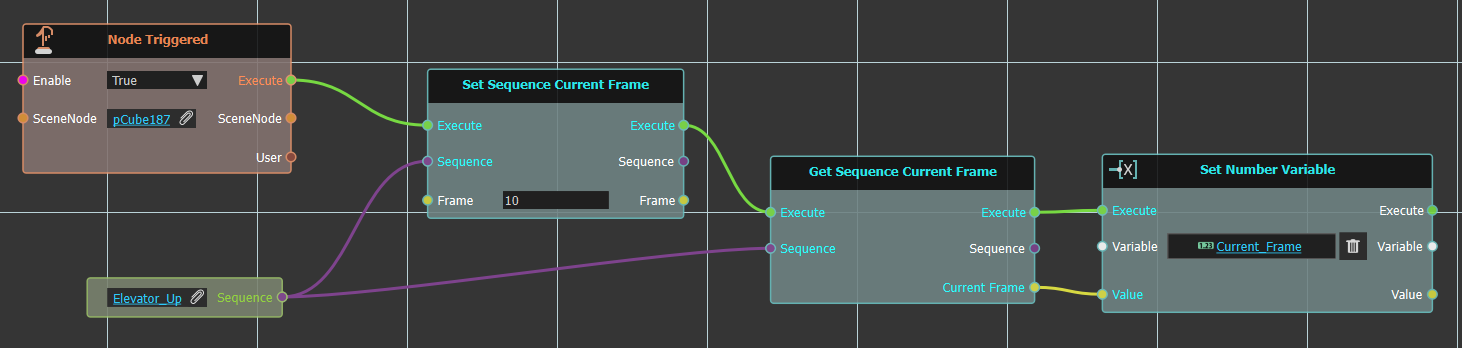](https://simlab-soft.com/help/uploads/images/gallery/2025-10/8l6image.png)
To show the result we got the valued of the current frame and assign it to "Current\_Frame" variable that is displayed in the variable writer as shown below.
[](https://simlab-soft.com/help/uploads/images/gallery/2025-10/PSnimage.png)
#### Full Range
This node can be used to calculate the full range of a sequence.
##### Get End
Gets and outputs the end frame of the selected [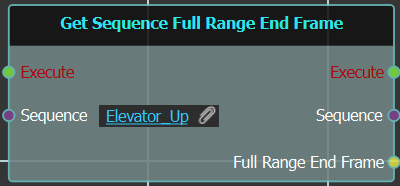](https://simlab-soft.com/help/uploads/images/gallery/2025-10/tddimage.png)
sequence, when triggered.
#####
##### Get Start
Gets and outputs the start frame of the selected [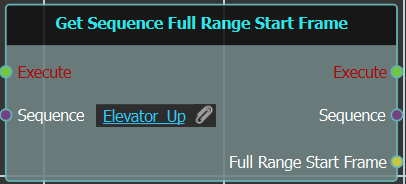](https://simlab-soft.com/help/uploads/images/gallery/2025-10/b3timage.png)
sequence, when triggered.
#### Looping
Sequences can be set to loop after finishing.
##### Get Sequence Looping
This node will get the looping status of the input[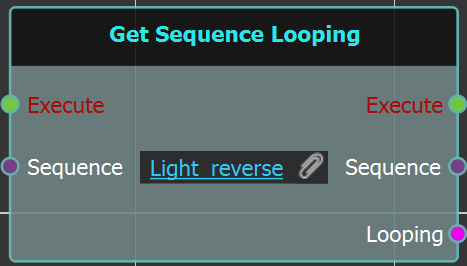](https://simlab-soft.com/help/uploads/images/gallery/2025-10/2m2image.png)
sequence, whether true or false.
#####
##### Set Sequence Looping
This node will set the looping status for the input [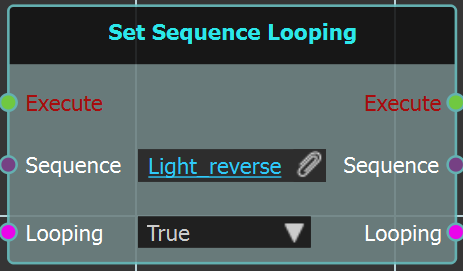](https://simlab-soft.com/help/uploads/images/gallery/2025-10/ElPimage.png)
sequence to either true or false.
#### Play Range
[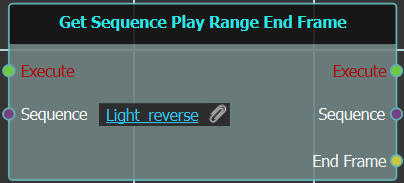](https://simlab-soft.com/help/uploads/images/gallery/2025-10/LKqimage.png)
[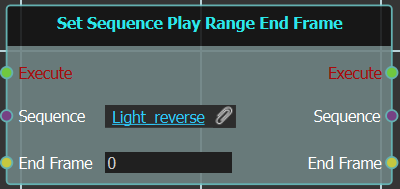](https://simlab-soft.com/help/uploads/images/gallery/2025-10/hK7image.png)
[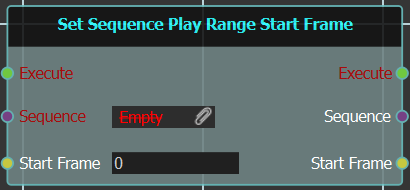](https://simlab-soft.com/help/uploads/images/gallery/2025-10/dyeimage.png)
[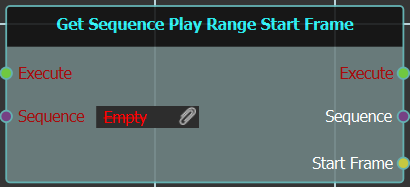](https://simlab-soft.com/help/uploads/images/gallery/2025-10/TQximage.png)
#### Play Rate (Speed)
#### Swing
#### Is Playing
#### Is Reversing
---
### Find By Name
# User
###  Show Mouse Cursor
[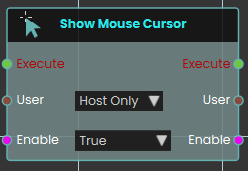](https://simlab-soft.com/help/uploads/images/gallery/2026-03/GhKimage.png)
The **Show Mouse Cursor node** explicitly controls the visibility and functionality of the user's mouse pointer within the VR Viewer. When activated, the node checks the boolean Enable input for the specified User. Setting it to True displays the cursor on-screen, allowing the user to freely move it and click to interact with objects utilizing **Node Triggered** events. It is important to note that while this cursor mode is active, standard navigation is suspended—the user cannot walk or rotate their camera view until the node is activated again with the Enable input set to False, which hides the cursor and restores normal movement.
The **Show Mouse Cursor** mode is used for desktop/PC version of VR Viewer
---
###  Enable Gamepad Navigation
Turns gamepad navigation on or off for a user, so they can move through the scene with a game controller.
#### What it does
When you switch this on, the chosen user can use a connected gamepad to navigate the scene. Switch it off and gamepad navigation is turned off again for that user. You decide whether this applies just to the host or to everyone in the session.
The node only changes the gamepad setting for the user you pick — it doesn’t affect anything else about the scene. It also passes the same user and the on/off value straight through, so you can carry on with more steps right after it.
#### Inputs
Port
Type
What to connect
**Execute**
Trigger
Wire this from the previous node’s Execute output.
**User**
User
Choose which participant this applies to: **Host Only** or **All Users**. You can also wire in a specific user from an earlier node.
**Enable**
True / false
Set this to true to turn gamepad navigation on, or false to turn it off.
#### Outputs
Port
Type
What you get
**Execute**
Trigger
Fires once the node has finished.
**User**
User
The same user, passed along so you can chain more user steps after this one.
**Enable**
True / false
The same on/off value you set, passed along for any later steps that need it.
#### Example
**User** input
`All Users`
**Enable** input
`true`
**User** output
The same user, ready for the next step
**Enable** output
`true`
#### Tips
- Use the same node with **Enable** set to false later in your scene to turn gamepad navigation back off when it’s no longer needed.
---
###  Start QR Detection
Turns on QR code scanning for a participant so the scene can react when they point their view or device at a QR code.
#### What it does
When this node fires, the chosen participant starts looking for QR codes. From that moment on, whenever they aim at a QR code it can be picked up and used elsewhere in your scene. You can also choose whether an on-screen scanning panel appears to guide them, or whether detection happens quietly in the background.
This only switches scanning on — it doesn’t change the participant or the scene in any other way. The same participant is passed straight back out so you can connect more participant-related nodes after it.
#### Inputs
Port
Type
What to connect
**Execute**
Trigger
Wire this from the previous node’s Execute output.
**User**
User
Choose who starts scanning: **Host Only** (just the main user) or **All Users** (everyone in the session). You can also wire in a participant from an earlier node.
**Show UI?**
True / false
Set to `true` to show the on-screen scanning panel that guides the participant, or `false` to scan quietly in the background. Defaults to `true`.
#### Outputs
Port
Type
What you get
**Execute**
Trigger
Fires once the node has finished.
**User**
User
The same participant you chose, passed along so you can connect more participant nodes after this one.
#### Example
**User** input
`Host Only`
**Show UI?** input
`true`
**User** output
The same participant, ready to pass on to the next node
#### Tips
- Set **Show UI?** to `false` when you want scanning to feel seamless — for example, automatically recognizing a code the participant walks up to without a panel popping up.
- This node only starts scanning. Use a matching stop node when you want the participant to stop looking for QR codes.
---
###  Stop QR Detection
Turns off QR code scanning for a participant, so the app stops looking for QR codes through their headset or device camera.
#### What it does
When you start QR detection, the chosen participant’s view keeps watching for QR codes in the real world around them. This node switches that watching back off. Once it runs, the app no longer scans for QR codes for that person, which is handy after they’ve scanned the code you needed, or when a part of your scene that relied on scanning is finished.
You pick who it applies to with the **User** input — just the host, or everyone. It only stops the scanning; it doesn’t undo anything that was already detected, and it has no effect if scanning wasn’t running for that participant. The same participant is passed straight through the **User** output, so you can carry on with more steps for that person.
#### Inputs
Port
Type
What to connect
**Execute**
Trigger
Wire this from the previous node’s **Execute** output.
**User**
User
Choose who this applies to: **Host Only** (the default) or **All Users**. You can also wire in a participant passed along from an earlier user node.
#### Outputs
Port
Type
What you get
**Execute**
Trigger
Fires once the node has finished, so you can continue to the next step.
**User**
User
The same participant you chose, passed along so you can chain more user nodes after this one.
#### Example
**User** input
`Host Only`
**User** output
The same participant, ready for the next user node
#### Tips
- Pair this with **Start QR Detection**: switch scanning on when you need a code read, then switch it off here once you’re done.
- Make sure the **User** choice matches the one you used to start scanning — if you started it for **All Users**, stop it for **All Users** too.
---
###  Show User Search Menu
Opens the user search menu on screen so a participant can look up and find other people in the session.
#### What it does
When this node runs, it brings up SimLab’s built-in user search menu for the participant you choose. From that menu the participant can search through the people in the session — handy in multi-user scenes where someone needs to locate a specific teammate.
You decide who sees the menu with the User input: either just the Host (`Host Only`) or everyone in the session (`All Users`). The node only opens the menu — it doesn’t change anything about the participant, and it passes that same user along on its output so you can connect more user-related nodes after it.
#### Inputs
Port
Type
What to connect
**Execute**
Trigger
Wire this from the previous node’s Execute output to open the menu.
**User**
User
Chooses who the search menu opens for. Pick `Host Only` to show it just to the host, or `All Users` to show it to everyone in the session.
#### Outputs
Port
Type
What you get
**Execute**
Trigger
Fires once the menu has been opened, so you can continue to the next node.
**User**
User
Passes the same user along, so you can chain more user nodes after this one.
#### Example
**User** input
`All Users`
**User** output
The same participant, ready to pass to the next user node.
---
###  Set Player FOV
Changes how wide a user sees the scene, so you can zoom their view in, widen it, or give them back the scene’s normal view.
#### What it does
Field of view (FOV) is how much of the scene fits in the user’s view at once, measured in degrees. A small number, such as `40`, narrows the view so everything looks closer, like looking through binoculars. A large number, such as `110`, takes in more of the scene around the user. The view is kept between `5` and `170` degrees; a number outside that range is set to the nearest limit.
Each user has their own view, so this changes only the users you pick on the **User** input. Everyone else keeps the view they have. Set **FOV** to `0` to give the user back the field of view the scene started with. The change happens at once, with no zoom animation. It applies on desktop and mobile and in 360 views; in a VR headset the headset sets the view itself, so this node has no effect there. Nothing in the scene itself changes, and the same user and FOV value come straight back out so you can carry on with more steps.
#### Inputs
Port
Type
What to connect
**Execute**
Trigger
Wire this from the previous node’s Execute output.
**User**
User
Choose whose view changes: **Host Only** (the default) or **All Users**. You can also wire in a specific user from an earlier node.
**FOV**
Number
The new field of view in degrees, from `5` (very zoomed in) to `170` (very wide). Leave it at `0`, the default, to return to the scene’s starting view.
#### Outputs
Port
Type
What you get
**Execute**
Trigger
Fires once the node has finished.
**User**
User
The same user, passed along so you can chain more user steps after this one.
**FOV**
Number
The same FOV number you entered, passed along for any later steps that need it.
#### Example
**User** input
`Host Only`
**FOV** input
`40`
**User** output
The same user, now seeing a zoomed-in view
**FOV** output
`40`
#### Tips
- To zoom a user in for a close look and then back out, use this node twice: once with a small **FOV** such as `40`, and again later with `0` to restore the scene’s normal view.
# User \ Controller
### [](https://simlab-soft.com/help/uploads/images/gallery/2024-08/response-value-number-add.png) Attach To Hand
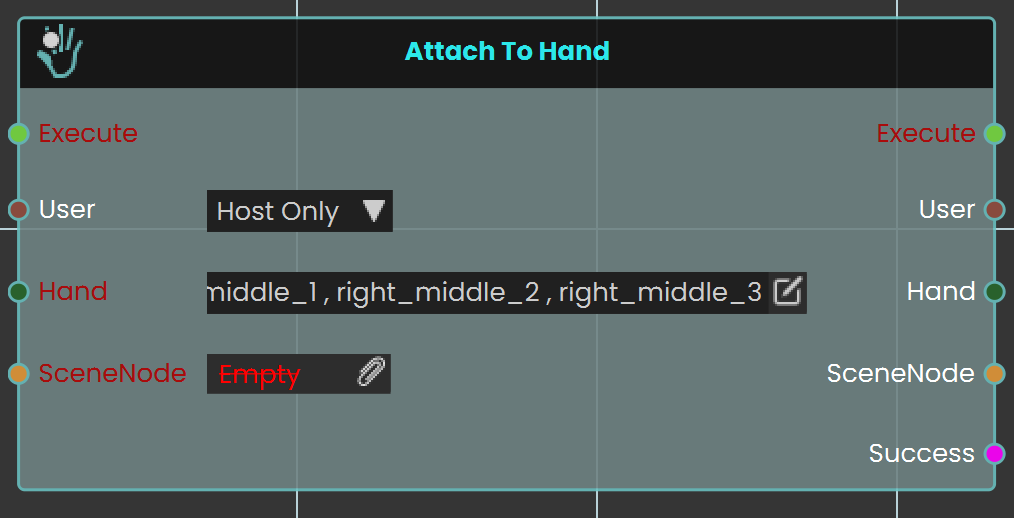
The **Attach to Hand** node enables the user to attach objects to specific parts of the hand in a VR environment by selecting the desired hand part. This node allows for precise placement of objects, such as tools or items, enhancing interactivity within the VR Experience. Once the attachment is configured, the object will remain in the chosen part of the hand during interactions.
#### Example
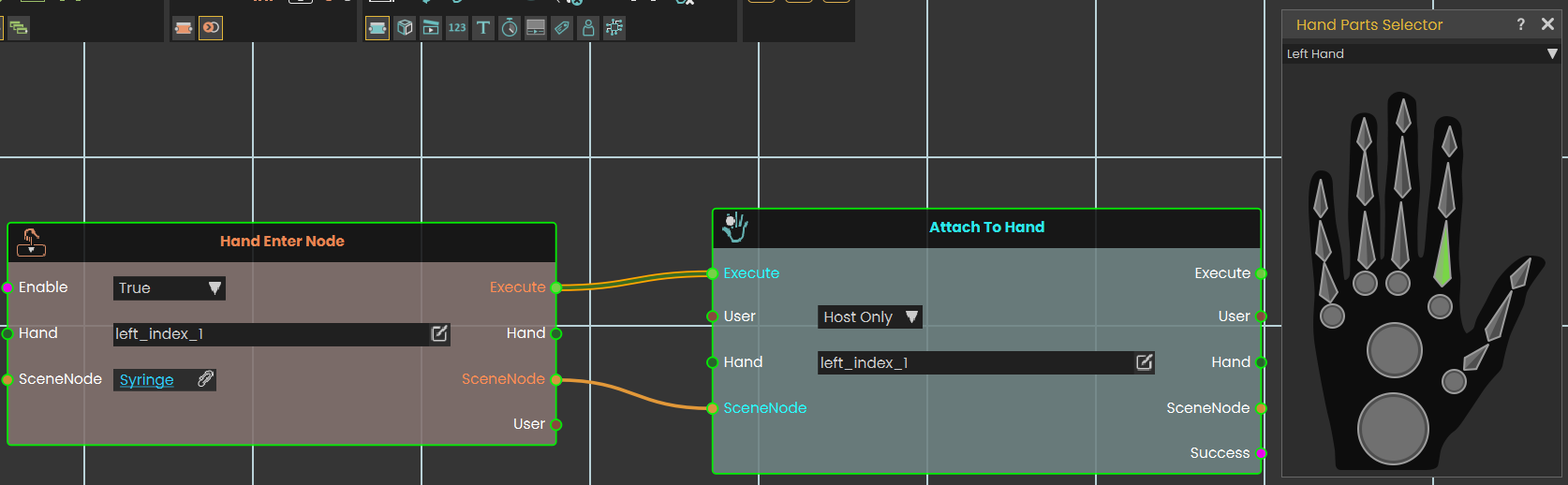
In this example, an **Attach to Hand node** is used to attach a syringe to the index finger once the "Hand Enter Node" event is triggered. The syringe is attached to the specified part of the hand automatically when the event occurs, enabling interaction with the object in the VR environment.
---
### [](https://simlab-soft.com/help/uploads/images/gallery/2026-03/response-node-detachfromhand.png) Detach From Hand
[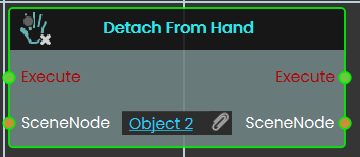](https://simlab-soft.com/help/uploads/images/gallery/2026-03/scLimage.png)
The **Detach From Hand** , detaches an object currently attached by the [Attach To Hand ](https://simlab-soft.com/help/link/369#bkmrk-number-variable-valu)response, so the object no more moves with the hand
---
### [](https://simlab-soft.com/help/uploads/images/gallery/2024-08/response-value-number-add.png) Trigger Beam
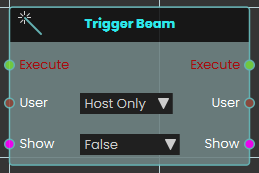
The **Trigger Beam node** enables the user to control the visibility of a beam coming out of the controller in the VR Experience, once the node is executed.
#### Example
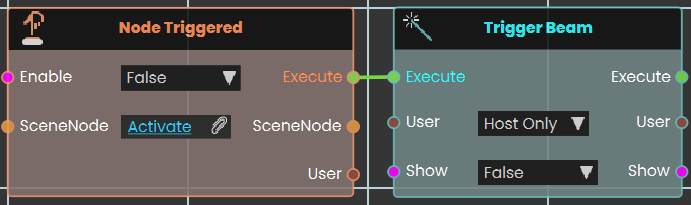
In this example, a **Trigger Beam node** is used to hide the beam coming out of the controller once the object named Activate is triggered. When the event is triggered, the change is reflected during the VR Experience.
---
---
###  Enable Controller Vibration
Makes a participant’s VR controller buzz, so you can give them a physical nudge of feedback during a scene.
#### What it does
When this node runs, the chosen user’s controller vibrates in their hand. You pick which hand buzzes, how strong the buzz feels, how fast it pulses, and how long it lasts. This is great for confirming an action, drawing attention to something, or signalling a mistake.
It only triggers a buzz — it doesn’t change anything about the user or the scene. The same user is passed straight back out, so you can keep chaining more user nodes after it.
#### Inputs
Port
Type
What to connect
**Execute**
Trigger
Wire this from the previous node’s Execute output.
**User**
User
Choose who feels the buzz. Pick `Host Only` to vibrate just the host’s controller, or `All Users` to vibrate everyone’s. You can also connect a User coming from an earlier node.
**Hand**
Choice
Which controller buzzes: `Right`, `Left`, or `Both`. Choosing `Both` vibrates both controllers at once.
**Strength**
Choice
How intense the buzz feels: `High`, `Medium`, or `Low`.
**Frequency**
Choice
How fast the buzz pulses: `High`, `Medium`, or `Low`.
**Duration**
Number
How long the buzz lasts, in seconds (0 or more). For example, `1` is a one-second buzz.
#### Outputs
Port
Type
What you get
**Execute**
Trigger
Fires once the node has finished.
**User**
User
The same user you chose, passed along so you can connect more user nodes after this one.
#### Example
**User** input
`Host Only`
**Hand** input
`Right`
**Strength** input
`High`
**Frequency** input
`Medium`
**Duration** input
`1` (a one-second buzz)
**User** output
The host, ready to pass on to the next node
#### Tips
- Use a short, strong buzz to confirm a correct action, and a longer or gentler one to warn of a mistake.
- Pick `Both` for the Hand when you want a buzz the participant can’t miss.
---
###  Disable Controller Vibration
Turns off the buzzing (haptic feedback) in a participant’s VR controller.
#### What it does
This node stops the vibration in the chosen hand’s controller for the user you pick. Use it to silence the controller after a buzz, or to make sure a controller stays quiet during a particular part of your scene.
You choose which participant it affects (the host only, or everyone) and which hand to quiet down — the right controller, the left controller, or both. It only controls the vibration; it doesn’t change anything else about the controller or the user, and the same user is passed straight back out so you can connect more user nodes after it.
#### Inputs
Port
Type
What to connect
**Execute**
Trigger
Wire this from the previous node’s Execute output to run the node.
**User**
User
Chooses which participant to act on. Pick **Host Only** to quiet just the main user’s controller, or **All Users** to quiet everyone’s.
**Hand**
Choice
Which controller to turn off the vibration on: **Right**, **Left**, or **Both**.
#### Outputs
Port
Type
What you get
**Execute**
Trigger
Fires once the vibration has been turned off, so you can continue to the next node.
**User**
User
The same user you chose, passed along so you can chain more user nodes after this one.
#### Example
**User** input
`Host Only`
**Hand** input
`Both`
**User** output
The same host user, ready to connect to the next node
#### Tips
- Pair this with the **Enable Controller Vibration** node: turn the buzzing on for a moment of feedback, then use this node to switch it back off.
- Choose **Both** when you want both controllers to stop at the same time, rather than adding two separate nodes for the left and right hands.
# User \ Transform
###  Get User Rotation
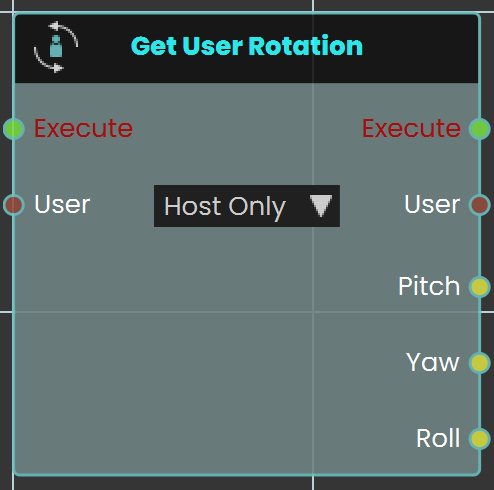
The **Get User Rotation** response enables the user to get the values of the User's head rotation, and allows them to store the values of the **Pitch**, **Yaw** and **Roll** and the results can be acquired through their output ports.
####
####
#### Example

In this example, a **Get User Rotation** response is used to check the head rotation angles (Pitch, Yaw and Roll). Once the object named Activate is triggered, the head rotation values (Pitch, Yaw, Roll) of the user with attribute InBuilding and Value Yes are calculated and stored in the variables named Pitch, Yaw, Roll, in order to use them in the VR Experience.
---
###  Get User Location
Finds out where a user is currently standing in your scene and gives you their position as three numbers.
#### What it does
This node reads a user’s current position in the scene and hands back the three coordinates that describe it: `X`, `Y`, and `Z`, measured in meters. You can use these numbers to check where someone is, compare it to another spot, or feed it into other nodes.
It only reads the position — it does not move the user or change anything about them. The user stays exactly where they are.
#### Inputs
Port
Type
What to connect
**Execute**
Trigger
Wire this from the previous node’s Execute output.
**User**
User
The user whose position you want to read. A dropdown lets you choose **Host Only** (the default — the main user) or **All Users**, which reads the position of everyone in a shared collaboration session.
#### Outputs
Port
Type
What you get
**Execute**
Trigger
Fires once the node has finished.
**User**
User
The same user you put in, passed straight through so you can chain it into more user nodes.
**X**
Number
The user’s position along the X axis, in meters.
**Y**
Number
The user’s position along the Y axis, in meters.
**Z**
Number
The user’s position along the Z axis, in meters.
#### Example
**User** input
`Host Only`
**X** output
`2.5`
**Y** output
`1.7`
**Z** output
`-4.0`
#### Tips
- Pair this with **Get User Rotation** when you need both where the user is standing and which way they are facing.
- Choose **All Users** only in a shared collaboration session; for a single-user scene, **Host Only** is what you want.
---
### [](https://simlab-soft.com/help/uploads/images/gallery/2024-08/response-value-number-add.png) Teleport To Camera

The **Teleport To Camera** node enables the user to teleport to a new location by assigning a camera in the **CameraNode** field. Once the teleportation is executed, the user is moved to the position and orientation defined by the specified camera, the user can also decide whether this teleportation affect the host only or all the user in the experience (in case of collaboration).
#### Example

In this example, a **Teleport To Camera** response is used to move the user to a new location once the object named Activate is triggered. When triggered, the sound named Teleport\_Sound will play, and the user will be teleported to the location of the camera assigned in the Teleport To Camera node.
> [ ](https://simlab-soft.com/help/uploads/images/gallery/2024-08/response-value-number-add.png)[Tutorial is available on SimLab VR Discord server](https://discord.com/channels/1062715275805470821/1272491882890399814/1272491882890399814 "Tutorial is available on SimLab VR Discord server")
---
### [](https://simlab-soft.com/help/uploads/images/gallery/2024-08/response-value-number-add.png) Attach User
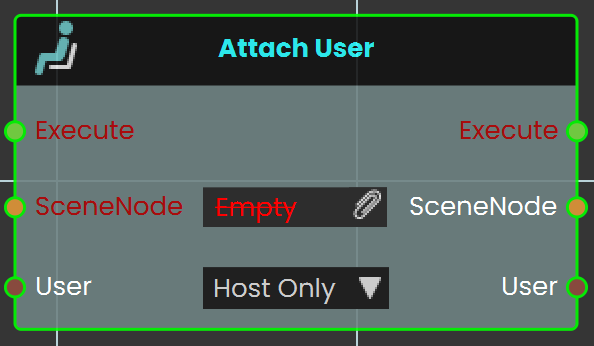
The **Attach User** node allows users to attach the user to specific objects within the VR Experience. This node ensures that the user moves along with the object, providing an immersive experience where the user is fixed to the selected object throughout the VR environment, this can be decided to affect only the host or all user (in case of collaboration).
#### Example
[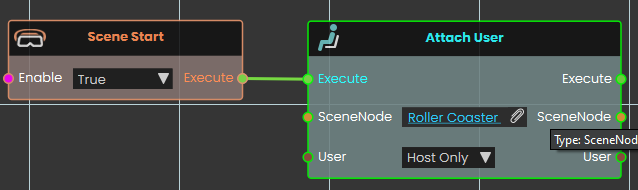](https://simlab-soft.com/help/uploads/images/gallery/2025-01/0dDimage.png)
In this example, the **Attach User** node is used to attach the user to a roller coaster at the start of the scene. When the scene starts, the user will be fixed to the roller coaster, moving along with it as it travels through the environment, providing an immersive experience.
> [ ](https://simlab-soft.com/help/uploads/images/gallery/2024-08/response-value-number-add.png)[Tutorial is available on SimLab VR Discord server](https://discord.com/channels/1062715275805470821/1298557994208071701/1328733596726333451 "Tutorial is available on SimLab VR Discord server")
---
### [](https://simlab-soft.com/help/uploads/images/gallery/2024-08/response-value-number-add.png) Detach User
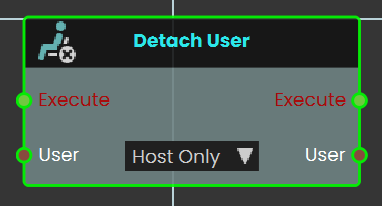
The **Detach User** node allows users to detach from an object within the VR Experience. This node provides a straightforward way to release the user from an object they were attached to, ensuring they regain control of their own movement and are no longer fixed to the selected object or location.
#### Example
[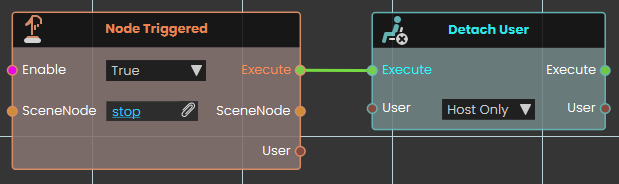](https://simlab-soft.com/help/uploads/images/gallery/2025-01/Fw9image.png)
In this example, the **Detach User** node is used to detach the user from a roller coaster when the roller coaster's animation ends. Once the animation is complete, the user will be released from the roller coaster.
> [ ](https://simlab-soft.com/help/uploads/images/gallery/2024-08/response-value-number-add.png)[Tutorial is available on SimLab VR Discord server](https://discord.com/channels/1062715275805470821/1298557994208071701/1328733596726333451 "Tutorial is available on SimLab VR Discord server")
# User \ Gadget
### [](https://simlab-soft.com/help/uploads/images/gallery/2024-08/response-value-number-add.png) Equip To User
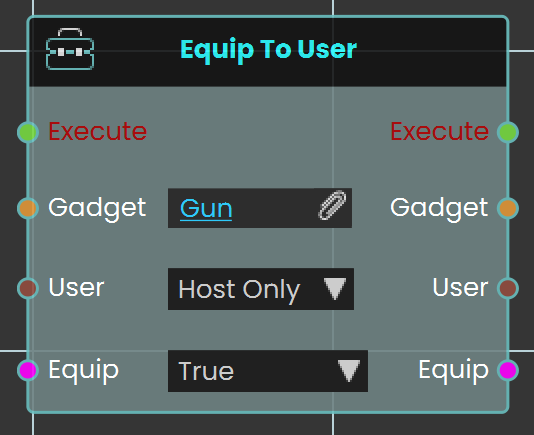
The **Equip to User** Node enables the user to equip or unequip gadgets, adjacent objects, or HUD elements to the user within the VR environment. This node enhances interactivity by enabling users to interact directly with various items and interface elements as part of their virtual experience.
The **Hide From Others** input decides who can see the equipped item. When it is set to true, only the user it is equipped to can see it: every other player in the session stops seeing it, while the user wearing it can still use it as normal. When it is false, the item stays visible to everyone. The choice is made again on every equip, so equipping with it set to false makes the item visible to everyone again, and unequipping always clears it. The node passes the same true/false value on through its **Hide From Others** output.
#### Example
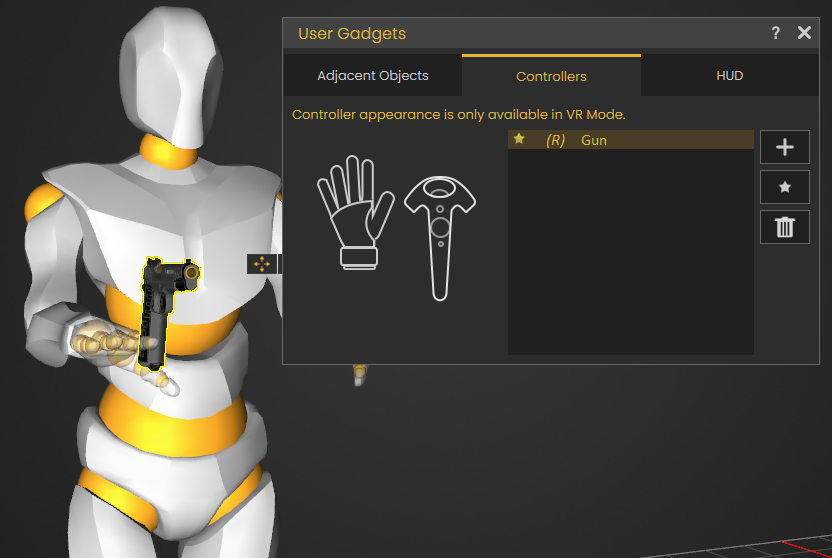
In this example, the **Equip to User Node** is used to equip a gun controller to the user. Select the gun object, then assign it to the controller by clicking on the plus icon in the User Gadget window.
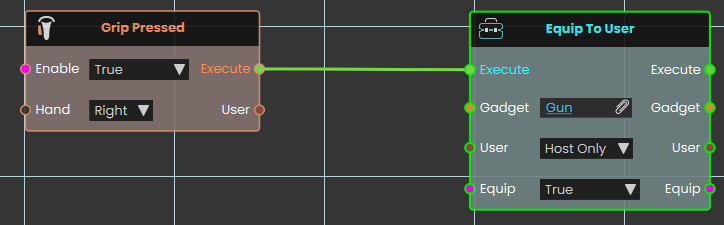
To activate the gun gadget, press the right grip button then the gun will be attached to the User's controller in the VR environment.
---
# User \ Attributes
Every user in your experience can carry extra pieces of information called **attributes** — small named values you attach to a user and read back later. Attributes can also be grouped into named **categories**, which lets one user keep separate attributes that share a name. The nodes on this page let you add, read, check for, and remove attributes on a user, both on their own and inside a category.
Reading an attribute never changes it; setting or removing one changes only that single attribute and leaves everything else about the user untouched.
## Get a user attribute
###  Get User Attribute (Number)
Reads a named attribute from a user and gives it back as a number.
#### What it does
Every user in your session can carry extra pieces of information called **attributes**, each one saved under a name you choose. This node looks for the attribute called the name you provide on the user you connect and hands its value back as a number. It only reads the user — it does not change the user or the attribute in any way.
The attribute should already exist and hold a number. If it is missing, or what is stored cannot be read as a number, the node stops with an error instead of giving you a result — so check with **User Has Attribute** first if you are not sure.
#### Inputs
Port
Type
What to connect
**Execute**
Trigger
Wire this from the previous node’s **Execute** output.
**User**
User
The user you want to read the attribute from. If you leave this port unconnected, you can pick an option on the node itself: **Host Only** (the default) or **All Users**.
**Attribute Name**
Text
The name of the attribute you want to read.
#### Outputs
Port
Type
What you get
**Execute**
Trigger
Fires once the node has finished.
**User**
User
The same user you connected, passed straight through so you can keep using it.
**Attribute Name**
Text
The attribute name you provided, passed through.
**Value**
Number
The number stored in the attribute.
#### Example
**User** input
the `` user
**Attribute Name** input
`score`
**Value** output
`85`
###  Get User Attribute (Boolean)
Reads a named attribute from a user and gives it back as a true / false value.
#### What it does
Every user in your session can carry extra pieces of information called **attributes**, each one saved under a name you choose. This node looks for the attribute called the name you provide on the user you connect and hands its value back as a true / false value. It only reads the user — it does not change the user or the attribute in any way.
The attribute should already exist and hold a true / false value. If it is missing, or what is stored cannot be read as a true / false value, the node stops with an error instead of giving you a result — so check with **User Has Attribute** first if you are not sure.
Saved values of `true`, `yes` or `on` are read as true, and `false`, `no` or `off` are read as false.
#### Inputs
Port
Type
What to connect
**Execute**
Trigger
Wire this from the previous node’s **Execute** output.
**User**
User
The user you want to read the attribute from. If you leave this port unconnected, you can pick an option on the node itself: **Host Only** (the default) or **All Users**.
**Attribute Name**
Text
The name of the attribute you want to read.
#### Outputs
Port
Type
What you get
**Execute**
Trigger
Fires once the node has finished.
**User**
User
The same user you connected, passed straight through so you can keep using it.
**Attribute Name**
Text
The attribute name you provided, passed through.
**Result**
True / false
The true / false value stored in the attribute.
#### Example
**User** input
the `` user
**Attribute Name** input
`certified`
**Result** output
`true`
### Get User Attribute (SceneNode)
Reads a named attribute from a user and gives it back as a scene node.
#### What it does
Every user in your session can carry extra pieces of information called **attributes**, each one saved under a name you choose. This node looks for the attribute called the name you provide on the user you connect and hands its value back as a scene node. It only reads the user — it does not change the user or the attribute in any way.
The attribute should already exist and hold a scene node. If it is missing, you get an empty result rather than an error, so it is still worth checking with **User Has Attribute** first.
#### Inputs
Port
Type
What to connect
**Execute**
Trigger
Wire this from the previous node’s **Execute** output.
**User**
User
The user you want to read the attribute from.
**Attribute Name**
Text
The name of the attribute you want to read.
#### Outputs
Port
Type
What you get
**Execute**
Trigger
Fires once the node has finished.
**User**
User
The same user you connected, passed straight through so you can keep using it.
**Attribute Name**
Text
The attribute name you provided, passed through.
**Result**
Scene node
The scene node stored in the attribute.
#### Example
**User** input
the `` user
**Attribute Name** input
`assignedStation`
**Result** output
``
### Get User Attribute (SceneState)
Reads a named attribute from a user and gives it back as a scene state.
#### What it does
Every user in your session can carry extra pieces of information called **attributes**, each one saved under a name you choose. This node looks for the attribute called the name you provide on the user you connect and hands its value back as a scene state. It only reads the user — it does not change the user or the attribute in any way.
The attribute should already exist and hold a scene state. If it is missing, you get an empty result rather than an error, so it is still worth checking with **User Has Attribute** first.
#### Inputs
Port
Type
What to connect
**Execute**
Trigger
Wire this from the previous node’s **Execute** output.
**User**
User
The user you want to read the attribute from.
**Attribute Name**
Text
The name of the attribute you want to read.
#### Outputs
Port
Type
What you get
**Execute**
Trigger
Fires once the node has finished.
**User**
User
The same user you connected, passed straight through so you can keep using it.
**Attribute Name**
Text
The attribute name you provided, passed through.
**Result**
Scene state
The scene state stored in the attribute.
#### Example
**User** input
the `` user
**Attribute Name** input
`checkpoint`
**Result** output
``
### Get User Attribute (Sequence)
Reads a named attribute from a user and gives it back as a sequence.
#### What it does
Every user in your session can carry extra pieces of information called **attributes**, each one saved under a name you choose. This node looks for the attribute called the name you provide on the user you connect and hands its value back as a sequence. It only reads the user — it does not change the user or the attribute in any way.
The attribute should already exist and hold a sequence. If it is missing, you get an empty result rather than an error, so it is still worth checking with **User Has Attribute** first.
#### Inputs
Port
Type
What to connect
**Execute**
Trigger
Wire this from the previous node’s **Execute** output.
**User**
User
The user you want to read the attribute from.
**Attribute Name**
Text
The name of the attribute you want to read.
#### Outputs
Port
Type
What you get
**Execute**
Trigger
Fires once the node has finished.
**User**
User
The same user you connected, passed straight through so you can keep using it.
**Attribute Name**
Text
The attribute name you provided, passed through.
**Result**
Sequence
The sequence stored in the attribute.
#### Example
**User** input
the `` user
**Attribute Name** input
`introSequence`
**Result** output
``
## Set a user attribute
### [](https://simlab-soft.com/help/uploads/images/gallery/2024-08/response-value-number-add.png) Set User Attribute (String)
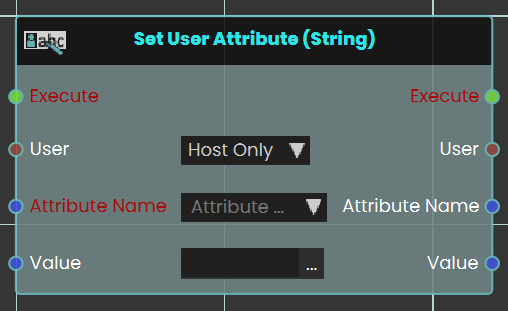
The **Set User Attribute** response enables user to set a value to an attribute by either typing in a string value in the value field or by attaching a value or a variable node to that port. Then once the response is executed, the variable value can be acquired through the **Value** port.
####
#### Example
[ ](https://simlab-soft.com/help/uploads/images/gallery/2024-08/euiimage.png)
In this example, we added a **String User Attribute** called it **Indoor** with the value **No**
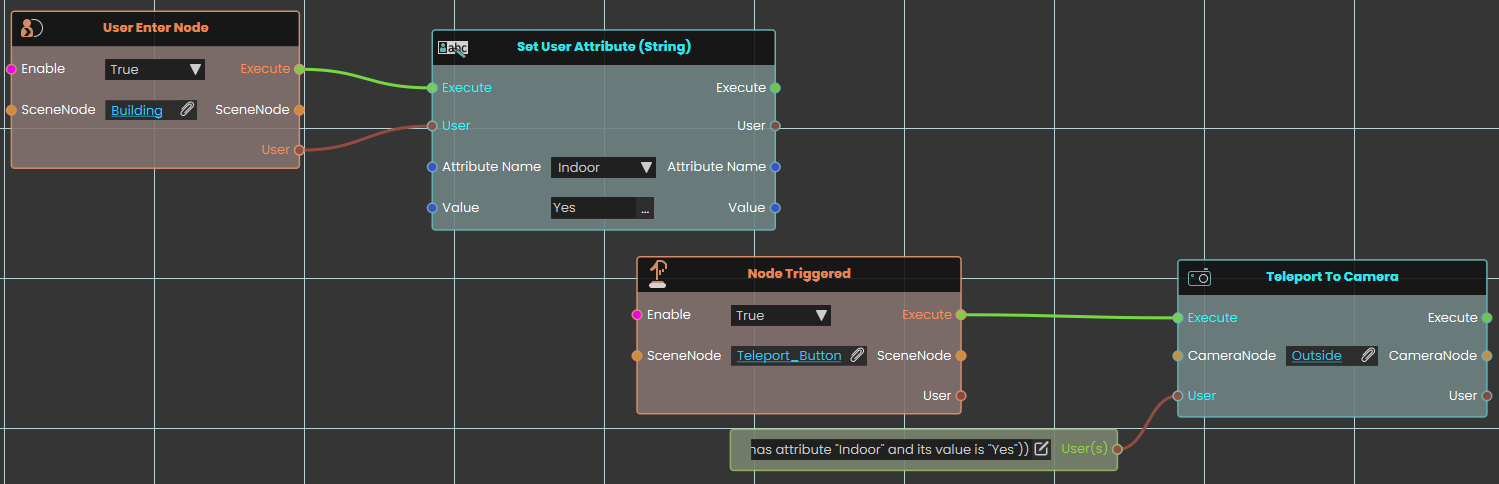
Once the user enters the object named Building, the **Indoor** attribute's value will be set to **Yes**, then when the object named Teleport Button is triggered, the user(s) with the attribute named **Indoor** and the value **Yes** will be teleported to the **Outside** CameraNode location.
---
###  Set User Attribute (Number)
Saves a number onto a user as a named attribute.
#### What it does
Every user in your session can carry extra pieces of information called **attributes**, each one saved under a name you choose. This node attaches the attribute called the name you provide to the user you connect and stores a number in it. If the user already has an attribute with that name, its value is replaced; if not, the attribute is created.
The value you provide is also sent straight back out, so you can keep using it further along.
#### Inputs
Port
Type
What to connect
**Execute**
Trigger
Wire this from the previous node’s **Execute** output.
**User**
User
The user you want to add or change the attribute on. If you leave this port unconnected, you can pick an option on the node itself — **Host Only** (the default) or **All Users**, which saves the attribute on every user in the session.
**Attribute Name**
Text
The name to save the attribute under.
**Value**
Number
The number to store.
#### Outputs
Port
Type
What you get
**Execute**
Trigger
Fires once the node has finished.
**User**
User
The same user you connected, passed straight through so you can keep using it.
**Attribute Name**
Text
The attribute name you provided, passed through.
**Value**
Number
The same value you stored, passed through.
#### Example
**User** input
the `` user
**Attribute Name** input
`score`
**Value** input
`85`
###  Set User Attribute (Boolean)
Saves a true / false value onto a user as a named attribute.
#### What it does
Every user in your session can carry extra pieces of information called **attributes**, each one saved under a name you choose. This node attaches the attribute called the name you provide to the user you choose and stores a true / false value in it. If the user already has an attribute with that name, its value is replaced; if not, the attribute is created.
The value you provide is also sent straight back out, so you can keep using it further along.
#### Inputs
Port
Type
What to connect
**Execute**
Trigger
Wire this from the previous node’s **Execute** output.
**User**
User
The user you want to add or change the attribute on. If you leave this port unconnected, you can pick an option on the node itself — **Host Only** (the default) or **All Users**, which saves the attribute on every user in the session.
**Attribute Name**
Text
The name to save the attribute under.
**Value**
True / false
The true / false value to store.
#### Outputs
Port
Type
What you get
**Execute**
Trigger
Fires once the node has finished.
**User**
User
The same user you connected, passed straight through so you can keep using it.
**Attribute Name**
Text
The attribute name you provided, passed through.
**Value**
True / false
The same value you stored, passed through.
#### Example
**User** input
the `` user
**Attribute Name** input
`certified`
**Value** input
`true`
### Set User Attribute (SceneNode)
Saves a scene node onto a user as a named attribute.
#### What it does
Every user in your session can carry extra pieces of information called **attributes**, each one saved under a name you choose. This node attaches the attribute called the name you provide to the user you connect and stores a scene node in it. If the user already has an attribute with that name, its value is replaced; if not, the attribute is created.
The value you provide is also sent straight back out, so you can keep using it further along.
#### Inputs
Port
Type
What to connect
**Execute**
Trigger
Wire this from the previous node’s **Execute** output.
**User**
User
The user you want to add or change the attribute on.
**Attribute Name**
Text
The name to save the attribute under.
**Value**
Scene node
The scene node to save a link to.
#### Outputs
Port
Type
What you get
**Execute**
Trigger
Fires once the node has finished.
**User**
User
The same user you connected, passed straight through so you can keep using it.
**Attribute Name**
Text
The attribute name you provided, passed through.
**Value**
Scene node
The same value you stored, passed through.
#### Example
**User** input
the `` user
**Attribute Name** input
`assignedStation`
**Value** input
the `` object
### Set User Attribute (SceneState)
Saves a scene state onto a user as a named attribute.
#### What it does
Every user in your session can carry extra pieces of information called **attributes**, each one saved under a name you choose. This node attaches the attribute called the name you provide to the user you connect and stores a scene state in it. If the user already has an attribute with that name, its value is replaced; if not, the attribute is created.
The value you provide is also sent straight back out, so you can keep using it further along.
#### Inputs
Port
Type
What to connect
**Execute**
Trigger
Wire this from the previous node’s **Execute** output.
**User**
User
The user you want to add or change the attribute on.
**Attribute Name**
Text
The name to save the attribute under.
**Value**
Scene state
The scene state to save a link to.
#### Outputs
Port
Type
What you get
**Execute**
Trigger
Fires once the node has finished.
**User**
User
The same user you connected, passed straight through so you can keep using it.
**Attribute Name**
Text
The attribute name you provided, passed through.
**Value**
Scene state
The same value you stored, passed through.
#### Example
**User** input
the `` user
**Attribute Name** input
`checkpoint`
**Value** input
``
### Set User Attribute (Sequence)
Saves a sequence onto a user as a named attribute.
#### What it does
Every user in your session can carry extra pieces of information called **attributes**, each one saved under a name you choose. This node attaches the attribute called the name you provide to the user you connect and stores a sequence in it. If the user already has an attribute with that name, its value is replaced; if not, the attribute is created.
The value you provide is also sent straight back out, so you can keep using it further along.
#### Inputs
Port
Type
What to connect
**Execute**
Trigger
Wire this from the previous node’s **Execute** output.
**User**
User
The user you want to add or change the attribute on.
**Attribute Name**
Text
The name to save the attribute under.
**Value**
Sequence
The sequence to save a link to.
#### Outputs
Port
Type
What you get
**Execute**
Trigger
Fires once the node has finished.
**User**
User
The same user you connected, passed straight through so you can keep using it.
**Attribute Name**
Text
The attribute name you provided, passed through.
**Value**
Sequence
The same value you stored, passed through.
#### Example
**User** input
the `` user
**Attribute Name** input
`introSequence`
**Value** input
``
## Check or remove a user attribute
###  User Has Attribute
Checks whether a user has an attribute with a given name.
#### What it does
This node looks at the user you connect and tells you whether they already have an attribute saved under the name you provide. You get back **true** if they do and **false** if they do not. It only checks — nothing on the user is changed.
It is handy to run before reading or changing an attribute, to be sure it is there.
#### Inputs
Port
Type
What to connect
**Execute**
Trigger
Wire this from the previous node’s **Execute** output.
**User**
User
The user you want to check.
**Attribute Name**
Text
The name of the attribute to look for.
#### Outputs
Port
Type
What you get
**Execute**
Trigger
Fires once the node has finished.
**User**
User
The same user you connected, passed straight through so you can keep using it.
**Attribute Name**
Text
The attribute name you provided, passed through.
**Result**
True / false
**True** if the attribute exists, otherwise **false**.
#### Example
**User** input
the `` user
**Attribute Name** input
`certified`
**Result** output
**true** — the attribute exists
###  Remove User Attribute
Deletes a named attribute from a user.
#### What it does
This node removes the attribute saved under the name you provide from the user you connect. That one attribute and its value are deleted from the user; everything else about the user stays the same.
If the user has no attribute with that name, nothing happens.
#### Inputs
Port
Type
What to connect
**Execute**
Trigger
Wire this from the previous node’s **Execute** output.
**User**
User
The user you want to remove the attribute from.
**Attribute Name**
Text
The name of the attribute to remove.
#### Outputs
Port
Type
What you get
**Execute**
Trigger
Fires once the node has finished.
**User**
User
The same user you connected, passed straight through so you can keep using it.
**Attribute Name**
Text
The attribute name you provided, passed through.
#### Example
**User** input
the `` user
**Attribute Name** input
`tempNote`
## Get a user attribute in a category
### Get User Attribute in Category (String)
Reads a named attribute kept in a category on a user and gives it back as a piece of text.
#### What it does
Every user in your session can carry extra pieces of information called **attributes**, each one saved under a name you choose. Attributes can also be grouped into named **categories**, so a single user can keep separate attributes that share a name in different categories. This node looks for the attribute called the name you provide inside the category you name, on the user you connect and hands its value back as a piece of text. It only reads the user — it does not change the user or the attribute in any way.
The attribute should already exist and hold text. If it is missing, you get an empty result rather than an error, so it is still worth checking with **User Has Attribute In Category** first.
#### Inputs
Port
Type
What to connect
**Execute**
Trigger
Wire this from the previous node’s **Execute** output.
**User**
User
The user you want to read the attribute from.
**Attribute Name**
Text
The name of the attribute you want to read.
**Category**
Text
The name of the category the attribute is kept in.
#### Outputs
Port
Type
What you get
**Execute**
Trigger
Fires once the node has finished.
**User**
User
The same user you connected, passed straight through so you can keep using it.
**Attribute Name**
Text
The attribute name you provided, passed through.
**Category**
Text
The category name you provided, passed through.
**Result**
Text
The text stored in the attribute.
#### Example
**User** input
the `` user
**Attribute Name** input
`role`
**Category** input
`Training`
**Result** output
`Safety Officer`
### Get User Attribute in Category (Number)
Reads a named attribute kept in a category on a user and gives it back as a number.
#### What it does
Every user in your session can carry extra pieces of information called **attributes**, each one saved under a name you choose. Attributes can also be grouped into named **categories**, so a single user can keep separate attributes that share a name in different categories. This node looks for the attribute called the name you provide inside the category you name, on the user you connect and hands its value back as a number. It only reads the user — it does not change the user or the attribute in any way.
The attribute should already exist and hold a number. If it is missing, or what is stored cannot be read as a number, the node stops with an error instead of giving you a result — so check with **User Has Attribute In Category** first if you are not sure.
#### Inputs
Port
Type
What to connect
**Execute**
Trigger
Wire this from the previous node’s **Execute** output.
**User**
User
The user you want to read the attribute from.
**Attribute Name**
Text
The name of the attribute you want to read.
**Category**
Text
The name of the category the attribute is kept in.
#### Outputs
Port
Type
What you get
**Execute**
Trigger
Fires once the node has finished.
**User**
User
The same user you connected, passed straight through so you can keep using it.
**Attribute Name**
Text
The attribute name you provided, passed through.
**Category**
Text
The category name you provided, passed through.
**Result**
Number
The number stored in the attribute.
#### Example
**User** input
the `` user
**Attribute Name** input
`score`
**Category** input
`Training`
**Result** output
`85`
### Get User Attribute in Category (Boolean)
Reads a named attribute kept in a category on a user and gives it back as a true / false value.
#### What it does
Every user in your session can carry extra pieces of information called **attributes**, each one saved under a name you choose. Attributes can also be grouped into named **categories**, so a single user can keep separate attributes that share a name in different categories. This node looks for the attribute called the name you provide inside the category you name, on the user you connect and hands its value back as a true / false value. It only reads the user — it does not change the user or the attribute in any way.
The attribute should already exist and hold a true / false value. If it is missing, or what is stored cannot be read as a true / false value, the node stops with an error instead of giving you a result — so check with **User Has Attribute In Category** first if you are not sure.
Saved values of `true`, `yes` or `on` are read as true, and `false`, `no` or `off` are read as false.
#### Inputs
Port
Type
What to connect
**Execute**
Trigger
Wire this from the previous node’s **Execute** output.
**User**
User
The user you want to read the attribute from.
**Attribute Name**
Text
The name of the attribute you want to read.
**Category**
Text
The name of the category the attribute is kept in.
#### Outputs
Port
Type
What you get
**Execute**
Trigger
Fires once the node has finished.
**User**
User
The same user you connected, passed straight through so you can keep using it.
**Attribute Name**
Text
The attribute name you provided, passed through.
**Category**
Text
The category name you provided, passed through.
**Result**
True / false
The true / false value stored in the attribute.
#### Example
**User** input
the `` user
**Attribute Name** input
`certified`
**Category** input
`Training`
**Result** output
`true`
### Get User Attribute in Category (SceneNode)
Reads a named attribute kept in a category on a user and gives it back as a scene node.
#### What it does
Every user in your session can carry extra pieces of information called **attributes**, each one saved under a name you choose. Attributes can also be grouped into named **categories**, so a single user can keep separate attributes that share a name in different categories. This node looks for the attribute called the name you provide inside the category you name, on the user you connect and hands its value back as a scene node. It only reads the user — it does not change the user or the attribute in any way.
The attribute should already exist and hold a scene node. If it is missing, you get an empty result rather than an error, so it is still worth checking with **User Has Attribute In Category** first.
#### Inputs
Port
Type
What to connect
**Execute**
Trigger
Wire this from the previous node’s **Execute** output.
**User**
User
The user you want to read the attribute from.
**Attribute Name**
Text
The name of the attribute you want to read.
**Category**
Text
The name of the category the attribute is kept in.
#### Outputs
Port
Type
What you get
**Execute**
Trigger
Fires once the node has finished.
**User**
User
The same user you connected, passed straight through so you can keep using it.
**Attribute Name**
Text
The attribute name you provided, passed through.
**Category**
Text
The category name you provided, passed through.
**Result**
Scene node
The scene node stored in the attribute.
#### Example
**User** input
the `` user
**Attribute Name** input
`assignedStation`
**Category** input
`Training`
**Result** output
the `` object
### Get User Attribute in Category (SceneState)
Reads a named attribute kept in a category on a user and gives it back as a scene state.
#### What it does
Every user in your session can carry extra pieces of information called **attributes**, each one saved under a name you choose. Attributes can also be grouped into named **categories**, so a single user can keep separate attributes that share a name in different categories. This node looks for the attribute called the name you provide inside the category you name, on the user you connect and hands its value back as a scene state. It only reads the user — it does not change the user or the attribute in any way.
The attribute should already exist and hold a scene state. If it is missing, you get an empty result rather than an error, so it is still worth checking with **User Has Attribute In Category** first.
#### Inputs
Port
Type
What to connect
**Execute**
Trigger
Wire this from the previous node’s **Execute** output.
**User**
User
The user you want to read the attribute from.
**Attribute Name**
Text
The name of the attribute you want to read.
**Category**
Text
The name of the category the attribute is kept in.
#### Outputs
Port
Type
What you get
**Execute**
Trigger
Fires once the node has finished.
**User**
User
The same user you connected, passed straight through so you can keep using it.
**Attribute Name**
Text
The attribute name you provided, passed through.
**Category**
Text
The category name you provided, passed through.
**Result**
Scene state
The scene state stored in the attribute.
#### Example
**User** input
the `` user
**Attribute Name** input
`checkpoint`
**Category** input
`Training`
**Result** output
``
### Get User Attribute in Category (Sequence)
Reads a named attribute kept in a category on a user and gives it back as a sequence.
#### What it does
Every user in your session can carry extra pieces of information called **attributes**, each one saved under a name you choose. Attributes can also be grouped into named **categories**, so a single user can keep separate attributes that share a name in different categories. This node looks for the attribute called the name you provide inside the category you name, on the user you connect and hands its value back as a sequence. It only reads the user — it does not change the user or the attribute in any way.
The attribute should already exist and hold a sequence. If it is missing, you get an empty result rather than an error, so it is still worth checking with **User Has Attribute In Category** first.
#### Inputs
Port
Type
What to connect
**Execute**
Trigger
Wire this from the previous node’s **Execute** output.
**User**
User
The user you want to read the attribute from.
**Attribute Name**
Text
The name of the attribute you want to read.
**Category**
Text
The name of the category the attribute is kept in.
#### Outputs
Port
Type
What you get
**Execute**
Trigger
Fires once the node has finished.
**User**
User
The same user you connected, passed straight through so you can keep using it.
**Attribute Name**
Text
The attribute name you provided, passed through.
**Category**
Text
The category name you provided, passed through.
**Result**
Sequence
The sequence stored in the attribute.
#### Example
**User** input
the `` user
**Attribute Name** input
`introSequence`
**Category** input
`Training`
**Result** output
``
## Set a user attribute in a category
### Set User Attribute in Category (String)
Saves a piece of text into a category on a user as a named attribute.
#### What it does
Every user in your session can carry extra pieces of information called **attributes**, each one saved under a name you choose. Attributes can also be grouped into named **categories**, so a single user can keep separate attributes that share a name in different categories. This node attaches the attribute called the name you provide, inside the category you name, to the user you connect and stores a piece of text in it. If that category already has an attribute with that name, its value is replaced; if not, the attribute is created.
The value you provide is also sent straight back out, so you can keep using it further along.
#### Inputs
Port
Type
What to connect
**Execute**
Trigger
Wire this from the previous node’s **Execute** output.
**User**
User
The user you want to add or change the attribute on.
**Attribute Name**
Text
The name to save the attribute under.
**Category**
Text
The name of the category to keep the attribute in.
**Value**
Text
The text to store.
#### Outputs
Port
Type
What you get
**Execute**
Trigger
Fires once the node has finished.
**User**
User
The same user you connected, passed straight through so you can keep using it.
**Attribute Name**
Text
The attribute name you provided, passed through.
**Category**
Text
The category name you provided, passed through.
**Value**
Text
The same value you stored, passed through.
#### Example
**User** input
the `` user
**Attribute Name** input
`role`
**Category** input
`Training`
**Value** input
`Safety Officer`
### Set User Attribute in Category (Number)
Saves a number into a category on a user as a named attribute.
#### What it does
Every user in your session can carry extra pieces of information called **attributes**, each one saved under a name you choose. Attributes can also be grouped into named **categories**, so a single user can keep separate attributes that share a name in different categories. This node attaches the attribute called the name you provide, inside the category you name, to the user you connect and stores a number in it. If that category already has an attribute with that name, its value is replaced; if not, the attribute is created.
The value you provide is also sent straight back out, so you can keep using it further along.
#### Inputs
Port
Type
What to connect
**Execute**
Trigger
Wire this from the previous node’s **Execute** output.
**User**
User
The user you want to add or change the attribute on.
**Attribute Name**
Text
The name to save the attribute under.
**Category**
Text
The name of the category to keep the attribute in.
**Value**
Number
The number to store.
#### Outputs
Port
Type
What you get
**Execute**
Trigger
Fires once the node has finished.
**User**
User
The same user you connected, passed straight through so you can keep using it.
**Attribute Name**
Text
The attribute name you provided, passed through.
**Category**
Text
The category name you provided, passed through.
**Value**
Number
The same value you stored, passed through.
#### Example
**User** input
the `` user
**Attribute Name** input
`score`
**Category** input
`Training`
**Value** input
`85`
### Set User Attribute in Category (Boolean)
Saves a true / false value into a category on a user as a named attribute.
#### What it does
Every user in your session can carry extra pieces of information called **attributes**, each one saved under a name you choose. Attributes can also be grouped into named **categories**, so a single user can keep separate attributes that share a name in different categories. This node attaches the attribute called the name you provide, inside the category you name, to the user you connect and stores a true / false value in it. If that category already has an attribute with that name, its value is replaced; if not, the attribute is created.
The value you provide is also sent straight back out, so you can keep using it further along.
#### Inputs
Port
Type
What to connect
**Execute**
Trigger
Wire this from the previous node’s **Execute** output.
**User**
User
The user you want to add or change the attribute on.
**Attribute Name**
Text
The name to save the attribute under.
**Category**
Text
The name of the category to keep the attribute in.
**Value**
True / false
The true / false value to store.
#### Outputs
Port
Type
What you get
**Execute**
Trigger
Fires once the node has finished.
**User**
User
The same user you connected, passed straight through so you can keep using it.
**Attribute Name**
Text
The attribute name you provided, passed through.
**Category**
Text
The category name you provided, passed through.
**Value**
True / false
The same value you stored, passed through.
#### Example
**User** input
the `` user
**Attribute Name** input
`certified`
**Category** input
`Training`
**Value** input
`true`
### Set User Attribute in Category (SceneNode)
Saves a scene node into a category on a user as a named attribute.
#### What it does
Every user in your session can carry extra pieces of information called **attributes**, each one saved under a name you choose. Attributes can also be grouped into named **categories**, so a single user can keep separate attributes that share a name in different categories. This node attaches the attribute called the name you provide, inside the category you name, to the user you connect and stores a scene node in it. If that category already has an attribute with that name, its value is replaced; if not, the attribute is created.
The value you provide is also sent straight back out, so you can keep using it further along.
#### Inputs
Port
Type
What to connect
**Execute**
Trigger
Wire this from the previous node’s **Execute** output.
**User**
User
The user you want to add or change the attribute on.
**Attribute Name**
Text
The name to save the attribute under.
**Category**
Text
The name of the category to keep the attribute in.
**Value**
Scene node
The scene node to save a link to.
#### Outputs
Port
Type
What you get
**Execute**
Trigger
Fires once the node has finished.
**User**
User
The same user you connected, passed straight through so you can keep using it.
**Attribute Name**
Text
The attribute name you provided, passed through.
**Category**
Text
The category name you provided, passed through.
**Value**
Scene node
The same value you stored, passed through.
#### Example
**User** input
the `` user
**Attribute Name** input
`assignedStation`
**Category** input
`Training`
**Value** input
the `` object
### Set User Attribute in Category (SceneState)
Saves a scene state into a category on a user as a named attribute.
#### What it does
Every user in your session can carry extra pieces of information called **attributes**, each one saved under a name you choose. Attributes can also be grouped into named **categories**, so a single user can keep separate attributes that share a name in different categories. This node attaches the attribute called the name you provide, inside the category you name, to the user you connect and stores a scene state in it. If that category already has an attribute with that name, its value is replaced; if not, the attribute is created.
The value you provide is also sent straight back out, so you can keep using it further along.
#### Inputs
Port
Type
What to connect
**Execute**
Trigger
Wire this from the previous node’s **Execute** output.
**User**
User
The user you want to add or change the attribute on.
**Attribute Name**
Text
The name to save the attribute under.
**Category**
Text
The name of the category to keep the attribute in.
**Value**
Scene state
The scene state to save a link to.
#### Outputs
Port
Type
What you get
**Execute**
Trigger
Fires once the node has finished.
**User**
User
The same user you connected, passed straight through so you can keep using it.
**Attribute Name**
Text
The attribute name you provided, passed through.
**Category**
Text
The category name you provided, passed through.
**Value**
Scene state
The same value you stored, passed through.
#### Example
**User** input
the `` user
**Attribute Name** input
`checkpoint`
**Category** input
`Training`
**Value** input
``
### Set User Attribute in Category (Sequence)
Saves a sequence into a category on a user as a named attribute.
#### What it does
Every user in your session can carry extra pieces of information called **attributes**, each one saved under a name you choose. Attributes can also be grouped into named **categories**, so a single user can keep separate attributes that share a name in different categories. This node attaches the attribute called the name you provide, inside the category you name, to the user you connect and stores a sequence in it. If that category already has an attribute with that name, its value is replaced; if not, the attribute is created.
The value you provide is also sent straight back out, so you can keep using it further along.
#### Inputs
Port
Type
What to connect
**Execute**
Trigger
Wire this from the previous node’s **Execute** output.
**User**
User
The user you want to add or change the attribute on.
**Attribute Name**
Text
The name to save the attribute under.
**Category**
Text
The name of the category to keep the attribute in.
**Value**
Sequence
The sequence to save a link to.
#### Outputs
Port
Type
What you get
**Execute**
Trigger
Fires once the node has finished.
**User**
User
The same user you connected, passed straight through so you can keep using it.
**Attribute Name**
Text
The attribute name you provided, passed through.
**Category**
Text
The category name you provided, passed through.
**Value**
Sequence
The same value you stored, passed through.
#### Example
**User** input
the `` user
**Attribute Name** input
`introSequence`
**Category** input
`Training`
**Value** input
``
## Check, list, or remove attributes in a category
###  User Has Attribute In Category
Checks whether a user has an attribute with a given name inside a category.
#### What it does
This node looks at the user you connect and tells you whether they already have an attribute saved under the name you provide inside the category you name. You get back **true** if they do and **false** if they do not. It only checks — nothing on the user is changed.
#### Inputs
Port
Type
What to connect
**Execute**
Trigger
Wire this from the previous node’s **Execute** output.
**User**
User
The user you want to check.
**Attribute Name**
Text
The name of the attribute to look for.
**Category**
Text
The name of the category to look in.
#### Outputs
Port
Type
What you get
**Execute**
Trigger
Fires once the node has finished.
**User**
User
The same user you connected, passed straight through so you can keep using it.
**Attribute Name**
Text
The attribute name you provided, passed through.
**Category**
Text
The category name you provided, passed through.
**Result**
True / false
**True** if the attribute exists in that category, otherwise **false**.
#### Example
**User** input
the `` user
**Attribute Name** input
`certified`
**Category** input
`Training`
**Result** output
**true** — the attribute exists
###  Get User Attribute Category Names
Lists the names of the attributes kept inside a category on a user.
#### What it does
Attributes on a user can be grouped into named **categories**. This node looks at the user you connect and gives you back the names of the attributes that are stored inside the category you name. The names come back as a list of separate pieces of text, so you can connect a node that steps through a list to handle them one at a time. It only reads the user — nothing is changed.
#### Inputs
Port
Type
What to connect
**Execute**
Trigger
Wire this from the previous node’s **Execute** output.
**User**
User
The user you want to look at.
**Category**
Text
The name of the category whose attribute names you want.
#### Outputs
Port
Type
What you get
**Execute**
Trigger
Fires once the node has finished.
**User**
User
The same user you connected, passed straight through so you can keep using it.
**Category**
Text
The category name you provided, passed through.
**Result**
Text
The names of the attributes found in that category, returned as a list of separate pieces of text. Connect a node that steps through a list to read them one by one.
#### Example
**User** input
the `` user
**Category** input
`Training`
**Result** output
a list of names — e.g. `certified`, `score`, `assignedStation`
###  Remove User Attribute From Category
Deletes a named attribute that is kept in a category on a user.
#### What it does
This node removes the attribute saved under the name you provide, inside the category you name, from the user you connect. That one attribute and its value are deleted from that category; everything else about the user stays the same.
If no attribute with that name exists in the category, nothing happens.
#### Inputs
Port
Type
What to connect
**Execute**
Trigger
Wire this from the previous node’s **Execute** output.
**User**
User
The user you want to remove the attribute from.
**Attribute Name**
Text
The name of the attribute to remove.
**Category**
Text
The name of the category to remove it from.
#### Outputs
Port
Type
What you get
**Execute**
Trigger
Fires once the node has finished.
**User**
User
The same user you connected, passed straight through so you can keep using it.
**Attribute Name**
Text
The attribute name you provided, passed through.
**Category**
Text
The category name you provided, passed through.
#### Example
**User** input
the `` user
**Attribute Name** input
`tempNote`
**Category** input
`Training`
# User \ Point To Object
### [](https://simlab-soft.com/help/uploads/images/gallery/2024-08/response-value-number-add.png) Point To Object
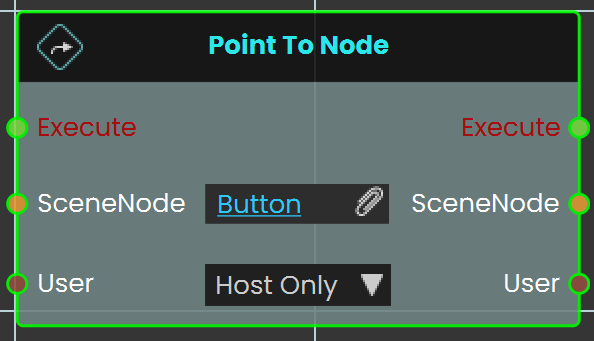
The **Point To Node** enables the user to be guided to the location of a specific place or object within the scene. When this node is activated, an arrow is displayed, pointing to the location of the assigned SceneNode within the VR environment.
#### Example
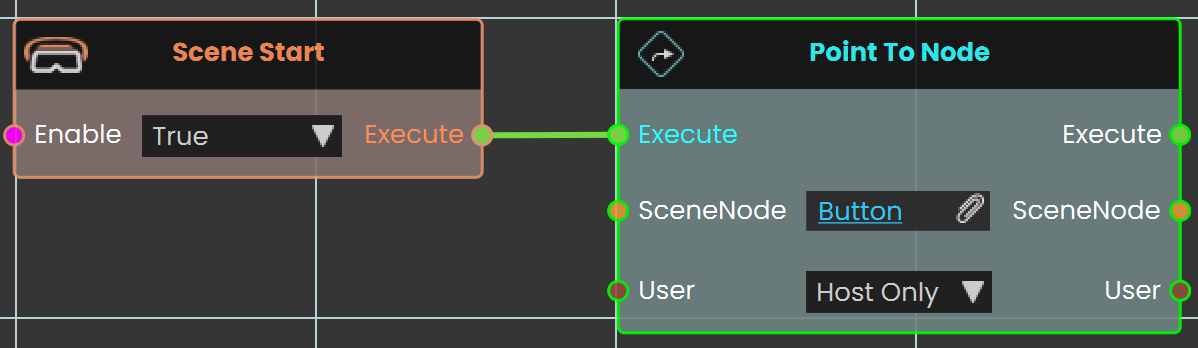
In this example, the **Point To Node** is used to guide the user to the location of an object named button when the Scene Start event occurs. As soon as the scene begins, an arrow appears, pointing directly to the button location, helping the user finding it within the VR environment.
---
# User \ Set Mode
###  Set Interaction Mode
[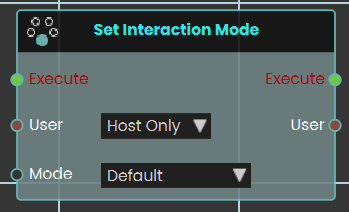](https://simlab-soft.com/help/uploads/images/gallery/2026-04/image.png)
The **Set Interaction Mode node** dynamically changes how participants engage with the VR environment. When activated, the node evaluates the targeted User input—which can be configured for either "Host Only" or "All Users" and immediately switches their current control state to the selected Mode. The available interaction modes include:
- **Default:** The standard, baseline interaction and movement mechanics of the VR Viewer.
- **Drawing:** Enables the user to freely draw directly onto 3D surfaces within the scene.
- **Scene Building:** Unlocks spatial editing capabilities, allowing the user to dynamically adjust the location, rotation, and scale of 3D objects to freely move and place models around the environment.
- **Measurement:** Enables the user to draw straight lines across the scene, accurately measuring distances and lengths in meters.
###
---
###  Set Night Mode
[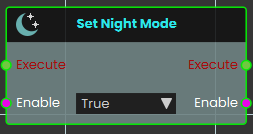](https://simlab-soft.com/help/uploads/images/gallery/2026-03/rKvimage.png)
**The Set Night Mode node** instantly alter the environmental lighting and skybox of the VR scene to nighttime. Once activated, the node evaluates the boolean Enable input—transitioning the scene's overall environment to a dark night mode.
---
###  Set Fly Mode
Turns fly mode on or off for a user, letting them move freely up and down through the air instead of being kept on the ground.
#### What it does
With fly mode on, the chosen user can move up, down, and through the scene freely — handy for inspecting a tall machine from above or getting a bird’s-eye view of a training area. With it off, the user is returned to normal ground-level movement and walks along surfaces as usual.
You pick who this applies to with the **User** port (just the host, or everyone), and you set whether fly mode is on or off with the **Enable** port. The node only changes how that user moves — it doesn’t move or alter anything in the scene itself. The same user is passed back out so you can connect more user nodes after it.
#### Inputs
Port
Type
What to connect
**Execute**
Trigger
Wire this from the previous node’s Execute output to run the node.
**User**
User
Chooses who fly mode applies to. Pick **Host Only** to affect just the host, or **All Users** to affect everyone in the session.
**Enable**
True / false
Set to `true` to turn fly mode on, or `false` to turn it off and return to normal ground movement.
#### Outputs
Port
Type
What you get
**Execute**
Trigger
Fires once the node has finished, so you can continue to the next step.
**User**
User
Passes the same user along so you can chain more user nodes after this one.
**Enable**
True / false
Passes along the on/off value you set, in case a later node needs it.
#### Example
**User** input
`Host Only`
**Enable** input
`true`
**Enable** output
`true` — the host can now fly freely through the scene
#### Tips
- Pair two of these nodes — one with **Enable** set to `true` and one set to `false` — to let an author toggle flying on and off with a button or voice command.
- Remember to turn fly mode back off when it’s no longer needed, so users return to normal walking.
---
###  Set Speed Mode
Sets how fast a participant moves around the VR scene — walking, jogging, or running.
#### What it does
This node changes a participant’s movement speed in the VR environment. When it runs, it looks at the user you target and switches their walking pace to the speed you pick: `Walk`, `Jog`, or `Run`.
You choose whether to change just the host or everyone in the session. The new speed stays in effect until something changes it again, so you can use this node to slow people down in a tight space or let them cover ground quickly in a large scene.
#### Inputs
Port
Type
What to connect
**Execute**
Trigger
Wire this from the previous node’s Execute output.
**User**
User
Chooses who this applies to. Pick **Host Only** to change just the host, or **All Users** to change the speed for everyone in the session.
**Mode**
Choice
The movement speed to apply. Pick one of **Walk**, **Jog**, or **Run**.
#### Outputs
Port
Type
What you get
**Execute**
Trigger
Fires once the speed has been set, so you can continue to the next node.
**User**
User
Passes along the same user you targeted, so you can chain more user nodes after this one.
#### Example
**User** input
`All Users`
**Mode** input
`Run`
**User** output
The same participants, ready for the next node
#### Tips
- Pair this with a trigger such as entering a large open area to let participants `Run`, then switch back to `Walk` when they reach a detailed space.
- Use **Host Only** when you want a guide to keep up with a group without changing everyone’s pace.
---
###  Set Speeds Multiplier
Changes how fast a participant moves around in the scene by applying a speed multiplier to them.
#### What it does
This node sets a movement-speed multiplier on the chosen participant. A value of `1` is normal speed, `2` makes them move twice as fast, and `0.5` slows them to half speed. Use it to speed people up across a large area or slow them down for a careful, detailed task.
The change applies to whichever participant you point the node at — just the host, or everyone. It only adjusts their movement speed; nothing else about the scene or the participant is affected, and the same participant is passed straight out again so you can connect more actions after it.
#### Inputs
Port
Type
What to connect
**Execute**
Trigger
Wire this from the previous node’s Execute output.
**User**
User
Choose which participant to affect: **Host Only** or **All Users**.
**Value**
Number
The speed multiplier. `1` is normal speed, higher is faster, lower is slower. Must not be negative.
#### Outputs
Port
Type
What you get
**Execute**
Trigger
Fires once the node has finished.
**User**
User
The same participant you chose, passed along so you can chain more user actions after this one.
**Value**
Number
The multiplier you set, passed along for reuse.
#### Example
**User** input
`All Users`
**Value** input
`1.5`
**Value** output
`1.5`
#### Tips
- Set the value back to `1` when you want participants to return to their normal speed.
- A value of `0` stops movement entirely — useful for briefly holding everyone in place.
# User Name & ID
### [](https://simlab-soft.com/help/uploads/images/gallery/2024-08/response-value-number-add.png) Get User ID
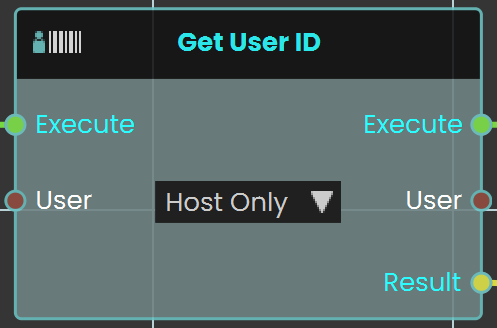
The **Get User ID node** is used to retrieve the unique identifier of the user interacting within the VR environment. This ID can be utilized for various purposes, such as tracking user actions or customizing experiences based on the user.
#### Example

In this example, the **Get User ID node** is used to create a student attendance system. When the user triggers the Activate event, the "Get User ID" retrieves the Student ID number and stores it in the "`attendance_ID"` variable using the "Set Number Variable" node.
**Note:** To retrieve the User ID, the experience must be run from a **logged-in** account in SimLab VR Viewer.
---
### [](https://simlab-soft.com/help/uploads/images/gallery/2024-09/response-user-name-get.png) Get User Name
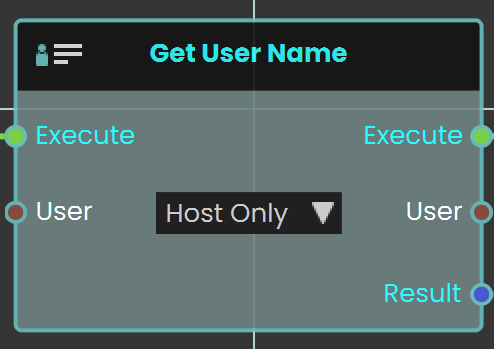
The **Get User Name node** is used to retrieve the name of the user interacting within the VR environment. This name can be utilized for various purposes, such as personalizing interactions or saving progress tied to a specific user.
#### Example

In this example, the "Get User Name" node is used to create a student attendance system. When the user triggers the Activate event, the "Get User Name" retrieves the student's name and stores it in the `attendance_UserName` variable using the "Set String Variable" node.
**Note:** To retrieve the User Name, the experience must be run from a **logged-in** account in SimLab VR Viewer.
---
# Material
A **material** decides how a surface looks in your scene — its color, how see-through it is, and the image (called a **texture**) painted across it. The nodes on this page let your scene read and change those looks while it is running: fade an object out, recolor a warning light, combine two images, or save a texture to a picture file. You normally get a material by reading it from an object in your scene, then wire it into the **Material** input of these nodes. Because objects can share the same material, changing a material updates every object using it at once.
## What's on this page
- **Alpha** — read or change how see-through a material is.
- **Color** — read or change a material’s color.
- **Texture** — blend two images into a new one, or save a material’s texture out as a picture file.
---
## Alpha
A material’s **alpha** is how see-through it is, given as a number from `0` (fully transparent) to `1` (fully solid). A value like `0.5` is half see-through. These two nodes read a material’s current alpha or set a new one — useful for fading objects in and out.
###  Get Material Alpha
Reads how transparent a material is, so you can check its current see-through level.
#### What it does
This node looks at a material and tells you its alpha — the amount the material lets you see through it. The alpha is given as a Number from `0` (fully see-through) to `1` (fully solid), where a value like `0.5` is half see-through.
It only reads the value — it does not change the material in any way. The same material you fed in comes straight back out, so you can keep working with it in the next node.
#### Inputs
Port
Type
What to connect
**Execute**
Trigger
Wire this from the previous node’s Execute output.
**Material**
Material
The material you want to check. Connect a node that gives you a material, such as one that reads the material from an object in your scene.
#### Outputs
Port
Type
What you get
**Execute**
Trigger
Fires once the node has finished. Wire it to whatever should happen next.
**Material**
Material
The same material you connected, passed straight through unchanged so you can use it again.
**Value**
Number
The material’s alpha, from `0` (fully see-through) to `1` (fully solid).
#### Example
**Material** input
The glass panel material from your scene
**Value** output
`0.5`
#### Tips
- A value of `0` means the material is completely see-through, and `1` means it is fully solid.
- Pair this with **Set Material Alpha** when you want to remember a material’s current transparency, change it for a while, and then put it back.
###  Set Material Alpha
Changes how see-through a material is, from fully invisible to fully solid.
#### What it does
This node sets the transparency of a material. You give it a material and a number between `0` and `1`: `0` makes the material completely invisible (see-through), `1` makes it completely solid, and values in between make it partly see-through — for example `0.5` is half-transparent.
The change takes effect right away on the material you pass in. The node hands the same material straight back out, along with the transparency value you set, so you can keep using them in the next steps of your script.
#### Inputs
Port
Type
What to connect
**Execute**
Trigger
Wire this from the previous node’s Execute output.
**Material**
Material
The material whose transparency you want to change.
**Value**
Number
How see-through to make it, from `0` (fully invisible) to `1` (fully solid). Must be in the range `0` to `1`.
#### Outputs
Port
Type
What you get
**Execute**
Trigger
Fires once the node has finished.
**Material**
Material
The same material you passed in, now with its new transparency.
**Value**
Number
The transparency value you set, passed back so you can reuse it.
#### Example
**Material** input
The glass material on a window
**Value** input
`0.3`
**Material** output
The same glass material, now mostly see-through
**Value** output
`0.3`
#### Tips
- Keep the value between `0` and `1`. Think of it as a percentage: `0` is 0% solid (invisible), `1` is 100% solid, and `0.5` is halfway.
- To fade something out over time, run this node repeatedly with a value that steps down from `1` toward `0`.
---
## Color
These two nodes read or change a material’s **color**. A color is shown as a small swatch you can click to open a color picker — a color wheel with RGB, HSV, and HEX entry. Remember that setting a color changes every object that shares the material.
###  Get Material Color
Reads the current color of a material so you can use it elsewhere in your scene.
#### What it does
Give this node a material and it hands you back that material’s current color — the color a viewer sees on every object using that material. The color comes out as a color value (shown as a small colored swatch), which you can feed into other nodes, compare against another color, or store for later.
Reading the color does not change anything — the material keeps looking exactly as it did. If you actually want to change a material’s color, use the **Set Material Color** node instead, where you pick the new color from a swatch and color picker.
#### Inputs
Port
Type
What to connect
**Execute**
Trigger
Wire this from the previous node’s Execute output.
**Material**
Material
The material whose color you want to read. Connect a material coming from another node, such as one you picked from an object in your scene.
#### Outputs
Port
Type
What you get
**Execute**
Trigger
Fires once the node has finished.
**Material**
Material
The same material you connected, passed straight through — handy for wiring it into the next node without fetching it again.
**Value**
Color
The material’s current color, as a color value you can reuse. It shows as a colored swatch and can be passed to any node that accepts a color.
#### Example
**Material** input
The material on a warning light in your scene
**Material** output
The same material, passed through
**Value** output
A red color value — for example `#C81E1E`
#### Tips
- Use the **Material** output to keep your wiring tidy — you can read the color and pass the same material along to the next step in one go.
- Pair this with **Set Material Color** to save a material’s original color, change it for a while, then put the saved color back later.
###  Set Material Color
Changes the color of a material so everything using that material takes on the new look.
#### What it does
This node paints a material with the color you choose. Once it runs, every object in your scene that uses that material is shown in the new color right away — handy for things like turning a warning light red, swapping a wall’s paint, or highlighting a part during a training step.
It only changes the color of the material; the material’s shape, texture, and everything else stay the same. The same material comes back out so you can keep working with it, along with the color you applied.
#### Inputs
Port
Type
What to connect
**Execute**
Trigger
Wire this from the previous node’s Execute output.
**Material**
Material
The material you want to recolor. Connect it from a node that gives you a material, such as one that picks an object’s material.
**Color**
Color
The new color you want the material to have. Click the color swatch on the node to open the color picker, then pick a color from the wheel, type in RGB or HSV numbers, or enter a HEX code such as `#C81E1E`. You can also connect a color coming from another node.
#### Outputs
Port
Type
What you get
**Execute**
Trigger
Fires once the node has finished, so you can continue to the next step.
**Material**
Material
The same material you sent in, now showing the new color. Pass it on if you want to make more changes to it.
**Value**
Color
The color that was applied, in case you want to reuse it elsewhere.
#### Example
**Material** input
The material on a warning lamp in your scene
**Color** input
`#C81E1E` (a red, chosen from the color picker)
**Material** output
The same lamp material, now red
**Value** output
`#C81E1E`
#### Tips
- Because the color is set on the material, every object that shares that material changes together. If you only want one object to change, give it its own material first.
- To put the original color back later, save it first with a Get Material Color node, then feed that saved color back into this node when you want to restore it.
---
## Texture
A **texture** is the image painted across a material’s surface. These two nodes work with image files inside your project: one blends two images into a new one, the other saves a material’s texture out as a PNG picture. Both do their work in the background and hand back a true/false result telling you whether they succeeded.
###  Blend Textures
Combines two image files from your project into a single new image, with one laid on top of the other.
#### What it does
This node takes two images that already live in your project — a **Base** image and an **Overlay** image — and lays the Overlay on top of the Base to create one combined picture. It saves the result as a brand-new image file inside your project and gives you back that new file’s name, so you can use it as a texture, a label, or any other image.
Your two original images are left untouched — the node only creates a new combined image and never changes the Base or the Overlay. Because building the new image can take a moment, this node works in the background: its Execute output fires only once the blend has finished. You also get a true/false result telling you whether it worked.
#### Inputs
Port
Type
What to connect
**Execute**
Trigger
Wire this from the previous node’s Execute output.
**Base**
Text
The name of the bottom image — the one that goes underneath. Use a short file name (including its extension) for an image inside your project, such as `wood_panel.png`.
**Overlay**
Text
The name of the top image — the one laid over the Base. Use a short file name (including its extension) for an image inside your project, such as `logo.png`.
#### Outputs
Port
Type
What you get
**Execute**
Trigger
Fires once the two images have finished blending. Wire this to whatever should happen next.
**Base**
Text
The Base image name you provided, passed straight through so you can reuse it.
**Overlay**
Text
The Overlay image name you provided, passed straight through so you can reuse it.
**Success**
True / false
`true` if the new combined image was created, or `false` if it could not be made (for example, if one of the image names was wrong).
**FileName**
Text
The short file name of the new combined image inside your project. When the blend fails this comes back empty.
#### Example
**Base** input
`wood_panel.png`
**Overlay** input
`logo.png`
**Success** output
`true`
**FileName** output
`wood_panel_blended.png`
#### Tips
- Make sure both images are already part of your project and that you type their names exactly, including the file extension (for example `.png`).
- Check the **Success** output before using the new image — if it comes back `false`, the **FileName** will be empty.
- The order matters: the **Overlay** always sits on top of the **Base**. Swap the two inputs if the result looks upside-down.
###  Save Texture
Saves a material’s texture image out as a PNG picture file inside your project.
#### What it does
This node takes the texture (the surface image) used by a material and writes it out as a PNG picture file inside your current SimLab project. You give it the material to read from and a file name to save under, and it produces that picture for you.
It does not change the material or its texture in any way — it simply makes a copy of the texture as a separate picture file. The node works in the background, so its Execute output only fires once the picture has been fully saved. You also get a true/false result telling you whether the save worked.
#### Inputs
Port
Type
What to connect
**Execute**
Trigger
Wire this from the previous node’s Execute output.
**Material**
Material
The material whose texture you want to save. Its surface image is the one that gets written out as a PNG.
**FileName**
Text
The name to save the picture under, including the `.png` ending — for example `crate_diffuse.png`. This is a short name; the file is saved inside your current project.
#### Outputs
Port
Type
What you get
**Execute**
Trigger
Fires once the picture has finished saving. Wire this to whatever should happen next.
**Material**
Material
The same material you passed in, handed straight back so you can keep using it in later nodes.
**FileName**
Text
The short name the picture was saved under, such as `crate_diffuse.png`.
**Success**
True / false
`true` if the picture was saved, or `false` if it could not be saved (for example, the material has no texture).
#### Example
**Material** input
The material on a crate object
**FileName** input
`crate_diffuse.png`
**FileName** output
`crate_diffuse.png`
**Success** output
`true`
#### Tips
- Remember to include the `.png` ending in the file name yourself — for example `crate_diffuse.png`.
- Check the **Success** output before relying on the saved picture; a material with no texture image will return `false`.
- Because the save happens in the background, build the rest of your steps off this node’s Execute output so they only run after the picture is ready.
---
###  Copy Material
[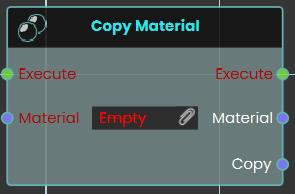](https://simlab-soft.com/help/uploads/images/gallery/2026-03/7KYimage.png)
The Copy Material node duplicates an existing material and create a completely independent instance. Upon triggering the Execute input, the node takes the specified Material input and outputs a newly generated Copy of that material, which can then be freely modified without altering the original source.
---
###  Copy Material Properties
[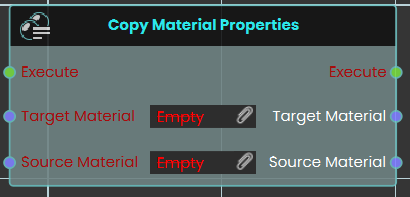](https://simlab-soft.com/help/uploads/images/gallery/2026-03/6MLimage.png)
The Copy Material Properties node transfers visual attributes directly from one material to another without generating a new instance. When the Execute input is triggered, the node takes the characteristics of the Source Material input and applies them directly to the Target Material input, instantly overwriting the target's previous properties.
##### Example:
[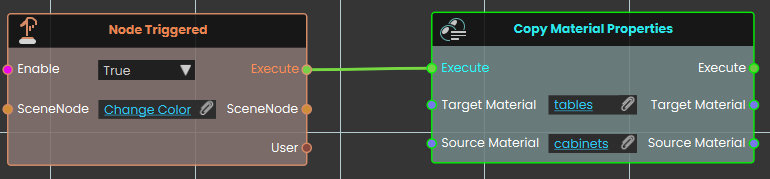](https://simlab-soft.com/help/uploads/images/gallery/2026-03/9lXimage.png)
In this example, triggering the "Change Color" object prompts the system to execute the Copy Material Properties node. Once activated, the node takes all the visual attributes from the "cabinets" source material and immediately applies them to the "tables" target material, causing any 3D objects using the tables material to instantly match the appearance of the cabinets.
# Material \ Texture
###  Set Texture From File
[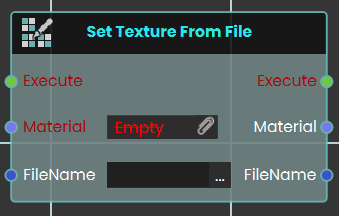](https://simlab-soft.com/help/uploads/images/gallery/2026-03/YgPimage.png)
This node replaces the current texture of a specified material with a 2D image file stored in your Resource Management system. By inputting the exact file name, you can dynamically update the visual appearance of any object using that material during the experience.
# Execution
###  Branch on Expression
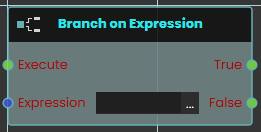The **Branch on Expression** response enables the user to evaluate an expression with the possible outputs of True or False each time the event connected to it is triggered. Once the response is executed, the result of the evaluation can be acquired through the **True** or **False** ports.
#### Example
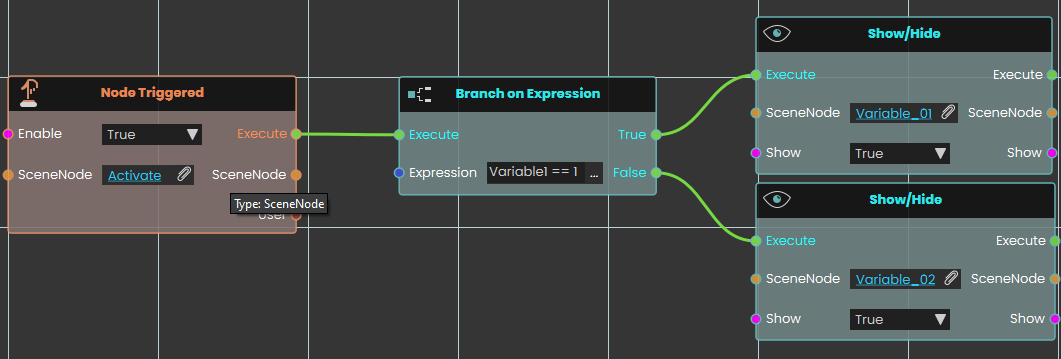
In this example, a **Branch on Expression** response is used to evaluate an expression once the user triggers the object named Activate. The result of the expression, which will be either True or False, if the result was true, the object named "Variable\_01" will be shown, if it was false, the object named "Variable\_02" will be shown.
---
### [](https://simlab-soft.com/help/uploads/images/gallery/2026-03/response-delay.png) Delay
[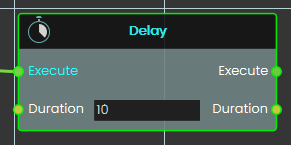](https://simlab-soft.com/help/uploads/images/gallery/2026-03/UO0image.png)
**The Delay node** waits for the specified **Duration** (in seconds), then executes the node linked to its **Execute** output.
Duration can be an integer or a float less than one to achieve sub-second delays.
---
###  Loop
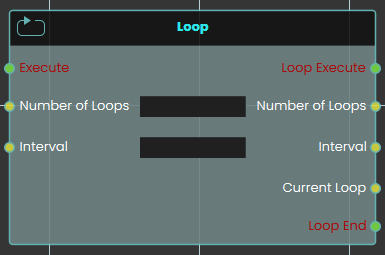
The **Loop node** enables the user to repeatedly execute a connected response for a specified number of times as defined in the Number of Loops field. Each time the event connected to the loop is triggered, the response is executed repeatedly, and the loop continues until the assigned number of repetitions is completed.
#### Example
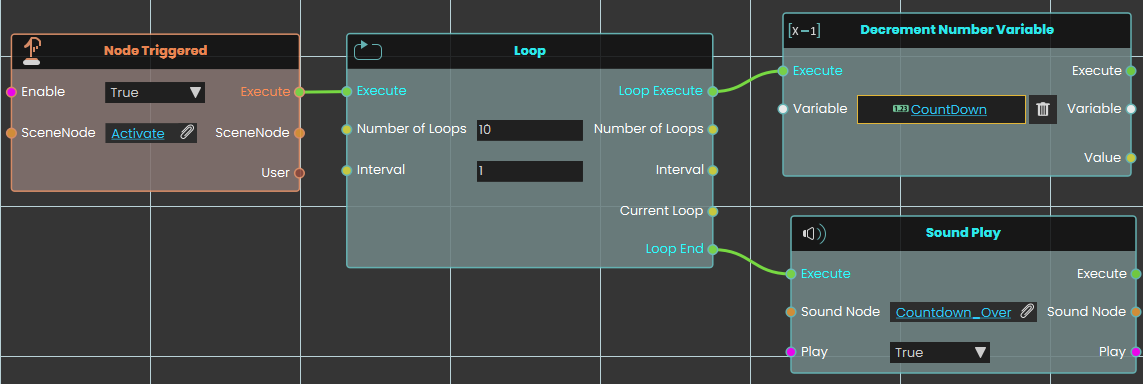
In this example, a **Loop node** is used to repeatedly execute the connected response that decreases the value of a number variable by one. The Decrement response is repeated for the number of times specified in the **Number of Loops** field, with the duration between each repetition set in the **Interval** field. Once the assigned number of repetitions is completed, the sound named **Countdown\_Over** plays.
---
###  Run Script
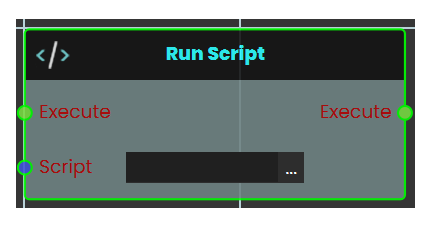
The **Run Script** node allows the user to execute advanced functions using the **Lua programming language**. This node provides flexibility by enabling custom scripts to be triggered when an event occurs. Allowing for complex operations and logic to be carried out as defined in the script. This node is ideal for scenarios requiring functionality beyond the standard nodes, offering advanced customization and control over the system.
You can read about Lua Scripting in SimLab Training builder through the following Blog:
**[Lua Scripting Blog](https://blog.simlab-soft.com/lua-scripting-in-simlab-training-builder-from-beginner-to-beyond/ "Lua Scripting Blog")**
> **[Lua Documentation for SimLab Training Builder](https://www.simlab-soft.com/3d-products/docs/help/scripting/English/Lua/ "Lua Documentation for SimLab Training Builder")**
---
### [](https://simlab-soft.com/help/uploads/images/gallery/2026-03/response-customevent-trigger.png) Trigger Custom Event
[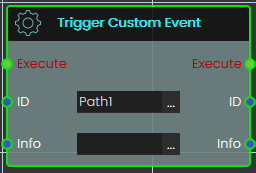](https://simlab-soft.com/help/uploads/images/gallery/2026-03/xylimage.png)
Calling this **Trigger Custom Action** will execute the corresponding [**Custom Action** event ](https://simlab-soft.com/help/link/581#bkmrk-custom-event%C2%A0)(based on the matching ID), passing along any optional information provided in the info field.
This is useful when you want multiple paths in your experience to produce the same response — without duplicating it each time.
---
###  Branch
Sends the action down one of two paths depending on whether a yes/no value is true or false.
#### What it does
Branch is a fork in the road for your scene’s actions. When it runs, it looks at the yes/no value wired into **Condition**. If that value is true, it fires the **True** path; if it’s false, it fires the **False** path.
Exactly one of the two paths fires every time — never both, and never neither. This lets you say “if this is the case, do these steps; otherwise, do those steps instead.” Branch only chooses a direction; it doesn’t change the value you give it.
#### Inputs
Port
Type
What to connect
**Execute**
Trigger
Wire this from the previous node’s Execute output.
**Condition**
True / false
The yes/no value to test. Wire in anything that gives a true/false result — for example a check on whether a door is open or whether a score has passed a target.
#### Outputs
Port
Type
What you get
**True**
Trigger
Fires when the Condition is true. Wire the steps you want to run in that case here.
**False**
Trigger
Fires when the Condition is false. Wire the steps you want to run in that case here.
#### Example
**Condition** input
`true`
**True** output
Fires — the steps wired here run (for example, play a success sound).
**False** output
Does not fire this run.
#### Tips
- Leave the **False** path empty if you only care about acting when the Condition is true — nothing happens on that side and the rest of your scene carries on.
- To choose between more than two paths, chain several Branch nodes together, sending the **False** path of one into the next.
###  Do Then
Splits one trigger into two that fire in a guaranteed order — first the “Execute” output, then the “Then” output, right after.
#### What it does
When this node runs, it fires its “Execute” output first and then immediately fires its “Then” output. Use it when you want two things kicked off from a single trigger and you care which one starts first.
The node only controls the **order** the two outputs fire in — it does not wait for the work wired to “Execute” to finish before firing “Then.” The “Then” output always fires, no matter what happens on the “Execute” side. This node doesn’t change or hold onto any of your scene data; it simply directs the flow.
#### Inputs
Port
Type
What to connect
**Execute**
Trigger
Wire this from the previous node’s Execute output to run this node.
#### Outputs
Port
Type
What you get
**Execute**
Trigger
Fires first. Wire this to the steps you want to start before the “Then” steps.
**Then**
Trigger
Fires right after “Execute,” without waiting for the “Execute” steps to finish. It always fires. Wire this to the steps you want to start second.
#### Example
**Execute** input
Triggered when a button in the scene is clicked
**Execute** output
Fires first — starts playing a door-opening animation
**Then** output
Fires right after — shows a hint label to the user
#### Tips
- Reach for this when two actions share one trigger and you want a reliable order — the “Execute” output’s steps always start before the “Then” output’s.
- Remember that “Then” does not wait for the “Execute” side to finish. If you need the second action to begin only after the first one has fully completed, drive it from the end of the first chain instead.
# SceneNode \ Management
### [](https://simlab-soft.com/help/uploads/images/gallery/2024-08/response-value-number-add.png) Cast SceneNode
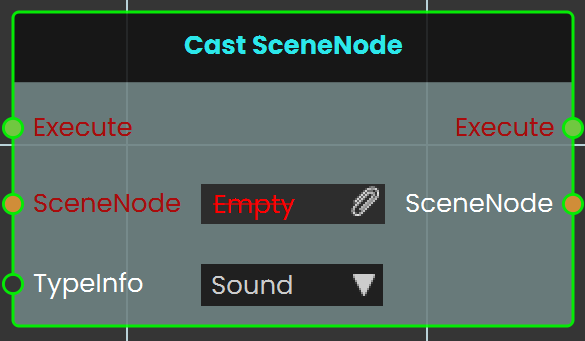
The **Cast SceneNode** enables the user to change the type of a SceneNode by selecting a typeInfo from the list, such as sound, 3D object, video, gadget, or camera. This node identifies the assigned SceneNode as the chosen type, allowing it to function accordingly within the VR environment.
#### Example
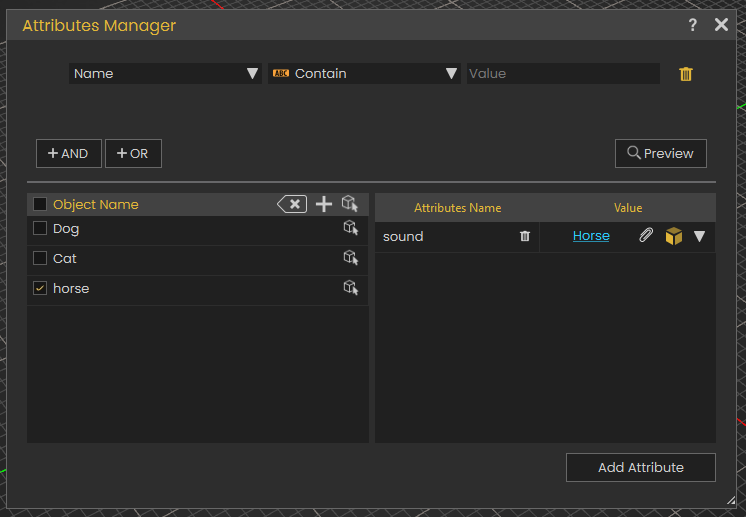
In this example, Animals sounds are assigned to the animals as **SceneNode** type

A **Cast SceneNode** is used to identify the SceneNode of an animal object (dog, cat, and horse) as a sound. An attribute named "Sound" is added to all three animals, and the corresponding sound is assigned to each. When the user triggers the animal SceneNode, the **Cast SceneNode** plays the sound assigned in the attribute.
---
### [](https://simlab-soft.com/help/uploads/images/gallery/2024-08/response-value-number-add.png) Set Node Collision Enabled
[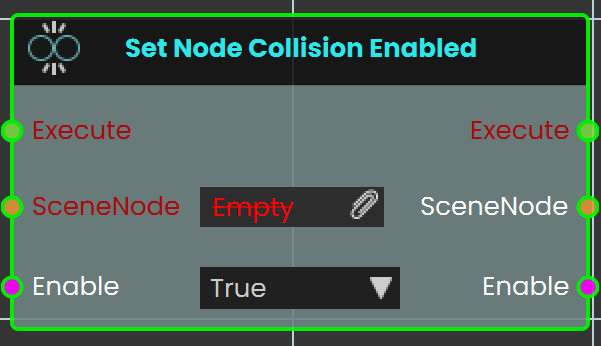](https://simlab-soft.com/help/uploads/images/gallery/2024-08/add-node.jpg)The **Set Node Collision Enabled** node is used to enable or disable collision for the user. This can be utilized to allow the user to pass through objects or be blocked by them within the VR environment.
#### Example
[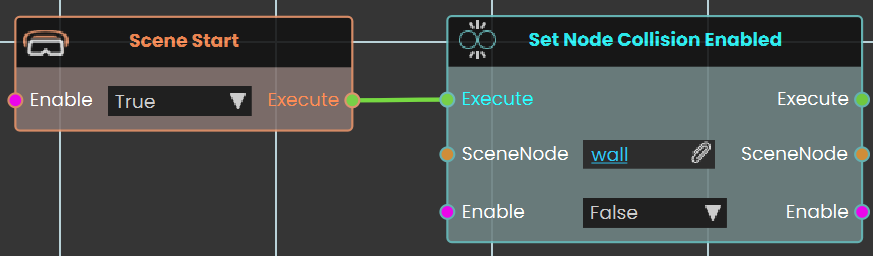](https://simlab-soft.com/help/uploads/images/gallery/2024-08/S2himage.png)
In this example, the **Set Node Collision Enabled** node is used to disable collision for the user when the scene starts. The wall is assigned as the target object, and the collision is set to "False," allowing the user to pass through it.
This is shown in the following tutorial
---
### [](https://simlab-soft.com/help/uploads/images/gallery/2024-08/response-value-number-add.png) Delete SceneNode
[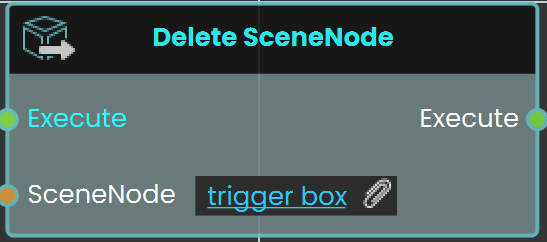](https://simlab-soft.com/help/uploads/images/gallery/2024-08/add-node.jpg)
The **Delete SceneNode** node enables users to remove a specified object from the scene during a VR Experience. This node allows for dynamic scene modifications by deleting objects based on interactions or conditions, making the environment more interactive and adaptable. Once executed, the specified object is permanently removed from the scene.
#### Example
[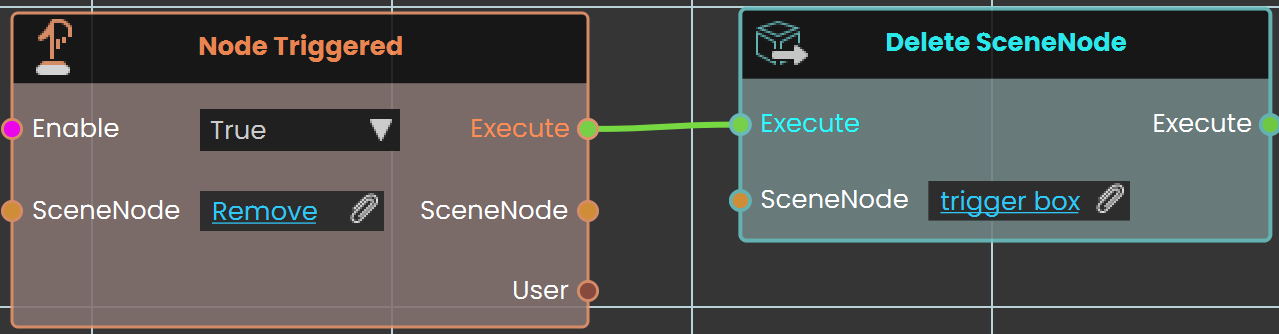](https://simlab-soft.com/help/uploads/images/gallery/2025-02/0QSimage.png)
In this example, the **Delete SceneNode** node is used to remove a trigger box from the scene. The **Node Triggered** event is activated when the user triggers or clicks on an object named "Remove." As soon as the object is triggered, the **Delete SceneNode** node removes the trigger box from the scene, preventing further interactions with it.
---
###
###  Enable Walk-Through
[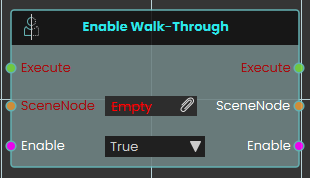](https://simlab-soft.com/help/uploads/images/gallery/2026-03/Eoyimage.png)
The **Enable Walk-Through node** explicitly controls the physical collision properties of a targeted 3D object within the VR Viewer. When activated, the node uses the boolean Enable input to determine the collision state of the specified SceneNode—allowing users to seamlessly pass directly through the object without physical obstruction if set to *True.*
---
###  Find Node By Name
[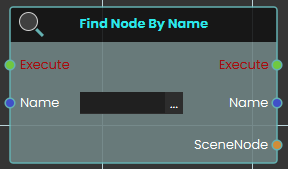](https://simlab-soft.com/help/uploads/images/gallery/2026-03/zXiimage.png)
The **Find Node By Name node** searches the VR environment and dynamically locate a specific 3D object based on its assigned text identifier. When activated, the node takes the exact string provided in the Name input, searches the scene to find the corresponding object, and outputs that specific SceneNode reference.
###
[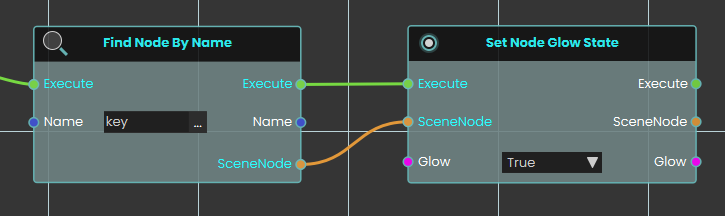](https://simlab-soft.com/help/uploads/images/gallery/2026-03/yeKimage.png)
###
---
###  Get Node Name
[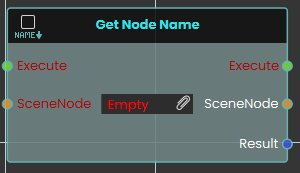](https://simlab-soft.com/help/uploads/images/gallery/2026-03/Ynximage.png)
The **Get Node Name node** retrieves the exact text identifier of a specific 3D object within the scene. When activated, the node takes the targeted SceneNode input, extracts its assigned name, and outputs this text as a string value through the Result pin.
---
###  Make Node Copy
[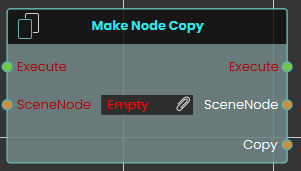](https://simlab-soft.com/help/uploads/images/gallery/2026-03/m3ximage.png)
The **Make Node Copy node** duplicates a specific 3D object along with an independent copy of its material. Once activated, the node takes the targeted SceneNode input and generates a completely separate Copy, ensuring that any subsequent material or texture changes applied to this new object do not affect the original source.
---
###  Make Node Instance
[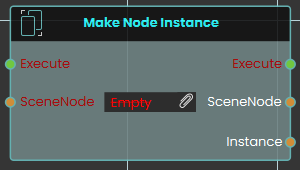](https://simlab-soft.com/help/uploads/images/gallery/2026-03/HRAimage.png)
The **Make Node Instance node** generates a direct clone of a specific 3D object in the scene. When activated, the node takes the targeted SceneNode input and creates a new Instance that shares the exact same material properties as the original.
##### Example:
[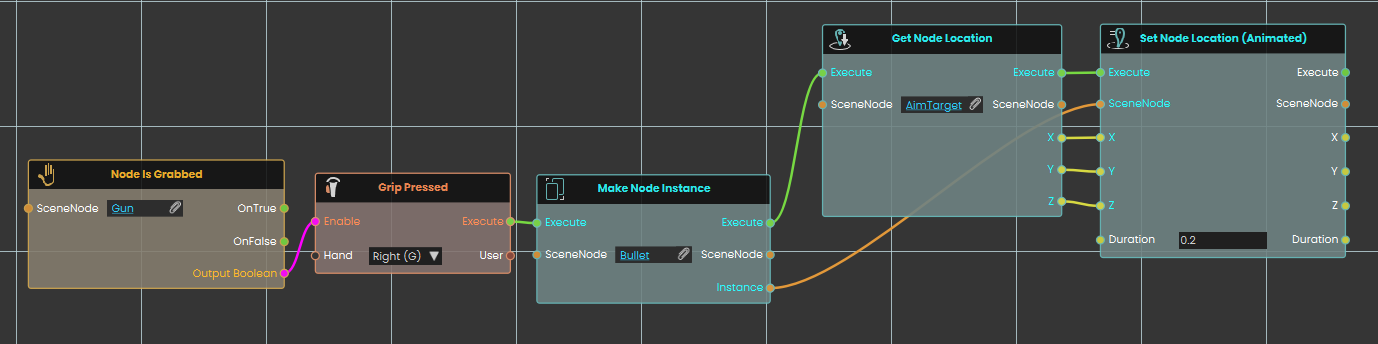](https://simlab-soft.com/help/uploads/images/gallery/2026-03/PCVimage.png)
In this example, we create a simple shooting mechanic where firing a gun generates and shoots a bullet toward a target:
1. A **Node Is Grabbed** node continuously checks if the user is holding the "Gun" object, enabling the next node if the condition is met.
2. A **Grip Pressed** event node listens for the user to press the right hand's grip button, acting as the trigger to fire the weapon.
3. Once the grip is pressed, the **Make Node Instance** node activates, immediately generating a new instance of the "Bullet" object in the scene.
4. A **Get Node Location** node is then used to retrieve the exact X, Y, and Z coordinates of a specific "AimTarget" object.
5. Finally, a **Set Node Location (Animated)** node takes the newly generated bullet instance and smoothly moves it to the AimTarget's coordinates over a quick duration of 0.2 seconds, simulating a flying projectile.
---
###  Set Node Simulate Physics
[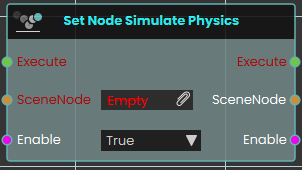](https://simlab-soft.com/help/uploads/images/gallery/2026-03/eVHimage.png)
The **Set Node Simulate Physics node** activates or deactivates real-time physics calculations for a specific 3D object within the VR Viewer. When activated, the node uses the boolean Enable input to determine the object's physical state, allowing the object to react to gravity, collisions, and user interactions based on its assigned material physics properties
[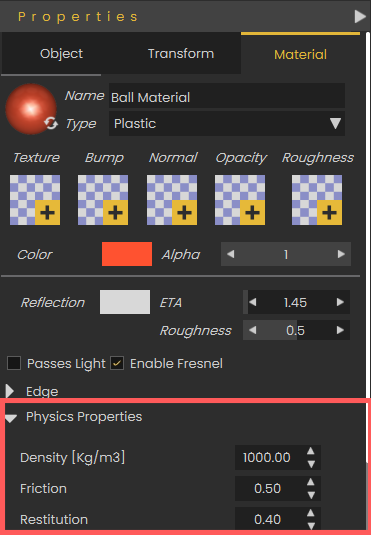](https://simlab-soft.com/help/uploads/images/gallery/2026-03/untitled-1.png)
To configure how an object behaves during simulation, navigate to the Properties panel and select the Material tab. Under the Physics Properties section, you can adjust specific physical attributes for that material, such as its Density, Friction, and Restitution, which directly impact how the object interacts with the environment when physics are enabled.
---
###  Is Same Node
Checks whether two scene nodes are the same node, and gives you a true/false answer.
#### What it does
You hand this node two scene nodes — **SceneNode A** and **SceneNode B** — and it tells you whether they are the same. The answer comes out of the **Result** port as true or false: true when the two are the same, false when they are different.
This node only looks — it never changes either scene node. Both scene nodes also come straight back out unchanged, so you can keep wiring from them to whatever should happen next.
#### Inputs
Port
Type
What to connect
**Execute**
Trigger
Wire this from the previous node’s Execute output.
**SceneNode A**
Scene node
The first scene node you want to compare.
**SceneNode B**
Scene node
The second scene node you want to compare against the first.
#### Outputs
Port
Type
What you get
**Execute**
Trigger
Fires once the node has finished.
**SceneNode A**
Scene node
The same first scene node you connected, passed straight back out unchanged so you can keep wiring from it.
**SceneNode B**
Scene node
The same second scene node you connected, passed straight back out unchanged so you can keep wiring from it.
**Result**
True / false
True when the two scene nodes are the same, false when they are different.
#### Example
**SceneNode A** input
The `Front Door` node picked earlier in your script
**SceneNode B** input
The node the user just clicked
**Result** output
`true` if the clicked node is the `Front Door`, otherwise `false`
#### Tips
- Wire the **Result** into a node that branches on true/false to do one thing when the two match and another when they don’t — for example, only open a door when the clicked node really is that door.
---
###  Set Socket Node Enabled
Turns a snapping socket on or off, so you can control whether objects are allowed to snap into that spot.
#### What it does
A socket is a spot in your scene that objects can snap into — for example the place where a bolt seats into a housing, or where a tool clips onto a wall mount. This node lets you switch one of those sockets on or off while the scene is running. When you set it to on, objects can snap into the socket as usual; when you set it to off, the socket stops accepting anything, so nothing can snap there until you turn it back on.
This is handy for guiding a trainee through steps in order — you can keep a socket switched off until it is the right time to use it, then switch it on so the next part can be placed. The node only changes whether that socket is active; it does not move, snap, or remove anything already in the scene. It hands the same object and the same on/off value back out so you can keep wiring from them.
#### Inputs
Port
Type
What to connect
**Execute**
Trigger
Wire this from the previous node’s Execute output to run the node at the moment you want the socket switched.
**SceneNode**
Scene node
The socket you want to switch — the snapping spot in your scene whose state you want to change, such as a `BoltSocket_01`.
**Enable**
True / false
Whether the socket should be on or off. Connect `true` to switch it on so objects can snap into it, or `false` to switch it off so nothing can snap there.
#### Outputs
Port
Type
What you get
**Execute**
Trigger
Fires once the node has finished, so you can continue to the next step.
**SceneNode**
Scene node
The same socket you put in, passed straight back out so you can keep wiring from it without looking it up again.
**Enable**
True / false
The same on/off value you put in, passed back out in case you want to reuse it further along.
#### Example
**SceneNode** input
`BoltSocket_01`
**Enable** input
`true` — switch the socket on so the bolt is now allowed to snap into it
**SceneNode** output
`BoltSocket_01`, handed straight back so you can wire it into the next node
#### Tips
- Keep a socket switched off until it is the right step, then switch it on — a good way to make sure parts are placed in the order you intend.
- Switching a socket off does not remove anything already snapped into it; it only stops new objects from snapping there.
# SceneNode \ Transform
###  Get Node Transform
[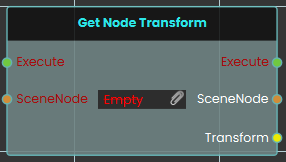](https://simlab-soft.com/help/uploads/images/gallery/2026-03/3kSimage.png)
The **Get Node Transform node** retrieves the complete spatial data—including the exact location, rotation, and scale values—of a specific 3D object in the scene. When activated, the node takes the targeted SceneNode input, extracts its current transform matrix, and outputs this combined information through the Transform pin.
---
###  Set Node Transform
[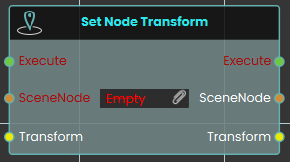](https://simlab-soft.com/help/uploads/images/gallery/2026-03/Inximage.png)
The **Set Node Transform node** instantly applies a complete set of spatial data—encompassing location, rotation, and scale—to a specific 3D object. Once activated, the node evaluates the targeted SceneNode and immediately updates its physical presence in the scene to perfectly match the data provided through the Transform input.
---
###  Set Node Transform (Animated)
[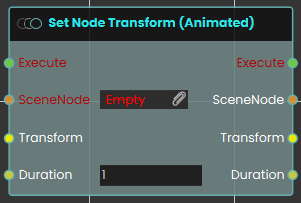](https://simlab-soft.com/help/uploads/images/gallery/2026-03/hFSimage.png)
The **Set Node Transform (Animated) node** functions similarly to the standard set transform node, but it smoothly transitions the 3D object to the new location, rotation, and scale over a defined period. When activated, the node takes the targeted SceneNode and seamlessly tweens its spatial data to match the provided Transform input over the specific amount of time defined by the numerical Duration input (measured in seconds).
---
###  Swap Nodes Transform
[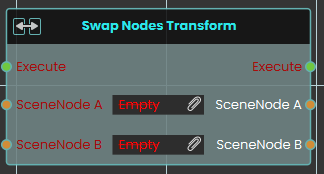](https://simlab-soft.com/help/uploads/images/gallery/2026-03/aiximage.png)
**The Swap Nodes Transform node** instantly exchanges the complete spatial data—including location, rotation, and scale—between two distinct 3D objects in the scene. When activated, the node evaluates the targeted objects provided in the SceneNode A and SceneNode B inputs and simultaneously swaps their placements, rotations, and proportions.
---
###  Transform Node to Node (Animated)
Smoothly moves one or more objects so they end up exactly where a second object is — same position, rotation, and size — over a set number of seconds.
#### What it does
This node takes a target object and reads its full placement in the scene — its position, its rotation, and its size. It then animates your chosen object(s) so that, over the time you set, they smoothly travel to that same placement and come to rest matching the target exactly.
The movement is measured in absolute scene coordinates, so your object lands at the target’s real position in the scene regardless of any groups either one belongs to. The target object itself is never changed — it stays put, and only the object(s) you pointed at the **SceneNode** input move. The non-animated version of this node snaps the object into place instantly; this version eases it there over the **Duration** you choose.
#### Inputs
Port
Type
What to connect
**Execute**
Trigger
Wire this from the previous node’s Execute output to start the movement.
**SceneNode**
Scene node
The object (or objects) you want to move. Each one will travel to match the target.
**ToNode**
Scene node
The target object whose place you want to match. This object is read only — it doesn’t move.
**Duration**
Number
How many seconds the smooth movement should take. Leave it at `2` for a gentle two-second glide, or set a smaller number to make it faster.
#### Outputs
Port
Type
What you get
**Execute**
Trigger
Fires once the node has finished.
**SceneNode**
Scene node
The same object(s) you moved, passed straight through so you can connect more nodes after this one.
**ToNode**
Scene node
The same target object, passed through unchanged.
**Duration**
Number
The same number of seconds you set, passed through so you can reuse it.
#### Example
**SceneNode** input
The `Drone` object
**ToNode** input
The `Landing Pad` object
**Duration** input
`3` (the drone glides onto the landing pad over three seconds)
**SceneNode** output
The `Drone`, now resting in the landing pad’s place — ready to chain into the next node
#### Tips
- Because the object matches the target’s rotation and size as well as its position, you can use an empty or hidden helper object as a “marker” to define exactly how and where something should arrive.
- Set **Duration** to `0` for an instant jump, or use the non-animated version of this node if you never want the smooth motion.
# SceneNode \ Transform \ Location
### [ ](https://simlab-soft.com/help/uploads/images/gallery/2026-03/Y8Yvisual.png)Get Node Visual Location
[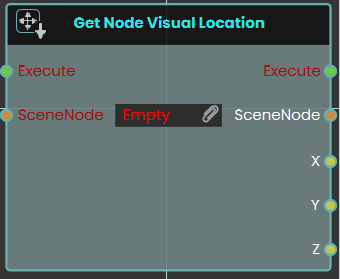](https://simlab-soft.com/help/uploads/images/gallery/2026-03/z1Kimage.png)
The **Get Node Visual Location** node enables the system to retrieve the exact X, Y, and Z coordinates of a SceneNode based on its absolute visual representation in the 3D scene.
Unlike standard location nodes that calculate position relative to a parent object, this node fetches the true visual position of the object within the environment, completely unaffected by the scene's parent-child hierarchy system.
### [ ](https://simlab-soft.com/help/uploads/images/gallery/2026-03/Y8Yvisual.png)Set Node Visual Location
[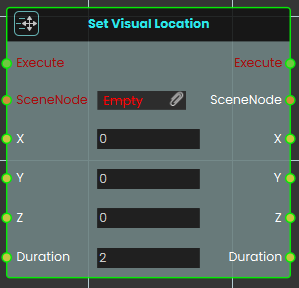](https://simlab-soft.com/help/uploads/images/gallery/2026-03/R0Timage.png)
The **Set Node Visual Location** node enables the system to instantly move a SceneNode to specific X, Y, and Z coordinates within the absolute visual space of the 3D scene. By directly altering where the object appears visually, this node completely bypasses any positional offsets or transformations that the object might normally inherit from its parent hierarchy.
#### Example
[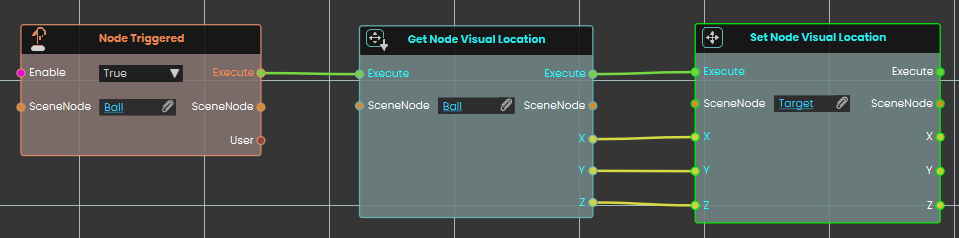](https://simlab-soft.com/help/uploads/images/gallery/2026-03/nVwimage.png)
In this example, an interaction is set up to match the positions of two independent objects.
1. Upon interacting with the "Ball" object, the **Node Triggered** event initiates the execution flow.
2. The **Get Node Visual Location** node extracts the true visual X, Y, and Z coordinates of the "Ball" in the scene.
3. These coordinate values are then fed directly into the X, Y, and Z inputs of a **Set Node Visual Location** node assigned to a "Target" object. This instantly moves the Target to the exact visual location of the Ball, regardless of how deeply nested either object is within the scene's hierarchy.
### [ ](https://simlab-soft.com/help/uploads/images/gallery/2026-03/Y8Yvisual.png)Set Node Visual Location (Animated)
[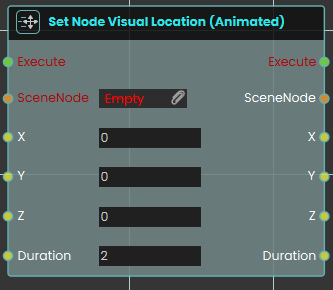](https://simlab-soft.com/help/uploads/images/gallery/2026-03/2Vlimage.png)
The **Set Node Visual Location (Animated)** node enables the system to smoothly move a SceneNode to specific X, Y, and Z coordinates within the absolute visual space of the 3D scene over a set period.
Similar to the standard **Set Node Visual Location** node, this movement completely bypasses any positional offsets or transformations inherited from the object's parent hierarchy. However, this animated variant includes an additional **Duration** parameter. Instead of instantly snapping the object to the new coordinates, this node creates a smooth transition (tweening) from its current visual location to the target location over the specified number of seconds.
---
###  Fall To Surface
[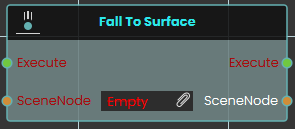](https://simlab-soft.com/help/uploads/images/gallery/2026-03/SiBimage.png)
The F**all To Surface node** instantly repositions a specific 3D object directly onto the nearest 3D surface located immediately below it in the scene. When activated, the node takes the targeted SceneNode input and immediately updates its vertical placement to simulate a sudden, instantaneous drop, resting the object perfectly against the underlying geometry.
###  Fall To Surface (Animated)
[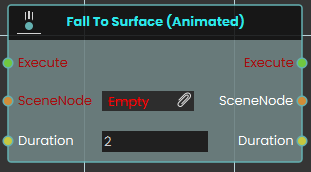](https://simlab-soft.com/help/uploads/images/gallery/2026-03/nXaimage.png)
The **Fall To Surface (Animated) node** functions similarly to the standard fall node, but instead of an instant drop, it smoothly transitions the 3D object down to the nearest underlying surface over a defined period. Once activated, the node takes the targeted SceneNode and seamlessly tweens its vertical descent until it rests on the geometry below, completing the fall animation over the exact amount of time specified by the numerical Duration input (measured in seconds).
---
### [](https://simlab-soft.com/help/uploads/images/gallery/2024-08/response-value-number-add.png) Get Node Location
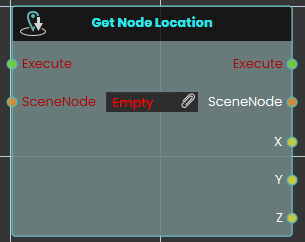
The **Get Node Location** response obtains the X, Y, and Z coordinates of an object's location each time the event connected to it is triggered. Once the response is executed, the coordinates can be acquired through the **X**, **Y**, and **Z** ports.
####
#### Example
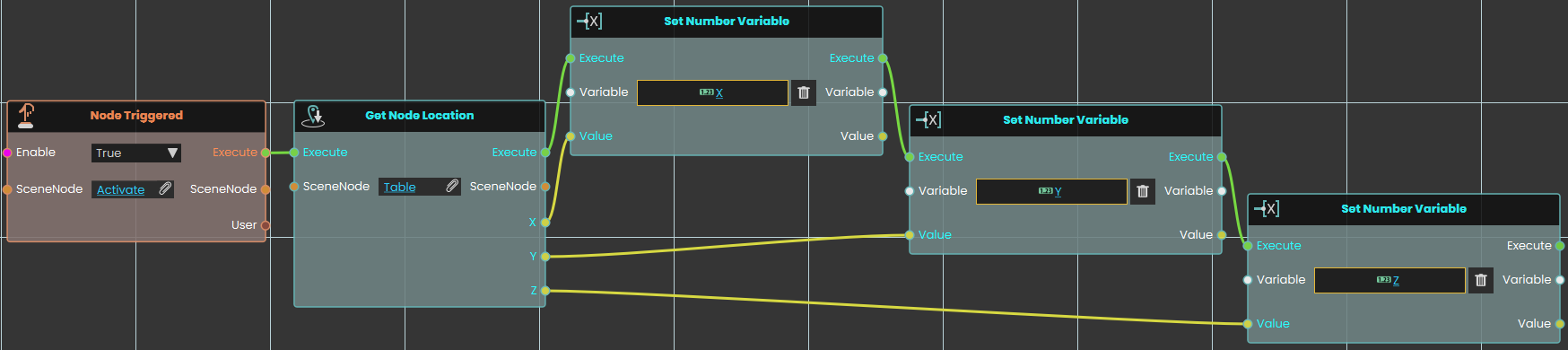
In this example, a **Get Node Location** response is used to obtain the X, Y, and Z coordinates of an object named Table once the user triggers the object named Activate. The coordinates are then stored in variables named X, Y, and Z, which can be connected to a variable writer to be displayed during the VR Experience.
---
### [](https://simlab-soft.com/help/uploads/images/gallery/2024-08/response-value-number-add.png) Set Node Location
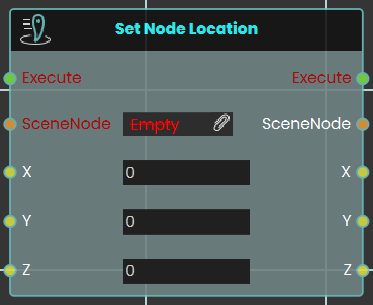
The **Set Node Location** response enables the user to set the location of an object to specific X, Y, and Z coordinates by either typing in the numerical values or by attaching a variable node to those ports. Once the response is executed, the object's new location is applied using the provided coordinates.
####
#### Example

In this example, a **Set Node Location** response is used to assign the X, Y, and Z coordinates stored in variables named X, Y, and Z to an object named Pot once the user triggers the object named Activate. The object's new location is set based on these coordinates, allowing the updated position to be reflected during the VR Experience.
### [ ](https://simlab-soft.com/help/uploads/images/gallery/2024-08/response-value-number-add.png)Set Node Location (Animated)
[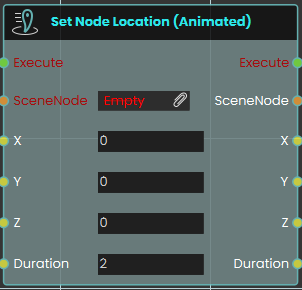](https://simlab-soft.com/help/uploads/images/gallery/2026-03/JRIimage.png)
The **Set Node Location (Animated)** node enables the system to smoothly move a SceneNode to a specific global coordinate in the 3D space over a set period. this node creates a seamless tweening effect from the object's current position to its new target destination
This differs significantly from the standard **Set Node Location** node, which instantly snaps or teleports the object to the new coordinates without any transition. The animated variant is ideal for creating moving platforms, sliding doors, or moving vehicles.
#### Example
[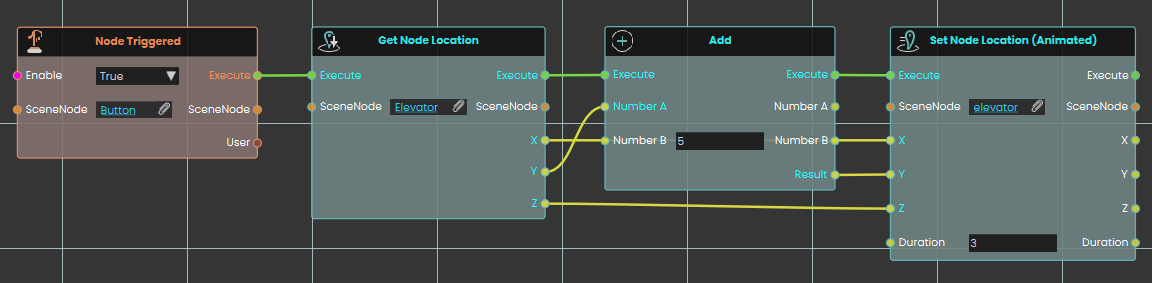](https://simlab-soft.com/help/uploads/images/gallery/2026-03/a35image.png)
In this example, an interactive elevator mechanism is created.
1. Upon interacting with the button object, the **Node Triggered** event initiates the execution flow.
2. The **Get Node Location** node is used to retrieve the current X, Y, and Z global coordinates of the "Elevator" object.
3. To move the elevator up, the Y-axis coordinate is passed into an **Add** node, where 5 units are added to its current value. The X and Z coordinates remain unchanged.
4. Finally, the **Set Node Location (Animated)** node applies these new coordinates to the elevator object. The **Duration** parameter is set to 3, meaning it will take exactly 3 seconds for the elevator to smoothly transition (tween) to its new position 5 units higher.
---
---
## Local position
These behave like the position nodes above, but the X, Y, and Z values are measured relative to the object’s parent or group instead of the whole scene. If the object isn’t inside a group, the result is the same as the world versions.
###  Get Node Location (Local)
Reads where an object currently sits, measured relative to its parent or group.
#### What it does
This node looks at an object in your scene and tells you its position as three numbers — X, Y, and Z — given in meters. The position is *local*, which means it is measured relative to the object’s parent or group: if that parent or group is moved, turned, or resized, the local position stays the same. (If the object has no parent or group, its local position and its position in the whole scene are the same.)
It only reads the position — it doesn’t move the object or change anything else in your scene. Use it whenever you need to know where something is so you can react to it, compare it, or feed the numbers into another node.
#### Inputs
Port
Type
What to connect
**Execute**
Trigger
Wire this from the previous node’s Execute output.
**SceneNode**
Scene node
The object whose position you want to read.
#### Outputs
Port
Type
What you get
**Execute**
Trigger
Fires once the node has finished.
**SceneNode**
Scene node
The same object passed straight through, so you can chain more nodes onto it.
**X**
Number
The object’s position along the X axis, in meters.
**Y**
Number
The object’s position along the Y axis, in meters.
**Z**
Number
The object’s position along the Z axis, in meters.
#### Example
**SceneNode** input
A wrench resting on a workbench
**X** output
`1.5`
**Y** output
`0.75`
**Z** output
`2`
#### Tips
- If you want the object’s position in the whole scene rather than relative to its parent or group, use the matching node without “(Local)” in its name.
---
###  Set Node Location (Local)
This node moves an object to a position you choose, measured relative to its parent or group.
#### What it does
You give it an object and three numbers — X, Y, and Z, in meters — and it places that object at exactly that position. The position is “local,” meaning it is measured relative to the object’s parent or group: if you later move, turn, or resize that parent or group, this object keeps the same local position and travels along with it. If the object has no parent or group, its local position is the same as its position in the whole scene.
Only the object you connect is moved — no other objects in the scene are affected. The change happens instantly. The node then hands the same object straight back out, along with the X, Y, and Z values you set, so you can connect it to more nodes.
#### Inputs
Port
Type
What to connect
**Execute**
Trigger
Wire this from the previous node’s Execute output.
**SceneNode**
Scene node
The object you want to move.
**X**
Number
The position along X, in meters. Leave at `0` for no change on this axis.
**Y**
Number
The position along Y, in meters. Leave at `0` for no change on this axis.
**Z**
Number
The position along Z, in meters. Leave at `0` for no change on this axis.
#### Outputs
Port
Type
What you get
**Execute**
Trigger
Fires once the node has finished.
**SceneNode**
Scene node
The same object, passed through so you can chain more nodes onto it.
**X**
Number
The X position you set, in meters.
**Y**
Number
The Y position you set, in meters.
**Z**
Number
The Z position you set, in meters.
#### Example
**SceneNode** input
The crate you want to reposition
**X** input
`1.5`
**Y** input
`0.75`
**Z** input
`2`
**SceneNode** output
The same crate, now at that position, ready to chain
#### Tips
- Because the position is local, it is easiest to picture when the object sits inside a group: the numbers are measured from that group, not from the whole scene.
- To move the object using absolute scene coordinates instead, use the matching node without “(Local)” in its name.
---
###  Set Node Location (Local, Animated)
Smoothly moves a 3D object to a new spot over a set number of seconds, using a position measured relative to the object’s parent or group.
#### What it does
This node glides an object from where it is now to a new position you choose, given as X, Y, and Z values in meters. Instead of snapping there instantly, it animates the move over the number of seconds you set in **Duration**, so the object appears to travel to its new spot.
The position is “local,” meaning it is measured relative to the object’s parent or group rather than the whole scene. If you later move, turn, or resize that parent or group, this local position stays the same. (If the object has no parent or group, its local position is just its position in the scene.) Only the object you connect is affected — nothing else in the scene moves.
#### Inputs
Port
Type
What to connect
**Execute**
Trigger
Wire this from the previous node’s Execute output to start the movement.
**SceneNode**
Scene node
The 3D object you want to move. You can connect more than one object to move them all the same way.
**X**
Number
The X position to move to, in meters.
**Y**
Number
The Y position to move to, in meters.
**Z**
Number
The Z position to move to, in meters.
**Duration**
Number
How many seconds the smooth movement should take. Must be zero or more; `2` by default.
#### Outputs
Port
Type
What you get
**Execute**
Trigger
Fires to let the flow continue once the movement has been applied.
**SceneNode**
Scene node
The same object (or objects) passed straight through, so you can chain more nodes onto it.
**X**
Number
The X position you asked for, passed through.
**Y**
Number
The Y position you asked for, passed through.
**Z**
Number
The Z position you asked for, passed through.
**Duration**
Number
The number of seconds you set, passed through.
#### Example
**SceneNode** input
A crate object in your scene
**X** input
`1.5`
**Y** input
`0.75`
**Z** input
`2`
**Duration** input
`2` (the crate glides to its new spot over 2 seconds)
#### Tips
- For an instant jump with no animation, use the non-animated version of this node instead.
- Set **Duration** to `0` for the fastest possible move.
- To move an object to a spot fixed in the whole scene rather than relative to its parent or group, use the world version of this node (the one without “(Local)” in its name).
# SceneNode \ Grab
###  Ignore grabbing
[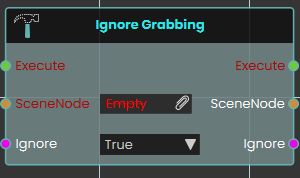](https://simlab-soft.com/help/uploads/images/gallery/2026-03/zRnimage.png)
The **Ignore Grabbing node** explicitly prevents a specific 3D object from being picked up or interacted with by the user's hands during the VR experience. When activated, the node disables the grabbable state of the targeted SceneNode if set to True. This node is highly useful for complex models where you want to enforce realistic interactions by restricting grip points, allowing you to easily exclude certain parts of a grouped object from being grabbed without having to detach or separate the components from the main assembly.
##### Example:
In this example, we configure a screwdriver so that the user can only pick it up by its handle, preventing them from grabbing it awkwardly by the metal rod or tip:
If **Set Node Grabbable State node** is used on the handle part of the screw driver alone, only the handle will move along with the grabbing hand, leaving the rest of the screw driver's assembly in place. Instead, **Ignore Grabbing** node should be used to exclude unwanted parts from being grabbed:
[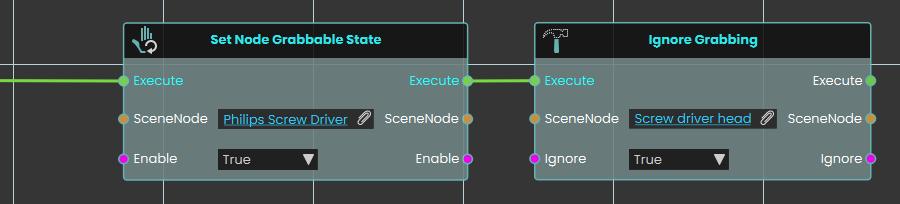](https://simlab-soft.com/help/uploads/images/gallery/2026-03/ccwimage.png)
[](https://simlab-soft.com/help/uploads/images/gallery/2026-03/RgNimage.png)
1. A **Set Node Grabbable State** node is activated to make the entire "Philips Screw Driver" parent group grabbable.
2. The execution flow immediately continues into an **Ignore Grabbing** node.
3. The specific "Screw driver head" object is assigned to the SceneNode input, and the Ignore boolean is set to True.
4. As a result, the metal tip is excluded from being a valid grab target, forcing the user to grab the tool properly by its handle while still ensuring the entire screwdriver assembly moves together as one cohesive object in the user's hand.
---
###  Set Grabbable Sequence
[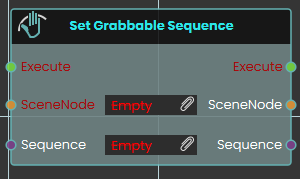](https://simlab-soft.com/help/uploads/images/gallery/2026-03/rDjimage.png)
The Set Grabbable Sequence node makes a specific 3D object interactively grabbable by assigning an animation sequence to it during the VR experience. Once activated, the node evaluates the targeted SceneNode and attaches the specified Sequence input, defining exactly how the object animates when grabbed and manipulated by the user. This versatile node can be used to add a sequence, dynamically switch between different sequences on the fly, or completely remove an existing sequence from a grabbable object before continuing the logic flow.
##### Example:
[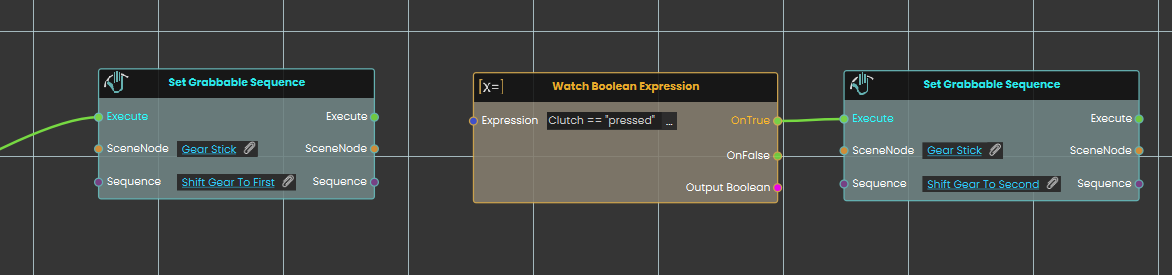](https://simlab-soft.com/help/uploads/images/gallery/2026-03/68Bimage.png)
In this example, we use the Set Grabbable Sequence node to create a dynamic gear stick that changes states based on the user's interactions:
1. A **Set Grabbable Sequence** node is used to make a "Gear Stick" object grabbable and attaching an animation sequence that, when grabbed, shifts the gear to first.
2. A **Watch Boolean Expression** node continuously monitors a string variable named "Clutch".
3. When the "Clutch" variable is set to "pressed", the watch node passes its OnTrue execution path to a second **Set Grabbable Sequence** node, which changes the grabbable object's sequence to a "Shift Gear To Second" sequence.
##### Tip:
Using the Set Grabbable Sequence node without attaching a sequence will disable the grabbing state of an object.
[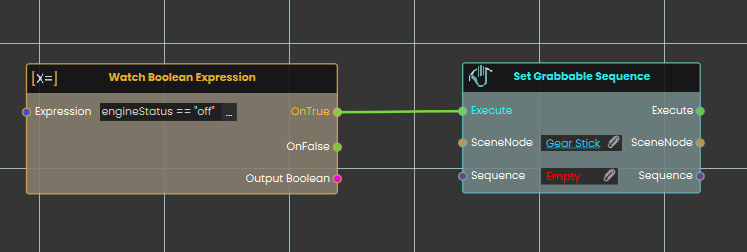](https://simlab-soft.com/help/uploads/images/gallery/2026-03/bkIimage.png)
Here, another **Watch Boolean Expression** node is used to monitor a variable called "engineStatus". When the "engineStatus" variable is set to "off", it triggers a **Set Grabbable Sequence** node targeting the gear stick, but this time with no sequence attached (Empty). Leaving the sequence input empty completely disables the grabbing interaction, turning the gear stick back into a still, non-interactable object.
---
###  Set Node grabbable State
[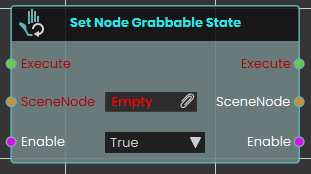](https://simlab-soft.com/help/uploads/images/gallery/2026-03/5Nvimage.png)
**The Set Node Grabbable State node** evaluates the boolean Enable input to determine the targeted SceneNode's grabbable status—making the object fully grabbable by the user if set to True, or disabling grab interactions entirely to make it a static object if set to False.
# Resource
---
###  Delete Resource
[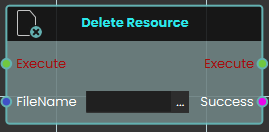](https://simlab-soft.com/help/uploads/images/gallery/2026-03/lM9image.png)
The **Delete Resource** node enables the system to remove specific resources currently stored in the SimLab File Vault. This node simply requires the exact "FileName" of the target file as an input to execute the deletion. It outputs a "Success" boolean to confirm whether the specified file was successfully removed from the vault.
---
### [ ](https://simlab-soft.com/help/uploads/images/gallery/2025-09/T47image.png) Download Resource
[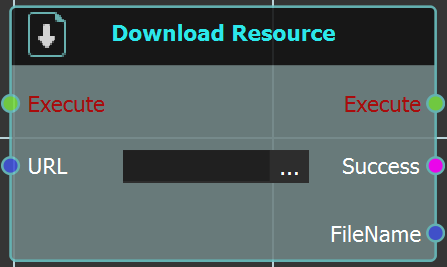](https://simlab-soft.com/help/uploads/images/gallery/2025-09/QXZimage.png)
The **Download Resource** node enables the system to download a specific file directly from the SimLab File Vault while a user is actively engaged inside a VR experience. This node requires the exact URL of the vault file to be linked into the node's input. Upon execution, it retrieves the file and provides a "Success" status alongside the downloaded "FileName" to be used in subsequent logic.
For more information, refer to SimLab Vault tutorial below:
---
###  Get Path From Resource
[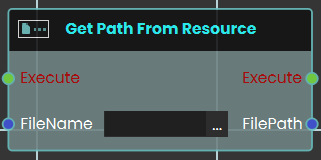](https://simlab-soft.com/help/uploads/images/gallery/2026-03/rPtimage.png)
The **Get Path From Resource** node enables the system to retrieve the exact URL or local file path of a specific resource or file. This node requires the exact "FileName" of the target file as an input.
---
### [ ](https://simlab-soft.com/help/uploads/images/gallery/2026-03/response-resource-savevrpackage.png)Save VRPackage
[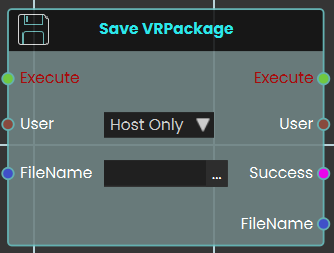](https://simlab-soft.com/help/uploads/images/gallery/2026-03/jgoimage.png)
The **Save VRPackage** node enables the system to save the current, active VR experience as a standalone `.vrpackage` file, directly from within the VR session itself. It requires a "FileName" to name the new package and includes a "User" dropdown (e.g., "Host Only") to specify which user is authorizing the save. It outputs a "Success" boolean and the final "FileName" to confirm the action.
###
---
###  Upload Media From User
[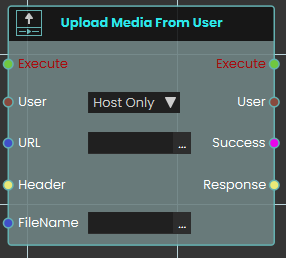](https://simlab-soft.com/help/uploads/images/gallery/2026-03/yl5image.png)
The **Upload Media From User** node functions similarly to the standard **Upload Resource** node by sending files to the SimLab File Vault via a designated URL. This node is specifically designed for multiplayer VR Collaboration environments.
It allows an administrator or host to target a specific user (via the "User" dropdown) and upload a file from *that user's* local device directly to the central File Vault. This is crucial for sharing media when a file exists only on an individual participant's machine and not on the host's device. Like the standard upload node, it outputs a "Success" boolean.
---
###
###  Upload Resource
[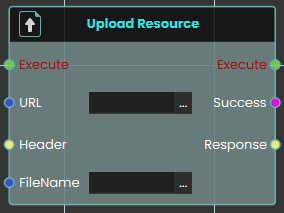](https://simlab-soft.com/help/uploads/images/gallery/2026-03/Zkrimage.png)
The **Upload Resource** node enables the system to send and save resources to the SimLab File Vault during a live VR experience. This node requires the destination URL for the file vault, as well as the assigned "FileName" for the file being uploaded and outputs a "Success" boolean.
For more information, refer to SimLab Vault tutorial below:
---
###  Cloud Upload
Saves a file from the running experience into a folder in your SimLab Cloud Files.
#### What it does
Cloud Upload takes a file that is part of the experience (for example, a screenshot or report the experience just saved) and stores it in the SimLab Cloud Files folder you picked. Unlike **Upload Resource**, which sends a file to a web address you supply, you don’t need a URL or any headers here — you choose the destination folder from your own SimLab Cloud Files with the folder picker.
The node waits until the upload is complete, then tells you whether it worked, the name the file was saved under, and a link to the file when one exists. If a file with the same name is already in the folder, the new one is saved under a slightly different name (for example with `_1` or `_2` added), so nothing already in the folder is replaced. The file in the experience is not changed or removed.
The person running the experience must be signed in to SimLab — with any account; in a shared session, the host. The folder stays yours: uploads count against your Cloud Files storage, and your SimLab license must include Cloud Files. The person running the experience needs no license of their own.
#### Inputs
Port
Type
What to connect
**Execute**
Trigger
Wire this from the previous node’s Execute output.
**Target Folder**
Text
The SimLab Cloud Files folder to upload into. Click the field and choose the folder with the folder picker rather than typing it. If no folder is set, the upload fails.
**FileName**
Text
The name of the file in the experience to upload, for example a file name returned by a node that saved it. Use the file name only, without any folder in front of it. Although the field can be left blank in the editor, the upload fails if it is empty or if the experience has no file with that name.
#### Outputs
Port
Type
What you get
**Execute**
Trigger
Fires once the upload has finished, whether it worked or not. Check **Success** to find out.
**Success**
True / false
`true` when the file was stored in the folder. `false` when the folder or file name is missing, the experience has no file with that name, nobody is signed in, the Cloud Files storage is full, SimLab Cloud could not be reached, or the upload was refused or interrupted.
**URL**
Text
A link to the uploaded file, when one exists. Empty when the upload failed.
**SavedName**
Text
The exact name the file was saved under in the folder. It matches **FileName** unless a file with that name was already there, in which case a number is added. Use this name, not the one you sent, whenever you refer to the file later. Empty when the upload failed.
#### Example
**Target Folder** input
`Training Results`, chosen with the folder picker
**FileName** input
`forklift_inspection.png`
**Success** output
`true`
**SavedName** output
`forklift_inspection.png` (or `forklift_inspection_1.png` if the folder already had a file with that name)
#### Tips
- **Shared sessions:** the file is uploaded once, by the host. Only the host gets the real result — for the other participants **Success** is `false` and **SavedName** is empty, so don’t act on Success there; handle the result on the host.
- The folder connection saved by the picker can only add files to that one folder. It can’t read, change or delete anything else in your SimLab Cloud Files.
- To bring an uploaded file back into an experience later, use **Cloud Download**.
---
###  Cloud Download
Brings a file from your SimLab Cloud Files into the running experience.
#### What it does
Cloud Download fetches a file from your SimLab Cloud Files and adds it to the experience’s files, so other nodes can use it. Unlike **Download Resource**, which needs the file’s web address, you don’t need a URL here — you pick the file from your own SimLab Cloud Files with the file picker. The file stays in your Cloud Files; nothing there is changed. The person running the experience must be signed in to SimLab — with any account; in a shared session, the host.
In a shared session, every participant’s machine downloads its own copy, and the node waits until all of them have finished. You then get whether the download worked and where the file was saved.
#### Inputs
Port
Type
What to connect
**Execute**
Trigger
Wire this from the previous node’s Execute output.
**Target File**
Text
The SimLab Cloud Files file to download. Click the field and choose the file with the file picker, or paste a key reference for a single file, copied from the Hub (**Resources** page → the key button on the file, “Create API key here”). If nothing is set, the download fails.
#### Outputs
Port
Type
What you get
**Execute**
Trigger
Fires once the download is done on every participant’s machine, whether it worked or not. Check **Success** to find out.
**Success**
True / false
`true` when the file is ready in the experience. `false` when no file is set, nobody is signed in, SimLab Cloud could not find or give access to the file, or the download failed on any machine.
**FileName**
Text
Where the downloaded file was saved in the experience’s files. Pass it to the nodes that need the file. Empty when the download failed.
#### Example
**Target File** input
`Training Results/forklift_inspection.png`, chosen with the file picker
**Success** output
`true`
**FileName** output
The saved location of `forklift_inspection.png` in the experience’s files
#### Tips
- If the experience already has a file with the same name, that file is used and nothing new is downloaded. When you replace a file in your Cloud Files and need the new version, give it a new name.
- To save a file from the experience into your Cloud Files, use **Cloud Upload**.
# External Connection \ WebSocket
### [](https://simlab-soft.com/help/uploads/images/gallery/2024-08/response-value-number-add.png) Open External Connection
SimLab Composer 14 introduces WebSocket support, enabling seamless integration with external systems allowing it to work with external hardware, co-simulation engines, and websites, unlocking numerous possibilities.
The WebSocket nodes (Open External Connection, Send Message, and [On Message Received](https://simlab-soft.com/help/books/dynamic-training-builder-nodes-manual/page/on-message-received)) are exclusively available in the Ultimate Edition.
The **Open External Connection** node enables the opening of a WebSocket connection to an external system. When the **Auto Handle Lua** is set to **true**, incoming messages containing Lua scripts will be automatically executed. This allows for real-time interaction between SimLab Composer and external systems, such as co-simulation engines or hardware, with the ability to dynamically execute Lua code as part of the interaction.
[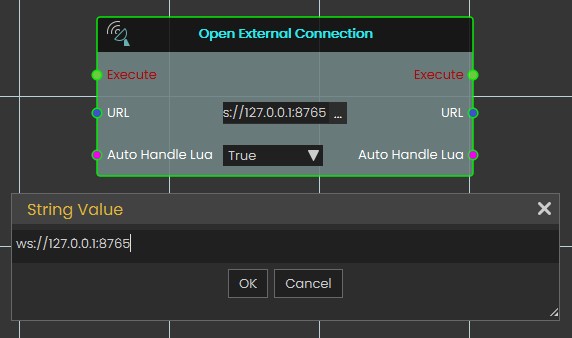](https://simlab-soft.com/help/uploads/images/gallery/2025-02/screenshot-2025-02-02-162338.jpg)
**Input Ports:**
- Execute
- URL: WebSocket URL that includes the server IP address, port, channel (optional). Example: ws://server1.simlab-soft.com:8765/robots\_1
- Auto Handle Lua: Incoming messages containing Lua scripts will automatically execute those scripts If enabled (True).
**Output Ports:**
- Execute
- URL
- Auto Handle Lua
---
###
[](https://simlab-soft.com/help/uploads/images/gallery/2024-08/response-value-number-add.png) Send Message
[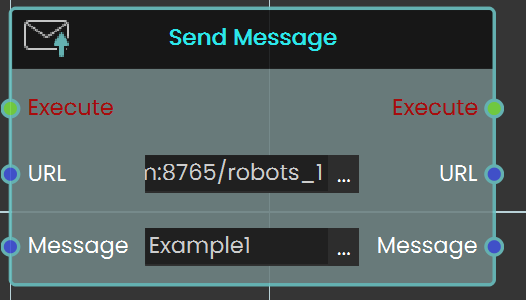](https://simlab-soft.com/help/uploads/images/gallery/2025-02/h5mimage.png)
The **Send Message** node allows you to communicate with the WebSocket server by sending messages. It is essential to ensure that the message format follows the protocol that the server and other clients can process. This node enables real-time interaction with external systems, making it possible to transmit data or commands to connected servers or clients.
**Input Ports:**
- Executive
- URL: WebSocket URL that includes the server IP address, port, and channel (optional). Example: ws://server1.simlab-soft.com:8765/robots\_1
- Message
**Output Ports:**
- Execute
- URL
- Message
# Media
###  Message Box \\ Show Message Box
[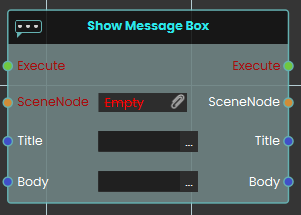](https://simlab-soft.com/help/uploads/images/gallery/2026-03/EC3image.png)
The **Show Message Box node** displays a floating text panel directly above a specific 3D object in the VR scene. Once activated, the node takes the targeted SceneNode input and generates a visible UI element containing the text strings provided in the Title and Body inputs, to provide contextual information or instructions to the user.
[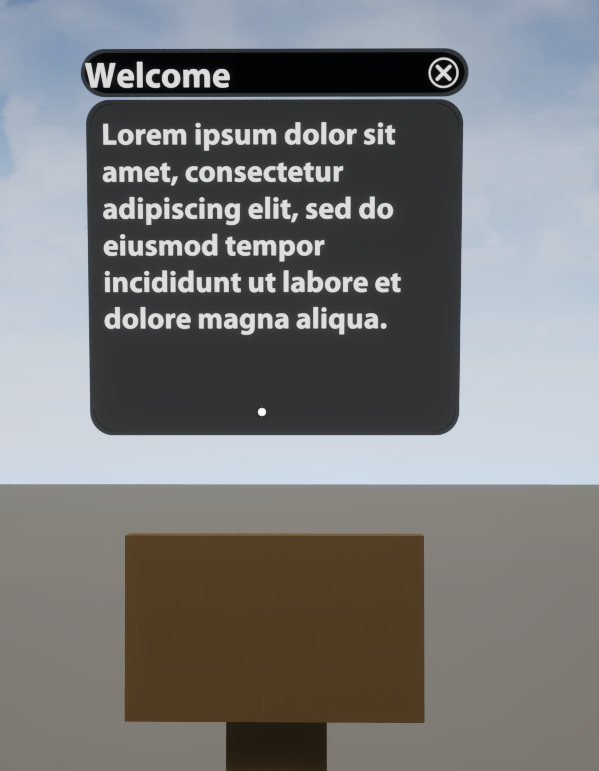](https://simlab-soft.com/help/uploads/images/gallery/2026-03/lYyimage.png)
### [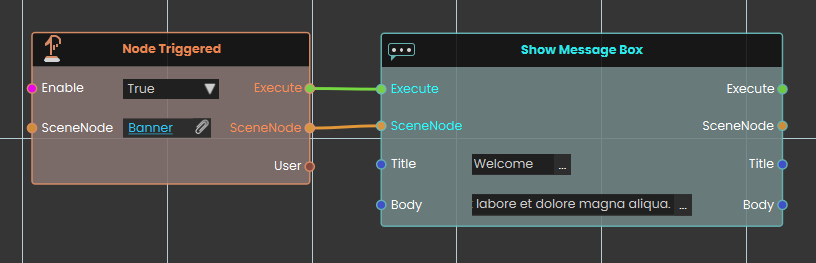](https://simlab-soft.com/help/uploads/images/gallery/2026-03/7O8image.png)
###
###
---
###
###  Message Box \\ Hide Message Box
[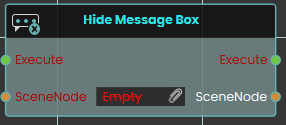](https://simlab-soft.com/help/uploads/images/gallery/2026-03/3urimage.png)
The **Hide Message Box node** removes an active text panel currently displayed above a specific 3D object. When activated, the node takes the targeted SceneNode input and immediately dismisses its attached message box from the user's view.
---
###  Set Web Browser URL
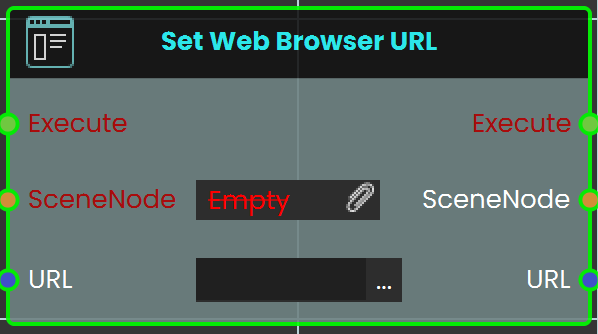
The **Set Web Browser URL** node sets the URL for a web browser within the VR Experience. This node enables users to open and navigate to a specified webpage, making it possible to display web content like videos or instructional resources directly within the VR environment.
#### Example
[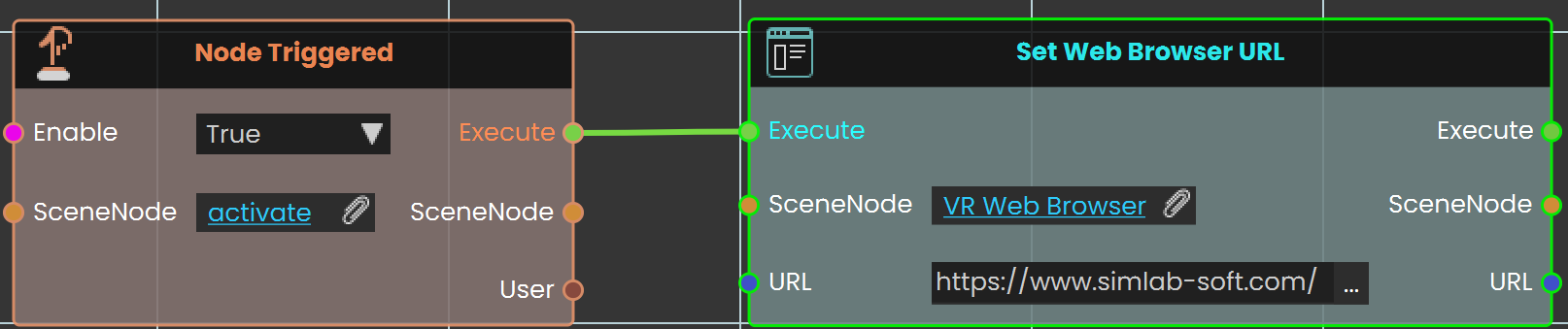](https://simlab-soft.com/help/uploads/images/gallery/2025-02/G1Pimage.png)
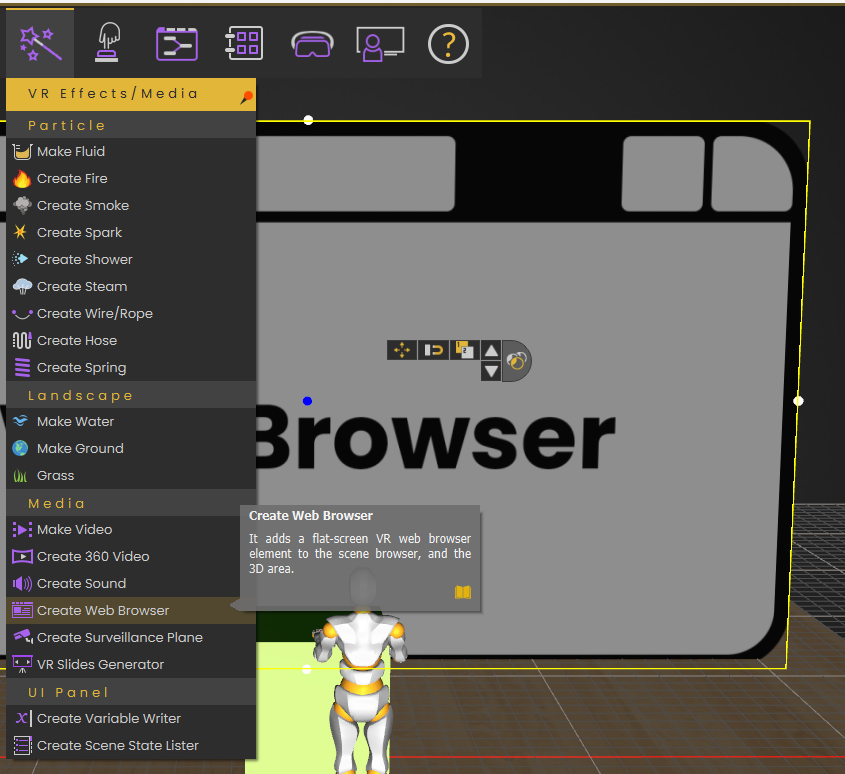
In this example, the **Set Web Browser URL** node is used to open the SimLab website. The **Node Triggered** event is activated when the user triggers an object named "activate." As soon as the object is triggered, the **Set Web Browser URL** node is triggered, setting the URL to the SimLab website. The website then loads and is displayed on a web browser plane within the VR environment.
> [ ](https://simlab-soft.com/help/uploads/images/gallery/2024-08/response-value-number-add.png)[Tutorial is available on SimLab VR Discord server](https://discord.com/channels/1062715275805470821/1298557994208071701/1312684216776916994 "Tutorial is available on SimLab VR Discord server")
---
###  Load Web Browser HTML
Shows a page you write yourself on a web browser in the VR Experience, instead of opening a website.
#### What it does
Where **Set Web Browser URL** sends a web browser to a website address, this node gives the browser the page itself: you type the page's content as HTML text, and the browser shows it straight away. Nothing is downloaded from the internet, so it's a good way to show short instructions, step lists or results that you build inside your diagram.
While your page is showing, the browser hides its address bar, and your page takes priority over any website address the browser was given. To go back to a website, run this node again with **HTML** left empty: the browser then shows its web address again.
#### Inputs
Port
Type
What to connect
**Execute**
Trigger
Wire this from the previous node's Execute output.
**SceneNode**
Scene node
The web browser object in your scene that should show the page. Something must be connected here: with nothing connected, the node stops with an error.
**HTML**
Text
The page to show, written as HTML. Leave it empty to stop showing your page and go back to the browser's web address.
#### Outputs
Port
Type
What you get
**Execute**
Trigger
Fires once the node has finished.
**SceneNode**
Scene node
The same web browser you connected, so you can wire it into the next node.
**HTML**
Text
The same HTML text you entered.
#### Example
**SceneNode** input
The web browser plane from the **Set Web Browser URL** example
**HTML** input
`
Step 2: Close the valve
Turn the red valve clockwise until it stops.
`
**SceneNode** output
The same web browser plane, now showing the “Step 2” page
**HTML** output
The same HTML text
#### Tips
- **URL not changing?** If **Set Web Browser URL** seems to do nothing, a page from this node is probably still showing. Run **Load Web Browser HTML** with an empty **HTML** first, then set the URL.
- **One step at a time.** In a step-by-step training, run this node at the start of each step with that step's instructions, so the same browser always shows what to do next.
---
###  Set Camera FOV
Changes how wide a Camera placed in your scene sees, so the pictures it takes show more or less of the scene.
#### What it does
Sets the field of view (FOV) of a Camera object in the scene, in degrees, replacing the value you gave that camera in the Composer. A small FOV zooms in on a detail; a large FOV takes in more of the room. Every picture a **Capture Camera to File** node takes with this camera afterwards uses the new value.
This only changes the camera's own view. Nothing on any user's screen changes — to change how wide a user sees, use **Set Player FOV** instead. If nothing is connected to **Camera**, or the object connected isn't a camera, nothing changes, and the Execute output still fires.
#### Inputs
Port
Type
What to connect
**Execute**
Trigger
Wire this from the previous node's Execute output.
**Camera**
Scene node
The Camera object in your scene whose field of view you want to change. Required.
**FOV**
Number
The new field of view, in degrees. Use a value from `1` to `170`; smaller numbers zoom in, larger numbers show more.
#### Outputs
Port
Type
What you get
**Execute**
Trigger
Fires once the node has finished.
**Camera**
Scene node
The same camera you connected, so you can wire it straight into the next node (for example **Capture Camera to File**).
**FOV**
Number
The same field of view you entered.
#### Example
**Camera** input
The Inspection Camera placed above the workbench
**FOV** input
`35` — a close-up of the part on the bench
**Camera** output
The Inspection Camera, ready for **Capture Camera to File**
**FOV** output
`35`
#### Tips
- **Zoom in, then zoom back out.** Set a small FOV, take the close-up with **Capture Camera to File**, then run **Set Camera FOV** again with the camera's usual value (for example `90`) so later pictures go back to its normal view.
- **Keep it between 1 and 170 degrees.** A value outside that range isn't used; the picture falls back to a standard 90-degree view instead.
# Media \ Variable Writer \
###  Get/Set Variable Writer Color
[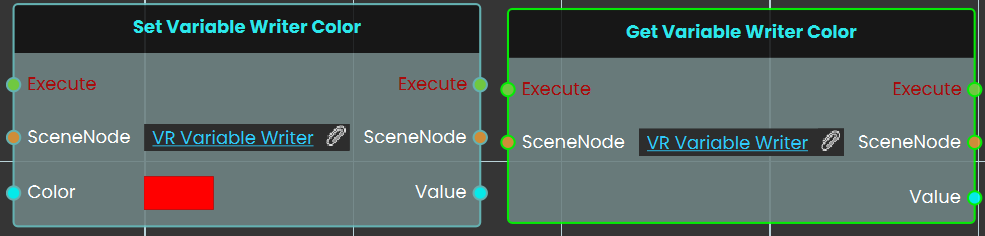](https://simlab-soft.com/help/uploads/images/gallery/2025-05/image.png)
The **Set / Get Variable Writer Color** nodes are used to control the color of the text displayed by a Variable Writer in the VR environment. The Set node allows you to change the text color dynamically based on events or conditions, while the Get node retrieves the current color of the Variable Writer. This is useful for customizing the visual appearance of displayed values, such as indicating status or drawing attention to changes.
---
###  Get/Set Variable Writer Prefix:
[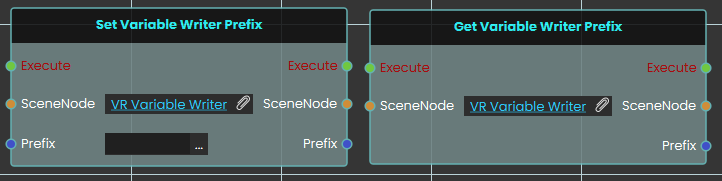](https://simlab-soft.com/help/uploads/images/gallery/2025-05/stCimage.png)
The **Set / Get Variable Writer Prefix** nodes are used to modify or retrieve the prefix text displayed before the variable value in a Variable Writer. The Set node allows you to add custom text before the value, such as labels or units, while the Get node retrieves the current prefix. This helps provide context to the displayed value, making it clearer for the user.
---
### [](https://simlab-soft.com/help/uploads/images/gallery/2026-03/JqVsuffix.png) Get/Set Variable Writer Suffix:
[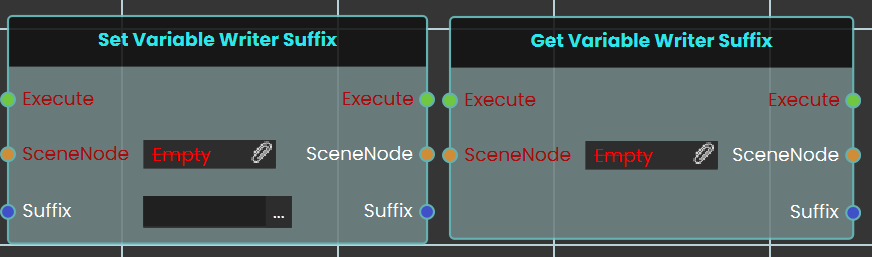](https://simlab-soft.com/help/uploads/images/gallery/2025-05/30Kimage.png)
The **Set / Get Variable Writer Suffix** nodes are used to modify or retrieve the suffix text displayed after the variable value in a Variable Writer. The Set node allows you to add custom text after the value, while the Get node retrieves the current suffix. This helps make the displayed value more informative and user-friendly.
###  Get Variable Writer Value
[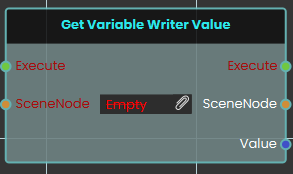](https://simlab-soft.com/help/uploads/images/gallery/2026-03/YYCimage.png)
The **Get Variable Writer Value** node retrieves the pure data value from a designated **SceneNode** (the target Variable Writer object) and outputs this core **Value** for use in your logic.
###
###  Set Variable Writer Value
[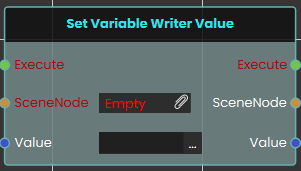](https://simlab-soft.com/help/uploads/images/gallery/2026-03/F5iimage.png)
The **Set Variable Writer Value** node dynamically updates the core data of a target **SceneNode** (the Variable Writer object). By inputting a new string or numerical **Value**, the node overrides the writer's pure value while keeping any existing prefixes and suffixes perfectly intact.
###  Set Scene Font
[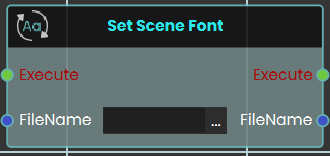](https://simlab-soft.com/help/uploads/images/gallery/2026-03/W3Ximage.png)
The **Set Scene Font** node updates the typography globally by changing the font of every Variable Writer object currently present in the VR scene. This node requires the exact **FileName** of a TrueType Font (`.ttf`) as its input. To function correctly, the designated `.ttf` file must first be imported into your project via the Resource Management tab in SimLab Composer.
[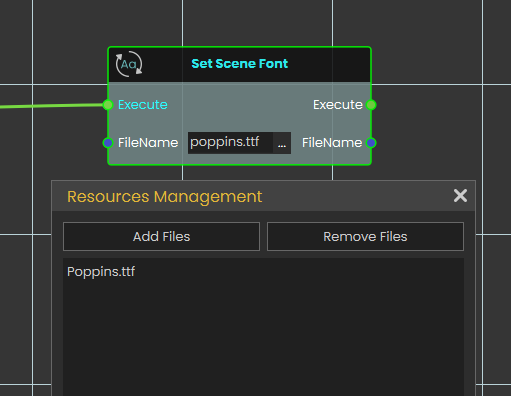](https://simlab-soft.com/help/uploads/images/gallery/2026-03/sEximage.png)
###
###  Set Variable Writer Font
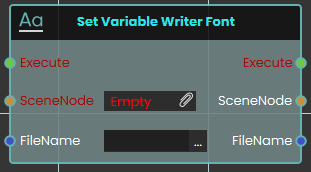The **Set Variable Writer Font** node allows for targeted typography changes by updating the font of a single, specific Variable Writer rather than the entire environment. By assigning the target **SceneNode** and providing the **FileName** of a valid `.ttf` font file (previously imported through the Resource Management tab), this node applies the new text style exclusively to the selected object, leaving all other text in the scene unaffected.
[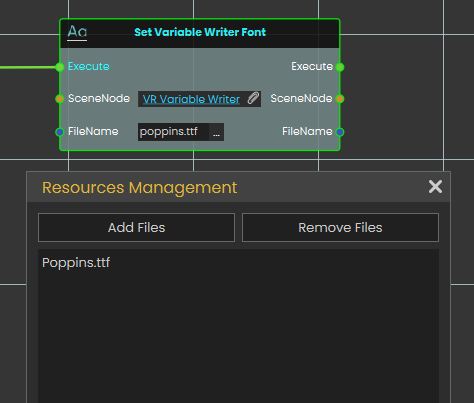](https://simlab-soft.com/help/uploads/images/gallery/2026-03/l1Oimage.png)
---
### [](https://simlab-soft.com/help/uploads/images/gallery/2026-03/25Jvariable.png) Set Variable Writer Variable:
[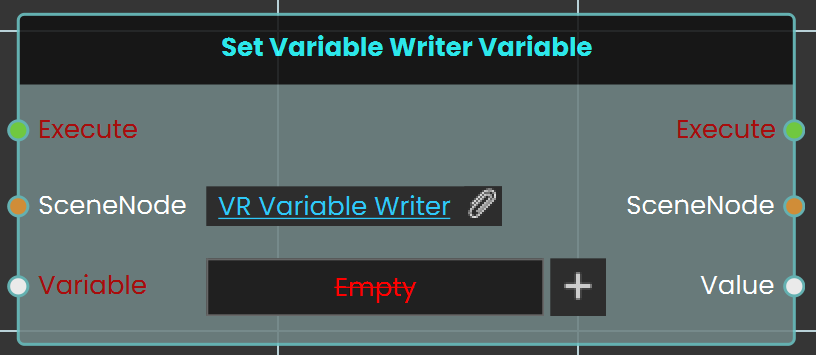](https://simlab-soft.com/help/uploads/images/gallery/2025-05/Lvcimage.png)
The **Set Variable Writer Variable** node is used to assign or change the variable displayed by an existing Variable Writer. This allows you to update the displayed content dynamically during the VR experience by switching the linked variable at any time.
# Media \ Dynamic Menu
###  Set Dynamic Menu Visibility
[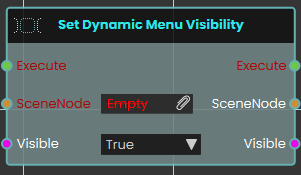](https://simlab-soft.com/help/uploads/images/gallery/2026-03/LmLimage.png)
The **Set Dynamic Menu Visibility** node controls whether dynamic menus (specifically used with the Objects Menu and Group Menus add-ons) are shown or hidden during a VR experience, using a boolean toggle where **True** displays the menu and **False** hides it.
---
# Media \ Sound
###  Record Sound
[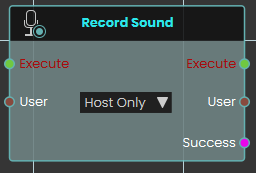](https://simlab-soft.com/help/uploads/images/gallery/2026-03/F1Uimage.png)
The **Record Sound** node initiates an audio recording session within the VR experience. This node utilizes a **User** dropdown parameter to determine whether the system captures microphone audio exclusively from the host or from all participating users. It outputs a **Success** boolean when the recording successfully starts.
---
###  Set Sound File
[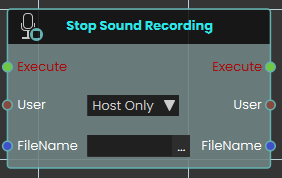](https://simlab-soft.com/help/uploads/images/gallery/2026-03/2umimage.png)
The **Stop Sound Recording** node halts an active audio recording session. This node requires a specified target **User** and an exact **FileName**. Upon execution, it stops the capture process and stores the resulting audio file directly into the project's Resource Management tab under the provided name
---
###  Set Sound Volume
[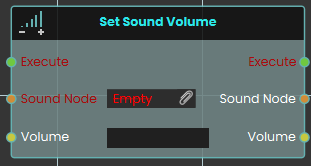](https://simlab-soft.com/help/uploads/images/gallery/2026-03/RDGimage.png)
The **Set Sound Volume node** is used to adjust the audio playback level of a specific 3D sound object within the scene. The numerical Volume input operates strictly within a range of 0 (muted) to 4 (maximum amplification)
---
###  Sound Play
[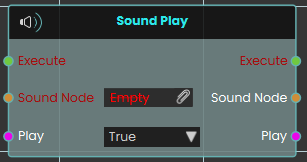](https://simlab-soft.com/help/uploads/images/gallery/2026-03/b8Gimage.png)
The **Sound Play node** controls the playback of the audio file stored within a specific 3D sound object. When activated, the node uses the boolean Play input to determine the action for the targeted Sound Node—triggering the sound to start playing from the start of the audio file, or stopping the audio and seeking to the start.
---
###  Sound Seek
[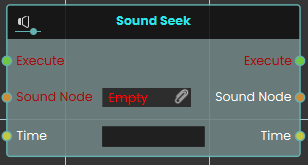](https://simlab-soft.com/help/uploads/images/gallery/2026-03/09limage.png)
The **Sound Seek node** instantly jumps to a specific moment within the audio file attached to a 3D sound object. When activated, the node takes the targeted Sound Node and moves its playback position to the exact duration specified by the numerical Time input, measured in seconds.
---
###  Sound Toggle
[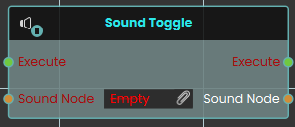](https://simlab-soft.com/help/uploads/images/gallery/2026-03/rxDimage.png)
The **Sound Toggle node** easily switches between playing and pausing a specific 3D sound object in the scene. Once activated, the node evaluates the targeted Sound Node and automatically reverses its current playback status—pausing it if it is currently playing, or playing it if it is currently paused.
---
###  Stop Sound Recording
[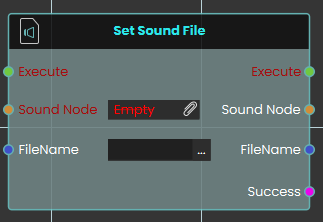](https://simlab-soft.com/help/uploads/images/gallery/2026-03/yRAimage.png)
The **Set Sound File** node dynamically attaches or updates the audio source of a designated **Sound Node** object in the scene. This node requires the exact **FileName** of an audio file previously imported into the Resource Management tab, strictly including its file extension (for example, "welcome.mp3"). It outputs a **Success** boolean to confirm that the sound file was located and attached properly.
# Media \ Video
###  Set Video File
[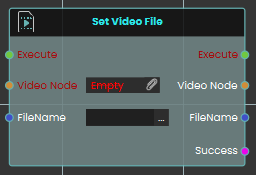](https://simlab-soft.com/help/uploads/images/gallery/2026-03/W9Ximage.png)
The **Set Video File** node allows you to dynamically attach or change the media source of a specific Video Node within your scene. By assigning the target **Video Node** and inputting the exact **FileName** of your desired video (such as an `.mp4`), this node updates the object's media. For this to function correctly, the video file must first be imported into your project through the Resource Management tab. It also outputs a **Success** boolean to verify that the file was found and loaded.
##### Example
##### [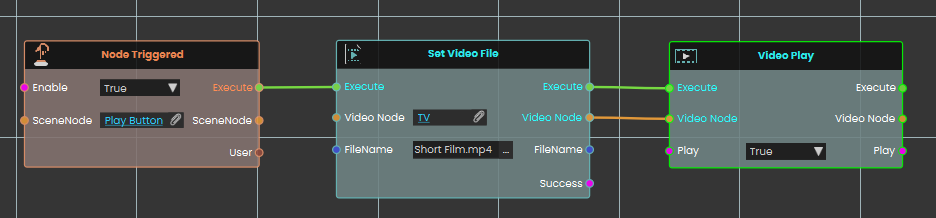](https://simlab-soft.com/help/uploads/images/gallery/2026-03/tRGimage.png)
In this example, an interaction is set up to load a short film onto a TV screen and immediately begin playback.
1. Upon interacting with the "Play Button" object, the **Node Triggered** event initiates the execution flow.
2. The **Set Video File** node is executed, assigning the previously imported video file "Short Film.mp4" directly to the "TV" video node object.
3. Once the file is successfully attached, the execution flow passes to the **Video Play** node (with the Play toggle set to **True**), which instantly starts playing the newly loaded short film on the TV screen.
---
###  Set Video URL
Points a video object in your scene at a new video, so it plays from the web address (or file path) you give it.
#### What it does
This node takes one of the video objects in your scene and tells it which video to play, using the address you provide in the URL. As soon as it runs, the video object switches to that new source — handy for showing different clips on the same screen depending on what the user does.
It only works on a video object; if you point it at any other kind of scene object, nothing changes and the result simply reports that it didn’t succeed. The node hands the same video object straight back out, so you can keep working with it, and it tells you whether the change went through.
#### Inputs
Port
Type
What to connect
**Execute**
Trigger
Wire this from the previous node’s Execute output.
**Video Node**
Scene node
The video object in your scene whose video you want to change. It must be a video object — other kinds of objects are ignored.
**URL**
Text
The web address (or path) of the video to play, for example `https://videos.example.com/safety-intro.mp4`. You can leave this empty to clear the current video.
#### Outputs
Port
Type
What you get
**Execute**
Trigger
Fires once the node has finished.
**Video Node**
Scene node
The same video object you passed in, so you can connect it to the next node.
**URL**
Text
The video address you supplied, passed straight through.
**Success**
True / false
True if the video object accepted the new video, false if it didn’t (for example, if the object isn’t a video).
#### Example
**Video Node** input
The `Lobby Screen` video object in your scene
**URL** input
`https://videos.example.com/safety-intro.mp4`
**Success** output
`true`
#### Tips
- Make sure the object you connect is actually a video object — if it isn’t, the change is skipped and Success comes back false.
- Check the Success output before moving on, so you can show a fallback or message if the video couldn’t be loaded.
---
###  Video Play
[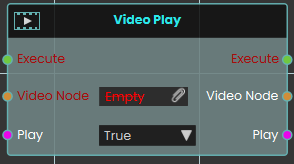](https://simlab-soft.com/help/uploads/images/gallery/2026-03/VFGimage.png)
The **Video Play** node provides direct control over the playback of a **Video Node** through a boolean **Play** input. Setting the toggle to **True** starts the video, while **False** stops it.
###  Video Seek
[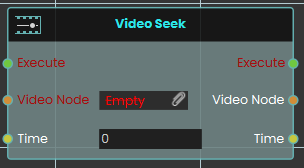](https://simlab-soft.com/help/uploads/images/gallery/2026-03/nfcimage.png)
The **Video Seek** node immediately moves the playback of the target **Video Node** to a specific **Time** defined in seconds. It enables precise navigation to any timestamp within the video's total duration.
###  Video Toggle
[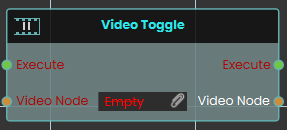](https://simlab-soft.com/help/uploads/images/gallery/2026-03/cLoimage.png)
The **Video Toggle** node switches the playback state of the assigned **Video Node** between playing and paused. Each execution reverses the current state of the video material, making it ideal for simple play/pause button interactions.
# Cloud
### [](https://simlab-soft.com/help/uploads/images/gallery/2024-08/response-value-number-add.png) Get Cloud Attribute
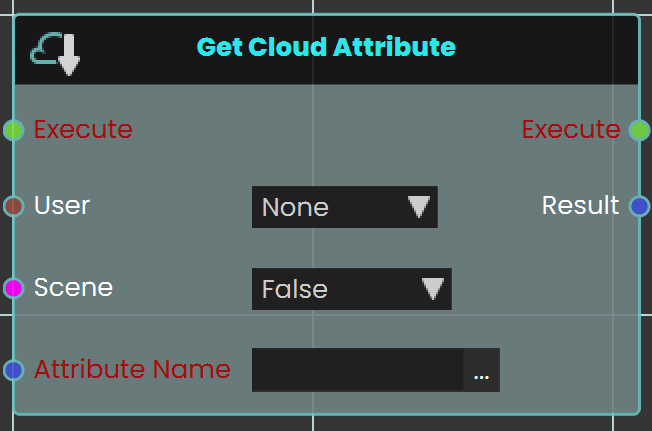
The **Get Cloud Attribute** node enables the user to retrieve saved progress for a specific VR Experience by assigning the attribute in the Attribute Name field. The progress can be saved for either the scene, the user, or both. Once the node is executed, the retrieved value can be acquired through the **Result** port.
#### Example

In this example, a **Get Cloud Attribute** node is used to retrieve stored data from Cloud. When the user enters the object named FinishLine, the object named Scoreboard will be shown. The data saved for this specific scene for all users is retrieved and stored in a variable named Scoreboard, which can then be displayed during the VR Experience.
---
### [](https://simlab-soft.com/help/uploads/images/gallery/2024-08/response-value-number-add.png) Set Cloud Attribute
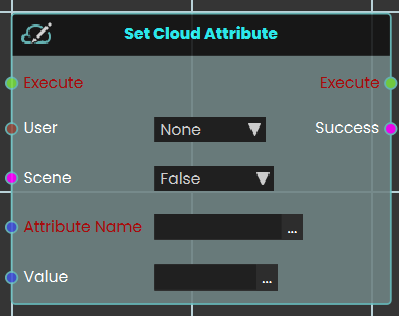
The **Set Cloud Attribute** node enables the user to store data for a specific VR Experience by assigning the attribute in the Attribute Name field then set the value of it. the data can be stored for either the user, the scene, or both. Once the node is executed, the specified data is saved accordingly.
#### Example
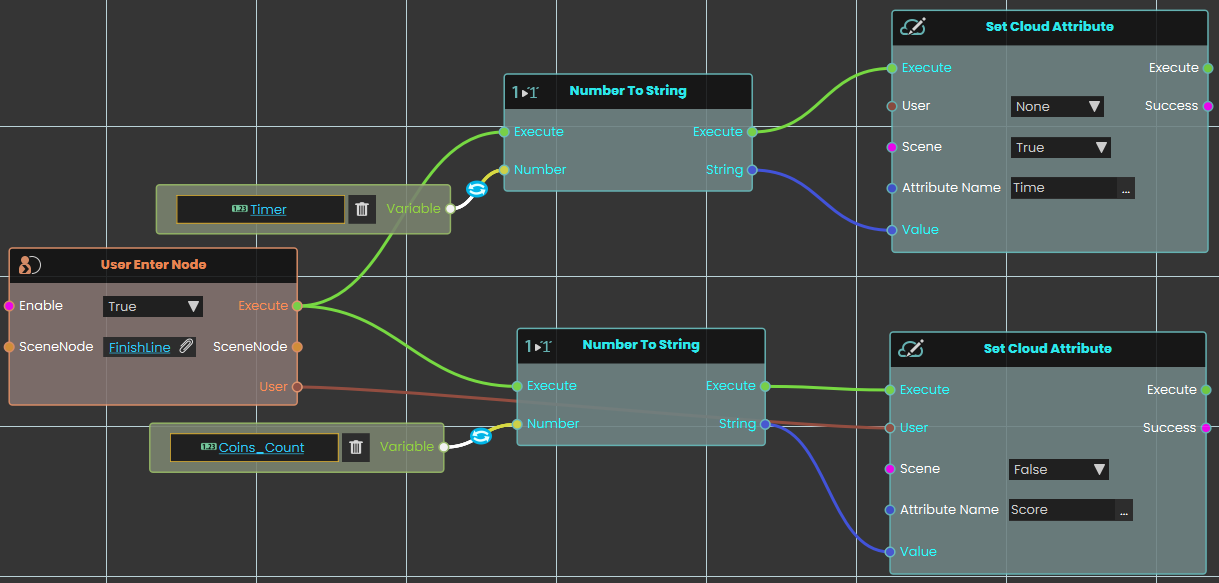
In this example, a **Set Cloud Attribute** node is used to store data in Cloud. When the user enters the object named **FinishLine**, the value of the variable **Time** will be converted to String and stored under the **attribute named Time** for the **Scene Only**, meanwhile the value of the variable **Coins\_Count** will be converted to String and then stored under **the attribute Score** for the **User Only**.
**Note:** To retrieve the Cloud data, the experience must be run from a logged-in account in SimLab VR Viewer.
---
## HTTP Requests
These two nodes let your scene talk to a web service over the internet — for example to fetch some information from a server, send a result to one, or call an online tool. You give the node a web address and a few details about the request; it contacts the server, waits for the reply, and hands you back whatever the server sent. The two nodes are identical except for one thing — **the form the reply comes back in**:
- **Http Request** — gives the reply back as a **JSON object**. Use this when the server answers with JSON.
- **Http Request (String)** — gives the reply back as **plain text**. Use this for raw text, or when you'd rather read the text yourself later.
### Things to know before you start
These points apply to **both** nodes.
#### They wait for the request to finish before carrying on
Talking to a server isn't instant — it can take a moment for the reply to come back. These nodes handle that waiting for you. The node's **Execute** output does *not* fire the moment the request is sent; it fires only once the request has finished — that is, once the server has answered *or* the attempt has failed. So **the nodes you wire after this one run when the request comes back**, not the instant it goes out, and you don't need to add any delay of your own. The rest of your scene keeps running in the meantime — only this branch waits.
Because the **Execute** output fires whether the request succeeded or not, always check the result before trusting the reply — see below.
#### Always check Success before using the reply
A request can go wrong for many reasons — a mistyped address, no internet connection, or the server itself reporting a problem (such as “not found”). That is what the **Success** output is for. It is **Yes** only when the server was reached *and* answered normally; otherwise it is **No** and the **Response** comes back empty. Always send **Success** into a **Branch** node and only use the **Response** on the “Yes” side.
#### The request, in four parts
Every request you send is built from the same few pieces. You set these on the inputs of both nodes:
- **Verb** — what kind of request it is, chosen from a drop-down. **GET** (the default) asks the server *for* something and is by far the most common. **POST** sends new information to the server; **PUT** and **PATCH** update something that already exists; **DELETE** removes something. (**REQUEST** is a general-purpose option for unusual cases.) If you are just reading data, leave this on GET.
- **URL** — the web address to contact, for example `https://api.example.com/status`. This is required.
- **Header** (optional) — extra details about the request, given as a JSON object of name-and-value pairs (text values). It is most often used to pass a key or token that proves who you are, such as `{"Authorization": "Bearer abc123"}`.
- **Body** (optional) — the information you are sending *to* the server, given as a JSON object. It is used with POST, PUT, and PATCH. A GET request never carries a body, so anything you connect here is ignored when the verb is GET.
#### Which one should I use?
Most modern web services answer with **JSON**. If yours does, use **Http Request** and you'll get a JSON object you can read straight away with the **JSON Object** nodes. If the server sends back plain text, or you aren't sure of the format and want the exact text, use **Http Request (String)**. You can always turn text into a JSON object afterwards with **Create Json Object From String**.
###  Http Request
Sends a request to a web address and gives you the server's reply as a **JSON object**.
#### What it does
This is the node to reach for when the server answers with JSON, which most web services do. It contacts the address you give it, waits for the reply, and reads that reply into a **JSON object** — so you can pull values straight out of it with the **Get Json Object Field** nodes on the **JSON Objects** page. Only the reply's content comes back; this node doesn't hand you the technical status number separately. Remember to check **Success** first: if the request failed, or the reply wasn't valid JSON, Success is **No** and the Response is empty.
#### Inputs
Port
Type
What to connect
**Execute**
Trigger
Wire this from the previous node's **Execute** output.
**Verb**
Choice
The kind of request: GET, POST, DELETE, PUT, REQUEST, or PATCH. Defaults to **GET**.
**URL**
Text
The web address to contact.
**Header**
JSON object
*Optional.* Extra request details as name-and-value pairs, such as an authorization key.
**Body**
JSON object
*Optional.* The information to send to the server. Used with POST, PUT, and PATCH; ignored for GET.
#### Outputs
Port
Type
What you get
**Execute**
Trigger
Fires once the request finishes — whether it succeeded or not.
**Success**
True / false
**Yes** if the server was reached, answered normally, and the reply could be read as JSON; **No** otherwise.
**Response**
JSON object
The server's reply, as a JSON object. Empty when **Success** is No.
#### Tips
- **Check Success first.** Wire **Success** into a **Branch** node and only read the **Response** when it's Yes. A server error such as “not found” counts as No.
- **Read one value out.** Wire the **Response** into a **Get Json Object Field** node with the field name to pull a single value (for example `temperature`) out of the reply.
- **Sending data?** Fill in the **Body** and choose **POST** (or PUT / PATCH). When a body is sent, the request is automatically marked as JSON for you.
- **Reply isn't JSON?** If the server sends plain text rather than JSON, use **Http Request (String)** below instead.
###  Http Request (String)
Sends the same kind of request, but gives you the server's reply as **plain text**.
#### What it does
Works exactly like **Http Request**, with one difference: the reply comes back as a piece of **text**, exactly as the server sent it, instead of being read into a JSON object. Use this when the server returns plain text, when the reply isn't JSON, or when you simply want the raw text to store, display, or read yourself later. As with the other node, check **Success** first; if the request failed, Success is **No** and the text comes back empty.
#### Inputs
Port
Type
What to connect
**Execute**
Trigger
Wire this from the previous node's **Execute** output.
**Verb**
Choice
The kind of request: GET, POST, DELETE, PUT, REQUEST, or PATCH. Defaults to **GET**.
**URL**
Text
The web address to contact.
**Header**
JSON object
*Optional.* Extra request details as name-and-value pairs, such as an authorization key.
**Body**
JSON object
*Optional.* The information to send to the server. Used with POST, PUT, and PATCH; ignored for GET.
#### Outputs
Port
Type
What you get
**Execute**
Trigger
Fires once the request finishes — whether it succeeded or not.
**Success**
True / false
**Yes** if the server was reached and answered normally; **No** otherwise.
**Response**
Text
The server's reply, as plain text. Empty when **Success** is No.
#### Example
**Verb** input
`GET`
**URL** input
`https://api.example.com/version`
**Success** output
**Yes**
**Response** output
`v2.4.1`
#### Tips
- **Check Success first.** Wire **Success** into a **Branch** node and only read the **Response** when it's Yes. A server error such as “not found” counts as No.
- **Good for non-JSON replies.** Plain text, a version number, a short status word, or a line of CSV all come back cleanly as text.
- **Text that's really JSON?** If the reply happens to be JSON and you want to read fields out of it, pass the **Response** into **Create Json Object From String** — or just use **Http Request** above, which does that step for you.
### Related
- **JSON Objects** — build the **Header** and **Body** objects you send, and read values out of the reply from **Http Request**.
- **Create Json Object From String** — turn the text from **Http Request (String)** into a JSON object.
- **Branch** — use the **Success** output to decide what happens next.
# Scene
### [](https://simlab-soft.com/help/uploads/images/gallery/2024-08/response-value-number-add.png) Load Scene
[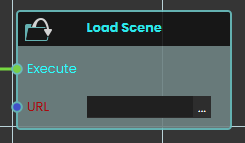](https://simlab-soft.com/help/uploads/images/gallery/2024-08/add-node.jpg)The **Load Scene node** is used to teleport between different scenes within your VR Experience. Enhancing the overall immersion and interactivity of the experience.
####
#### Example
[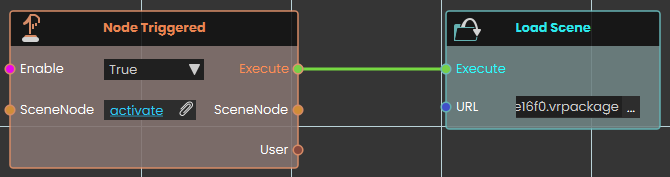](https://simlab-soft.com/help/uploads/images/gallery/2024-08/add-example.jpg)
In this example, the **Load Scene Node** is used to transition the user from one scene to another. This node facilitates changing scenes, allowing for a dynamic experience as users navigate through different environments within the VR application.
> [](https://simlab-soft.com/help/uploads/images/gallery/2024-08/response-value-number-add.png)[ Tutorial is available on SimLab VR Discord server](https://discord.com/channels/1062715275805470821/1307969317068869664 "Tutorial is available on SimLab VR Discord server")
---
### [](https://simlab-soft.com/help/uploads/images/gallery/2024-08/response-value-number-add.png) Home Scene
[](https://simlab-soft.com/help/uploads/images/gallery/2024-08/add-node.jpg)The **Home Scene node** enables users to return to the initial scene of the VR Experience. This node provides a straightforward way for users to reset the VR Experience to the starting point, ensuring a user-friendly navigation experience.
####
#### Example
[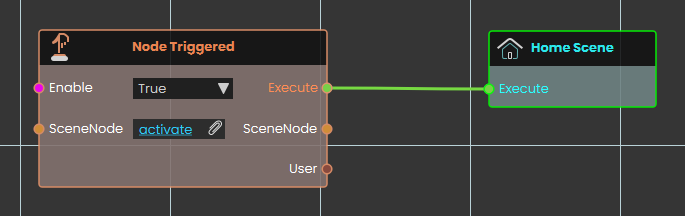](https://simlab-soft.com/help/uploads/images/gallery/2024-08/add-example.jpg)
In this example, the **Home Scene Node** is used to return the user to the main scene when the trigger event occurs. This allows you to teleport back to the primary environment, enhancing the user experience by providing a clear and intuitive way to return to the starting point.
> [](https://simlab-soft.com/help/uploads/images/gallery/2024-08/response-value-number-add.png)[ Tutorial is available on SimLab VR Discord server](https://discord.com/channels/1062715275805470821/1307969317068869664 "Tutorial is available on SimLab VR Discord server")
---
### [](https://simlab-soft.com/help/uploads/images/gallery/2024-08/response-value-number-add.png) Import Scene
[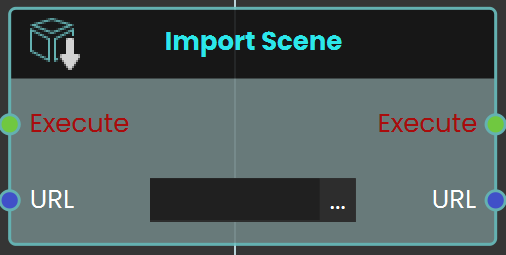](https://simlab-soft.com/help/uploads/images/gallery/2024-08/add-node.jpg)The **Import Scene** node is used to load an external scene into the current VR Experience. This allows users to dynamically bring in additional environments, objects, or elements as needed during runtime.
####
#### Example
[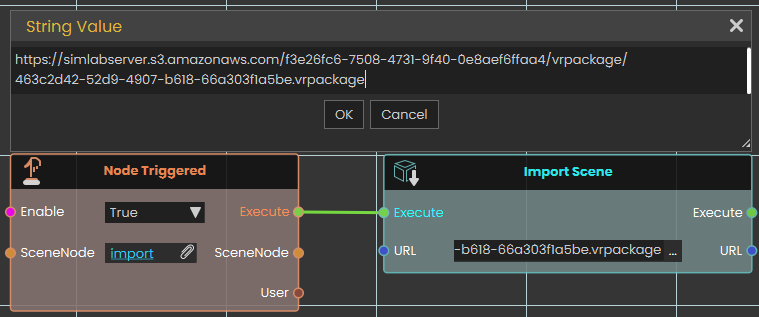](https://simlab-soft.com/help/uploads/images/gallery/2025-01/xguimage.png)[](https://simlab-soft.com/help/uploads/images/gallery/2025-01/NMTimage.png)
In this example, the **Import Scene node** is used to load a car model into the scene when the "Import" object is triggered. The Node Triggered event detects user interaction and executes the Import Scene node, which then loads the specified car model from an external VR package file. This allows the car to appear dynamically within the VR environment.
---
###  Reload Scene
Restarts the scene that is currently running, bringing it back to the way it was at the start.
#### What it does
When this node runs, it reloads the current scene from the beginning. Everything in the scene starts over — objects return to their starting positions and the scene plays as if it had just been opened.
It’s a handy way to give the user a “start over” or “try again” option, such as a reset button that puts a training exercise back to the beginning.
#### Inputs
Port
Type
What to connect
**Execute**
Trigger
Wire this from the previous node’s Execute output — for example, from a button click or another action that should restart the scene.
#### Outputs
This node has no outputs.
#### Example
**Execute** input
Wired from a “Restart” button so that clicking it starts the scene over from the beginning.
#### Tips
- Reloading starts the scene over completely, so any progress the user has made will be lost — use it when you want a clean fresh start.
- This node has no Execute output, so it’s always the last step in its chain — nothing runs after it.
---
## Enterprise VR Packages
An **Enterprise VR Package** is a complete VR experience saved as a single, **protected** `.evrpackage` file. These packages are **encrypted**, so only a viewer that has the matching enterprise key can unlock and open them, and creating them is part of a SimLab **Enterprise** licence. The node below brings one of these packages into the running Viewer and adds it to the **main menu**, ready to be opened.
###  Add Enterprise VR Package To Viewer
Fetches an Enterprise VR Package from a web address, unlocks it, and adds it to the Viewer's main menu.
#### What it does
Give this node the address of an Enterprise VR Package (an `.evrpackage` file) and, while your experience is running, it downloads the package, unlocks it with its enterprise key, and adds it to the Viewer's **main menu** — the list of experiences someone can open. The package is stored **locally** on the device, so from then on it can be opened from the menu like any other entry.
**It does not put anything into the scene that's currently playing.** This node makes a whole package available to open from the menu; it does not drop models or other content into the running scene. If what you want is to bring content *into* the current scene, use the **Import** node instead — that's what it's for.
Because these packages are protected, this only works with genuine Enterprise VR Packages, and the Viewer has to be able to unlock the file. The **Success** output tells you whether the package was added.
#### It waits until the package is ready
Downloading a package and unlocking it isn't instant — it takes a moment, and it happens quietly in the background so the rest of your experience keeps running. This node handles that waiting for you. Its **Execute** output does *not* fire the moment the node runs; it fires only once the package has been added to the menu *or* the attempt has failed. So **the nodes you wire after this one run when the package is ready**, not the instant it's requested, and you don't need to add any delay of your own. Because **Execute** fires whether it worked or not, always check **Success** first.
#### Inputs
Port
Type
What to connect
**Execute**
Trigger
Wire this from the previous node's **Execute** output.
**URL**
Text
The web address of the Enterprise VR Package (an `.evrpackage` file) to add. A local file path on the device also works.
#### Outputs
Port
Type
What you get
**Execute**
Trigger
Fires once the node has finished — whether the package was added or not.
**Success**
True / false
**Yes** if the package was downloaded, unlocked, and added to the main menu; **No** otherwise — for example the address was wrong, the download couldn't be completed, or the package couldn't be unlocked.
**Yes** — the package now appears in the Viewer's main menu
#### Tips
- **It adds to the menu, not the scene.** The package becomes available to open from the Viewer's main menu. To bring content *into* the scene that's currently playing, use the **Import** node instead.
- **Enterprise VR Packages only.** This works only with protected `.evrpackage` files. Ordinary files won't be added — use **Import** for those.
- **The Viewer must be able to unlock it.** These packages are encrypted. If the file is damaged, its key isn't available, or there's no connection to download it, **Success** comes back **No** and nothing is added.
- **Check Success first.** Wire the **Success** output into a **Branch** node so the rest of your experience only relies on the package on the “Yes” side.
- **No need to add a delay.** The node already waits for the download and unlock to finish before its **Execute** output fires, so the nodes after it run at the right time on their own.
---
## Scene actions
These nodes work with the experience that’s currently running — finding out which scene is open, returning to the home screen, saving how the scene looks, and sending the scene back to the cloud. None of them change what’s in your scene; they read from it or move the viewer somewhere else.
###  Get Running Scene GUID
Gives you the unique ID of the scene that is currently running.
#### What it does
Every scene (VR package) has its own unique ID — a long piece of text that no other scene shares. This node hands you that ID for the scene that is open and running right now.
It only reads the ID; it doesn’t change anything about the scene. You can use the result to tell scenes apart, to label saved data so you know which scene it came from, or to pass along to other nodes that need to know which scene is loaded.
#### Inputs
Port
Type
What to connect
**Execute**
Trigger
Wire this from the previous node’s Execute output.
#### Outputs
Port
Type
What you get
**Execute**
Trigger
Fires once the node has finished.
**Result**
Text
The unique ID of the scene that is currently running, as text.
#### Example
**Result** output
`3f2a9c7e-1b4d-4e8a-9c2f-7a1e5d6b0c84`
#### Tips
- Two different scenes always have different IDs, so this is a reliable way to check which scene is loaded before running scene-specific steps.
- The exact text will look different for every scene — treat it as a label to match or store, not something to read by eye.
###  Home Screen
Takes the viewer back to the application’s home screen — the main start screen they see when SimLab Composer first opens.
#### What it does
When this node runs, it closes out of the current scene and returns the viewer to the home screen, where they can choose what to open next. Think of it as a “back to the main menu” button you can trigger from your scripting.
This node doesn’t change or delete anything in your scene — it simply switches the view back to the home screen. Note that this is different from the **Home Scene** node, which moves to the home scene inside the content you have open rather than leaving for the main screen.
#### Inputs
Port
Type
What to connect
**Execute**
Trigger
Wire this from the previous node’s Execute output. The moment it fires, the viewer is taken back to the home screen.
#### Outputs
This node has no outputs.
#### Example
**Execute** input
Connect this to a “Quit” or “Exit to menu” button so that pressing it returns the viewer to the home screen.
#### Tips
- Use this when a training session is finished and you want the viewer returned to the main screen rather than left in the scene.
- If you only want to jump to the home scene *within* the open content, use the **Home Scene** node instead.
###  Save Visual Settings
Saves how your scene currently looks — its lighting and environment, color adjustments, background, and the appearance of every material — to a visual-settings file (a `.vis` file) you can import back into SimLab Composer to re-apply that look.
#### What it does
This node takes a snapshot of the scene’s current visual style and stores it under the name you give it. The snapshot covers the lighting and environment (sun and sky, the surrounding environment light, and fog), the color and exposure adjustments (such as contrast, saturation, white balance, tint, and overall brightness), the background (whether it’s an image, the environment, or a solid color), and how every material in the scene looks (its color, shininess, transparency, reflection, and similar settings).
Saving doesn’t change your scene at all — it only reads the current values and stores them, so everything keeps looking exactly the same. The settings are written to a **visual-settings file** (a `.vis` file) named after the name you provide; saving again with the same name replaces the earlier file. Leaving the name empty saves it under a default name.
#### Applying a saved look
The `.vis` file this node creates can be **imported back into SimLab Composer** to apply the saved look to the scene. Save and import it **within the same session** — don’t close and reopen the scene in between. The saved look is tied to the scene’s internal IDs, and those can change when the scene is reopened, so a file saved in an earlier session may not apply correctly.
#### Inputs
Port
Type
What to connect
**Execute**
Trigger
Wire this from the previous node’s Execute output.
**Name**
Text
The name for the visual-settings file to create, such as `Daytime` (saved as `Daytime.vis`). If you leave it empty, a default name is used. Saving again with the same name replaces the earlier file.
#### Outputs
Port
Type
What you get
**Execute**
Trigger
Fires once the node has finished.
**Name**
Text
The same name you provided, passed along so you can reuse it in later nodes.
#### Example
**Name** input
`Daytime`
**Name** output
`Daytime`
#### Tips
- **Save and import in the same session.** Apply the `.vis` file before closing and reopening the scene — if the scene is reopened first, its internal IDs may have changed and the saved look might not apply correctly.
- Give each look a clear, memorable name (for example `Daytime`, `Night`, or `Sunset`) so it’s easy to recognize when you import it back into Composer.
- Reusing a name on purpose is a handy way to update a saved look — the new save simply replaces the earlier `.vis` file under that name.
###  ShareBack Scene
Sends the current scene back to the cloud, saving your changes as a new version of the experience it came from.
#### What it does
When this node runs, the Viewer shows a “Share Back Scene” prompt and the current scene is saved up to the cloud as a new version of the original experience it was opened from. This lets the changes the viewer made travel back to the shared cloud copy of the experience.
The node waits for the save to finish before it continues, so its result is ready by the time the next node runs. The **Success** output then tells you whether it worked: `true` if the scene was saved back as a new version, or `false` if it couldn’t be shared back right now. This does not change the scene that is currently running — it just publishes a copy back to the cloud.
#### Inputs
Port
Type
What to connect
**Execute**
Trigger
Wire this from the previous node’s Execute output, for example from a button the viewer presses when they want to send their changes back.
#### Outputs
Port
Type
What you get
**Execute**
Trigger
Fires once the scene has finished being shared back — whether it succeeded or not. Check Success before assuming the save worked.
**Success**
True / false
`true` if the scene was saved back to the cloud as a new version; `false` if it couldn’t be shared back — for instance if the scene didn’t come from the cloud, the viewer isn’t signed in or doesn’t have permission to update it, or there’s no connection.
#### Example
**Execute** input
Wired from a “Save my changes” button in the scene
**Execute** output
Continues to a Branch node that reacts based on Success
**Success** output
`true`
#### Tips
- Because the Execute output fires whether the save worked or not, check the **Success** output first — a Branch node is a handy way to show a “Saved!” message on `true` and a “Couldn’t save” message on `false`.
- This only works for scenes that were opened from a cloud experience, and the viewer needs to be signed in with permission to update it.
# Integration
### [](https://simlab-soft.com/help/uploads/images/gallery/2024-08/response-value-number-add.png) Open External Connection
SimLab Composer 14 introduces WebSocket support, enabling seamless integration with external systems allowing it to work with external hardware, co-simulation engines, and websites, unlocking numerous possibilities.
The WebSocket nodes (Open External Connection, Send Message, and [On Message Received](https://simlab-soft.com/help/books/dynamic-training-builder-nodes-manual/page/on-message-received)) are exclusively available in the Ultimate Edition.
The **Open External Connection** node enables the opening of a WebSocket connection to an external system. When the **Auto Handle Lua** is set to **true**, incoming messages containing Lua scripts will be automatically executed. This allows for real-time interaction between SimLab Composer and external systems, such as co-simulation engines or hardware, with the ability to dynamically execute Lua code as part of the interaction.
[](https://simlab-soft.com/help/uploads/images/gallery/2025-02/screenshot-2025-02-02-162338.jpg)
**Input Ports:**
- Execute
- URL: WebSocket URL that includes the server IP address, port, channel (optional). Example: ws://server1.simlab-soft.com:8765/robots\_1
- Auto Handle Lua: Incoming messages containing Lua scripts will automatically execute those scripts If enabled (True).
**Output Ports:**
- Execute
- URL
- Auto Handle Lua
---
###  Report Completed
[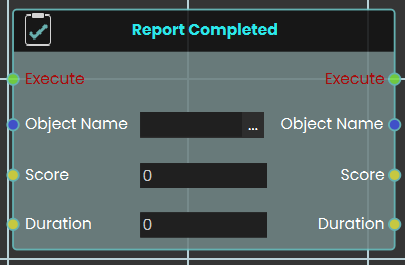](https://simlab-soft.com/help/uploads/images/gallery/2026-03/Bukimage.png)
The **Report Completed** node functions similarly to the **Report Score** node, but it records both a score and a completion time simultaneously. It is ideal for finalizing tasks, exams, or training scenarios where both accuracy and speed are evaluated. Like the Report Score node, the recorded data is safely stored and utilized within the SimLab VR Assessment Portal for instructor review.
Key parameters:
- **Object Name:** The name of the exam, task, or entity being evaluated.
- **Score:** The numerical score or grade achieved.
- **Duration:** The total time taken to complete the evaluated task.
---
###
###  Report Score
[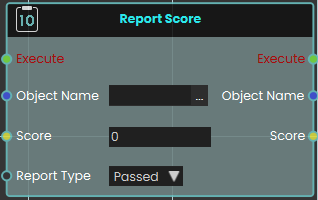](https://simlab-soft.com/help/uploads/images/gallery/2026-03/6Q4image.png)
The **Report Score** node enables the system to register and record a specific value as a score when the node is executed. This is highly useful for tracking user performance, evaluating task completion, or logging quiz results within a training scenario.
The node utilizes the following key parameters to define the recorded data:
- **Object Name:** Specifies the name of the exam, task, or specific entity being evaluated.
- **Score:** The numerical input field where the final score value is passed or entered.
- **Report Type:** A dropdown menu that determines the classification or outcome of the score. The available options are **Passed**, **Scored**, and **Failed**.
The node stores the score and its associated information to be used primarily in the **SimLab VR Assessment Portal**, where instructors and administrators can securely view and evaluate the reported values.
##### Example
In this example, the system records a student's final score the moment they finish a test.
1. Upon interacting with the "Finish Quiz" object, the **Node Triggered** event initiates the execution flow.
2. The **Number Variable Value** node is used to retrieve the current numerical value stored in the `FinalScore` variable.
3. This retrieved value is passed directly into the **Score** input of the **Report Score** node.
4. The **Report Score** node is configured with the **Object Name** set to "Student Final Score" and the **Report Type** set to "Scored," which officially logs the student's result into the system's evaluation records when executed.
[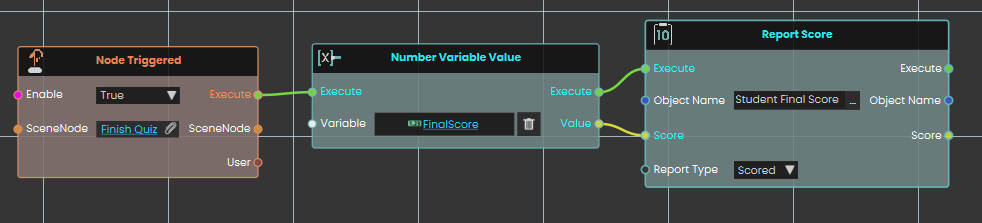](https://simlab-soft.com/help/uploads/images/gallery/2026-03/bkUimage.png)
---
### [](https://simlab-soft.com/help/uploads/images/gallery/2024-08/response-value-number-add.png) Send Message
[](https://simlab-soft.com/help/uploads/images/gallery/2025-02/h5mimage.png)
The **Send Message** node allows you to communicate with the WebSocket server by sending messages. It is essential to ensure that the message format follows the protocol that the server and other clients can process. This node enables real-time interaction with external systems, making it possible to transmit data or commands to connected servers or clients.
**Input Ports:**
- Executive
- URL: WebSocket URL that includes the server IP address, port, and channel (optional). Example: ws://server1.simlab-soft.com:8765/robots\_1
- Message
**Output Ports:**
- Execute
- URL
- Message
# SceneNode \ Snapping
### [](https://simlab-soft.com/help/uploads/images/gallery/2026-03/response-node-transform-snap-can.png) Can Snap Node
[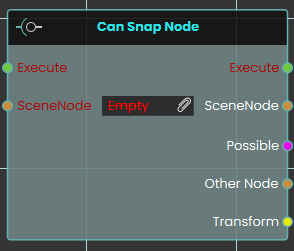](https://simlab-soft.com/help/uploads/images/gallery/2026-03/HBgimage.png)
The **Can Snap Node** checks whether a specific SceneNode is currently within the eligible snapping range of another object. This node evaluates the spatial relationship between objects and outputs a "Possible" boolean to confirm if a snap can occur, alongside referencing the "Other Node" and its spatial "Transform" data for further logic use.
---
###
### [](https://simlab-soft.com/help/uploads/images/gallery/2026-03/response-node-transform-snap.png) Snap Node
[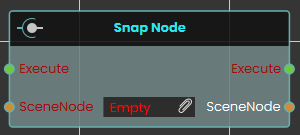](https://simlab-soft.com/help/uploads/images/gallery/2026-03/UwFimage.png)
The **Snap Node** instantly snaps a designated SceneNode directly to the nearest eligible target socket or node. Executing this node forces the object to immediately align and attach itself to the valid snapping destination without any transition time.
---
###
###  Snap Node (Animated)
[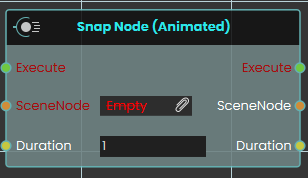](https://simlab-soft.com/help/uploads/images/gallery/2026-03/gZEimage.png)
The **Snap Node (Animated)** securely aligns and attaches a SceneNode to its nearest eligible target, but does so with a smooth visual transition. This node utilizes a "Duration" input to smoothly interpolate the object's movement into its snapped position over the specified number of seconds, rather than snapping instantly.
# SceneNode \ Hierarchy
### [](https://simlab-soft.com/help/uploads/images/gallery/2024-08/response-value-number-add.png) Get Node Children
[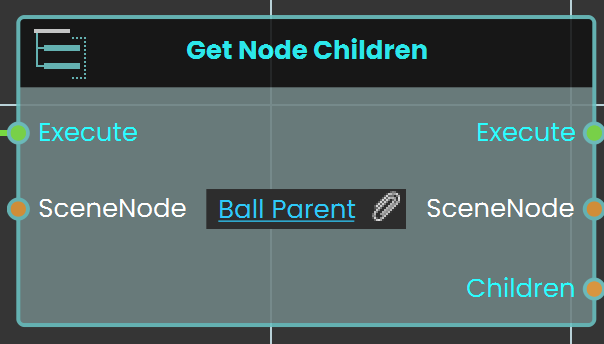](https://simlab-soft.com/help/uploads/images/gallery/2024-08/add-node.jpg)The **Get Node Children** enables the user to retrieve child SceneNodes from a specified parent node within the hierarchy in the scene browser. This function allows users to access the children of a parent node in the VR environment, facilitating more complex interactions and hierarchies.
#### Example
[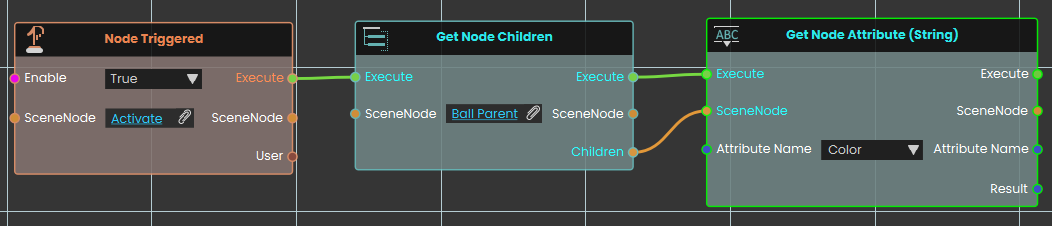](https://simlab-soft.com/help/uploads/images/gallery/2024-08/S2himage.png)
In this example, the **Get Node Children** enables the user to retrieve the child of a group named "Ball Parent" on the Trigger event. When the user triggers the Activate object, the Get Node Children retrieves the child node, and the Get Node Attribute (String) is used to acquire the child’s attribute.
---
### [](https://simlab-soft.com/help/uploads/images/gallery/2024-08/response-value-number-add.png) Reset Parent Node
[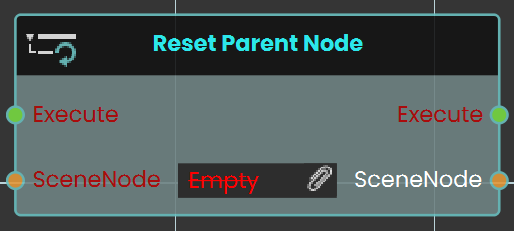](https://simlab-soft.com/help/uploads/images/gallery/2024-08/add-node.jpg)The **Reset Parent Node** enables the user to reset all transformations applied to an object and return it to its original position relative to its main parent. This can be done by linking the node to an event or condition within the scene. Once the reset is executed, the object will revert to its default state under the main parent.
#### Example
[](https://simlab-soft.com/help/uploads/images/gallery/2024-08/S2himage.png)
In this example, a **Reset Parent Node** is used to reset the transformations of a car object to its original state relative to its main parent once the "Car Move" sequence ends. When the user triggers the Activate object, the car move animation sequence will play. After the sequence concludes, the Reset Parent Node is triggered automatically, returning the car to its default position under the main parent.
> [ ](https://simlab-soft.com/help/uploads/images/gallery/2024-08/response-value-number-add.png)[Tutorial is available on SimLab VR Discord server](https://discord.com/channels/1062715275805470821/1239178616877875354/1239178616877875354 "Tutorial is available on SimLab VR Discord server")
---
###  Get Node Descendants
Gives you every node nested underneath a scene node — not just its direct children, but everything below it at any depth.
#### What it does
Point this node at a scene node (often a group or assembly) and it hands back all of the nodes contained inside it: its children, their children, and so on all the way down. It’s like asking “give me everything inside this, no matter how deeply it’s tucked away.” This is the difference between this node and Get Node Children, which only returns the items one level down.
It simply reads the scene and reports back — nothing is moved, regrouped, or changed. The scene node you started from also comes straight back out, so you can keep wiring from it.
#### Inputs
Port
Type
What to connect
**Execute**
Trigger
Wire this from the previous node’s Execute output.
**SceneNode**
Scene node
The node whose contents you want — usually a group or assembly. Everything nested inside it will be returned.
#### Outputs
Port
Type
What you get
**Execute**
Trigger
Fires once the node has finished.
**SceneNode**
Scene node
The same scene node you connected, passed straight back out unchanged so you can keep wiring from it.
**Descendants**
Scene node
Every node nested inside the one you gave — children, grandchildren, and deeper — gathered together. Connect this to a node that works through each one in turn.
#### Example
**SceneNode** input
A group named `Engine Assembly`
**SceneNode** output
The same `Engine Assembly` group, unchanged
**Descendants** output
Every part inside it at any level — `Block`, `Cylinder Head`, the bolts grouped under it, and so on
#### Tips
- Use this when you want to reach *everything* inside a group, including items nested several levels deep. If you only need the items directly under a node, use **Get Node Children** instead.
- The Descendants output is a collection of many nodes, so it pairs well with a node that loops through or acts on each one — for example to hide, color, or move every part inside an assembly at once.
---
###  Get Parent Node
Finds the object that a scene node sits inside — its parent in the scene tree.
#### What it does
Scene objects can be nested: a wheel might sit inside a car, which sits inside a group. This node takes one object and gives you back the object directly above it in that nesting — the thing it belongs to.
It only looks the parent up; it doesn't move or change anything in your scene. You also get the original object handed straight back, so you can keep working with both the object and its parent. If the object is at the very top of the scene and isn't inside anything, the Parent result will be empty.
#### Inputs
Port
Type
What to connect
**Execute**
Trigger
Wire this from the previous node’s Execute output.
**SceneNode**
Scene node
The object whose parent you want to find.
#### Outputs
Port
Type
What you get
**Execute**
Trigger
Fires once the node has finished.
**SceneNode**
Scene node
The same object you connected in, passed straight back so you can keep wiring from it.
**Parent**
Scene node
The object that the input object sits inside. Empty if the object is at the top level and isn’t inside anything.
#### Example
**SceneNode** input
`Front Left Wheel`
**SceneNode** output
`Front Left Wheel` (handed back unchanged)
**Parent** output
`Car Body`
#### Tips
- Always check whether the Parent result is empty before using it — a top-level object has no parent to return.
- Because the original object comes back out unchanged, you can chain this node and keep building from the same object further down your script.
---
###  Set Parent Node
Moves a scene node so it becomes a child of another node, changing how the two move and behave together.
#### What it does
In your scene, nodes are arranged in a parent-and-child tree. When one node is the child of another, it travels with its parent — move, rotate, or hide the parent and the child follows along. This node lets you set (or change) which node a given scene node belongs to.
You give it the node you want to move and the node that should become its new parent. It places the first node under the second, then hands both nodes back out so you can keep wiring from them. It only changes the parent-child relationship — the node itself, along with its name and contents, stays the same.
#### Inputs
Port
Type
What to connect
**Execute**
Trigger
Wire this from the previous node’s Execute output.
**SceneNode**
Scene node
The node you want to move — the one that will become a child.
**Parent**
Scene node
The node that should become the new parent. The node above will be placed under it.
#### Outputs
Port
Type
What you get
**Execute**
Trigger
Fires once the node has finished.
**SceneNode**
Scene node
The same node you sent in, passed straight back out so you can keep wiring from it.
**Parent**
Scene node
The same parent node you sent in, passed straight back out so you can keep wiring from it.
#### Example
**SceneNode** input
`Wheel_FrontLeft`
**Parent** input
`Car_Body`
**SceneNode** output
`Wheel_FrontLeft` — now a child of `Car_Body`, so it moves with the car body from here on
**Parent** output
`Car_Body`
#### Tips
- This is handy for grouping things together at runtime — for example, attaching a tool to a hand so it follows the hand’s movement.
- The child keeps its place in the scene; only what it is attached to changes.
# SceneNode \ Appearance
###  Is Node Visible
[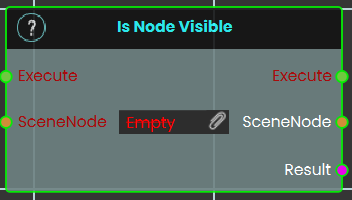](https://simlab-soft.com/help/uploads/images/gallery/2026-03/MNnimage.png)
This node checks the current visibility state of a specified 3D object within the VR Viewer. It evaluates whether the targeted object is currently rendered (shown) or hidden in the scene, and outputs this status as a boolean value (True or False).
##### Example:
[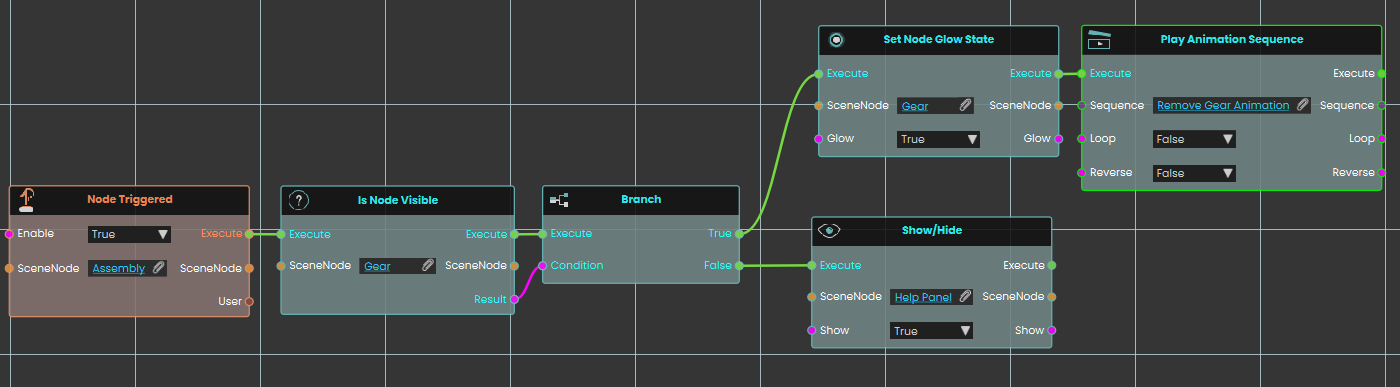](https://simlab-soft.com/help/uploads/images/gallery/2026-03/DtJimage.png)
In this example, triggering the "Assembly" object prompts the system to check if the "Gear" node is currently visible. If the gear is visible, the True branch executes, setting the gear to glow and playing a "Remove Gear" animation sequence. However, if the gear is already hidden, the False branch executes instead, displaying a "Help Panel" to the user.
---
###  Get Node Material
Finds out which material is currently applied to a 3D object in your scene.
#### What it does
Point this node at a 3D object and it hands you back the material that is currently on it — the look that gives the object its color, texture, shininess, and so on. You can then pass that material to another object, inspect it, or change it elsewhere in your script.
This only reads the object’s material; it doesn’t change the object or its appearance in any way. The same object comes straight back out so you can keep wiring more steps from it.
#### Inputs
Port
Type
What to connect
**Execute**
Trigger
Wire this from the previous node’s Execute output.
**SceneNode**
Scene node
The 3D object whose material you want to read.
#### Outputs
Port
Type
What you get
**Execute**
Trigger
Fires once the node has finished.
**SceneNode**
Scene node
The same object you connected, passed straight back out so you can keep wiring from it.
**Material**
Material
The material currently applied to that object.
#### Example
**SceneNode** input
`Car Body`
**SceneNode** output
`Car Body` (unchanged)
**Material** output
`Red Glossy Paint`
#### Tips
- Use this to copy a look from one object to another: read the material here, then apply it to a different object with a “Set Node Material” node.
---
###  Set Node Glow State
Turns a glowing highlight on or off for an object in your scene.
#### What it does
This node takes an object from your scene and switches its glow effect on or off. Use it to make something stand out — for example, lighting up the part a trainee needs to pick up next, or highlighting a button they should press.
It only changes whether the glow is showing; nothing else about the object is altered. The same object is handed straight back out so you can keep wiring more actions onto it.
#### Inputs
Port
Type
What to connect
**Execute**
Trigger
Wire this from the previous node’s Execute output.
**SceneNode**
Scene node
The object in your scene you want to glow (or stop glowing).
**Glow**
True / false
Set to `true` to turn the glow on, or `false` to turn it off. Defaults to `true` if you leave it unconnected.
#### Outputs
Port
Type
What you get
**Execute**
Trigger
Fires once the node has finished.
**SceneNode**
Scene node
The same object you sent in, passed straight back out so you can keep wiring from it.
**Glow**
True / false
The glow setting you applied (`true` or `false`), passed along.
#### Example
**SceneNode** input
The `Wrench` object the trainee needs to find next
**Glow** input
`true`
**SceneNode** output
The same `Wrench` object, now glowing
**Glow** output
`true`
#### Tips
- To turn a highlight off later, run this node again on the same object with **Glow** set to `false`.
- Because the object comes straight back out, you can chain another action right after — for example, glow it and then play a sound.
---
###  Set Node Material
Gives a scene object a new look by applying a material to it.
#### What it does
This node takes one of your scene objects and a material, and puts that material onto the object — changing how it looks (its color, texture, shininess, and so on). For example, you could switch a part from a plain gray finish to a glossy red one.
The object itself is the same object as before — only its appearance changes. The node hands the object and the material straight back out, so you can keep wiring more steps from either of them.
#### Inputs
Port
Type
What to connect
**Execute**
Trigger
Wire this from the previous node’s Execute output.
**SceneNode**
Scene node
The object in your scene whose look you want to change.
**Material**
Material
The material to put on the object — the new color, texture, and finish it should have.
#### Outputs
Port
Type
What you get
**Execute**
Trigger
Fires once the node has finished.
**SceneNode**
Scene node
The same object you sent in, passed straight back out so you can keep wiring from it.
**Material**
Material
The same material you sent in, passed back out in case you want to use it again.
#### Example
**SceneNode** input
`Car_Body`
**Material** input
`Glossy_Red`
**SceneNode** output
`Car_Body` — now showing the glossy red finish, ready to wire into the next step
#### Tips
- Prepare the materials you want to switch between in your scene first, then feed the right one into this node when you want the object to change.
- Because the object comes straight back out, you can chain several changes — for example, set a material and then move or highlight the same object in the next node.
---
###  Show/Hide
Shows or hides a scene node, so you can make objects appear and disappear during your scene.
#### What it does
Give this node a scene node and a true/false value. When set to true, the node becomes visible; when set to false, it is hidden from view. This is handy for revealing a part once a step is reached, or hiding a finished assembly to clear the workspace.
Hiding a node only changes whether it can be seen — the object itself stays in your scene, keeps its position, and can be shown again at any time. The same scene node comes straight back out so you can keep wiring more actions from it.
#### Inputs
Port
Type
What to connect
**Execute**
Trigger
Wire this from the previous node’s Execute output.
**SceneNode**
Scene node
The object you want to show or hide, such as a part, group, or model in your scene.
**Show**
True / false
Set to `true` to make the object visible, or `false` to hide it.
#### Outputs
Port
Type
What you get
**Execute**
Trigger
Fires once the node has finished.
**SceneNode**
Scene node
The same scene node you passed in, handed straight back so you can keep wiring more actions from it.
**Show**
True / false
The same true/false value you passed in, so you can reuse it further along.
#### Example
**SceneNode** input
`Warning_Light`
**Show** input
`true` — the warning light appears to alert the trainee
**SceneNode** output
`Warning_Light`, passed straight back so you can move or color it next
#### Tips
- To hide an object, set **Show** to `false`; to bring it back, run the node again with `true`.
- A hidden object is only invisible — it is still in your scene and keeps its place, so showing it again puts it right back where it was.
# SceneNode \ Curve
The **Curve** nodes let you draw and control 3D lines directly inside the VR scene. A curve is a single line that runs through a series of points you place in 3D space, which makes it ideal for things like paths, routes, connectors, graphs, and live data visualizations. You start by creating a named curve, then add points to it one at a time; later you can move or remove individual points, or change the line's thickness and style at any moment.
Every curve has a unique **Name**, and that name is how all of the other curve nodes find the line they should act on. As you add points, each one is given a number called its **Index**. **Point numbering starts at 1** — the first point you add is point **1**, not point 0 — and that number is what the Remove Curve Point and Update Curve Point nodes use to target a specific point.
---
###  Create Curve
[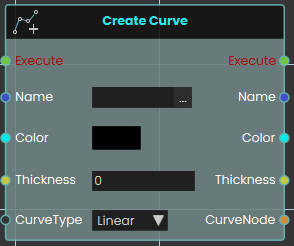](https://simlab-soft.com/help/uploads/images/gallery/2026-04/5FWimage.png)
The **Create Curve node** initializes a new 3D cylindrical line within the VR scene. This is highly useful for creating dynamic visual elements like charts, graphs, or data visualizations.
When activated, it generates a base curve using four primary inputs: a unique text **Name** (which acts as an identifier required by all other curve-related nodes to target this specific line), a **Color**, a numerical **Thickness** value, and a **CurveType** dropdown that dictates whether the overall line behaves as a smooth curve or rigid straight lines. It then outputs a reference to the newly created CurveNode to continue the logic flow.
---
###  Add Curve Point
[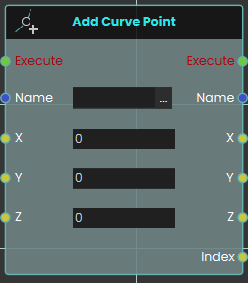](https://simlab-soft.com/help/uploads/images/gallery/2026-04/BI7image.png)
The **Add Curve Point node** builds upon an existing curve by generating a new point in 3D space. Once activated, the node locates the specific curve identified by the **Name** input and places a new point at the provided **X, Y, and Z** coordinates. The system automatically draws a line connecting this newly created point to the previously established point, seamlessly extending the curve. Crucially, this node outputs an **Index** value—a unique number assigned to this specific point when it is created. **Point numbering starts at 1**, so the first point you add has an index of **1** (not 0), the second has an index of 2, and so on. This number is the point's permanent identifier, and you use it later to target the point with the Remove Curve Point and Update Curve Point nodes.
##### Example:
[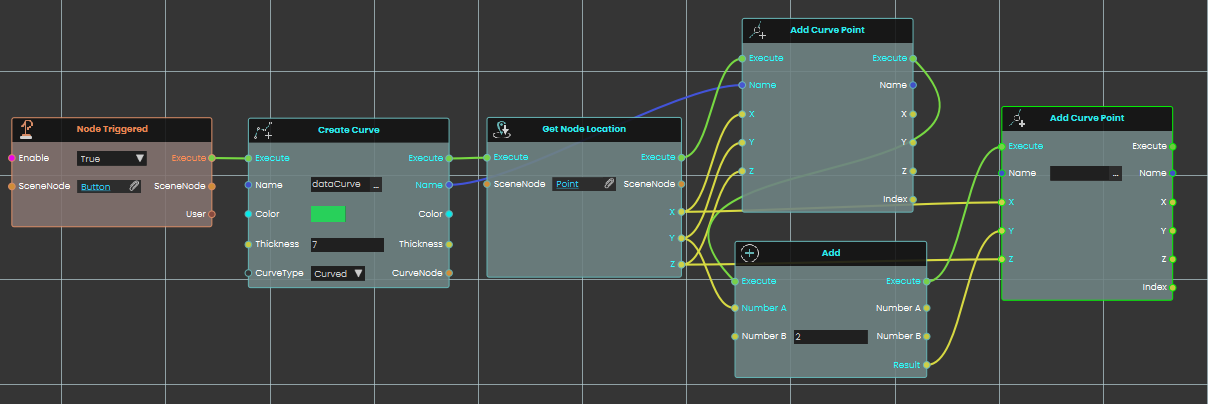](https://simlab-soft.com/help/uploads/images/gallery/2026-04/yV8image.png)
In this expanded example, we build an interaction where clicking a button initializes a new curve and sequentially places two connected points based on a target object's location:
1. A **Node Triggered** event node continuously listens for the user to interact with a specific "Button" object in the scene.
2. Once the button is clicked, it activates a **Create Curve** node, which initializes a new curve named "dataCurve" with a distinct green color, a thickness value of 7, and a "Curved" line type.
3. The execution flow immediately proceeds to a **Get Node Location** node, which retrieves the exact X, Y, and Z spatial coordinates of a target 3D object named "Point".
4. The first **Add Curve Point** node is activated. It takes the "dataCurve" identifier and utilizes the precise X, Y, and Z coordinates retrieved from the target object to generate the first anchor point of the curve.
5. Simultaneously, an **Add** math node receives the original Y coordinate from the "Point" object and adds a numerical value of 2 to it.
6. Following the creation of the first point, a second **Add Curve Point** node is executed. It uses the same "dataCurve" identifier and the original X and Z coordinates, but it uses the newly calculated result from the Add node (Y + 2) for its vertical placement. This generates a second point exactly 2 units directly above the first, automatically drawing a connected line between them.
---
###  Remove Curve Point
[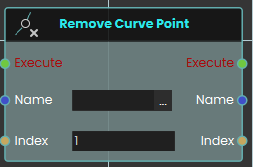](https://simlab-soft.com/help/uploads/images/gallery/2026-04/hWoimage.png)
The **Remove Curve Point node** is used to permanently delete a specific point from an active curve. Once activated, it takes the curve's **Name** and the specific **Index** number of the point you wish to erase. Keep in mind that **point numbering starts at 1**, so an Index of 1 targets the first point of the curve, not the second — this is the same number that the Add Curve Point node returned when the point was created. Upon deletion, the curve automatically bridges the gap between the remaining adjacent points to maintain a continuous, unbroken line.
---
### [ ](https://simlab-soft.com/help/uploads/images/gallery/2026-04/response-curve-thickness-set.png)Set Curve Thickness
[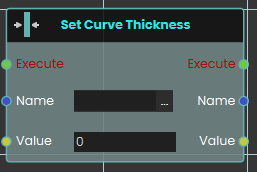](https://simlab-soft.com/help/uploads/images/gallery/2026-04/5qKimage.png)
The **Set Curve Thickness node** dynamically adjusts the physical width of an existing curve during the VR experience. When activated, it targets the curve specified by the **Name** input and instantly changes its visual bulk to match the number provided in the **Value** input, allowing you to easily scale the visual prominence of the line on the fly.
---
### [ ](https://simlab-soft.com/help/uploads/images/gallery/2026-04/response-curve-type-set.png)Set Curve Type
[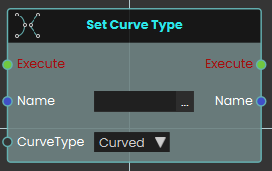](https://simlab-soft.com/help/uploads/images/gallery/2026-04/iW3image.png)
The **Set Curve Type node** instantly alters how the connections between a curve's points are visually rendered in the scene. Once activated, it locates the curve by its **Name** and applies the newly selected **CurveType** from the dropdown menu. This allows you to toggle a curve between "Curved" (which renders smooth, sweeping connections between the points) and "Linear" (which renders sharp, perfectly straight lines between the points) at any time.
---
### [ ](https://simlab-soft.com/help/uploads/images/gallery/2026-04/response-curve-point-update.png)Update Curve Point
[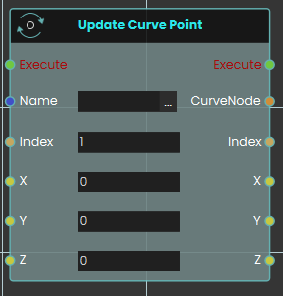](https://simlab-soft.com/help/uploads/images/gallery/2026-04/wE1image.png)
The **Update Curve Point** node allows you to dynamically change the 3D location of a previously created point on an existing curve. When activated, it targets the curve using the **Name** input and isolates a specific point using its numerical **Index** value. As with the other curve nodes, this **Index starts at 1** (the first point is index 1, not 0) and matches the value that Add Curve Point returned when the point was added. It then instantly moves that point to the newly provided **X, Y, and Z** coordinates. The line connecting the points will automatically recalculate and redraw itself to reflect the point's new location in the scene.
# Data Types \ Transform
A **Transform** describes where something sits in the 3D scene and how it is oriented. It is made of three parts: a **position** (called `translation`), a **rotation** (which way it is turned), and a **scale** (how large it is). The nodes on this page convert a Transform to and from text or a JSON object — so you can save it, send it to another system, store it in an attribute, or rebuild it later.
## What's on this page
- **Create** — build a Transform from a piece of text, or from a JSON object.
- **Convert** — turn a Transform into a piece of text, or into a JSON object.
**The three parts of a Transform.** In both the text form and the JSON object form, a Transform is written with three named values:
- `translation` — the **position**, given as three numbers (left/right, up/down, forward/back). `[0, 0, 0]` means "at the origin."
- `rotation` — the **orientation**, given as four numbers that together describe which way the object is turned. `[0, 0, 0, 1]` means "not rotated at all."
- `scale` — the **size**, given as three numbers. `[1, 1, 1]` means "normal size."
All four nodes below use this same example throughout: a Transform positioned at `[10, 5, 0]`, with no rotation and normal scale.
---
## Create
These two nodes build a brand-new Transform from data you already have — one reads it from text, the other from a JSON object. Neither one moves anything in the scene on its own; they produce a Transform *value* that you can then use elsewhere.
###  Create Transform From String
Reads a piece of text describing a Transform and turns it into a real Transform you can use.
#### What it does
Useful when the Transform arrived as text — for example from a file you read, a message someone sent, or a value stored in an attribute. The node reads the text and gives you back a proper Transform. The text must contain the three named values `translation`, `rotation`, and `scale`.
#### Inputs
Port
Type
What to connect
**Execute**
Trigger
Wire this from the previous node's **Execute** output.
**Value**
Text
The text to read. It should describe a Transform, with `translation`, `rotation`, and `scale` values.
A Transform at position `[10, 5, 0]`, no rotation, normal scale.
#### Tips
- **Match the format.** If the text is missing one of the three values, or a bracket or comma is out of place, the node won't be able to read it.
- **Rotation, the short way.** You can write `rotation` as three numbers (a simple turn in degrees) instead of four — both are accepted. Four numbers describe the orientation exactly; three are easier to write by hand.
- **Reverse direction.** To go the other way and turn a Transform *into* text, see **Transform To String** further down this page.
### Create Transform From Json Object
Builds a Transform from a JSON object that holds the position, rotation, and scale.
#### What it does
Same idea as **Create Transform From String**, but the data comes in as a JSON object rather than as text. This is handy when you've built the values up using the **JSON Object** nodes — for example by setting a `translation` field, a `rotation` field, and a `scale` field — and now want a Transform out of them.
#### Inputs
Port
Type
What to connect
**Execute**
Trigger
Wire this from the previous node's **Execute** output.
**Value**
JSON object
An object with `translation`, `rotation`, and `scale` fields. See the **JSON Objects** page for nodes that build one.
A Transform at position `[10, 5, 0]`, no rotation, normal scale.
#### Tips
- **Missing fields are fine.** If the object leaves out one of the three values, that part is left at its default (no movement, no rotation, or normal scale).
- **Reverse direction.** To turn a Transform *into* a JSON object, see **Transform To Json Object** further down this page.
---
## Convert
These two nodes take a Transform and produce a text or JSON-object version of it. The original Transform isn't changed — each node hands you back the same Transform plus the converted form, so you can keep using the Transform downstream.
###  Transform To String
Turns a Transform into a single piece of text.
#### What it does
Produces a text version of the Transform, written with its `translation`, `rotation`, and `scale` values. Useful when you need to save the Transform to a file, store it in a device attribute, or send it to another system that only accepts text.
The Transform itself isn't modified — you get the same Transform back plus a text version.
#### Inputs
Port
Type
What to connect
**Execute**
Trigger
Wire this from the previous node's **Execute** output.
**Transform**
Transform
The Transform to convert.
#### Outputs
Port
Type
What you get
**Execute**
Trigger
Fires after this node finishes.
**Transform**
Transform
The same Transform you passed in.
**Result**
Text
The text version of the Transform.
#### Example
**Transform** input
A Transform at position `[10, 5, 0]`, no rotation, normal scale.
#### Tips
- **Reverse direction.** To go back from text to a Transform, use **Create Transform From String** at the top of this page.
- **Round trip.** Text made by this node can be read straight back in by **Create Transform From String** — handy for saving a Transform now and restoring it later.
### Transform To Json Object
Turns a Transform into a JSON object with separate fields for position, rotation, and scale.
#### What it does
Produces a JSON object holding the Transform's `translation`, `rotation`, and `scale`. Unlike the text version, the result is a real JSON object — so you can read out an individual part (just the position, say) using the **Get** nodes on the **JSON Objects** page.
The Transform itself isn't modified — you get the same Transform back plus the object version.
#### Inputs
Port
Type
What to connect
**Execute**
Trigger
Wire this from the previous node's **Execute** output.
**Transform**
Transform
The Transform to convert.
#### Outputs
Port
Type
What you get
**Execute**
Trigger
Fires after this node finishes.
**Transform**
Transform
The same Transform you passed in.
**Result**
JSON object
The object version of the Transform, with `translation`, `rotation`, and `scale` fields.
#### Example
**Transform** input
A Transform at position `[10, 5, 0]`, no rotation, normal scale.
#### Tips
- **Read out one part.** Wire the **Result** into **Get Json Object Field (JsonArray)** with the field name `translation` to pull just the position back out.
- **Reverse direction.** To go back from an object to a Transform, use **Create Transform From Json Object** at the top of this page.
---
## Related
- **JSON Objects** — build the object you feed into **Create Transform From Json Object**, or read individual parts out of the object that **Transform To Json Object** produces.
- **JSON Arrays** — the `translation`, `rotation`, and `scale` values are each small JSON arrays of numbers.
# Device / Attributes
A **device attribute** is a named value saved on the **device** the experience is running on — a PC, a phone or tablet, a standalone VR headset, and so on. You give each value a name (for example `language`) and store a piece of text under it. These values belong to the device itself: they stay on it after the scene or app is closed and reopened (even across different experiences), they are *not* tied to whoever is signed in, and the person using the device can also see and change them in the viewer’s Settings.
That makes device attributes the right tool for remembering something on one particular device for next time — a chosen language, measurement units, the name of a kiosk or station, and the like. The examples on this page all use the same running example: a setting named `language` holding the text `English`.
## What's on this page
- **Set Device Attribute (String)** — save a piece of text on the device under a name.
- **Get Device Attribute (String)** — read back the text saved under a name.
- **Device Has Attribute** — check whether the device has a value saved under a name (true or false).
- **Remove Device Attribute** — delete a saved value from the device.
---
## Attributes
These four nodes are the complete set for working with a device’s saved values — store one, read it back, check whether it exists, and remove it. None of them is tied to who is signed in, and every value stays on the device for next time.
###  Set Device Attribute (String)
Saves a piece of text on the device under a name you choose, so you can read it back later — even after the experience is closed and reopened.
#### What it does
This node stores a bit of text on the device the experience is running on — a PC, a phone or tablet, a standalone VR headset, and so on. You give it a name (such as `language`) and the text to store (such as `English`), and the node remembers that value on the device. If a value with that name doesn’t exist yet, it creates one; if it already exists, the new text replaces the old.
The value stays on the device, so it’s still there next time the experience runs — it’s a good way to remember a setting for next time. These values belong to the device itself, not to whoever is signed in, so they aren’t tied to a particular person. They also aren’t hidden: the person using the device can see and change them in the viewer’s Settings.
#### Inputs
Port
Type
What to connect
**Execute**
Trigger
Wire this from the previous node’s Execute output.
**Attribute Name**
Text
The name to save the text under, such as `language`. You can pick a name from the drop-down list of names already known on the device, or simply type a brand-new name.
**Value**
Text
The text you want to store, such as `English`. If a value with this name already exists, this replaces it.
#### Outputs
Port
Type
What you get
**Execute**
Trigger
Fires once the node has finished saving the value.
**Attribute Name**
Text
The same attribute name you gave, passed straight through (handy for wiring into the next node).
**Value**
Text
The same text you stored, passed straight through.
#### Example
**Attribute Name** input
`language`
**Value** input
`English`
**Attribute Name** output
`language`
**Value** output
`English`
#### Tips
- Use this to remember a setting on the device for next time, such as the chosen `language` or measurement `units`.
- Saving again under the same name simply replaces the old text — you don’t need to remove the old value first.
- Pair it with **Get Device Attribute (String)** to read the value back later.
###  Get Device Attribute (String)
Reads back a piece of text that was saved on this device under a name you choose.
#### What it does
A device attribute is a value stored on the device the experience is running on — a PC, phone, tablet, or VR headset. You give this node the name of the attribute you want, and it hands back the text currently saved under that name. These values live on the device itself, not with whoever is logged in, and they stay put after the scene or app is closed and reopened — so this node is the way to read something you remembered on this device for next time.
This node only reads; it never changes the saved value. If nothing has been saved under that name yet, you simply get back empty text — the node carries on without any error.
#### Inputs
Port
Type
What to connect
**Execute**
Trigger
Wire this from the previous node’s Execute output.
**Attribute Name**
Text
The name of the value you want to read. Pick one from the drop-down, which lists names already saved on the device, or type a new name yourself. For example, `language`.
#### Outputs
Port
Type
What you get
**Execute**
Trigger
Fires once the node has finished.
**Attribute Name**
Text
The same attribute name you gave, passed straight through (handy for wiring into the next node).
**Result**
Text
The text saved under that name. If nothing is saved under that name, you get back empty text.
#### Example
**Attribute Name** input
`language`
**Attribute Name** output
`language`
**Result** output
`English`
#### Tips
- Getting empty text back usually means nothing has been saved under that name yet — on this device, set it first with **Set Device Attribute (String)**, or check with **Device Has Attribute** before reading.
- These values are saved per device and are not tied to who is logged in. The person using the device can also see and change them in the viewer’s Settings.
###  Device Has Attribute
Checks whether this device already has a saved setting with a given name, and tells you yes or no.
#### What it does
This node looks on the device the experience is running on — a PC, phone, tablet, VR headset, and so on — for a saved setting with the name you give it. If a setting with that name exists, the **Result** comes back as `true`; if there is no setting with that name, it comes back as `false`. Either way the node simply reports what it found and does not change or remove anything.
These device settings live on the device itself. They are not tied to whoever is signed in, and they stay on the device after the scene or app is closed and reopened — even across different experiences. (The person using the device can also view and change them in the viewer’s Settings.) That makes this node handy for asking “has this device been set up before?” so you can decide what to do next.
#### Inputs
Port
Type
What to connect
**Execute**
Trigger
Wire this from the previous node’s Execute output.
**Attribute Name**
Text
The name of the setting to look for, such as `language`. The field offers a drop-down of names already saved on the device, and you can also type a brand-new name that isn’t in the list.
#### Outputs
Port
Type
What you get
**Execute**
Trigger
Fires once the node has finished — whether the setting was found or not.
**Attribute Name**
Text
The same attribute name you gave, passed straight through (handy for wiring into the next node).
**Result**
True / false
`true` if the device has a setting with that name, or `false` if it does not.
#### Example
**Attribute Name** input
`language`
**Attribute Name** output
`language`
**Result** output
`true` (this device has a `language` setting saved)
#### Tips
- Use this as a quick “first time on this device?” check: if **Result** is `false`, set up a default; if it’s `true`, just read the saved value.
- This node only checks for the setting — it never changes or removes it. Use Set Device Attribute to store a value and Remove Device Attribute to clear one.
###  Remove Device Attribute
Deletes a saved setting from the device the experience is running on.
#### What it does
A device attribute is a small named value kept on the device itself — the PC, phone, tablet, or VR headset that is running the experience. These values stay on the device and are saved for next time, so they are still there after the app or scene is closed and reopened. They aren’t tied to who is logged in, and the person using the device can see and change them in the viewer’s Settings. This node removes one of those saved values by name.
Give it the name of the attribute you want to remove. If a value with that name is saved on the device, it is deleted; if no value with that name exists, the node simply does nothing and carries on — no error. The name you gave is passed straight through on the output, so you can keep wiring the flow forward.
#### Inputs
Port
Type
What to connect
**Execute**
Trigger
Wire this from the previous node’s Execute output.
**Attribute Name**
Text
The name of the device value to remove, such as `language`. You can pick a name from the drop-down list of values already saved on the device, or type a name yourself.
#### Outputs
Port
Type
What you get
**Execute**
Trigger
Fires once the node has finished.
**Attribute Name**
Text
The same attribute name you gave, passed straight through (handy for wiring into the next node).
#### Example
**Attribute Name** input
`language`
**Attribute Name** output
`language`
#### Tips
- It’s safe to remove a name that may not be there — if nothing is saved under that name, the node just moves on without an error.
- Removing a value only affects this device. Saved values on other devices are not touched.
# SceneNode \ Transform \ Scale
These nodes read and change the **size** of a 3D object. Size is given as three numbers — X, Y, and Z — each a **multiplier** of the object’s original size: `1` means unchanged, `2` means twice as big, `0.5` means half. Most come in two forms: a **world** version that uses the object’s size in the whole scene, and a **(Local)** version measured relative to its parent or group. Changing an object’s size never moves it or turns it.
## What's on this page
- **Read the size** — find out how large an object currently is.
- **Change the size** — resize an object, instantly or smoothly over time.
---
## Read the size
These read an object’s current size without changing anything.
###  Get Node Scale
Reads how large an object currently is in the scene and gives you its size along each axis as separate numbers.
#### What it does
This node looks at an object you point it to and reports its current size in the whole scene. You get three numbers back — one for the X axis, one for Y, and one for Z. Each number is a multiplier of the object’s original (authored) size: `1` means unchanged, `2` means twice as big, and `0.5` means half size.
It only reads the size — it doesn’t resize the object or change anything else in the scene. The same object is also passed straight through, so you can keep working with it in the nodes that follow.
#### Inputs
Port
Type
What to connect
**Execute**
Trigger
Wire this from the previous node’s Execute output.
**SceneNode**
Scene node
The object whose size you want to read. Connect the object you picked earlier in the flow.
#### Outputs
Port
Type
What you get
**Execute**
Trigger
Fires once the node has finished.
**SceneNode**
Scene node
The same object passed through, so you can chain more nodes after this one.
**X**
Number
The object’s current size along the X axis, as a multiplier of its original size (`1` = unchanged).
**Y**
Number
The object’s current size along the Y axis, as a multiplier of its original size.
**Z**
Number
The object’s current size along the Z axis, as a multiplier of its original size.
#### Example
**SceneNode** input
A crate you placed in the scene
**X** output
`2`
**Y** output
`2`
**Z** output
`0.5`
#### Tips
- A value of `1` on an axis means that axis is at the object’s original size. Values above `1` are larger; values below `1` are smaller.
- This reports the object’s overall size in the whole scene, so if the object sits inside a group that has been resized, that resizing is included in the result.
---
###  Get Node Scale (Local)
Reads how big an object currently is, measured relative to its parent or group.
#### What it does
This node looks at one object in your scene and tells you its current size along each axis (X, Y, and Z). Each value is a multiplier of the object’s original, authored size: `1` means unchanged, `2` means twice as big, and `0.5` means half size. It is not a measurement in meters and not a percentage.
The size you get back is the **local** size — measured relative to the object’s parent or group. If that parent or group is resized, this local value stays the same. (If the object has no parent or group, its local size and its size in the whole scene are the same.) This node only reads the size; it doesn’t change the object or affect anything else in your scene.
#### Inputs
Port
Type
What to connect
**Execute**
Trigger
Wire this from the previous node’s Execute output.
**SceneNode**
Scene node
The object whose size you want to read.
#### Outputs
Port
Type
What you get
**Execute**
Trigger
Fires once the node has finished.
**SceneNode**
Scene node
The same object passed straight through, so you can chain more nodes after this one.
**X**
Number
The size multiplier along the X axis (`1` = original size).
**Y**
Number
The size multiplier along the Y axis (`1` = original size).
**Z**
Number
The size multiplier along the Z axis (`1` = original size).
#### Example
**SceneNode** input
The crate you placed in the scene
**X** output
`2`
**Y** output
`0.5`
**Z** output
`1.5`
#### Tips
- A value of `1` on every axis means the object is still at its original, authored size.
- To read the object’s size in the whole scene instead of relative to its parent or group, use the matching node without “(Local)” in its name.
---
## Change the size
These resize an object. The plain versions change it instantly; the **(Animated)** versions grow or shrink it smoothly over a number of seconds.
###  Set Node Scale
Resizes an object in your scene by setting how big it is along each axis.
#### What it does
This node changes the size of the object you give it. You set three numbers — X, Y, and Z — and each one is a multiplier of the object’s original, authored size: `1` leaves that axis unchanged, `2` makes it twice as big, and `0.5` makes it half size. The change happens instantly.
The size you set here is the object’s overall size in the whole scene. The same object passes straight out the other side, so you can keep working with it in the next node. Only the object you connect is affected — nothing else in your scene moves or resizes.
#### Inputs
Port
Type
What to connect
**Execute**
Trigger
Wire this from the previous node’s Execute output.
**SceneNode**
Scene node
The object you want to resize.
**X**
Number
The size multiplier along the X axis. `1` keeps it the same, `2` doubles it, `0.5` halves it.
**Y**
Number
The size multiplier along the Y axis. `1` keeps it the same.
**Z**
Number
The size multiplier along the Z axis. `1` keeps it the same.
#### Outputs
Port
Type
What you get
**Execute**
Trigger
Fires once the node has finished.
**SceneNode**
Scene node
The same object, passed through so you can chain more nodes.
**X**
Number
The X multiplier you set, passed through.
**Y**
Number
The Y multiplier you set, passed through.
**Z**
Number
The Z multiplier you set, passed through.
#### Example
**SceneNode** input
A crate object in your scene
**X** input
`2`
**Y** input
`2`
**Z** input
`0.5`
**SceneNode** output
The same crate, now twice as big on X and Y and half its size on Z
#### Tips
- Use the same number for X, Y, and Z to resize the object evenly without changing its shape.
- To return an object to its original size, set all three values back to `1`.
---
###  Set Node Scale (Animated)
Smoothly resizes a 3D object to a new size over a set number of seconds.
#### What it does
This node changes the size of the object you give it, gliding from its current size to the new size over the time you choose instead of snapping there instantly. The size is set as a multiplier of the object’s original (authored) size: `1` leaves it unchanged, `2` makes it twice as big, and `0.5` makes it half as big. You can set a different multiplier for each axis (X, Y, Z), so the object can grow more along one axis than another.
The new size is the object’s absolute size in the whole scene. Only the object you connect is resized — nothing else in your scene is touched. The object is passed straight through the output so you can keep building on it after the resize.
#### Inputs
Port
Type
What to connect
**Execute**
Trigger
Wire this from the previous node’s Execute output to start the resize.
**SceneNode**
Scene node
The 3D object you want to resize.
**X**
Number
The size multiplier along the X axis, where `1` keeps the original size, `2` doubles it, and `0.5` halves it. Defaults to `1`.
**Y**
Number
The size multiplier along the Y axis, in the same way as X. Defaults to `1`.
**Z**
Number
The size multiplier along the Z axis, in the same way as X. Defaults to `1`.
**Duration**
Number
How many seconds the smooth resize should take. Defaults to `2`. Must be zero or more.
#### Outputs
Port
Type
What you get
**Execute**
Trigger
Fires so the flow can continue once the resize has been applied.
**SceneNode**
Scene node
The same object you passed in, so you can connect more nodes to keep working with it.
**X**
Number
The X size multiplier you set, passed along for reuse.
**Y**
Number
The Y size multiplier you set, passed along for reuse.
**Z**
Number
The Z size multiplier you set, passed along for reuse.
**Duration**
Number
The duration in seconds you set, passed along for reuse.
#### Example
**SceneNode** input
The crate you want to grow
**X** input
`2`
**Y** input
`2`
**Z** input
`2`
**Duration** input
`1.5`
**SceneNode** output
The same crate, now growing to twice its size over 1.5 seconds
#### Tips
- Use the same value for X, Y, and Z to resize the object evenly; use different values to stretch it more along one axis.
- A `Duration` of `0` resizes the object instantly — for a normal smooth resize, use the non-animated **Set Node Scale** node instead, which always changes the object instantly.
- Remember the values are multipliers, not measurements: `1` means “keep the original size,” not one meter.
---
###  Set Node Scale (Local)
Resizes a 3D object by setting how much bigger or smaller it is than its original size, measured relative to its parent or group.
#### What it does
This node sets the object’s scale along its X, Y, and Z axes. Each value is a multiplier of the object’s original (authored) size: `1` leaves that axis unchanged, `2` makes it twice as big, and `0.5` makes it half size. The scale replaces whatever size the object had before — it isn’t added on top.
The size is “local,” meaning it’s measured relative to the object’s parent or group: if that parent or group is later moved, turned, or resized, this local value stays the same. If the object has no parent or group, its local and world size are the same. Only the object you connect is affected — other objects in the scene are left alone.
#### Inputs
Port
Type
What to connect
**Execute**
Trigger
Wire this from the previous node’s Execute output.
**SceneNode**
Scene node
The 3D object you want to resize.
**X**
Number
The size multiplier along the X axis (`1` = original size, `2` = twice as big, `0.5` = half size). Defaults to `1`.
**Y**
Number
The size multiplier along the Y axis. Defaults to `1`.
**Z**
Number
The size multiplier along the Z axis. Defaults to `1`.
#### Outputs
Port
Type
What you get
**Execute**
Trigger
Fires once the node has finished.
**SceneNode**
Scene node
The same object passed straight through, so you can chain more nodes after this one.
**X**
Number
The X multiplier you set, handy for feeding into the next node.
**Y**
Number
The Y multiplier you set.
**Z**
Number
The Z multiplier you set.
#### Example
**SceneNode** input
The crate you want to enlarge
**X** input
`2`
**Y** input
`2`
**Z** input
`0.5`
**SceneNode** output
The same crate, now twice as big on X and Y and half as tall on Z
#### Tips
- To resize evenly in all directions, set X, Y, and Z to the same value.
- Setting all three to `1` returns the object to its original authored size.
---
###  Set Node Scale (Local, Animated)
Smoothly resizes an object in your scene over a set number of seconds, relative to the size it was given when the scene was built.
#### What it does
This node changes how big an object is, gently growing or shrinking it from its current size to a new size over the time you choose. The X, Y, and Z values are multipliers of the object’s original (authored) size: `1` leaves that direction unchanged, `2` makes it twice as big, and `0.5` makes it half as big. You can use different values for each axis to stretch the object, or the same value on all three to resize it evenly.
The size is set in “local” terms — measured relative to the object’s parent or group. If that parent or group is later moved, turned, or resized, this local size stays the same. (If the object has no parent or group, its local size and its size in the whole scene are the same thing.) Only the object you connect is affected; nothing else in the scene changes.
#### Inputs
Port
Type
What to connect
**Execute**
Trigger
Wire this from the previous node’s Execute output to start the resize.
**SceneNode**
Scene node
The object you want to resize. You can connect more than one, and each will be resized.
**X**
Number
The size multiplier along the X axis. `1` keeps it the same, `2` doubles it, `0.5` halves it.
**Y**
Number
The size multiplier along the Y axis, in the same way as X.
**Z**
Number
The size multiplier along the Z axis, in the same way as X.
**Duration**
Number
How many seconds the smooth resize should take. Use a larger value for a slower change. (The non-animated version of this node changes the size instantly.)
#### Outputs
Port
Type
What you get
**Execute**
Trigger
Fires once the node has applied the resize, so the flow can continue.
**SceneNode**
Scene node
The same object (or objects) passed straight through, so you can connect more nodes after this one.
**X**
Number
The X size multiplier you provided, passed through for reuse.
**Y**
Number
The Y size multiplier you provided, passed through for reuse.
**Z**
Number
The Z size multiplier you provided, passed through for reuse.
**Duration**
Number
The number of seconds you provided, passed through for reuse.
#### Example
**SceneNode** input
A box object in your scene
**X** input
`2`
**Y** input
`2`
**Z** input
`0.5`
**Duration** input
`1.5` — the box grows to its new size over one and a half seconds
**SceneNode** output
The same box, ready to pass on to the next node
#### Tips
- Use the same value for X, Y, and Z to resize an object evenly without changing its shape.
- A value of `1` on an axis leaves that direction at its original size, so you can resize in just one or two directions.
- To resize instantly with no smooth motion, use the non-animated version of this node instead.
# SceneNode \ Transform \ Rotation
These nodes read and change how a 3D object is **turned** in your scene. An object’s rotation is given as three numbers — **Pitch**, **Yaw**, and **Roll** — measured in degrees (90 = a quarter turn). Most come in two forms: a **world** version that uses the object’s orientation in the whole scene, and a **(Local)** version measured relative to the object’s parent or group. Changing an object’s rotation never moves it or resizes it.
## What's on this page
- **Read the rotation** — find out which way an object is currently turned.
- **Change the rotation** — turn an object to a new orientation (instantly or smoothly over time), or reset it to how it started.
---
## Read the rotation
These read an object’s current orientation without changing anything — handy for storing it, comparing it, or feeding it into other nodes.
###  Get Node Rotation
Reads how an object is currently turned in your scene and gives you back its three rotation values.
#### What it does
This node looks at an object you choose and tells you its current orientation — how far it is turned — as three separate numbers: **Pitch**, **Yaw**, and **Roll**. Each value is measured in degrees, where `90` is a quarter turn and `180` is a half turn.
The numbers describe the object’s orientation in the whole scene (its absolute, world orientation). Reading the rotation only measures the object — it doesn’t turn it, and it doesn’t affect any other objects.
#### Inputs
Port
Type
What to connect
**Execute**
Trigger
Wire this from the previous node’s Execute output.
**SceneNode**
Scene node
The object whose rotation you want to read.
#### Outputs
Port
Type
What you get
**Execute**
Trigger
Fires once the node has finished.
**SceneNode**
Scene node
The same object passed straight through, so you can connect more nodes after this one.
**Pitch**
Number
The object’s Pitch turn, in degrees.
**Yaw**
Number
The object’s Yaw turn, in degrees.
**Roll**
Number
The object’s Roll turn, in degrees.
#### Example
**SceneNode** input
A door in your scene
**Pitch** output
`0`
**Yaw** output
`90`
**Roll** output
`0`
#### Tips
- Use this to check which way an object is facing before you decide how far to turn it.
- You only need the outputs you care about — for example, connect just **Yaw** and leave the others unused.
---
###  Get Node Rotation (Local)
Reads how far an object is currently turned, measured relative to its parent or group.
#### What it does
This node looks at a single object in your scene and tells you its current turn as three numbers — Pitch, Yaw, and Roll — each measured in degrees (for example, `90` is a quarter turn and `180` is a half turn).
The rotation you get back is the object’s *local* turn: it is measured relative to the object’s parent or group. If that parent or group is later moved, turned, or resized, this local value stays the same. (If the object isn’t inside a parent or group, its local turn and its turn in the whole scene are the same.) This node only reads the value — it doesn’t turn the object or change anything else in your scene.
#### Inputs
Port
Type
What to connect
**Execute**
Trigger
Wire this from the previous node’s Execute output.
**SceneNode**
Scene node
The object whose current turn you want to read.
#### Outputs
Port
Type
What you get
**Execute**
Trigger
Fires once the node has finished.
**SceneNode**
Scene node
The same object passed straight through, so you can connect more nodes to it.
**Pitch**
Number
The object’s Pitch turn, in degrees.
**Yaw**
Number
The object’s Yaw turn, in degrees.
**Roll**
Number
The object’s Roll turn, in degrees.
#### Example
**SceneNode** input
A door in your scene
**Pitch** output
`0`
**Yaw** output
`45`
**Roll** output
`0`
#### Tips
- Use this when you want to react to how an object is currently turned — for example, checking whether a door or valve has been turned far enough.
- To read the object’s turn in the whole scene instead of relative to its parent or group, use the matching node without “(Local)” in its name.
---
## Change the rotation
These turn an object to a new orientation. The plain versions change it instantly; the **(Animated)** versions glide to the new angle over a number of seconds. **Reset Rotation** returns an object to the orientation it had when the scene first loaded.
###  Set Node Rotation
Turns a 3D object to face a specific direction in your scene.
#### What it does
This node sets the rotation of an object to the exact Pitch, Yaw, and Roll values you provide. The values are measured in degrees, where 90 is a quarter turn and 180 is a half turn. Whatever way the object was facing before, it now faces exactly the direction these three values describe.
The rotation is set in the whole scene, so the object ends up oriented the same way no matter where it sits or what group it belongs to. Only the object (or objects) you connect are affected — nothing else in the scene moves or turns. The same object is then passed straight out again, so you can keep working with it in the nodes that follow.
#### Inputs
Port
Type
What to connect
**Execute**
Trigger
Wire this from the previous node’s Execute output.
**SceneNode**
Scene node
The object (or objects) you want to turn.
**Pitch**
Number
The Pitch turn, in degrees. Leave at `0` for no Pitch turn.
**Yaw**
Number
The Yaw turn, in degrees. Leave at `0` for no Yaw turn.
**Roll**
Number
The Roll turn, in degrees. Leave at `0` for no Roll turn.
#### Outputs
Port
Type
What you get
**Execute**
Trigger
Fires once the node has finished.
**SceneNode**
Scene node
The same object (or objects) passed through, so you can chain more nodes.
**Pitch**
Number
The Pitch value you set, in degrees.
**Yaw**
Number
The Yaw value you set, in degrees.
**Roll**
Number
The Roll value you set, in degrees.
#### Example
**SceneNode** input
A signpost in your scene
**Pitch** input
`0`
**Yaw** input
`90`
**Roll** input
`0`
**SceneNode** output
The same signpost, now turned to its new orientation
#### Tips
- This sets the object to an exact orientation rather than turning it by an amount. Setting all three to `0` returns the object to facing straight along the scene’s default direction.
---
###  Set Node Rotation (Animated)
Smoothly turns a 3D object to a new orientation over a set number of seconds.
#### What it does
This node turns one or more objects to face a new direction, set by three turn amounts measured in degrees: Pitch, Yaw, and Roll. Instead of snapping into place instantly, the object eases into its new orientation over the time you choose, so the motion looks smooth on screen.
The orientation you give is the object’s absolute orientation in the whole scene, not relative to any parent or group. The object keeps its current position and size — only its rotation changes — and other objects in the scene are left untouched.
#### Inputs
Port
Type
What to connect
**Execute**
Trigger
Wire this from the previous node’s Execute output to start the turn.
**SceneNode**
Scene node
The object (or objects) you want to turn.
**Pitch**
Number
The Pitch turn, in degrees (for example, `90` is a quarter turn). Leave at `0` for no turn on this axis.
**Yaw**
Number
The Yaw turn, in degrees. Leave at `0` for no turn on this axis.
**Roll**
Number
The Roll turn, in degrees. Leave at `0` for no turn on this axis.
**Duration**
Number
How long the smooth turn takes, in seconds. Use a larger value for a slower, gentler turn. Must be zero or more.
#### Outputs
Port
Type
What you get
**Execute**
Trigger
Fires so the flow can continue once the turn has been applied.
**SceneNode**
Scene node
The same object (or objects) passed through, so you can chain more nodes after this one.
**Pitch**
Number
The Pitch value you gave, passed through for reuse.
**Yaw**
Number
The Yaw value you gave, passed through for reuse.
**Roll**
Number
The Roll value you gave, passed through for reuse.
**Duration**
Number
The Duration value, passed through for reuse.
#### Example
**SceneNode** input
A signpost object in your scene
**Pitch** input
`0`
**Yaw** input
`90`
**Roll** input
`0`
**Duration** input
`2`
**SceneNode** output
The same signpost, now smoothly turned to its new orientation over 2 seconds
#### Tips
- The turn amounts set the object’s final orientation in the scene — they are not added to its current angle each time the node runs.
- To turn an object instantly with no animation, use the non-animated version of this node instead.
---
###  Set Node Rotation (Local)
Turns a 3D object to a specific orientation, measured relative to its parent or group.
#### What it does
This node sets how much an object is turned, using three values measured in degrees: Pitch, Yaw, and Roll. The turn is applied instantly — the object snaps to the orientation you give it.
The values are “local,” meaning they are measured relative to the object’s parent or group. If that parent or group is later moved, turned, or resized, this local orientation stays the same relative to it. If the object isn’t inside a parent or group, its local orientation is the same as its orientation in the whole scene. Only the object you connect is affected — other objects in the scene are left alone.
#### Inputs
Port
Type
What to connect
**Execute**
Trigger
Wire this from the previous node’s Execute output.
**SceneNode**
Scene node
The 3D object you want to turn. You can connect more than one object, and each will be turned the same way.
**Pitch**
Number
The Pitch turn, in degrees (for example, `90` for a quarter turn). Leave at `0` for no turn on this one.
**Yaw**
Number
The Yaw turn, in degrees. Leave at `0` for no turn on this one.
**Roll**
Number
The Roll turn, in degrees. Leave at `0` for no turn on this one.
#### Outputs
Port
Type
What you get
**Execute**
Trigger
Fires once the node has finished.
**SceneNode**
Scene node
Passes the same object (or objects) through, so you can chain more nodes after this one.
**Pitch**
Number
The Pitch value you set, in degrees.
**Yaw**
Number
The Yaw value you set, in degrees.
**Roll**
Number
The Roll value you set, in degrees.
#### Example
**SceneNode** input
The `Door` object
**Pitch** input
`0`
**Yaw** input
`90`
**Roll** input
`0`
**SceneNode** output
The same `Door` object, now turned, ready to pass to the next node
#### Tips
- This node sets the orientation outright — it doesn’t add to the current turn. Each value replaces what was there before.
- The turn happens instantly. If you want the object to turn smoothly over time, use the animated version of this node instead.
---
###  Set Node Rotation (Local, Animated)
Smoothly turns an object to a new rotation over a set number of seconds, measured relative to its parent or group.
#### What it does
This node sets an object’s local rotation to the Pitch, Yaw, and Roll values you give it, all measured in degrees (for example, `90` is a quarter turn and `180` is a half turn). “Local” means the rotation is measured relative to the object’s parent or group: if that parent or group is later moved, turned, or resized, this object’s local rotation stays the same. If the object isn’t part of any parent or group, its local and world rotation are the same.
Because this is the animated version, the object turns smoothly to the new rotation over the number of seconds you set in Duration, rather than snapping to it instantly (the non-animated version changes it at once). Only the object you connect is affected — nothing else in the scene moves.
#### Inputs
Port
Type
What to connect
**Execute**
Trigger
Wire this from the previous node’s Execute output to start the turn.
**SceneNode**
Scene node
The object you want to rotate. You can connect more than one object to rotate them all the same way.
**Pitch**
Number
The Pitch part of the target rotation, in degrees. Defaults to `0`.
**Yaw**
Number
The Yaw part of the target rotation, in degrees. Defaults to `0`.
**Roll**
Number
The Roll part of the target rotation, in degrees. Defaults to `0`.
**Duration**
Number
How many seconds the smooth turn should take. Must be zero or more; defaults to `2`.
#### Outputs
Port
Type
What you get
**Execute**
Trigger
Fires so the flow can continue once the turn has been applied.
**SceneNode**
Scene node
The same object (or objects) passed straight through, so you can connect more nodes after this one.
**Pitch**
Number
The Pitch value you set, passed through.
**Yaw**
Number
The Yaw value you set, passed through.
**Roll**
Number
The Roll value you set, passed through.
**Duration**
Number
The Duration value you set, passed through.
#### Example
**SceneNode** input
The `Door` object
**Pitch** input
`0`
**Yaw** input
`90`
**Roll** input
`0`
**Duration** input
`1.5`
**SceneNode** output
The same `Door` object, now smoothly turning to its new rotation over 1.5 seconds
#### Tips
- This node sets the rotation to an exact value rather than adding to the current one — the object ends up at the Pitch, Yaw, and Roll you give, wherever it started.
- Set Duration to `0` if you want the rotation applied right away with no smooth turn.
- Leave any of Pitch, Yaw, or Roll at `0` to keep that part of the rotation flat.
---
###  Reset Rotation
Turns an object back to the way it was originally facing when the scene first loaded.
#### What it does
Every object remembers the orientation it started with when your scene opened. As your training plays, an object might get tipped, spun, or knocked over — by the user, by a physics step, or by other nodes. **Reset Rotation** snaps the object back to that original starting orientation, with no need to remember or type in any angles yourself.
The **Direction** choice lets you pick how much to reset. **All Directions** puts the object back exactly as it started. **Up Direction Only** stands the object back upright (as it originally stood) but leaves it facing whichever way it is currently turned — handy for setting a fallen item back on its feet without changing where it’s pointing. The object’s position and size are left alone; only its rotation changes, and no other object is affected.
#### Inputs
Port
Type
What to connect
**Execute**
Trigger
Wire this from the previous node’s Execute output. The reset happens the moment this fires.
**SceneNode**
Scene node
The object (or objects) you want to set back to its original orientation. You can connect more than one.
**Direction**
Choice
How much to reset. Choose **All Directions** to restore the full original orientation, or **Up Direction Only** to stand the object upright again while keeping the way it is currently facing.
#### Outputs
Port
Type
What you get
**Execute**
Trigger
Fires once the node has finished, so you can continue to the next step.
**SceneNode**
Scene node
The same object (or objects) passed straight through, so you can chain more nodes onto it.
**Direction**
Choice
The same choice you picked, passed through unchanged.
#### Example
**SceneNode** input
`` (an object that has been knocked over)
**Direction** input
`Up Direction Only`
**SceneNode** output
``, now standing upright again, still facing the same way it was
#### Tips
- Reset Rotation always returns to the orientation the object had when the scene first loaded — not to a flat, zeroed-out angle. If an object started out tilted, that original tilt is what comes back.
- Use **Up Direction Only** for things like setting a tipped-over tool or chair back on its feet while keeping the direction the user had turned it.
- This only changes rotation. To also return an object to its starting spot, pair it with a node that resets position.
# User \ Observe
These two nodes let one participant in a shared VR session **follow along with** another — for example so a trainee can shadow an instructor, or an instructor can keep an eye on a trainee. Start with **Observe User** and end with **Stop Observing**.
---
###  Observe User
Lets one participant start watching another participant in a shared VR session — following along with what that person is doing.
#### What it does
In a session with more than one participant, this node makes the chosen **Observer** begin observing the chosen **Observed User**, so the observer can follow that person around the scene. It’s the natural partner of the **Stop Observing** node: observing carries on until you stop it (or start observing someone else). A common use is letting an instructor or a new participant follow an expert as they move through a training scene.
This only changes what the observer is following — it doesn’t move, change, or affect the person being observed in any way. Both participants come straight back out of the node, so you can keep working with either of them in the nodes that follow.
#### Inputs
Port
Type
What to connect
**Execute**
Trigger
Wire this from the previous node’s **Execute** output.
**Observer**
User
The participant who will start watching. Choose **Host Only** for just the host, or **All Users** to have everyone start observing. Defaults to **Host Only**.
**Observed User**
User
The participant to be watched. This is always the **Host Only** participant.
#### Outputs
Port
Type
What you get
**Execute**
Trigger
Fires once observing has started.
**Observer**
User
The same observer you chose, passed along so you can use them in the next node.
**Observed User**
User
The same observed participant, passed along so you can use them in the next node.
#### Example
**Observer** input
`All Users` — everyone starts observing
**Observed User** input
`Host Only` — the host is the one being watched
**Observer** output
The same participants, ready to chain into another user node
#### Tips
- Pair this with the **Stop Observing** node when you want a participant to stop following and return to controlling their own view.
- To switch who someone is following, just run **Observe User** again with a different observed participant — you don’t need to stop first.
---
###  Stop Observing
Ends the “follow another person” view for a participant, returning them to their own viewpoint.
#### What it does
When a participant is observing someone else — seeing the scene through that other person’s eyes — this node stops that following. The chosen participant goes back to controlling and seeing their own view again.
This is the partner to the “Observe User” node, which starts the following. Use Stop Observing to release a participant once they no longer need to follow along. It only changes who that participant is watching; it doesn’t move anyone, change the scene, or affect the person who was being watched.
#### Inputs
Port
Type
What to connect
**Execute**
Trigger
Wire this from the previous node’s Execute output.
**Observer**
User
Choose which participant stops following: **Host Only** or **All Users**. This is the person whose view returns to normal. You can also wire in a User passed along from an earlier node.
#### Outputs
Port
Type
What you get
**Execute**
Trigger
Fires once the participant has stopped observing, so you can continue to the next node.
**Observer**
User
Passes the same participant along, so you can chain more user nodes after this one.
#### Example
**Observer** input
`Host Only`
**Observer** output
The same participant, now back to their own view — ready to pass to the next user node.
#### Tips
- Pair this with the “Observe User” node: one starts the following, this one ends it.
- Pick **All Users** to bring everyone back to their own view at the same time — handy at the end of a guided walkthrough.
# SceneNode \ Attributes
Every object in your scene can carry extra pieces of information called **attributes** — small named values you attach to an object and read back later. Attributes can also be grouped into named **categories**, which lets one object keep separate attributes that share a name. The nodes on this page let you add, read, check for, and remove attributes, both on their own and inside a category.
Attributes are saved with the object. Reading one never changes it; setting or removing one changes only that single attribute and leaves the rest of the object untouched. There are also event nodes that react the moment an attribute is added, changed, or removed on an object — those are documented on the **Node Attribute Events** page.
## Get a node attribute
###  Get Node Attribute (String)
Reads a named attribute from a scene object and gives it back as a piece of text.
#### What it does
Every object in your scene can carry extra pieces of information called **attributes**, each one saved under a name you choose. This node looks for the attribute called the name you provide on the object you connect and hands its value back as a piece of text. It only reads the object — it does not change the object or the attribute in any way.
The attribute should already exist and hold text. If it is missing, you get an empty result rather than an error, so it is still worth checking with **Node Has Attribute** first.
#### Inputs
Port
Type
What to connect
**Execute**
Trigger
Wire this from the previous node’s **Execute** output.
**SceneNode**
Scene node
The scene object you want to read the attribute from.
**Attribute Name**
Text
The name of the attribute you want to read.
#### Outputs
Port
Type
What you get
**Execute**
Trigger
Fires once the node has finished.
**SceneNode**
Scene node
The same object you connected, passed straight through so you can keep using it.
**Attribute Name**
Text
The attribute name you provided, passed through.
**Result**
Text
The text stored in the attribute.
#### Example
**SceneNode** input
the `` object
**Attribute Name** input
`label`
**Result** output
`Forklift A`
###  Get Node Attribute (Number)
Reads a named attribute from a scene object and gives it back as a number.
#### What it does
Every object in your scene can carry extra pieces of information called **attributes**, each one saved under a name you choose. This node looks for the attribute called the name you provide on the object you connect and hands its value back as a number. It only reads the object — it does not change the object or the attribute in any way.
The attribute should already exist and hold a number. If it is missing, or what is stored cannot be read as a number, the node stops with an error instead of giving you a result — so check with **Node Has Attribute** first if you are not sure.
#### Inputs
Port
Type
What to connect
**Execute**
Trigger
Wire this from the previous node’s **Execute** output.
**SceneNode**
Scene node
The scene object you want to read the attribute from.
**Attribute Name**
Text
The name of the attribute you want to read.
#### Outputs
Port
Type
What you get
**Execute**
Trigger
Fires once the node has finished.
**SceneNode**
Scene node
The same object you connected, passed straight through so you can keep using it.
**Attribute Name**
Text
The attribute name you provided, passed through.
**Value**
Number
The number stored in the attribute.
#### Example
**SceneNode** input
the `` object
**Attribute Name** input
`maxLoad`
**Value** output
`1500`
###  Get Node Attribute (Boolean)
Reads a named attribute from a scene object and gives it back as a true / false value.
#### What it does
Every object in your scene can carry extra pieces of information called **attributes**, each one saved under a name you choose. This node looks for the attribute called the name you provide on the object you connect and hands its value back as a true / false value. It only reads the object — it does not change the object or the attribute in any way.
The attribute should already exist and hold a true / false value. If it is missing, or what is stored cannot be read as a true / false value, the node stops with an error instead of giving you a result — so check with **Node Has Attribute** first if you are not sure.
Saved values of `true`, `yes` or `on` are read as true, and `false`, `no` or `off` are read as false.
#### Inputs
Port
Type
What to connect
**Execute**
Trigger
Wire this from the previous node’s **Execute** output.
**SceneNode**
Scene node
The scene object you want to read the attribute from.
**Attribute Name**
Text
The name of the attribute you want to read.
#### Outputs
Port
Type
What you get
**Execute**
Trigger
Fires once the node has finished.
**SceneNode**
Scene node
The same object you connected, passed straight through so you can keep using it.
**Attribute Name**
Text
The attribute name you provided, passed through.
**Result**
True / false
The true / false value stored in the attribute.
#### Example
**SceneNode** input
the `` object
**Attribute Name** input
`inspected`
**Result** output
`true`
### Get Node Attribute (SceneNode)
Reads a named attribute from a scene object and gives it back as a scene node.
#### What it does
Every object in your scene can carry extra pieces of information called **attributes**, each one saved under a name you choose. This node looks for the attribute called the name you provide on the object you connect and hands its value back as a scene node. It only reads the object — it does not change the object or the attribute in any way.
The attribute should already exist and hold a scene node. If it is missing, you get an empty result rather than an error, so it is still worth checking with **Node Has Attribute** first.
#### Inputs
Port
Type
What to connect
**Execute**
Trigger
Wire this from the previous node’s **Execute** output.
**SceneNode**
Scene node
The scene object you want to read the attribute from.
**Attribute Name**
Text
The name of the attribute you want to read.
#### Outputs
Port
Type
What you get
**Execute**
Trigger
Fires once the node has finished.
**SceneNode**
Scene node
The same object you connected, passed straight through so you can keep using it.
**Attribute Name**
Text
The attribute name you provided, passed through.
**Result**
Scene node
The scene node stored in the attribute.
#### Example
**SceneNode** input
the `` object
**Attribute Name** input
`assignedTo`
**Result** output
``
### Get Node Attribute (SceneState)
Reads a named attribute from a scene object and gives it back as a scene state.
#### What it does
Every object in your scene can carry extra pieces of information called **attributes**, each one saved under a name you choose. This node looks for the attribute called the name you provide on the object you connect and hands its value back as a scene state. It only reads the object — it does not change the object or the attribute in any way.
The attribute should already exist and hold a scene state. If it is missing, you get an empty result rather than an error, so it is still worth checking with **Node Has Attribute** first.
#### Inputs
Port
Type
What to connect
**Execute**
Trigger
Wire this from the previous node’s **Execute** output.
**SceneNode**
Scene node
The scene object you want to read the attribute from.
**Attribute Name**
Text
The name of the attribute you want to read.
#### Outputs
Port
Type
What you get
**Execute**
Trigger
Fires once the node has finished.
**SceneNode**
Scene node
The same object you connected, passed straight through so you can keep using it.
**Attribute Name**
Text
The attribute name you provided, passed through.
**Result**
Scene state
The scene state stored in the attribute.
#### Example
**SceneNode** input
the `` object
**Attribute Name** input
`savedView`
**Result** output
``
### Get Node Attribute (Sequence)
Reads a named attribute from a scene object and gives it back as a sequence.
#### What it does
Every object in your scene can carry extra pieces of information called **attributes**, each one saved under a name you choose. This node looks for the attribute called the name you provide on the object you connect and hands its value back as a sequence. It only reads the object — it does not change the object or the attribute in any way.
The attribute should already exist and hold a sequence. If it is missing, you get an empty result rather than an error, so it is still worth checking with **Node Has Attribute** first.
#### Inputs
Port
Type
What to connect
**Execute**
Trigger
Wire this from the previous node’s **Execute** output.
**SceneNode**
Scene node
The scene object you want to read the attribute from.
**Attribute Name**
Text
The name of the attribute you want to read.
#### Outputs
Port
Type
What you get
**Execute**
Trigger
Fires once the node has finished.
**SceneNode**
Scene node
The same object you connected, passed straight through so you can keep using it.
**Attribute Name**
Text
The attribute name you provided, passed through.
**Result**
Sequence
The sequence stored in the attribute.
#### Example
**SceneNode** input
the `` object
**Attribute Name** input
`startupRoutine`
**Result** output
``
### Get Node Attribute (Variable)
Reads a named attribute from a scene object and gives it back as a variable.
#### What it does
Every object in your scene can carry extra pieces of information called **attributes**, each one saved under a name you choose. This node looks for the attribute called the name you provide on the object you connect and hands its value back as a variable, ready to pass on to any node that works with variables. It only reads the object — it does not change the object or the attribute in any way.
The attribute should already exist. If it is missing, you get an empty result rather than an error, so it is still worth checking with **Node Has Attribute** first.
#### Inputs
Port
Type
What to connect
**Execute**
Trigger
Wire this from the previous node’s **Execute** output.
**SceneNode**
Scene node
The scene object you want to read the attribute from.
**Attribute Name**
Text
The name of the attribute you want to read.
#### Outputs
Port
Type
What you get
**Execute**
Trigger
Fires once the node has finished.
**SceneNode**
Scene node
The same object you connected, passed straight through so you can keep using it.
**Attribute Name**
Text
The attribute name you provided, passed through.
**Result**
Variable
The value stored in the attribute, handed back as a variable.
#### Example
**SceneNode** input
the `` object
**Attribute Name** input
`serviceCount`
**Result** output
a variable holding `12`
## Set a node attribute
###  Set Node Attribute (String)
Saves a piece of text onto a scene object as a named attribute.
#### What it does
Every object in your scene can carry extra pieces of information called **attributes**, each one saved under a name you choose. This node attaches the attribute called the name you provide to the object you connect and stores a piece of text in it. If the object already has an attribute with that name, its value is replaced; if not, the attribute is created.
The value you provide is also sent straight back out, so you can keep using it further along.
#### Inputs
Port
Type
What to connect
**Execute**
Trigger
Wire this from the previous node’s **Execute** output.
**SceneNode**
Scene node
The scene object you want to add or change the attribute on.
**Attribute Name**
Text
The name to save the attribute under.
**Value**
Text
The text to store.
#### Outputs
Port
Type
What you get
**Execute**
Trigger
Fires once the node has finished.
**SceneNode**
Scene node
The same object you connected, passed straight through so you can keep using it.
**Attribute Name**
Text
The attribute name you provided, passed through.
**Value**
Text
The same value you stored, passed through.
#### Example
**SceneNode** input
the `` object
**Attribute Name** input
`label`
**Value** input
`Forklift A`
###  Set Node Attribute (Number)
Saves a number onto a scene object as a named attribute.
#### What it does
Every object in your scene can carry extra pieces of information called **attributes**, each one saved under a name you choose. This node attaches the attribute called the name you provide to the object you connect and stores a number in it. If the object already has an attribute with that name, its value is replaced; if not, the attribute is created.
The value you provide is also sent straight back out, so you can keep using it further along.
#### Inputs
Port
Type
What to connect
**Execute**
Trigger
Wire this from the previous node’s **Execute** output.
**SceneNode**
Scene node
The scene object you want to add or change the attribute on.
**Attribute Name**
Text
The name to save the attribute under.
**Value**
Number
The number to store.
#### Outputs
Port
Type
What you get
**Execute**
Trigger
Fires once the node has finished.
**SceneNode**
Scene node
The same object you connected, passed straight through so you can keep using it.
**Attribute Name**
Text
The attribute name you provided, passed through.
**Value**
Number
The same value you stored, passed through.
#### Example
**SceneNode** input
the `` object
**Attribute Name** input
`maxLoad`
**Value** input
`1500`
###  Set Node Attribute (Boolean)
Saves a true / false value onto a scene object as a named attribute.
#### What it does
Every object in your scene can carry extra pieces of information called **attributes**, each one saved under a name you choose. This node attaches the attribute called the name you provide to the object you connect and stores a true / false value in it. If the object already has an attribute with that name, its value is replaced; if not, the attribute is created.
The value you provide is also sent straight back out, so you can keep using it further along.
#### Inputs
Port
Type
What to connect
**Execute**
Trigger
Wire this from the previous node’s **Execute** output.
**SceneNode**
Scene node
The scene object you want to add or change the attribute on.
**Attribute Name**
Text
The name to save the attribute under.
**Value**
True / false
The true / false value to store.
#### Outputs
Port
Type
What you get
**Execute**
Trigger
Fires once the node has finished.
**SceneNode**
Scene node
The same object you connected, passed straight through so you can keep using it.
**Attribute Name**
Text
The attribute name you provided, passed through.
**Value**
True / false
The same value you stored, passed through.
#### Example
**SceneNode** input
the `` object
**Attribute Name** input
`inspected`
**Value** input
`true`
### Set Node Attribute (SceneNode)
Saves a scene node onto a scene object as a named attribute.
#### What it does
Every object in your scene can carry extra pieces of information called **attributes**, each one saved under a name you choose. This node attaches the attribute called the name you provide to the object you connect and stores a scene node in it. If the object already has an attribute with that name, its value is replaced; if not, the attribute is created.
The value you provide is also sent straight back out, so you can keep using it further along.
#### Inputs
Port
Type
What to connect
**Execute**
Trigger
Wire this from the previous node’s **Execute** output.
**SceneNode**
Scene node
The scene object you want to add or change the attribute on.
**Attribute Name**
Text
The name to save the attribute under.
**Value**
Scene node
The scene node to save a link to.
#### Outputs
Port
Type
What you get
**Execute**
Trigger
Fires once the node has finished.
**SceneNode**
Scene node
The same object you connected, passed straight through so you can keep using it.
**Attribute Name**
Text
The attribute name you provided, passed through.
**Value**
Scene node
The same value you stored, passed through.
#### Example
**SceneNode** input
the `` object
**Attribute Name** input
`assignedTo`
**Value** input
``
### Set Node Attribute (SceneState)
Saves a scene state onto a scene object as a named attribute.
#### What it does
Every object in your scene can carry extra pieces of information called **attributes**, each one saved under a name you choose. This node attaches the attribute called the name you provide to the object you connect and stores a scene state in it. If the object already has an attribute with that name, its value is replaced; if not, the attribute is created.
The value you provide is also sent straight back out, so you can keep using it further along.
#### Inputs
Port
Type
What to connect
**Execute**
Trigger
Wire this from the previous node’s **Execute** output.
**SceneNode**
Scene node
The scene object you want to add or change the attribute on.
**Attribute Name**
Text
The name to save the attribute under.
**Value**
Scene state
The scene state to save a link to.
#### Outputs
Port
Type
What you get
**Execute**
Trigger
Fires once the node has finished.
**SceneNode**
Scene node
The same object you connected, passed straight through so you can keep using it.
**Attribute Name**
Text
The attribute name you provided, passed through.
**Value**
Scene state
The same value you stored, passed through.
#### Example
**SceneNode** input
the `` object
**Attribute Name** input
`savedView`
**Value** input
``
### Set Node Attribute (Sequence)
Saves a sequence onto a scene object as a named attribute.
#### What it does
Every object in your scene can carry extra pieces of information called **attributes**, each one saved under a name you choose. This node attaches the attribute called the name you provide to the object you connect and stores a sequence in it. If the object already has an attribute with that name, its value is replaced; if not, the attribute is created.
The value you provide is also sent straight back out, so you can keep using it further along.
#### Inputs
Port
Type
What to connect
**Execute**
Trigger
Wire this from the previous node’s **Execute** output.
**SceneNode**
Scene node
The scene object you want to add or change the attribute on.
**Attribute Name**
Text
The name to save the attribute under.
**Value**
Sequence
The sequence to save a link to.
#### Outputs
Port
Type
What you get
**Execute**
Trigger
Fires once the node has finished.
**SceneNode**
Scene node
The same object you connected, passed straight through so you can keep using it.
**Attribute Name**
Text
The attribute name you provided, passed through.
**Value**
Sequence
The same value you stored, passed through.
#### Example
**SceneNode** input
the `` object
**Attribute Name** input
`startupRoutine`
**Value** input
``
### Set Node Attribute (Variable)
Saves the value held in a variable onto a scene object as a named attribute.
#### What it does
Every object in your scene can carry extra pieces of information called **attributes**, each one saved under a name you choose. This node attaches the attribute called the name you provide to the object you connect and stores the value held in the variable you give it. If the object already has an attribute with that name, its value is replaced; if not, the attribute is created.
The value you provide is also sent straight back out, so you can keep using it further along.
#### Inputs
Port
Type
What to connect
**Execute**
Trigger
Wire this from the previous node’s **Execute** output.
**SceneNode**
Scene node
The scene object you want to add or change the attribute on.
**Attribute Name**
Text
The name to save the attribute under.
**Value**
Variable
The variable whose value you want to store.
#### Outputs
Port
Type
What you get
**Execute**
Trigger
Fires once the node has finished.
**SceneNode**
Scene node
The same object you connected, passed straight through so you can keep using it.
**Attribute Name**
Text
The attribute name you provided, passed through.
**Value**
Variable
The same value you stored, passed through.
#### Example
**SceneNode** input
the `` object
**Attribute Name** input
`serviceCount`
**Value** input
a variable holding `12`
## Check or remove a node attribute
###  Node Has Attribute
Checks whether a scene object has an attribute with a given name.
#### What it does
This node looks at the object you connect and tells you whether it already has an attribute saved under the name you provide. You get back **true** if it does and **false** if it does not. It only checks — nothing on the object is changed.
It is handy to run before reading or changing an attribute, to be sure it is there.
#### Inputs
Port
Type
What to connect
**Execute**
Trigger
Wire this from the previous node’s **Execute** output.
**SceneNode**
Scene node
The scene object you want to check.
**Attribute Name**
Text
The name of the attribute to look for.
#### Outputs
Port
Type
What you get
**Execute**
Trigger
Fires once the node has finished.
**SceneNode**
Scene node
The same object you connected, passed straight through so you can keep using it.
**Attribute Name**
Text
The attribute name you provided, passed through.
**Result**
True / false
**True** if the attribute exists, otherwise **false**.
#### Example
**SceneNode** input
the `` object
**Attribute Name** input
`inspected`
**Result** output
**true** — the attribute exists
###  Remove Node Attribute
Deletes a named attribute from a scene object.
#### What it does
This node removes the attribute saved under the name you provide from the object you connect. That one attribute and its value are deleted from the object; everything else about the object stays the same.
If the object has no attribute with that name, nothing happens.
#### Inputs
Port
Type
What to connect
**Execute**
Trigger
Wire this from the previous node’s **Execute** output.
**SceneNode**
Scene node
The scene object you want to remove the attribute from.
**Attribute Name**
Text
The name of the attribute to remove.
#### Outputs
Port
Type
What you get
**Execute**
Trigger
Fires once the node has finished.
**SceneNode**
Scene node
The same object you connected, passed straight through so you can keep using it.
**Attribute Name**
Text
The attribute name you provided, passed through.
#### Example
**SceneNode** input
the `` object
**Attribute Name** input
`tempNote`
## Get a node attribute in a category
### Get Node Attribute in Category (String)
Reads a named attribute kept in a category on a scene object and gives it back as a piece of text.
#### What it does
Every object in your scene can carry extra pieces of information called **attributes**, each one saved under a name you choose. Attributes can also be grouped into named **categories**, so a single object can keep separate attributes that share a name in different categories. This node looks for the attribute called the name you provide inside the category you name, on the object you connect and hands its value back as a piece of text. It only reads the object — it does not change the object or the attribute in any way.
The attribute should already exist and hold text. If it is missing, you get an empty result rather than an error, so it is still worth checking with **Node Has Attribute In Category** first.
#### Inputs
Port
Type
What to connect
**Execute**
Trigger
Wire this from the previous node’s **Execute** output.
**SceneNode**
Scene node
The scene object you want to read the attribute from.
**Attribute Name**
Text
The name of the attribute you want to read.
**Category**
Text
The name of the category the attribute is kept in.
#### Outputs
Port
Type
What you get
**Execute**
Trigger
Fires once the node has finished.
**SceneNode**
Scene node
The same object you connected, passed straight through so you can keep using it.
**Attribute Name**
Text
The attribute name you provided, passed through.
**Category**
Text
The category name you provided, passed through.
**Result**
Text
The text stored in the attribute.
#### Example
**SceneNode** input
the `` object
**Attribute Name** input
`label`
**Category** input
`Maintenance`
**Result** output
`Forklift A`
### Get Node Attribute in Category (Number)
Reads a named attribute kept in a category on a scene object and gives it back as a number.
#### What it does
Every object in your scene can carry extra pieces of information called **attributes**, each one saved under a name you choose. Attributes can also be grouped into named **categories**, so a single object can keep separate attributes that share a name in different categories. This node looks for the attribute called the name you provide inside the category you name, on the object you connect and hands its value back as a number. It only reads the object — it does not change the object or the attribute in any way.
The attribute should already exist and hold a number. If it is missing, or what is stored cannot be read as a number, the node stops with an error instead of giving you a result — so check with **Node Has Attribute In Category** first if you are not sure.
#### Inputs
Port
Type
What to connect
**Execute**
Trigger
Wire this from the previous node’s **Execute** output.
**SceneNode**
Scene node
The scene object you want to read the attribute from.
**Attribute Name**
Text
The name of the attribute you want to read.
**Category**
Text
The name of the category the attribute is kept in.
#### Outputs
Port
Type
What you get
**Execute**
Trigger
Fires once the node has finished.
**SceneNode**
Scene node
The same object you connected, passed straight through so you can keep using it.
**Attribute Name**
Text
The attribute name you provided, passed through.
**Category**
Text
The category name you provided, passed through.
**Result**
Number
The number stored in the attribute.
#### Example
**SceneNode** input
the `` object
**Attribute Name** input
`maxLoad`
**Category** input
`Maintenance`
**Result** output
`1500`
### Get Node Attribute in Category (Boolean)
Reads a named attribute kept in a category on a scene object and gives it back as a true / false value.
#### What it does
Every object in your scene can carry extra pieces of information called **attributes**, each one saved under a name you choose. Attributes can also be grouped into named **categories**, so a single object can keep separate attributes that share a name in different categories. This node looks for the attribute called the name you provide inside the category you name, on the object you connect and hands its value back as a true / false value. It only reads the object — it does not change the object or the attribute in any way.
The attribute should already exist and hold a true / false value. If it is missing, or what is stored cannot be read as a true / false value, the node stops with an error instead of giving you a result — so check with **Node Has Attribute In Category** first if you are not sure.
Saved values of `true`, `yes` or `on` are read as true, and `false`, `no` or `off` are read as false.
#### Inputs
Port
Type
What to connect
**Execute**
Trigger
Wire this from the previous node’s **Execute** output.
**SceneNode**
Scene node
The scene object you want to read the attribute from.
**Attribute Name**
Text
The name of the attribute you want to read.
**Category**
Text
The name of the category the attribute is kept in.
#### Outputs
Port
Type
What you get
**Execute**
Trigger
Fires once the node has finished.
**SceneNode**
Scene node
The same object you connected, passed straight through so you can keep using it.
**Attribute Name**
Text
The attribute name you provided, passed through.
**Category**
Text
The category name you provided, passed through.
**Result**
True / false
The true / false value stored in the attribute.
#### Example
**SceneNode** input
the `` object
**Attribute Name** input
`inspected`
**Category** input
`Maintenance`
**Result** output
`true`
### Get Node Attribute in Category (SceneNode)
Reads a named attribute kept in a category on a scene object and gives it back as a scene node.
#### What it does
Every object in your scene can carry extra pieces of information called **attributes**, each one saved under a name you choose. Attributes can also be grouped into named **categories**, so a single object can keep separate attributes that share a name in different categories. This node looks for the attribute called the name you provide inside the category you name, on the object you connect and hands its value back as a scene node. It only reads the object — it does not change the object or the attribute in any way.
The attribute should already exist and hold a scene node. If it is missing, you get an empty result rather than an error, so it is still worth checking with **Node Has Attribute In Category** first.
#### Inputs
Port
Type
What to connect
**Execute**
Trigger
Wire this from the previous node’s **Execute** output.
**SceneNode**
Scene node
The scene object you want to read the attribute from.
**Attribute Name**
Text
The name of the attribute you want to read.
**Category**
Text
The name of the category the attribute is kept in.
#### Outputs
Port
Type
What you get
**Execute**
Trigger
Fires once the node has finished.
**SceneNode**
Scene node
The same object you connected, passed straight through so you can keep using it.
**Attribute Name**
Text
The attribute name you provided, passed through.
**Category**
Text
The category name you provided, passed through.
**Result**
Scene node
The scene node stored in the attribute.
#### Example
**SceneNode** input
the `` object
**Attribute Name** input
`assignedTo`
**Category** input
`Maintenance`
**Result** output
``
### Get Node Attribute in Category (SceneState)
Reads a named attribute kept in a category on a scene object and gives it back as a scene state.
#### What it does
Every object in your scene can carry extra pieces of information called **attributes**, each one saved under a name you choose. Attributes can also be grouped into named **categories**, so a single object can keep separate attributes that share a name in different categories. This node looks for the attribute called the name you provide inside the category you name, on the object you connect and hands its value back as a scene state. It only reads the object — it does not change the object or the attribute in any way.
The attribute should already exist and hold a scene state. If it is missing, you get an empty result rather than an error, so it is still worth checking with **Node Has Attribute In Category** first.
#### Inputs
Port
Type
What to connect
**Execute**
Trigger
Wire this from the previous node’s **Execute** output.
**SceneNode**
Scene node
The scene object you want to read the attribute from.
**Attribute Name**
Text
The name of the attribute you want to read.
**Category**
Text
The name of the category the attribute is kept in.
#### Outputs
Port
Type
What you get
**Execute**
Trigger
Fires once the node has finished.
**SceneNode**
Scene node
The same object you connected, passed straight through so you can keep using it.
**Attribute Name**
Text
The attribute name you provided, passed through.
**Category**
Text
The category name you provided, passed through.
**Result**
Scene state
The scene state stored in the attribute.
#### Example
**SceneNode** input
the `` object
**Attribute Name** input
`savedView`
**Category** input
`Maintenance`
**Result** output
``
### Get Node Attribute in Category (Sequence)
Reads a named attribute kept in a category on a scene object and gives it back as a sequence.
#### What it does
Every object in your scene can carry extra pieces of information called **attributes**, each one saved under a name you choose. Attributes can also be grouped into named **categories**, so a single object can keep separate attributes that share a name in different categories. This node looks for the attribute called the name you provide inside the category you name, on the object you connect and hands its value back as a sequence. It only reads the object — it does not change the object or the attribute in any way.
The attribute should already exist and hold a sequence. If it is missing, you get an empty result rather than an error, so it is still worth checking with **Node Has Attribute In Category** first.
#### Inputs
Port
Type
What to connect
**Execute**
Trigger
Wire this from the previous node’s **Execute** output.
**SceneNode**
Scene node
The scene object you want to read the attribute from.
**Attribute Name**
Text
The name of the attribute you want to read.
**Category**
Text
The name of the category the attribute is kept in.
#### Outputs
Port
Type
What you get
**Execute**
Trigger
Fires once the node has finished.
**SceneNode**
Scene node
The same object you connected, passed straight through so you can keep using it.
**Attribute Name**
Text
The attribute name you provided, passed through.
**Category**
Text
The category name you provided, passed through.
**Result**
Sequence
The sequence stored in the attribute.
#### Example
**SceneNode** input
the `` object
**Attribute Name** input
`startupRoutine`
**Category** input
`Maintenance`
**Result** output
``
### Get Node Attribute in Category (Variable)
Reads a named attribute kept in a category on a scene object and gives it back as a variable.
#### What it does
Every object in your scene can carry extra pieces of information called **attributes**, each one saved under a name you choose. Attributes can also be grouped into named **categories**, so a single object can keep separate attributes that share a name in different categories. This node looks for the attribute called the name you provide inside the category you name, on the object you connect, and hands its value back as a variable. It only reads the object — it does not change the object or the attribute in any way.
The attribute should already exist. If it is missing, you get an empty result rather than an error, so it is still worth checking with **Node Has Attribute In Category** first.
#### Inputs
Port
Type
What to connect
**Execute**
Trigger
Wire this from the previous node’s **Execute** output.
**SceneNode**
Scene node
The scene object you want to read the attribute from.
**Attribute Name**
Text
The name of the attribute you want to read.
**Category**
Text
The name of the category the attribute is kept in.
#### Outputs
Port
Type
What you get
**Execute**
Trigger
Fires once the node has finished.
**SceneNode**
Scene node
The same object you connected, passed straight through so you can keep using it.
**Attribute Name**
Text
The attribute name you provided, passed through.
**Category**
Text
The category name you provided, passed through.
**Result**
Variable
The value stored in the attribute, handed back as a variable.
#### Example
**SceneNode** input
the `` object
**Attribute Name** input
`serviceCount`
**Category** input
`Maintenance`
**Result** output
a variable holding `12`
## Set a node attribute in a category
### Set Node Attribute in Category (String)
Saves a piece of text into a category on a scene object as a named attribute.
#### What it does
Every object in your scene can carry extra pieces of information called **attributes**, each one saved under a name you choose. Attributes can also be grouped into named **categories**, so a single object can keep separate attributes that share a name in different categories. This node attaches the attribute called the name you provide, inside the category you name, to the object you connect and stores a piece of text in it. If that category already has an attribute with that name, its value is replaced; if not, the attribute is created.
The value you provide is also sent straight back out, so you can keep using it further along.
#### Inputs
Port
Type
What to connect
**Execute**
Trigger
Wire this from the previous node’s **Execute** output.
**SceneNode**
Scene node
The scene object you want to add or change the attribute on.
**Attribute Name**
Text
The name to save the attribute under.
**Category**
Text
The name of the category to keep the attribute in.
**Value**
Text
The text to store.
#### Outputs
Port
Type
What you get
**Execute**
Trigger
Fires once the node has finished.
**SceneNode**
Scene node
The same object you connected, passed straight through so you can keep using it.
**Attribute Name**
Text
The attribute name you provided, passed through.
**Category**
Text
The category name you provided, passed through.
**Value**
Text
The same value you stored, passed through.
#### Example
**SceneNode** input
the `` object
**Attribute Name** input
`label`
**Category** input
`Maintenance`
**Value** input
`Forklift A`
### Set Node Attribute in Category (Number)
Saves a number into a category on a scene object as a named attribute.
#### What it does
Every object in your scene can carry extra pieces of information called **attributes**, each one saved under a name you choose. Attributes can also be grouped into named **categories**, so a single object can keep separate attributes that share a name in different categories. This node attaches the attribute called the name you provide, inside the category you name, to the object you connect and stores a number in it. If that category already has an attribute with that name, its value is replaced; if not, the attribute is created.
The value you provide is also sent straight back out, so you can keep using it further along.
#### Inputs
Port
Type
What to connect
**Execute**
Trigger
Wire this from the previous node’s **Execute** output.
**SceneNode**
Scene node
The scene object you want to add or change the attribute on.
**Attribute Name**
Text
The name to save the attribute under.
**Category**
Text
The name of the category to keep the attribute in.
**Value**
Number
The number to store.
#### Outputs
Port
Type
What you get
**Execute**
Trigger
Fires once the node has finished.
**SceneNode**
Scene node
The same object you connected, passed straight through so you can keep using it.
**Attribute Name**
Text
The attribute name you provided, passed through.
**Category**
Text
The category name you provided, passed through.
**Value**
Number
The same value you stored, passed through.
#### Example
**SceneNode** input
the `` object
**Attribute Name** input
`maxLoad`
**Category** input
`Maintenance`
**Value** input
`1500`
### Set Node Attribute in Category (Boolean)
Saves a true / false value into a category on a scene object as a named attribute.
#### What it does
Every object in your scene can carry extra pieces of information called **attributes**, each one saved under a name you choose. Attributes can also be grouped into named **categories**, so a single object can keep separate attributes that share a name in different categories. This node attaches the attribute called the name you provide, inside the category you name, to the object you connect and stores a true / false value in it. If that category already has an attribute with that name, its value is replaced; if not, the attribute is created.
The value you provide is also sent straight back out, so you can keep using it further along.
#### Inputs
Port
Type
What to connect
**Execute**
Trigger
Wire this from the previous node’s **Execute** output.
**SceneNode**
Scene node
The scene object you want to add or change the attribute on.
**Attribute Name**
Text
The name to save the attribute under.
**Category**
Text
The name of the category to keep the attribute in.
**Value**
True / false
The true / false value to store.
#### Outputs
Port
Type
What you get
**Execute**
Trigger
Fires once the node has finished.
**SceneNode**
Scene node
The same object you connected, passed straight through so you can keep using it.
**Attribute Name**
Text
The attribute name you provided, passed through.
**Category**
Text
The category name you provided, passed through.
**Value**
True / false
The same value you stored, passed through.
#### Example
**SceneNode** input
the `` object
**Attribute Name** input
`inspected`
**Category** input
`Maintenance`
**Value** input
`true`
### Set Node Attribute in Category (SceneNode)
Saves a scene node into a category on a scene object as a named attribute.
#### What it does
Every object in your scene can carry extra pieces of information called **attributes**, each one saved under a name you choose. Attributes can also be grouped into named **categories**, so a single object can keep separate attributes that share a name in different categories. This node attaches the attribute called the name you provide, inside the category you name, to the object you connect and stores a scene node in it. If that category already has an attribute with that name, its value is replaced; if not, the attribute is created.
The value you provide is also sent straight back out, so you can keep using it further along.
#### Inputs
Port
Type
What to connect
**Execute**
Trigger
Wire this from the previous node’s **Execute** output.
**SceneNode**
Scene node
The scene object you want to add or change the attribute on.
**Attribute Name**
Text
The name to save the attribute under.
**Category**
Text
The name of the category to keep the attribute in.
**Value**
Scene node
The scene node to save a link to.
#### Outputs
Port
Type
What you get
**Execute**
Trigger
Fires once the node has finished.
**SceneNode**
Scene node
The same object you connected, passed straight through so you can keep using it.
**Attribute Name**
Text
The attribute name you provided, passed through.
**Category**
Text
The category name you provided, passed through.
**Value**
Scene node
The same value you stored, passed through.
#### Example
**SceneNode** input
the `` object
**Attribute Name** input
`assignedTo`
**Category** input
`Maintenance`
**Value** input
``
### Set Node Attribute in Category (SceneState)
Saves a scene state into a category on a scene object as a named attribute.
#### What it does
Every object in your scene can carry extra pieces of information called **attributes**, each one saved under a name you choose. Attributes can also be grouped into named **categories**, so a single object can keep separate attributes that share a name in different categories. This node attaches the attribute called the name you provide, inside the category you name, to the object you connect and stores a scene state in it. If that category already has an attribute with that name, its value is replaced; if not, the attribute is created.
The value you provide is also sent straight back out, so you can keep using it further along.
#### Inputs
Port
Type
What to connect
**Execute**
Trigger
Wire this from the previous node’s **Execute** output.
**SceneNode**
Scene node
The scene object you want to add or change the attribute on.
**Attribute Name**
Text
The name to save the attribute under.
**Category**
Text
The name of the category to keep the attribute in.
**Value**
Scene state
The scene state to save a link to.
#### Outputs
Port
Type
What you get
**Execute**
Trigger
Fires once the node has finished.
**SceneNode**
Scene node
The same object you connected, passed straight through so you can keep using it.
**Attribute Name**
Text
The attribute name you provided, passed through.
**Category**
Text
The category name you provided, passed through.
**Value**
Scene state
The same value you stored, passed through.
#### Example
**SceneNode** input
the `` object
**Attribute Name** input
`savedView`
**Category** input
`Maintenance`
**Value** input
``
### Set Node Attribute in Category (Sequence)
Saves a sequence into a category on a scene object as a named attribute.
#### What it does
Every object in your scene can carry extra pieces of information called **attributes**, each one saved under a name you choose. Attributes can also be grouped into named **categories**, so a single object can keep separate attributes that share a name in different categories. This node attaches the attribute called the name you provide, inside the category you name, to the object you connect and stores a sequence in it. If that category already has an attribute with that name, its value is replaced; if not, the attribute is created.
The value you provide is also sent straight back out, so you can keep using it further along.
#### Inputs
Port
Type
What to connect
**Execute**
Trigger
Wire this from the previous node’s **Execute** output.
**SceneNode**
Scene node
The scene object you want to add or change the attribute on.
**Attribute Name**
Text
The name to save the attribute under.
**Category**
Text
The name of the category to keep the attribute in.
**Value**
Sequence
The sequence to save a link to.
#### Outputs
Port
Type
What you get
**Execute**
Trigger
Fires once the node has finished.
**SceneNode**
Scene node
The same object you connected, passed straight through so you can keep using it.
**Attribute Name**
Text
The attribute name you provided, passed through.
**Category**
Text
The category name you provided, passed through.
**Value**
Sequence
The same value you stored, passed through.
#### Example
**SceneNode** input
the `` object
**Attribute Name** input
`startupRoutine`
**Category** input
`Maintenance`
**Value** input
``
### Set Node Attribute in Category (Variable)
Saves the value held in a variable into a category on a scene object as a named attribute.
#### What it does
Every object in your scene can carry extra pieces of information called **attributes**, each one saved under a name you choose. Attributes can also be grouped into named **categories**, so a single object can keep separate attributes that share a name in different categories. This node attaches the attribute called the name you provide, inside the category you name, to the object you connect and stores the value held in the variable you give it. If that category already has an attribute with that name, its value is replaced; if not, the attribute is created.
The value you provide is also sent straight back out, so you can keep using it further along.
#### Inputs
Port
Type
What to connect
**Execute**
Trigger
Wire this from the previous node’s **Execute** output.
**SceneNode**
Scene node
The scene object you want to add or change the attribute on.
**Attribute Name**
Text
The name to save the attribute under.
**Category**
Text
The name of the category to keep the attribute in.
**Value**
Variable
The variable whose value you want to store.
#### Outputs
Port
Type
What you get
**Execute**
Trigger
Fires once the node has finished.
**SceneNode**
Scene node
The same object you connected, passed straight through so you can keep using it.
**Attribute Name**
Text
The attribute name you provided, passed through.
**Category**
Text
The category name you provided, passed through.
**Value**
Variable
The same value you stored, passed through.
#### Example
**SceneNode** input
the `` object
**Attribute Name** input
`serviceCount`
**Category** input
`Maintenance`
**Value** input
a variable holding `12`
## Check, list, or remove attributes in a category
###  Node Has Attribute In Category
Checks whether a scene object has an attribute with a given name inside a category.
#### What it does
This node looks at the object you connect and tells you whether it already has an attribute saved under the name you provide inside the category you name. You get back **true** if it does and **false** if it does not. It only checks — nothing on the object is changed.
#### Inputs
Port
Type
What to connect
**Execute**
Trigger
Wire this from the previous node’s **Execute** output.
**SceneNode**
Scene node
The scene object you want to check.
**Attribute Name**
Text
The name of the attribute to look for.
**Category**
Text
The name of the category to look in.
#### Outputs
Port
Type
What you get
**Execute**
Trigger
Fires once the node has finished.
**SceneNode**
Scene node
The same object you connected, passed straight through so you can keep using it.
**Attribute Name**
Text
The attribute name you provided, passed through.
**Category**
Text
The category name you provided, passed through.
**Result**
True / false
**True** if the attribute exists in that category, otherwise **false**.
#### Example
**SceneNode** input
the `` object
**Attribute Name** input
`inspected`
**Category** input
`Maintenance`
**Result** output
**true** — the attribute exists
###  Get Node Attribute Category Names
Lists the names of the attributes kept inside a category on a scene object.
#### What it does
Attributes on an object can be grouped into named **categories**. This node looks at the object you connect and gives you back the names of the attributes that are stored inside the category you name. The names come back as a list of separate pieces of text, so you can connect a node that steps through a list to handle them one at a time. It only reads the object — nothing is changed.
#### Inputs
Port
Type
What to connect
**Execute**
Trigger
Wire this from the previous node’s **Execute** output.
**SceneNode**
Scene node
The scene object you want to look at.
**Category**
Text
The name of the category whose attribute names you want.
#### Outputs
Port
Type
What you get
**Execute**
Trigger
Fires once the node has finished.
**SceneNode**
Scene node
The same object you connected, passed straight through so you can keep using it.
**Category**
Text
The category name you provided, passed through.
**Result**
Text
The names of the attributes found in that category, returned as a list of separate pieces of text. Connect a node that steps through a list to read them one by one.
#### Example
**SceneNode** input
the `` object
**Category** input
`Maintenance`
**Result** output
a list of names — e.g. `inspected`, `maxLoad`, `assignedTo`
###  Remove Node Attribute From Category
Deletes a named attribute that is kept in a category on a scene object.
#### What it does
This node removes the attribute saved under the name you provide, inside the category you name, from the object you connect. That one attribute and its value are deleted from that category; everything else about the object stays the same.
If no attribute with that name exists in the category, nothing happens.
#### Inputs
Port
Type
What to connect
**Execute**
Trigger
Wire this from the previous node’s **Execute** output.
**SceneNode**
Scene node
The scene object you want to remove the attribute from.
**Attribute Name**
Text
The name of the attribute to remove.
**Category**
Text
The name of the category to remove it from.
#### Outputs
Port
Type
What you get
**Execute**
Trigger
Fires once the node has finished.
**SceneNode**
Scene node
The same object you connected, passed straight through so you can keep using it.
**Attribute Name**
Text
The attribute name you provided, passed through.
**Category**
Text
The category name you provided, passed through.
#### Example
**SceneNode** input
the `` object
**Attribute Name** input
`tempNote`
**Category** input
`Maintenance`
# SceneNode \ Assembly
These nodes work with a part’s **assembly state** in a VR assembly. In SimLab’s assembly system a part moves through three stages — think of a screw: all the way out (**fully disassembled**), dropped into place but not tightened (**partially assembled**), or tightened all the way down (**fully assembled**). One node reads a part’s current state; the other sets a part to a state you choose.
These are run-once actions — they do their work the moment they are triggered. To *continuously watch* a part and react the instant it becomes assembled or taken apart, use the assembly **state** nodes on the **Assembly** page; for assembly **events**, see the **Events** page.
## What’s on this page
- **Get Node Assembly State** — read a part’s current state as text (Fully Assembled, Partially Assembled, or Fully Disassembled).
- **Set Node Assembly State** — set a part to a chosen state.
---
###  Get Node Assembly State
Checks one part in a VR assembly and tells you, as a short piece of text, how far along it is — fully together, fully apart, or somewhere in between.
#### What it does
Give this node a part from your scene and run it, and it reports that part’s current assembly state. In SimLab’s assembly system a part moves through three stages — think of a screw: all the way out (fully apart), dropped into place but not yet tightened (partway together), or tightened down (fully together). The node hands you back one of three words for exactly that: `Fully Assembled`, `Fully Disassembled`, or `Partially Assembled`.
It only reads the part’s state — it never moves, tightens, or changes the part in any way. Because the answer comes back as text, you can show it on screen, compare it, or branch on it to drive the rest of your scene.
#### Inputs
Port
Type
What to connect
**Execute**
Trigger
Wire this from the previous node’s Execute output. The node checks the part’s state the moment this fires.
**SceneNode**
Scene node
The part you want to check — for example a `Bolt_01` object from your assembly. The node reports on this part’s own assembly state.
#### Outputs
Port
Type
What you get
**Execute**
Trigger
Fires once the node has finished. Wire it to whatever should happen next.
**SceneNode**
Scene node
The same part you connected, passed straight back out unchanged so you can keep wiring from it to the next node.
**State**
Text
The part’s current state as text — one of `Fully Assembled`, `Fully Disassembled`, or `Partially Assembled`. Show it on screen, or compare it to decide what your scene does next.
#### Example
**SceneNode** input
`Bolt_01`
**SceneNode** output
`Bolt_01` — the same part, handed back so you can keep wiring from it
**State** output
`Partially Assembled` — the bolt has been dropped into place but not yet tightened all the way down
#### Tips
- A part that is dropped into place but not tightened comes back as `Partially Assembled` — `Fully Assembled` means the part is both in place *and* secured.
- Because the answer is text, compare it against one of the three exact words (such as `Fully Assembled`) when you want your scene to react to a particular state.
- This node reads the state at the moment you run it. To react the instant a part becomes fully together or fully apart instead, use the matching state nodes on the **Assembly** page.
---
###  Set Node Assembly State
Forces a part in your scene into a chosen assembly state — fully assembled, fully disassembled, or partially assembled.
#### What it does
Pick a part (a scene node) and a state, and this node sets that part to the state you chose. Use `Fully Assembled` to mark it as completely put together, `Fully Disassembled` to mark it as fully taken apart, or `Partially Assembled` for the in-between stage. This is handy for setting up a starting condition — for example, putting a model into its fully disassembled state at the beginning of a training exercise so the trainee can build it up.
The part you pass in is handed straight back out unchanged, so you can keep wiring more steps onto the same part right after this one.
#### Inputs
Port
Type
What to connect
**Execute**
Trigger
Wire this from the previous node’s Execute output.
**SceneNode**
Scene node
The part whose assembly state you want to set. You can connect more than one part to set them all at once.
**State**
Choice
The state to apply: `Fully Assembled`, `Fully Disassembled`, or `Partially Assembled`. Defaults to `Fully Assembled`.
#### Outputs
Port
Type
What you get
**Execute**
Trigger
Fires once the node has finished.
**SceneNode**
Scene node
The same part you connected, passed straight back out unchanged so you can keep wiring from it.
#### Example
**SceneNode** input
`Engine_Block`
**State** input
`Fully Disassembled` — sets the engine to its fully taken-apart state at the start of the lesson
**SceneNode** output
`Engine_Block` — the same part, handed back so you can chain the next step onto it
#### Tips
- Use this to set up a known starting point — for example, fully assembled to begin a disassembly drill, or fully disassembled to begin an assembly drill.
- `Partially Assembled` marks the part as neither fully together nor fully apart, which is useful for picking up a scenario midway through.
# Variable
Nodes for working with **variables** — the named values your scene keeps and reuses, each holding a number, a piece of text, or a time.
### Cast Variable
Checks whether a variable holds the kind of value you expect, and only passes it along when it does.
#### What it does
A variable can hold different kinds of values — a number, some text, or a time. This node looks at the variable you give it and compares its actual kind to the kind you pick in **SubType**. If they match, you get the same variable back, unchanged. If they don’t match, you get nothing back.
Think of it as a safety check: it lets a value continue only when it is the type you were counting on. It never changes the original variable — it simply hands the same value through, or holds it back.
#### Inputs
Port
Type
What to connect
**Execute**
Trigger
Wire this from the previous node’s Execute output.
**Variable**
Variable
The variable you want to check.
**SubType**
Choice
The kind of value you expect the variable to hold. Pick `Number`, `String` (text), or `Time`.
#### Outputs
Port
Type
What you get
**Execute**
Trigger
Fires once the node has finished.
**Variable**
Variable
The same variable, passed straight through when its kind matches the chosen SubType. If the kind does not match, you get nothing here.
#### Example
**Variable** input
A variable holding `42`
**SubType** input
`Number`
**Variable** output
The same variable holding `42` (the kinds match). Had you chosen `String` instead, nothing would come out.
#### Tips
- Use this before a step that only makes sense for one kind of value — the value continues only when it is the type you picked.
- This node checks the kind of value; it does not convert it. A number stays a number — it is simply allowed through or held back.
# Cloud \ Dynamic Attributes
The **Dynamic Cloud Attribute** nodes save and read small pieces of text in SimLab’s cloud, so a VR experience can remember information between sessions and across devices — a person’s progress, a saved choice, a score, and so on.
They are the flexible counterpart to the older **Get Cloud Attribute** and **Set Cloud Attribute** nodes. The difference is how a saved value is identified. The older nodes use a single fixed **name** that you type into the node. These nodes instead identify each value by a **Key** — a structured value (a JSON object) that can hold one field or several, which you build with the JSON Object nodes. Because a key can carry several pieces of information at once (for example a category *and* a level), one node can manage a whole family of related values, and the **Search** node can find many of them at once by matching only part of a key.
## What’s on this page
- **Set Dynamic Cloud Attribute** — save a value, creating it or replacing what was there.
- **Soft Set Dynamic Cloud Attribute (String)** — save a value only if nothing is stored under that key yet.
- **Get Dynamic Cloud Attribute** — read back the value saved under a key.
- **Search Dynamic Cloud Attribute** — find every value whose key matches the fields you give.
- **Check Dynamic Cloud Attribute Exists** — check whether a value is saved under a key, without reading it.
- **Remove Dynamic Cloud Attribute** — delete the value saved under a key.
## How these nodes work
All six nodes share the same few ideas.
### The Key
Every value is filed under a **Key** — a JSON object you build with the JSON Object nodes. A key can hold a single field or several (for example `{ "category": "progress", "level": "2" }`). To read, check, or remove a value later, give the same Key you saved it under. A Key cannot be empty.
### Who the value belongs to
Whose value a node reads or saves is decided by the scene’s **Dashboard Project** (set in SimLab Composer from the VR menu), not by the nodes themselves. The project’s **Data Owner** setting applies to all six nodes:
- **Me** — everyone who runs the experience shares one value for each Key, so a value saved by one person is the value everyone else reads.
- **User** — each person running the experience has their own separate value for each Key.
SimLab Composer won’t export a scene that uses these nodes until the scene has a Dashboard Project.
### They talk to the cloud
Because these nodes contact a server, they wait for the cloud to answer before carrying on: the **Execute** output fires only once the cloud has replied — whether the request worked or not. Every node has a **Success** output that is true only when the request genuinely worked; always send it into a **Branch** and trust the result only on the “true” side. The experience must be running from a signed-in account for cloud data to work.
## Saving values
###  Set Dynamic Cloud Attribute
Saves a piece of text in SimLab’s cloud so your experience can remember it later, even after the person closes it or switches to another device.
#### What it does
This node stores the text you give it under a **Key** that you build with the JSON Object nodes. The Key is how the saved value is found again later — instead of one fixed name, you can put several pieces of information into the Key (such as a category and a level) so that one node can manage a whole family of saved values.
If nothing has been saved under that Key yet, a new value is created. If something is already saved under that exact same Key, its text is replaced with the new text. Other saved values, under different Keys, are left untouched. Because this node talks to the cloud, it waits for the cloud to answer before continuing, and it reports whether the save genuinely worked through the **Success** output. For cloud data to work, the experience must be running from a signed-in account.
#### Inputs
Port
Type
What to connect
**Execute**
Trigger
Wire this from the previous node’s Execute output.
**Key**
JSON object
The Key that identifies this saved value, built with the JSON Object nodes. It can hold one or several name/value fields. The Key cannot be empty.
**Value**
Text
The text you want to save under this Key.
#### Outputs
Port
Type
What you get
**Execute**
Trigger
Fires once the cloud has answered, whether the save worked or not. Always check **Success** before trusting the result.
**Success**
True / false
True only when the value was genuinely saved; false if something went wrong. Wire this into a Branch so your experience can react to either case.
#### Example
**Key** input
a JSON object like `{ "category": "progress", "level": "2" }`
**Value** input
`completed`
**Success** output
`true` once the value has been saved
#### Tips
- Build the Key with the JSON Object nodes before this node runs, and use the same Key later when you want to read the value back.
- To play it safe, send the **Success** output into a Branch — continue only when it is true, and show a message or retry when it is false.
- Saving again with the very same Key replaces the old text, so you can use this node to keep an up-to-date value (like a person’s latest progress).
###  Soft Set Dynamic Cloud Attribute (String)
Saves a piece of text in the cloud under a key you build yourself — but only the first time, so it never overwrites a value that is already stored there.
#### What it does
This node stores a bit of text in SimLab’s cloud so your experience can remember it between sessions and across devices. Instead of a fixed name typed into the node, the saved value is identified by a **Key** — a JSON object you build with the JSON Object nodes. The key can carry one field or several (for example a category and a level), so a single node can manage a whole family of saved values.
The word “Soft” is the important part: this node only writes when nothing is saved under that key yet. If a value is already there, it is left exactly as it is — nothing is overwritten. Use this when you want to set a starting value once and then leave it alone. Only the value under this one key is affected; everything else you have saved stays untouched.
Because the node talks to the cloud, it waits for the cloud to answer before moving on. Always check the **Success** result (wire it into a Branch) before trusting that the value is in place. A `true` result means that after this node the key holds a value — either the text you just wrote, or the one that was already there. The experience must be running from a signed-in account for cloud data to work.
#### Inputs
Port
Type
What to connect
**Execute**
Trigger
Wire this from the previous node’s Execute output to run the node.
**Key**
JSON object
The key that identifies this saved value — a JSON object you build with the JSON Object nodes. It can hold one field or several (for example a category and a level). It cannot be empty.
**Value**
Text
The text to save — but only if nothing is stored under this key yet.
#### Outputs
Port
Type
What you get
**Execute**
Trigger
Fires once the cloud has answered, whether the call worked or not. Check Success before continuing.
**Success**
True / false
True when the key holds a value after this node runs — either the text you just saved, or the one that was already there. False means the cloud could not be reached or you are not signed in.
#### Example
**Key** input
a JSON object such as `{ "category": "progress", "level": "1" }`
**Value** input
`not started`
**Success** output
`true` — the starting status is now saved (or was already saved from a previous run)
#### Tips
- Use this node to set a one-time starting value, like a person’s initial progress. If you instead want to change a value every time, use the **Set Dynamic Cloud Attribute** node, which always overwrites.
- Build the Key with the JSON Object nodes before this node runs, and keep it consistent so you can read the same value back later.
- Always wire Success into a Branch so your experience can react if the cloud could not be reached.
## Reading and finding values
###  Get Dynamic Cloud Attribute
Reads back a piece of saved text from SimLab’s cloud, looking it up by the key it was saved under.
#### What it does
This node fetches a value that was previously saved to the cloud and hands it back to you as text. Instead of identifying the saved value by a fixed name typed into the node, you identify it with a **Key** — a JSON object you build with the JSON Object nodes. Because a key can hold one or several name/value fields, a single node can look up a whole family of saved values (for example, the saved status for a different level each time).
Reading a value never changes it — this node only looks, it doesn’t save anything, and other saved values are left untouched. Because it talks to a server, the node waits for the cloud to answer before it continues. The **Execute** output fires once the cloud has replied, whether or not it found anything, so always check the **Success** output (wire it into a Branch) before trusting the result. The experience must be running from a signed-in account for cloud data to work.
#### Inputs
Port
Type
What to connect
**Execute**
Trigger
Wire this from the previous node’s Execute output.
**Key**
JSON object
The key that identifies the saved value you want to read. Build it with the JSON Object nodes — it can carry one or several name/value fields. It must match the key the value was saved under, and it cannot be empty.
#### Outputs
Port
Type
What you get
**Execute**
Trigger
Fires once the cloud has answered, whether the call worked or not. Continue your flow from here.
**Success**
True / false
`true` only when the value was found and read back successfully. It is `false` if the call failed or if no saved value matched the key. Check this before using the result.
**Value**
Text
The saved text that was read back. It is empty when Success is `false`.
#### Example
**Key** input
`{ "category": "progress", "level": "3" }`
**Success** output
`true`
**Value** output
`completed`
#### Tips
- Build the same key here that you used when saving the value with the **Set Dynamic Cloud Attribute** node — if the key doesn’t match, nothing is found and Success comes back `false`.
- Always send the Success output into a Branch so your flow can react cleanly when a value is missing or the cloud couldn’t be reached.
###  Search Dynamic Cloud Attribute
Finds every value saved in SimLab’s cloud whose key matches the fields you give it, so you can look up a whole group of related saved values at once.
#### What it does
Each value you save in the cloud is filed under a Key — a set of name/value fields you build with the JSON Object nodes (for example a category and a level). This node lets you search by only *part* of a key: you supply a Partial Key with just the fields you care about, and it returns every saved value whose key contains those fields. For example, give it just the category and you get back every value saved under that category, across all the levels.
You get back two matching lists: one with the full keys of everything it found, and one with the saved text for each, lined up in the same order — the first key goes with the first value, the second with the second, and so on. Because this node talks to the cloud, it waits for the cloud to answer before moving on, and it tells you through the Success output whether the lookup actually worked. Searching only reads your saved values; it never changes them.
#### Inputs
Port
Type
What to connect
**Execute**
Trigger
Wire this from the previous node’s Execute output.
**Partial Key**
JSON object
The fields to search for, built with the JSON Object nodes. Include only the parts of the key you want to match on — every saved value whose key contains these fields is returned. This must not be empty.
#### Outputs
Port
Type
What you get
**Execute**
Trigger
Fires once the cloud has answered, whether the search worked or not. Always check Success before using the result.
**Success**
True / false
True only when the cloud genuinely answered the search. If it is false, both lists come back empty.
**Keys**
JSON array
A list of the full keys of every saved value that matched, one entry per match.
**Values**
JSON array
A list of the saved text for each match, in the same order as Keys — the first value goes with the first key, and so on.
#### Example
**Partial Key** input
a JSON object holding just `{ "category": "progress" }` — matching every value saved under that category
**Success** output
`true`
**Keys** output
a list such as `[ {"category":"progress","level":"1"}, {"category":"progress","level":"2"} ]`
**Values** output
a list such as `[ "completed", "in progress" ]` — lined up with the keys above
#### Tips
- Wire Success into a Branch node and only read the Keys and Values lists when it is true.
- The two lists always match up by position, so step through them together when you process the results.
- The more fields you put in the Partial Key, the narrower the search; include fewer fields to find a wider group of saved values.
###  Check Dynamic Cloud Attribute Exists
Asks SimLab’s cloud whether a saved value with a given key already exists, without reading or changing it.
#### What it does
This node looks up whether a value you previously saved in the cloud is there or not. You hand it a Key — a JSON object you build with the JSON Object nodes — and it reports back “yes, something is saved under this key” or “no, nothing is saved here yet.” It does not return the saved value itself, and it never changes anything; it only checks.
Because this node talks to the cloud, it waits for the cloud to answer before moving on. The result comes back in two parts: **Success** tells you whether the check itself worked, and **Exists** tells you whether a value was found. Always check **Success** first (wire it into a Branch) — if the call did not work, the **Exists** answer cannot be trusted. The experience must be running from a signed-in account for cloud data to work.
#### Inputs
Port
Type
What to connect
**Execute**
Trigger
Wire this from the previous node’s Execute output to run the check.
**Key**
JSON object
The key that identifies the saved value you want to look for. Build it with the JSON Object nodes — it can hold one or several name/value fields. It must not be empty.
#### Outputs
Port
Type
What you get
**Execute**
Trigger
Fires once the cloud has answered, whether the check worked or not. Continue your flow from here.
**Success**
True / false
True only when the check genuinely worked. If it is false (for example, the account was not signed in), ignore the Exists result.
**Exists**
True / false
True if a saved value was found for this key, false if nothing is saved under it yet. Only meaningful when Success is true.
#### Example
**Key** input
a JSON object like `{ "category": "progress", "level": "fire-safety-1" }`
**Success** output
`true` — the cloud answered correctly
**Exists** output
`true` — progress is already saved for this level
#### Tips
- Use this node to decide whether to load existing progress or start fresh — check Exists, then branch to either read the saved value or save a new one.
- Build the same Key the same way every time you save and check, so the check finds the right value.
## Removing values
###  Remove Dynamic Cloud Attribute
Deletes one saved value from the cloud — the one whose Key you provide.
#### What it does
Every Dynamic Cloud value is saved under a Key — a bundle of name/value fields you build with the JSON Object nodes (for example a category and a level). This node looks up the value saved under the Key you give it and removes it from the cloud. Only that one value is affected; every other saved value stays exactly as it was.
Because this node talks to the cloud, it waits for the cloud to answer before it continues. When the answer comes back, the **Success** output tells you whether it worked. Deleting a value that was already gone still counts as a success — the end result is the same: there is nothing saved under that Key. A real problem (such as not being signed in) gives Success as false. Always send Success into a Branch and only trust the outcome when it is true. The experience must be running from a signed-in account for cloud data to work.
#### Inputs
Port
Type
What to connect
**Execute**
Trigger
Wire this from the previous node’s Execute output.
**Key**
JSON object
The Key that identifies the saved value you want to remove. Build it with the JSON Object nodes — it can hold one field or several. It must match the Key the value was saved under, and it cannot be empty.
#### Outputs
Port
Type
What you get
**Execute**
Trigger
Fires once the cloud has answered — whether the removal worked or not. Continue your steps from here.
**Success**
True / false
True when the value was removed (or was already gone), false if something went wrong, such as not being signed in. Check this before trusting the result.
#### Example
**Key** input
`{ "category": "progress", "level": "3" }`
**Success** output
`true` — the saved progress for that level has been removed
#### Tips
- The Key here must match the one used when the value was saved. If the fields don’t line up, the cloud finds nothing to remove.
- Removing a value that doesn’t exist is safe — Success is still true, so you don’t need to check first.
- Wire Success into a Branch so your experience can react if the removal couldn’t be completed.
# Quiz
A quiz is a set of questions you build with the VR Quiz tool in SimLab Composer — multiple-choice, object-picking or star-rating questions, with an optional time limit. The node on this page shows a quiz to the trainee during the experience. To react to what the trainee answers, use the quiz events, documented on the **Quiz \\ Events** page.
## What's on this page
- **Activate Quiz** — Opens a quiz in front of the trainee so they can start answering it.
---
###  Activate Quiz
Opens a quiz in front of the trainee so they can start answering it.
#### What it does
A quiz is a quiz node you build in your scene with the VR Quiz tool. It holds the quiz title, its questions and their answers, and it stays hidden until you activate it. When this node runs, the quiz panel appears where you placed the quiz node, on its start page with the quiz title and a **Start** button. The questions begin when the trainee presses **Start**. From there they move through the questions with **Next** and **Previous** and finish by pressing **Submit** on the final page, after which the quiz closes on its own.
Quizzes are for one person at a time. In a shared collaboration session this node has no effect and the quiz stays hidden. The node doesn’t change the quiz’s questions or answers. To react to the trainee’s answers and final mark, use the quiz events: Quiz Pre Question, Quiz Post Question and Quiz Submitted.
#### Inputs
Port
Type
What to connect
**Execute**
Trigger
Wire this from the previous node’s Execute output.
**Quiz**
Scene node
The quiz to show: a quiz node created with the VR Quiz tool.
#### Outputs
Port
Type
What you get
**Execute**
Trigger
Fires once the quiz panel is shown. It doesn’t wait for the trainee to answer or submit the quiz; use the Quiz Submitted event to continue when the quiz is finished.
**Quiz**
Scene node
The same quiz you connected, so you can pass it on to the next node.
#### Example
**Execute** input
Wired from the event that should open the quiz, for example the trainee clicking the pump’s control panel
**Quiz** input
``
**Execute** output
Fires as soon as the quiz panel appears with its **Start** button
**Quiz** output
``
#### Tips
- Place the quiz node where the trainee can see it comfortably. The quiz panel appears at the quiz node’s position.
- To pass or fail the trainee, add a Quiz Submitted event for the same quiz. It fires when the trainee submits and gives you their final mark.
# Dashboard
The nodes on this page send results from a running experience to the web dashboard of the scene’s **Dashboard Project**, where trainers and managers review them. You can report a value (such as a score or a time), report a file (such as a screenshot), or ask the trainee to write feedback. The scene needs a Dashboard Project set in the VR menu, and the trainee must be signed in.
## What's on this page
- **Request Feedback** — Asks the trainee one of your feedback questions by opening the notes panel on that question.
- **Report Dashboard Value** — Sends one result from the trainee’s run, such as a score or a time, to your feedback dashboard.
- **Report Dashboard File** — Sends a file from the trainee’s run, such as a screenshot or a voice recording, to your feedback dashboard.
---
###  Request Feedback
Asks the trainee one of your feedback questions by opening the notes panel on that question.
#### What it does
When this node runs, the trainee’s notes panel opens with one of the feedback cards you made in the Dashboard Designer. The card’s question appears above the usual note area, so the trainee can answer it the same way they write any note. When they send the note, it shows up on the project’s dashboards under that card, so you can read every answer to the question in one place.
The node only asks. It does not wait for an answer and does not hold the trainee in place: the **Execute** output fires straight away and the scene carries on while the panel is open. If another **Request Feedback** node fires while a card is still open, the question is replaced with the new one and anything the trainee has already typed is kept. The question is read from the card as it was last published, so if you reword a question in the Dashboard Designer you don’t need to export the scene again.
#### Inputs
Port
Type
What to connect
**Execute**
Trigger
Wire this from the previous node’s **Execute** output.
**Name**
Text
The feedback card to open, picked from the list of the scene’s cards. If you type it, spell it exactly as the card is named in the Dashboard Designer. This is required.
#### Outputs
Port
Type
What you get
**Execute**
Trigger
Fires as soon as the card is opened. It does not wait for the trainee to answer.
#### Example
**Name** input
`Valve Check` — a card whose question is “Did the pressure valve look damaged? Describe what you saw.”
**Execute** output
Fires right away; the trainee sees the question in the notes panel and can answer it whenever they are ready
#### Tips
- The scene needs a Dashboard Project (SimLab Composer, VR menu). Without one there is nowhere for the answer to go, so the card does not open at all.
- If no published card has the name you gave, the panel still opens, but shows the card’s name instead of a question. Publish the card from the Dashboard Designer, or check the spelling.
- Because the scene keeps running, place this node where it makes sense for the trainee to stop and write, such as right after they finish a step.
---
###  Report Dashboard Value
Sends one result from the trainee’s run, such as a score or a time, to your feedback dashboard.
#### What it does
Each time someone runs the scene, the viewer opens a new run (a session) on the scene’s Dashboard Project and closes it when they leave. This node saves one value into that run, under the metric you name. The dashboards linked to the project then show it, for example as a score on a chart or a passed/failed mark, next to the trainee’s name. There is nothing to set up in the node itself: the project comes from the scene (SimLab Composer, VR menu, Dashboard Project), and the trainee must be signed in to the viewer, because the run is reported under their account.
The node waits for the dashboard to confirm the value before its **Execute** output fires; the rest of the scene keeps running in the meantime. Each metric can be reported **once per run**. If you report the same metric again, the first value stands, nothing is overwritten, and **Success** is false. Success is also false when the scene has no Dashboard Project, the trainee isn’t signed in, or the dashboard can’t be reached. In each of these cases a short message on screen says why. To report a file such as a screenshot or a voice recording, use **Report Dashboard File** instead.
#### Inputs
Port
Type
What to connect
**Execute**
Trigger
Wire this from the previous node’s **Execute** output.
**User**
User
Whose result this is. Leave it on **Host Only** to report for the host, choose **All Users** to report for every person in the session, or connect the **User** output of the event that triggered this. Each person’s result goes into their own run on the dashboard.
**Metric**
Text
The metric to report, picked from the list of metrics in the Dashboard Designer and the project’s dashboards. If you type it, use the metric’s name exactly as the designer shows it; capitals don’t matter. This is required.
**Value**
Text
The value to save, given as text, for example `87` for a number or `true` or `false` for a passed/failed metric. Type it, or connect it from another node. The dashboard reads it according to the metric’s own type.
#### Outputs
Port
Type
What you get
**Execute**
Trigger
Fires once the dashboard has answered, whether the report was saved or not. Check **Success** to find out which.
**User**
User
The same user you connected to the **User** input, so you can pass it on to the next node.
**Success**
True / false
True when the dashboard saved the value. False when it was not saved: the metric was already reported in this run, there is no Dashboard Project or no sign-in, or the dashboard could not be reached.
#### Example
**User** input
the **User** output of the event that ended the exercise
**Metric** input
`Final Score`
**Value** input
`87`
**Success** output
**true** — the score now appears on the dashboard for this trainee’s run
#### Tips
- Pick the metric from the list rather than typing it. A misspelled metric name is still saved and **Success** is still true, but no chart or tile on the dashboard shows it.
- Because a metric can only be reported once per run, report it at the moment the result is final, for example when the exercise ends.
- For a passed/failed metric, words such as `yes`, `no`, `passed` and `failed` also work.
---
###  Report Dashboard File
Sends a file from the trainee’s run, such as a screenshot or a voice recording, to your feedback dashboard.
#### What it does
Use this node for a metric whose value is a file: a picture from **Take Screenshot to file** or **Capture Camera to File**, or a voice note from **Stop Sound Recording**. The node uploads the file into the Dashboard Project’s folder in Cloud Files and saves it under the metric you name, in the trainee’s current run. The dashboards linked to the project then show it as a picture or play it as audio. The project comes from the scene (SimLab Composer, VR menu, Dashboard Project), and the trainee must be signed in to the viewer.
The node waits until the file has been uploaded and the dashboard has confirmed it before its **Execute** output fires; the rest of the scene keeps running in the meantime. Each metric can be reported **once per run**. **Success** is false when the file was not saved, for example when the file name doesn’t match any file the scene made, the metric was already reported in this run, the scene has no Dashboard Project, the trainee isn’t signed in, or the project’s owner has no Cloud Files. A short message on screen says why.
#### Inputs
Port
Type
What to connect
**Execute**
Trigger
Wire this from the previous node’s **Execute** output.
**User**
User
Whose file this is. Leave it on **Host Only** to report for the host, choose **All Users** to report for every person in the session, or connect the **User** output of the node that made the file. Each person’s result goes into their own run on the dashboard. Use the same User you gave the node that made the file.
**Metric**
Text
The file metric to report, picked from the list of metrics in the Dashboard Designer and the project’s dashboards. If you type it, use the metric’s name exactly as the designer shows it; capitals don’t matter. This is required.
**FileName**
Text
The name of the file to send. Connect the **FileName** output of the node that made it, such as **Take Screenshot to file** or **Stop Sound Recording**. This is required.
#### Outputs
Port
Type
What you get
**Execute**
Trigger
Fires once the file has been uploaded and the dashboard has answered, or once the attempt has failed. Check **Success** to find out which.
**User**
User
The same user you connected to the **User** input, so you can pass it on to the next node.
**Success**
True / false
True when the file was uploaded and saved. False when it was not: the file could not be found, the metric was already reported in this run, or the upload or the dashboard failed.
#### Example
**User** input
the same **User** you gave **Take Screenshot to file**
**Metric** input
`Finished Assembly Photo`
**FileName** input
the **FileName** output of **Take Screenshot to file**, for example `Screenshot_01.png`
**Success** output
**true** — the dashboard shows the screenshot for this trainee’s run
#### Tips
- Wire this node after the node that makes the file has finished, so the file exists before it is sent.
- Pick the metric from the list rather than typing it, so the file lands on a metric the dashboard actually shows.
# Performance
These nodes help you check how smoothly an experience runs on a device. **Get FPS** reads the current frame rate, and **Record FPS To CSV** saves a reading to a spreadsheet file or sends it to a server, so you can compare devices or find heavy moments in a scene.
## What's on this page
- **Get FPS** — Tells you how smoothly your scene is running right now, as a frame rate in frames per second (FPS).
- **Record FPS To CSV** — Saves one frame-rate reading, together with the scene name, platform and time, either to a spreadsheet file (CSV) or to a web server.
---
###  Get FPS
Tells you how smoothly your scene is running right now, as a frame rate in frames per second (FPS).
#### What it does
When this node runs, it reads the viewer's current frame rate — how many times per second the picture is being redrawn. The number is a short running average rather than a single frame, so one brief hiccup won't throw it off. Higher is smoother: around `60` or more feels fluid on a desktop, while a value that drops into the 20s or below usually means the scene is too heavy for the device.
It only reads the value; it doesn't change anything in your scene. Each time the node runs you get a fresh reading, so run it again whenever you want an up-to-date number.
#### Inputs
Port
Type
What to connect
**Execute**
Trigger
Wire this from the previous node's **Execute** output.
#### Outputs
Port
Type
What you get
**Execute**
Trigger
Fires once the node has finished.
**FPS**
Number
The current frame rate, in frames per second, at the moment the node ran (for example `72.4`). It can include decimals.
#### Example
**FPS** output
`72.4`
#### Tips
- Wire the **FPS** output into **Record FPS To CSV** to keep a log of how the scene performs over time.
- The frame rate changes constantly as the user moves around. To watch it during a session, run this node repeatedly — for example every few seconds using a **Delay** node — rather than once at the start.
---
###  Record FPS To CSV
Saves one frame-rate reading, together with the scene name, platform and time, either to a spreadsheet file (CSV) or to a web server.
#### What it does
Each time this node runs, it records **one reading**: the FPS value you connect, plus the viewer version, the scene's name, the date and time, and the platform the viewer is running on. It does not keep recording on its own and has no duration setting — one run writes one record. To log performance over a whole session, run it repeatedly (for example every few seconds), and each run adds another record.
Where the reading goes depends on what you put in **File Path or URL**:
- **A file path** (for example `C:\SimLab\Reports\fps-log.csv`) — the reading is added as a new line at the end of that CSV file, which opens in Excel or any spreadsheet program. If the file doesn't exist yet, it is created first (along with any missing folders) and given a header line. Earlier lines are never changed or removed, so readings from many sessions, dates and devices build up in the same file.
- **Left empty** — the node picks the file for you: a CSV named after your scene (for example `Factory_Training.csv`), saved in the same folder as the scene file you opened. Running the same scene again keeps adding to that same file.
- **A web address** starting with `http://` or `https://` — instead of writing a file, the node sends the reading to that server (as a JSON object with the fields `Version`, `Timestamp`, `ModelName`, `Platform` and `FPS`) and waits for the server to answer. Use this to collect readings from many headsets in one place.
The CSV file has these columns, in this order: **Version** (the viewer version), **ModelName** (the scene's name), **Timestamp** (date and time, such as `2026-10-22 14:05:31`), **Platform** (such as `Windows` or `Android`) and **FPS** (rounded to two decimals). The header line is written only once, when the file is first created.
If the file can't be written (for example the folder is read-only), or the server rejects the reading or can't be reached, **Success** comes back false. The node doesn't say why, so check the path or address.
#### Inputs
Port
Type
What to connect
**Execute**
Trigger
Wire this from the previous node's **Execute** output.
**File Path or URL**
Text
Where to save the reading: the full path of a CSV file, or a web address starting with `http://` or `https://`. Leave it empty to save to a CSV named after your scene, next to the scene file.
**FPS**
Number
The frame rate to record. Usually wired from the **FPS** output of **Get FPS**, run just before this node.
#### Outputs
Port
Type
What you get
**Execute**
Trigger
For a file, fires once the line has been written (or the write has failed). For a web address, fires only once the server has answered or the attempt has failed — the rest of your scene keeps running meanwhile. It fires either way, so check **Success**.
**Success**
True / false
True when the reading was saved to the file or accepted by the server; false otherwise.
**Link**
Text
Where the reading went: the full path of the CSV file (including the one chosen for you when **File Path or URL** was empty), or the web address it was sent to. Handy for showing the user where to find the log.
**Finished**
True / false
Always the same value as **Success**: true when the reading was saved, false when it wasn't.
**Model Name**
Text
The name recorded for your scene — the scene file's name without its extension (for example `Factory_Training`).
**Platform**
Text
The platform the viewer is running on, as recorded, such as `Windows`, `Mac`, `Android` or `IOS`.
The line added to the file:
`17.0,"Factory_Training",2026-10-22 14:05:31,Windows,72.40`
#### Tips
- To log a whole session, repeat **Get FPS** → **Record FPS To CSV** every few seconds, for example with a **Delay** node. Each run adds one line.
- If the scene was opened from a web link rather than from a folder on the device, the scene file sits in a temporary folder, so an empty **File Path or URL** saves the log somewhere hard to find. Give a full file path instead, or use the **Link** output to see where it went.
- To compare devices, point every headset at the same web address; each reading carries its own **Platform** and **Timestamp**.
# Media \ Screenshot
These nodes take pictures during an experience. **Capture Picture** shows a camera’s view on an object in the scene, while **Take Screenshot to file** and **Capture Camera to File** save a PNG image file that you can then report to a dashboard or upload to SimLab Cloud.
## What's on this page
- **Capture Picture**
- **Take Screenshot to file** — Saves a picture of exactly what a user is seeing as a PNG image file, ready to report on a dashboard or upload to your Cloud Files.
- **Capture Camera to File** — Saves a picture of what a camera in your scene sees as a PNG image file, ready to report on a dashboard or upload to your Cloud Files.
---
###  Capture Picture
[](https://simlab-soft.com/help/uploads/images/gallery/2024-09/N18am3image.png)
The **Capture Picture node** is used to capture an image from a camera within the scene, and the captured image can then be displayed on a 3D object within the scene. This allows the user to take snapshots and show them in the VR environment, such as displaying a captured image on a screen or other surface.
#### Example
[](https://simlab-soft.com/help/uploads/images/gallery/2024-09/Xn9image.png)
A **Surveillance Monitor** is first created to display the captured images. This monitor is then attached to the VR camera.
[](https://simlab-soft.com/help/uploads/images/gallery/2024-08/add-example.jpg)
In this example, the **Capture Picture Node** is used to capture an image on a picture frame model when the user triggers the Activate event. Before that, the Cast SceneNode is used to identify the picture frame as a 3D object, as the Capture Picture Node only works with 3D objects.
---
---
###  Take Screenshot to file
Saves a picture of exactly what a user is seeing as a PNG image file, ready to report on a dashboard or upload to your Cloud Files.
#### What it does
This node takes a screenshot of the user’s own view and saves it as a PNG image among the running experience’s resources — the same place **Stop Sound Recording** saves its recordings. The picture is taken on that user’s own device, so it shows the scene from where they are standing and looking at that moment. Use **Capture Camera to File** instead when you want the view of a fixed camera in the scene, which is the same for everyone.
The node waits until the picture is saved (up to about 10 seconds) and then gives you its name back, ready to pass to a **Report Dashboard File** node (to show it as an image on your dashboard) or a **Cloud Upload** node (to send it to a folder of your Cloud Files). Unlike **Capture Picture**, which shows a surveillance camera’s picture on a 3D object in the scene, this node does not change anything in the scene. If the picture is not saved in time, the node still carries on, but **Success** comes out false.
#### Inputs
Port
Type
What to connect
**Execute**
Trigger
Wire this from the previous node’s Execute output.
**User**
User
The user whose view you want to save. If you leave this port unconnected, you can pick an option on the node itself: **Host Only** (the default) or **All Users**, which saves a screenshot of each user’s own view on that user’s device.
**FileName**
Text
Optional. The name to save the picture under, such as `final_step`. Give just a name, not a folder; `.png` is added for you when you leave off the extension. Leave it empty for a time-stamped name such as `screenshot_20261022_143005.png`. Saving again with the same name replaces the earlier picture.
#### Outputs
Port
Type
What you get
**Execute**
Trigger
Fires once the picture has been saved on the user’s device, or after about 10 seconds if it was not. Check **Success** to tell which.
**User**
User
The same user you connected, so you can pass it on to the next node — for example to the **User** of **Report Dashboard File**.
**FileName**
Text
The name the picture was saved under, including `.png`, such as `final_step.png`. Wire it into the **FileName** input of **Report Dashboard File** or **Cloud Upload**.
**Success**
True / false
True when the picture file was saved. False when it was not saved in time.
#### Example
**User** input
**Host Only** — the trainee running the experience
**FileName** input
`final_step`
**FileName** output
`final_step.png`
**Success** output
`true`
#### Tips
- **Check Success first.** Wire **Success** into a **Branch** node and only report or upload the file when it is true.
- **Keep the same user.** Each screenshot is saved on its own user’s device. When you report it with **Report Dashboard File**, connect this node’s **User** output to that node’s **User** input so the right person’s picture is sent.
- **One picture per run, or many?** A fixed name such as `final_step` keeps only the latest picture. Leave **FileName** empty when you want to keep every picture under its own time-stamped name.
---
###  Capture Camera to File
Saves a picture of what a camera in your scene sees as a PNG image file, ready to report on a dashboard or upload to your Cloud Files.
#### What it does
This node takes a picture through a camera you placed in the scene, looking the way that camera looks and using its field of view, and saves it as a PNG image (1920 × 1080) among the running experience’s resources. The camera’s own marker is hidden for the shot, so it never blocks the picture. Because the camera stands still in the world, the picture is the same no matter who is in the session — use **Take Screenshot to file** instead when you want what one person is seeing.
Once the file is saved, you get its name back, ready to pass to a **Report Dashboard File** node (to show it as an image on your dashboard) or a **Cloud Upload** node (to send it to a folder of your Cloud Files). Unlike **Capture Picture**, which shows a surveillance camera’s picture on a 3D object in the scene, this node does not change anything in the scene. If no camera is connected, or the picture could not be saved, the node still carries on, but **Success** comes out false.
#### Inputs
Port
Type
What to connect
**Execute**
Trigger
Wire this from the previous node’s Execute output.
**Camera**
Scene node
Connect a Camera node — the camera in your scene whose view you want to save. Required.
**FileName**
Text
Optional. The name to save the picture under, such as `inspection_view`. Give just a name, not a folder; `.png` is added for you when you leave off the extension. Leave it empty for a time-stamped name such as `camera_20261022_143005.png`. Saving again with the same name replaces the earlier picture.
#### Outputs
Port
Type
What you get
**Execute**
Trigger
Fires once the picture has been saved, or straight away if it could not be taken. Check **Success** to tell which.
**FileName**
Text
The name the picture was saved under, including `.png`, such as `inspection_view.png`. Wire it into the **FileName** input of **Report Dashboard File** or **Cloud Upload**. It is empty when no camera was connected.
**Success**
True / false
True when the picture file was saved. False when no camera was connected or the picture could not be saved.
#### Example
**Camera** input
The **Overview Camera** placed above the assembly table
**FileName** input
`inspection_view`
**FileName** output
`inspection_view.png`
**Success** output
`true`
#### Tips
- **Check Success first.** Wire **Success** into a **Branch** node and only report or upload the file when it is true.
- **Change the framing.** The picture uses the field of view the camera was given in SimLab Composer. Use a **Set Camera FOV** node before this one to zoom in or out.
- **One picture per run, or many?** A fixed name such as `inspection_view` keeps only the latest picture. Leave **FileName** empty when you want to keep every picture under its own time-stamped name.
- **In a shared session**, the picture is saved once, on the host, so leave the **User** of **Report Dashboard File** on **Host Only**.
# SceneNode \ XR Anchors
On mixed-reality headsets, an XR anchor pins a virtual object to a spot in the real room, so it stays put as the user walks around — and appears in the same place the next time the scene starts on that headset. These nodes anchor an object where it currently is, or release it again.
## What's on this page
- **Anchor Object** — Pins a 3D object to the real-world spot where it is right now, so it stays put in mixed reality.
- **Unanchor Object** — Releases an anchored object from its real-world spot, so it is no longer pinned there.
---
###  Anchor Object
Pins a 3D object to the real-world spot where it is right now, so it stays put in mixed reality.
#### What it does
In mixed reality the headset shows your virtual objects on top of the real room. Anchoring an object ties it to the real-world spot it occupies at that moment. As the user walks around, the headset keeps tracking that spot and the object stays fixed on it — a virtual pump placed on a real workbench stays on that workbench instead of slowly drifting away.
The headset also saves the anchor, so the next time the scene runs on that headset the object goes back to its anchored spot by itself. Anchors work on Meta Quest, PICO and HTC VIVE headsets. On any other device the node does nothing and the object behaves as usual. Running the node doesn’t move or change the object; it only fixes where it is.
#### Inputs
Port
Type
What to connect
**Execute**
Trigger
Wire this from the previous node’s Execute output.
**SceneNode**
Scene node
The object to pin in place. It must be listed in the scene’s **XR Anchors** dialog (see the first tip); for any other object nothing happens. You can connect more than one object to anchor them all.
#### Outputs
Port
Type
What you get
**Execute**
Trigger
Fires right away. The headset finishes creating and saving the anchor a moment later, in the background.
**SceneNode**
Scene node
The same object passed straight through, so you can chain more nodes onto it.
#### Example
**SceneNode** input
A virtual pump model the trainee has just placed on a real workbench
**SceneNode** output
The same pump, now pinned to that spot on the workbench
#### Tips
- **Set the object up first.** In SimLab Composer, open the **VR** workbench’s **Interact** menu → **XR Anchors**, click **Add XR Anchor**, and pick the object as the **Anchor Node** with a unique **Anchor Name**. The headset saves the anchor under that name.
- **Reuse an Anchor Name across scenes** to place objects at the same real-world spot: another scene whose object has the same Anchor Name picks up the spot saved on that headset.
- Let the user move the object to the right spot first (for example by grabbing it), then anchor it. The anchor is taken from wherever the object is when this node runs.
- Anchoring an object that is already anchored does nothing. To pin it somewhere else, use **Unanchor Object**, move the object, then anchor it again.
- HTC VIVE headsets can save only a limited number of anchors. When that limit is reached, the oldest saved anchor is removed to make room for the new one.
---
###  Unanchor Object
Releases an anchored object from its real-world spot, so it is no longer pinned there.
#### What it does
Removes the anchor that **Anchor Object** created. The object stays exactly where it is right now, but it is no longer tied to the real room, so you can move it again.
The headset also forgets the saved spot. The next time the scene runs, the object appears at its normal position from the scene instead of returning to the old real-world spot. If the object isn’t anchored, isn’t listed in the scene’s **XR Anchors** dialog, or the headset isn’t a Meta Quest, PICO or HTC VIVE, nothing happens.
#### Inputs
Port
Type
What to connect
**Execute**
Trigger
Wire this from the previous node’s Execute output.
**SceneNode**
Scene node
The anchored object to release. It must be listed in the scene’s **XR Anchors** dialog (**VR** workbench → **Interact** → **XR Anchors**). You can connect more than one object to release them all.
#### Outputs
Port
Type
What you get
**Execute**
Trigger
Fires right away. The headset finishes removing the saved anchor a moment later, in the background.
**SceneNode**
Scene node
The same object passed straight through, so you can chain more nodes onto it.
#### Example
**SceneNode** input
The virtual pump model pinned to the real workbench
**SceneNode** output
The same pump, still on the workbench but free to be moved to a new spot
#### Tips
- Other scenes that use the same **Anchor Name** share the saved spot on that headset, so unanchoring here releases it for them too.
- To move an anchored object to a new spot, unanchor it, let the user place it again, then run **Anchor Object**.