Sources
- Boolean
- Expression
- Material
- Number
- Scene Node
- Scene Node Query
- SceneState
- Sequence
- String
- User Query
- Variable
- Color
Boolean
 Boolean

Generates a Boolean (True/False) value. 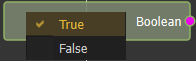
Expression
 Expression

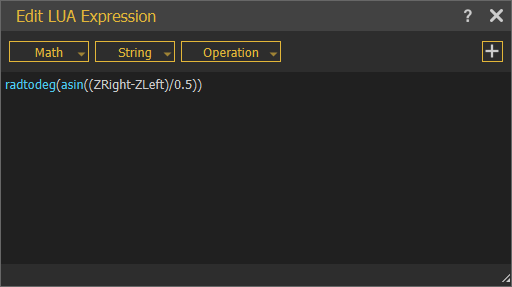
Expressions are used to generated values that can be used to trigger events through out the interactive VR experiences. They allow users to define logic related to interactions and can be categorized into Main Sources and Template Sources. For more details on expressions check this tutorial.
You can find a list of all expressions viable in training builder at this link.
Material
 Material

Select a material from Material Library to use as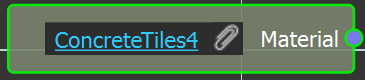
an input in this source.
Number
 Number

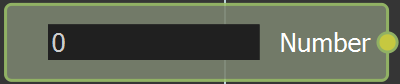
Input a number and use it as a source in your training builder logic
Scene Node
 Scene Node

Scene Node Query
 Scene Node Query

The SceneNode Query enables the system to identify an object based on its attributes within the VR environment. This node enhances interactivity by allowing responses to be customized for individual objects, triggering specific actions based on SceneNode attributes as part of their virtual experience.
Example
In this example, the SceneNode Query is used to acquire specific attributes from specific objects, in order to perform specific response to them

Then when user triggers object named Activate, and the response connected to the node will be executed to the objects with attribute name Color and its value is Yellow.

SceneState
 SceneState

Sequence
 Sequence

String
 String

User Query
 User Query

The User Query node enables the system to identify a user based on their attributes within the VR environment. This node enhances interactivity by allowing responses to be customized for individual users, triggering specific actions based on user attributes as part of their virtual experience.
Example
In this example, the User Query node is used to acquire specific attributes from specific users, in order to perform specific response to them

Once the User enters the object named Building, their InBuilding attribute's value becomes Yes, then when user triggers object named Activate, the users with attribute name InBuilding and its value is Yes gets teleported to CameraNode named Outside's location.

Variable
 Variable

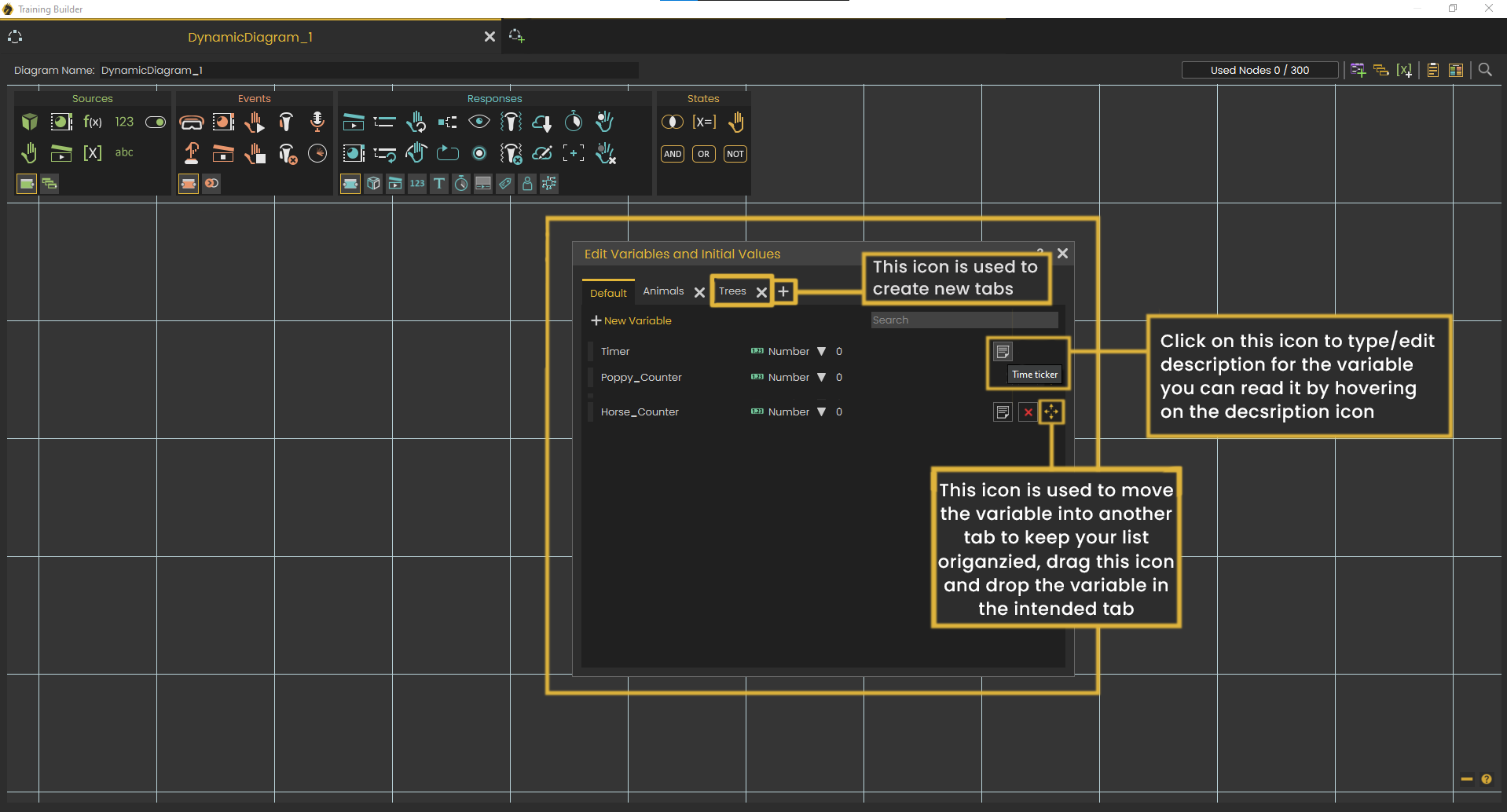
The Variable node represents the value of a specific variable within the scene and features a variable port that can be connected to nodes requiring variable assignment. This node simplifies complex setups by enabling consistent use of variables throughout the scene, ensuring streamlined connections between different elements in the training builder.

Color
The Color node gives you a single color value that you can feed into any other node that needs a color.
What it does
This node provides a color you pick yourself. The node shows the color as a small swatch you can click to open a color picker — a color wheel with RGB, HSV, and HEX entry (HEX codes look like #C81E1E). Whatever color you choose becomes the value this node hands out.
It has no Execute flow and nothing needs to fire it — it simply supplies the color value, ready to read at any time. Connect its Color output into any node that accepts a color, such as Set Material Color.
Inputs
This node has no inputs. You don’t connect a color from another node — you choose it directly on the node itself by clicking its swatch to open the color picker.
Outputs
| Port | Type | What you get |
|---|---|---|
| Color | Color | The color you picked on the node, shown as a small colored swatch. You can wire this into any node that accepts a color. |
Example
| Color output | #C81E1E (a warm red) |
Tips
- One Color node can feed several nodes at once — wire the same Color output into as many color inputs as you like to keep them in sync.
- Connect this straight into a Set Material Color node to change the color of an object in your scene.