Adding an interactive 3D menu in VR is simple, but using the same menu on a desktop can be challenging, as you have to adjust your view every time you want to make a change.
To solve this, "**Key Press**" and "**Key Release**" events were introduced. By separating these events, designers now have more control when creating VR experiences.
###  On Key Pressed
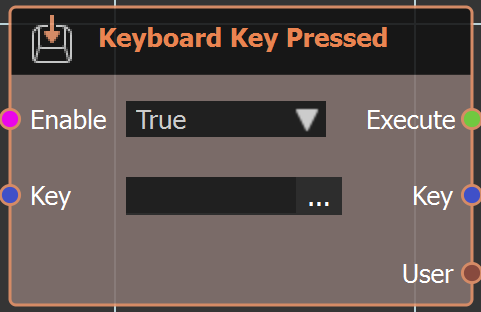
Right click in the Dynamic Training Builder and type in the
[](https://simlab-soft.com/help/uploads/images/gallery/2025-09/XMVimage.png)
"Keyboard" or look under "**Events**" to get this node. As the name implies when a keyboard key is pressed this event is triggered.
#### Example
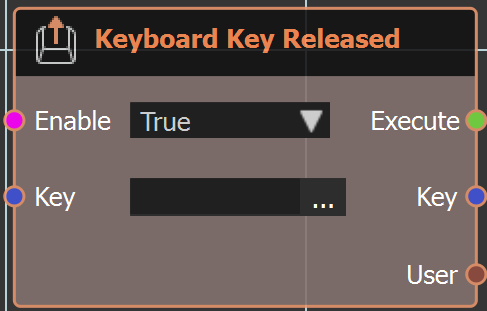
###  On Key Released
Same as above node but when key is released.
Check this [tutorial ](https://youtu.be/ACQPYu1sdf0)to learn more about these events.