
Media \ Video
 Set Video File

The Set Video File node allows you to dynamically attach or change the media source of a specific Video Node within your scene. By assigning the target Video Node and inputting the exact FileName of your desired video (such as an .mp4), this node updates the object's media. For this to function correctly, the video file must first be imported into your project through the Resource Management tab. It also outputs a Success boolean to verify that the file was found and loaded.
Example
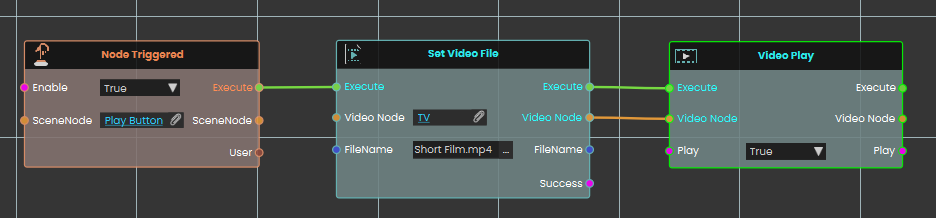
In this example, an interaction is set up to load a short film onto a TV screen and immediately begin playback.
-
Upon interacting with the "Play Button" object, the Node Triggered event initiates the execution flow.
-
The Set Video File node is executed, assigning the previously imported video file "Short Film.mp4" directly to the "TV" video node object.
-
Once the file is successfully attached, the execution flow passes to the Video Play node (with the Play toggle set to True), which instantly starts playing the newly loaded short film on the TV screen.
Set Video URL
Points a video object in your scene at a new video, so it plays from the web address (or file path) you give it.
What it does
This node takes one of the video objects in your scene and tells it which video to play, using the address you provide in the URL. As soon as it runs, the video object switches to that new source — handy for showing different clips on the same screen depending on what the user does.
It only works on a video object; if you point it at any other kind of scene object, nothing changes and the result simply reports that it didn’t succeed. The node hands the same video object straight back out, so you can keep working with it, and it tells you whether the change went through.
Inputs
| Port | Type | What to connect |
|---|---|---|
| Execute | Trigger | Wire this from the previous node’s Execute output. |
| Video Node | Scene node | The video object in your scene whose video you want to change. It must be a video object — other kinds of objects are ignored. |
| URL | Text | The web address (or path) of the video to play, for example https://videos.example.com/safety-intro.mp4. You can leave this empty to clear the current video. |
Outputs
| Port | Type | What you get |
|---|---|---|
| Execute | Trigger | Fires once the node has finished. |
| Video Node | Scene node | The same video object you passed in, so you can connect it to the next node. |
| URL | Text | The video address you supplied, passed straight through. |
| Success | True / false | True if the video object accepted the new video, false if it didn’t (for example, if the object isn’t a video). |
Example
| Video Node input | The Lobby Screen video object in your scene |
| URL input | https://videos.example.com/safety-intro.mp4 |
| Success output | true |
Tips
- Make sure the object you connect is actually a video object — if it isn’t, the change is skipped and Success comes back false.
- Check the Success output before moving on, so you can show a fallback or message if the video couldn’t be loaded.
 Video Play
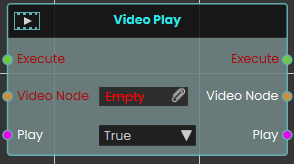
The Video Play node provides direct control over the playback of a Video Node through a boolean Play input. Setting the toggle to True starts the video, while False stops it.
 Video Seek
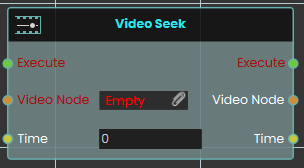
The Video Seek node immediately moves the playback of the target Video Node to a specific Time defined in seconds. It enables precise navigation to any timestamp within the video's total duration.
 Video Toggle
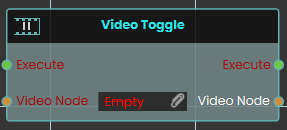
The Video Toggle node switches the playback state of the assigned Video Node between playing and paused. Each execution reverses the current state of the video material, making it ideal for simple play/pause button interactions.
No Comments