SceneNode \ Transform \ Location
 Get Node Visual Location

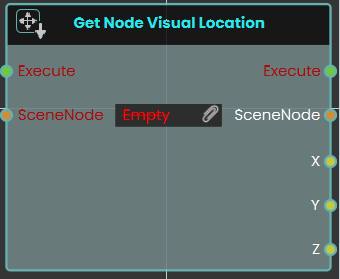
The Get Node Visual Location node enables the system to retrieve the exact X, Y, and Z coordinates of a SceneNode based on its absolute visual representation in the 3D scene.
Unlike standard location nodes that calculate position relative to a parent object, this node fetches the true visual position of the object within the environment, completely unaffected by the scene's parent-child hierarchy system.
Set Node Visual Location
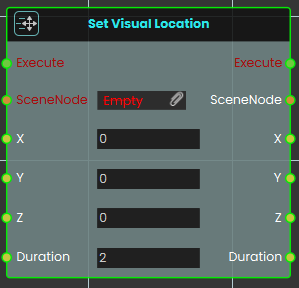
The Set Node Visual Location node enables the system to instantly move a SceneNode to specific X, Y, and Z coordinates within the absolute visual space of the 3D scene. By directly altering where the object appears visually, this node completely bypasses any positional offsets or transformations that the object might normally inherit from its parent hierarchy.
Example
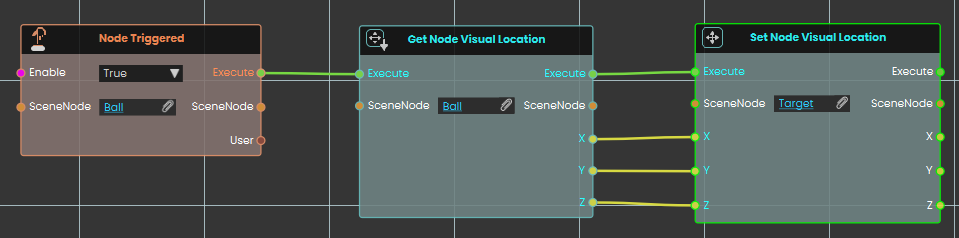
In this example, an interaction is set up to match the positions of two independent objects.
-
Upon interacting with the "Ball" object, the Node Triggered event initiates the execution flow.
-
The Get Node Visual Location node extracts the true visual X, Y, and Z coordinates of the "Ball" in the scene.
-
These coordinate values are then fed directly into the X, Y, and Z inputs of a Set Node Visual Location node assigned to a "Target" object. This instantly moves the Target to the exact visual location of the Ball, regardless of how deeply nested either object is within the scene's hierarchy.
Set Node Visual Location (Animated)
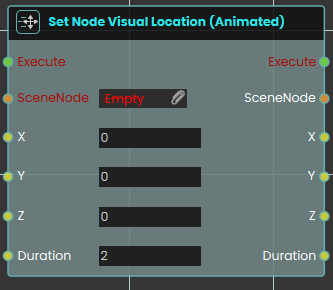
The Set Node Visual Location (Animated) node enables the system to smoothly move a SceneNode to specific X, Y, and Z coordinates within the absolute visual space of the 3D scene over a set period.
Similar to the standard Set Node Visual Location node, this movement completely bypasses any positional offsets or transformations inherited from the object's parent hierarchy. However, this animated variant includes an additional Duration parameter. Instead of instantly snapping the object to the new coordinates, this node creates a smooth transition (tweening) from its current visual location to the target location over the specified number of seconds.
 Fall To Surface
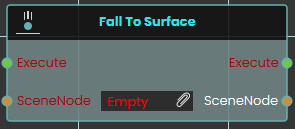
The Fall To Surface node instantly repositions a specific 3D object directly onto the nearest 3D surface located immediately below it in the scene. When activated, the node takes the targeted SceneNode input and immediately updates its vertical placement to simulate a sudden, instantaneous drop, resting the object perfectly against the underlying geometry.
Fall To Surface (Animated)
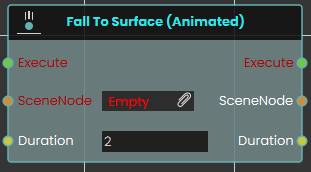
The Fall To Surface (Animated) node functions similarly to the standard fall node, but instead of an instant drop, it smoothly transitions the 3D object down to the nearest underlying surface over a defined period. Once activated, the node takes the targeted SceneNode and seamlessly tweens its vertical descent until it rests on the geometry below, completing the fall animation over the exact amount of time specified by the numerical Duration input (measured in seconds).
 Get Node Location


The Get Node Location response obtains the X, Y, and Z coordinates of an object's location each time the event connected to it is triggered. Once the response is executed, the coordinates can be acquired through the X, Y, and Z ports.
Example

In this example, a Get Node Location response is used to obtain the X, Y, and Z coordinates of an object named Table once the user triggers the object named Activate. The coordinates are then stored in variables named X, Y, and Z, which can be connected to a variable writer to be displayed during the VR Experience.
 Set Node Location

The Set Node Location response enables the user to set the location of an object to specific X, Y, and Z coordinates by either typing in the numerical values or by attaching a variable node to those ports. Once the response is executed, the object's new location is applied using the provided coordinates.
Example

In this example, a Set Node Location response is used to assign the X, Y, and Z coordinates stored in variables named X, Y, and Z to an object named Pot once the user triggers the object named Activate. The object's new location is set based on these coordinates, allowing the updated position to be reflected during the VR Experience.
Set Node Location (Animated)
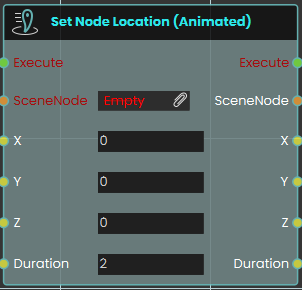
The Set Node Location (Animated) node enables the system to smoothly move a SceneNode to a specific global coordinate in the 3D space over a set period. this node creates a seamless tweening effect from the object's current position to its new target destination
This differs significantly from the standard Set Node Location node, which instantly snaps or teleports the object to the new coordinates without any transition. The animated variant is ideal for creating moving platforms, sliding doors, or moving vehicles.
Example
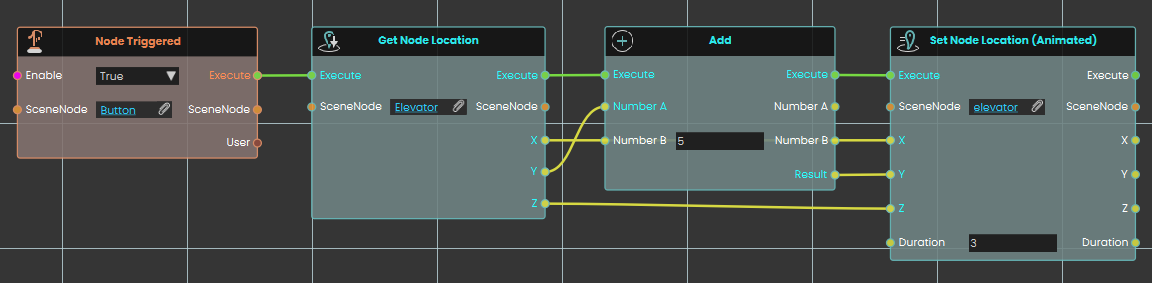
In this example, an interactive elevator mechanism is created.
-
Upon interacting with the button object, the Node Triggered event initiates the execution flow.
-
The Get Node Location node is used to retrieve the current X, Y, and Z global coordinates of the "Elevator" object.
-
To move the elevator up, the Y-axis coordinate is passed into an Add node, where 5 units are added to its current value. The X and Z coordinates remain unchanged.
-
Finally, the Set Node Location (Animated) node applies these new coordinates to the elevator object. The Duration parameter is set to 3, meaning it will take exactly 3 seconds for the elevator to smoothly transition (tween) to its new position 5 units higher.
Local position
These behave like the position nodes above, but the X, Y, and Z values are measured relative to the object’s parent or group instead of the whole scene. If the object isn’t inside a group, the result is the same as the world versions.
Get Node Location (Local)
Reads where an object currently sits, measured relative to its parent or group.
What it does
This node looks at an object in your scene and tells you its position as three numbers — X, Y, and Z — given in meters. The position is local, which means it is measured relative to the object’s parent or group: if that parent or group is moved, turned, or resized, the local position stays the same. (If the object has no parent or group, its local position and its position in the whole scene are the same.)
It only reads the position — it doesn’t move the object or change anything else in your scene. Use it whenever you need to know where something is so you can react to it, compare it, or feed the numbers into another node.
Inputs
| Port | Type | What to connect |
|---|---|---|
| Execute | Trigger | Wire this from the previous node’s Execute output. |
| SceneNode | Scene node | The object whose position you want to read. |
Outputs
| Port | Type | What you get |
|---|---|---|
| Execute | Trigger | Fires once the node has finished. |
| SceneNode | Scene node | The same object passed straight through, so you can chain more nodes onto it. |
| X | Number | The object’s position along the X axis, in meters. |
| Y | Number | The object’s position along the Y axis, in meters. |
| Z | Number | The object’s position along the Z axis, in meters. |
Example
| SceneNode input | A wrench resting on a workbench |
| X output | 1.5 |
| Y output | 0.75 |
| Z output | 2 |
Tips
- If you want the object’s position in the whole scene rather than relative to its parent or group, use the matching node without “(Local)” in its name.
Set Node Location (Local)
This node moves an object to a position you choose, measured relative to its parent or group.
What it does
You give it an object and three numbers — X, Y, and Z, in meters — and it places that object at exactly that position. The position is “local,” meaning it is measured relative to the object’s parent or group: if you later move, turn, or resize that parent or group, this object keeps the same local position and travels along with it. If the object has no parent or group, its local position is the same as its position in the whole scene.
Only the object you connect is moved — no other objects in the scene are affected. The change happens instantly. The node then hands the same object straight back out, along with the X, Y, and Z values you set, so you can connect it to more nodes.
Inputs
| Port | Type | What to connect |
|---|---|---|
| Execute | Trigger | Wire this from the previous node’s Execute output. |
| SceneNode | Scene node | The object you want to move. |
| X | Number | The position along X, in meters. Leave at 0 for no change on this axis. |
| Y | Number | The position along Y, in meters. Leave at 0 for no change on this axis. |
| Z | Number | The position along Z, in meters. Leave at 0 for no change on this axis. |
Outputs
| Port | Type | What you get |
|---|---|---|
| Execute | Trigger | Fires once the node has finished. |
| SceneNode | Scene node | The same object, passed through so you can chain more nodes onto it. |
| X | Number | The X position you set, in meters. |
| Y | Number | The Y position you set, in meters. |
| Z | Number | The Z position you set, in meters. |
Example
| SceneNode input | The crate you want to reposition |
| X input | 1.5 |
| Y input | 0.75 |
| Z input | 2 |
| SceneNode output | The same crate, now at that position, ready to chain |
Tips
- Because the position is local, it is easiest to picture when the object sits inside a group: the numbers are measured from that group, not from the whole scene.
- To move the object using absolute scene coordinates instead, use the matching node without “(Local)” in its name.
Set Node Location (Local, Animated)
Smoothly moves a 3D object to a new spot over a set number of seconds, using a position measured relative to the object’s parent or group.
What it does
This node glides an object from where it is now to a new position you choose, given as X, Y, and Z values in meters. Instead of snapping there instantly, it animates the move over the number of seconds you set in Duration, so the object appears to travel to its new spot.
The position is “local,” meaning it is measured relative to the object’s parent or group rather than the whole scene. If you later move, turn, or resize that parent or group, this local position stays the same. (If the object has no parent or group, its local position is just its position in the scene.) Only the object you connect is affected — nothing else in the scene moves.
Inputs
| Port | Type | What to connect |
|---|---|---|
| Execute | Trigger | Wire this from the previous node’s Execute output to start the movement. |
| SceneNode | Scene node | The 3D object you want to move. You can connect more than one object to move them all the same way. |
| X | Number | The X position to move to, in meters. |
| Y | Number | The Y position to move to, in meters. |
| Z | Number | The Z position to move to, in meters. |
| Duration | Number | How many seconds the smooth movement should take. Must be zero or more; 2 by default. |
Outputs
| Port | Type | What you get |
|---|---|---|
| Execute | Trigger | Fires to let the flow continue once the movement has been applied. |
| SceneNode | Scene node | The same object (or objects) passed straight through, so you can chain more nodes onto it. |
| X | Number | The X position you asked for, passed through. |
| Y | Number | The Y position you asked for, passed through. |
| Z | Number | The Z position you asked for, passed through. |
| Duration | Number | The number of seconds you set, passed through. |
Example
| SceneNode input | A crate object in your scene |
| X input | 1.5 |
| Y input | 0.75 |
| Z input | 2 |
| Duration input | 2 (the crate glides to its new spot over 2 seconds) |
Tips
- For an instant jump with no animation, use the non-animated version of this node instead.
- Set Duration to
0for the fastest possible move. - To move an object to a spot fixed in the whole scene rather than relative to its parent or group, use the world version of this node (the one without “(Local)” in its name).