Sequence
Attach Sequence To
Creating sequences can be done from animating an object in the scene. This sequence can be attached to Hand or an Object in VR.
Hand
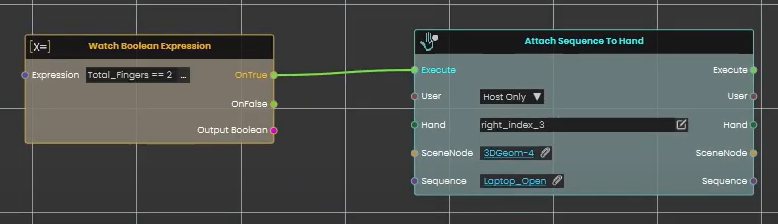
With sequences available in the Sequences Library, a sequence can be attached to the Hand in VR experience using this node in Dynamic Training Builder.
Example
Check this tutorial for the example below, where Boolean expressions were created and upon checking the Boolean Expression a sequence is attached to Hand.
Object
This node can be used to connect a controller grabbable object to a sequence in VR.
Example
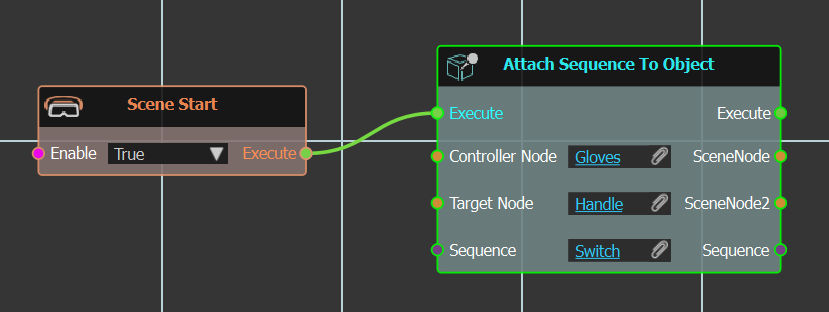
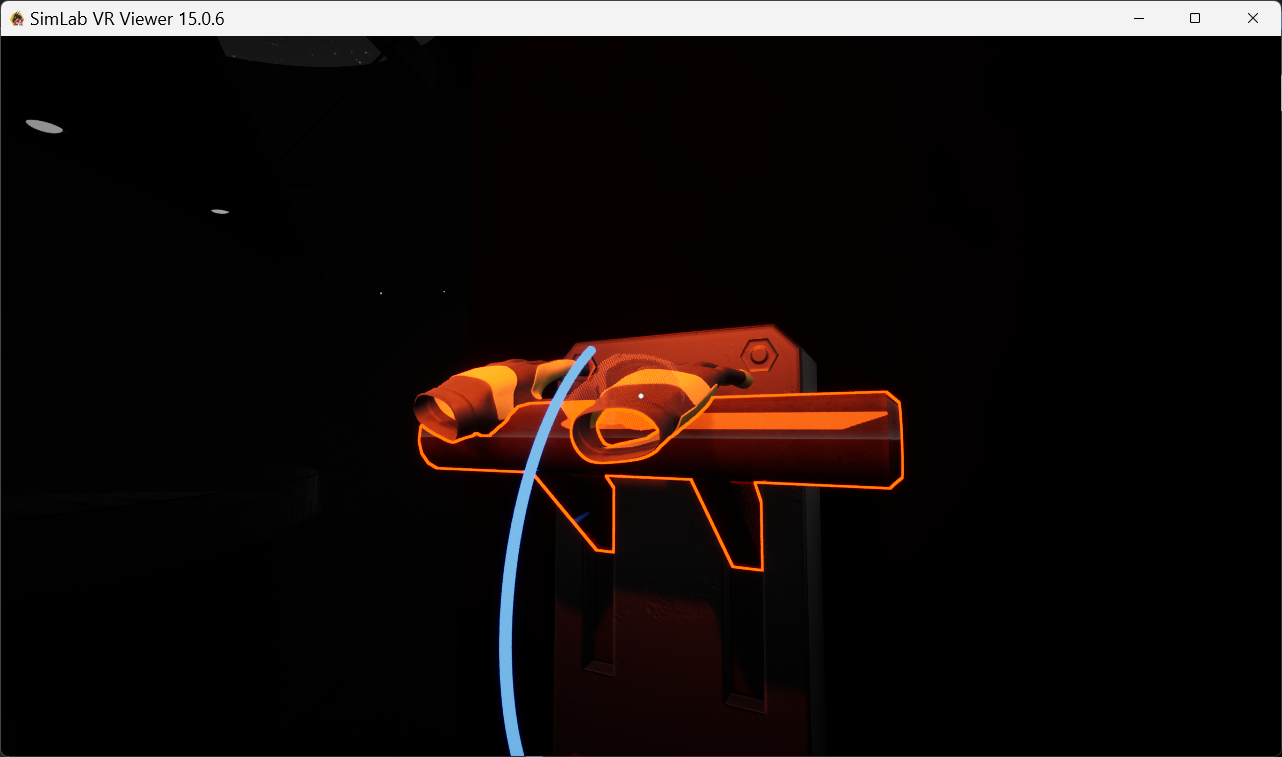
In the example below the "Switch" sequence is attached to "Handle" object, when Controller "Gloves" geometry moves it. In this example a simple grabbable sequence can do the job, but this is just to demonstrate use of this node.
Example 2
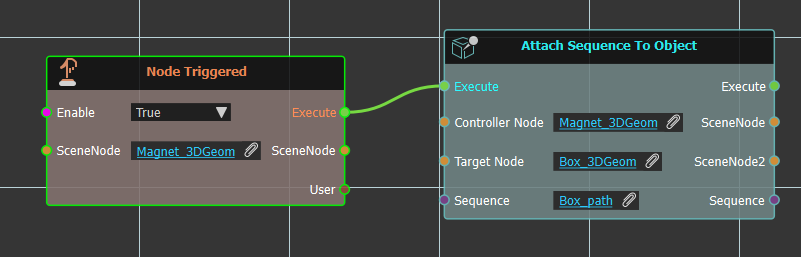
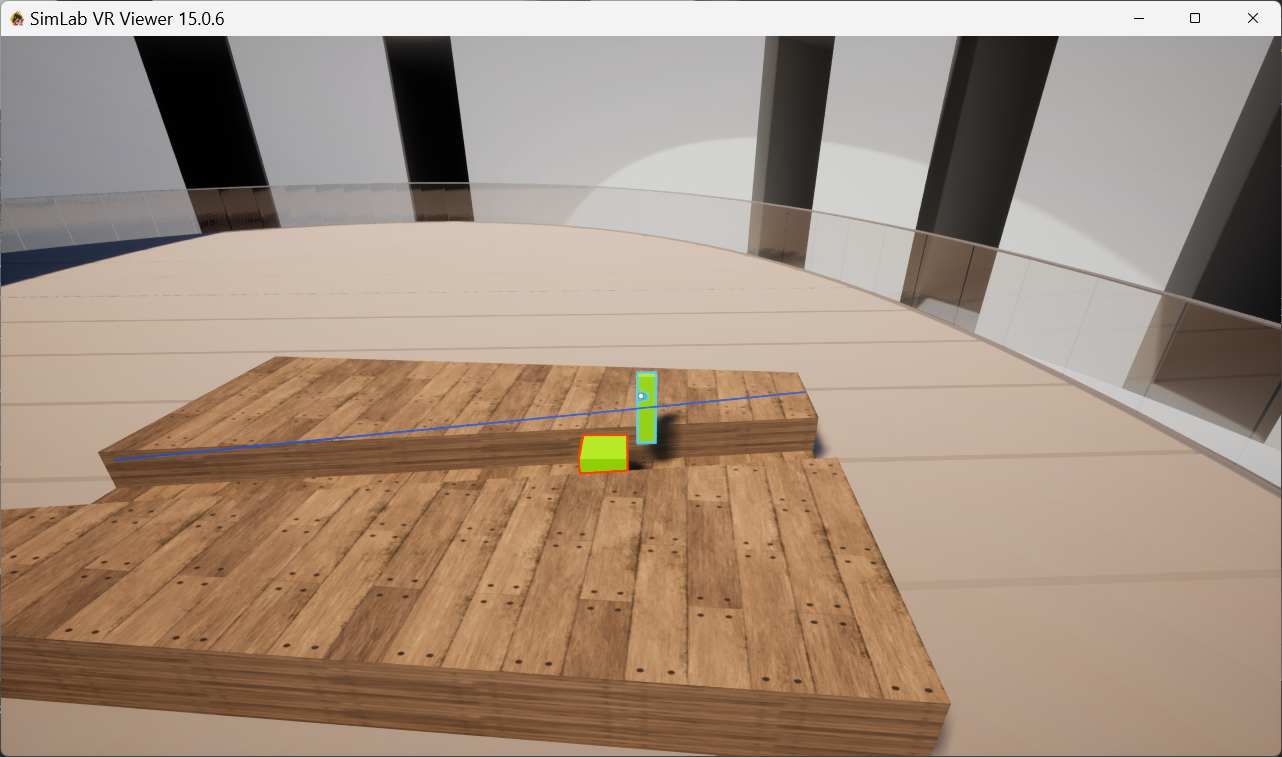
In this example we have a path for a box to walk along being controlled by a magnet.
Detach Sequence
Releases a sequence that was attached to a scene object, so it is no longer linked to that object.
What it does
If you previously attached a sequence to an object in your scene, this node breaks that link. After it runs, the sequence stands on its own again and no longer follows the object it was attached to.
The sequence itself is not deleted or changed — only the attachment is removed. The same sequence comes back out of the node, so you can keep using it in the steps that follow.
Inputs
| Port | Type | What to connect |
|---|---|---|
| Execute | Trigger | Wire this from the previous node’s Execute output. |
| Sequence | Sequence | The sequence you want to detach — the one that is currently attached to a scene object. |
Outputs
| Port | Type | What you get |
|---|---|---|
| Execute | Trigger | Fires once the node has finished. |
| Sequence | Sequence | The same sequence, now detached — ready to use in the next steps. |
Example
| Sequence input | The Open Door sequence that was attached to the door handle |
| Sequence output | The same Open Door sequence, no longer linked to the handle |
Tips
- Use this to undo an earlier “Attach Sequence To” step when you no longer want the sequence to stay tied to that object.
Playback Controls
Used to control sequence behavior.
Continue
Same Direction
The selected sequence will continue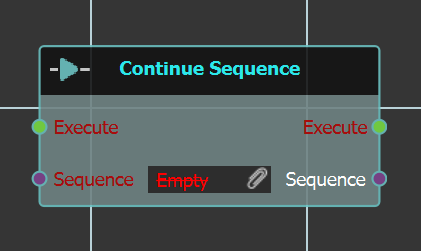
to play in the same direction.
Set Direction
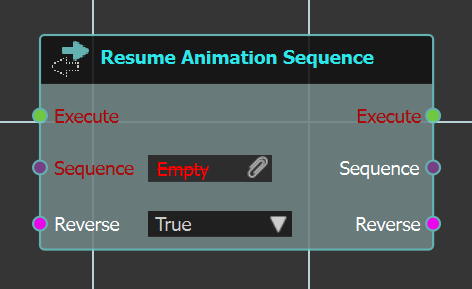 With this node the user can change the selected sequence direction, by selecting Reverse to True.
Example
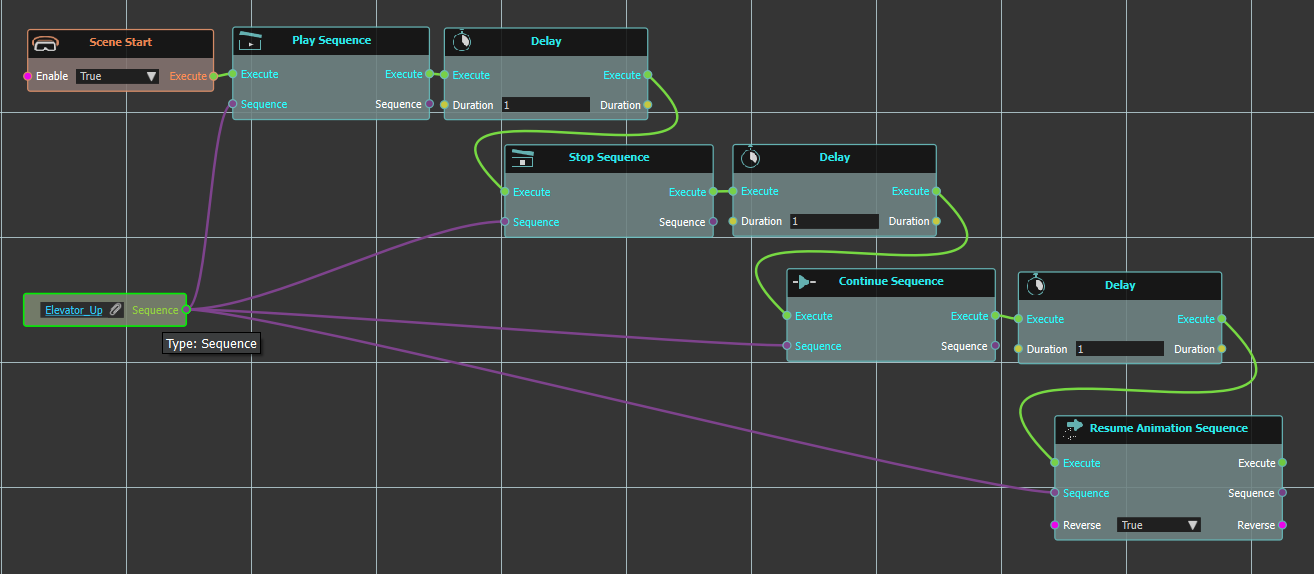
In the below example a number of the above Playback Controls are used. Here on "Scene Start","Play Sequence" response is executed for "Elevator_Up" sequence. Followed by a 1 second "Delay", then "Stop Sequence" for another one second "Delay". Then the sequence is continued, followed by another "Delay" then "Resume Animation Sequence" from start.
Play
Play Sequence/Play Sequence From Start
Both controls will play animation sequence, one from current position, and the other -as the name implies- will play it from start.
Reverse
Reverse
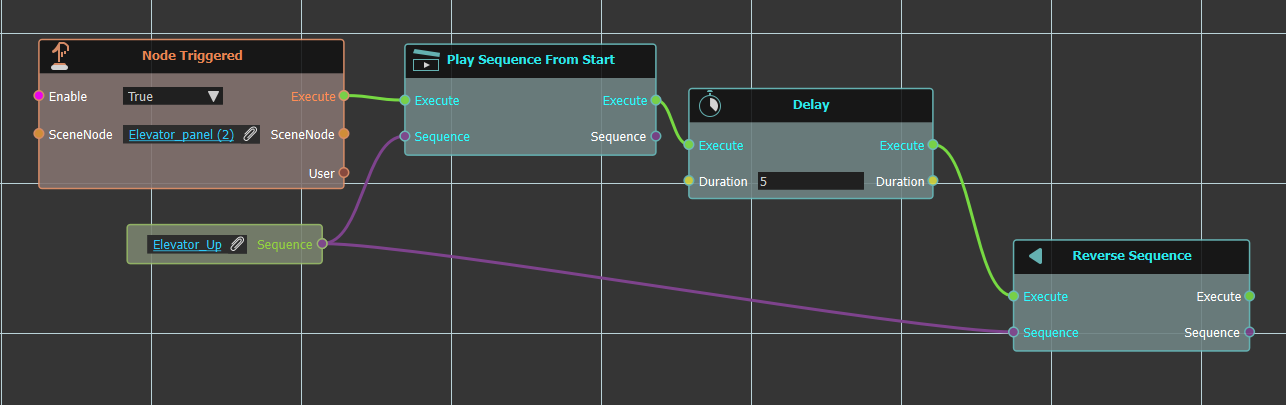
Reverse sequences starts the animation sequence in the reverse mode (from the last frame). The reverse control will start from the last frame not from the current (because it reverses the overall animation)
In the below example the "Elevator_Up" sequence upon clicking "Elevator_panel(2)" geometry will be played from start. So if the elevator at that time was at the top position, it would go down then -as the sequence implies- would go up, then wait for 5 seconds, then "Reverse Sequence" that is go down from last frame.
Reverse From End
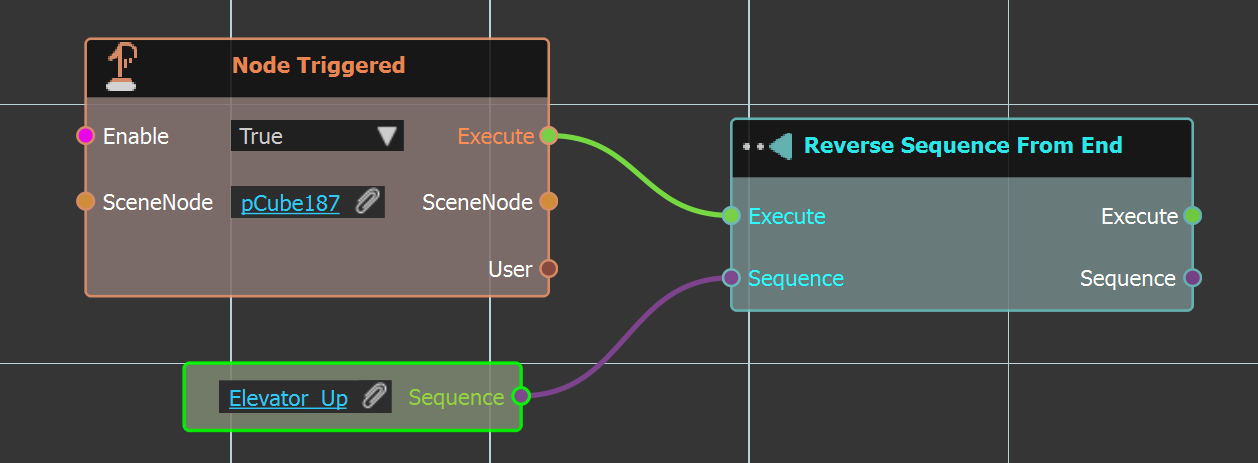
This control will start the sequence from the end, even if it hasn’t been played yet.
Flip
Flip sequences flips current animation (that is, forward animation will be backward , backward animation will be forward). Think about it like we are opening a door and we pause the animation in the middle, flip control will return the door back from the current frame to original start position.
Stop
Stopes the animation sequence, as shown in examples presented in this section.
Playback Properties
Current Frame
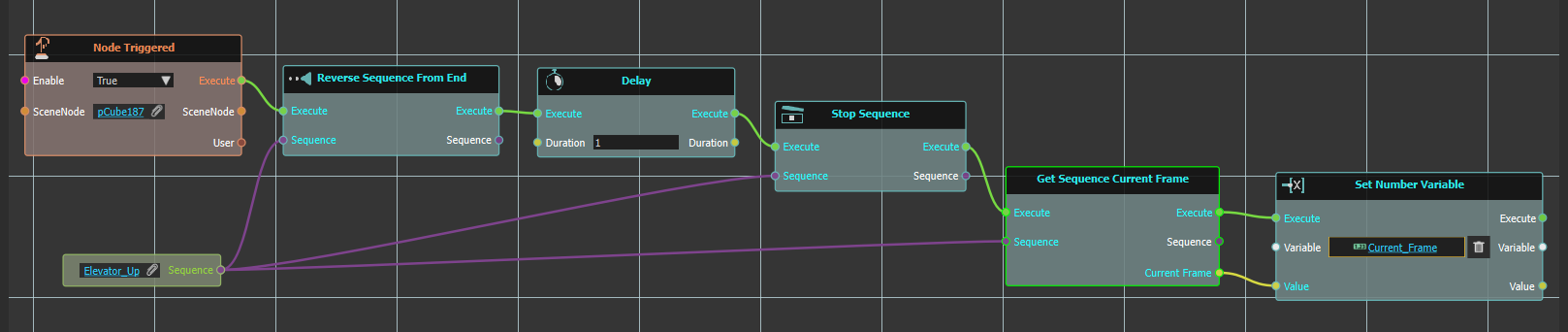
Get Sequence Current Frame
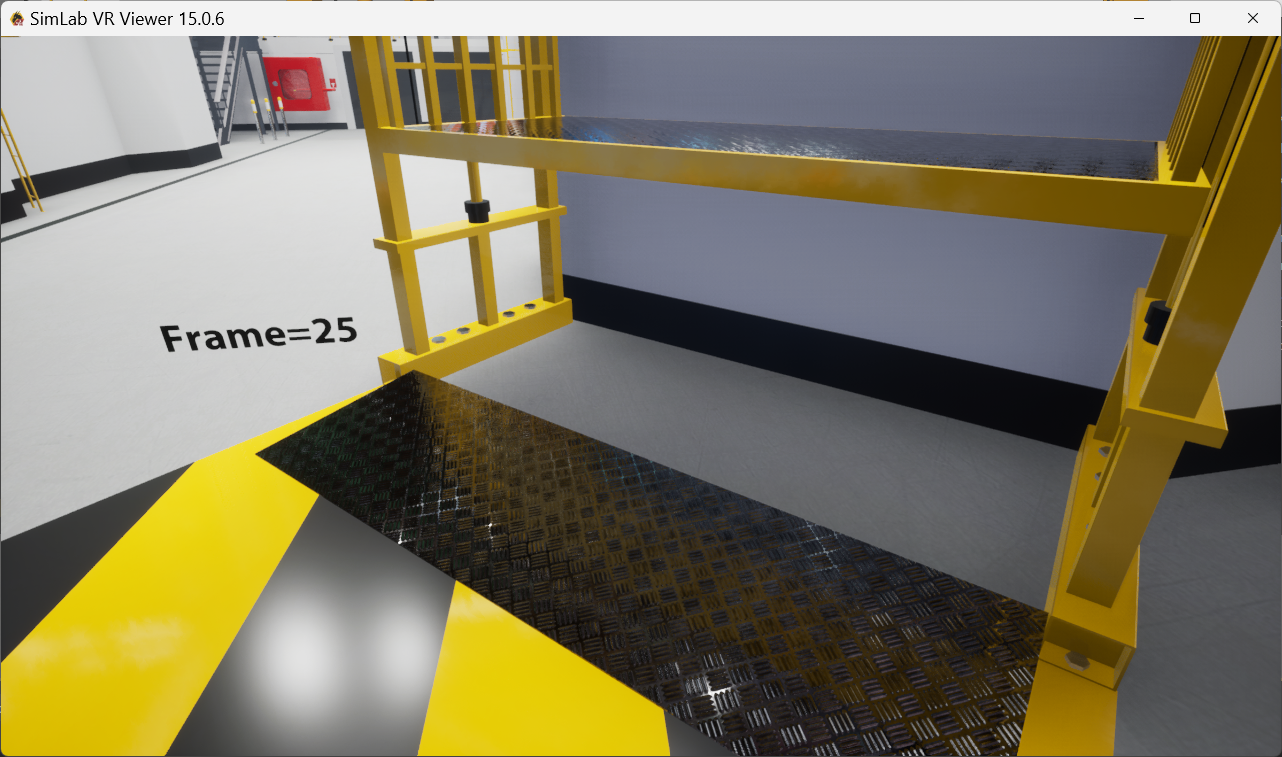
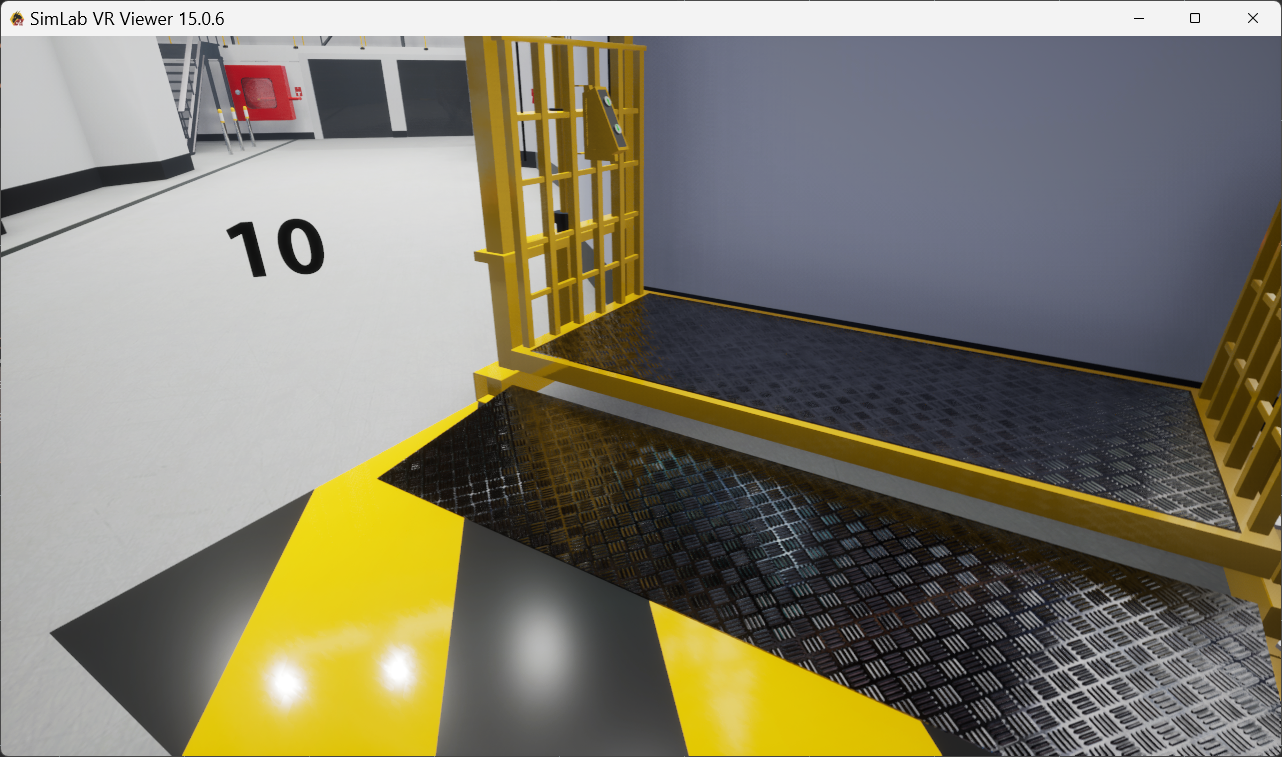
This node will get the value of the current sequence frame, the user can then use this value in any operation. In the example below the value of the current sequence frame is stored in "Current_Frame" variable, which is set to the "VR Variable Writer" in the scene to display its value.
Set Sequence Current Frame
If the user wants to go to a specific frame in the sequence this is the function to use. In the below example upon clicking node the sequence current frame is set to 10.
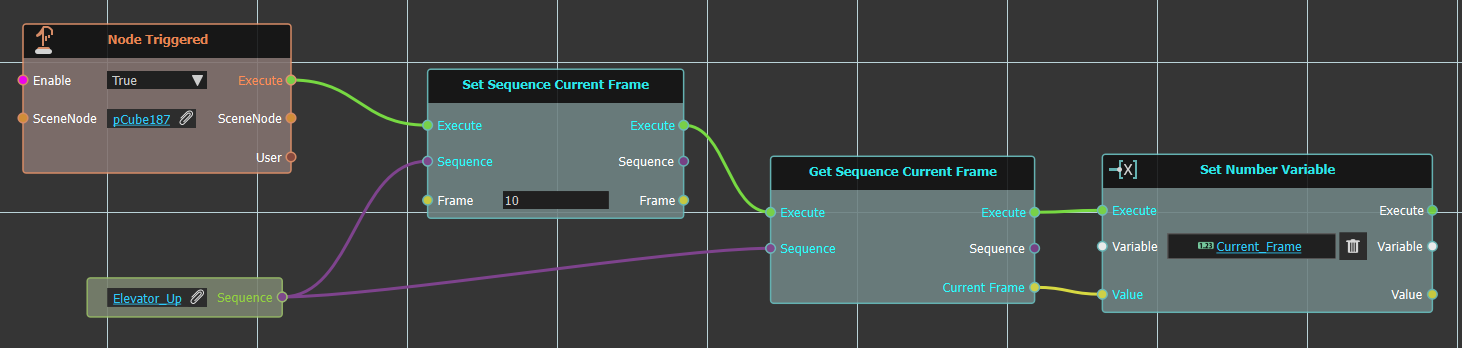
To show the result we got the valued of the current frame and assign it to "Current_Frame" variable that is displayed in the variable writer as shown below.
Full Range
This node can be used to calculate the full range of a sequence.
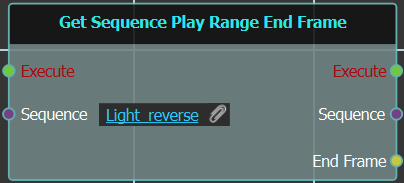
Get End
Gets and outputs the end frame of the selected 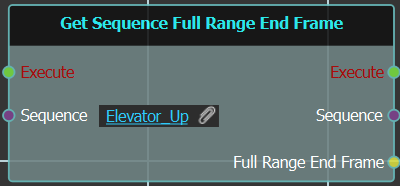
sequence, when triggered.
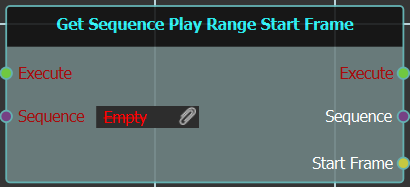
Get Start
Gets and outputs the start frame of the selected 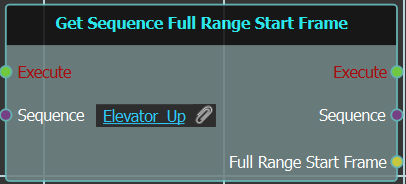
sequence, when triggered.
Looping
Sequences can be set to loop after finishing.
Get Sequence Looping
This node will get the looping status of the input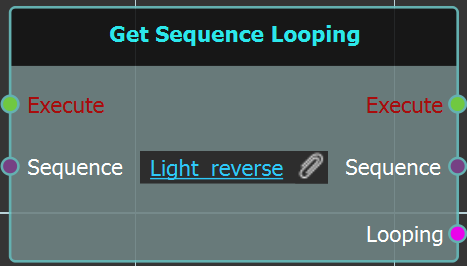
sequence, whether true or false.
Set Sequence Looping
This node will set the looping status for the input 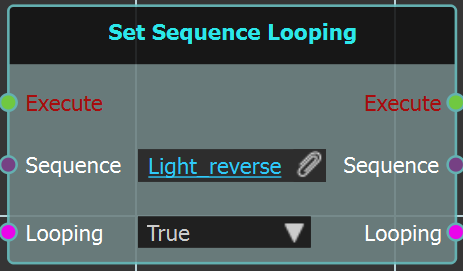
sequence to either true or false.
Play Range