# Sources
[](https://simlab-soft.com/help/uploads/images/gallery/2024-08/response-value-number-add.png) Expression
[](https://simlab-soft.com/help/uploads/images/gallery/2025-09/image.png)
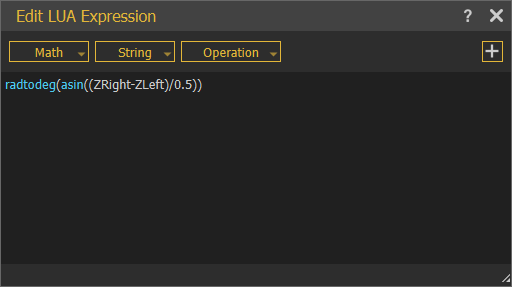
**Expressions** are used to generated values that can be used to trigger events throughtout the interactive VR experiences. They allow users to define logic related to interactions and can be categorized into Main Sources and Template Sources. For more details on expressions check this [tutorial](https://www.youtube.com/watch?v=6hIvMsl5obs&t=307s).
You can find a list of all expressions viable in training builder at this [link](https://www.simlab-soft.com/3d-products/vr-expressions.aspx).
[](https://simlab-soft.com/help/uploads/images/gallery/2024-08/response-value-number-add.png) SceneNode Query

The **SceneNode Query** enables the system to identify an object based on its attributes within the VR environment. This node enhances interactivity by allowing responses to be customized for individual objects, triggering specific actions based on **SceneNode attributes** as part of their virtual experience.
#### Example
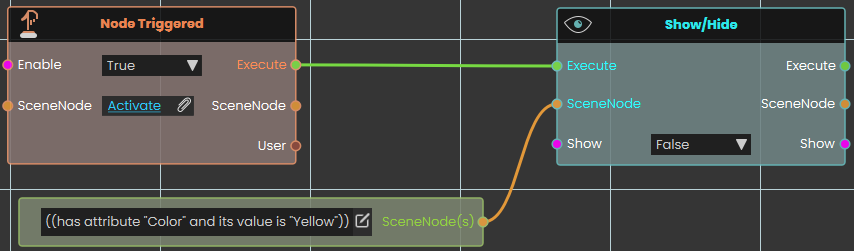
In this example, the **SceneNode Query** is used to acquire specific attributes from specific objects, in order to perform specific response to them
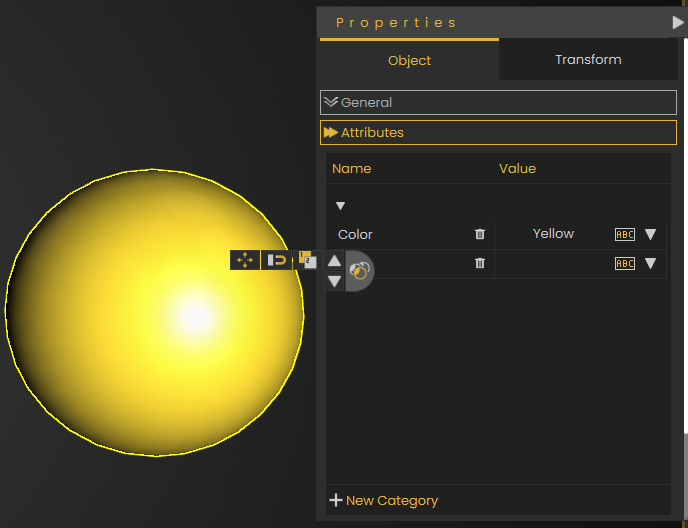
Then when user triggers object named **Activate**, and the response connected to the node will be executed to the objects with attribute name **Color** and its value is **Yellow.**
---
### [](https://simlab-soft.com/help/uploads/images/gallery/2024-08/response-value-number-add.png) User Query

The **User Query node** enables the system to identify a user based on their attributes within the VR environment. This node enhances interactivity by allowing responses to be customized for individual users, triggering specific actions based on **user attributes** as part of their virtual experience.
#### Example
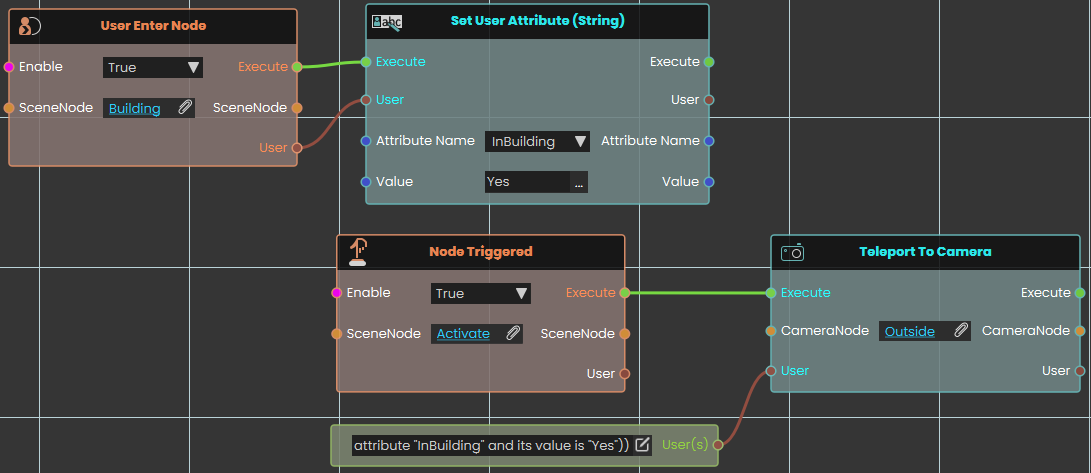
In this example, the **User Query node** is used to acquire specific attributes from specific users, in order to perform specific response to them
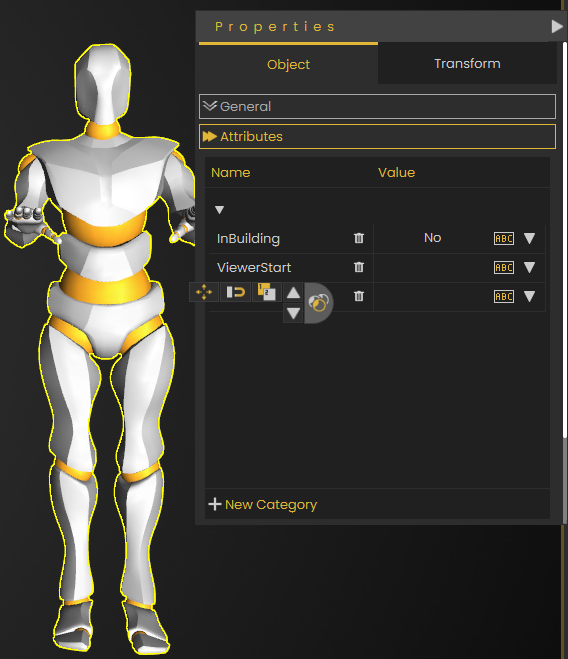
Once the User enters the object named **Building**, their InBuilding attribute's value becomes **Yes,** then when user triggers object named **Activate**, the users with attribute name **InBuilding** and its value is **Yes** gets teleported to CameraNode named **Outside**'s location.
---
###  Variable

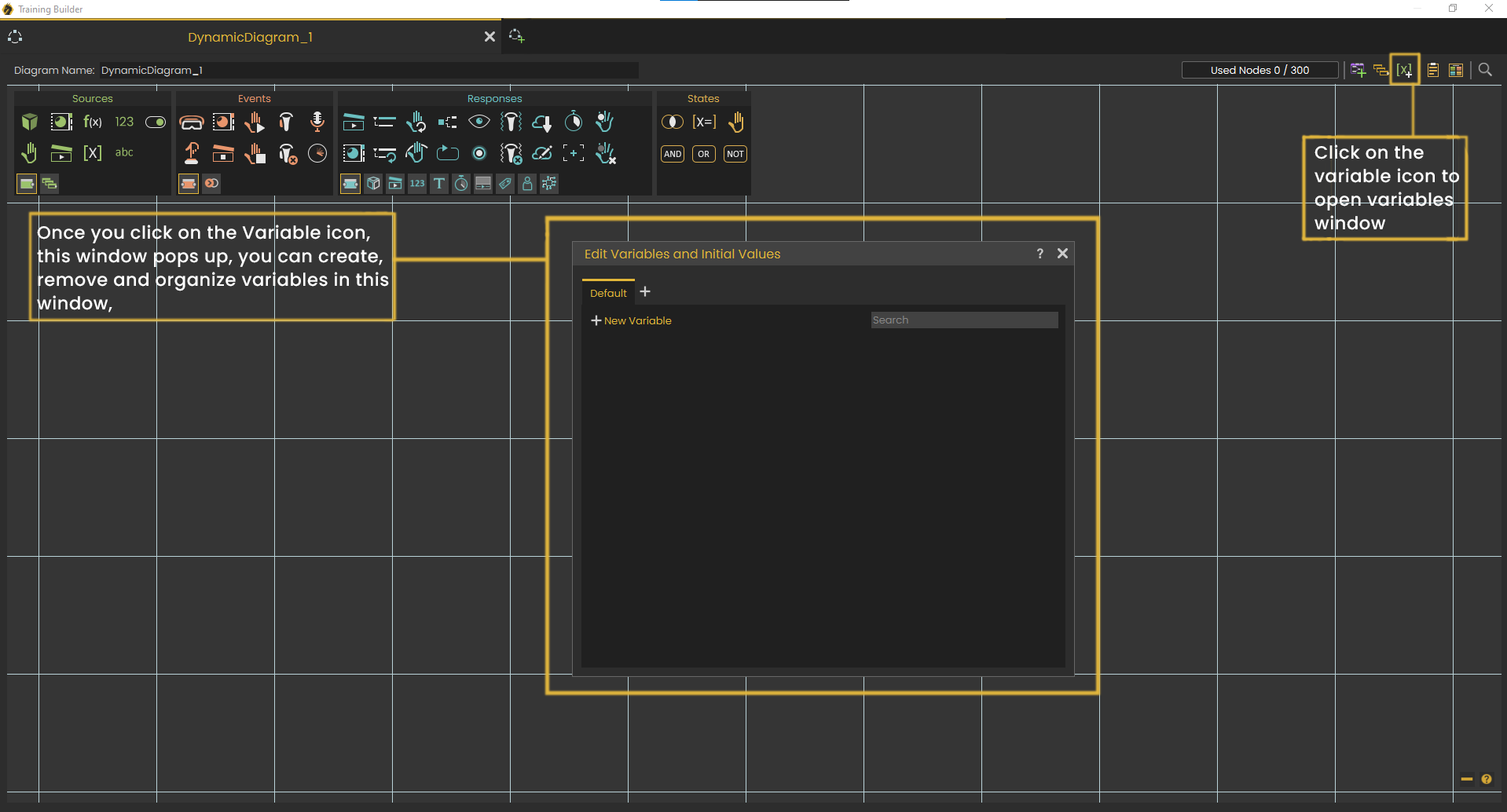
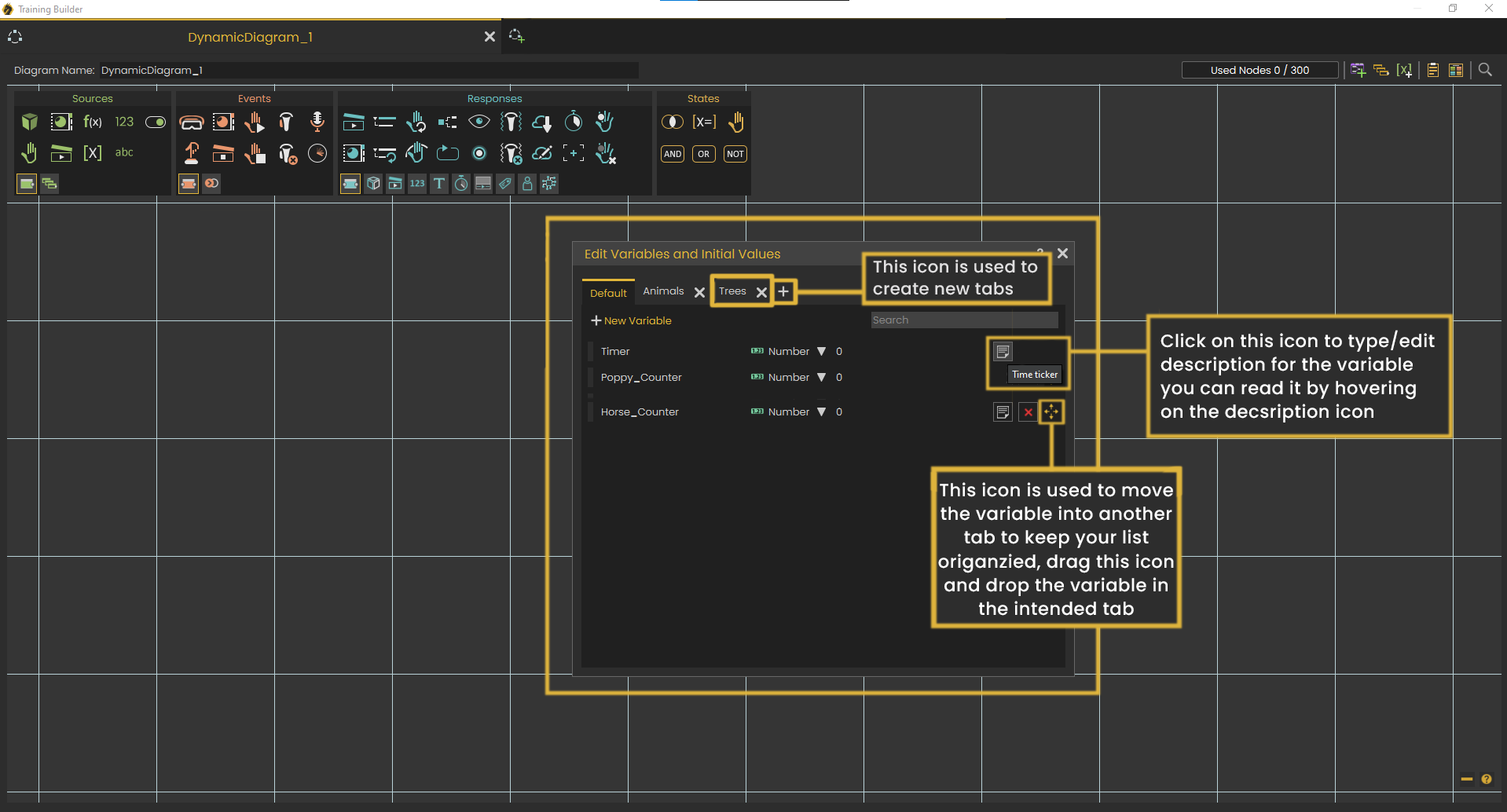
The **Variable** **node** represents the value of a specific variable within the scene and features a variable port that can be connected to nodes requiring variable assignment. This node simplifies complex setups by enabling consistent use of variables throughout the scene, ensuring streamlined connections between different elements in the training builder.
[](https://simlab-soft.com/help/uploads/images/gallery/2024-09/trainingbuilder-variable-01.png)
> [Tutorial about **Variable Sorting** on YouTube](https://www.youtube.com/watch?v=amnTY83rDjo "Tutorial about Variable Sorting on YouTube")
---