### [](https://simlab-soft.com/help/uploads/images/gallery/2024-08/response-value-number-add.png) Attach To Hand
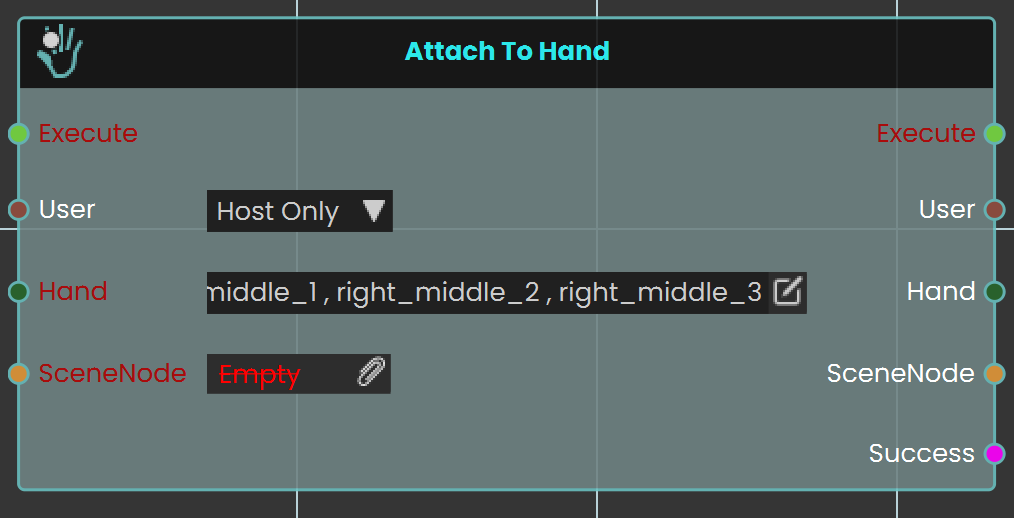
The **Attach to Hand** node enables the user to attach objects to specific parts of the hand in a VR environment by selecting the desired hand part. This node allows for precise placement of objects, such as tools or items, enhancing interactivity within the VR Experience. Once the attachment is configured, the object will remain in the chosen part of the hand during interactions.
#### Example
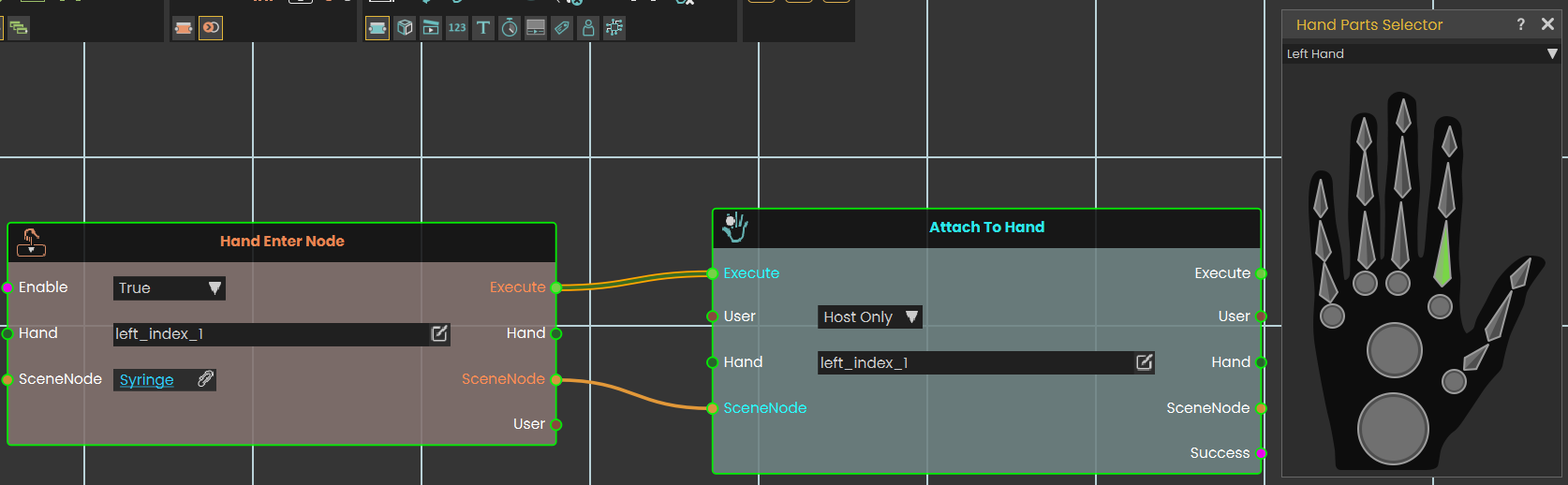
In this example, an **Attach to Hand node** is used to attach a syringe to the index finger once the "Hand Enter Node" event is triggered. The syringe is attached to the specified part of the hand automatically when the event occurs, enabling interaction with the object in the VR environment.
---
### [](https://simlab-soft.com/help/uploads/images/gallery/2026-03/response-node-detachfromhand.png) Detach From Hand
[](https://simlab-soft.com/help/uploads/images/gallery/2026-03/scLimage.png)
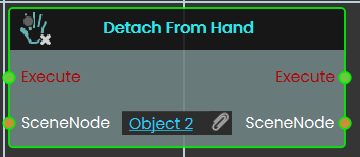
The **Detach From Hand** , detaches an object currently attached by the [Attach To Hand ](https://simlab-soft.com/help/link/369#bkmrk-number-variable-valu)response, so the object no more moves with the hand
---
### [](https://simlab-soft.com/help/uploads/images/gallery/2024-08/response-value-number-add.png) Trigger Beam
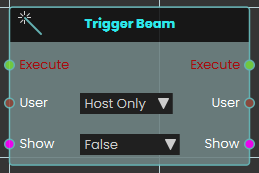
The **Trigger Beam node** enables the user to control the visibility of a beam coming out of the controller in the VR Experience, once the node is executed.
#### Example
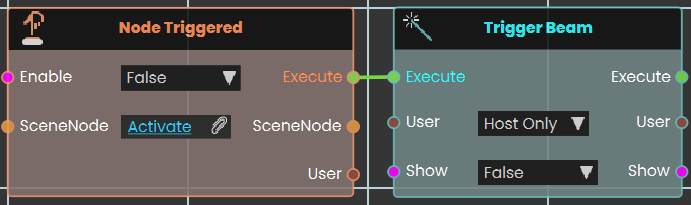
In this example, a **Trigger Beam node** is used to hide the beam coming out of the controller once the object named Activate is triggered. When the event is triggered, the change is reflected during the VR Experience.
---
---
###  Enable Controller Vibration
Makes a participant’s VR controller buzz, so you can give them a physical nudge of feedback during a scene.
#### What it does
When this node runs, the chosen user’s controller vibrates in their hand. You pick which hand buzzes, how strong the buzz feels, how fast it pulses, and how long it lasts. This is great for confirming an action, drawing attention to something, or signalling a mistake.
It only triggers a buzz — it doesn’t change anything about the user or the scene. The same user is passed straight back out, so you can keep chaining more user nodes after it.
#### Inputs
Port
Type
What to connect
**Execute**
Trigger
Wire this from the previous node’s Execute output.
**User**
User
Choose who feels the buzz. Pick `Host Only` to vibrate just the host’s controller, or `All Users` to vibrate everyone’s. You can also connect a User coming from an earlier node.
**Hand**
Choice
Which controller buzzes: `Right`, `Left`, or `Both`. Choosing `Both` vibrates both controllers at once.
**Strength**
Choice
How intense the buzz feels: `High`, `Medium`, or `Low`.
**Frequency**
Choice
How fast the buzz pulses: `High`, `Medium`, or `Low`.
**Duration**
Number
How long the buzz lasts, in seconds (0 or more). For example, `1` is a one-second buzz.
#### Outputs
Port
Type
What you get
**Execute**
Trigger
Fires once the node has finished.
**User**
User
The same user you chose, passed along so you can connect more user nodes after this one.
#### Example
**User** input
`Host Only`
**Hand** input
`Right`
**Strength** input
`High`
**Frequency** input
`Medium`
**Duration** input
`1` (a one-second buzz)
**User** output
The host, ready to pass on to the next node
#### Tips
- Use a short, strong buzz to confirm a correct action, and a longer or gentler one to warn of a mistake.
- Pick `Both` for the Hand when you want a buzz the participant can’t miss.
---
###  Disable Controller Vibration
Turns off the buzzing (haptic feedback) in a participant’s VR controller.
#### What it does
This node stops the vibration in the chosen hand’s controller for the user you pick. Use it to silence the controller after a buzz, or to make sure a controller stays quiet during a particular part of your scene.
You choose which participant it affects (the host only, or everyone) and which hand to quiet down — the right controller, the left controller, or both. It only controls the vibration; it doesn’t change anything else about the controller or the user, and the same user is passed straight back out so you can connect more user nodes after it.
#### Inputs
Port
Type
What to connect
**Execute**
Trigger
Wire this from the previous node’s Execute output to run the node.
**User**
User
Chooses which participant to act on. Pick **Host Only** to quiet just the main user’s controller, or **All Users** to quiet everyone’s.
**Hand**
Choice
Which controller to turn off the vibration on: **Right**, **Left**, or **Both**.
#### Outputs
Port
Type
What you get
**Execute**
Trigger
Fires once the vibration has been turned off, so you can continue to the next node.
**User**
User
The same user you chose, passed along so you can chain more user nodes after this one.
#### Example
**User** input
`Host Only`
**Hand** input
`Both`
**User** output
The same host user, ready to connect to the next node
#### Tips
- Pair this with the **Enable Controller Vibration** node: turn the buzzing on for a moment of feedback, then use this node to switch it back off.
- Choose **Both** when you want both controllers to stop at the same time, rather than adding two separate nodes for the left and right hands.