User \ Set Mode
 Set Interaction Mode
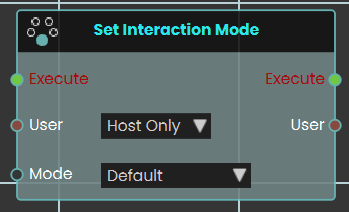
The Set Interaction Mode node dynamically changes how participants engage with the VR environment. When activated, the node evaluates the targeted User input—which can be configured for either "Host Only" or "All Users" and immediately switches their current control state to the selected Mode. The available interaction modes include:
-
Default: The standard, baseline interaction and movement mechanics of the VR Viewer.
-
Drawing: Enables the user to freely draw directly onto 3D surfaces within the scene.
-
Scene Building: Unlocks spatial editing capabilities, allowing the user to dynamically adjust the location, rotation, and scale of 3D objects to freely move and place models around the environment.
-
Measurement: Enables the user to draw straight lines across the scene, accurately measuring distances and lengths in meters.
 Set Night Mode
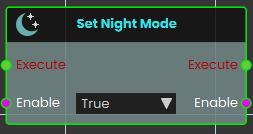
The Set Night Mode node instantly alter the environmental lighting and skybox of the VR scene to nighttime. Once activated, the node evaluates the boolean Enable input—transitioning the scene's overall environment to a dark night mode.
Set Fly Mode
Turns fly mode on or off for a user, letting them move freely up and down through the air instead of being kept on the ground.
What it does
With fly mode on, the chosen user can move up, down, and through the scene freely — handy for inspecting a tall machine from above or getting a bird’s-eye view of a training area. With it off, the user is returned to normal ground-level movement and walks along surfaces as usual.
You pick who this applies to with the User port (just the host, or everyone), and you set whether fly mode is on or off with the Enable port. The node only changes how that user moves — it doesn’t move or alter anything in the scene itself. The same user is passed back out so you can connect more user nodes after it.
Inputs
| Port | Type | What to connect |
|---|---|---|
| Execute | Trigger | Wire this from the previous node’s Execute output to run the node. |
| User | User | Chooses who fly mode applies to. Pick Host Only to affect just the host, or All Users to affect everyone in the session. |
| Enable | True / false | Set to true to turn fly mode on, or false to turn it off and return to normal ground movement. |
Outputs
| Port | Type | What you get |
|---|---|---|
| Execute | Trigger | Fires once the node has finished, so you can continue to the next step. |
| User | User | Passes the same user along so you can chain more user nodes after this one. |
| Enable | True / false | Passes along the on/off value you set, in case a later node needs it. |
Example
| User input | Host Only |
| Enable input | true |
| Enable output | true — the host can now fly freely through the scene |
Tips
- Pair two of these nodes — one with Enable set to
trueand one set tofalse— to let an author toggle flying on and off with a button or voice command. - Remember to turn fly mode back off when it’s no longer needed, so users return to normal walking.
Set Speed Mode
Sets how fast a participant moves around the VR scene — walking, jogging, or running.
What it does
This node changes a participant’s movement speed in the VR environment. When it runs, it looks at the user you target and switches their walking pace to the speed you pick: Walk, Jog, or Run.
You choose whether to change just the host or everyone in the session. The new speed stays in effect until something changes it again, so you can use this node to slow people down in a tight space or let them cover ground quickly in a large scene.
Inputs
| Port | Type | What to connect |
|---|---|---|
| Execute | Trigger | Wire this from the previous node’s Execute output. |
| User | User | Chooses who this applies to. Pick Host Only to change just the host, or All Users to change the speed for everyone in the session. |
| Mode | Choice | The movement speed to apply. Pick one of Walk, Jog, or Run. |
Outputs
| Port | Type | What you get |
|---|---|---|
| Execute | Trigger | Fires once the speed has been set, so you can continue to the next node. |
| User | User | Passes along the same user you targeted, so you can chain more user nodes after this one. |
Example
| User input | All Users |
| Mode input | Run |
| User output | The same participants, ready for the next node |
Tips
- Pair this with a trigger such as entering a large open area to let participants
Run, then switch back toWalkwhen they reach a detailed space. - Use Host Only when you want a guide to keep up with a group without changing everyone’s pace.
Set Speeds Multiplier
Changes how fast a participant moves around in the scene by applying a speed multiplier to them.
What it does
This node sets a movement-speed multiplier on the chosen participant. A value of 1 is normal speed, 2 makes them move twice as fast, and 0.5 slows them to half speed. Use it to speed people up across a large area or slow them down for a careful, detailed task.
The change applies to whichever participant you point the node at — just the host, or everyone. It only adjusts their movement speed; nothing else about the scene or the participant is affected, and the same participant is passed straight out again so you can connect more actions after it.
Inputs
| Port | Type | What to connect |
|---|---|---|
| Execute | Trigger | Wire this from the previous node’s Execute output. |
| User | User | Choose which participant to affect: Host Only or All Users. |
| Value | Number | The speed multiplier. 1 is normal speed, higher is faster, lower is slower. Must not be negative. |
Outputs
| Port | Type | What you get |
|---|---|---|
| Execute | Trigger | Fires once the node has finished. |
| User | User | The same participant you chose, passed along so you can chain more user actions after this one. |
| Value | Number | The multiplier you set, passed along for reuse. |
Example
| User input | All Users |
| Value input | 1.5 |
| Value output | 1.5 |
Tips
- Set the value back to
1when you want participants to return to their normal speed. - A value of
0stops movement entirely — useful for briefly holding everyone in place.