
Add-ons Manager
The Add-ons Manager serves as the central hub for extending the capabilities of SimLab Composer. It allows you to discover, install, and manage extra tools—like the CSV Attribute Manager or Gamepad Integration—to customize your workflow.
Accessing the Manager
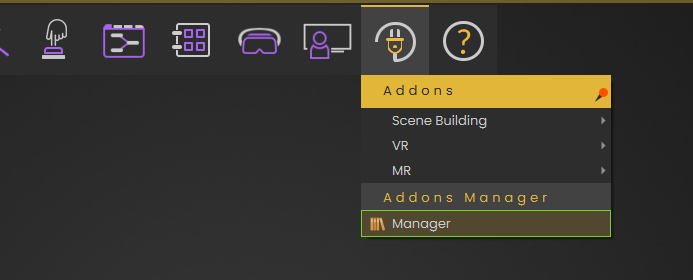
To open the manager, navigate to the main toolbar:
-
Click the Add-ons icon (resembling a power plug).
-
Select Manager from the bottom of the dropdown list.
Key Features & Interface
The Manager window provides a comprehensive overview of all your installed tools.
1. Finding and Organizing
-
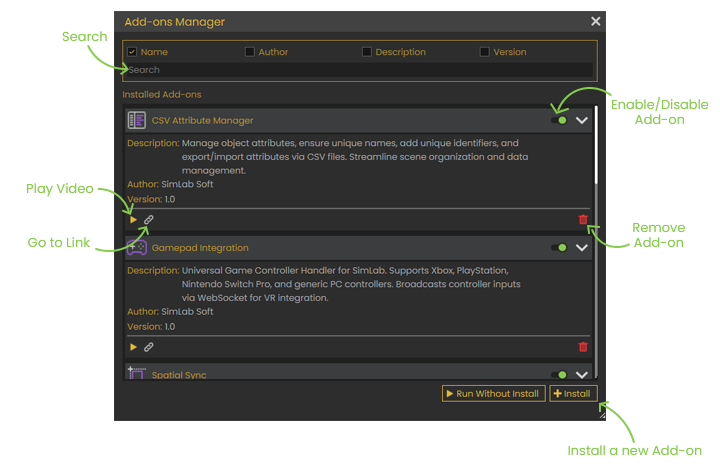
Search Bar: Quickly locate a specific add-on by typing its name in the search field at the top.
-
Filter Criteria: You can refine your search results by Name, Author, Description, or Version.
2. Managing Installed Add-ons
-
Enable/Disable: Use the toggle switch on the right side of any add-on to turn it on or off without uninstalling it.
-
Play Video: Click the Play icon to watch a video tutorial or demonstration of how the add-on works.
-
Help Documentation: Click the Link icon (chain link) to open the official help page or documentation for that specific tool.
-
Remove Add-on: Click the Trash icon to completely uninstall the add-on from your system.
How to Install a New Add-on
Add-ons are typically provided as .zip files. To add a new tool to your library:
-
Click the + Install button located at the bottom right of the Manager window.
-
In the file browser that appears, locate and select the ZIP file for the add-on you wish to install.
-
Click Open. The tool will appear in your "Installed Add-ons" list, where you can then enable it for use.
[!TIP] Run Without Install: If you want to test an add-on briefly without adding it to your permanent library, you can use the Run Without Install button next to the install option.
No Comments