# VR Evaluation
# Introduction
Evaluation allows measuring the performance of the user by using
- [Quizzes](https://simlab-soft.com/help/link/30#bkmrk-page-title)
- [Surveys](https://simlab-soft.com/help/link/32#bkmrk-page-title)
- [User Defined Evaluation](https://simlab-soft.com/help/link/33#bkmrk-page-title)
To have access to the evaluation tool you need to be part of an **organization**, creating organization and managing users in an organization is done through **SimLab Admin**, which is included in **SimLab Composer/VR Studio**.
VR Experiences can be distributed to end users using **SimLab VR Viewer**, or **LMS** (Learning Management System). Any **LMS** supporting **xAPI (Tin Can)** or **Scorm** can be used to distribute VR Experiences to users
In case of no LMS system available, **SimLab VR Viewer** can be used. It includes all what is needed to distribute VR Experiences and VR based Training.
After users run the experience, results can be accessed using **SimLab Admin**.
- [Getting started with VR Evaluation](https://simlab-soft.com/help/books/simlab-composer-help/page/getting-started-with-vr-evaluation)
- [Creating Quiz](https://simlab-soft.com/help/books/simlab-composer-help/page/creating-quiz-Pne)
- [Creating Survey](https://simlab-soft.com/help/books/simlab-composer-help/page/creating-survey)
- [Pre/Post Question Events](https://simlab-soft.com/help/books/simlab-composer-help/page/prepost-question-events)
- [Creating User Defined Evaluation](https://simlab-soft.com/help/books/simlab-composer-help/page/creating-user-defined-evaluation)
- [Distributing VR experiences](https://simlab-soft.com/help/books/simlab-composer-help/page/distributing-vr-experiences)
- [Viewing results](https://simlab-soft.com/help/books/simlab-composer-help/page/viewing-results)
- [Advance xAPI LRS settings](https://simlab-soft.com/help/books/simlab-composer-help/page/advanced-xapi-lrs-settings)
# Getting started with VR Evaluation
To create a VR Experience that includes evaluation you need to be part of an **organization,** which you can be invited to by any **admin** of the organization (each organization can have one or more admins), or you can create an organization using **SimLab Admin**
**SimLab Admin,** allows the admin to define and manage **Admins**/ **Teachers**
For creating lessons and distributing them to students, the user needs to be an **admin** or a **teacher** in the organization. **Admin** has the extra ability of adding and managing other users.
The following tutorial shows the process of creating an organization using **SimLab Admin,** and adding new **admins** and **teachers:**
In addition to creating organizations and defining users, SimLab Admin allows the creation of **Groups** and **Courses**.
**Group** is a collection of **courses** that makes it easy to find them. Educational institutes can for example create groups Like **Summer 2023**
A **Course** is a collection of lessons that serves a purpose, it can be something like **Math 101,** or **Safety introduction**.
When a **lesson** is created it should be added to a **Course**, which is a part of a **Group**.
When creating an organization, a default **Group** and **Course** are added, which can be renamed. Other **Groups** and **Courses** can be added too.
# Creating Quiz
Each Quiz created using Composer/VR Studio may include one or two types of questions
1- **Multiple Choice Question**
2- **Interactive Question**
In a **Multiple Choice Question** the student needs to select the correct answer from any number of choices (from 2 for true/ false question, to any number of choices defined by the instructor).
In an **Interactive Question** the student should select the correct 3D model representing the correct answer.
For the Quiz the teacher can determine the time limit for the student. If the student did not submit answers before this time, answers will be automatically submitted by the end time. The teacher has the option of keeping time open.
VR Experiences can have one or multiple quizzes and/ or surveys. The teacher can determine when a quiz or survey is started, the VR Experience can show material then run a quiz, or it can start with a quiz of survey
The following tutorial shows how to create a quiz using **SimLab Composer/VR Studio:**
# Creating Survey
Each Survey created using Composer/VR Studio may include a mix of three types of questions:
1- **Multiple Choice Question**
2- **Interactive Question** 3- **Star Rating**
In a **Multiple Choice Question** the student needs to select one of the available choices.
In an **Interactive Question** the student should select the 3D model from the scene.
In a **Star Rating**, the user needs to rate the experience (out of 4, 5, or 10 stars), based on the designer's choice
Unlike Quizzes, surveys do not have a correct answer, but it shares with Quizzes other features.
# Pre/Post Question Events
**Training Builder** is needed to determine when to start a Quiz or Survey in the scene. Starting a Quiz and Survey can take place after the student learned new material, or even at the start of the scene if this is simply a Quiz VR Experience.
This is not the only place you need to make Quiz or Survey utilize the **Training Builder**. For a special question you may need to arrange the scene in a specific way, or make sure the student look in a specific direction, for those situations you can use **Pre/Post Question Events**.
This is done by clicking on **Pro/Post Question Event** button on Quiz/Survey dialog
[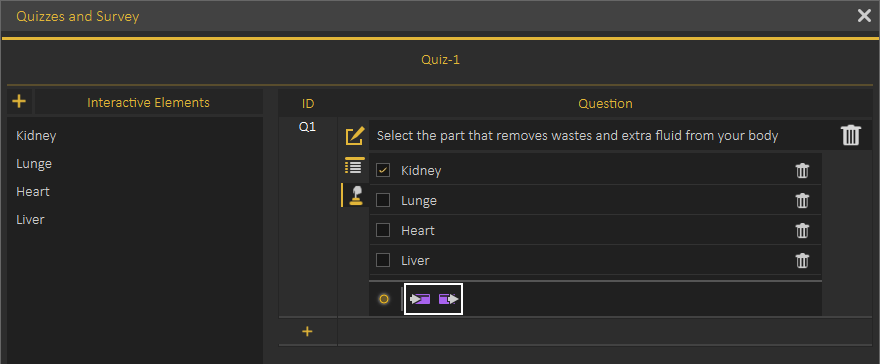](https://simlab-soft.com/help/uploads/images/gallery/2021-12/image-1640878206402.png)
If this is the first time **Pro/Post Question** **Event** button is clicked a new event is added to the **Training Builder** as shown in the following image:
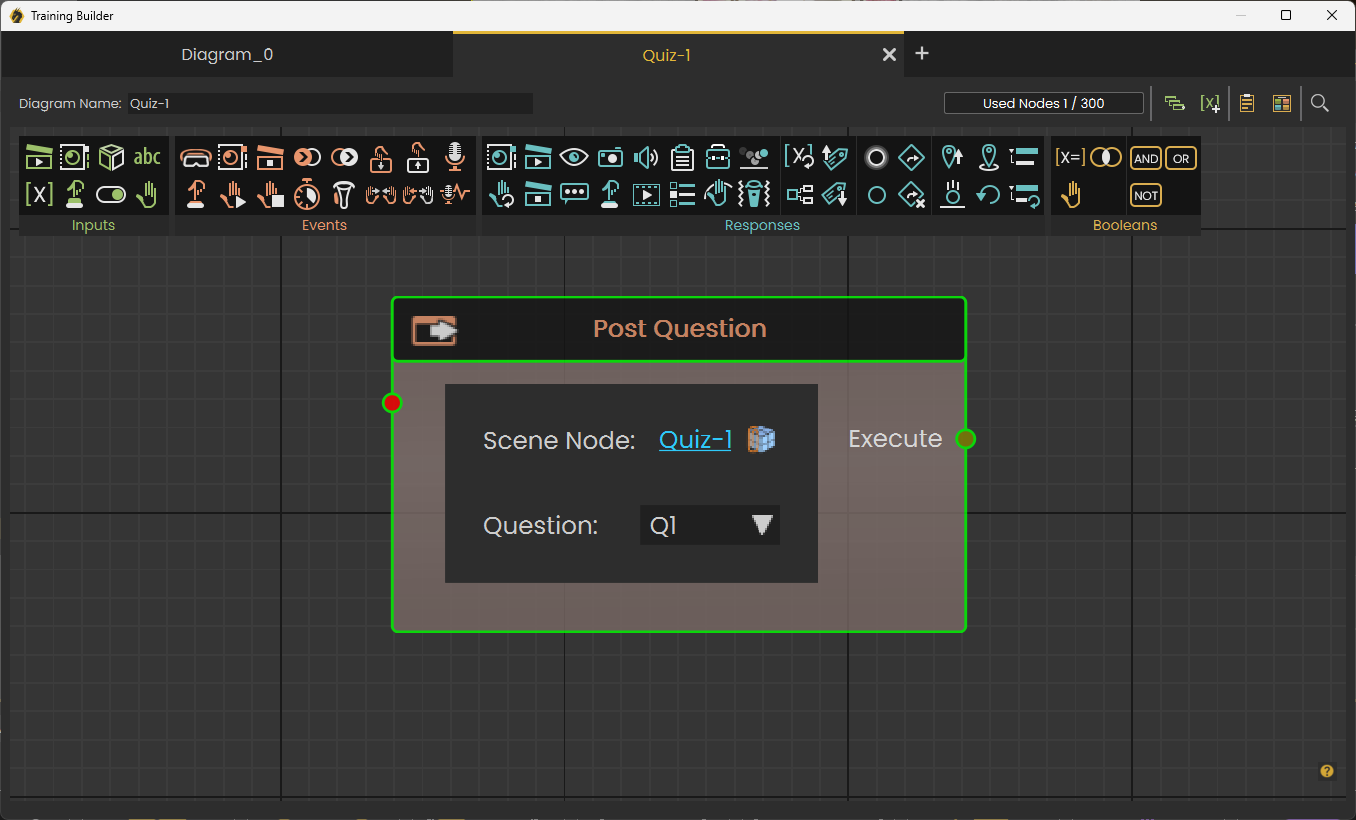
This event can be used to execute all preparations needed for the question.
If it was clicked before it will open the **Training Builder** and focus on the **Pre Question Event** so user can check it, or update it.
**Post Question Events** work in the same way, the only difference is that they are called when the user ends the question, so they are usually used to restore state of the scene if needed.
# Creating User Defined Evaluation
In addition to using Quizzes to evaluate participants in VR, you can create your own customized evaluation criteria through the **Report Response**.
[](https://simlab-soft.com/help/uploads/images/gallery/2023-12/yiZimage.png)
Report is a Response in the **Training Builder** that can be connected to any event, and upon the occurrence of the connected event, it will submit a "User defined status".
[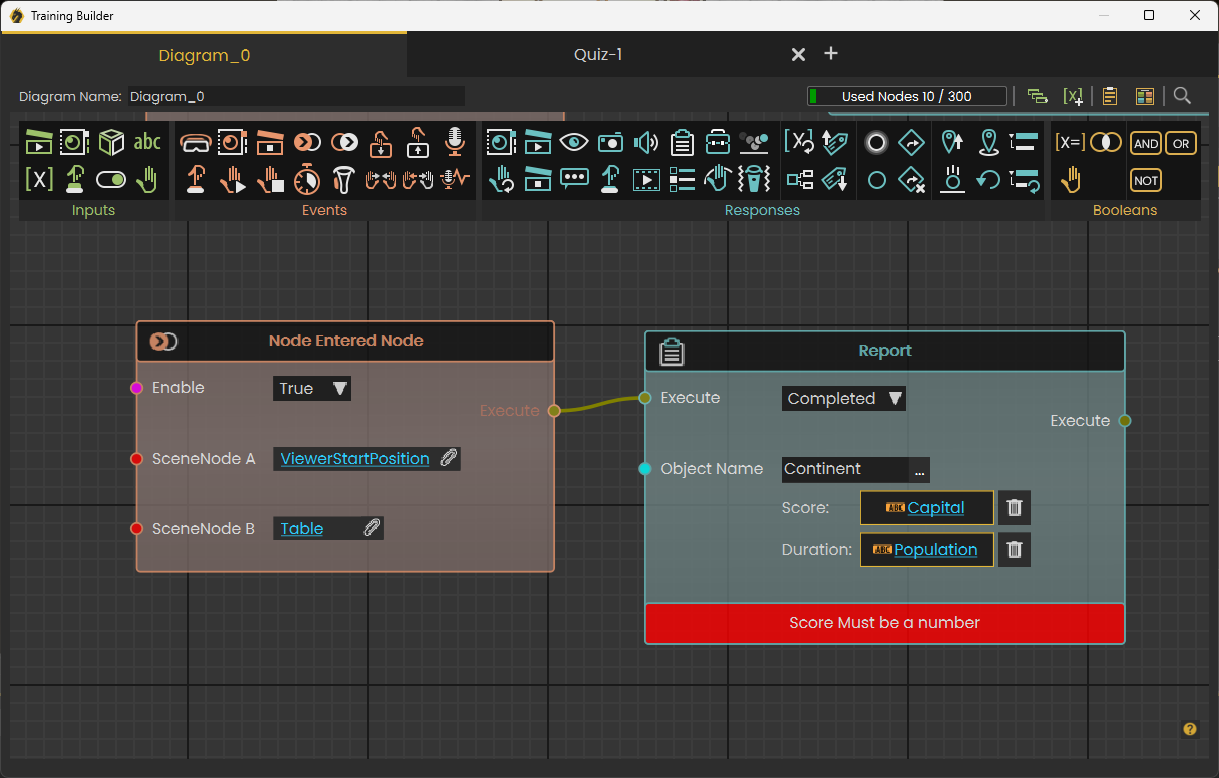](https://simlab-soft.com/help/uploads/images/gallery/2023-12/xskimage.png)
In this example, the Report Response will be triggered once the user enters the object named "Table", and it will report the completion of "Continent", and submit the value of the variable "Capital" as the facing continent, and the value of the Variable "Population" as the duration.
---
#####
#####
##### Report Response Types
There are 4 types of reports that can be submitted using the Response Node :
**1. Completed[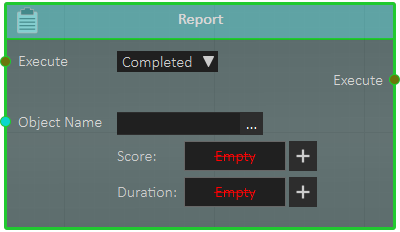](https://simlab-soft.com/help/uploads/images/gallery/2022-01/image-1641199484238.png)**
The Completed Response will report the status "Completed" with an object name that would describe what has been completed, you can also attach a variable to the "Score" field to report a numerical value, as well as a variable to the "Duration" field to report a time interval.
**2. Passed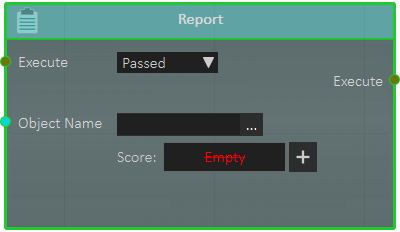**
The Passed Response will report the status "Passed" with an object name that would describe what the user has passed, as well as score, when you attach a variable to the "Score" field to report a numerical value.
**3. Failed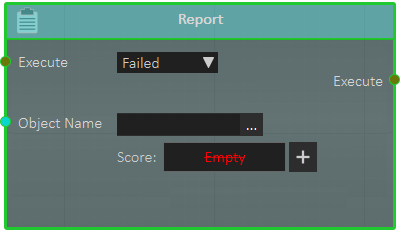**
The Failed Response will report the status "Failed" with an object name that would describe what the user has failed in, as well as score, when you attach a variable to the "Score" field to report a numerical value.
**3. Scored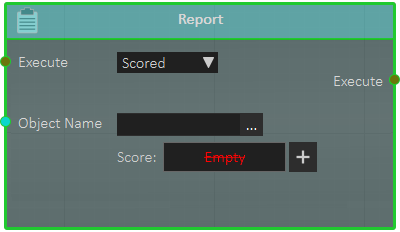**
The Scored Response will report the status "Scored" with an object name that would describe what the user has scored in, as well as the numerical value of the score through attaching a variable to the "Score" field.
---
##### Report Response Versatility
The Report Response, unlike Quizzes, is very versatile and can be used to report the status of any event throughout the VR Experience. You can, for example, have multiple reports for each phase of the experience, or different reports for the same event but are triggered under different conditions.
[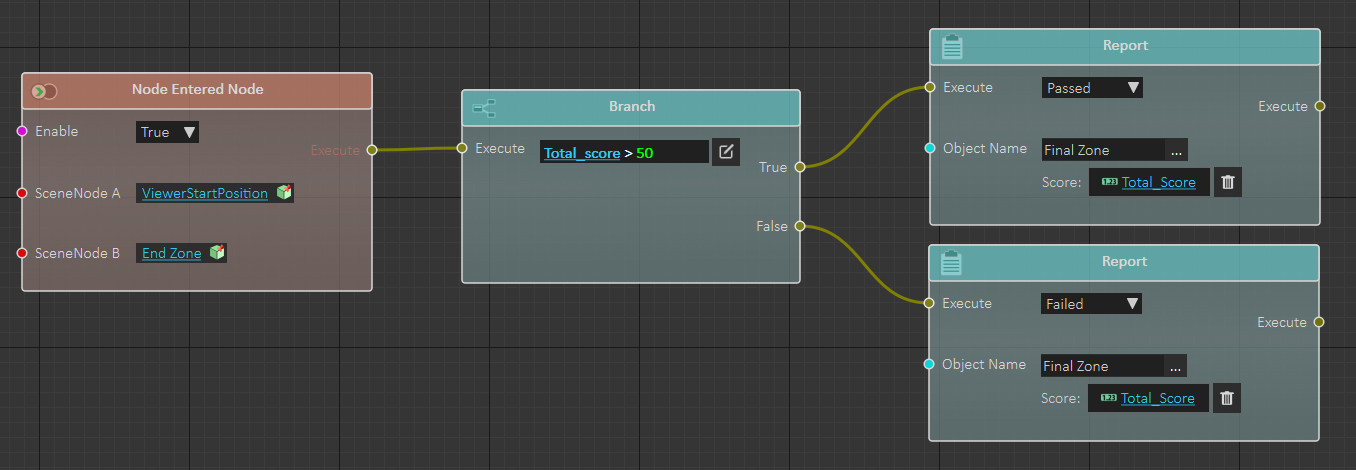](https://simlab-soft.com/help/uploads/images/gallery/2022-01/multireports.jpg) In this example, 2 Report Responses are connected to the same event, but each will be submitted depending on the value of the variable "Total\_score" which will determine whether the user has passed or failed.
To learn more about utilizing the Report Response in VR, watch the following tutorial video:
# Distributing VR experiences
#### Distribution methods
VR experiences created using **Composer/VR Studio** can be shared using SimLab **VR Viewer**, or **LMS** (Learning Management System)
If your organization is already using an LMS, then you may want to utilize it to distribute VR Experiences, if you do not know what an LMS is, or your organization does not have one then you can complete the task using **SimLab VR Viewer**
#### Distribution using SimLab VR Viewer
SimLab **VR Viewer** includes all the tools needed to upload VR Experiences and share them with user(s) or groups. The process is described in the following tutorial:
#### Distribution using LMS
Both **Composer** and **VR** **Studio** support exporting VR Experiences as xAPI (Tin Can) or Scorm packages, both xAPI and Scorm are standards utilized in most LMS systems, if your LMS system supports xAPI or Scorm simply you need to export the VR Experience to the correct output supported by your LMS
##### VR Experience to xAPI
The following tutorial teaches the user how to export the VR Experience as an xAPI package and how to use it in TalentLMS:
#####
##### VR experience to SCORM
The following tutorial teaches the user how to export the VR Experience as a SCORM package and how to use it in Moodle:
Most modern LMS system supports at least one of the two, xAPI or Scorm.
The following tutorial shows how to run VR Eperiences in BlackBoard (BB) LMS
# Viewing Results
After students run VR Experiences including evaluation, teacher can use **SimLab Admin** to view results. To do this, the teacher starts **SimLab Admin,** then logs in to his account.
From **SimLab Admin** the teacher selects the **Group** and **Course** under which the **Lesson** she/he wants to view its results, exists.
By double clicking, the teacher can view results for Quizzes, Surveys, and User defined measurements
The teacher can view **Firs trial**, **Last trial**, or **Highest trial** (assuming multiple trials are allowed), teacher can set passing mark which is by default 50% of the full score, the teacher can export results to CSV file
The following tutorial shows how to use **SimLab Admin** to view results:
# Advanced xAPI LRS Settings
By default SimLab Soft will send the evaluation results into its own secured LRS, however If you have a setup of your own LRS with your LMS, you can configure your experiences to send the results into your own LRS.
#### **How to send results into your own LRS:**
- Go to SimLab Composer/VR Studio.
- Go to **VR Evaluation > LRS Settings**.
[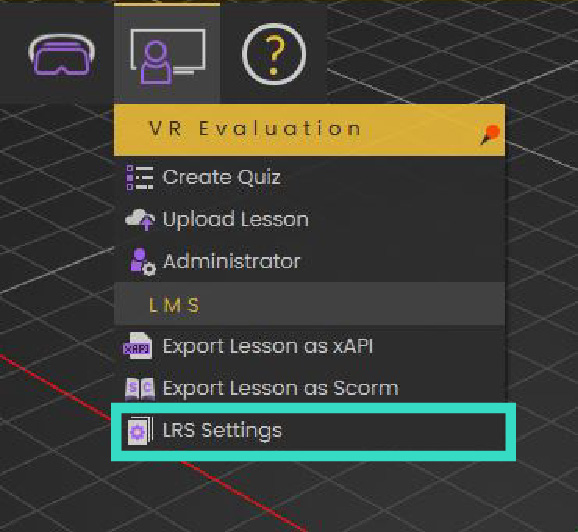](https://simlab-soft.com/help/uploads/images/gallery/2022-12/asset-1.png)
- Choose **custom** LRS settings and **fill** your LRS Authentication information.
[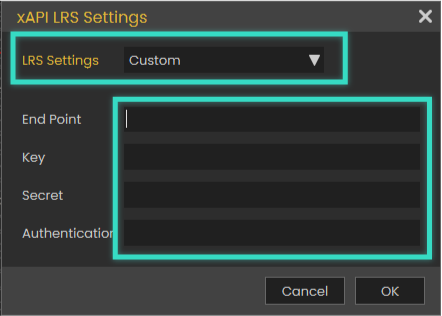](https://simlab-soft.com/help/uploads/images/gallery/2022-12/asset-2.png)
**After doing so, any VR Experience you create should send its result into your LRS system.**
By defining custom LRS settings, It's your responsibility to receive and keep the data on your LMS, SimLab Soft will not save or backup the data anywhere on its VR platform.