# VR Workbench


# 360 Image Menu

[![image.png](https://simlab-soft.com/help/uploads/images/gallery/2022-09/scaled-1680-/gzhimage.png)](https://simlab-soft.com/help/uploads/images/gallery/2022-09/gzhimage.png)
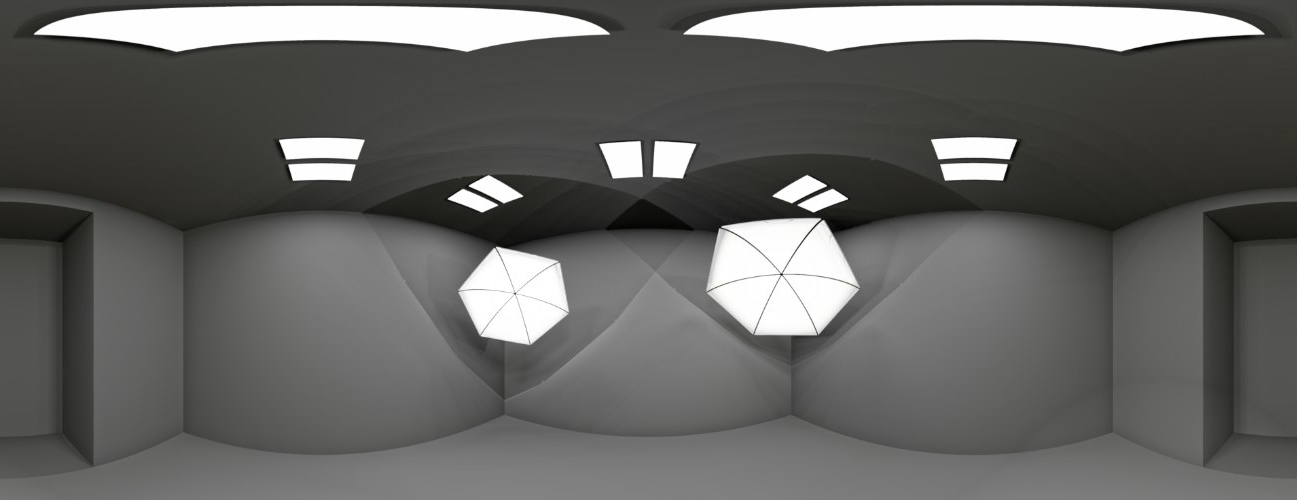
**What is a 360 image?**

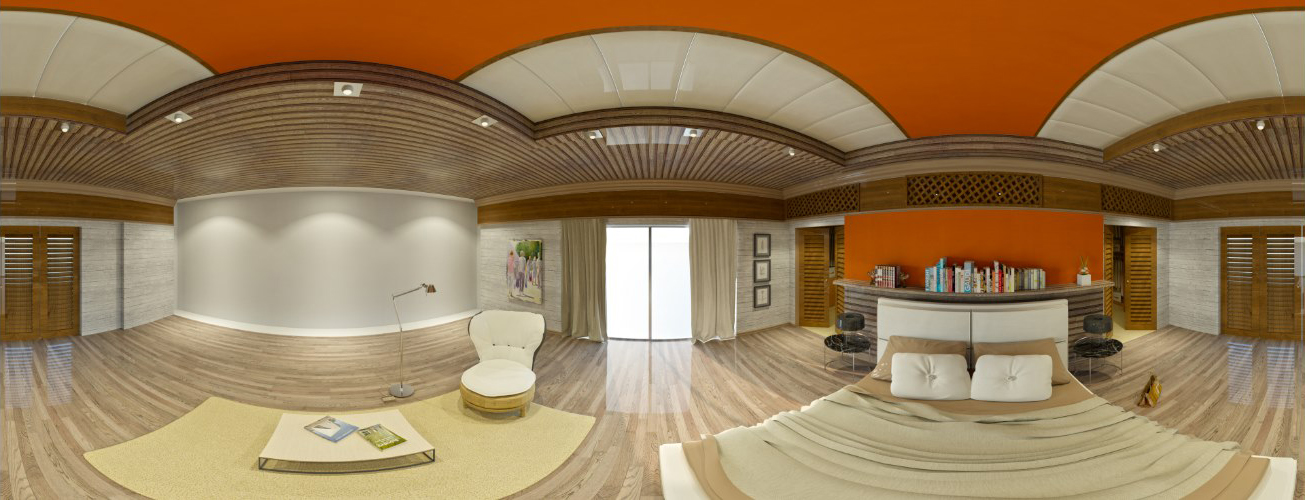
A 360 or panorama image, is a special type of image that allows the user to experience being inside the image in 3D. It simulates the user being in the shoes of the photographer, who took the picture, and looking around to the left, right, up and down as desired as well as sometimes zooming. The user can view the scene on a mobile, using Facebook, using other desktop viewers, or embed it into a website.

[![image.png](https://simlab-soft.com/help/uploads/images/gallery/2022-09/scaled-1680-/CJyimage.png)](https://simlab-soft.com/help/uploads/images/gallery/2022-09/CJyimage.png)
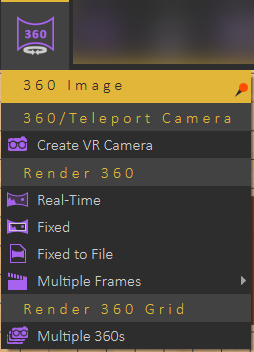
**How to create a 360 image?**

Create a VR camera, and place it in a good position in the center of the scene. In Render Output Settings it is preferred that the output ratio be set to 2:1, SPP 3000, and Rendering Mode to Interior Renderer with Light and Specular depths set to 100. Then select Fixed to File from the 360 Image menu.

This process is shown in the following tutorial.

<iframe allowfullscreen="allowfullscreen" height="314" src="https://www.youtube.com/embed/UCJZVDArriM" width="560"></iframe>

**Ways to share your 360 images**

1. On Facebook
2. On mobile, using SimLab VR Viewer
3. On desktop using SimLab VR Viewer
4. Adding code to embed 360 images in your website

**Sharing 360 images on Facebook**

For 360 images to be automatically detected on Facebook, width to height ratio should be 2 to 1, for example, if the width is 2000 the height of the image should be 1000. Another restriction is with maximum file dimensions of 6000 x 3000 pixels

**Sharing 360 images on Mobile**

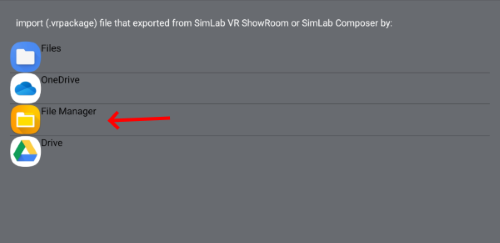
Using the FREE SimLab VR Viewer; with a 360 image created \*.png transfer the image to a mobile, and download File Manager (Mobile, AsusTek Computer Inc.).

- Browse to the 360 image

[![image.png](https://simlab-soft.com/help/uploads/images/gallery/2022-09/scaled-1680-/B0Cimage.png)](https://simlab-soft.com/help/uploads/images/gallery/2022-09/B0Cimage.png)
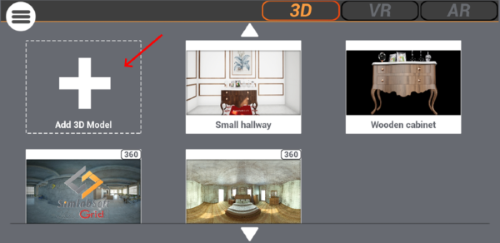
- Select File Manager

[![image.png](https://simlab-soft.com/help/uploads/images/gallery/2022-09/scaled-1680-/lo0image.png)](https://simlab-soft.com/help/uploads/images/gallery/2022-09/lo0image.png)
- Select the image from the list, and experiment with your 360 images!

[![image.png](https://simlab-soft.com/help/uploads/images/gallery/2022-09/scaled-1680-/5IGimage.png) ](https://simlab-soft.com/help/uploads/images/gallery/2022-09/5IGimage.png)[![image.png](https://simlab-soft.com/help/uploads/images/gallery/2022-09/scaled-1680-/k9jimage.png)](https://simlab-soft.com/help/uploads/images/gallery/2022-09/k9jimage.png)
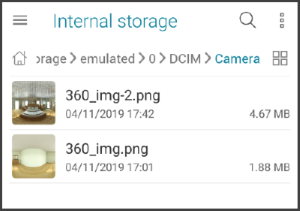
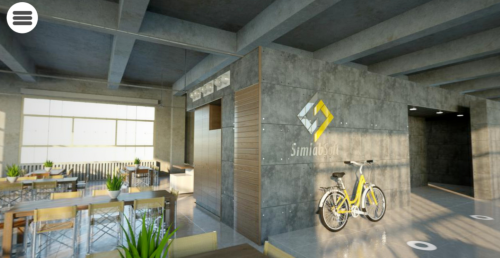
For more details and examples on how to embed a 360 image in a website visit these links: [Link\_1](http://photo-sphere-viewer.js.org/), [Link\_2](https://github.com/JeremyHeleine/Photo-Sphere-Viewer/find/master)

Refer to SimLab 360 Technology[ page](https://www.simlab-soft.com/3d-products/360-help.aspx)

#### Multiple 360s

Multiple 360s allow users to view 360 images that have been created and move among them in VR Viewer.

To use multiple 360s, Follow the steps below:

1. Create VR Camera from the 360 Image Menu and move the camera to the proper location, duplicate the camera and add multiple cameras in the scene (At least two cameras).
2. Select Multiple 360s from the 360 Image Menu to render multiple 360 images.
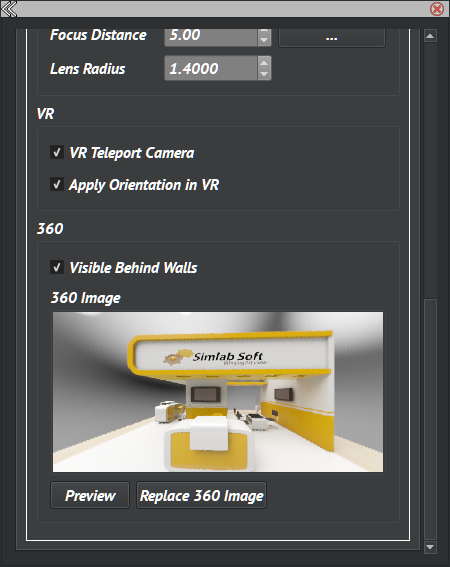
3. When the renders are finished, the render result will appear in the Properties Dialog of the VR Camera under the 360 Section. There the user can preview and change the 360 images, also can make the camera position appear behind walls, and move among the 360 images in the VR Viewer (it's Not Visible by default).  
      
    [![image.png](https://simlab-soft.com/help/uploads/images/gallery/2022-12/scaled-1680-/CUlimage.png)](https://simlab-soft.com/help/uploads/images/gallery/2022-12/CUlimage.png)
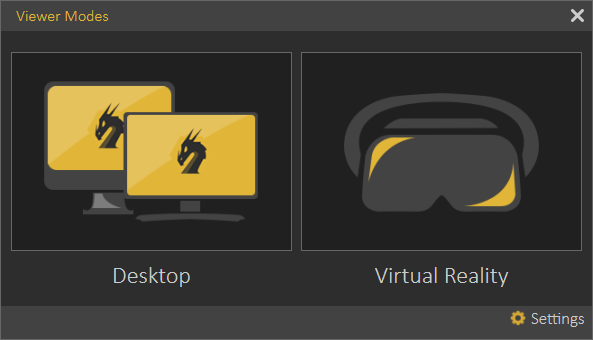
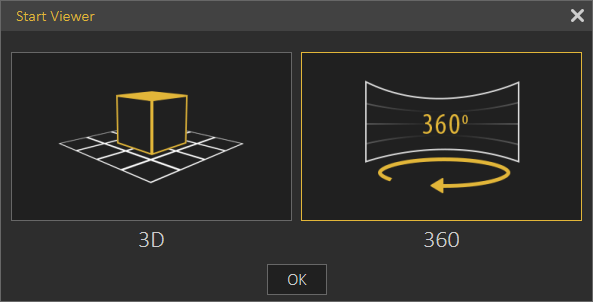
4. To view multiple 360s in VR Viewer, select Show in Viewer from the VR Viewer menu. This will open the Viewer Modes dialog, select Desktop, then from the Start Viewer dialog select 360.  
      
    [![image.png](https://simlab-soft.com/help/uploads/images/gallery/2022-12/scaled-1680-/HgEimage.png)](https://simlab-soft.com/help/uploads/images/gallery/2022-12/HgEimage.png)
    
    [![image.png](https://simlab-soft.com/help/uploads/images/gallery/2022-12/scaled-1680-/N3bimage.png)](https://simlab-soft.com/help/uploads/images/gallery/2022-12/N3bimage.png)
<p class="callout success">360/Panorama Grid (How to create tutorial):</p>

<iframe allowfullscreen="allowfullscreen" height="314" src="https://www.youtube.com/embed/AXO3aq61ADU" width="560"></iframe>

### Teleportation Points

Use Teleportation and VR cameras to navigate large scenes fast, by activating the X-ray view in SimLab VR/Desktop Viewer.

<p class="callout success">This is a guide showing the user how to walk through, and Teleport a scene</p>

<iframe allowfullscreen="allowfullscreen" height="314" src="https://www.youtube.com/embed/z8mNut2ZeWQ" width="560"></iframe>

### High Dynamic Range Image (HDR) Creation

HDR (High Dynamic Range images) or environment images, is one of the preferred methods to light a 3D scene for rendering.  
  
Originally these images were generated using specialized cameras, or through specialized software. Due to the processes involved in generating HDRs, they usually carry licenses that prevents free distribution.  
  
SimLab Composer supports creating: 3D scene HDRs, Studio HDRs, and HDR Studio.

[![image.png](https://simlab-soft.com/help/uploads/images/gallery/2022-12/scaled-1680-/Tmyimage.png)](https://simlab-soft.com/help/uploads/images/gallery/2022-12/Tmyimage.png)
#### Generating HDRs with SimLab Composer

SimLab Composer makes it easy to generate HDR images, with the freedom of distributing them, as any other rendered image created using SimLab Composer. With SimLab Composer, the user can create multiple 360 render images from the VR Viewer faster and easier without consuming the processor of the device.

<p class="callout success">View the following tutorial to learn how to create HDR images using SimLab Composer.</p>

<iframe allowfullscreen="allowfullscreen" height="314" src="https://www.youtube.com/embed/AgKBOoR3zWI" width="560"></iframe>

#### Sharing HDRs  


If you generate a special HDR that you want to share with other SimLab Composer users, please send an email to support@simlab-soft.com and we will be glad to share it with the community.

# VR Effects / Media Menu

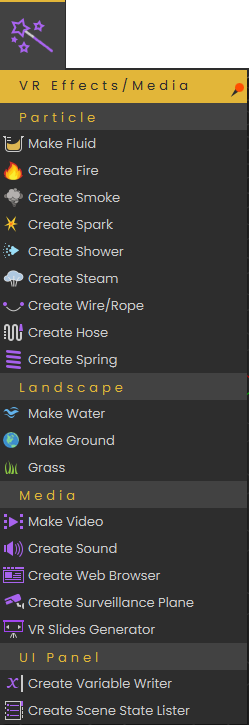
This menu allows the user to add visual effects and dynamic elements to the VR Experience .

It is organized in the following groups:

- <span style="color: #3366ff;">[**Particle**](https://simlab-soft.com/help/books/simlab-composer-11-help/page/vr-effects-media-menu#bkmrk-particles-group)</span>
- <span style="color: #3366ff;">**[Landscape](https://simlab-soft.com/help/books/simlab-composer-11-help/page/vr-effects-media-menu#bkmrk-landscape-group)**</span>
- <span style="color: #3366ff;">**[Media](https://simlab-soft.com/help/books/simlab-composer-11-help/page/vr-effects-media-menu#bkmrk-media-group)**</span>
- <span style="color: #3366ff;">**[UI Panels](https://simlab-soft.com/help/books/simlab-composer-11-help/page/vr-effects-media-menu#bkmrk-ui-panel-group)**</span>

[ ](https://simlab-soft.com/help/uploads/images/gallery/2022-10/image.png)[![image.png](https://simlab-soft.com/help/uploads/images/gallery/2024-01/scaled-1680-/Qreimage.png)](https://simlab-soft.com/help/uploads/images/gallery/2024-01/Qreimage.png)
### Particles Group 

Includes the below visual effects supported in SimLab Composer/VR Studio:

[<span style="color: rgb(35, 111, 161);">Make Fluid</span>](https://simlab-soft.com/help/link/178#bkmrk-create-fire-and-smok)  
<span style="color: rgb(35, 111, 161);">[Create Fire](https://simlab-soft.com/help/books/simlab-composer-help/page/vr-effects-media-menu#bkmrk-create-fire-and-smoke)</span>  
<span style="color: rgb(35, 111, 161);">[Create Smoke](https://simlab-soft.com/help/books/simlab-composer-11-help/page/vr-effects-media-menu#bkmrk-create-fire-and-smok)</span>  
<span style="color: rgb(35, 111, 161);">[Create Spark ](https://simlab-soft.com/help/books/simlab-composer-11-help/page/vr-effects-media-menu#bkmrk-create-spark)  
[Create Shower](https://simlab-soft.com/help/books/simlab-composer-11-help/page/vr-effects-media-menu#bkmrk-create-shower)  
[Create Steam](https://simlab-soft.com/help/books/simlab-composer-help/page/vr-effects-media-menu#bkmrk-create-steam)  
[Create Wire/Rope](https://simlab-soft.com/help/books/simlab-composer-help/page/vr-effects-media-menu#bkmrk-create-wire%2Frope)   
[Create Hose](https://simlab-soft.com/help/books/simlab-composer-help/page/vr-effects-media-menu#bkmrk-create-hose)  
[Create Spring](https://simlab-soft.com/help/books/simlab-composer-11-help/page/vr-effects-media-menu#bkmrk-create-spring)</span>

##### Make Fluid

Enables users to convert selected 3D shapes into fluids. To learn more about this feature check the following tutorial:

<iframe allowfullscreen="allowfullscreen" height="314" src="https://www.youtube.com/embed/mVi7wBasDrg" width="560"></iframe>

##### Create Fire and Smoke

Enables the user to add fire effect to the scene, this can be a large trailing fire, a stove, or a candle.  
Fire effect automatically includes smoke option to be shown with the fire. If the user wants smoke alone without fire, then **Create Smoke** can be used.  
  
The following tutorial shows the process of creating fire and smoke in Composer/VR Studio:  
  
<iframe allowfullscreen="allowfullscreen" height="314" src="//www.youtube.com/embed/i0RoYT5QjX0" width="560"></iframe>

#### Create Spark 

Spark effect can be used to show electrical sparks, or welding effect. The following tutorial shows how to create the spark effect:

<iframe allowfullscreen="allowfullscreen" height="314" src="//www.youtube.com/embed/8ErcaPylCl4" width="560"></iframe>

##### Create Shower

For creating moving water or liquid effect in SimLab Composer or VR Studio, this can be done using shower effect. It allows the user to control color, speed and strength of water flow. The following tutorial shows the process of creating the shower effect:

<iframe allowfullscreen="allowfullscreen" height="314" src="//www.youtube.com/embed/fNQ4lmWHhdY" width="560"></iframe>

##### Create Steam

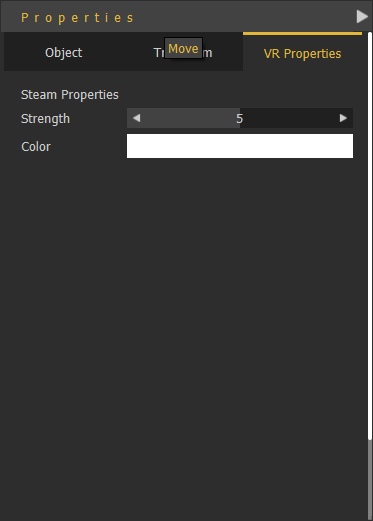
Creates steam effect in the VR Experience with the VR Properties shown below. The user can change the steam strength and color in the Properties dialog.

[![image.png](https://simlab-soft.com/help/uploads/images/gallery/2022-10/scaled-1680-/RVzimage.png)](https://simlab-soft.com/help/uploads/images/gallery/2022-10/RVzimage.png)
##### Create Wire/Rope

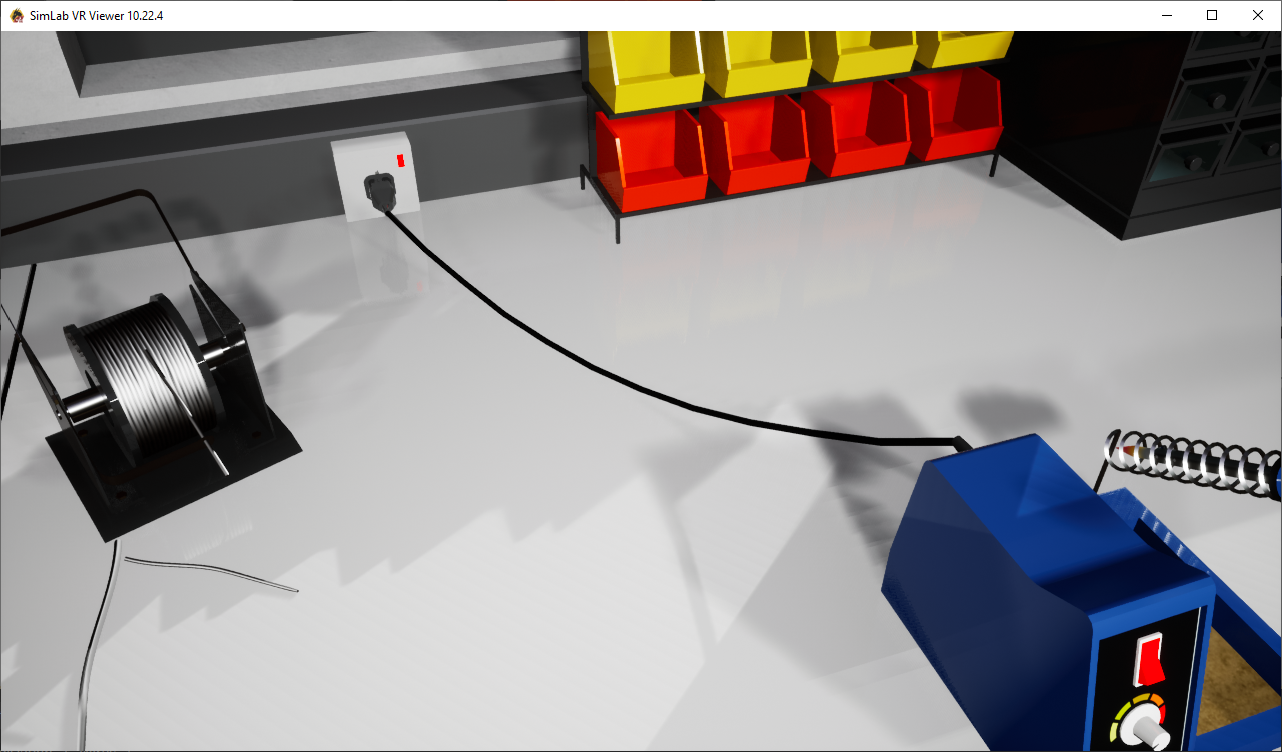
Creates connecting wires in the scene, like connecting the s<span class="a-size-large product-title-word-break" id="bkmrk-oldering">oldering </span><span class="a-size-large product-title-word-break" id="bkmrk-soldering-kit-shown-" style="font-family: -apple-system, BlinkMacSystemFont, 'Segoe UI', Oxygen, Ubuntu, Roboto, Cantarell, 'Fira Sans', 'Droid Sans', 'Helvetica Neue', sans-serif; font-size: 17.6px; font-style: normal; font-variant-ligatures: normal; font-variant-caps: normal; font-weight: 400; outline-color: var(--color-primary);">kit shown below with its electric plug</span><span style="font-family: -apple-system, BlinkMacSystemFont, 'Segoe UI', Oxygen, Ubuntu, Roboto, Cantarell, 'Fira Sans', 'Droid Sans', 'Helvetica Neue', sans-serif; font-size: 17.6px; font-style: normal; font-variant-ligatures: normal; font-variant-caps: normal; font-weight: 400;">.  
  
</span><span style="font-family: -apple-system, BlinkMacSystemFont, 'Segoe UI', Oxygen, Ubuntu, Roboto, Cantarell, 'Fira Sans', 'Droid Sans', 'Helvetica Neue', sans-serif; font-size: 17.6px; font-style: normal; font-variant-ligatures: normal; font-variant-caps: normal; font-weight: 400;">[![Create_Wire2.png](https://simlab-soft.com/help/uploads/images/gallery/2021-12/scaled-1680-/create-wire2.png)](https://simlab-soft.com/help/uploads/images/gallery/2021-12/create-wire2.png)</span>

<span style="font-family: -apple-system, BlinkMacSystemFont, 'Segoe UI', Oxygen, Ubuntu, Roboto, Cantarell, 'Fira Sans', 'Droid Sans', 'Helvetica Neue', sans-serif; font-size: 17.6px; font-style: normal; font-variant-ligatures: normal; font-variant-caps: normal; font-weight: 400;">The following tutorial shows the process of creating a wire:</span>

<span style="font-family: -apple-system, BlinkMacSystemFont, 'Segoe UI', Oxygen, Ubuntu, Roboto, Cantarell, 'Fira Sans', 'Droid Sans', 'Helvetica Neue', sans-serif; font-size: 17.6px; font-style: normal; font-variant-ligatures: normal; font-variant-caps: normal; font-weight: 400;"><iframe allowfullscreen="allowfullscreen" height="314" src="//www.youtube.com/embed/Y0yUQlmvHwU" width="560"></iframe>

</span>

##### Create <span style="color: rgb(0, 0, 0);">Hose</span>


<span style="color: rgb(0, 0, 0);">Clicking this tool will create two points in the 3D area, a start point and an end point. Adjust their location to the desired location. For more about this tool check this [tutorial](https://youtu.be/F0o_tARqGl4).</span>

##### Create Spring

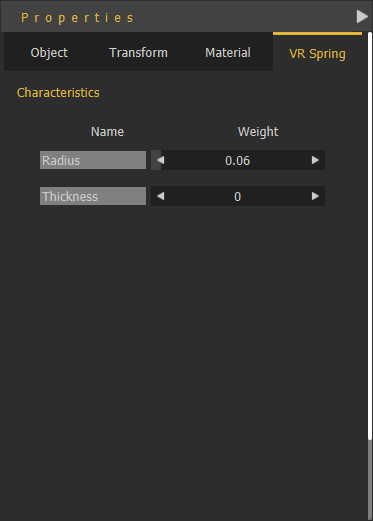
Creates a 3D spring model with the length specified by the start and end points selected by the user. A 3D Geom for the spring will be added to the Scene Browser with its two endpoints. These points can be selected and transformed, thus changing the shape/length of the spring.

[![image.png](https://simlab-soft.com/help/uploads/images/gallery/2022-10/scaled-1680-/LR1image.png)](https://simlab-soft.com/help/uploads/images/gallery/2022-10/LR1image.png)With the created spring selected, its Properties panel will appear, VR Spring properties Radius, and Thickness can be edited.
### Landscape Group

#### Make Water

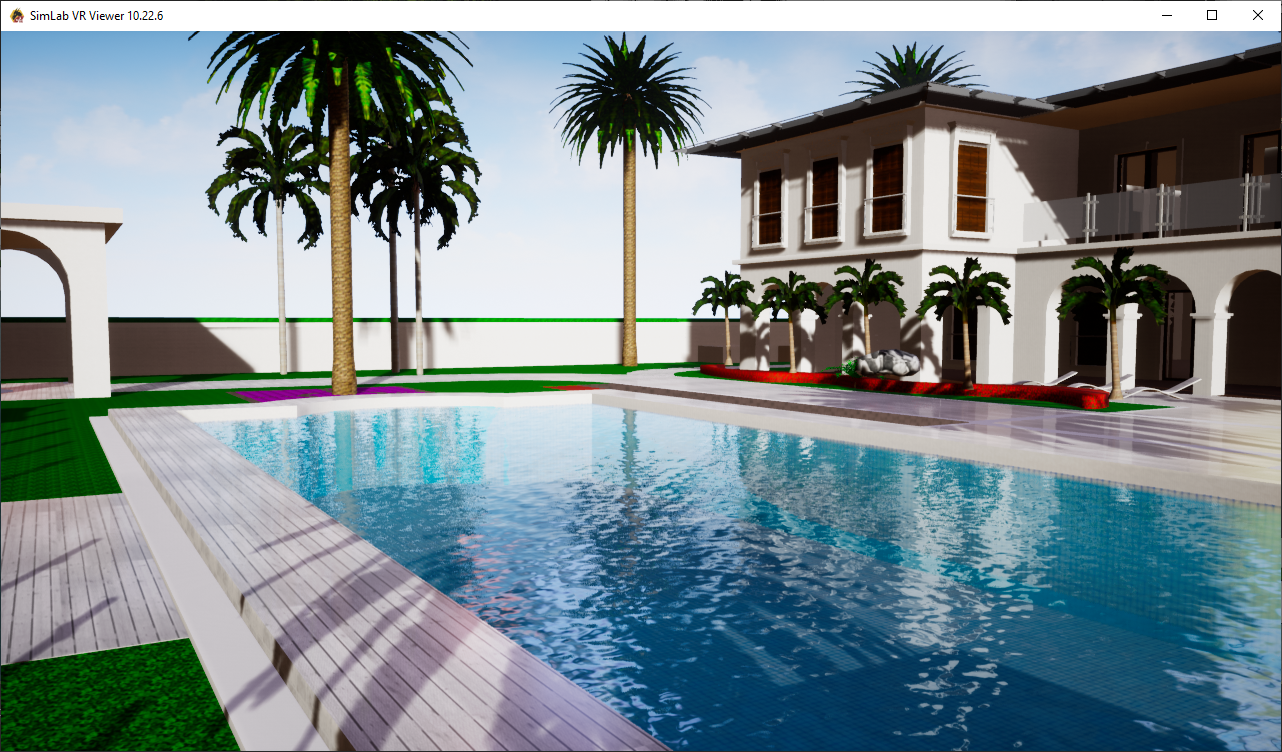
Make water works on one object or group of objects, the process is as follows:

1. From the **Effects** menu » select **Make Water**.
2. Select 3D object(s) to become water, then click [![image-1641559302867.png](https://simlab-soft.com/help/uploads/images/gallery/2022-01/scaled-1680-/image-1641559302867.png)](https://simlab-soft.com/help/uploads/images/gallery/2022-01/image-1641559302867.png)

In the **Scene Browser** notice that the shape of the icon for the 3D object(s) has changed to a water shape.

The water settings can be adjusted from the **VR Water** tab in the **Properties** dialog. Water settings are:

- **Water Color:** The user can select a color to use for the water.
- **Water Depth,** **Water Speed, Water Turbidity, Wave Speed, Wave Size and Wave Roughness:** These parameters can be used to make more realistic water surface.

[![image-1640854173697.png](https://simlab-soft.com/help/uploads/images/gallery/2021-12/scaled-1680-/image-1640854173697.png)](https://simlab-soft.com/help/uploads/images/gallery/2021-12/image-1640854173697.png)
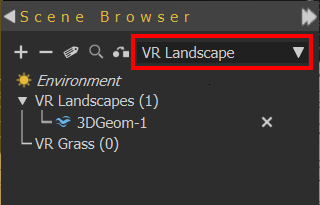
To remove the water effect, from **Scene Browser,** top combo box, select VR Landscape. An 'X' mark will appear next to the water geometry, click it to remove the water effect.

[![Remove_water.png](https://simlab-soft.com/help/uploads/images/gallery/2022-01/scaled-1680-/5NYremove-water.png)](https://simlab-soft.com/help/uploads/images/gallery/2022-01/5NYremove-water.png)
#### Make Ground

Ground objects are objects the user can teleport to in VR. By default the user does not need to set ground objects. Any object with good orientation (has normal close to the up vector) is considered ground.

If the user wants to have more control and wants to prevent others from moving all around the scene, the user can use **Make Ground** to define the object(s) the user can teleport to. When **Make Ground** tool is used, **default ground is turned off**, and only objects defined as ground by the user are considered as ground

Push and hold the stick on a VR controller to activate teleportation mode. Then Release to teleport to a valid destination.

- A **green teleportation** pointer indicates possible teleportation on an object.
- A **red teleportation** pointer indicates forbidden teleportation on an object.

<table border="1" id="bkmrk--9" style="border-collapse: collapse; width: 100%;"><tbody><tr><td style="width: 50%;">[![image-1639765256812.png](https://simlab-soft.com/help/uploads/images/gallery/2021-12/scaled-1680-/image-1639765256812.png)](https://simlab-soft.com/help/uploads/images/gallery/2021-12/image-1639765256812.png)

</td><td style="width: 50%;">[![image-1639765261188.png](https://simlab-soft.com/help/uploads/images/gallery/2021-12/scaled-1680-/image-1639765261188.png)](https://simlab-soft.com/help/uploads/images/gallery/2021-12/image-1639765261188.png)

</td></tr></tbody></table>

#### Grass

Enable users to add realistic grass effect to VR scenes. Selecting this VR effect will open the VR Grass Generator dialog.

[![image-1640855433922.png](https://simlab-soft.com/help/uploads/images/gallery/2021-12/scaled-1680-/image-1640855433922.png)](https://simlab-soft.com/help/uploads/images/gallery/2021-12/image-1640855433922.png)
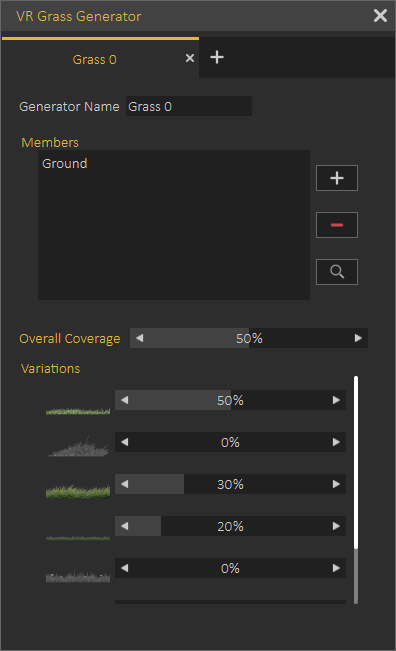
VR Grass Generation dialog allows the user to control:

- Generator Name
- Geometry the grass should be added to, select the geometry then click (+)
- Overall Coverage with grass from the selected object
- The percentage of the different kinds of grass to be generated

The following video shows a sample of Grass effect in action:

<iframe allowfullscreen="allowfullscreen" height="314" src="//www.youtube.com/embed/2thOApSS_J8" width="560"></iframe>

The following tutorial shows how to use grass in Composer or VR Studio:  
  
<iframe allowfullscreen="allowfullscreen" height="314" src="//www.youtube.com/embed/u6oj9b2oKk0" width="560"></iframe>

### Media Group

#### Make Video

With Make Video effect, the user can convert any 3D object to a video player. The video should be an **MP4** file.

The user can use a URL link in which case the video will be streamed during the VR Experience, or a local link for a file on the users machine. Local videos are automatically added to the VR Experience package, so the videos can still play when VR Experiences are distributed

The following dialog shows the VR Video properties:

[![image-1639765420586.png](https://simlab-soft.com/help/uploads/images/gallery/2021-12/scaled-1680-/image-1639765420586.png)](https://simlab-soft.com/help/uploads/images/gallery/2021-12/image-1639765420586.png)
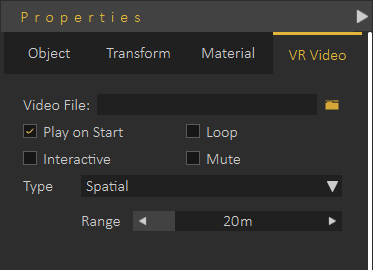
To learn how to use Video effect in VR, check the following tutorial:

<iframe allowfullscreen="allowfullscreen" height="314" src="//www.youtube.com/embed/QHKHIUIto5M" width="560"></iframe>

#### Remove Video

To remove a video click the "X" mark in the Scene Browser next to the 3D geometry including the video.

[![image-1639765500793.png](https://simlab-soft.com/help/uploads/images/gallery/2021-12/scaled-1680-/image-1639765500793.png)](https://simlab-soft.com/help/uploads/images/gallery/2021-12/image-1639765500793.png)
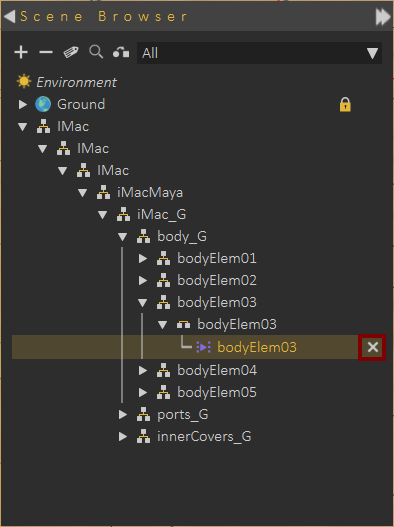
**Video Action** response in VR Training Builder can be used to control the Video play in VR. It can be used to pause, play, toggle, or seek in VR, as a response to an event. For more info about Video Actions in VR Training Builder check this <span style="text-decoration: underline;"><span style="color: #0000ff;">[tutorial](https://youtu.be/96HWC7eufGk)</span></span>.

#### Create Sound

This function adds 3D Sound object to the scene, and the **Scene Browser**. Selecting the 3D Sound form the tree will display its properties in the **Properties Panel**, **VR Sound** tab. The 3D sound object occupies a location in the 3D scene.

The user can determine if the sound should be played on start of the scene, or not. To be played once or in a loop.

The type of the 3D Sound can either be **Spatial**, which means the sound volume is automatically affected by the location of the 3D sound in the scene, or **Constant**. Constant sounds when played has the same volume in all areas of the scene.

[![image-1640856128399.png](https://simlab-soft.com/help/uploads/images/gallery/2021-12/scaled-1680-/image-1640856128399.png)](https://simlab-soft.com/help/uploads/images/gallery/2021-12/image-1640856128399.png)
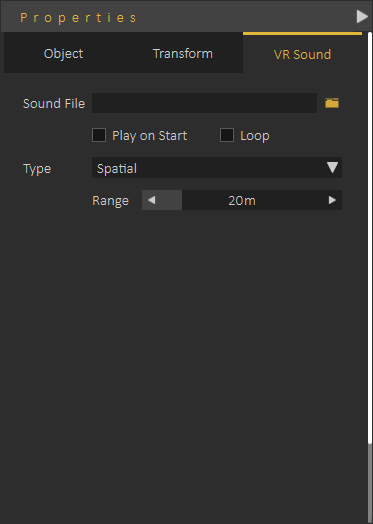
For more information about VR Sound check this **<span style="text-decoration: underline;"><span style="color: rgb(51, 102, 255); text-decoration: underline;">[tutorial](https://youtu.be/Pv1OFdxb8dE)</span></span>**

### Create Web Browser

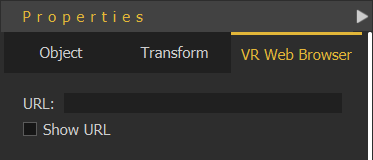
Adds a flat screen **VR Web Browser** element to the Scene Browser, and the 3D area. In the Properties dialog under the **VR Web Browser** tab the user can input the URL for the browser to display.

[![image-1640856957969.png](https://simlab-soft.com/help/uploads/images/gallery/2021-12/scaled-1680-/image-1640856957969.png)](https://simlab-soft.com/help/uploads/images/gallery/2021-12/image-1640856957969.png)
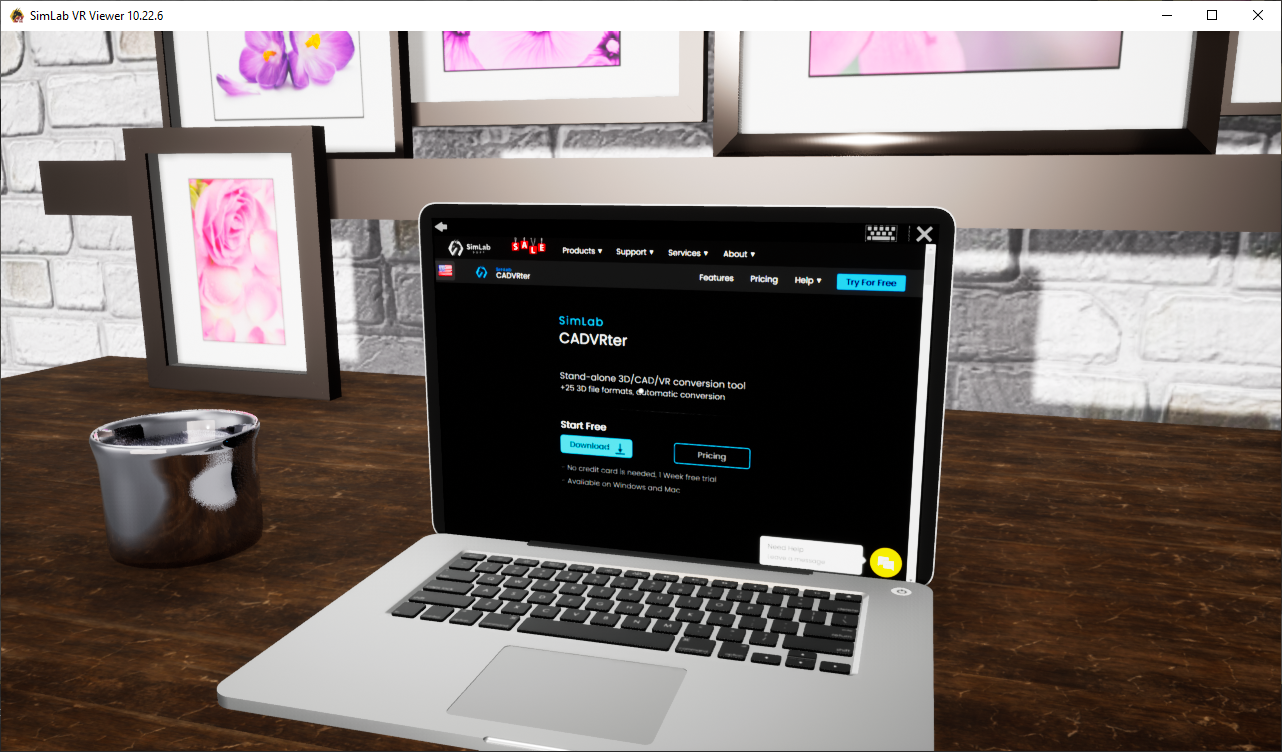
The user can change the width and height of the Web Browser plane using the white points that appear on it when selected. The web browser can be placed on a PC screen, or a full wall in the VR Experience.

[![VR_WebBrowser.png](https://simlab-soft.com/help/uploads/images/gallery/2022-01/scaled-1680-/wbbvr-webbrowser.png)](https://simlab-soft.com/help/uploads/images/gallery/2022-01/wbbvr-webbrowser.png)
#### Create Surveillance Plane

**Surveillance Plane** allows the user to view far or not easy to view parts of the scene using **a VR Camera**. VR Surveillance plane is linked to the camera so it shows what the camera is seeing. The following tutorial shows how to use **VR Surveillance.**

<iframe allowfullscreen="allowfullscreen" height="314" src="//www.youtube.com/embed/uXWCeDG_QNs" width="560"></iframe>

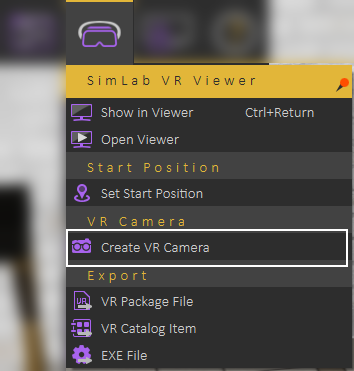
Creating **VR Camera** is available under **VR Viewer menu.**

[![image-1640857427829.png](https://simlab-soft.com/help/uploads/images/gallery/2021-12/scaled-1680-/image-1640857427829.png)](https://simlab-soft.com/help/uploads/images/gallery/2021-12/image-1640857427829.png)
#### VR Slides Generator

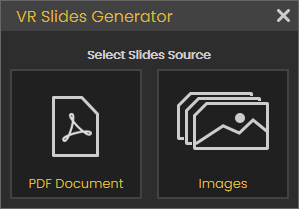
<div id="bkmrk-powerpoint-presentat">PowerPoint presentations or PDF files generated in the past can now be utilized easily in VR Experiences. In few clicks you will be able to get the presentation and optionally a small podium version of it for an amazing VR Experience. </div><div id="bkmrk-vr-slides-generator-">VR Slides Generator tool will automatically create the needed training builder blocks to make it easy to utilize slide switching as an event, for example to show/hide a 3D object that works well with[![image.png](https://simlab-soft.com/help/uploads/images/gallery/2023-06/scaled-1680-/Ytximage.png)](https://simlab-soft.com/help/uploads/images/gallery/2023-06/Ytximage.png) your presentation. To learn more about this tool check this **<span style="text-decoration: underline;"><span style="color: rgb(0, 0, 0); text-decoration: underline;">[tutorial](https://discordapp.com/channels/1062715275805470821/1072111738184552478)</span></span>.**</div><div id="bkmrk--20"></div><div id="bkmrk--21"></div><div id="bkmrk--22">  
</div><div id="bkmrk--23">  
</div>###   


### UI Panel Group

#### Create Variable Writer

This tool enables the user to track the value of a **VR Variable** in the VR experience.  
Click <span style="text-decoration: underline;"><span style="color: #0000ff; text-decoration: underline;">[Here](https://simlab-soft.com/help/link/22#bkmrk-variables-and-expres)</span></span> to learn more about creating VR Variables.

The value of the variable will be updated dynamically, so whenever the variable value changes the variable writer will be updated to show the new value of the variable. The user can control the size, and place for the variable writer, so it can be aligned on a wall in the scene or on a monitor.

User selects which variable to view, color of the text, and prefix text.

You can also change its horizontal and vertical text alignment, check **"Max String Length"** to keep the font size fixed, and finally check **"Editable"** if you want to be able to edit the variable that it contains directly while running the VR Experience in the Viewer

#### Create Scene States Lister

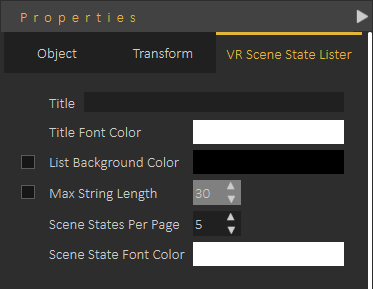
Scene State Lister automates the processes of showing the **Scene States** in the scenes and allows the user to switch between them during the VR Experience.   
  
Adding a Scene State Lister will add it to the 3D area, and the Scene Browser. The user can control **Scene State Lister** parameters from VR Scene State Lister tab in the **Properties Panel**, as shown in the following image.

[![image-1640859822645.png](https://simlab-soft.com/help/uploads/images/gallery/2021-12/scaled-1680-/image-1640859822645.png)](https://simlab-soft.com/help/uploads/images/gallery/2021-12/image-1640859822645.png)
The following tutorial shows how to use **Scene State Lister** in a VR Experience:

<iframe allowfullscreen="allowfullscreen" height="314" src="//www.youtube.com/embed/u--kbChJMDY" width="560"></iframe>

# Interactions Menu

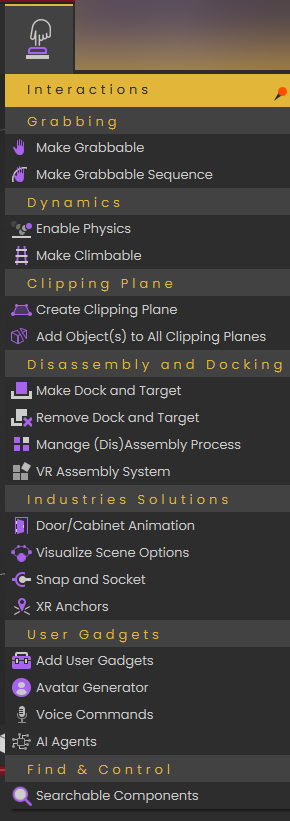
Allows users to define interactions in VR scenes.

[ ](https://simlab-soft.com/help/uploads/images/gallery/2022-01/interactionsmenu.png)[ ](https://simlab-soft.com/help/uploads/images/gallery/2023-01/image.png)[ ](https://simlab-soft.com/help/uploads/images/gallery/2023-11/77limage.png)[ ](https://simlab-soft.com/help/uploads/images/gallery/2024-09/Lm7image.png)[![image.png](https://simlab-soft.com/help/uploads/images/gallery/2025-08/scaled-1680-/nHBimage.png)](https://simlab-soft.com/help/uploads/images/gallery/2025-08/nHBimage.png)
### Grabbing Group

#### Make Grabbable

Makes selected object(s) **grabbable** in the scene. A grabbable object is an object that can be grabbed by a controller in a VR Experience or using the desktop hand and can be moved from one place to another.

[![image-1640597943069.png](https://simlab-soft.com/help/uploads/images/gallery/2021-12/scaled-1680-/image-1640597943069.png)](https://simlab-soft.com/help/uploads/images/gallery/2021-12/image-1640597943069.png)
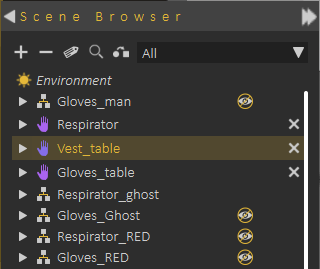
Grabbable objects are highlighted clearly in the **Scene Browser**

---

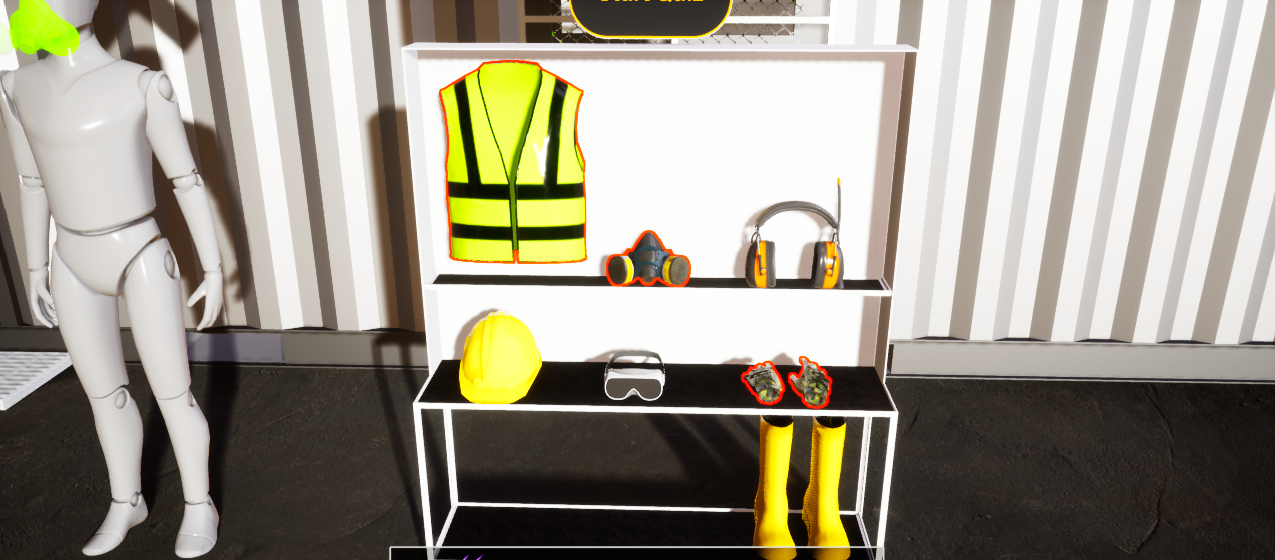
Grabbable objects are highlighted in the Desktop or VR viewing modes with orange or red highlight , as shown in the following image:

[![image-1640598102544.png](https://simlab-soft.com/help/uploads/images/gallery/2021-12/scaled-1680-/image-1640598102544.png)](https://simlab-soft.com/help/uploads/images/gallery/2021-12/image-1640598102544.png)
#### Make Grabbable Sequence

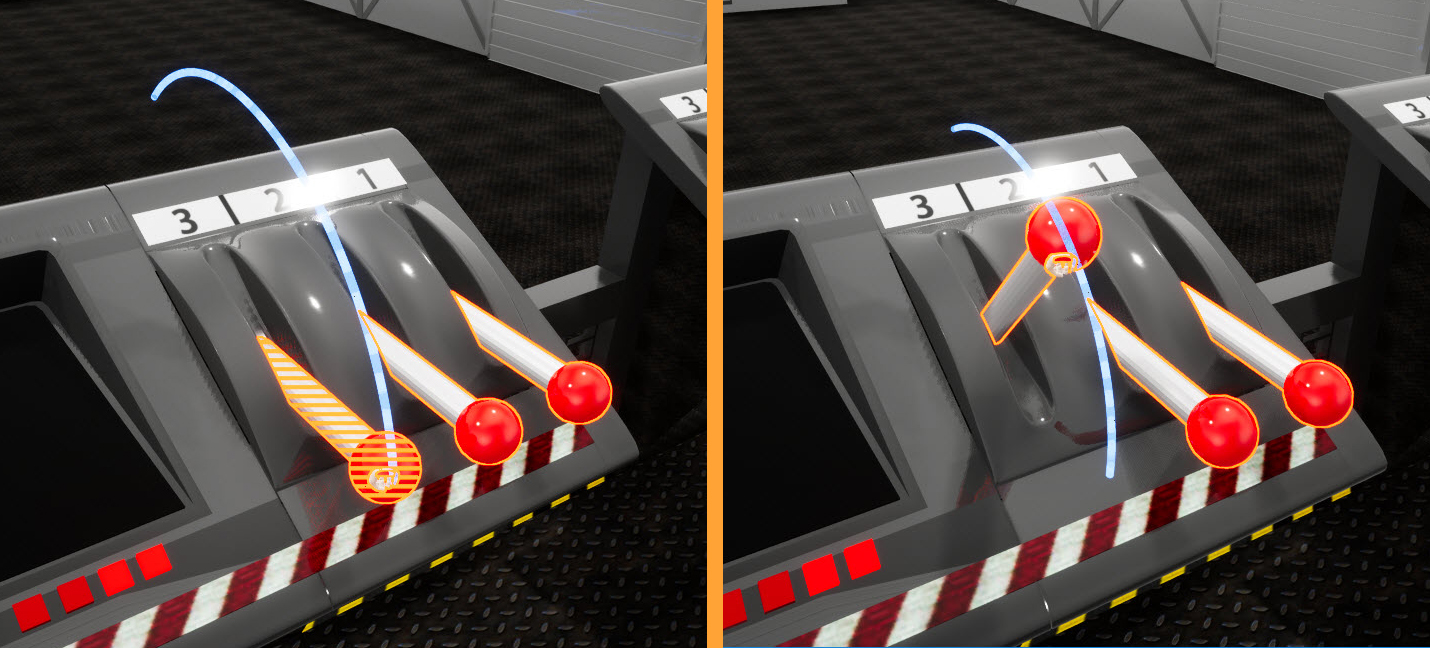
Grabbable sequences allow users to interact with 3D object(s) in the Viewer by linking them to animation sequences. In the image below, an animation to control the arm was saved as a sequence, then linked to the arm object using **Grabbable Sequence**. When the arm is grabbed in the Viewer the path appears and the user can move the grabbed object along the path.

[![image-1639835396166.png](https://simlab-soft.com/help/uploads/images/gallery/2021-12/scaled-1680-/image-1639835396166.png)](https://simlab-soft.com/help/uploads/images/gallery/2021-12/image-1639835396166.png)
The following tutorial shows how to create and use **Grabbable Sequence**

<iframe allowfullscreen="allowfullscreen" height="314" src="//www.youtube.com/embed/Ts4DE62UJh0" width="560"></iframe>

### Dynamics Group

#### Enable Physics

The physics feature allows for the object to have physical properties such as gravity, mass and friction. To add physics to an object select **Enable Physics** then select the object you want.

#### Make Climbable

With this feature, selected objects in the scene can be made climbable such as ladders. Just click **Make Climbable** and select the object you want.

Check this **<span style="text-decoration: underline;"><span style="color: rgb(35, 111, 161); text-decoration: underline;">[tutorial](https://youtu.be/uvifY6bfMoo)</span></span>** for more about these two features.

<iframe allowfullscreen="allowfullscreen" height="314" src="https://www.youtube.com/embed/uvifY6bfMoo?embeds_referring_euri=https" width="560"></iframe>

<div id="bkmrk-to-adjust-the-densit">**To adjust the Density and Restitution properties**, which impact how objects behave during physics simulations, follow these steps:</div><div id="bkmrk--0">  
</div><div id="bkmrk-1--choose-the-materi">1- Choose the material(s) applied to the physics objects.</div><div id="bkmrk-2--navigate-to-the-p">2- Navigate to the Physics properties.</div><div id="bkmrk-3--update-the-densit">3- Update the Density and Restitution values according to the instructions illustrated in the accompanying image.</div>[![image.png](https://simlab-soft.com/help/uploads/images/gallery/2024-03/scaled-1680-/image.png)](https://simlab-soft.com/help/uploads/images/gallery/2024-03/image.png)

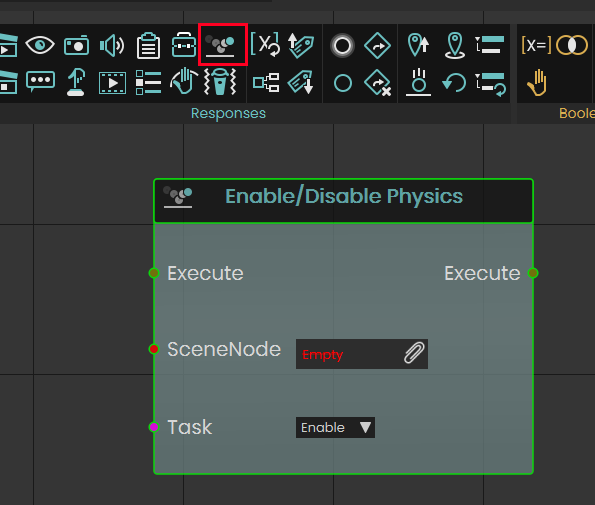
<div id="bkmrk-training-builder-giv">**Training builder** gives the user the option to enable/disable physics on physics objects in the VR Experience.</div><div id="bkmrk--7">  
</div><div id="bkmrk-the-response-for-doi">The response for doing that is shown in the following image:</div>[![image.png](https://simlab-soft.com/help/uploads/images/gallery/2024-03/scaled-1680-/7RIimage.png)](https://simlab-soft.com/help/uploads/images/gallery/2024-03/7RIimage.png)

---

### Clipping Planes


[![image-1639838990390.png](https://simlab-soft.com/help/uploads/images/gallery/2021-12/scaled-1680-/image-1639838990390.png)](https://simlab-soft.com/help/uploads/images/gallery/2021-12/image-1639838990390.png)
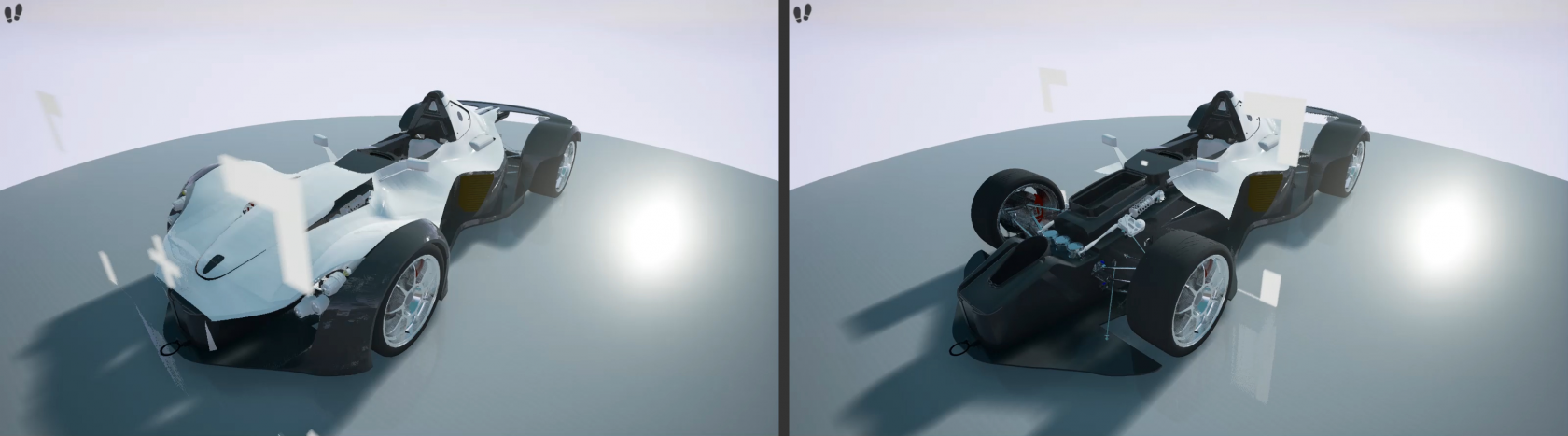
Also known as Section Planes in VR, it can be static, animated, grabbable, and turned on/off dynamically. By determining the Clipping Plane and Clippable Objects the user can make clipping effects for some or all objects in the scene. The clipping plane can be static or it can be animated showing Clippable Objects as it moves, the **<span style="text-decoration: underline; color: rgb(35, 111, 161);">Clipping Planes tutorial </span>**will show you how to use Clipping Planes and assign Clippable Objects

<iframe allowfullscreen="allowfullscreen" height="314" src="https://www.youtube.com/embed/YnDvcNWROv0" width="560"></iframe>

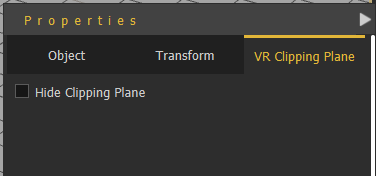
From **VR Clipping Plane** tab in the **Properties Panel**, the user can select to show or hide the clipping plane. The direction of the clipping plane normal determines the clipped section of the model.

[![image.png](https://simlab-soft.com/help/uploads/images/gallery/2023-01/scaled-1680-/gV7image.png)](https://simlab-soft.com/help/uploads/images/gallery/2023-01/gV7image.png)
### Disassembly and Docking Group

#### Make Dock and Target

**Dock** is the static object, and **Target** is the (**grabbable**) moving one, so Target needs to be made Grababble first. After selecting this function the user will be asked to Select Dock Node, then to Select Target Node, and last to configure object orientation.

In the VR Experience, the user grabs the **Target** and when it is released (grab ends) while it is intersecting with the **Dock**, it is moved to the docking target's predefined position.

#### Remove Dock and Target

Selecting this function will prompt the user to Select Dock Node, and Select Target Node then the relation will be removed

The following tutorial shows how to create Dock and Target interaction in SimLab Composer and Studio:

<iframe allowfullscreen="allowfullscreen" height="314" src="//www.youtube.com/embed/fHu29tehzes" width="560"></iframe>

#### Manage (Dis)Assembly Process

In case the assembly/disassembly process is linear, which means it goes in a defined order this function can be used. It simplifies the process and makes it move in a very specific scenario. Highlights will guide the user throughout the assembly/disassembly process with ease and without any confusion. **Green highlight** object in an assembly refers to the currently available part of the system that can be removed. **Yellow highlight** indicates that the object can be grabbed.

<table border="1" id="bkmrk--14" style="border-collapse: collapse; width: 100%;"><tbody><tr><td style="width: 50%;">[![image-1639839159650.png](https://simlab-soft.com/help/uploads/images/gallery/2021-12/scaled-1680-/image-1639839159650.png)](https://simlab-soft.com/help/uploads/images/gallery/2021-12/image-1639839159650.png)

</td><td style="width: 50%;">[![image-1639839164279.png](https://simlab-soft.com/help/uploads/images/gallery/2021-12/scaled-1680-/image-1639839164279.png)](https://simlab-soft.com/help/uploads/images/gallery/2021-12/image-1639839164279.png)

</td></tr></tbody></table>

<table border="1" id="bkmrk--15" style="border-collapse: collapse; width: 100%;"><tbody><tr><td style="width: 50%;">[![image-1639835151251.png](https://simlab-soft.com/help/uploads/images/gallery/2021-12/scaled-1680-/image-1639835151251.png)](https://simlab-soft.com/help/uploads/images/gallery/2021-12/image-1639835151251.png)

</td><td style="width: 50%;">[![image-1639835155701.png](https://simlab-soft.com/help/uploads/images/gallery/2021-12/scaled-1680-/image-1639835155701.png)](https://simlab-soft.com/help/uploads/images/gallery/2021-12/image-1639835155701.png)

</td></tr></tbody></table>

**Blue highlight** in the assembly indicates that the object can be placed there.

Press Right Mouse to toggle the hand. The hand has a fixed position in the view, and will teleport to the grabbable object when you click on it, and will keep grabbing as long as you hold the button.

The assembly management interactions, and settings:

- Plus button: Adds the selected node (from the 3d area) to the disassembly diagram. If a disassembly graph node is selected, it will become the parent of the newly added node.
- Ladder button: Change the parent of selected disassembly graph nodes, a graph node must be selected before clicking this button, and the graph node selected afterward will become the new parent -or- if a blank space is selected, the graph node will become independent (with no parent).
- Red Minus button: Removes a node from the graph.
- Create new: Create a new disassembly diagram.
- Rename: Change the name of the disassembly diagram.
- Delete: Remove the disassembly.

**Note:** Training Builder can be used for creating a more open assembly/disassembly process. It can be used to define the logic for the processes, giving the user more control without forcing her/him to adjust the model structure in Scene Browser or go through a single path of exclusion.

#### VR Assembly System

Assembly/Disassembly System in SimLab Composer and Studio (Ultimate), seamlessly assemble and disassemble components with precision and flexibility.

Key Features of the New System:

**Logical Order Enforcement:** The system ensures a logical process, such as requiring screws to be removed before detaching the parts they secure. However, the sequence of removing screws is flexible, take them out in any order you prefer!

**Interchangeable Parts Recognition:** Recognizes parts like washers and screws as interchangeable, allowing substitutions as needed.

**Tool Integration:** Supports the use of tools to remove or place objects, making the process more realistic and efficient.

**Optional Ghost Guides** Enable ghosted visuals to easily identify the correct placement for objects, simplifying the assembly process.

This system is robust enough to handle even large and complex assemblies, as demonstrated in the video below.

<iframe allowfullscreen="allowfullscreen" height="314" src="https://www.youtube.com/embed/5dwvKgaDiyU" width="560"></iframe>

**Support for Subassemblies**, Users can disassemble and reassemble subassemblies as needed. A subassembly must be fully reassembled before it can be placed back in the main assembly.

<div id="bkmrk-custom-control-over-">**Custom Control Over Assembly States**, For advanced scenarios, users can use new response options to control the state of individual parts during the assembly process.</div><div id="bkmrk--17">  
</div><div id="bkmrk-the-tutorial-below-d">The tutorial below demonstrates how to effectively use these features:</div><div id="bkmrk-"></div><div id="bkmrk--18"><iframe allowfullscreen="allowfullscreen" height="314" src="https://www.youtube.com/embed/bvja_KeNJmo" width="560"></iframe>

</div><div id="bkmrk--19"></div><div id="bkmrk-select-dependency-mo">**select dependency mode,** In mechanical assembly, creator is able to select dependency mode, it can be All (this was the default in 14) or Any.</div><div id="bkmrk-for-example%2C-with-sc"><div>  
</div><div>For example, with screws, user might need to remove all screws before taking the part, so in this case All is used. In other situations, the user might be able to disassemble a part from multiple sides. In that case, use the any option—if the part is free on the left or right, it can be taken apart, that is where Any can be used. This is shown in the following tutorial.</div><div>  
</div><div><iframe allowfullscreen="allowfullscreen" height="314" src="https://www.youtube.com/embed/VaYa0hp86qM" width="560"></iframe>

</div></div><div id="bkmrk--20"></div>### Industries Solutions

SimLab Composer is continuously adding new features to make the experience of its users more joyful, and easier.

#### Door/Cabinet Animation

Automatically creates an animation for an object depending on its type. This can be useful for scenes with multiple objects of the same type. There are two main methods for defining which objects to animate:

[![image-1639846169901.png](https://simlab-soft.com/help/uploads/images/gallery/2021-12/scaled-1680-/image-1639846169901.png)](https://simlab-soft.com/help/uploads/images/gallery/2021-12/image-1639846169901.png)
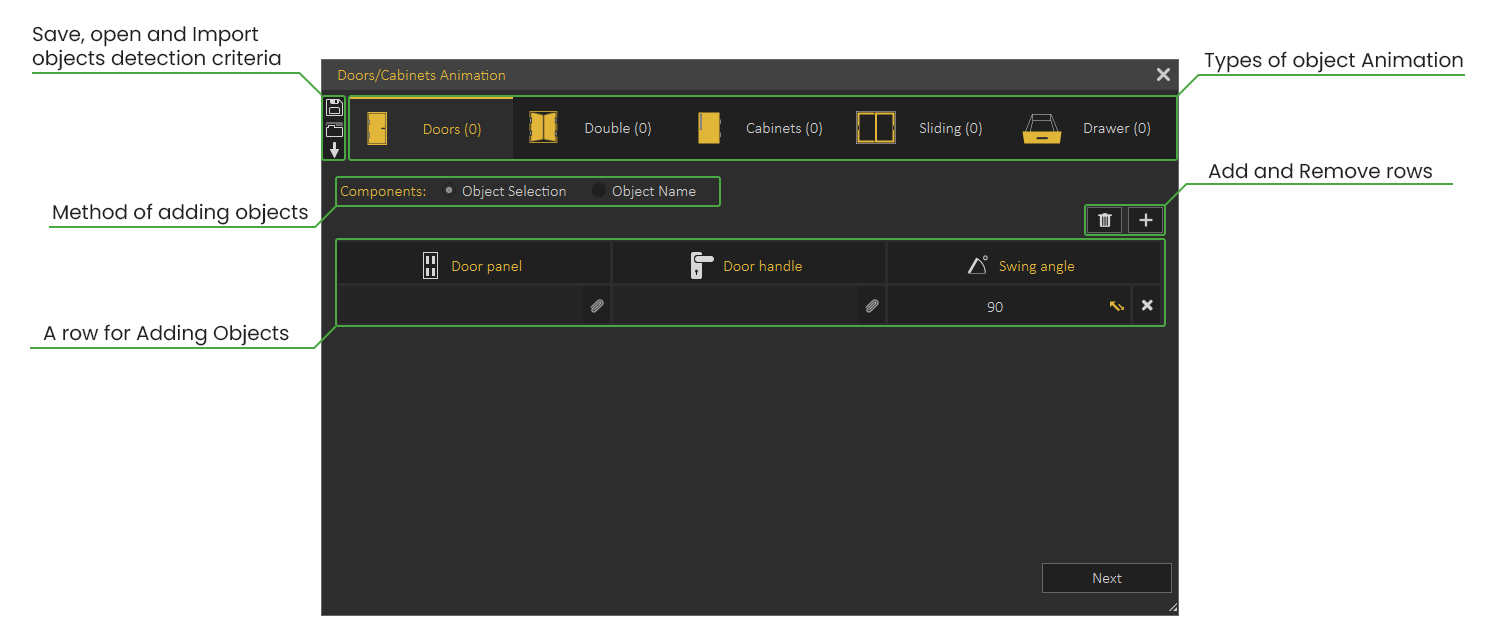
##### Object Selection

With this method, the user will manually select the components in the scene to create an animation for.  
This method is suitable for scenes with a small number of objects. Check the following tutorial on automatic animation for Doors/ Cabinets using the Object Selection Method

<iframe allowfullscreen="allowfullscreen" height="314" src="//www.youtube.com/embed/AlMlM6OMHOY" width="560"></iframe>

##### Object Name

With this method, the user will type in the name of the components, and the software will automatically find them in the scene and list them.  
This method is more suitable for scenes with a large number of objects to animate. Check this tutorial on automatic animation for Doors/ Cabinets using the Object Name Method

<iframe allowfullscreen="allowfullscreen" height="314" src="//www.youtube.com/embed/hLW7Y-4F-vc" width="560"></iframe>

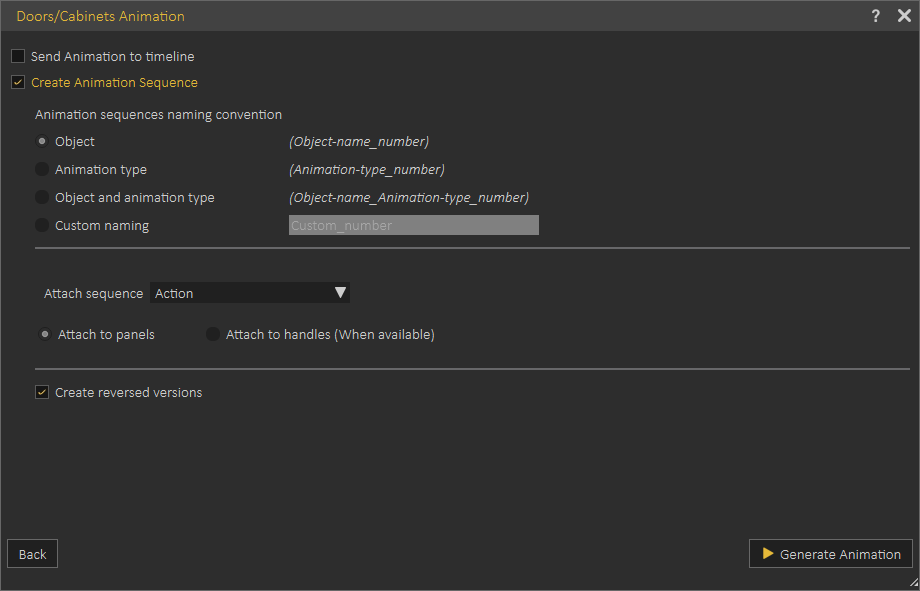
##### Doors and Cabinets Settings

- **Send animation to timeline:** Enabling this option sends the created animation as keyframes to the **Animation Timeline**. This can be helpful when you intend to combine multiple animations or modify the animation further.
- **Create animation Sequences:** This option creates separate animation sequences for each object, those sequences can then be used in VR.
- **Animation sequence naming convention:** The user can select the naming method for the sequence.
- **Attach sequences:** This makes the scene ready to be used in a VR Experience. Sequences can be applied as **Actions** (executed when the user clicks on a door or panel) or as **Grabbable Sequences** (the user can open or close interactively in the VR Viewer)
- **Create reversed versions:** Reversed version of animation allows the object to go back to its original state. For example, if you have created an animation for a door opening, a reversed version of the door closing will be automatically created.

[![image-1640601023394.png](https://simlab-soft.com/help/uploads/images/gallery/2021-12/scaled-1680-/image-1640601023394.png)](https://simlab-soft.com/help/uploads/images/gallery/2021-12/image-1640601023394.png)
#### Visualize Scene Options

Visualize scene options (scene states and animation sequences) by displaying them as entities in a 3D world for easier and more practical VR Experiences. Check this <span style="color: rgb(35, 111, 161);">**<span style="text-decoration: underline;">[tutorial](https://www.youtube.com/watch?v=vaR9X_8ktP0&feature=youtu.be)</span>**</span> on how to visualize scene options in VR.

[![image-1639846690281.png](https://simlab-soft.com/help/uploads/images/gallery/2021-12/scaled-1680-/image-1639846690281.png)](https://simlab-soft.com/help/uploads/images/gallery/2021-12/image-1639846690281.png)
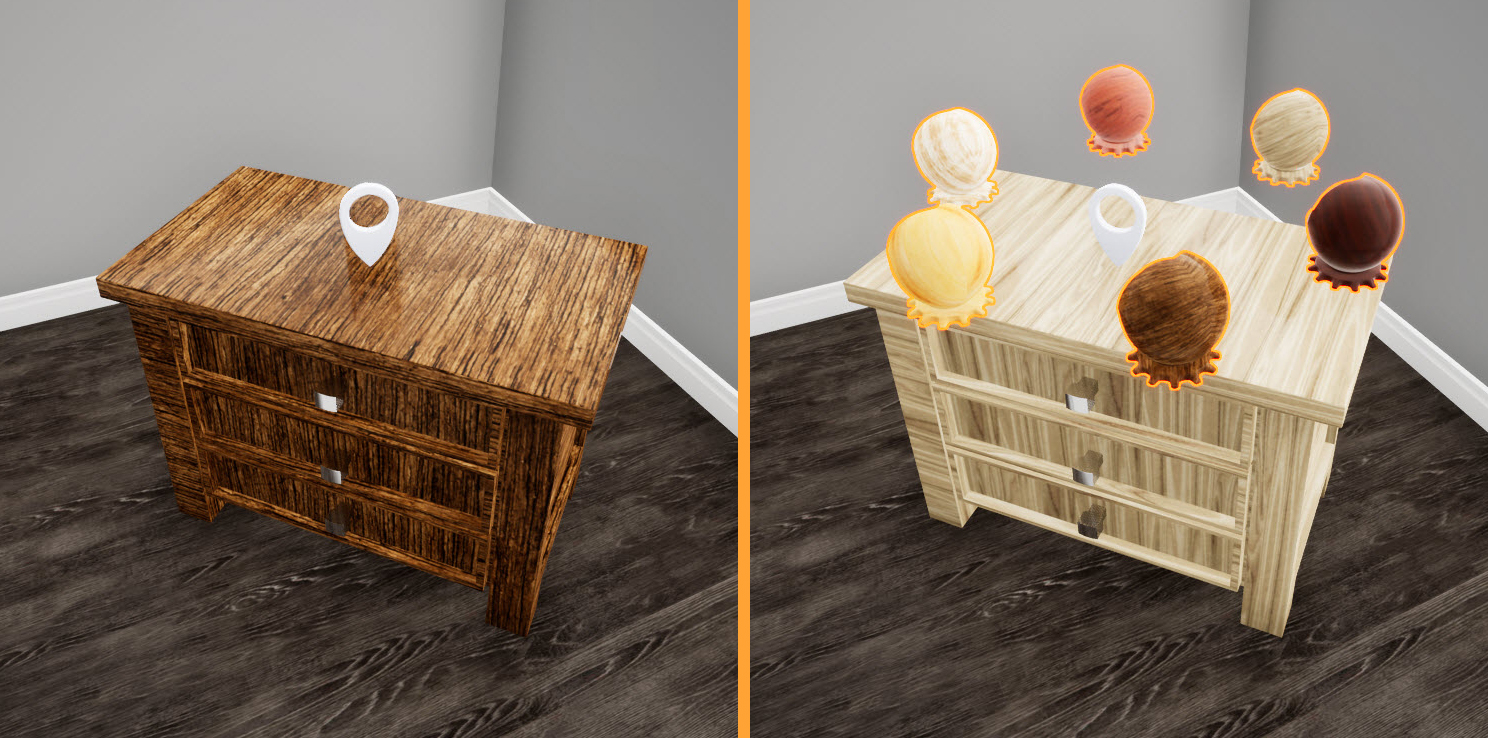
Press "3" on your keyboard in the VR Viewer to show available Pins, "LBUTTON" to select Scene States/Animation Sequences that appear as entities from the Pins.

[![image-1639848777780.png](https://simlab-soft.com/help/uploads/images/gallery/2021-12/scaled-1680-/image-1639848777780.png)](https://simlab-soft.com/help/uploads/images/gallery/2021-12/image-1639848777780.png)
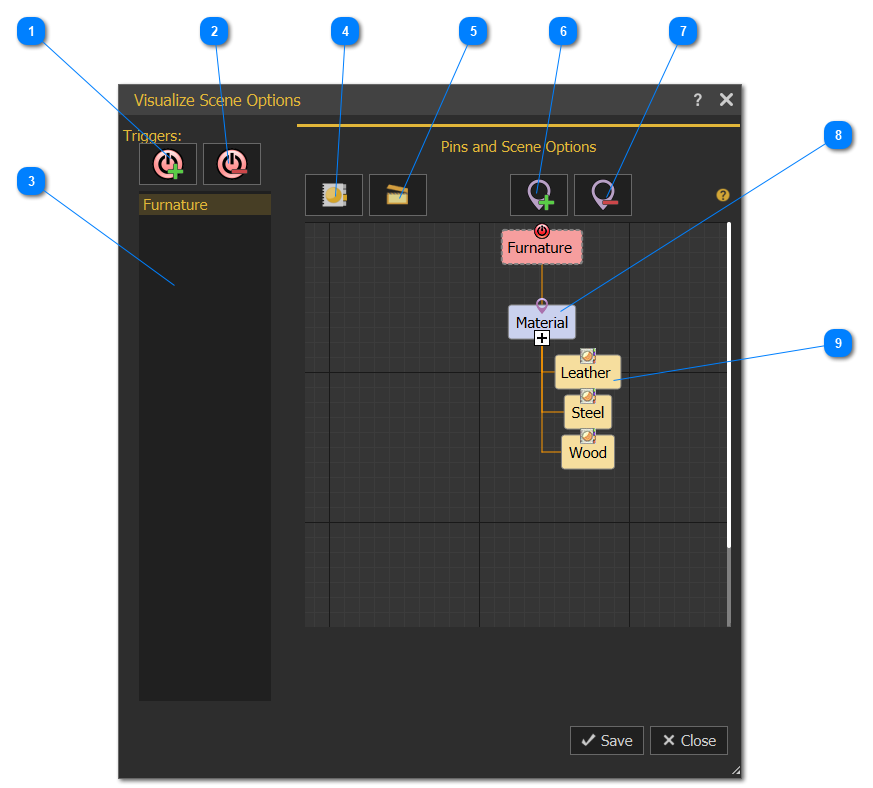
<table border="1" id="bkmrk-1-a-trigger-displays" style="border-collapse: collapse; width: 100%;"><tbody><tr><td class="align-center" style="width: 15.3087%;">1</td><td style="width: 84.6913%;">Select a Scene Node from the Objects Tree or from the 3D area, then click this option to add a Pin to the selected node, showing its scene states if interacted by the user in SimLab VR Viewer. </td></tr><tr><td class="align-center" style="width: 15.3087%;">2</td><td style="width: 84.6913%;">Remove a Trigger and eliminate any associated Pins and scene options.</td></tr><tr><td class="align-center" style="width: 15.3087%;">3</td><td style="width: 84.6913%;">The list of Triggers.</td></tr><tr><td class="align-center" style="width: 15.3087%;">4</td><td style="width: 84.6913%;">Activates Scene States library to drag-and-drop Scene States from it into Pin nodes.</td></tr><tr><td class="align-center" style="width: 15.3087%;">5</td><td style="width: 84.6913%;">Activates Animation Sequences library to drag-and-drop Animation Sequences from it into Pin nodes.</td></tr><tr><td class="align-center" style="width: 15.3087%;">6</td><td style="width: 84.6913%;">Add a new Pin to the selected node to hold other scene options chosen by the user. Once added, either Scene States or Animation Sequences from their corresponding libraries can be dragged and dropped into it.</td></tr><tr><td class="align-center" style="width: 15.3087%;">7</td><td style="width: 84.6913%;">Remove the selected Pin node from its diagram.</td></tr><tr><td class="align-center" style="width: 15.3087%;">8</td><td style="width: 84.6913%;">Scene States/Animation Sequences can be dragged-and-dropped here from their corresponding libraries.</td></tr><tr><td class="align-center" style="width: 15.3087%;">9</td><td style="width: 84.6913%;">Added Scene States/Animation Sequences</td></tr></tbody></table>

##### Visualize Scene Options - Step by step

1. Create multiple Scene States/Animation sequences (at least two), for a 3D model.
2. From the Interactions menu click Visualize Scene Options.
3. Select the object for which to make a list, Ex: Bedside Table, select the table model then Add a Trigger by clicking [![image-1639851544234.png](https://simlab-soft.com/help/uploads/images/gallery/2021-12/scaled-1680-/image-1639851544234.png)](https://simlab-soft.com/help/uploads/images/gallery/2021-12/image-1639851544234.png)
4. The object name (Bedside Table) should appear on the Pin and Scene Options side as shown in the image. [![image-1639851925566.png](https://simlab-soft.com/help/uploads/images/gallery/2021-12/scaled-1680-/image-1639851925566.png)](https://simlab-soft.com/help/uploads/images/gallery/2021-12/image-1639851925566.png)
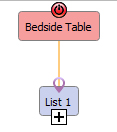
5. Drag and drop created Scene States/Animation Sequence (created in step one) from their libraries into VR List1 one by one <table border="1" style="border-collapse: collapse; width: 100%;"><tbody><tr><td style="width: 100%;">
    1. [![image-1639852036367.png](https://simlab-soft.com/help/uploads/images/gallery/2021-12/scaled-1680-/image-1639852036367.png)](https://simlab-soft.com/help/uploads/images/gallery/2021-12/image-1639852036367.png)
    
    </td></tr></tbody></table>
6. The Scene States/Animation Sequence will appear under the VR List1
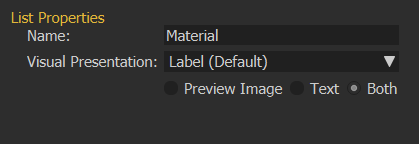
7. Select List 1 to display its properties, and change its name, and properties[![image-1639852422955.png](https://simlab-soft.com/help/uploads/images/gallery/2021-12/scaled-1680-/image-1639852422955.png)](https://simlab-soft.com/help/uploads/images/gallery/2021-12/image-1639852422955.png)
####   
Snap and Socket

VR Snapping feature makes building scenes in VR easier and more intuitive. Whether you're designing a kitchen or creating an educational lab, VR Snapping allows you to effortlessly add items and align them perfectly without any extra effort. Setting up VR Snapping in Composer/Studio is simple and gives you full control over how it behaves in the VR environment. Watch the video below to learn how to use VR Snapping

<iframe allowfullscreen="allowfullscreen" height="314" src="https://www.youtube.com/embed/zVVEtlAh-jY" width="560"></iframe>

####   
XR Anchors

When viewing scenes in XR mode on your Quest headset, you'll be able to attach 3D models to specific physical locations in the real world.

This feature enables you to:  
Place training models in actual examination rooms.  
Add visual highlights to real-world objects.  
Visualize furniture placement in your space.

Watch the tutorial below to see XR Anchors in action.

<iframe allowfullscreen="allowfullscreen" height="314" src="https://www.youtube.com/embed/6WuBd3_maII" width="560"></iframe>

### User Gadgets Group

#### Add User Gadgets

This function will **add** some gadgets to the **Viewer start model**, as shown in the dialog below:

[![image-1640602517072.png](https://simlab-soft.com/help/uploads/images/gallery/2021-12/scaled-1680-/image-1640602517072.png)](https://simlab-soft.com/help/uploads/images/gallery/2021-12/image-1640602517072.png)  
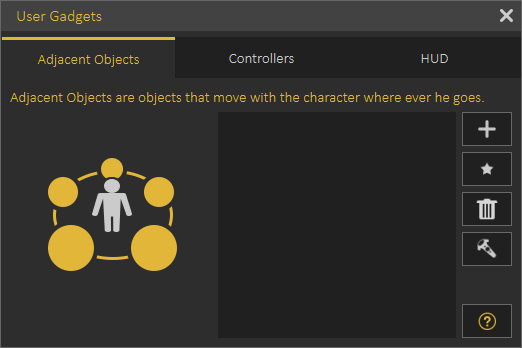
  
**Adjacent Objects:** These are objects that move with the **Viewer start model** in the VR environment. They can be something like tools (screwdriver or hammer). Check this **<span style="text-decoration: underline;"><span style="color: #0000ff;">[part](https://youtu.be/RagOTsIqSH0?t=118)</span></span>** of the tutorial for more about Adjacent Objects.  
  
**Controllers**: This allows the user to change the VR controllers with selected 3D models for hands, or gloves. Controllers appearance is only available in VR Mode. The following video shows the effect of using Controllers in the VR experience.

<iframe allowfullscreen="allowfullscreen" height="314" src="//www.youtube.com/embed/O4-2ZdGqHOQ" width="560"></iframe>

The following tutorial shows how to use controllers gadget in SimLab Composer/Studio.   
  
<iframe allowfullscreen="allowfullscreen" height="314" src="//www.youtube.com/embed/Uy0tV0i613w" width="560"></iframe>


**Hud:** Hud is a plane shown in front of the user so it is easy to show instructions or current status. The following video shows the Hud appearance in a VR Experience.  
  
<iframe allowfullscreen="allowfullscreen" height="314" src="//www.youtube.com/embed/s3evmFozFaM" width="560"></iframe>

The following tutorial describes how to add/use **Hud** and **Adjacent Objects**

**<iframe allowfullscreen="allowfullscreen" height="314" src="//www.youtube.com/embed/RagOTsIqSH0" width="560"></iframe>**

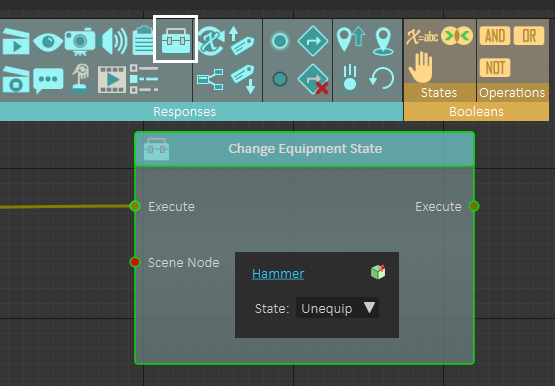
**Change Equipment State** response in the **Training Builder**, which can be used to control equipment state (Equipped or Unequipped) for all gadgets (**Adjacent Objects**, **Controllers**, and **Hud**)

[![image-1640603991677.png](https://simlab-soft.com/help/uploads/images/gallery/2021-12/scaled-1680-/image-1640603991677.png)](https://simlab-soft.com/help/uploads/images/gallery/2021-12/image-1640603991677.png)
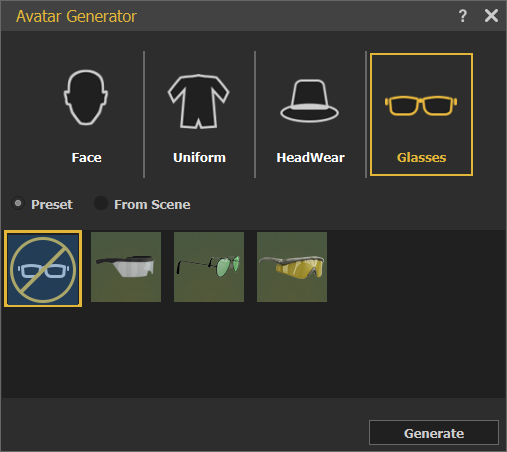
#### Avatar Generator

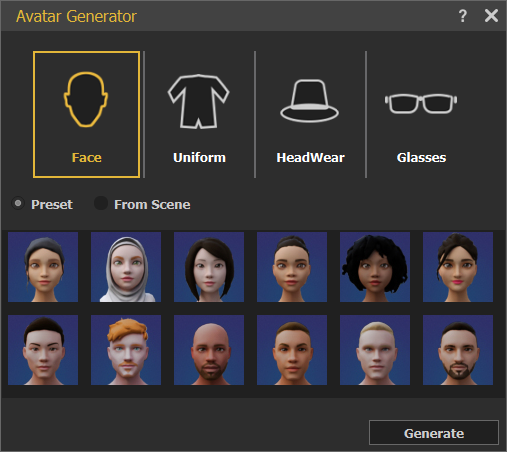
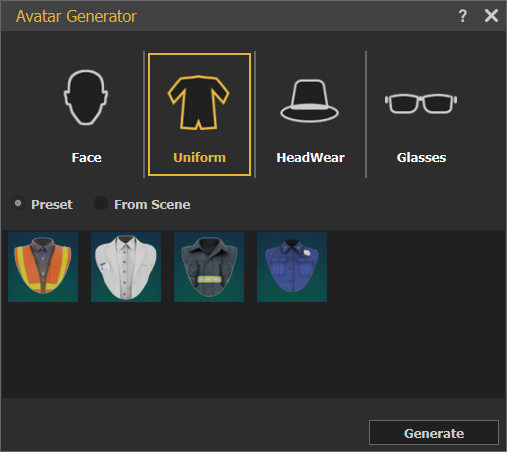
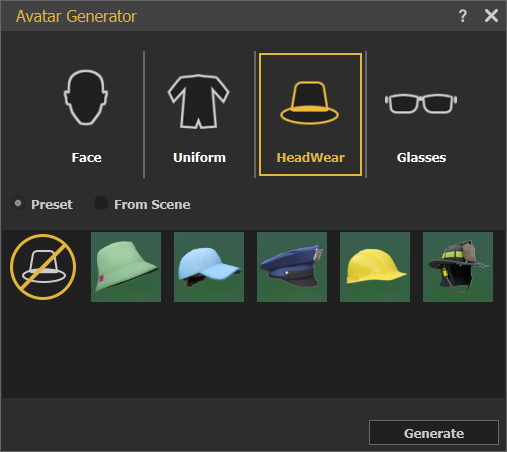
In this dialog users can build their own avatars from a collection of Faces, Uniforms, Headwear, and Glasses. Avatars are used in VR Collaboration, in SimLab VR Viewer. For more about Avatar Types and Creation check this **<span style="text-decoration: underline;"><span style="color: rgb(35, 111, 161); text-decoration: underline;">[tutorial](https://www.youtube.com/watch?v=uA22RZh-rjU)</span></span>**

[![image.png](https://simlab-soft.com/help/uploads/images/gallery/2023-01/scaled-1680-/Bwzimage.png) ](https://simlab-soft.com/help/uploads/images/gallery/2023-01/Bwzimage.png)[![vwXimage.png](https://simlab-soft.com/help/uploads/images/gallery/2023-01/scaled-1680-/vwximage.png)](https://simlab-soft.com/help/uploads/images/gallery/2023-01/vwximage.png)
[![image.png](https://simlab-soft.com/help/uploads/images/gallery/2023-01/scaled-1680-/7iUimage.png) ](https://simlab-soft.com/help/uploads/images/gallery/2023-01/7iUimage.png)[![TPWimage.png](https://simlab-soft.com/help/uploads/images/gallery/2023-01/scaled-1680-/tpwimage.png)](https://simlab-soft.com/help/uploads/images/gallery/2023-01/tpwimage.png)
#### Voice Commands

<div id="bkmrk-for-improving-vr-bas">For improving VR based training that involves interacting with humans in the real world, voice commands support is added.</div><div id="bkmrk--33">  
</div><div id="bkmrk-voice-commands-are-n">Voice commands are new events that are fired when the appropriate voice command is said in the experience. SimLab Composer will support voice commands in 20 languages</div><div id="bkmrk--34">  
</div><div id="bkmrk-the-following-exampl">The following example shows how voice commands can be used in the VR experience.</div><div id="bkmrk--35">  
</div>[<iframe allowfullscreen="allowfullscreen" height="314" src="https://www.youtube.com/embed/7hSdzWdlI1w" width="560"></iframe>](https://youtu.be/7hSdzWdlI1w)

<div id="bkmrk-the-following-tutori-3">The following tutorial shows how to add voice commands in SimLab Composer/Studio: </div><div id="bkmrk--37">  
</div><div id="bkmrk--38"><iframe allowfullscreen="allowfullscreen" height="314" src="https://www.youtube.com/embed/AjtAQwBPsoM" width="560"></iframe>

</div>#### AI Agents

[![image.png](https://simlab-soft.com/help/uploads/images/gallery/2024-09/scaled-1680-/8HFimage.png)](https://simlab-soft.com/help/uploads/images/gallery/2024-09/8HFimage.png)

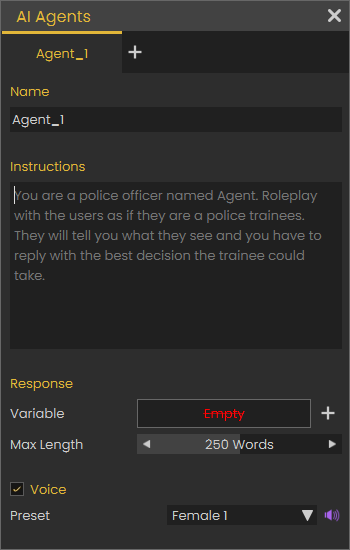
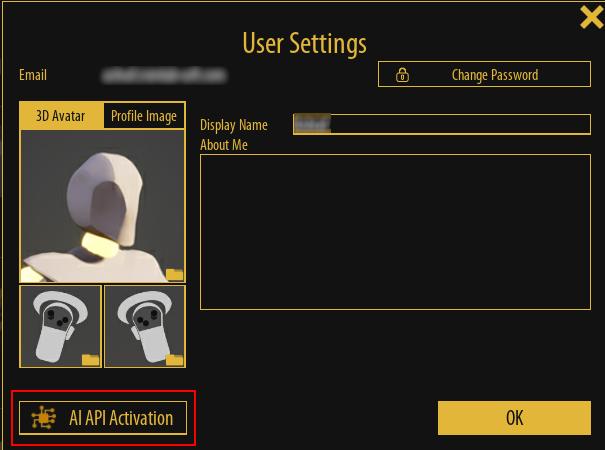
<div id="bkmrk-the-user-can-make-it">The user can make it work with 3D Avatars, by describing the agent role, talk to it and get answers in different languages. </div><div id="bkmrk--40">  
</div><div id="bkmrk-the-following-image-">The following image shows how to set your OpenAI API key in the viewer</div>[![image.png](https://simlab-soft.com/help/uploads/images/gallery/2024-09/scaled-1680-/tpnimage.png)](https://simlab-soft.com/help/uploads/images/gallery/2024-09/tpnimage.png)

With this feature To learn more about this feature check the following tutorial.

<iframe allowfullscreen="allowfullscreen" height="314" src="https://www.youtube.com/embed/TdABZrHXY2g" width="560"></iframe>

###   
Find &amp; Control

#### Searchable Components 

<div id="bkmrk-with-a-complex-cad-m">With a complex CAD model with good tree structure, this feature can be very useful. It allows users to search for objects then show/hide, isolate, highlight, and grab them while running the experience in the Viewer</div><div id="bkmrk--43">  
</div><div id="bkmrk--44"><iframe allowfullscreen="allowfullscreen" height="314" src="https://www.youtube.com/embed/ZIWMM1uy6_M" width="560"></iframe>

</div><div id="bkmrk--45">  
</div><div id="bkmrk--46"></div>

# Training Builder Menu

**Training Builder** is a **visual** tool that allows VR Experience designers to control the logic in the VR Experience without the need to write any code.  
  
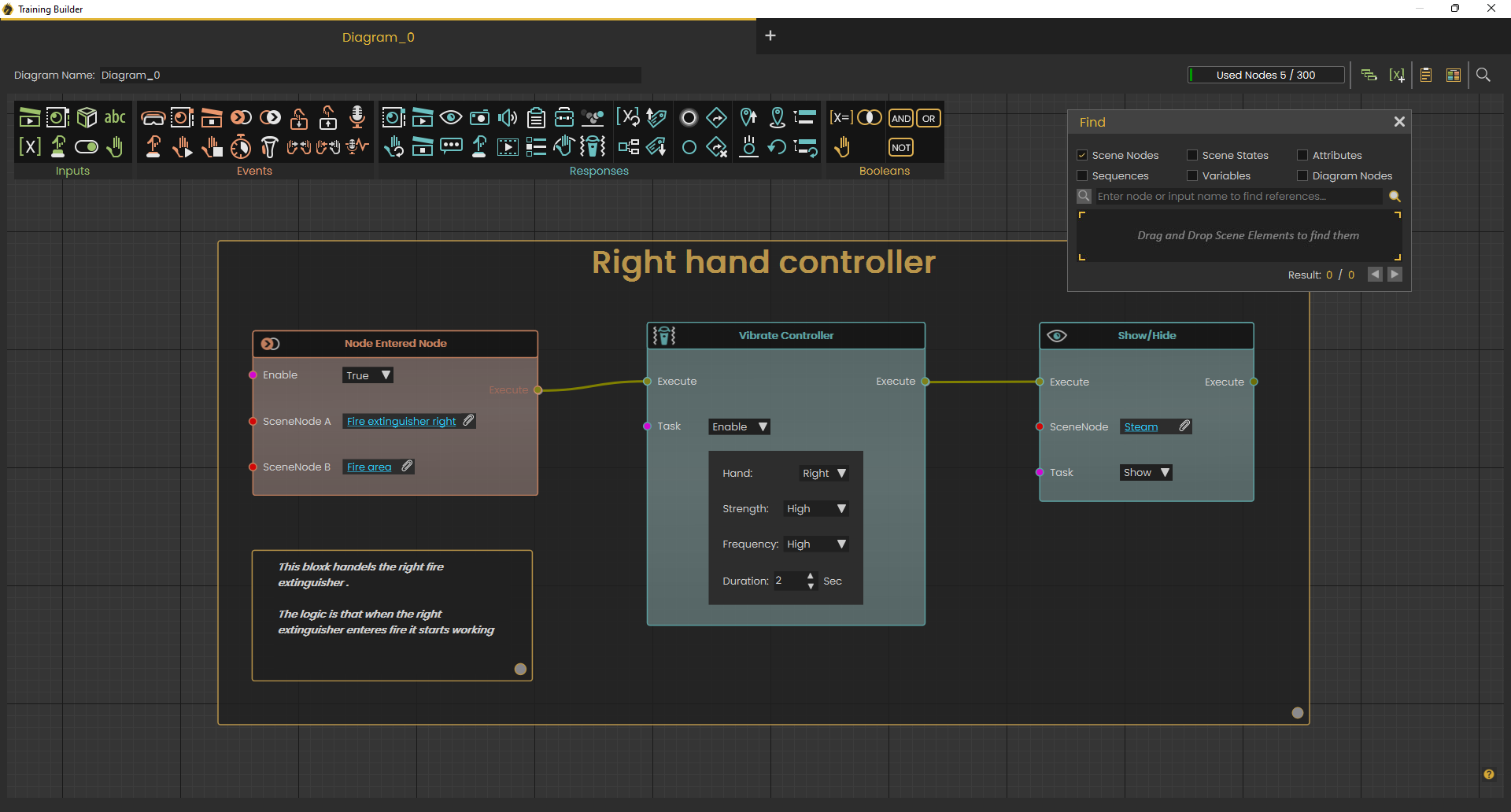
**Training Builder** allows the user to link an **Event** with **Response**(s)  
  
An **Event** is fired when something happens in the experience, for example when the user clicks on a specific object, or when an object collides with another object. A **Response** is a reaction the VR Experience should do when an **Event** takes place.

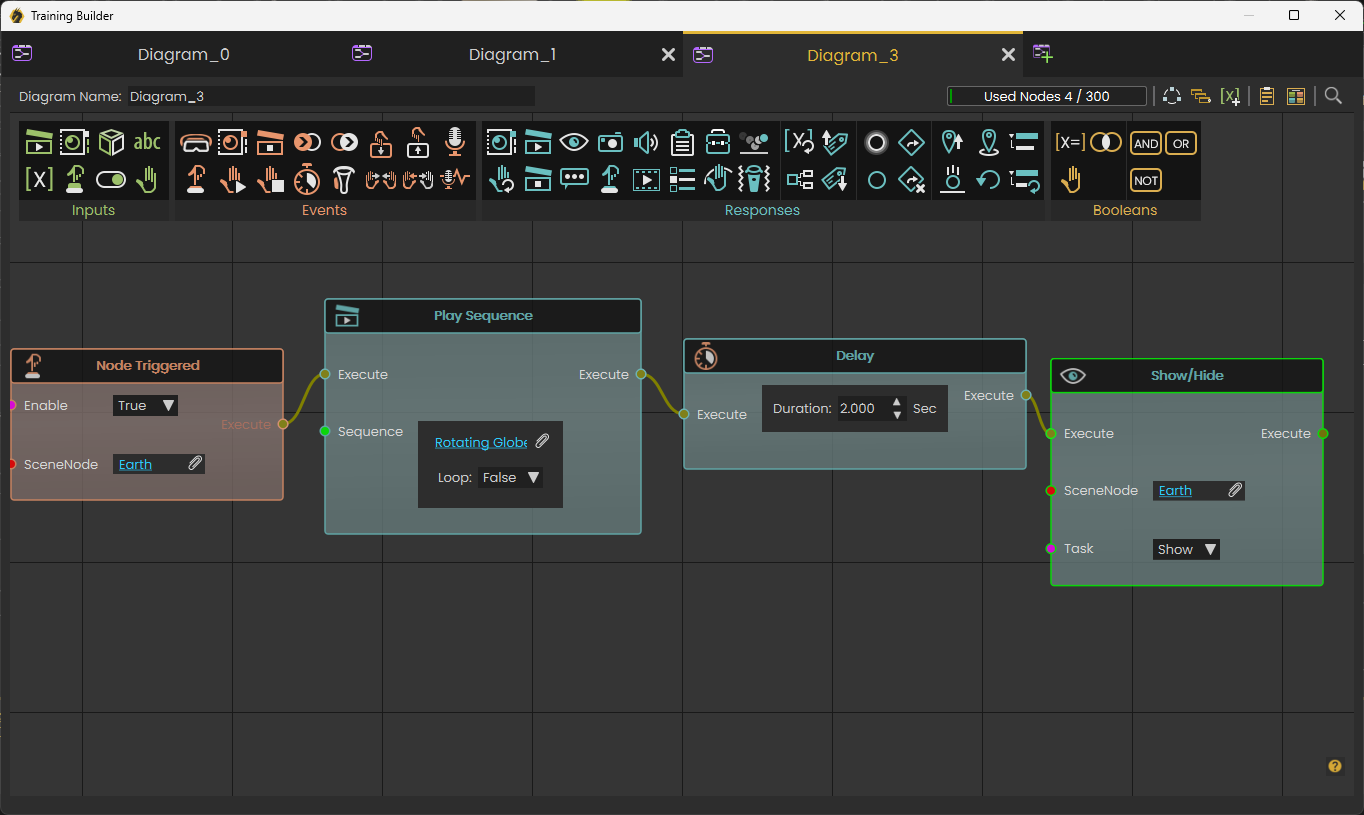
For example, when the user clicks on Globe Object (Earth\_geo) Scene Node in the Node Triggered **Event**, it starts the rotation sequence (Play Sequence) **Response**, as shown in the following image;

[![image.png](https://simlab-soft.com/help/uploads/images/gallery/2024-01/scaled-1680-/G4pimage.png)](https://simlab-soft.com/help/uploads/images/gallery/2024-01/G4pimage.png)
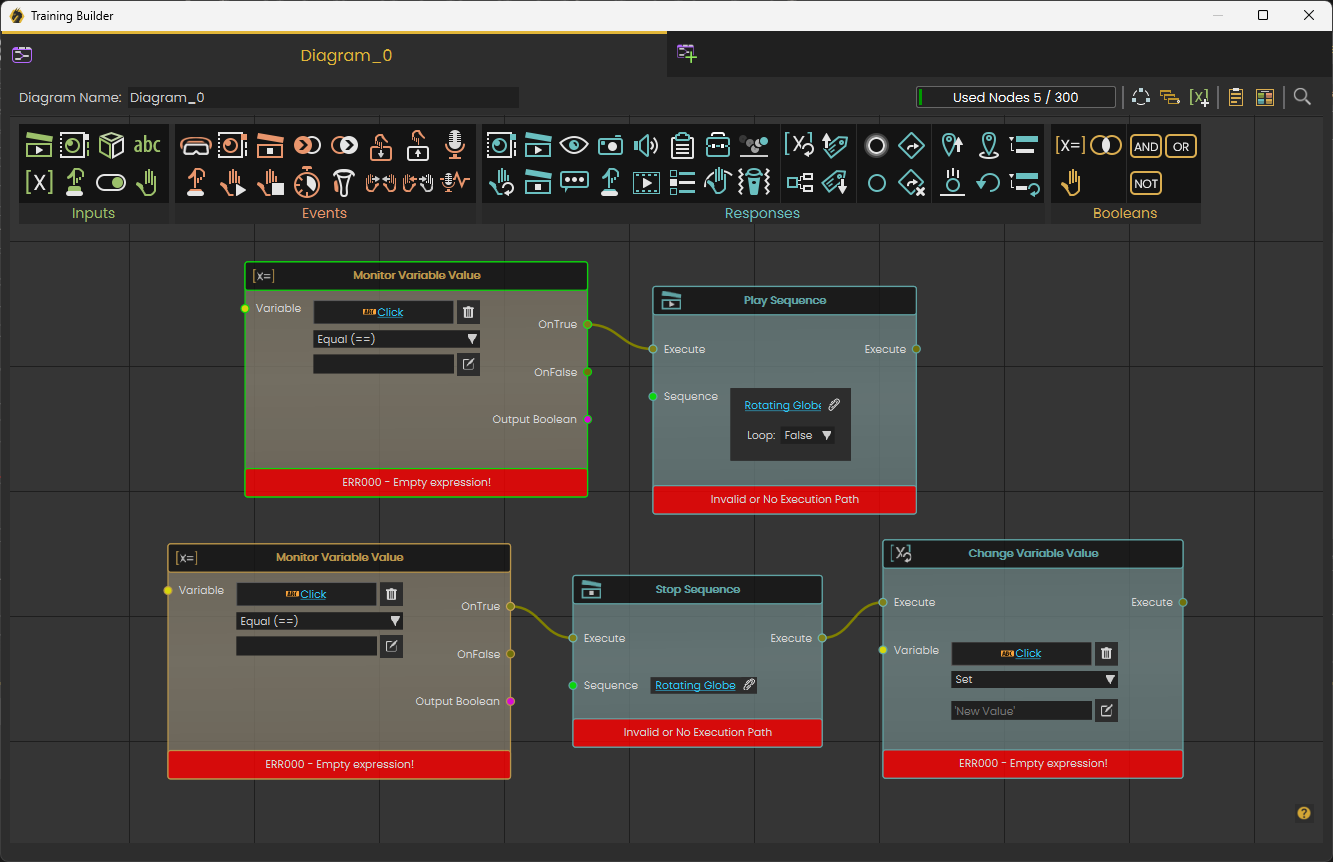
There is no limit to the number of elements in **Training Builder**. The user can add as many elements as needed in diagrams.   
Each Diagram can have up to 300 elements to keep things organized for big projects. For small projects one diagram should be enough, for larger projects the user needs to organize work by keeping up to 300 elements in each diagram.

  
<span style="text-decoration: underline;">**<span style="color: #0000ff; text-decoration: underline;">[Creating your first VR experience](https://simlab-soft.com/help/link/43#bkmrk-page-title) </span>**</span>can serve as a good first interaction with the **Training Builder** to see it in action:

<iframe allowfullscreen="allowfullscreen" height="314" src="//www.youtube.com/embed/5jt3btClddQ" width="560"></iframe>


The following video provides more details about using **Training Builder:**   
  
<iframe allowfullscreen="allowfullscreen" height="314" src="//www.youtube.com/embed/vKIfpe1q-K4" width="560"></iframe>


<span style="color: #3366ff;">[**<span style="text-decoration: underline;">SimLab Academy</span>**](https://youtu.be/IxnOLrPTav0)</span> (in the **Library** panel) under **VR Creation** includes a section dedicated for **Training Builder** tutorials.

[![image.png](https://simlab-soft.com/help/uploads/images/gallery/2023-12/scaled-1680-/r1jimage.png)](https://simlab-soft.com/help/uploads/images/gallery/2023-12/r1jimage.png)

### Variables and Expressions

Using **Training Builder** enables users to add variables and use them in creating VR Experiences. Check this <span style="text-decoration: underline; color: #0000ff;">**[tutorial](https://youtu.be/vKIfpe1q-K4?t=901)**</span> about using variables in Training Builder.

Supported variables are of the following types:

**String Variable:** Stores object names, message data, ..etc  
**Number Variable:** Supports both integer and float numbers. Can be used for calculating, and storing values  
**Time Variable:** Can save time at any stage of the VR Experience

#### String Variables

The initial value can be set to any string in the variable editor in the training builder.  
When used in **Change Variable** response, the string should be surrounded by single quotations **(' ')**

Expression-supported operations include adding strings and substring

#### Number Variables

Initial Value can be set to any float or integer numbers, the following operations are supported for number variables  
**Increment:** Adds one to the current value  
**Decrement:** Subtracts one from the current value  
**Time Difference:** Calculates the difference in seconds (up millisecond precision) between two-time variables  
**Expression:** large number of expressions are supported, list of supported expressions can be found in the following <span style="text-decoration: underline;"><span style="color: #3366ff;">**[link](https://www.simlab-soft.com/3d-products/vr-expressions.aspx?utm_source=Composer&utm_medium=Tooltips&utm_campaign=Tooltips)**</span></span>, The following tutorial shows how expressions can be used in **Training Builder**

<iframe allowfullscreen="allowfullscreen" height="314" src="//www.youtube.com/embed/6hIvMsl5obs" width="560"></iframe>

#### Time Variables

The initial value for all time variables is set to the start time of the VR Experience, at any point of the VR Experience the user can capture the current time and store it in a time variable

#### Variable writer

This tool enables the user to track the value of a variable in the VR Experience

The value of the variable is updated dynamically, so whenever the variable value changes the variable writer will be updated to show the new value of the variable. **Variable Writer** is available under the <span style="color: rgb(35, 111, 161);">**<span style="text-decoration: underline;">[VR Effects Menu](https://simlab-soft.com/help/books/simlab-vr-studio-help/page/vr-effects-media-menu#:~:text=bkmrk%2Dpage%2Dtitle-,VR%20Effects%20/%20Media%20Menu,-This%20menu%20allows)</span>**</span>.

The user can control its size, and place, so it can be aligned on a wall in the scene or on a monitor, user selects which variable to view, the color of the text, and the prefix text.

### Create/Edit Variables

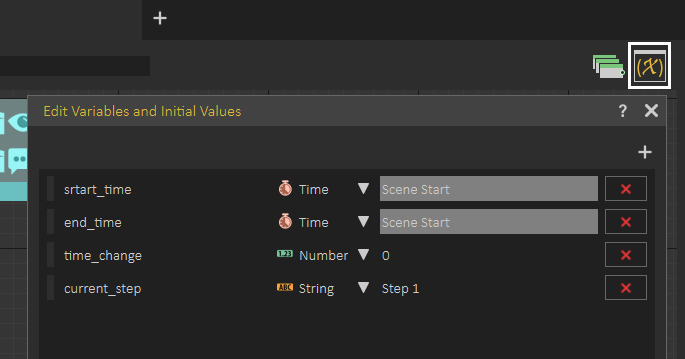
Variables can be created and edited by clicking the **Edit Variables** button at the top right part of the **Training Builder.** It allows the user to view/ delete/ change the initial values of existing variables, or create new variables.

Clicking '+' at the top right corner of the **Edit Variables and Initial Values** dialog will add a new variable. The user can click to change the name of the variable, select its type from the combo box, and set its initial value.

[![image-1640786112008.png](https://simlab-soft.com/help/uploads/images/gallery/2021-12/scaled-1680-/image-1640786112008.png)](https://simlab-soft.com/help/uploads/images/gallery/2021-12/image-1640786112008.png)
#### Inputs

Inputs are entities used as triggers for actions in the **Training Builder** diagram. For example, if multiple nodes in the diagram use a **Scene Node**, it can be used as input and be connected to multiple blocks. Updating the input once will be reflected on all blocks using this input.

[![image.png](https://simlab-soft.com/help/uploads/images/gallery/2023-12/scaled-1680-/x5Oimage.png)](https://simlab-soft.com/help/uploads/images/gallery/2023-12/x5Oimage.png)

<table border="1" id="bkmrk-%C2%A0-inputs-list-%C2%A0-%C2%A0-%C2%A0-" style="border-collapse: collapse; width: 100%; height: 726px;"><tbody><tr style="height: 30px;"><td class="align-center" style="width: 2.6235%; height: 30px;">Icons</td><td class="align-center" style="width: 19.9075%; height: 30px;">Inputs Name</td></tr><tr style="height: 53px;"><td class="align-center" style="width: 2.6235%; height: 53px;">[![image.png](https://simlab-soft.com/help/uploads/images/gallery/2022-09/scaled-1680-/mAsimage.png)](https://simlab-soft.com/help/uploads/images/gallery/2022-09/mAsimage.png)

</td><td class="align-center" style="width: 19.9075%; height: 53px;">Sequence</td></tr><tr style="height: 29px;"><td class="align-center" style="width: 2.6235%; height: 29px;">[![image.png](https://simlab-soft.com/help/uploads/images/gallery/2022-09/scaled-1680-/rU3image.png)](https://simlab-soft.com/help/uploads/images/gallery/2022-09/rU3image.png)

</td><td class="align-center" style="width: 19.9075%; height: 29px;">Scene State</td></tr><tr style="height: 29px;"><td class="align-center" style="width: 2.6235%; height: 29px;">[![image.png](https://simlab-soft.com/help/uploads/images/gallery/2022-09/scaled-1680-/Uc1image.png)](https://simlab-soft.com/help/uploads/images/gallery/2022-09/Uc1image.png)

</td><td class="align-center" style="width: 19.9075%; height: 29px;">Scene Node (object)</td></tr><tr style="height: 29px;"><td class="align-center" style="width: 2.6235%; height: 29px;">[![image.png](https://simlab-soft.com/help/uploads/images/gallery/2022-09/scaled-1680-/B2Iimage.png)](https://simlab-soft.com/help/uploads/images/gallery/2022-09/B2Iimage.png)

</td><td class="align-center" style="width: 19.9075%; height: 29px;">String</td></tr><tr style="height: 29px;"><td class="align-center" style="width: 2.6235%; height: 29px;">[![image.png](https://simlab-soft.com/help/uploads/images/gallery/2022-09/scaled-1680-/7afimage.png)](https://simlab-soft.com/help/uploads/images/gallery/2022-09/7afimage.png)

</td><td class="align-center" style="width: 19.9075%; height: 29px;">Variable</td></tr><tr style="height: 29px;"><td class="align-center" style="width: 2.6235%; height: 29px;">[![image.png](https://simlab-soft.com/help/uploads/images/gallery/2022-09/scaled-1680-/Cx8image.png)](https://simlab-soft.com/help/uploads/images/gallery/2022-09/Cx8image.png)

</td><td class="align-center" style="width: 19.9075%; height: 29px;">Action</td></tr><tr style="height: 29px;"><td class="align-center" style="width: 2.6235%; height: 29px;">[![image.png](https://simlab-soft.com/help/uploads/images/gallery/2022-09/scaled-1680-/nefimage.png)](https://simlab-soft.com/help/uploads/images/gallery/2022-09/nefimage.png)

</td><td class="align-center" style="width: 19.9075%; height: 29px;">Boolean</td></tr><tr><td style="width: 2.6235%;">[![image.png](https://simlab-soft.com/help/uploads/images/gallery/2023-12/scaled-1680-/vHoimage.png)](https://simlab-soft.com/help/uploads/images/gallery/2023-12/vHoimage.png)

</td><td class="align-center" style="width: 19.9075%;">Hand</td></tr></tbody></table>

#### Events

Events are triggered when something happens in the VR Experience.

[![image.png](https://simlab-soft.com/help/uploads/images/gallery/2023-12/scaled-1680-/5NNimage.png)](https://simlab-soft.com/help/uploads/images/gallery/2023-12/5NNimage.png)

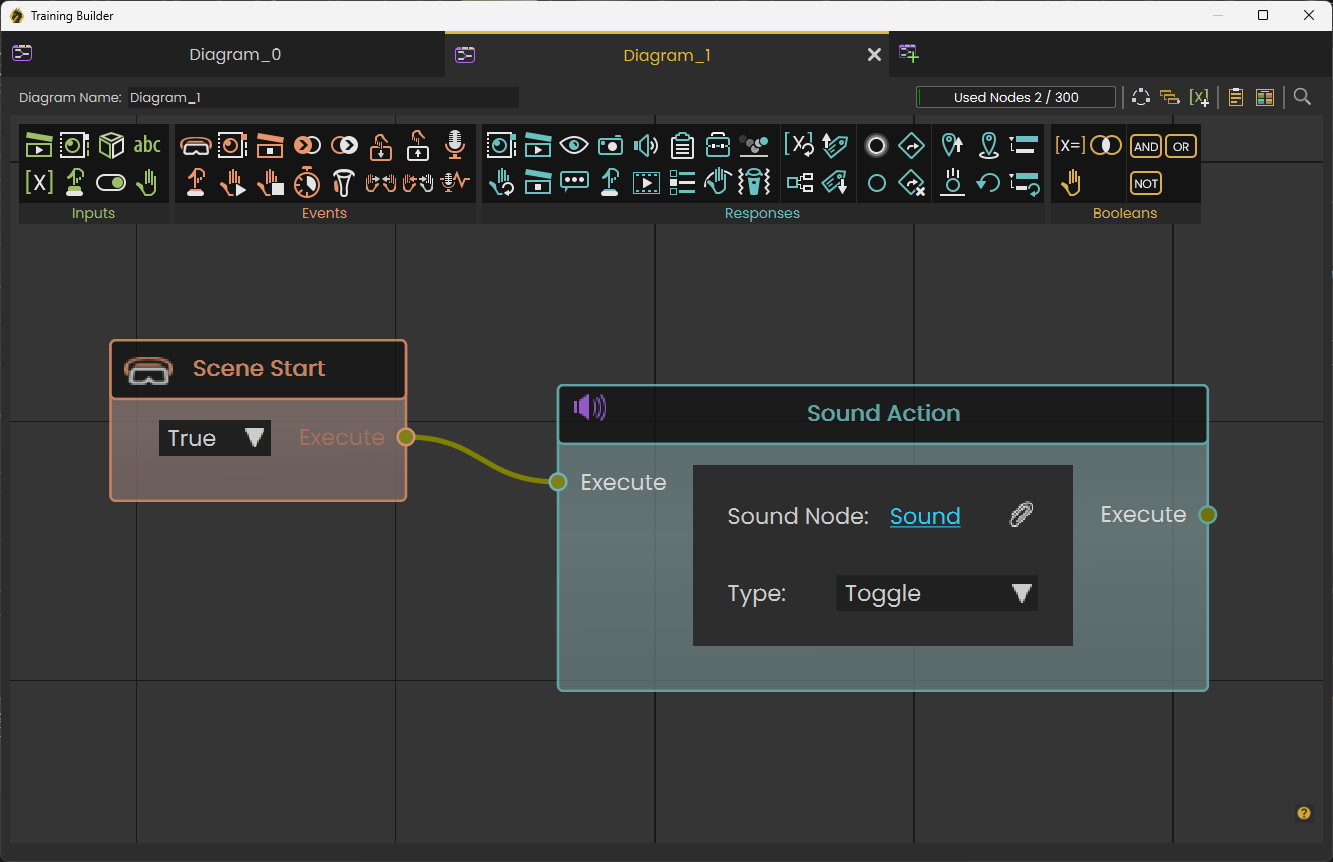
The following image shows how to use **Scene Start** Event, which takes place as soon as the VR Experience starts, to play Sound Action **Response**.

[![image.png](https://simlab-soft.com/help/uploads/images/gallery/2024-01/scaled-1680-/CGZimage.png)](https://simlab-soft.com/help/uploads/images/gallery/2024-01/CGZimage.png)
<table border="1" id="bkmrk-icons-events-name-sc" style="border-collapse: collapse; width: 100%; height: 981.487px;"><tbody><tr style="height: 33.9125px;"><td class="align-center" style="width: 1.23457%; height: 33.9125px;">Icons</td><td class="align-center" style="width: 13.8119%; height: 33.9125px;">Events Name</td></tr><tr style="height: 62.1875px;"><td class="align-center" style="width: 1.23457%; height: 62.1875px;">[![image.png](https://simlab-soft.com/help/uploads/images/gallery/2022-09/scaled-1680-/H2himage.png)](https://simlab-soft.com/help/uploads/images/gallery/2022-09/H2himage.png)

</td><td class="align-center" style="width: 13.8119%; height: 62.1875px;">Scene Start</td></tr><tr style="height: 66.2125px;"><td class="align-center" style="width: 1.23457%; height: 66.2125px;">[![image.png](https://simlab-soft.com/help/uploads/images/gallery/2022-09/scaled-1680-/gl8image.png)](https://simlab-soft.com/help/uploads/images/gallery/2022-09/gl8image.png)

</td><td class="align-center" style="width: 13.8119%; height: 66.2125px;">Scene State Applied</td></tr><tr style="height: 65.15px;"><td class="align-center" style="width: 1.23457%; height: 65.15px;">[![image.png](https://simlab-soft.com/help/uploads/images/gallery/2022-09/scaled-1680-/xTeimage.png)](https://simlab-soft.com/help/uploads/images/gallery/2022-09/xTeimage.png)

</td><td class="align-center" style="width: 13.8119%; height: 65.15px;">Sequence Ended</td></tr><tr style="height: 66.2125px;"><td class="align-center" style="width: 1.23457%; height: 66.2125px;">[![image.png](https://simlab-soft.com/help/uploads/images/gallery/2022-09/scaled-1680-/5t3image.png)](https://simlab-soft.com/help/uploads/images/gallery/2022-09/5t3image.png)

</td><td class="align-center" style="width: 13.8119%; height: 66.2125px;">Node Entered Node</td></tr><tr style="height: 66.2125px;"><td class="align-center" style="width: 1.23457%; height: 66.2125px;">[![image.png](https://simlab-soft.com/help/uploads/images/gallery/2022-09/scaled-1680-/5A1image.png)](https://simlab-soft.com/help/uploads/images/gallery/2022-09/5A1image.png)

</td><td class="align-center" style="width: 13.8119%; height: 66.2125px;">Node Exited Node</td></tr><tr style="height: 72.1125px;"><td style="width: 1.23457%; height: 72.1125px;">[![image.png](https://simlab-soft.com/help/uploads/images/gallery/2023-12/scaled-1680-/6WPimage.png)](https://simlab-soft.com/help/uploads/images/gallery/2023-12/6WPimage.png)

</td><td class="align-center" style="width: 13.8119%; height: 72.1125px;">Hand Entered Node</td></tr><tr style="height: 74.675px;"><td style="width: 1.23457%; height: 74.675px;">[![image.png](https://simlab-soft.com/help/uploads/images/gallery/2023-12/scaled-1680-/5SNimage.png)](https://simlab-soft.com/help/uploads/images/gallery/2023-12/5SNimage.png)

</td><td class="align-center" style="width: 13.8119%; height: 74.675px;">Hand Exited Node</td></tr><tr style="height: 68.15px;"><td style="width: 1.23457%; height: 68.15px;">[![image.png](https://simlab-soft.com/help/uploads/images/gallery/2023-12/scaled-1680-/prvimage.png)](https://simlab-soft.com/help/uploads/images/gallery/2023-12/prvimage.png)

</td><td class="align-center" style="width: 13.8119%; height: 68.15px;">Voice Command Recognizer </td></tr><tr style="height: 64.15px;"><td class="align-center" style="width: 1.23457%; height: 64.15px;">[![image.png](https://simlab-soft.com/help/uploads/images/gallery/2022-09/scaled-1680-/7Kyimage.png)](https://simlab-soft.com/help/uploads/images/gallery/2022-09/7Kyimage.png)

</td><td class="align-center" style="width: 13.8119%; height: 64.15px;">Node Triggered</td></tr><tr style="height: 63.15px;"><td class="align-center" style="width: 1.23457%; height: 63.15px;">[![image.png](https://simlab-soft.com/help/uploads/images/gallery/2022-09/scaled-1680-/wvKimage.png)](https://simlab-soft.com/help/uploads/images/gallery/2022-09/wvKimage.png)

</td><td class="align-center" style="width: 13.8119%; height: 63.15px;">Node Grab Started</td></tr><tr style="height: 64.15px;"><td class="align-center" style="width: 1.23457%; height: 64.15px;">[![image.png](https://simlab-soft.com/help/uploads/images/gallery/2022-09/scaled-1680-/GVAimage.png)](https://simlab-soft.com/help/uploads/images/gallery/2022-09/GVAimage.png)

</td><td class="align-center" style="width: 13.8119%; height: 64.15px;">Node Grab Ended</td></tr><tr style="height: 66.1625px;"><td class="align-center" style="width: 1.23457%; height: 66.1625px;">[![image.png](https://simlab-soft.com/help/uploads/images/gallery/2022-09/scaled-1680-/fLLimage.png)](https://simlab-soft.com/help/uploads/images/gallery/2022-09/fLLimage.png)

</td><td class="align-center" style="width: 13.8119%; height: 66.1625px;">Delay</td></tr><tr style="height: 67.15px;"><td style="width: 1.23457%; height: 67.15px;">[![image.png](https://simlab-soft.com/help/uploads/images/gallery/2022-09/scaled-1680-/Nrnimage.png)](https://simlab-soft.com/help/uploads/images/gallery/2022-09/Nrnimage.png)

</td><td class="align-center" style="width: 13.8119%; height: 67.15px;">Grip Pressed</td></tr><tr><td style="width: 1.23457%;">[![image.png](https://simlab-soft.com/help/uploads/images/gallery/2023-12/scaled-1680-/ru8image.png)](https://simlab-soft.com/help/uploads/images/gallery/2023-12/ru8image.png)

</td><td class="align-center" style="width: 13.8119%;">Hand Entered Hand</td></tr><tr><td style="width: 1.23457%;">[![image.png](https://simlab-soft.com/help/uploads/images/gallery/2023-12/scaled-1680-/vjCimage.png)](https://simlab-soft.com/help/uploads/images/gallery/2023-12/vjCimage.png)

</td><td class="align-center" style="width: 13.8119%;">Hand Exited Hand</td></tr><tr><td style="width: 1.23457%;">[![image.png](https://simlab-soft.com/help/uploads/images/gallery/2023-12/scaled-1680-/uxTimage.png)](https://simlab-soft.com/help/uploads/images/gallery/2023-12/uxTimage.png)

</td><td class="align-center" style="width: 13.8119%;">Voice Command Test</td></tr></tbody></table>

To learn more about Grip Press event check this **<span style="text-decoration: underline;">[tutorial](https://youtu.be/2-m_s1rwrLc)</span>**.

#### Responses

Responses are defined reactions to events. To link a **Response** to an event, the user needs to simply connect the Execute channel from the **Event** to the Execute channel of a **Response.** The user can connect the output Execute channel from a Response to the input Execute channel of another response to guarantee the order of execution and to link multiple responses to an **Event.**

[![image.png](https://simlab-soft.com/help/uploads/images/gallery/2023-12/scaled-1680-/KLqimage.png)](https://simlab-soft.com/help/uploads/images/gallery/2023-12/KLqimage.png)

The diagram below shows responses for clicking on an object (Node Triggered)  
1- Play a Sequence  
2- Wait for 2 seconds  
3- Hide an object from the scene

[![image.png](https://simlab-soft.com/help/uploads/images/gallery/2024-01/scaled-1680-/nzximage.png)](https://simlab-soft.com/help/uploads/images/gallery/2024-01/nzximage.png)
<table border="1" id="bkmrk-icons-responses-list" style="border-collapse: collapse; width: 100%; height: 1728.66px;"><tbody><tr style="height: 34.0909px;"><td class="align-center" style="width: 8.89981%; height: 34.0909px;">Icons</td><td class="align-center" style="width: 91.0995%; height: 34.0909px;">Responses List</td></tr><tr style="height: 69.0767px;"><td class="align-center" style="width: 8.89981%; height: 69.0767px;">[![image.png](https://simlab-soft.com/help/uploads/images/gallery/2022-09/scaled-1680-/mjUimage.png)](https://simlab-soft.com/help/uploads/images/gallery/2022-09/mjUimage.png)

</td><td class="align-center" style="width: 91.0995%; height: 69.0767px;">Apply Scene State</td></tr><tr><td style="width: 8.89981%;">[![image.png](https://simlab-soft.com/help/uploads/images/gallery/2022-09/scaled-1680-/KSNimage.png)](https://simlab-soft.com/help/uploads/images/gallery/2022-09/KSNimage.png)

</td><td class="align-center" style="width: 91.0995%;">Change Node Grabbable State</td></tr><tr style="height: 74.2045px;"><td class="align-center" style="width: 8.89981%; height: 74.2045px;">[![image.png](https://simlab-soft.com/help/uploads/images/gallery/2022-09/scaled-1680-/TiKimage.png)](https://simlab-soft.com/help/uploads/images/gallery/2022-09/TiKimage.png)

</td><td class="align-center" style="width: 91.0995%; height: 74.2045px;">Play Sequence</td></tr><tr><td style="width: 8.89981%;">[![image.png](https://simlab-soft.com/help/uploads/images/gallery/2022-09/scaled-1680-/IVAimage.png)](https://simlab-soft.com/help/uploads/images/gallery/2022-09/IVAimage.png)

</td><td class="align-center" style="width: 91.0995%;">Stop Sequence</td></tr><tr style="height: 72.5284px;"><td class="align-center" style="width: 8.89981%; height: 72.5284px;">[![image.png](https://simlab-soft.com/help/uploads/images/gallery/2022-09/scaled-1680-/MFQimage.png)](https://simlab-soft.com/help/uploads/images/gallery/2022-09/MFQimage.png)

</td><td class="align-center" style="width: 91.0995%; height: 72.5284px;">Show/Hide

</td></tr><tr><td style="width: 8.89981%;">[![image.png](https://simlab-soft.com/help/uploads/images/gallery/2022-09/scaled-1680-/DJwimage.png)](https://simlab-soft.com/help/uploads/images/gallery/2022-09/DJwimage.png)

</td><td style="width: 91.0995%;">Show Message Box

</td></tr><tr style="height: 67.8693px;"><td class="align-center" style="width: 8.89981%; height: 67.8693px;">[![image.png](https://simlab-soft.com/help/uploads/images/gallery/2022-09/scaled-1680-/KHIimage.png)](https://simlab-soft.com/help/uploads/images/gallery/2022-09/KHIimage.png)

</td><td class="align-center" style="width: 91.0995%; height: 67.8693px;">Teleport to Camera</td></tr><tr><td style="width: 8.89981%;">[![image.png](https://simlab-soft.com/help/uploads/images/gallery/2022-09/scaled-1680-/jcaimage.png)](https://simlab-soft.com/help/uploads/images/gallery/2022-09/jcaimage.png)

</td><td class="align-center" style="width: 91.0995%;">Change Node Action</td></tr><tr style="height: 69.0767px;"><td class="align-center" style="width: 8.89981%; height: 69.0767px;">[![image.png](https://simlab-soft.com/help/uploads/images/gallery/2022-09/scaled-1680-/WdZimage.png)](https://simlab-soft.com/help/uploads/images/gallery/2022-09/WdZimage.png)

</td><td class="align-center" style="width: 91.0995%; height: 69.0767px;">Sound Action</td></tr><tr><td style="width: 8.89981%;">[![image.png](https://simlab-soft.com/help/uploads/images/gallery/2022-09/scaled-1680-/dZ0image.png)](https://simlab-soft.com/help/uploads/images/gallery/2022-09/dZ0image.png)

</td><td class="align-center" style="width: 91.0995%;">Video Action</td></tr><tr style="height: 68.9915px;"><td style="width: 8.89981%; height: 68.9915px;">[![image.png](https://simlab-soft.com/help/uploads/images/gallery/2022-09/scaled-1680-/mIBimage.png)](https://simlab-soft.com/help/uploads/images/gallery/2022-09/mIBimage.png)

</td><td class="align-center" style="width: 91.0995%; height: 68.9915px;">Report user-defined measurement</td></tr><tr><td style="width: 8.89981%;">[![image.png](https://simlab-soft.com/help/uploads/images/gallery/2022-09/scaled-1680-/G9Simage.png)](https://simlab-soft.com/help/uploads/images/gallery/2022-09/G9Simage.png)

</td><td class="align-center" style="width: 91.0995%;">Active Quiz/Survey </td></tr><tr style="height: 67.7841px;"><td style="width: 8.89981%; height: 67.7841px;">[![image.png](https://simlab-soft.com/help/uploads/images/gallery/2022-09/scaled-1680-/HLAimage.png)](https://simlab-soft.com/help/uploads/images/gallery/2022-09/HLAimage.png)

</td><td class="align-center" style="width: 91.0995%; height: 67.7841px;">Change Equipment State</td></tr><tr><td style="width: 8.89981%;">[![image.png](https://simlab-soft.com/help/uploads/images/gallery/2022-09/scaled-1680-/ImEimage.png)](https://simlab-soft.com/help/uploads/images/gallery/2022-09/ImEimage.png)

</td><td class="align-center" style="width: 91.0995%;">Change Grabbable Sequence </td></tr><tr><td style="width: 8.89981%;">[![image.png](https://simlab-soft.com/help/uploads/images/gallery/2023-12/scaled-1680-/L72image.png)](https://simlab-soft.com/help/uploads/images/gallery/2023-12/L72image.png)

</td><td class="align-center" style="width: 91.0995%;">Enable/Disable Physics</td></tr><tr><td style="width: 8.89981%;">[![image.png](https://simlab-soft.com/help/uploads/images/gallery/2023-12/scaled-1680-/ByIimage.png)](https://simlab-soft.com/help/uploads/images/gallery/2023-12/ByIimage.png)

</td><td class="align-center" style="width: 91.0995%;">Vibrate Controller</td></tr><tr><td style="width: 8.89981%;">[![image.png](https://simlab-soft.com/help/uploads/images/gallery/2022-09/scaled-1680-/Uxwimage.png)](https://simlab-soft.com/help/uploads/images/gallery/2022-09/Uxwimage.png)

</td><td class="align-center" style="width: 91.0995%;">Advanced Change Variable Value</td></tr><tr style="height: 65.2273px;"><td class="align-center" style="width: 8.89981%; height: 65.2273px;">[![image.png](https://simlab-soft.com/help/uploads/images/gallery/2022-09/scaled-1680-/UCjimage.png)](https://simlab-soft.com/help/uploads/images/gallery/2022-09/UCjimage.png)

</td><td class="align-center" style="width: 91.0995%; height: 65.2273px;">Branch (Checks value, if true follows one path, if false follows the other)</td></tr><tr style="height: 63.2244px;"><td class="align-center" style="width: 8.89981%; height: 63.2244px;">[![image.png](https://simlab-soft.com/help/uploads/images/gallery/2022-09/scaled-1680-/jZWimage.png)](https://simlab-soft.com/help/uploads/images/gallery/2022-09/jZWimage.png)

</td><td class="align-center" style="width: 91.0995%; height: 63.2244px;">Get Attribute Value</td></tr><tr style="height: 63.2244px;"><td class="align-center" style="width: 8.89981%; height: 63.2244px;">[![image.png](https://simlab-soft.com/help/uploads/images/gallery/2022-09/scaled-1680-/omcimage.png)](https://simlab-soft.com/help/uploads/images/gallery/2022-09/omcimage.png)

</td><td class="align-center" style="width: 91.0995%; height: 63.2244px;">Set Attribute Value</td></tr><tr style="height: 68.2244px;"><td class="align-center" style="width: 8.89981%; height: 68.2244px;">[![image.png](https://simlab-soft.com/help/uploads/images/gallery/2022-09/scaled-1680-/Ea1image.png)](https://simlab-soft.com/help/uploads/images/gallery/2022-09/Ea1image.png)

</td><td class="align-center" style="width: 91.0995%; height: 68.2244px;">Glow Object</td></tr><tr style="height: 68.2244px;"><td class="align-center" style="width: 8.89981%; height: 68.2244px;">[![image.png](https://simlab-soft.com/help/uploads/images/gallery/2022-09/scaled-1680-/8daimage.png)](https://simlab-soft.com/help/uploads/images/gallery/2022-09/8daimage.png)

</td><td class="align-center" style="width: 91.0995%; height: 68.2244px;">Un-glow Object</td></tr><tr style="height: 68.2244px;"><td class="align-center" style="width: 8.89981%; height: 68.2244px;">[![image.png](https://simlab-soft.com/help/uploads/images/gallery/2022-09/scaled-1680-/3PAimage.png)](https://simlab-soft.com/help/uploads/images/gallery/2022-09/3PAimage.png)

</td><td class="align-center" style="width: 91.0995%; height: 68.2244px;">Point To Object</td></tr><tr style="height: 68.2244px;"><td class="align-center" style="width: 8.89981%; height: 68.2244px;">[![image.png](https://simlab-soft.com/help/uploads/images/gallery/2022-09/scaled-1680-/oFnimage.png)](https://simlab-soft.com/help/uploads/images/gallery/2022-09/oFnimage.png)

</td><td class="align-center" style="width: 91.0995%; height: 68.2244px;">Remove Point To Object</td></tr><tr style="height: 68.2244px;"><td class="align-center" style="width: 8.89981%; height: 68.2244px;">[![image.png](https://simlab-soft.com/help/uploads/images/gallery/2022-09/scaled-1680-/0IGimage.png)](https://simlab-soft.com/help/uploads/images/gallery/2022-09/0IGimage.png)

</td><td class="align-center" style="width: 91.0995%; height: 68.2244px;">Get Position</td></tr><tr style="height: 68.2244px;"><td class="align-center" style="width: 8.89981%; height: 68.2244px;">[![image.png](https://simlab-soft.com/help/uploads/images/gallery/2022-09/scaled-1680-/mizimage.png)](https://simlab-soft.com/help/uploads/images/gallery/2022-09/mizimage.png)

</td><td class="align-center" style="width: 91.0995%; height: 68.2244px;">Set Position</td></tr><tr style="height: 63.2244px;"><td class="align-center" style="width: 8.89981%; height: 63.2244px;">[![image.png](https://simlab-soft.com/help/uploads/images/gallery/2022-09/scaled-1680-/J9Yimage.png)](https://simlab-soft.com/help/uploads/images/gallery/2022-09/J9Yimage.png)

</td><td class="align-center" style="width: 91.0995%; height: 63.2244px;">Fall to Surface</td></tr><tr style="height: 63.2244px;"><td class="align-center" style="width: 8.89981%; height: 63.2244px;">[![image.png](https://simlab-soft.com/help/uploads/images/gallery/2022-09/scaled-1680-/Ma4image.png)](https://simlab-soft.com/help/uploads/images/gallery/2022-09/Ma4image.png)

</td><td class="align-center" style="width: 91.0995%; height: 63.2244px;">Reset Rotation</td></tr><tr><td style="width: 8.89981%;">[![image.png](https://simlab-soft.com/help/uploads/images/gallery/2023-12/scaled-1680-/nERimage.png)](https://simlab-soft.com/help/uploads/images/gallery/2023-12/nERimage.png)

</td><td class="align-center" style="width: 91.0995%;">Set Parent</td></tr><tr><td style="width: 8.89981%;">[![image.png](https://simlab-soft.com/help/uploads/images/gallery/2023-12/scaled-1680-/xfzimage.png)](https://simlab-soft.com/help/uploads/images/gallery/2023-12/xfzimage.png)

</td><td class="align-center" style="width: 91.0995%;">Reset Parent

</td></tr></tbody></table>

To learn more about Vibrate response check this <span style="text-decoration: underline;">**[tutorial](https://youtu.be/2-m_s1rwrLc)**</span>.

#### Booleans

Booleans include two groups **States**, and **Operations.**

[![image.png](https://simlab-soft.com/help/uploads/images/gallery/2022-09/scaled-1680-/trjimage.png)](https://simlab-soft.com/help/uploads/images/gallery/2022-09/trjimage.png)

**States** are similar to events, and the current state can always be gotten from them. For example in the following image, **Objects Overlap** is shown, if the two objects Overlap you get OnTrue execution, as soon as they do not, you get OnFalse execution. The output Boolean value can be checked at any point to see if they are Overlapping on not. OnTrue or OnFlase are **only fired when the state changes.**

[![image.png](https://simlab-soft.com/help/uploads/images/gallery/2022-09/scaled-1680-/e0bimage.png)](https://simlab-soft.com/help/uploads/images/gallery/2022-09/e0bimage.png)
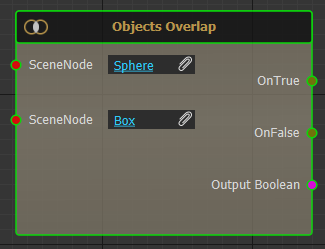
**Operations** allow running Boolean operations on Boolean variables. Supported operations include **And**, **Or,** and **Not**

<table border="1" id="bkmrk-icons-inputs-list-ic" style="border-collapse: collapse; width: 100%; height: 449.709px;"><tbody><tr style="height: 33.7917px;"><td class="align-center" style="width: 7.06793%; height: 33.7917px;">Icons</td><td class="align-center" style="width: 18.6728%; height: 33.7917px;">Booleans List</td></tr><tr style="height: 91.2396px;"><td class="align-center" style="width: 7.06793%; height: 91.2396px;">[![image.png](https://simlab-soft.com/help/uploads/images/gallery/2022-09/scaled-1680-/zcYimage.png)](https://simlab-soft.com/help/uploads/images/gallery/2022-09/zcYimage.png)

</td><td class="align-center" style="width: 18.6728%; height: 91.2396px;">Compare Variable Value</td></tr><tr style="height: 66.2604px;"><td class="align-center" style="width: 7.06793%; height: 66.2604px;">[![image.png](https://simlab-soft.com/help/uploads/images/gallery/2022-09/scaled-1680-/gRPimage.png)](https://simlab-soft.com/help/uploads/images/gallery/2022-09/gRPimage.png)

</td><td class="align-center" style="width: 18.6728%; height: 66.2604px;">Objects Overlap</td></tr><tr style="height: 70.6146px;"><td class="align-center" style="width: 7.06793%; height: 70.6146px;">[![image.png](https://simlab-soft.com/help/uploads/images/gallery/2022-09/scaled-1680-/JFRimage.png)](https://simlab-soft.com/help/uploads/images/gallery/2022-09/JFRimage.png)

</td><td class="align-center" style="width: 18.6728%; height: 70.6146px;">Object is Grabbed</td></tr><tr style="height: 62.9688px;"><td class="align-center" style="width: 7.06793%; height: 62.9688px;">[![image.png](https://simlab-soft.com/help/uploads/images/gallery/2022-09/scaled-1680-/tmsimage.png)](https://simlab-soft.com/help/uploads/images/gallery/2022-09/tmsimage.png)

</td><td class="align-center" style="width: 18.6728%; height: 62.9688px;">And Operation</td></tr><tr style="height: 62.9688px;"><td class="align-center" style="width: 7.06793%; height: 62.9688px;">[![image.png](https://simlab-soft.com/help/uploads/images/gallery/2022-09/scaled-1680-/0kOimage.png)](https://simlab-soft.com/help/uploads/images/gallery/2022-09/0kOimage.png)

</td><td class="align-center" style="width: 18.6728%; height: 62.9688px;">Or Operation</td></tr><tr style="height: 61.8646px;"><td class="align-center" style="width: 7.06793%; height: 61.8646px;">[![image.png](https://simlab-soft.com/help/uploads/images/gallery/2022-09/scaled-1680-/9GUimage.png)](https://simlab-soft.com/help/uploads/images/gallery/2022-09/9GUimage.png)

</td><td class="align-center" style="width: 18.6728%; height: 61.8646px;">Not Operation</td></tr></tbody></table>

#### Templates 

**Training Builder** works great for describing multiple-step training scenarios. But what if the same behavior is repeated for a class of objects? For example, if the user ends up grabbing any of the tools in the training, the response should be for it to fall to the ground, this is when templates are used.

To Create a **Template** diagram in the Training Builder click **Create Template** button at the top right side of the **Training Builder**.

[![image.png](https://simlab-soft.com/help/uploads/images/gallery/2024-01/scaled-1680-/Wphimage.png)](https://simlab-soft.com/help/uploads/images/gallery/2024-01/Wphimage.png)

After clicking **Create Template**, a new **Template Diagram** is added. A template diagram is different from a regular **Training Builder** diagram in its orange background marks, and in Template Scene Node block added to it. This block can not be deleted.

[![image.png](https://simlab-soft.com/help/uploads/images/gallery/2023-12/scaled-1680-/uzcimage.png)](https://simlab-soft.com/help/uploads/images/gallery/2023-12/uzcimage.png)
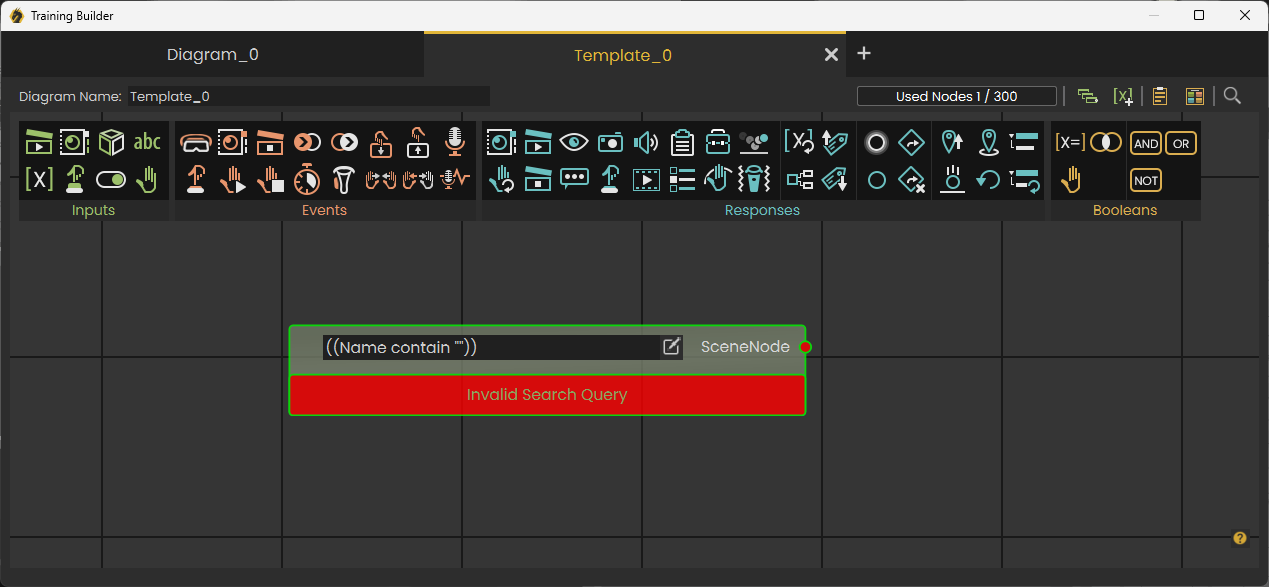
Template Scene Node block selects a group of Nodes based on a query that can include one or more rows connected with And or Or, as shown in the following image.

  
[![image.png](https://simlab-soft.com/help/uploads/images/gallery/2022-09/scaled-1680-/dNkimage.png)](https://simlab-soft.com/help/uploads/images/gallery/2022-09/dNkimage.png)
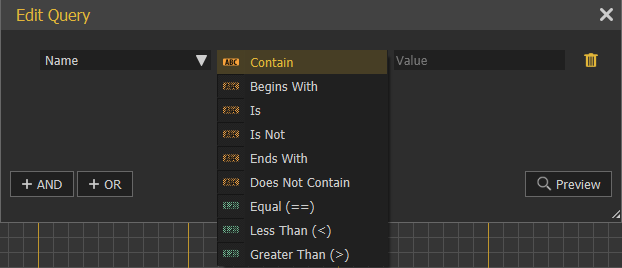
Logic connected to the Templet Scene Node block will be applied to each Node that satisfies the selection query, for example in the previous image, each object having "box" in its name, and "wood" in the value of its material attribute will be selected.

The following tutorial shows the power of Template Diagrams in the training builder

<iframe allowfullscreen="allowfullscreen" height="314" src="//www.youtube.com/embed/sG9Uikiv1wI" width="560"></iframe>

### Advanced Features 

#### Copy Part of a Diagram

To repeat the same logic for more than one object (in case templates did not do the job), part of the diagram can be copied. This is done by using the Left Mouse button to highlight the part of the diagram to copy, while the section is highlighted click **CTRL + C** to copy it, then **CTRL + V** to Paste. After that, the Scene Node Object needs to be changed, and any block needs update.

[![image.png](https://simlab-soft.com/help/uploads/images/gallery/2022-09/scaled-1680-/ZXlimage.png)](https://simlab-soft.com/help/uploads/images/gallery/2022-09/ZXlimage.png)
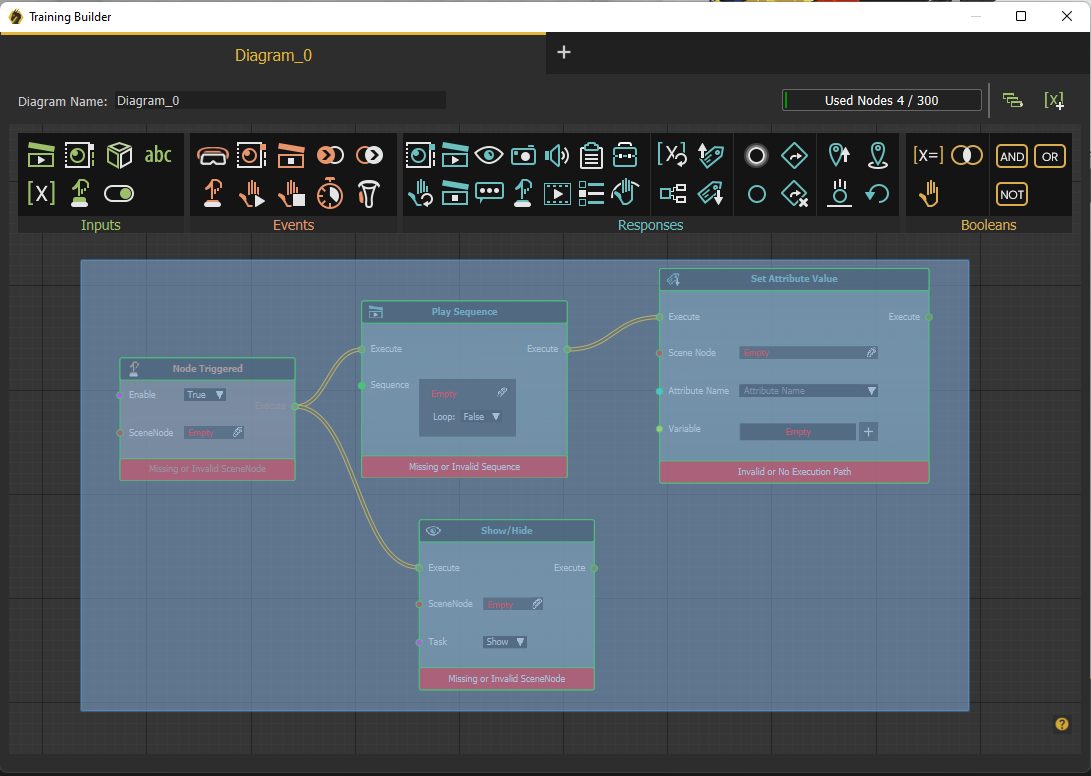
#### Drag/Drop of the Scene

To add inputs like a **Scene State** or a **Sequence,** the following process is used:

1- Click on Sequence from the toolbar  
2- From Sequence Library select the desired Sequence  
3- Click attach Sequence

As shown in the following image

[![image.png](https://simlab-soft.com/help/uploads/images/gallery/2022-09/scaled-1680-/O7Dimage.png)](https://simlab-soft.com/help/uploads/images/gallery/2022-09/O7Dimage.png)
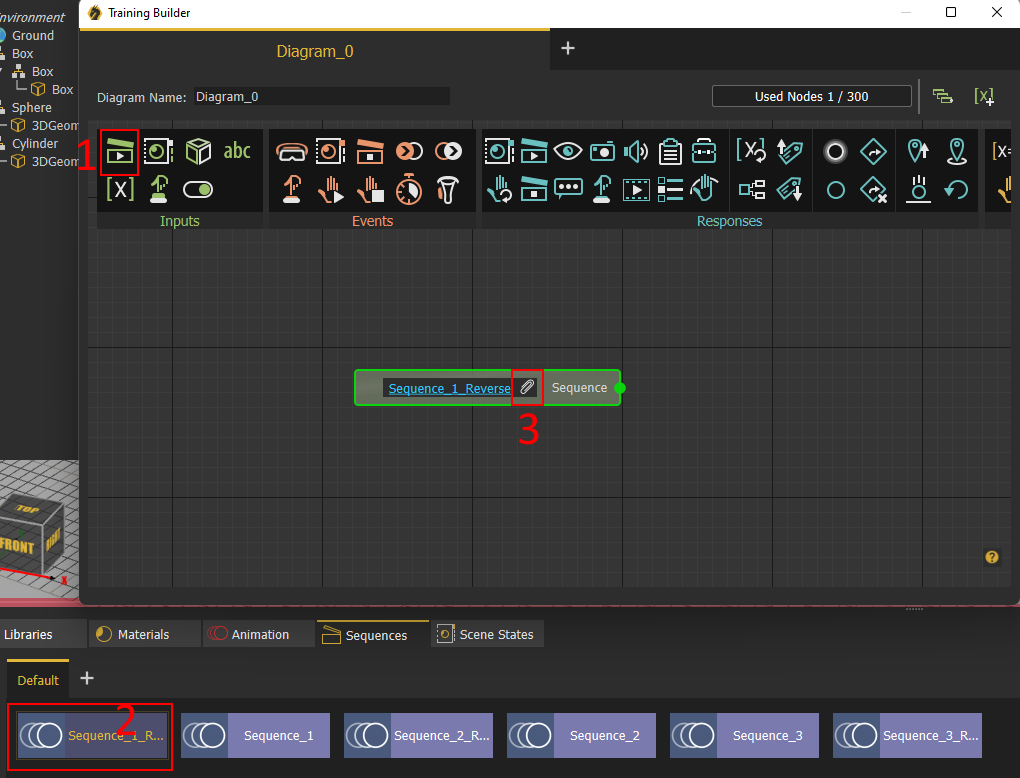
If you know the **Sequence** or the **Scene State** you can directly drag it from the Library and drop it on the **Training Builder**

[![image.png](https://simlab-soft.com/help/uploads/images/gallery/2024-02/scaled-1680-/image.png)](https://simlab-soft.com/help/uploads/images/gallery/2024-02/image.png)
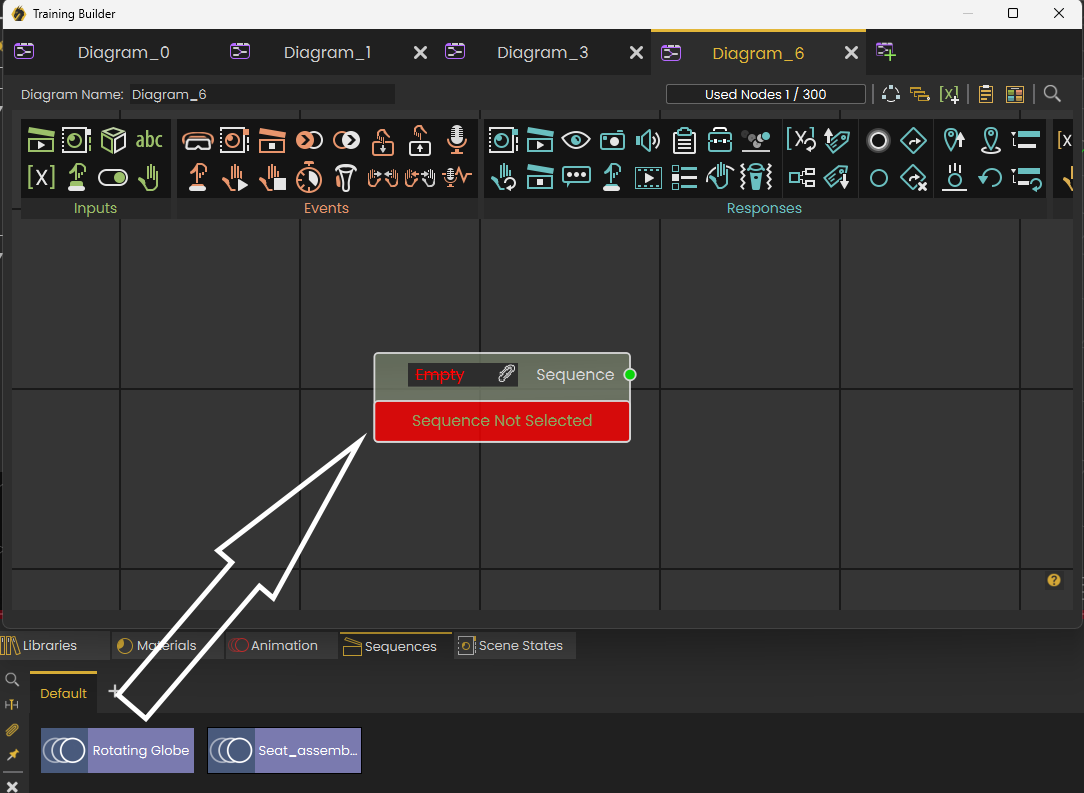
#### Right Mouse

Clicking the Right click in the training builder shows all toolbar elements, organized, so you can add any block without moving the mouse to the toolbar.

[![image.png](https://simlab-soft.com/help/uploads/images/gallery/2024-02/scaled-1680-/i2Eimage.png)](https://simlab-soft.com/help/uploads/images/gallery/2024-02/i2Eimage.png)
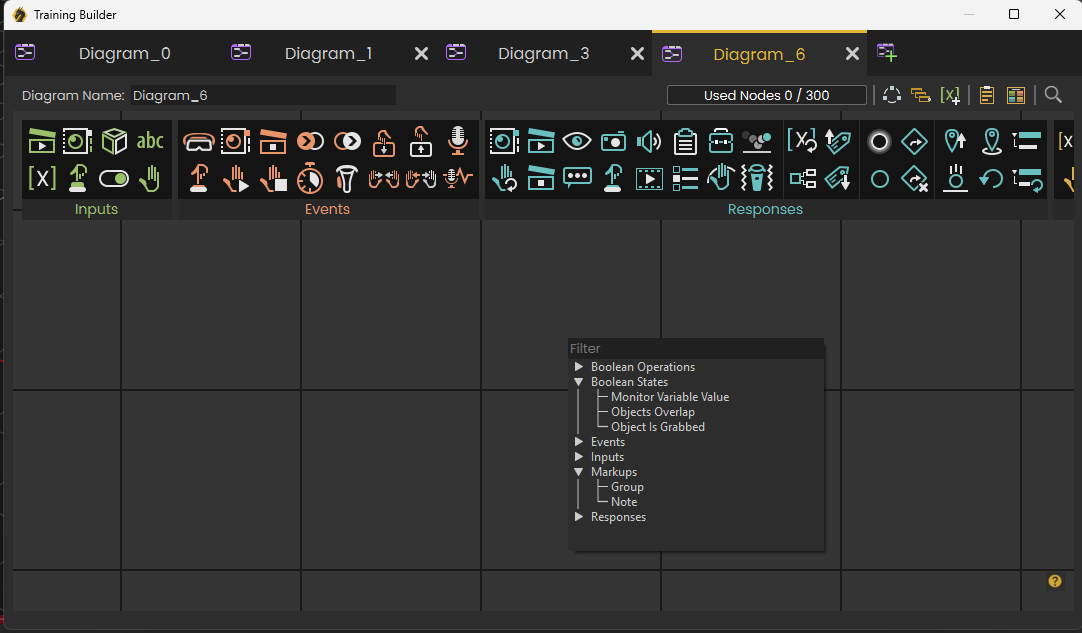
You can also click a few characters in the filter to find an element quickly, as shown in the following image:

[![image.png](https://simlab-soft.com/help/uploads/images/gallery/2024-02/scaled-1680-/XAkimage.png)](https://simlab-soft.com/help/uploads/images/gallery/2024-02/XAkimage.png)
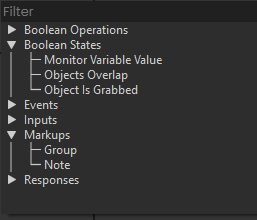
#### Attributes 

Attributes can be used with **Training Builder** in many ways:

- They can be used for creating **Template** diagrams
- They can be checked to determine behavior
- They can be used as local variables saved on each object.

It is a good idea to be familiar with attributes to create advanced VR Experiences. To learn more about attributes check the following tutorial:

<iframe allowfullscreen="allowfullscreen" height="314" src="//www.youtube.com/embed/h7VMgtIAOxU" width="560"></iframe>

### Enhancing Medical Training with VR Palpation Simulation

The Training Builder Hand Source and Events for VR medical simulations empowers VR Experience designers with unprecedented control over advanced hand skills training, particularly in processes like patient palpation.

Watch the demonstration in the video below to witness the immersive and customizable experience:

<iframe allowfullscreen="allowfullscreen" height="314" src="https://www.youtube.com/embed/OjLEk3VJd6o" width="560"></iframe>

### Tools to organize Training Builder experience 

<div id="bkmrk-some-users-are-creat">Some users are creating large and complex training, and virtual reality (VR) Experiences using the training builder. To help manage these complex diagrams, the following tools have been provided:</div><div id="bkmrk--20"></div>[![image.png](https://simlab-soft.com/help/uploads/images/gallery/2024-01/scaled-1680-/Lb3image.png)](https://simlab-soft.com/help/uploads/images/gallery/2024-01/Lb3image.png)

<div id="bkmrk-notes%3A-use-notes-to-">**Notes:** Use notes to describe the logic, making it simpler for both you and others to understand and update the training builder diagrams in the future.</div><div id="bkmrk--23">  
</div><div id="bkmrk-groups%3A-you-can-orga">**Groups:** You can organize nodes into groups and give them clear names. This makes it easier to find and update the logic of your training builder.</div><div id="bkmrk--22"></div><div id="bkmrk-search%3A-suppose-you%27">**Search:** Suppose you've improved an animation sequence and want to replace the old one in the training builder. Use the search tool to find all instances of the old sequence and replace them with the new one.</div><div id="bkmrk--24"></div>[![image.png](https://simlab-soft.com/help/uploads/images/gallery/2024-01/scaled-1680-/wZBimage.png)](https://simlab-soft.com/help/uploads/images/gallery/2024-01/wZBimage.png)

# Dynamic Builder

<span style="mso-bidi-language: AR-JO;">In template diagrams, a user was able to define logic for a group of objects based on name, or attribute criteria. Dynamic diagrams take this to the next level, they allow defining interaction between multiple templates, in a dynamic way. What this mean is that a user can set a dynamic criteria for triggering actions and responses mainly by defining multiple queries using multiple scene nodes.</span>

<span style="mso-bidi-language: AR-JO;">When you have access to the Dynamic Builder, the default diagram will be a Dynamic diagram, and to add a new one, click the highlighted Add a new dynamic diagram button at the top right side of Training Builder diagram. </span>

[![Add dyn.jpg](https://simlab-soft.com/help/uploads/images/gallery/2025-02/wrqadd-dyn.jpg)](https://simlab-soft.com/help/uploads/images/gallery/2024-01/JwMimage.png)

A new Dynamic Diagram will open, and the Dynamic Diagram menu will appear.

[![Dyn new.JPG](https://simlab-soft.com/help/uploads/images/gallery/2025-02/dyn-new.JPG)](https://simlab-soft.com/help/uploads/images/gallery/2024-01/g3Himage.png)

[![Dyn menu.JPG](https://simlab-soft.com/help/uploads/images/gallery/2025-02/dyn-menu.JPG)](https://simlab-soft.com/help/uploads/images/gallery/2024-01/lPximage.png)

Dynamic training builder menu is divided into four groups:

#### Sources

A source is an expression that will generate a value that can be used to trigger an event in the Dynamic Builder. Sources are divided into two tabs, Main Sources and Template Sources.

##### Main Sources 

[![image.png](https://simlab-soft.com/help/uploads/images/gallery/2024-01/scaled-1680-/Rq3image.png)](https://simlab-soft.com/help/uploads/images/gallery/2024-01/Rq3image.png)

<table border="1" class="align-center" id="bkmrk-icon-source-name-sce" style="border-collapse: collapse; width: 100%; height: 489.109px; border-width: 1px;"><colgroup><col style="width: 17.9257%;"></col><col style="width: 82.0743%;"></col></colgroup><tbody><tr style="height: 34.1094px;"><td class="align-center" style="height: 34.1094px; border-width: 1px;">**Icon**</td><td class="align-center" style="height: 34.1094px; border-width: 1px;">**Source Name**</td></tr><tr style="height: 67.6406px;"><td class="align-center" style="height: 67.6406px; border-width: 1px;">[![image.png](https://simlab-soft.com/help/uploads/images/gallery/2024-01/scaled-1680-/soFimage.png)](https://simlab-soft.com/help/uploads/images/gallery/2024-01/soFimage.png)

</td><td class="align-center" style="height: 67.6406px; border-width: 1px;">Scene Node</td></tr><tr style="height: 67.4375px;"><td class="align-center" style="height: 67.4375px; border-width: 1px;">[![image.png](https://simlab-soft.com/help/uploads/images/gallery/2024-01/scaled-1680-/G8fimage.png)](https://simlab-soft.com/help/uploads/images/gallery/2024-01/G8fimage.png)

</td><td class="align-center" style="height: 67.4375px; border-width: 1px;">Scene State</td></tr><tr style="height: 58.125px;"><td style="height: 58.125px; border-width: 1px;">[![image.png](https://simlab-soft.com/help/uploads/images/gallery/2024-01/scaled-1680-/kT7image.png)](https://simlab-soft.com/help/uploads/images/gallery/2024-01/kT7image.png)

</td><td class="align-center" style="height: 58.125px; border-width: 1px;">Expression </td></tr><tr style="height: 57.1406px;"><td class="align-center" style="height: 57.1406px; border-width: 1px;">[![image.png](https://simlab-soft.com/help/uploads/images/gallery/2024-01/scaled-1680-/dgJimage.png)](https://simlab-soft.com/help/uploads/images/gallery/2024-01/dgJimage.png)

</td><td class="align-center" style="height: 57.1406px; border-width: 1px;">Number </td></tr><tr style="height: 34.1094px;"><td class="align-center" style="height: 34.1094px; border-width: 1px;">[![image.png](https://simlab-soft.com/help/uploads/images/gallery/2024-01/scaled-1680-/u1cimage.png)](https://simlab-soft.com/help/uploads/images/gallery/2024-01/u1cimage.png)

</td><td class="align-center" style="height: 34.1094px; border-width: 1px;">Boolean</td></tr><tr style="height: 34.1094px;"><td class="align-center" style="height: 34.1094px; border-width: 1px;">[![image.png](https://simlab-soft.com/help/uploads/images/gallery/2024-01/scaled-1680-/qWtimage.png)](https://simlab-soft.com/help/uploads/images/gallery/2024-01/qWtimage.png)

</td><td class="align-center" style="height: 34.1094px; border-width: 1px;">Hand</td></tr><tr style="height: 34.1094px;"><td class="align-center" style="height: 34.1094px; border-width: 1px;">[![image.png](https://simlab-soft.com/help/uploads/images/gallery/2024-01/scaled-1680-/Cp9image.png)](https://simlab-soft.com/help/uploads/images/gallery/2024-01/Cp9image.png)

</td><td class="align-center" style="height: 34.1094px; border-width: 1px;">Sequence </td></tr><tr style="height: 34.1094px;"><td class="align-center" style="height: 34.1094px; border-width: 1px;">[![image.png](https://simlab-soft.com/help/uploads/images/gallery/2024-01/scaled-1680-/Mmyimage.png)](https://simlab-soft.com/help/uploads/images/gallery/2024-01/Mmyimage.png)

</td><td class="align-center" style="height: 34.1094px; border-width: 1px;">Variable </td></tr><tr style="height: 34.1094px;"><td class="align-center" style="height: 34.1094px; border-width: 1px;">[![image.png](https://simlab-soft.com/help/uploads/images/gallery/2024-01/scaled-1680-/hHCimage.png)](https://simlab-soft.com/help/uploads/images/gallery/2024-01/hHCimage.png)

</td><td class="align-center" style="height: 34.1094px; border-width: 1px;">String</td></tr></tbody></table>

##### Template Sources

[![image.png](https://simlab-soft.com/help/uploads/images/gallery/2024-01/scaled-1680-/835image.png)](https://simlab-soft.com/help/uploads/images/gallery/2024-01/835image.png)

<table border="1" id="bkmrk-icon-source-name-sce-0" style="border-collapse: collapse; width: 100%;"><colgroup><col style="width: 17.6787%;"></col><col style="width: 82.3213%;"></col></colgroup><tbody><tr><td class="align-center" style="height: 34.1094px;">**Icon**</td><td class="align-center" style="height: 34.1094px;">**Source Name**</td></tr><tr><td class="align-center">[![image.png](https://simlab-soft.com/help/uploads/images/gallery/2024-01/scaled-1680-/iKBimage.png)](https://simlab-soft.com/help/uploads/images/gallery/2024-01/iKBimage.png)

</td><td class="align-center">Scene Node Query</td></tr><tr><td class="align-center">[![image.png](https://simlab-soft.com/help/uploads/images/gallery/2024-01/scaled-1680-/sBlimage.png)](https://simlab-soft.com/help/uploads/images/gallery/2024-01/sBlimage.png)

</td><td class="align-center">User Query</td></tr></tbody></table>

#### Events 

Events are triggered when something happens in the VR Experience. They are arranged into two tabs Main Events and Object Interactions

##### Main Events

[![image.png](https://simlab-soft.com/help/uploads/images/gallery/2025-08/scaled-1680-/cVzimage.png)](https://simlab-soft.com/help/uploads/images/gallery/2025-08/cVzimage.png)

<table border="1" class="align-center" id="bkmrk-icon-event-name-%C2%A0" style="border-collapse: collapse; width: 100%; height: 579.531px; border-width: 1px;"><colgroup><col style="width: 17.6761%;"></col><col style="width: 82.3239%;"></col></colgroup><tbody><tr style="height: 34.1094px;"><td class="align-center" style="height: 34.1094px; border-width: 1px;">**Icon**</td><td class="align-center" style="height: 34.1094px; border-width: 1px;">**Event Name**</td></tr><tr style="height: 60.1406px;"><td class="align-center" style="height: 60.1406px; border-width: 1px;">[![image.png](https://simlab-soft.com/help/uploads/images/gallery/2024-01/scaled-1680-/zudimage.png)](https://simlab-soft.com/help/uploads/images/gallery/2024-01/zudimage.png)

</td><td class="align-center" style="height: 60.1406px; border-width: 1px;">Scene Start</td></tr><tr style="height: 58.1406px;"><td class="align-center" style="height: 58.1406px; border-width: 1px;">[![image.png](https://simlab-soft.com/help/uploads/images/gallery/2024-01/scaled-1680-/dd3image.png)](https://simlab-soft.com/help/uploads/images/gallery/2024-01/dd3image.png)

</td><td class="align-center" style="height: 58.1406px; border-width: 1px;">Node Triggered</td></tr><tr style="height: 58.1406px;"><td class="align-center" style="height: 58.1406px; border-width: 1px;">[![bprimage.png](https://simlab-soft.com/help/uploads/images/gallery/2024-01/scaled-1680-/lXObprimage.png)](https://simlab-soft.com/help/uploads/images/gallery/2024-01/lXObprimage.png)

</td><td class="align-center" style="height: 58.1406px; border-width: 1px;">Scene State Applied</td></tr><tr style="height: 56.1406px;"><td class="align-center" style="height: 56.1406px; border-width: 1px;">[![image.png](https://simlab-soft.com/help/uploads/images/gallery/2024-01/scaled-1680-/iMrimage.png)](https://simlab-soft.com/help/uploads/images/gallery/2024-01/iMrimage.png)

</td><td class="align-center" style="height: 56.1406px; border-width: 1px;">Sequence Ended</td></tr><tr style="height: 57.1406px;"><td class="align-center" style="height: 57.1406px; border-width: 1px;">[![image.png](https://simlab-soft.com/help/uploads/images/gallery/2024-01/scaled-1680-/9mrimage.png)](https://simlab-soft.com/help/uploads/images/gallery/2024-01/9mrimage.png)

</td><td class="align-center" style="height: 57.1406px; border-width: 1px;">Node Grab Started</td></tr><tr style="height: 60.1406px;"><td class="align-center" style="height: 60.1406px; border-width: 1px;">[![image.png](https://simlab-soft.com/help/uploads/images/gallery/2024-01/scaled-1680-/rLqimage.png)](https://simlab-soft.com/help/uploads/images/gallery/2024-01/rLqimage.png)

</td><td class="align-center" style="height: 60.1406px; border-width: 1px;">Node Grab Ended</td></tr><tr style="height: 59.1406px;"><td class="align-center" style="height: 59.1406px; border-width: 1px;"> [![PLHimage.png](https://simlab-soft.com/help/uploads/images/gallery/2024-01/scaled-1680-/plhimage.png)](https://simlab-soft.com/help/uploads/images/gallery/2024-01/plhimage.png)

</td><td class="align-center" style="height: 59.1406px; border-width: 1px;">Grip Pressed</td></tr><tr style="height: 34.1094px;"><td class="align-center" style="height: 34.1094px; border-width: 1px;">[![image.png](https://simlab-soft.com/help/uploads/images/gallery/2024-01/scaled-1680-/AMFimage.png)](https://simlab-soft.com/help/uploads/images/gallery/2024-01/AMFimage.png)

</td><td class="align-center" style="height: 34.1094px; border-width: 1px;">Grip Released</td></tr><tr style="height: 34.1094px;"><td class="align-center" style="height: 34.1094px; border-width: 1px;">[![image.png](https://simlab-soft.com/help/uploads/images/gallery/2024-01/scaled-1680-/qkiimage.png)](https://simlab-soft.com/help/uploads/images/gallery/2024-01/qkiimage.png)

</td><td class="align-center" style="height: 34.1094px; border-width: 1px;">Voice Command Recognized</td></tr><tr style="height: 34.1094px;"><td class="align-center" style="height: 34.1094px; border-width: 1px;">[![image.png](https://simlab-soft.com/help/uploads/images/gallery/2024-01/scaled-1680-/rCKimage.png)](https://simlab-soft.com/help/uploads/images/gallery/2024-01/rCKimage.png)

</td><td class="align-center" style="height: 34.1094px; border-width: 1px;">Ticker</td></tr><tr><td style="border-width: 1px;">[![image.png](https://simlab-soft.com/help/uploads/images/gallery/2025-08/scaled-1680-/KSAimage.png)](https://simlab-soft.com/help/uploads/images/gallery/2025-08/KSAimage.png)

</td><td style="border-width: 1px;">Variable Changed</td></tr></tbody></table>

##### Object Interactions

[![image.png](https://simlab-soft.com/help/uploads/images/gallery/2025-08/scaled-1680-/Wbiimage.png)](https://simlab-soft.com/help/uploads/images/gallery/2025-08/Wbiimage.png)

<table border="1" id="bkmrk-%C2%A0" style="border-collapse: collapse; width: 100%; height: 847.321px;"><colgroup><col style="width: 17.9136%;"></col><col style="width: 82.0334%;"></col></colgroup><tbody><tr style="height: 34.1071px;"><td class="align-center" style="height: 34.1071px;">**Icon**</td><td class="align-center" style="height: 34.1071px;">**Event Name**</td></tr><tr style="height: 67.3571px;"><td class="align-center" style="height: 67.3571px;">[![image.png](https://simlab-soft.com/help/uploads/images/gallery/2024-01/scaled-1680-/hRfimage.png)](https://simlab-soft.com/help/uploads/images/gallery/2024-01/hRfimage.png)

</td><td class="align-center" style="height: 67.3571px;">Node Enter Node</td></tr><tr style="height: 68.8839px;"><td class="align-center" style="height: 68.8839px;">[![image.png](https://simlab-soft.com/help/uploads/images/gallery/2024-01/scaled-1680-/HqBimage.png)](https://simlab-soft.com/help/uploads/images/gallery/2024-01/HqBimage.png)

</td><td class="align-center" style="height: 68.8839px;">Node Exited Node</td></tr><tr style="height: 66.9464px;"><td class="align-center" style="height: 66.9464px;">[![image.png](https://simlab-soft.com/help/uploads/images/gallery/2024-01/scaled-1680-/YsSimage.png)](https://simlab-soft.com/help/uploads/images/gallery/2024-01/YsSimage.png)

</td><td class="align-center" style="height: 66.9464px;">User Enter Node</td></tr><tr style="height: 68.8393px;"><td class="align-center" style="height: 68.8393px;">[![image.png](https://simlab-soft.com/help/uploads/images/gallery/2024-01/scaled-1680-/Sirimage.png)](https://simlab-soft.com/help/uploads/images/gallery/2024-01/Sirimage.png)

</td><td class="align-center" style="height: 68.8393px;">User Exited Node</td></tr><tr style="height: 65.1339px;"><td class="align-center" style="height: 65.1339px;">[![image.png](https://simlab-soft.com/help/uploads/images/gallery/2024-01/scaled-1680-/kXfimage.png)](https://simlab-soft.com/help/uploads/images/gallery/2024-01/kXfimage.png)

</td><td class="align-center" style="height: 65.1339px;">Node Hover Started</td></tr><tr style="height: 64.0268px;"><td class="align-center" style="height: 64.0268px;">[![image.png](https://simlab-soft.com/help/uploads/images/gallery/2024-01/scaled-1680-/Srjimage.png)](https://simlab-soft.com/help/uploads/images/gallery/2024-01/Srjimage.png)

</td><td class="align-center" style="height: 64.0268px;">Node Hover Ended</td></tr><tr style="height: 63.8839px;"><td class="align-center" style="height: 63.8839px;">[![image.png](https://simlab-soft.com/help/uploads/images/gallery/2024-01/scaled-1680-/Lrtimage.png)](https://simlab-soft.com/help/uploads/images/gallery/2024-01/Lrtimage.png)

</td><td class="align-center" style="height: 63.8839px;">Hand Enter Node</td></tr><tr style="height: 68.9018px;"><td class="align-center" style="height: 68.9018px;">[![image.png](https://simlab-soft.com/help/uploads/images/gallery/2024-01/scaled-1680-/G11image.png)](https://simlab-soft.com/help/uploads/images/gallery/2024-01/G11image.png)

</td><td class="align-center" style="height: 68.9018px;">Hand Exited Node</td></tr><tr style="height: 68.8393px;"><td class="align-center" style="height: 68.8393px;">[![image.png](https://simlab-soft.com/help/uploads/images/gallery/2024-01/scaled-1680-/mHKimage.png)](https://simlab-soft.com/help/uploads/images/gallery/2024-01/mHKimage.png)

</td><td class="align-center" style="height: 68.8393px;">Hand Entered Hand</td></tr><tr style="height: 70.1339px;"><td class="align-center" style="height: 70.1339px;">[![image.png](https://simlab-soft.com/help/uploads/images/gallery/2024-01/scaled-1680-/OTAimage.png)](https://simlab-soft.com/help/uploads/images/gallery/2024-01/OTAimage.png)

</td><td class="align-center" style="height: 70.1339px;">Hand Exited Hand</td></tr><tr style="height: 75.7232px;"><td style="height: 75.7232px;">[![image.png](https://simlab-soft.com/help/uploads/images/gallery/2025-08/scaled-1680-/nuoimage.png)](https://simlab-soft.com/help/uploads/images/gallery/2025-08/nuoimage.png)

</td><td class="align-center" style="height: 75.7232px;">Node Assembled

</td></tr><tr style="height: 64.5446px;"><td style="height: 64.5446px;">[![image.png](https://simlab-soft.com/help/uploads/images/gallery/2025-08/scaled-1680-/7uIimage.png)](https://simlab-soft.com/help/uploads/images/gallery/2025-08/7uIimage.png)

</td><td class="align-center" style="height: 64.5446px;">Node Disassembled</td></tr></tbody></table>

##### Right Mouse Events

Not all events are shown in the diagram. More are put under mouse right click menu as shown below:

[![image.png](https://simlab-soft.com/help/uploads/images/gallery/2025-08/scaled-1680-/9zbimage.png)](https://simlab-soft.com/help/uploads/images/gallery/2025-08/9zbimage.png)
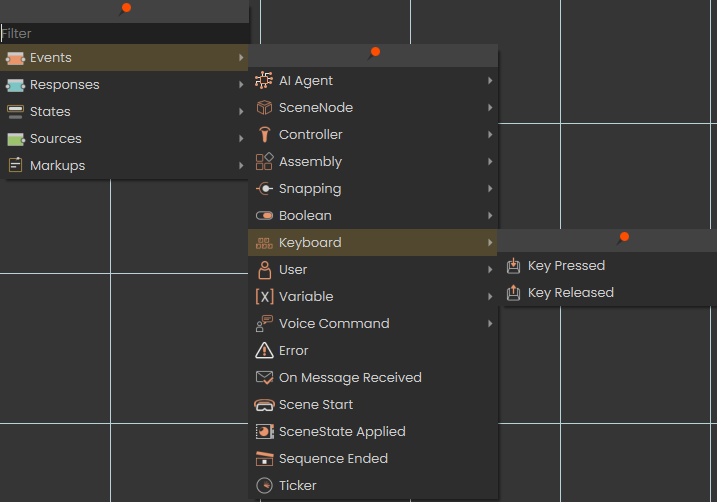
**Key Pressed/Key Released**

To learn more about this event check this [tutorial](https://youtu.be/ACQPYu1sdf0).

#### Responses

Responses in SimLab Dynamic Builder are arranged in a number of tabs to make it easier to use.

##### Main Responses

[![image.png](https://simlab-soft.com/help/uploads/images/gallery/2025-08/scaled-1680-/QCWimage.png)](https://simlab-soft.com/help/uploads/images/gallery/2025-08/QCWimage.png)

<table border="1" class="align-center" id="bkmrk-icon-event-name" style="border-collapse: collapse; width: 100%; height: 625.594px; border-width: 1px;"><colgroup><col style="width: 17.7982%;"></col><col style="width: 82.2018%;"></col></colgroup><tbody><tr style="height: 34.1094px;"><td class="align-center" style="height: 34.1094px; border-width: 1px;">**Icon**</td><td class="align-center" style="height: 34.1094px; border-width: 1px;">**Event Name**</td></tr><tr style="height: 58.1406px;"><td class="align-center" style="height: 58.1406px; border-width: 1px;">[![image.png](https://simlab-soft.com/help/uploads/images/gallery/2024-01/scaled-1680-/Xfgimage.png)](https://simlab-soft.com/help/uploads/images/gallery/2024-01/Xfgimage.png)

</td><td class="align-center" style="height: 58.1406px; border-width: 1px;">Play Animation Sequence</td></tr><tr style="height: 55.1406px;"><td class="align-center" style="height: 55.1406px; border-width: 1px;">[![image.png](https://simlab-soft.com/help/uploads/images/gallery/2024-01/scaled-1680-/tdGimage.png)](https://simlab-soft.com/help/uploads/images/gallery/2024-01/tdGimage.png)

</td><td class="align-center" style="height: 55.1406px; border-width: 1px;">Apply Scene State</td></tr><tr style="height: 55.1406px;"><td class="align-center" style="height: 55.1406px; border-width: 1px;">[![image.png](https://simlab-soft.com/help/uploads/images/gallery/2024-01/scaled-1680-/gVqimage.png)](https://simlab-soft.com/help/uploads/images/gallery/2024-01/gVqimage.png)

</td><td class="align-center" style="height: 55.1406px; border-width: 1px;">Set Parent Node</td></tr><tr style="height: 58.1406px;"><td class="align-center" style="height: 58.1406px; border-width: 1px;">[![image.png](https://simlab-soft.com/help/uploads/images/gallery/2024-01/scaled-1680-/lUrimage.png)](https://simlab-soft.com/help/uploads/images/gallery/2024-01/lUrimage.png)

</td><td class="align-center" style="height: 58.1406px; border-width: 1px;">Reset Parent Node</td></tr><tr style="height: 61.1406px;"><td class="align-center" style="height: 61.1406px; border-width: 1px;">[![image.png](https://simlab-soft.com/help/uploads/images/gallery/2024-01/scaled-1680-/1jXimage.png)](https://simlab-soft.com/help/uploads/images/gallery/2024-01/1jXimage.png)

</td><td class="align-center" style="height: 61.1406px; border-width: 1px;">Set Node Grabbable State</td></tr><tr style="height: 61.1406px;"><td class="align-center" style="height: 61.1406px; border-width: 1px;">[![image.png](https://simlab-soft.com/help/uploads/images/gallery/2024-01/scaled-1680-/eEtimage.png)](https://simlab-soft.com/help/uploads/images/gallery/2024-01/eEtimage.png)

</td><td style="height: 61.1406px; border-width: 1px;">Delay</td></tr><tr style="height: 58.1406px;"><td class="align-center" style="height: 58.1406px; border-width: 1px;">[![image.png](https://simlab-soft.com/help/uploads/images/gallery/2024-01/scaled-1680-/o0dimage.png)](https://simlab-soft.com/help/uploads/images/gallery/2024-01/o0dimage.png)

</td><td style="height: 58.1406px; border-width: 1px;">Branch on Expression</td></tr><tr style="height: 59.1406px;"><td class="align-center" style="height: 59.1406px; border-width: 1px;">[![image.png](https://simlab-soft.com/help/uploads/images/gallery/2024-01/scaled-1680-/sGpimage.png)](https://simlab-soft.com/help/uploads/images/gallery/2024-01/sGpimage.png)

</td><td class="align-center" style="height: 59.1406px; border-width: 1px;">Loop</td></tr><tr style="height: 57.1406px;"><td class="align-center" style="height: 57.1406px; border-width: 1px;">[![image.png](https://simlab-soft.com/help/uploads/images/gallery/2024-01/scaled-1680-/8Sdimage.png)](https://simlab-soft.com/help/uploads/images/gallery/2024-01/8Sdimage.png)

</td><td style="height: 57.1406px; border-width: 1px;">Show/Hide</td></tr><tr style="height: 34.1094px;"><td class="align-center" style="height: 34.1094px; border-width: 1px;">[![image.png](https://simlab-soft.com/help/uploads/images/gallery/2024-01/scaled-1680-/LN3image.png)](https://simlab-soft.com/help/uploads/images/gallery/2024-01/LN3image.png)

</td><td style="height: 34.1094px; border-width: 1px;">Set Node Glow State</td></tr><tr style="height: 34.1094px;"><td class="align-center" style="height: 34.1094px; border-width: 1px;">[![image.png](https://simlab-soft.com/help/uploads/images/gallery/2024-01/scaled-1680-/sE8image.png)](https://simlab-soft.com/help/uploads/images/gallery/2024-01/sE8image.png)

</td><td style="height: 34.1094px; border-width: 1px;">Enable Controller Vibration</td></tr><tr><td class="align-center" style="border-width: 1px;">[![image.png](https://simlab-soft.com/help/uploads/images/gallery/2024-01/scaled-1680-/8s1image.png)](https://simlab-soft.com/help/uploads/images/gallery/2024-01/8s1image.png)

</td><td style="border-width: 1px;">Disable Controller Vibration</td></tr><tr><td style="border-width: 1px;">[![image.png](https://simlab-soft.com/help/uploads/images/gallery/2025-08/scaled-1680-/ITqimage.png)](https://simlab-soft.com/help/uploads/images/gallery/2025-08/ITqimage.png)

</td><td style="border-width: 1px;">Get Cloud Attribute</td></tr><tr><td style="border-width: 1px;">[![image.png](https://simlab-soft.com/help/uploads/images/gallery/2025-08/scaled-1680-/h9iimage.png)](https://simlab-soft.com/help/uploads/images/gallery/2025-08/h9iimage.png)

</td><td style="border-width: 1px;">Set Cloud Attribute</td></tr><tr><td style="border-width: 1px;">[![image.png](https://simlab-soft.com/help/uploads/images/gallery/2025-08/scaled-1680-/hfzimage.png)](https://simlab-soft.com/help/uploads/images/gallery/2025-08/hfzimage.png)

</td><td style="border-width: 1px;">Open External Connection</td></tr><tr><td style="border-width: 1px;">[![image.png](https://simlab-soft.com/help/uploads/images/gallery/2025-08/scaled-1680-/0x2image.png)](https://simlab-soft.com/help/uploads/images/gallery/2025-08/0x2image.png)

</td><td style="border-width: 1px;">Send Message</td></tr><tr><td style="border-width: 1px;">[![image.png](https://simlab-soft.com/help/uploads/images/gallery/2025-08/scaled-1680-/dXFimage.png)](https://simlab-soft.com/help/uploads/images/gallery/2025-08/dXFimage.png)

</td><td style="border-width: 1px;">Delay</td></tr></tbody></table>

##### Objects Behavior

[![image.png](https://simlab-soft.com/help/uploads/images/gallery/2025-08/scaled-1680-/uNbimage.png)](https://simlab-soft.com/help/uploads/images/gallery/2025-08/uNbimage.png)

##### Animation Sequences 

[![image.png](https://simlab-soft.com/help/uploads/images/gallery/2025-08/scaled-1680-/PPcimage.png)](https://simlab-soft.com/help/uploads/images/gallery/2025-08/PPcimage.png)

<span style="color: rgb(34, 34, 34); font-size: 1.4em; font-weight: 400;">Numbers</span>

[![image.png](https://simlab-soft.com/help/uploads/images/gallery/2024-01/scaled-1680-/qMgimage.png)](https://simlab-soft.com/help/uploads/images/gallery/2024-01/qMgimage.png)

##### String

[![image.png](https://simlab-soft.com/help/uploads/images/gallery/2024-01/scaled-1680-/SxOimage.png)](https://simlab-soft.com/help/uploads/images/gallery/2024-01/SxOimage.png)

##### Time Variable

[![image.png](https://simlab-soft.com/help/uploads/images/gallery/2024-01/scaled-1680-/Vehimage.png)](https://simlab-soft.com/help/uploads/images/gallery/2024-01/Vehimage.png)

##### Media

[![image.png](https://simlab-soft.com/help/uploads/images/gallery/2025-08/scaled-1680-/S6qimage.png)](https://simlab-soft.com/help/uploads/images/gallery/2025-08/S6qimage.png)

##### Attributes 

[![image.png](https://simlab-soft.com/help/uploads/images/gallery/2024-01/scaled-1680-/T8simage.png)](https://simlab-soft.com/help/uploads/images/gallery/2024-01/T8simage.png)

##### User

[![image.png](https://simlab-soft.com/help/uploads/images/gallery/2025-08/scaled-1680-/LZGimage.png)](https://simlab-soft.com/help/uploads/images/gallery/2025-08/LZGimage.png)

##### AI Agents

[![image.png](https://simlab-soft.com/help/uploads/images/gallery/2025-08/scaled-1680-/kNzimage.png)](https://simlab-soft.com/help/uploads/images/gallery/2025-08/kNzimage.png)

##### Scene Management 

[![image.png](https://simlab-soft.com/help/uploads/images/gallery/2025-08/scaled-1680-/o2simage.png)](https://simlab-soft.com/help/uploads/images/gallery/2025-08/o2simage.png)

#### States

[![image.png](https://simlab-soft.com/help/uploads/images/gallery/2024-01/scaled-1680-/2nQimage.png)](https://simlab-soft.com/help/uploads/images/gallery/2024-01/2nQimage.png)

The following video shows the behavior in action, if you do not get why this is useful, do not worry about it for now.  
In the future when you create more dynamic experiences, you will be glad to have this at your disposal.

<iframe allowfullscreen="allowfullscreen" height="314" src="https://www.youtube.com/embed/cJ_ib2JSKno" width="560"></iframe>

The following diagram shows how loop end is used, it is combined with the fact that in Dynamic Builder the show message strings can also be dynamic, so we can show a message depending on the execution of the experience

[![image.png](https://simlab-soft.com/help/uploads/images/gallery/2024-01/scaled-1680-/RLMimage.png)](https://simlab-soft.com/help/uploads/images/gallery/2024-01/RLMimage.png)
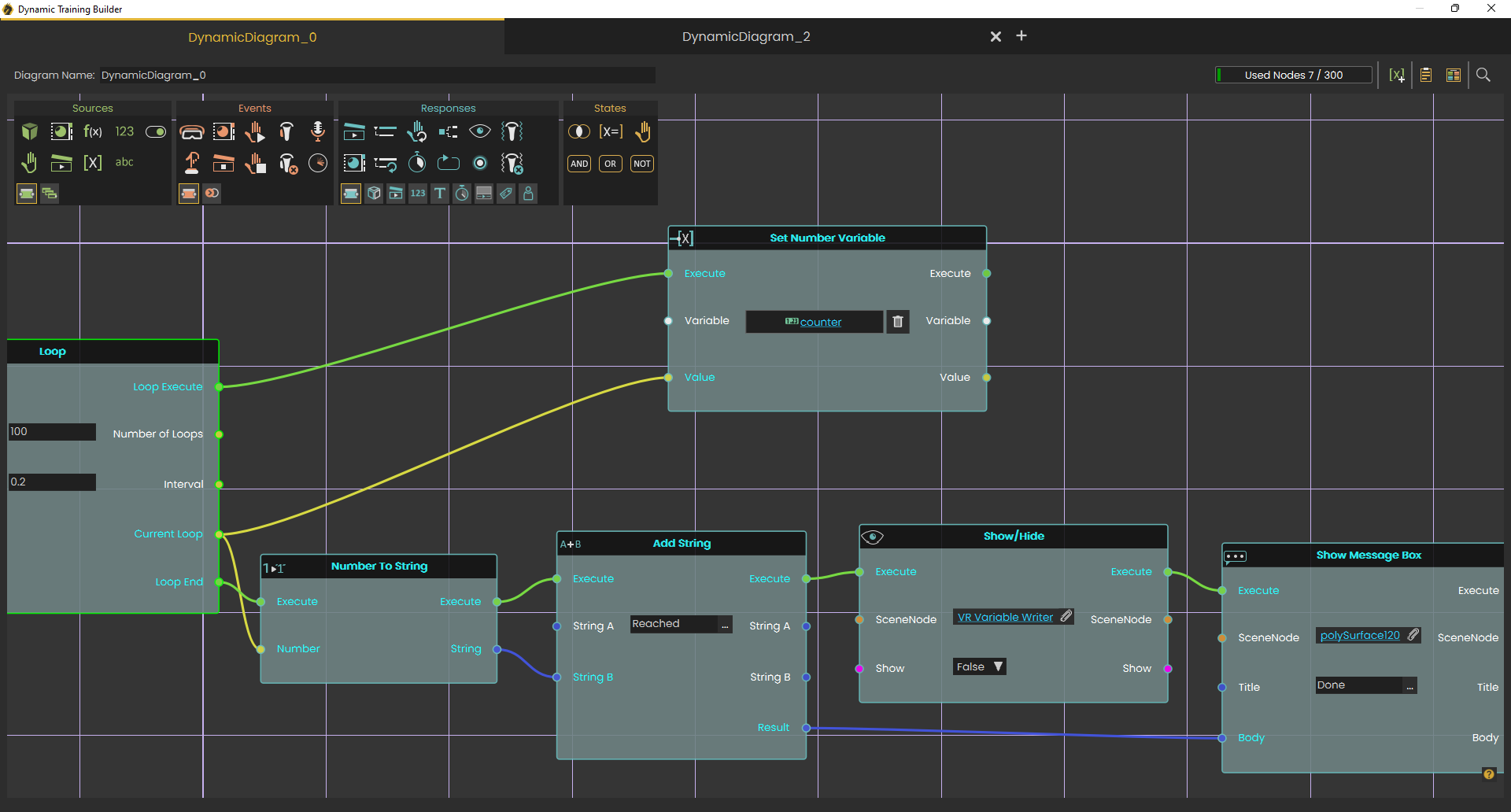
#### Markups

VR experiences are valuable assets that include custom logic created by users. As more users build advanced experiences—and as these experiences are shared and used over time by multiple creators—we’ve added colored **groups** and **notes** to help manage them better. These features make it easier to organize related logic into groups and add clear descriptions for each section in the Training Builder. Check this [tutorial](https://www.youtube.com/watch?v=p9SMynLbRQY).

[![image.png](https://simlab-soft.com/help/uploads/images/gallery/2025-08/scaled-1680-/6BBimage.png)](https://simlab-soft.com/help/uploads/images/gallery/2025-08/6BBimage.png)
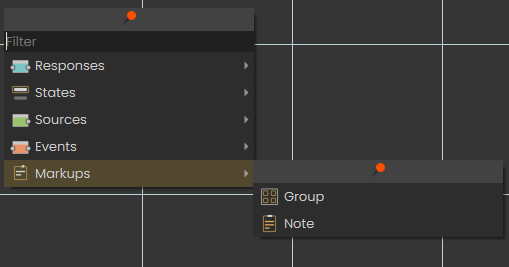
# VR Catalog Menu
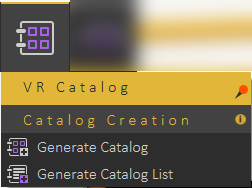
![image.png](https://simlab-soft.com/help/uploads/images/gallery/2022-12/scaled-1680-/h5Uimage.png)

#### Generate Catalog

With this feature, users can insert ready models into the scene such as tables, chairs, doors, trees, and much more directly in VR Viewer without the need to go back to SimLab Composer and run the Viewer again. Also, new models can be added to the Catalog and shared with others online.
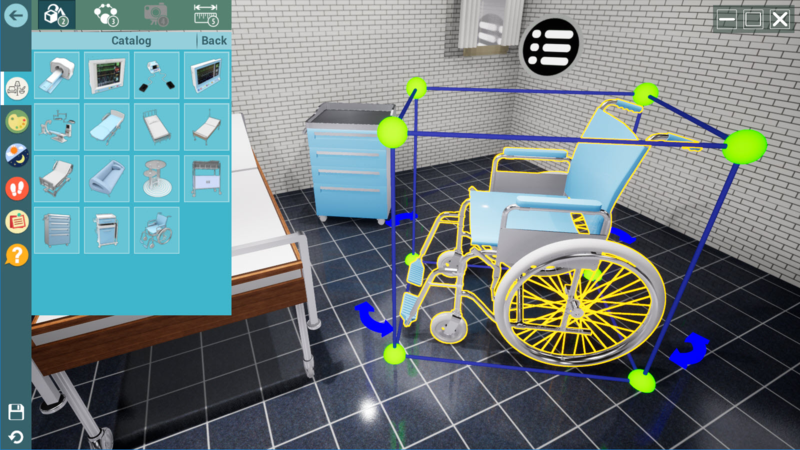
![image.png](https://simlab-soft.com/help/uploads/images/gallery/2022-12/scaled-1680-/Seyimage.png)

<p class="callout success">To create a VR Catalog in Simlab Composer/Studio for VR Viewer follow the steps below:</p>

1. Export your scenes/models as a .vrpackege into the same folder in your device as shown in the screenshot below:  
    ![image.png](https://simlab-soft.com/help/uploads/images/gallery/2022-12/scaled-1680-/Ea8image.png)
2. Create a preview image (PNG) for the catalog to display in the catalog menu in VR Viewer, a square image with a size of 256x256 pixels is recommended.
3. Select **Generate Catalog** and select the folder containing the VR Packages, and select the preview image. Give a name to the catalog, and click **Generate**. The new "\*.vrcatalog" will be created in the same folder where the "\*.vrpackege" models are saved.  
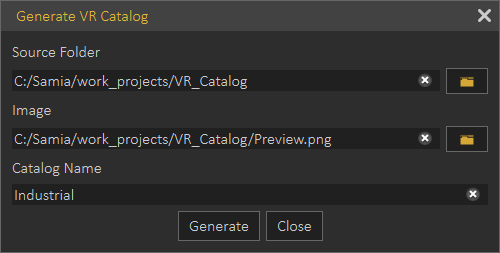
    ![image.png](https://simlab-soft.com/help/uploads/images/gallery/2022-12/scaled-1680-/4YMimage.png)
4. From the object tree select **Environment**, then in the Properties dialog/VR tab, select **Add from file** (The folder icon) then select the (\*.vrcatalog) created.  
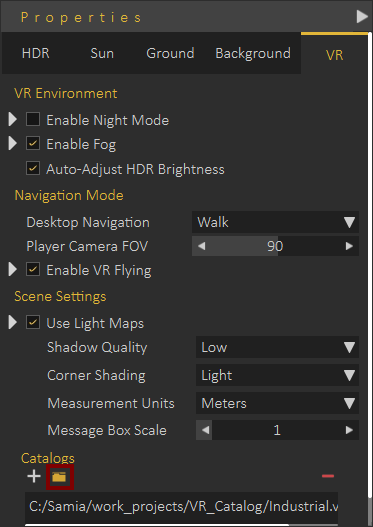
    ![image.png](https://simlab-soft.com/help/uploads/images/gallery/2022-12/scaled-1680-/TPqimage.png)

The (\*.vrcatalog) file can be uploaded online to a website, and its URL can be added by pressing the plus icon.
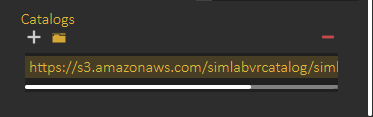
![image.png](https://simlab-soft.com/help/uploads/images/gallery/2022-12/scaled-1680-/u9qimage.png)

Now all models in the Industrial catalog we created, will appear in the Catalog menu in the VR Viewer, just one click on the model to insert it into the scene.
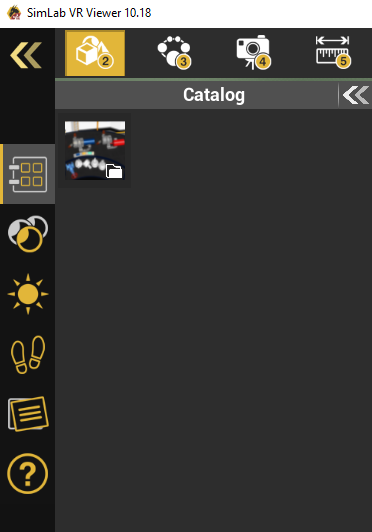
![image.png](https://simlab-soft.com/help/uploads/images/gallery/2022-12/scaled-1680-/cRbimage.png)

#### Generate Catalog List

<span class="de_DA9789FEFC">In this dialog the user can add more than one </span><span class="de_8D14AB4A83">(\*.vrcatalog)</span><span class="de_DA9789FEFC"> file from a </span><span class="de_8D14AB4A83">local computer or website "as a URL link", then **Save** it as a .vrcataloglist. This catalog list can be loaded into other scenes to be used in VR Viewer.</span>

![image.png](https://simlab-soft.com/help/uploads/images/gallery/2022-12/scaled-1680-/QjCimage.png)

<p class="callout info">The tutorial below shows how to use models from the VR Catalog in SimLab VR Viewer.</p>

<iframe allowfullscreen="allowfullscreen" height="314" src="https://www.youtube.com/embed/UY1ygh9cgS0" width="560"></iframe>

<p class="callout info">The tutorial below shows how to load and use more than one VR catalog in SimLab VR Viewer.</p>

<iframe allowfullscreen="allowfullscreen" height="314" src="https://www.youtube.com/embed/7FpILtruDvQ" width="560"></iframe>

<p class="callout info"><span class="de_DA9789FEFC">You can visit the VR Catalog web page on our website by this </span>[<span class="de_242B796E43">link.</span>](http://simlab-soft.com/technologies/simlab-vr-catalogs.aspx)</p>

# VR Viewer Menu

VR Viewer menu is where the user can export 3D scenes into \*.vrpackage file format, and view it in either Desktop Or VR Mode.

[ ](https://simlab-soft.com/help/uploads/images/gallery/2021-12/image-1640857539747.png)[![image.png](https://simlab-soft.com/help/uploads/images/gallery/2024-10/scaled-1680-/j9cimage.png) ](https://simlab-soft.com/help/uploads/images/gallery/2024-10/j9cimage.png)
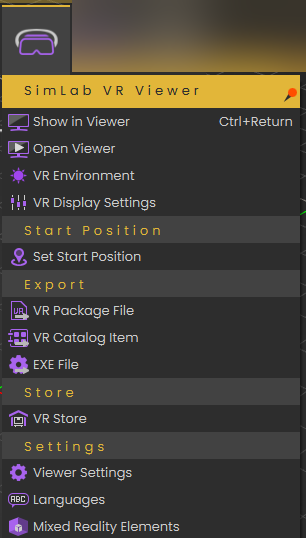
### Show in Viewer

SimLab VR Viewer enables users to experience rich and interactive environments in three navigation modes

- **Desktop:** Game-like controls using keyboard and mouse, with viewer running on Windows or Mac.
- **PC VR:** For VR headsets connected to a PC like Rift S, VIVE, VIVE Pro, or Quest connected with a link cable
- **Standalone VR:** For standalone headsets like Pico, Quest (not connected to PC), Android, and iOS

[![image-1639929466797.png](https://simlab-soft.com/help/uploads/images/gallery/2021-12/scaled-1680-/image-1639929466797.png)](https://simlab-soft.com/help/uploads/images/gallery/2021-12/image-1639929466797.png)
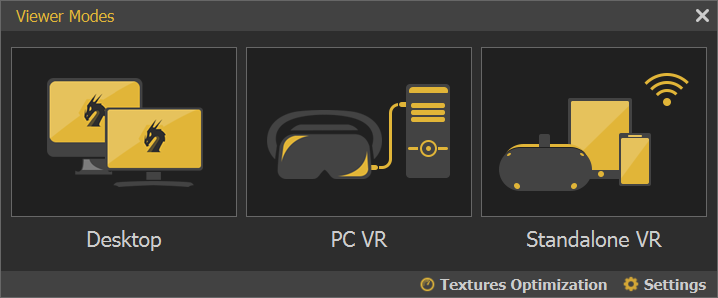
#### Texture Optimization 

More information about Textures Optimization can be found **<span style="text-decoration: underline;">[here](https://simlab-soft.com/help/link/9#bkmrk-textures-optimizatio)</span>**

#### Settings

**Optimize Package:** Optimize package merges all objects sharing the same material into one object, which in turn speeds up the experience and smooths it significantly, especially when the model has a large number of objects. Optimize package will affect static objects only, so if you have objects that have animation, scene states, or are part of any interaction they will be excluded from the process and any interactions in VR will occur without any problems.   
**VR Viewer Only:** When checked, the exported VR Package can not be imported by SimLab Composer  
**Enable VR Menu:** The experience designer can control what the user running the VR Experience will be able to view, or how the user can interact with the scene in the VR Viewer

[![image-1639929500514.png](https://simlab-soft.com/help/uploads/images/gallery/2021-12/scaled-1680-/image-1639929500514.png)](https://simlab-soft.com/help/uploads/images/gallery/2021-12/image-1639929500514.png)
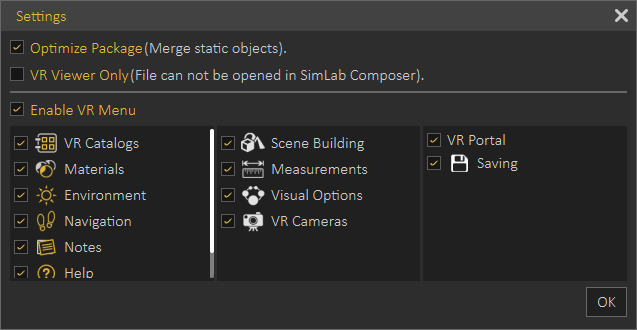
### Open Viewer 

Opens the stand-alone VR Viewer, viewer can be then used to open a VR Package, or to share a VR Package with others.

### VR Environment[![image.png](https://simlab-soft.com/help/uploads/images/gallery/2024-10/scaled-1680-/xUPimage.png)](https://simlab-soft.com/help/uploads/images/gallery/2024-10/xUPimage.png)
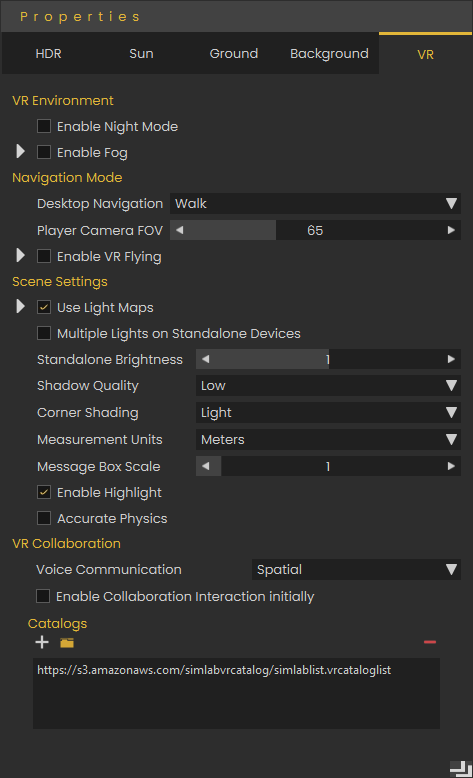
Displays the Properties dialog at the right side of the application window. In this dialog with its different tabs the user can change settings for application/ VR environment.

We will explain some settings which may not have a clear meaning:

Under the **HDR** tab, **"Auto Adjust HRD Brightness (VR)"** will put a limit on the brightness of the HDR when running the VR Experience on the Viewer, if you want to have high brightness for the Viewer, you should disable this setting.

The **Ground** tab affects only Rendering and thus is only found in Composer.

Under the **VR** tab, let's clarify the following settings:  
**"Enable VR flying":** Since users can't switch between navigation modes while running experiences in VR mode, this is the setting to make the VR Experience run with flying navigation mode On.  
**"Use Light Maps":** Allows you to use baked lighting, either created in SimLab Composer or imported with the model. Light maps simulate lighting effects without requiring real-time calculations, reducing performance demands and ensuring a smoother VR Experience, especially on lower-end devices.  
**"Multiple lights on Standalone Devices":** This affects artificial lights (lights that you add from the "Create" menu), it will enable or disable them when specifically running them on standalone devices, since these lights can heavily affect the performance on them.  
**"Enable Highlights":** This will enable/ disable the highlights that you see on objects that you can interact with or grab.  **"Accurate Physics":** If you have physics in you experience, this will increase the accuracy by making more calculations for the simulation of physics, but with a cost on performance.  
**"Adding Catalogs":** Catalogs are specialized asset collections that can be created in SimLab Composer and uploaded online for easy access. This feature allows you to link external assets to a scene, enabling users to import them dynamically during the VR experience runtime. Unlike standard assets, catalogs can be stored and retrieved from an online repository, making them accessible across multiple projects and devices.

### VR Display Settings

The user can adjust the display settings in the VR Viewer using the below dialog. Check this [<span style="text-decoration: underline;">**tutorial**</span> ](https://youtu.be/sNY0MvYIXyA)for more information.

[![image.png](https://simlab-soft.com/help/uploads/images/gallery/2024-10/scaled-1680-/t3Bimage.png)](https://simlab-soft.com/help/uploads/images/gallery/2024-10/t3Bimage.png)
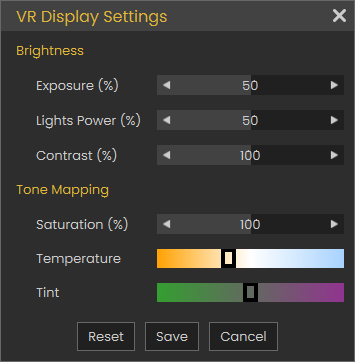
###   


### Set Start Position

Loads the **Viewer Start** model, clicking on any place in the scene after clicking **Set Start Position** will snap the Viewer Start model to the picked location. The **Viewer Start** model defines the start place for the VR Experience viewer and the orientation at the experience will start at.

[![image-1640952738805.png](https://simlab-soft.com/help/uploads/images/gallery/2021-12/scaled-1680-/image-1640952738805.png)](https://simlab-soft.com/help/uploads/images/gallery/2021-12/image-1640952738805.png)
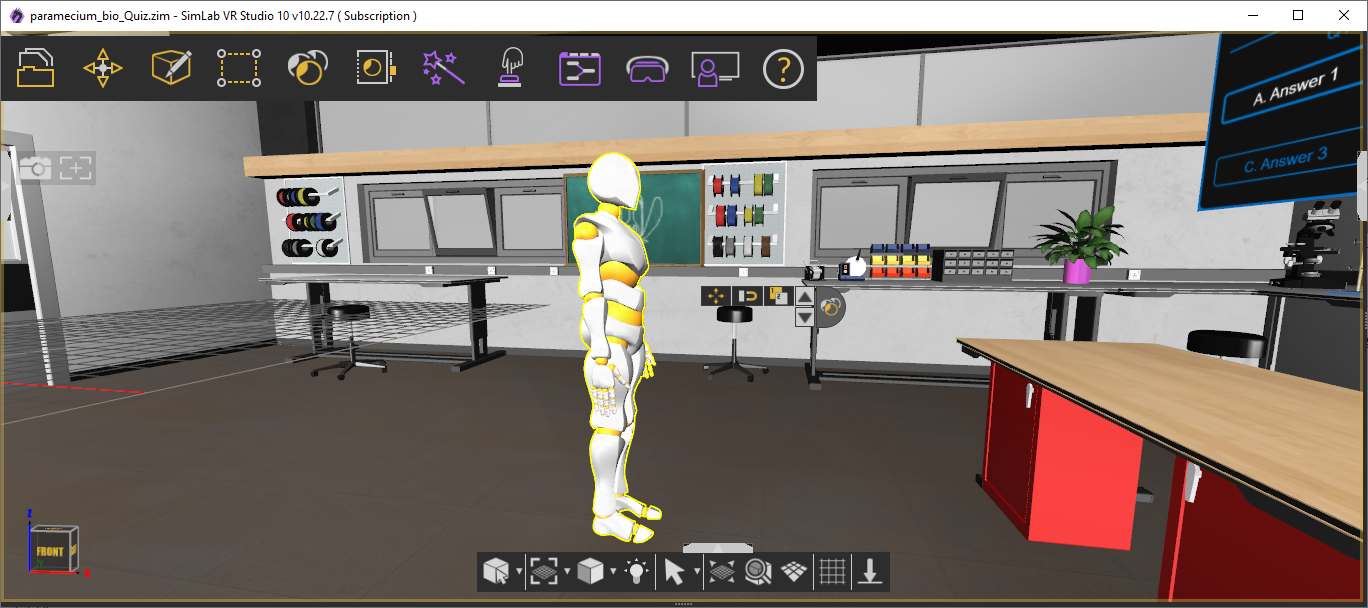
If **Viewer Start** model was already added to the scene, no new model will be added and the user can directly click to snap the **Viewer Start** model.

Users starting the VR Experience without calling Set Start Position will automatically have **Viewer Start** model added to the scene and will be able to set its location in the scene.

**Viewer Start** model can be used in **Training Builder,** for example, **Viewer Start** model is used in **Node Entered Node** Event, in **Training Builder** diagram, to turn lights on, when a VR Experience user enters a room.

[![image-1640952473898.png](https://simlab-soft.com/help/uploads/images/gallery/2021-12/scaled-1680-/image-1640952473898.png)](https://simlab-soft.com/help/uploads/images/gallery/2021-12/image-1640952473898.png)
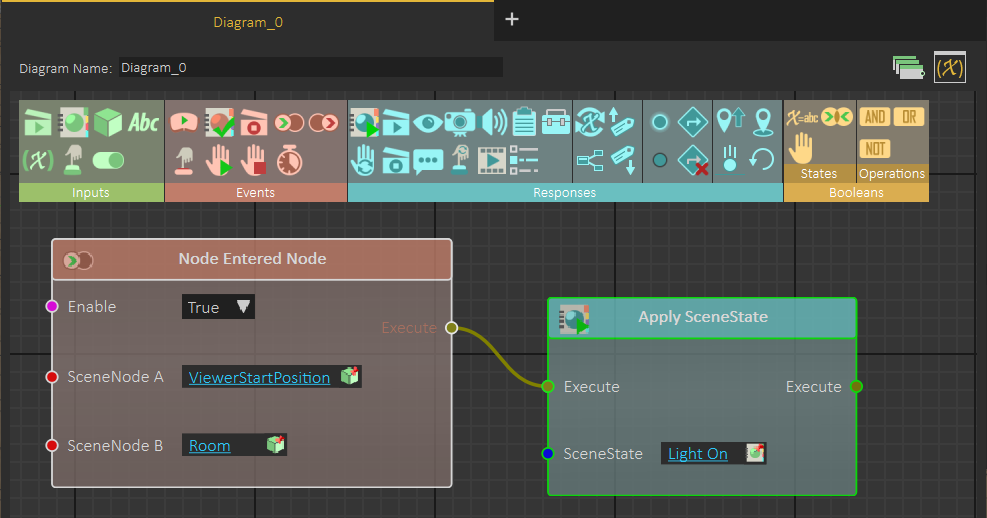
### Create VR Camera

Creating **VR Camera** adds a new **VR Camera** to the scene. The user should place the camera and set its orientation, currently selected **VR Camera** appears in wireframe mode.

[![image-1640953465481.png](https://simlab-soft.com/help/uploads/images/gallery/2021-12/scaled-1680-/image-1640953465481.png)](https://simlab-soft.com/help/uploads/images/gallery/2021-12/image-1640953465481.png)
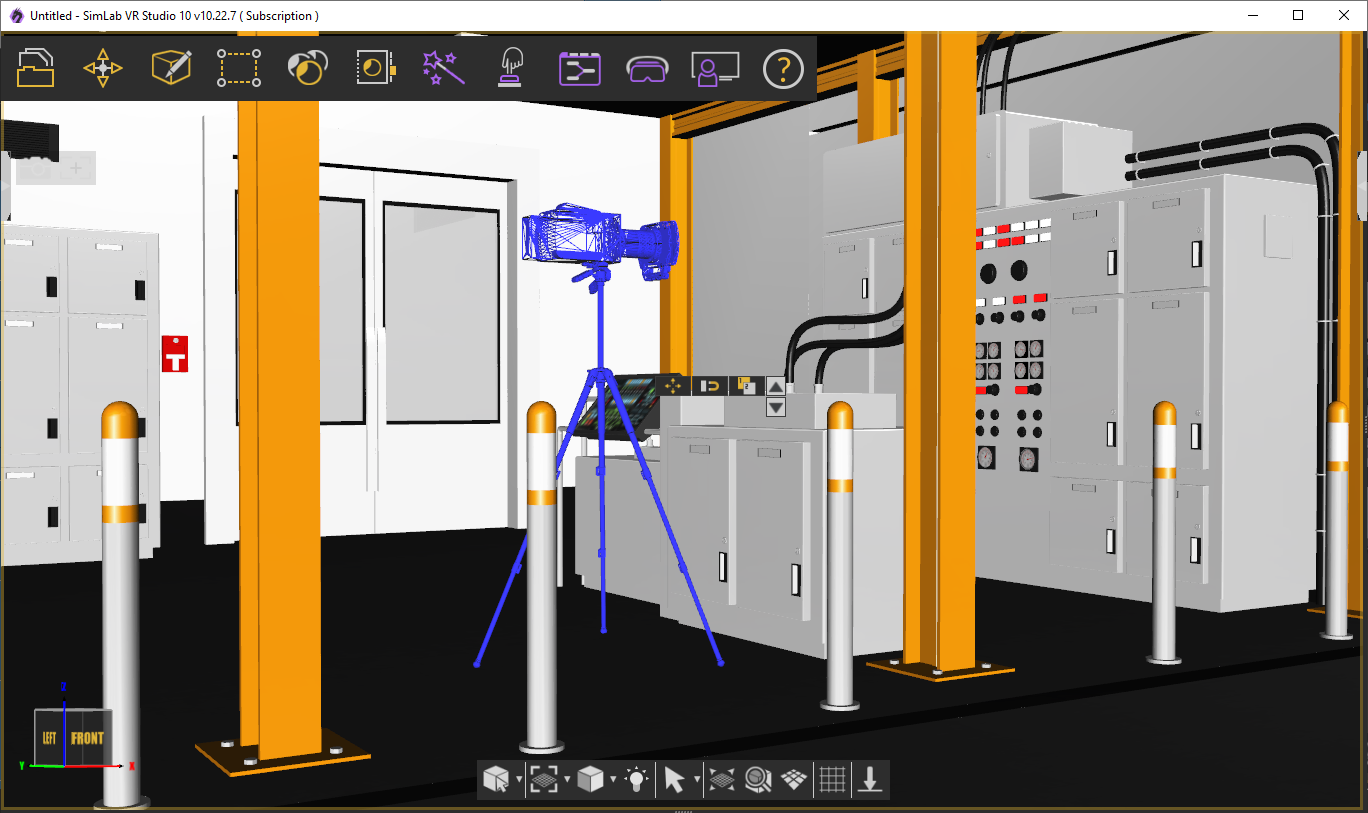
User can place multiple **VR Cameras** in the scene, while running the VR Experience the user can activate the **Camera Teleport** mode, by clicking on it, or using the **shortcut (4),** as shown in the following image

[![image-1640954049910.png](https://simlab-soft.com/help/uploads/images/gallery/2021-12/scaled-1680-/image-1640954049910.png)](https://simlab-soft.com/help/uploads/images/gallery/2021-12/image-1640954049910.png)
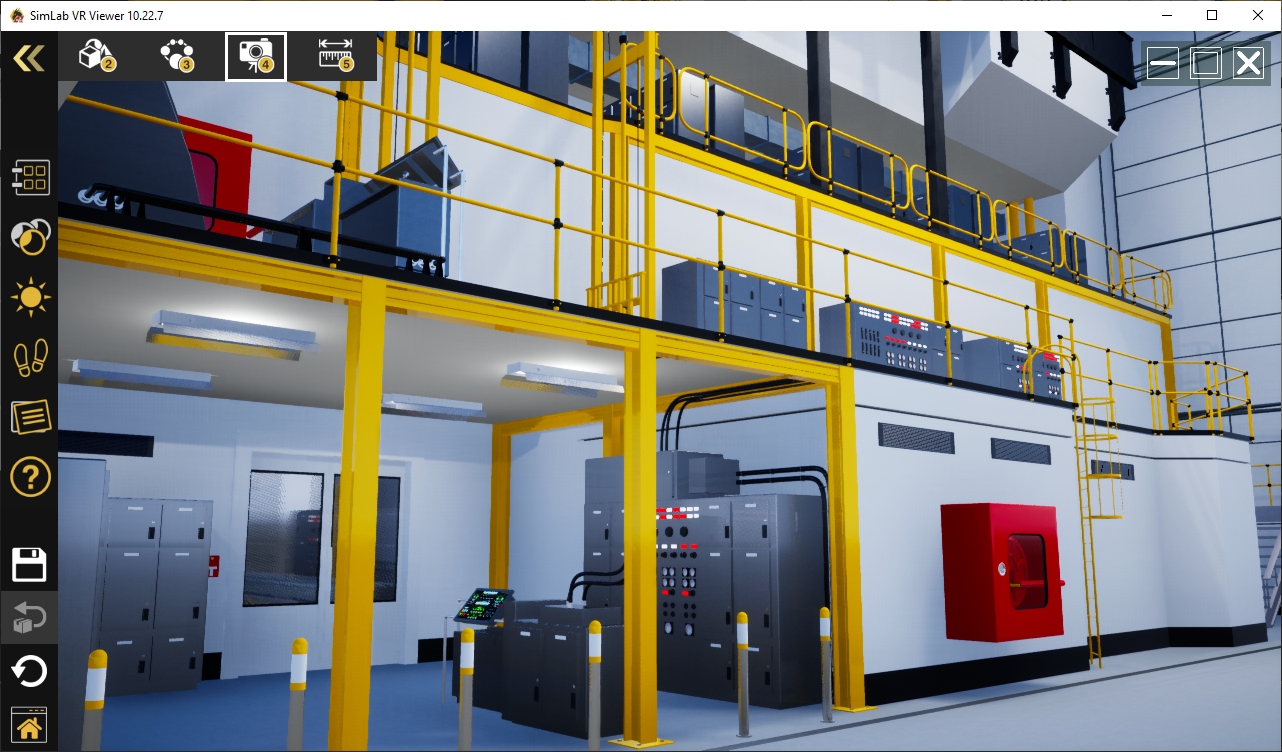
When starting **Camera Teleport** mode, the scene turns into a ghost view, **VR Cameras** are shown as white spheres, and hovering over one of the spheres shows the view from the camera's perspective, clicking on the white sphere moves the user to the **VR Camera's** location.

[![image-1640954119879.png](https://simlab-soft.com/help/uploads/images/gallery/2021-12/scaled-1680-/image-1640954119879.png)](https://simlab-soft.com/help/uploads/images/gallery/2021-12/image-1640954119879.png)
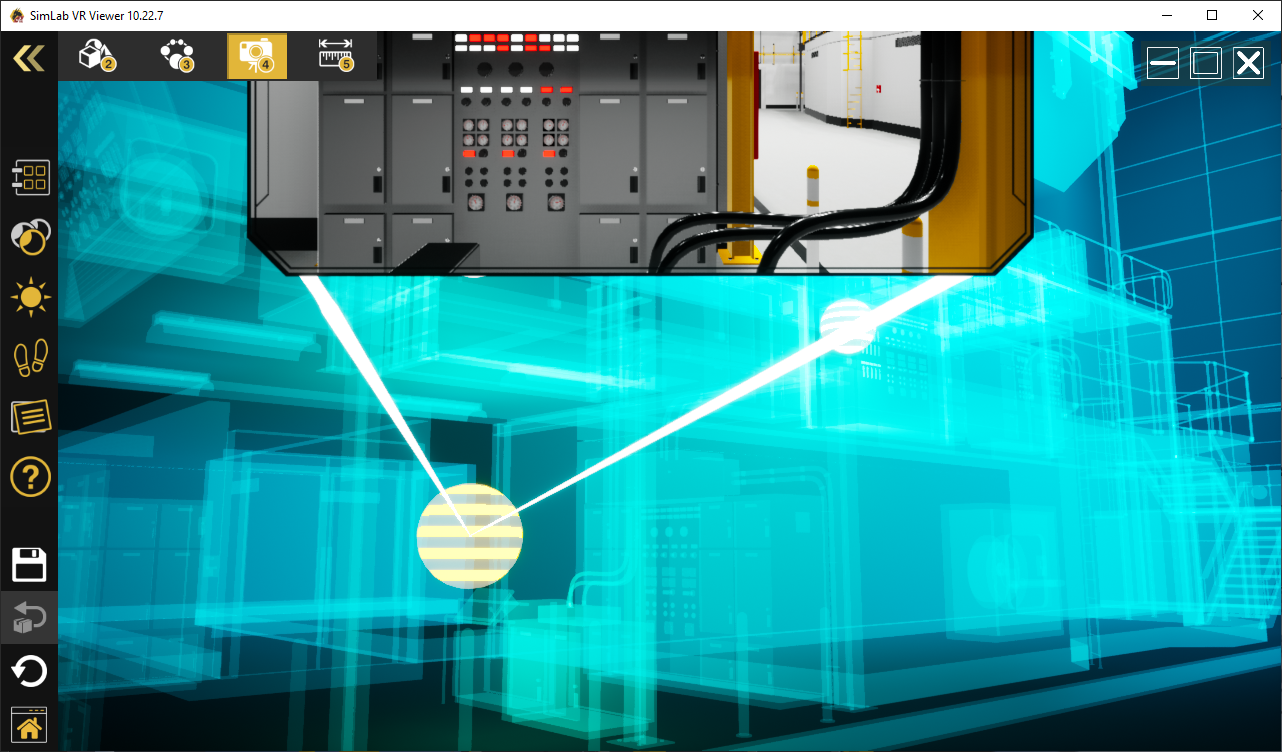
VR Camera can also be used in **Training Builder,** in the **Teleport to Camera** response block. When this response is called, the viewer is moved from the current location to the location of the **VR Camera** connected to the response block

[![image-1640954432540.png](https://simlab-soft.com/help/uploads/images/gallery/2021-12/scaled-1680-/image-1640954432540.png)](https://simlab-soft.com/help/uploads/images/gallery/2021-12/image-1640954432540.png)
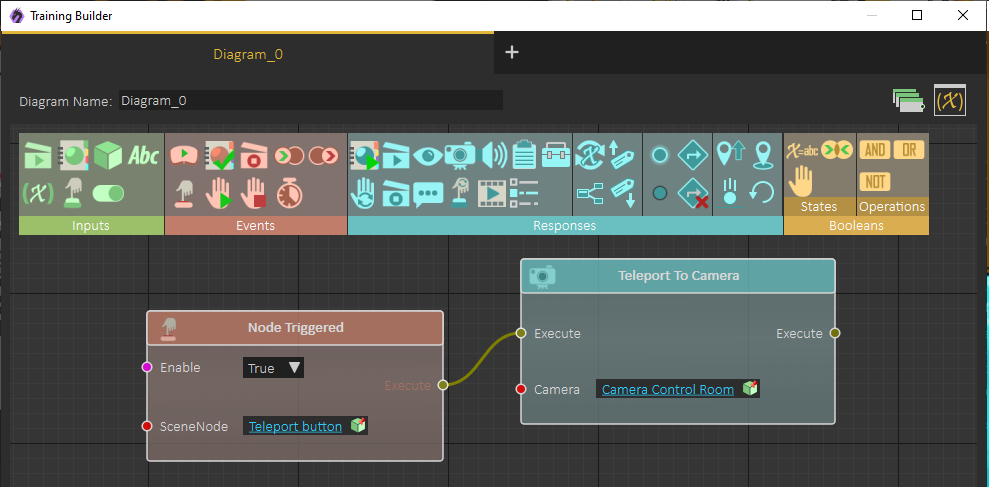
When moving the viewer to a **VR Camera**, we can select to align the viewer orientation with the orientation of the **VR Camera**, this is done by checking the option **Apply Orientation** in the VR Camera **Properties Panel,** as shown in the following image:

[![image-1640954703768.png](https://simlab-soft.com/help/uploads/images/gallery/2021-12/scaled-1680-/image-1640954703768.png)](https://simlab-soft.com/help/uploads/images/gallery/2021-12/image-1640954703768.png)
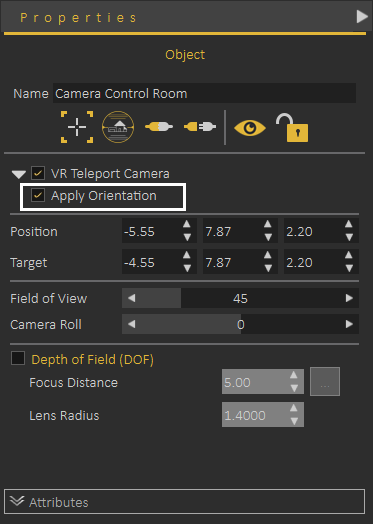
**VR Camera** can also be linked to the **Surveillance Plane** under the **VR Effects** menu, to learn more about using **VR Camera** with a **VR Surveillance** camera use the following **<span style="text-decoration: underline;"><span style="color: rgb(51, 102, 255); text-decoration: underline;">[link](https://simlab-soft.com/help/link/51#bkmrk-create-surveillance-)</span></span>**

### Export VR Package

Export the current scene as a VR Package (\*.vrpackage), which can be opened using the free **SimLab VR Viewer.** When exporting the **VR Package** the user can set:

- Title
- Publisher
- Description
- Preview image

[![image-1640958886443.png](https://simlab-soft.com/help/uploads/images/gallery/2021-12/scaled-1680-/image-1640958886443.png)](https://simlab-soft.com/help/uploads/images/gallery/2021-12/image-1640958886443.png)
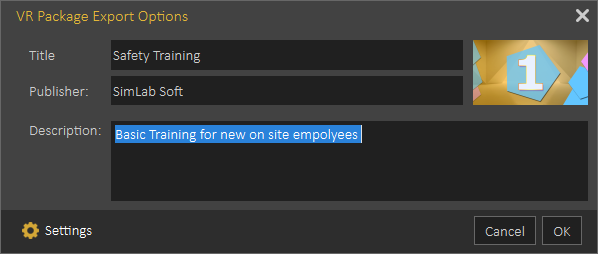
This information will be visible in the **VR Viewer** to help users to find the correct VR Experience.

### Export VR Catalog Item

**VR Catalog Items** are very similar to **VR Packages,** and they share the same extension (\*.vrpackage), the only difference is that they will not require adding **Viewer Start** model, as they are not planned to be used as stand-alone VR Experiences, they are created to be used in VR Catalogs, visible while running the VR Experience, as the one shown in the image below:  
  
[![image-1640959394922.png](https://simlab-soft.com/help/uploads/images/gallery/2021-12/scaled-1680-/image-1640959394922.png)](https://simlab-soft.com/help/uploads/images/gallery/2021-12/image-1640959394922.png)
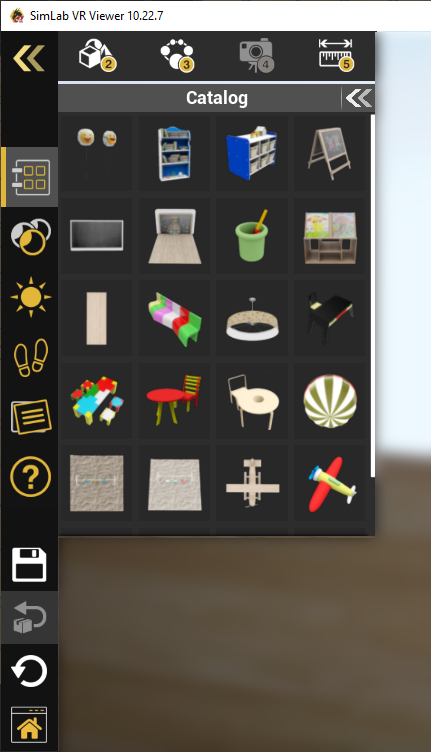
Creation of new VR Catalogs requires the ultimate edition of SimLab Composer

### Export EXE File

EXE files can be exported from the Windows version of **SimLab Composer**, they are similar to **VR Packages**, as they include the current scene. EXE files can be shared with users who do not have **VR Viewer** installed.  
Upon clicking on the EXE, it will try to find **VR Viewer**, if found it will use it and open the scene. If **VR Viewer** was not found, it will automatically install the latest version of **VR Viewer**, then it will use it and open the scene, which makes it easier to share VR Experiences with new users.

### VR Store

Designed to simplify the process for VR Experience designers to market and sell their creations. In earlier versions, we tested a VR warehouse model, but based on feedback from designers, it was clear that they preferred licensing their VR Experiences instead of selling zim files. This allowed them to retain copyrights for the zim files, enabling them to build new experiences on top of them or customize them for specific users. SimLab **VR Store** addresses these concerns by offering an alternative avenue for marketing and selling VR Experiences, while still maintaining the availability of traditional methods. This new feature is particularly advantageous for larger organizations, providing them with an easier way to sell their VR content and gain more visibility. Any experiences created using the free SimLab Composer and VR Studio, after undergoing the review process, will be showcased in the **VR Store**. These experiences can be either paid or free and will appear without watermarks. This flexibility is beneficial for new users who want to start showcasing their work without any initial financial investment, and it also caters to the needs of educational institutes. The **VR Store** is intended for creators, and we welcome any notes, requests, or feedback from users. Your input is valuable in helping us refine and improve this platform to better serve the VR community. Please feel free to share your thoughts with us.  
  
[![image.png](https://simlab-soft.com/help/uploads/images/gallery/2024-01/scaled-1680-/ufGimage.png)](https://simlab-soft.com/help/uploads/images/gallery/2024-01/ufGimage.png)
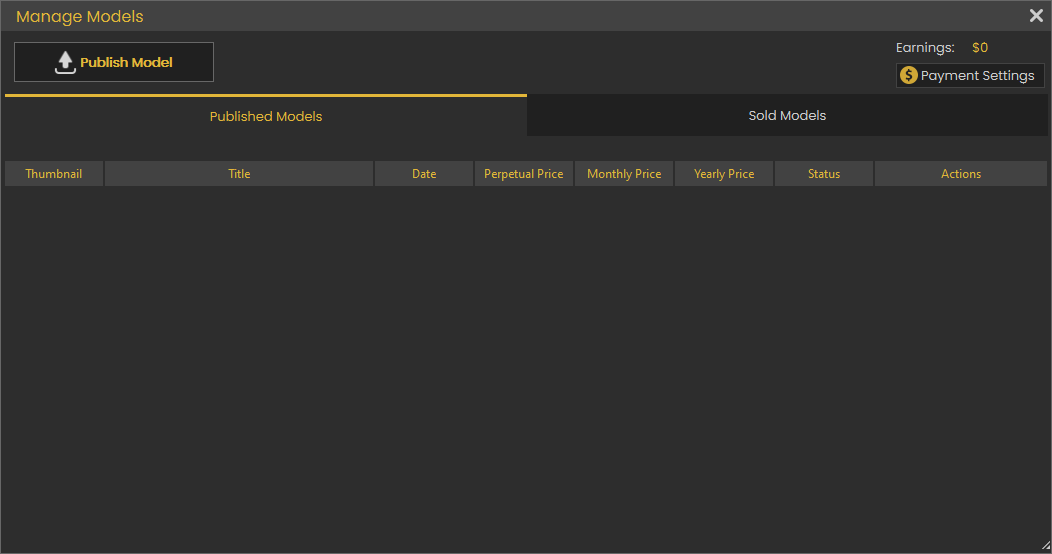
Check this <span style="color: rgb(35, 111, 161);">**<span style="text-decoration: underline;">[article](https://blog.simlab-soft.com/how-to-protect-your-vr-product-and-prevent-copyright-infringement/)</span>**</span> to learn how to protect your VR product and prevent Copyright infringement.

### Viewer Settings

This option gives users quick access to viewer settings, to check and update those settings before exporting the VR Package.

[![image.png](https://simlab-soft.com/help/uploads/images/gallery/2024-01/scaled-1680-/OzUimage.png)](https://simlab-soft.com/help/uploads/images/gallery/2024-01/OzUimage.png)
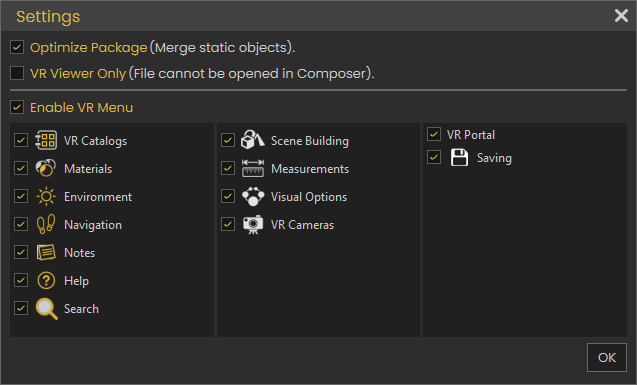
### Languages

[![image.png](https://simlab-soft.com/help/uploads/images/gallery/2023-12/scaled-1680-/62Zimage.png)](https://simlab-soft.com/help/uploads/images/gallery/2023-12/62Zimage.png)
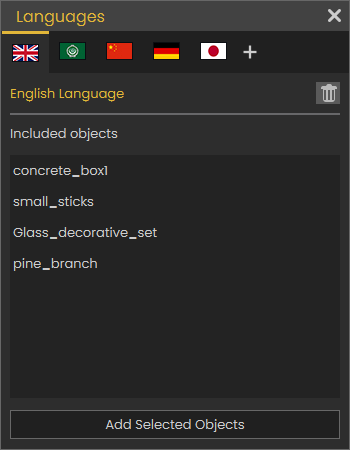
This option allows the user to make the VR Experience support multiple languages, the user defines special objects for each language, those objects can be Objects, Videos, Sounds, Presentations, or Text.   
When starting the experience, the use will select the language he/ she prefers to run the experiences in, all objects in other languages will be automatically deleted, so the VR Experience will run in the selected language.  
  
The following video shows how to use multiple language support  
  
<iframe allowfullscreen="allowfullscreen" height="314" src="https://www.youtube.com/embed/UH32a8bEp64" width="560"></iframe>

### Mixed Reality Elements

The Quest 2 and Quest 3 now offer mixed reality support, enabling users to engage in interactive experiences while maintaining visibility of their actual surroundings.

With the Mixed Reality option, designers can specify the environmental elements within the experience. When users run the experience in Mixed Reality (MR) or Augmented Reality (AR) mode, these elements will be concealed, whereas they will be visible in other modes. This flexibility empowers designers to craft a unified experience that seamlessly transitions across Virtual Reality (VR), Mixed Reality (MR), or Augmented Reality (AR) modes.

  
[![image.png](https://simlab-soft.com/help/uploads/images/gallery/2023-12/scaled-1680-/twkimage.png)](https://simlab-soft.com/help/uploads/images/gallery/2023-12/twkimage.png)
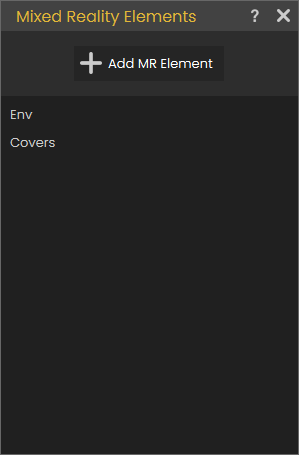
The following tutorial shows how to use the MR elements:<iframe allowfullscreen="allowfullscreen" height="314" src="https://www.youtube.com/embed/IOaPgY9Wzlk" width="560"></iframe>

In addition to single user MR mode, MR mode can be used in collaboration, the following tutorial shows how users located in the same room perform synchronization to work effectively in the MR mode.  
  
<iframe allowfullscreen="allowfullscreen" height="314" src="https://www.youtube.com/embed/YbBf8Ot0E4M" width="560"></iframe>

# VR Evaluation

[![image-1639929586893.png](https://simlab-soft.com/help/uploads/images/gallery/2021-12/scaled-1680-/image-1639929586893.png)](https://simlab-soft.com/help/uploads/images/gallery/2021-12/image-1639929586893.png)

The VR Evaluation menu gives the user access to the full VR Evaluation process which includes

Creating Quizzes/Surveys  
Distributing VR experiences to students  
Viewing Results

**<span style="color: #3366ff;">[VR Evaluation Chapter](https://simlab-soft.com/help/link/28#bkmrk-page-title)</span>** goes through the process of creating and distributing a successful VR Evaluation.