# SimLab Composer Help
# Introduction
Since the foundation of SimLab Soft, our mission has been clearly defined as developing state-of-the-art 3D software that is affordable, fun, and easy to use. This led to the development of SimLab Composer (SLC) with the vision of enabling interactive VR.
SimLab Composer is not a modeling application, but it is a 3D scene composition application, which allows the user to import 3D files in different formats, arrange them, adjust their materials, and add options, animations, simulation, and interactivity behaviors. After that the user can use the composed scenes in many different ways, it can be used to create photo-realistic rendered images, or share as a 3D PDF, WebGL, or a VR Experience.
Upon downloading and installing SimLab Composer, SimLab CADVRter and SimLab WebGL Starter will also be installed side-by-side. These tools are described later in the [Accompanying Applications](https://simlab-soft.com/help/books/simlab-composer-help/chapter/accompanying-applications "Accompanying Applications") section of this manual.
### SimLab Composer Help Content
- [Main Window](https://simlab-soft.com/help/books/simlab-composer-11-help-final/page/main-window)
- [Scene Browser](https://simlab-soft.com/help/books/simlab-composer-help/page/scene-browser)
- [Properties Panel](https://simlab-soft.com/help/books/simlab-composer-help/page/properties-panel)
- [Library](https://simlab-soft.com/help/books/simlab-composer-help/page/library)
- [Assets Library](https://simlab-soft.com/help/books/simlab-composer-help/page/assets-library)
- [Material Library](https://simlab-soft.com/help/books/simlab-composer-help/page/material-library)
- [Animation Timeline](https://simlab-soft.com/help/books/simlab-composer-help/page/animation-timeline-CYu)
- [Sequences Library](https://simlab-soft.com/help/books/simlab-composer-help/page/sequence-library)
- [Scene States Library](https://simlab-soft.com/help/books/simlab-composer-help/page/scene-states-library)
- [Common Toolbar](https://simlab-soft.com/help/books/simlab-composer-help/page/common-toolbar)
- [Quick Access Toolbar](https://simlab-soft.com/help/books/simlab-composer-help/page/quick-access-toolbar)
- [Active Camera](https://simlab-soft.com/help/books/simlab-composer-help/page/active-camera)
- [Main Toolbar](https://simlab-soft.com/help/books/simlab-composer-help/chapter/main-toolbar)
- [File Manu](https://simlab-soft.com/help/books/simlab-composer-help/page/file-menu)
- [Move Menu](https://simlab-soft.com/help/books/simlab-composer-help/page/move-menu)
- [Create Menu](https://simlab-soft.com/help/books/simlab-composer-help/page/create-menu)
- [Geometry Menu](https://simlab-soft.com/help/books/simlab-composer-help/page/geometry-menu)
- [Material Menu](https://simlab-soft.com/help/books/simlab-composer-help/page/material-menu)
- [Scene States Menu](https://simlab-soft.com/help/books/simlab-composer-help/page/scene-states-menu)
- Render Menu
- Backing Menu
- 360 Image Menu
- [VR Effects/Media Menu ](https://simlab-soft.com/help/link/51#bkmrk-page-title)
- [Interactions Menu](https://simlab-soft.com/help/link/21#bkmrk-page-title)
- [Training Builder Menu](https://simlab-soft.com/help/link/407#bkmrk-page-title)
- [VR Viewer Menu](https://simlab-soft.com/help/link/24#bkmrk-page-title)
- [VR Evaluation](https://simlab-soft.com/help/link/25#bkmrk-page-title)
- [Help Menu ](https://simlab-soft.com/help/link/26#bkmrk-page-title)
- [VR Evaluation](https://simlab-soft.com/help/link/28#bkmrk-page-title)
- [Getting started with VR Evaluation](https://simlab-soft.com/help/link/29#bkmrk-page-title)
- [Creating Quiz](https://simlab-soft.com/help/link/30#bkmrk-page-title)
- [Creating Survey](https://simlab-soft.com/help/link/32#bkmrk-page-title)
- [Pre/Post Question Events](https://simlab-soft.com/help/link/54#bkmrk-page-title)
- [Creating User-defined Evaluation](https://simlab-soft.com/help/link/33#bkmrk-page-title)
- [Distributing VR experiences](https://simlab-soft.com/help/link/34#bkmrk-page-title)
- [Viewing Results](https://simlab-soft.com/help/link/35#bkmrk-page-title)
- [VR Viewing](https://simlab-soft.com/help/link/6#bkmrk-page-title)
#### SimLab Academy
**SimLab Academy** includes the tutorials and the models you need to run those tutorials. SimLab Academy provides a full-featured, free path for learning SimLab Composer, the following video shows SimLab Academy in action.
# Main Window
# Main Window
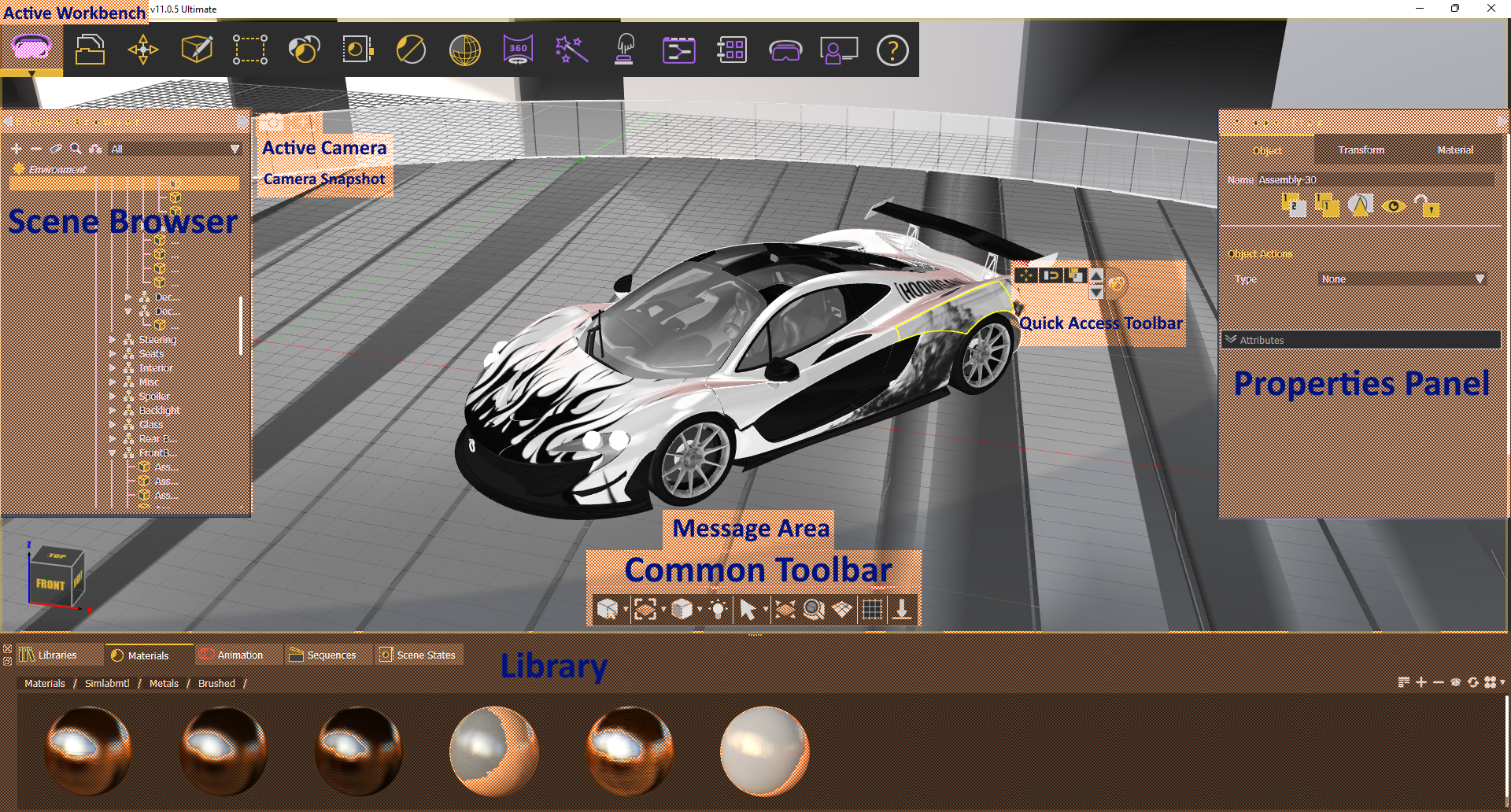
SimLab Composer interface is organized into workbenches. Upon selecting a workbench the allocated tools in that workbench will appear, and the interface will be changed to display the defaults of that selected workbench.
There are several elements that provide structure to how the commands are presented in the user interface. In addition to the 3D Area, the Main Window includes the following components:
- [Main Toolbar](https://simlab-soft.com/help/books/simlab-composer-11-help-final/page/main-toolbar)
- [Scene Browser](https://simlab-soft.com/help/books/simlab-composer-help/page/scene-browser)
- [Properties Panel](https://simlab-soft.com/help/books/simlab-composer-help/page/properties-panel)
- [Library ](https://simlab-soft.com/help/books/simlab-composer-help/page/library)
- [Assets Library](https://simlab-soft.com/help/books/simlab-composer-help/page/assets-library)
- [Material Library](https://simlab-soft.com/help/books/simlab-composer-help/page/material-library)
- [Animation Timeline](https://simlab-soft.com/help/books/simlab-composer-help/page/animation-timeline-CYu)
- [Sequences Library](https://simlab-soft.com/help/books/simlab-composer-help/page/sequence-library)
- [Scene States Library](https://simlab-soft.com/help/books/simlab-composer-help/page/scene-states-library)
- [Common Tool Bar](https://simlab-soft.com/help/books/simlab-composer-help/page/common-toolbar)
- [Quick Access Tool Bar](https://simlab-soft.com/help/books/simlab-composer-help/page/quick-access-toolbar)
- [Active Camera](https://simlab-soft.com/help/books/simlab-composer-help/page/active-camera)
These components are shown in the following image
[](https://simlab-soft.com/help/uploads/images/gallery/2022-09/uRcimage.png)
# Scene Browser
[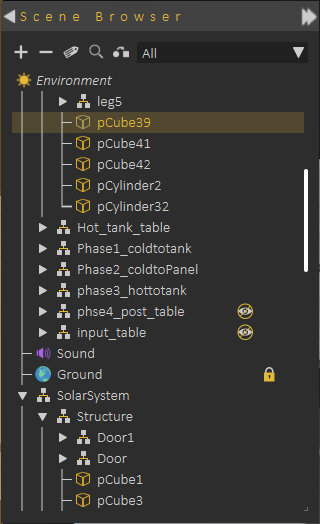](https://simlab-soft.com/help/uploads/images/gallery/2021-12/scene-browser.png)**Scene Browser** lists all elements in the scene and shows clear tree structure of the models, where the user can view parent/child relationships.
When a **parent** in the Scene Browser is selected and hidden/deleted, the effect is automatically applied to all its **children** so they are automatically hidden/deleted.
**Scene Browser** allows using **Shift** or **Ctrl** to select multiple items.
Changing **parent**/**child** relationship in Scene Browser can be done easily by **dragging** an object or group off objects and **dropping** them onto a new parent.
**+/-** buttons on top of the Scene Browser allows expanding all level in the tree (**+ button**) , or closing all and keeping just the top level (**- button**)
**Environment** at the top of the **Scene Browser**, always exists and can not be deleted. When you click on **Environment** in the Scene browser, **Properties Panel** is updated to show the properties of the environment, which allows you to make changes.
[](https://simlab-soft.com/help/uploads/images/gallery/2021-12/scene-browser-right-click.png)
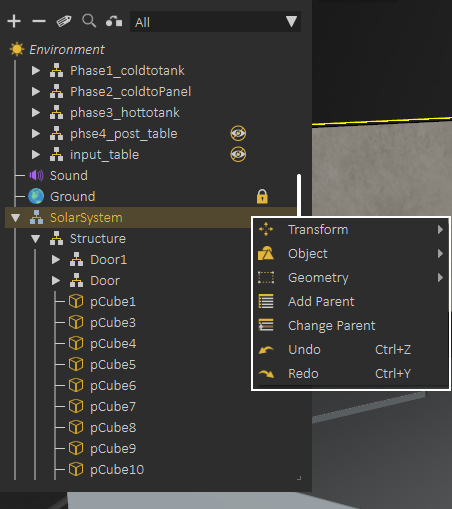
Selecting object(s), then **right clicking**, shows a helping menu allowing quick actions like **Hide/Show** object(s), **Change parent**, **Add parent**, or perform a **geometry operation**.
---
[](https://simlab-soft.com/help/uploads/images/gallery/2021-12/scene-browser-filter.png)
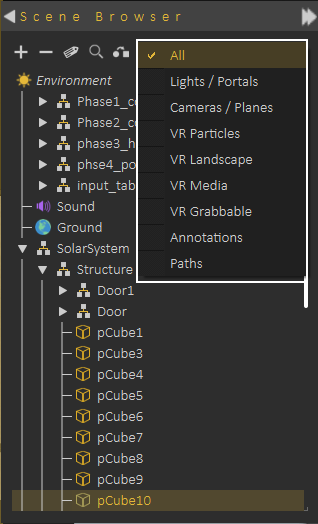
Scene Browser uses icons to identify the object types, but even with icons for large scenes it may not be easy to find the object(s) you are looking for. For helping in this task Scene Browser provides two options:
**Scene Browser Filters:** Select filter to show only object(s) of specific type, for example select Lights filter to view all lights in the scene.
**Searching Scene Browser:** By clicking the search button the user can search for objects in the Scene Browser based on **names** or **object attributes**
The size and location of the Scene Browser can be changed easily, as well as choosing whether to hide it or not. Its appearance can be changed from File -> Preferences, Appearance tab, where Tree Transparency can be changed.
---
**Attributes Manager**
From the top bar of Scene Browser, **Attribute Manager** can be started. **Attribute Manager** allows viewing attributes attached to objects in the scene, and updating them.
[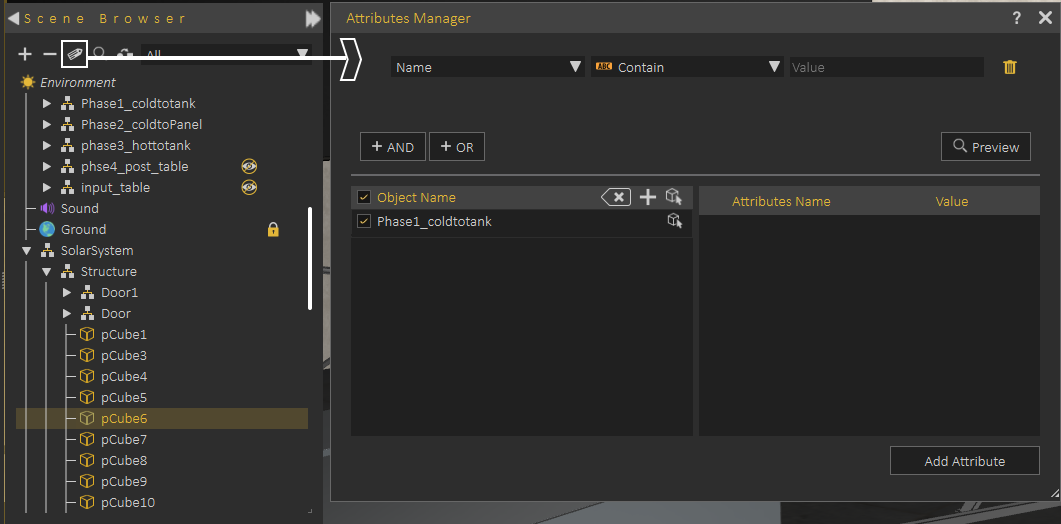](https://simlab-soft.com/help/uploads/images/gallery/2021-12/scene-browser-attributes-manager.png)
The following tutorial shows how to use **Attribute Manager**.
**Selection Sets**
Makes selecting multiple objects more convenient. Usually, users select objects using the tree structure in SimLab Composer. This works well for single selections but can be tricky for multiple selections. Sometimes users want to select multiple objects repeatedly without changing the tree structure. For example, selecting all car wheels or the tops of multiple desks while keeping their original organization.
The solution - **Selection Sets**, allows users to save groups of objects which can be quickly selected whenever needed. It doesn't alter the original tree structure, so objects still move and behave correctly.
The following tutorial demonstrates how to use these Selection Sets effectively in SimLab Composer:
# Properties Panel
When selecting an object or entity in the scene the **Properties Panel** appears in the right side of the application showing its properties.
Objects are shown in the Scene Browser, they are part of the model tree is the **Scene Browser.** An object can be selected by clicking on it in the **3D Area** or by selecting it from the **Scene Browser.**
**Properties Panel**, may have two tabs or more depending on the object type.
When selecting a part of an assembly object (not the end leaf in the tree) Properties Panel usually shows two tabs as shown in the following image
[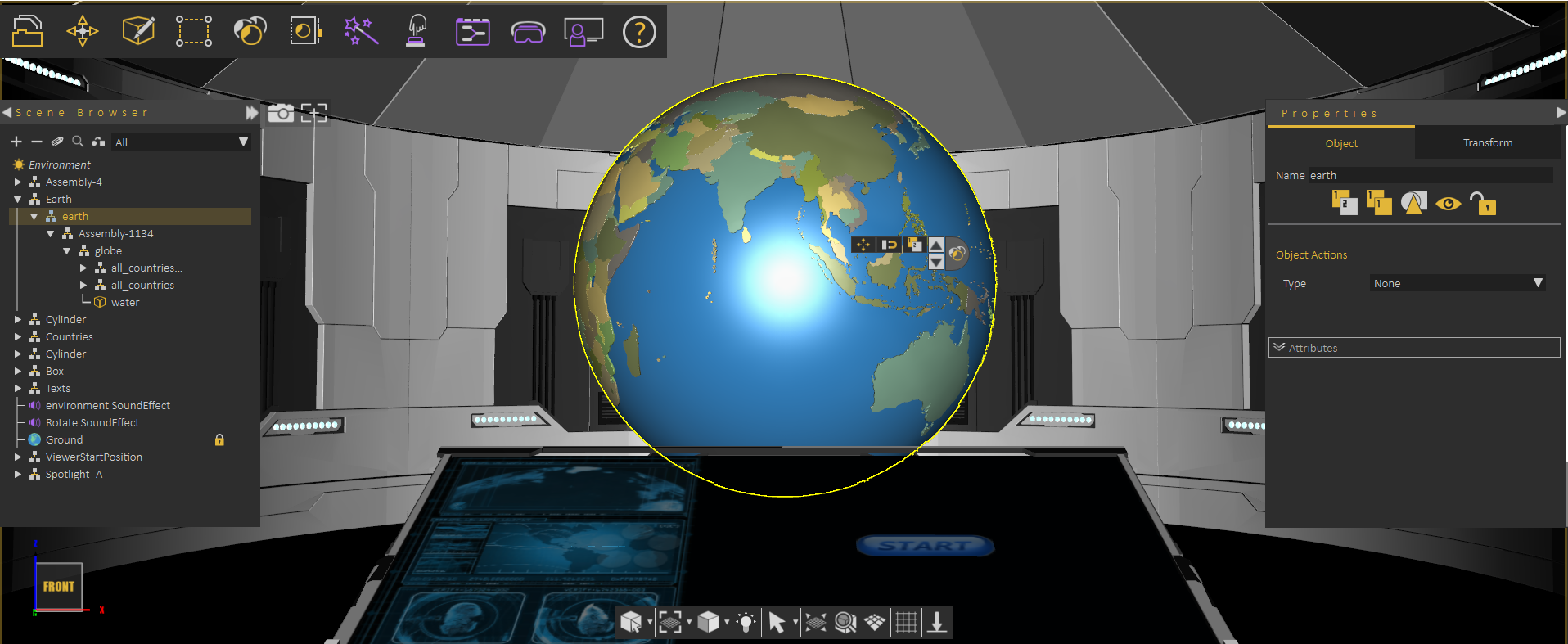](https://simlab-soft.com/help/uploads/images/gallery/2021-12/image-1640430837801.png)
those tabs are **Object Tab**, and **Transform Tab**
#### Object Tab
**Object Tab** includes functionality that can be applied to any object in the scene. This includes: **Copy Object**, **Create Instance**, **Isolate**, **Hide/Show**, **Freeze/Unfreeze**, in addition to changing the name of an object.
The described functionality is available in the top of the Object Tab
[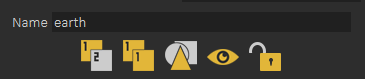](https://simlab-soft.com/help/uploads/images/gallery/2021-12/image-1640431098733.png)
##### Object Actions
Object Tab also includes **Object Actions**, which is a simple way of defining what to do if the user clicks on the object in the VR Experience.
[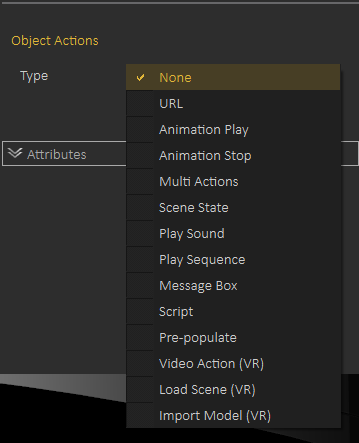](https://simlab-soft.com/help/uploads/images/gallery/2021-12/image-1640431209267.png)
Object Actions can be one of the following
1- Open URL
2- Play/Stop Animation
3- Multi Action (you can assign multiple actions to be executed when the object is clicked)
4- Apply Scene State
5- Play Sound (thought it is better to use SimLab Composer Sound object)
6- Play Sequence
7- Show Message Box
8- Video Action
9- Load Scene
10- Import Model
---
##### Attributes Panel
**Attributes Panel** shows attributes assigned to the object. Attributes can be imported when importing the 3D model, or created using **Attribute Panel** or the [**Attribute Manager**](https://simlab-soft.com/help/books/simlab-vr-studio-help/page/scene-browser#:~:text=bkmrk%2Dattributes%2Dmanager-,Attributes%20Manager,-From%20the%20top) (which is accessible in the Scene Browser)
[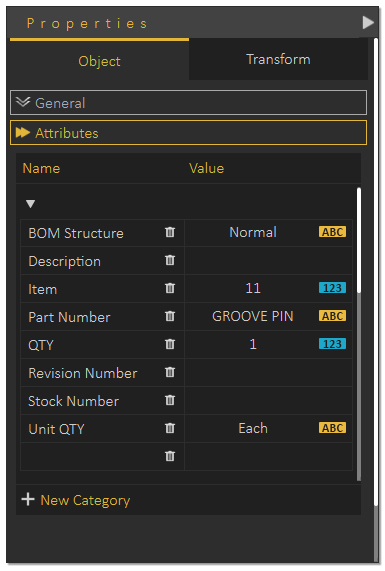](https://simlab-soft.com/help/uploads/images/gallery/2021-12/image-1640431618384.png)
The following tutorial shows how the user can utilize attributes in VR Experiences
---
#### Transform Tab
Allows the user to view/modify local and global location, orientation and scale of the object and its pivot. The Apply Transform tool resets an object's transformations while retaining its correct position, scale, and appearance. It's ideal for animating models with non-uniform scaling, preventing distortion, and optimizing performance in scenes with inconsistent or extreme scales. Check this [video](https://youtu.be/BIjtnigG36o).
[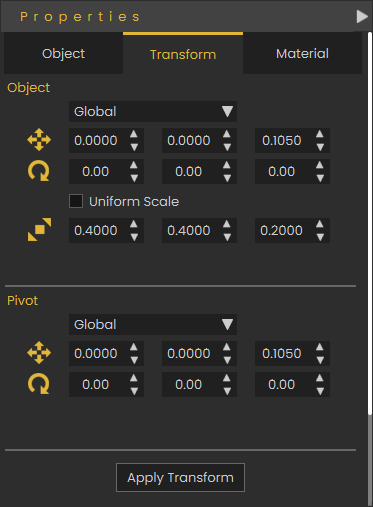](https://simlab-soft.com/help/uploads/images/gallery/2025-04/image.png)
---
##### Extra Tabs
Based on the object type, additional tabs may be added to the **Properties Panel**, for example if user selected a leaf object (3D object) the **Material Properties** tab is added, as shown in the following image:
[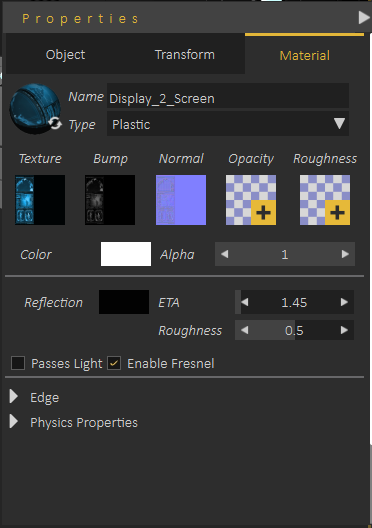](https://simlab-soft.com/help/uploads/images/gallery/2021-12/image-1640432142123.png)
The following video shows a detailed tour for the Material Properties tab:
Effects like VR Fire, VR Smoke, VR Showers, VR Video, VR Sound and others will add an additional VR or VR properties tab, allowing the user to set specific properties for the selected object, the following image shows the new **VR Video** property tab added when selecting a VR Video:
[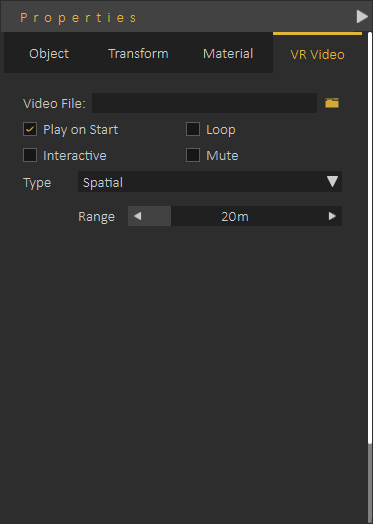](https://simlab-soft.com/help/uploads/images/gallery/2021-12/image-1640432550643.png)
---
#### Entity Panel
When the user clicks ESC (to make sure no object is selected) the user can go to the library and click on a sequence, a scene state or a key in the animation timeline to view its properties in the **Properties Panel**
##### Sequence Properties
[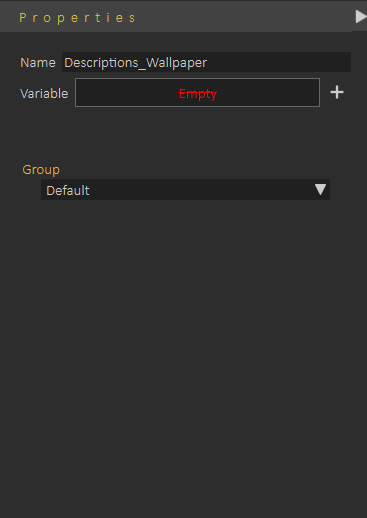](https://simlab-soft.com/help/uploads/images/gallery/2021-12/image-1640432913677.png)
##### Scene State Properties
[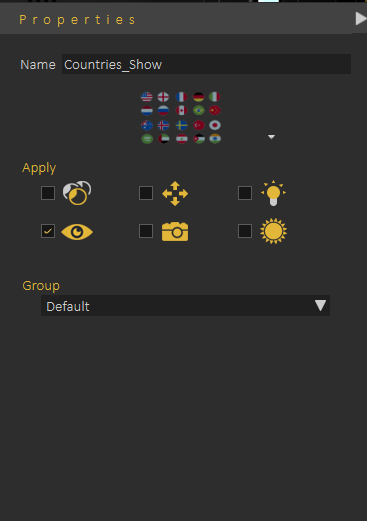](https://simlab-soft.com/help/uploads/images/gallery/2021-12/image-1640432958460.png)
##### Key Frame Properties
[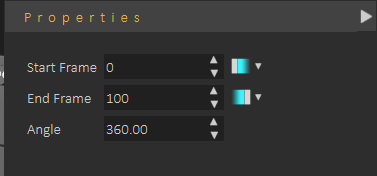](https://simlab-soft.com/help/uploads/images/gallery/2021-12/image-1640433047093.png)
---
#### Environment Properties
By clicking on **Environment** (always the top element in Object Browser) , the **Properties Panel** will the **Environment Properties**
Environment properties include the following tabs:
\- HDR
\- Sun
\- Background
\- VR
##### HDR Tab
This tab allows the user to select the environment image used to light the scene, also it allows user to control its power, orientation and brightness.
**"Auto Adjust HRD Brightness (VR)"** will put a limit on the brightness of the HDR when running the VR Experience on the Viewer, if you want to have high brightness for the Viewer, you should disable this setting.
[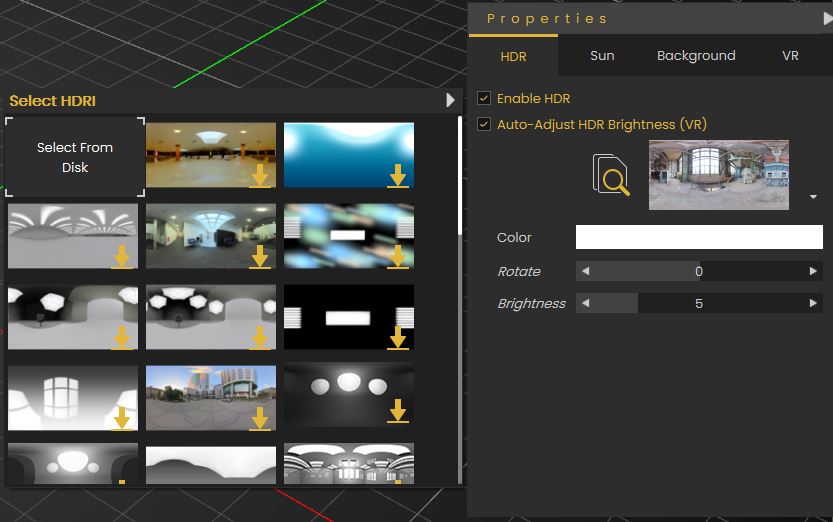](https://simlab-soft.com/help/uploads/images/gallery/2021-12/image-1640433445761.png)
##### Sun Tab
[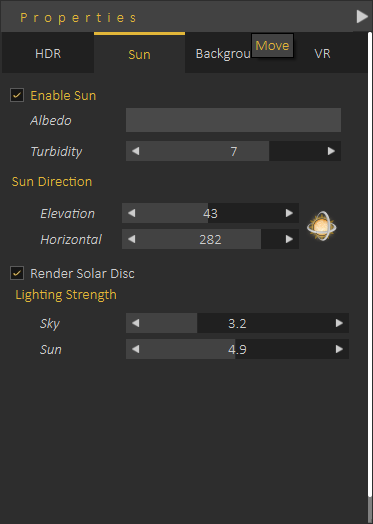](https://simlab-soft.com/help/uploads/images/gallery/2021-12/image-1640433662015.png)
Sun tab allows the user to enable/disable the sun effect, and to control the sun/sky powers in the scene.
It also allows the user to set initial sun location in the scene.
---
#####
Ground Tab
[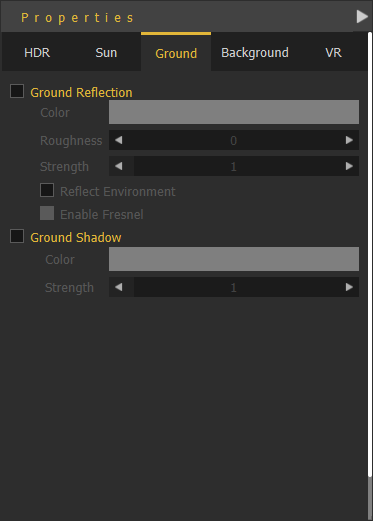](https://simlab-soft.com/help/uploads/images/gallery/2022-09/Xgqimage.png)
In this tab, the user can set ground effects like reflection and shadow (This tab is for **Rendering** mode only)
---
#####
Background Tab
[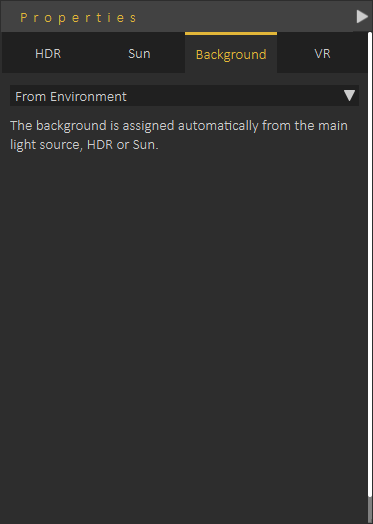](https://simlab-soft.com/help/uploads/images/gallery/2021-12/image-1640433771915.png)
This tabs allows the user to select background to be used for the VR scene, it can be from environment (HDR , or Sun) or the user can select a background image or color to be used as a background
---
##### VR Tab
[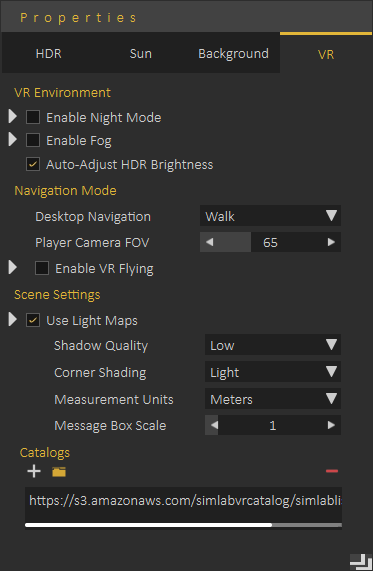](https://simlab-soft.com/help/uploads/images/gallery/2021-12/image-1640444069514.png)
VR Tab allows user to control the created VR Experience, the user can control the Environment, Navigation mode, Scene Settings, and to decide to make VR Catalog(s) available in the VR Experience.
We will explain some settings which may not have a clear meaning:
Under the **VR** tab, let's clarify the following settings:
**"Enable VR flying":** Since users can't switch between navigation modes while running experiences in VR mode, this is the setting to make the VR Experience run with flying navigation mode On.
**"Use Light Maps":** Allows you to use baked lighting, either created in SimLab Composer or imported with the model. Light maps simulate lighting effects without requiring real-time calculations, reducing performance demands and ensuring a smoother VR Experience, especially on lower-end devices.
**"Multiple lights on Standalone Devices":** This affects artificial lights (lights that you add from the "Create" menu), it will enable or disable them when specifically running them on standalone devices, since these lights can heavily affect the performance on them.
**"Enable Highlights":** This will enable/ disable the highlights that you see on objects that you can interact with or grab. **"Accurate Physics":** If you have physics in you experience, this will increase the accuracy by making more calculations for the simulation of physics, but with a cost on performance.
**"Adding Catalogs":** Catalogs are specialized asset collections that can be created in SimLab Composer and uploaded online for easy access. This feature allows you to link external assets to a scene, enabling users to import them dynamically during the VR Experience runtime. Unlike standard assets, catalogs can be stored and retrieved from an online repository, making them accessible across multiple projects and devices.
# Library
[](https://simlab-soft.com/help/uploads/images/gallery/2025-09/LlMimage.png)
Libraries Panel at the lower part of the application interface, provides access to following elements in SimLab Composer:
[Assets Library](https://simlab-soft.com/help/books/simlab-composer-help/page/assets-library)
[Material Library](https://simlab-soft.com/help/books/simlab-composer-11-help/page/material-library) [Animation Time Line](https://simlab-soft.com/help/books/simlab-composer-11-help/page/animation)[Sequences Library](https://simlab-soft.com/help/books/simlab-composer-11-help/page/sequence-library)[Scene States Library](https://simlab-soft.com/help/books/simlab-composer-11-help/page/scene-states-library)
Both **Asset Libraries** and **Material** Library are mainly used to access assets and materials provided from SimLab Soft. The user can still add her/his own assets to the asset libraries.
**Animation**, **Sequences,** and **Scene States** tabs provide access to user-created elements in the scene and add more elements to the current scene.
Signing up is required only once, and login is needed every time you attempt to download a 3D model in a session.
[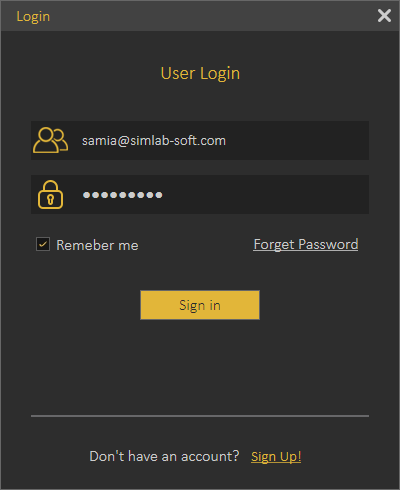 ](https://simlab-soft.com/help/uploads/images/gallery/2022-10/XPRimage.png) [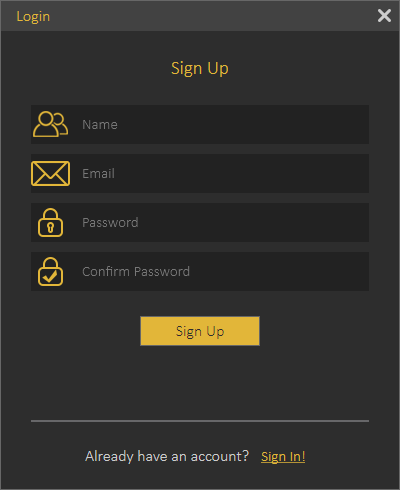](https://simlab-soft.com/help/uploads/images/gallery/2022-10/lEIimage.png)
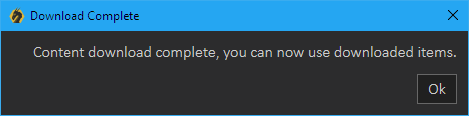
The user can download items from different libraries by double-clicking on any of them, where the **Download Item** box appears. Click download then a progress bar will appear, and after that, the 3D model will be added to the data content of your SimLab application so you don't have to download that 3D model again.
[](https://simlab-soft.com/help/uploads/images/gallery/2022-10/KYZimage.png)
The user can download all content available in the active 3D models' library at once by clicking the **Download Content** button as shown in the image below:
[](https://simlab-soft.com/help/uploads/images/gallery/2022-10/rXNimage.png)
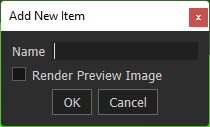
After the download process is successfully completed, the new item(s) will be directly available in the corresponding library without the need to download again or restart the application. The user can add models to the 3D library through the **Add New Item** *'+'* button, on the top right of the material library.
[](https://simlab-soft.com/help/uploads/images/gallery/2025-03/kigimage.png)
# Assets Library
The libraries tab has assets categorized into groups: 3D Models, 3D Scenes, Sketchfab, VR Warehouse, Backgrounds, Scripts, HDR, Lighting Settings, Sounds, and SimLab Academy..
[](https://simlab-soft.com/help/uploads/images/gallery/2025-09/ONkimage.png)
#### 3D Models
The 3D Models category provides the user with stock 3D models to compose scenes out of them.

#### 3D Scenes
The 3D Scenes category contains complete environments to be used for desktop and VR Experiences.

#### Sketchfab
The Sketchfab library allows users to display 3D, VR, and AR content from the Sketchfab platform website right in-app without the need for an Internet browser. The user is allowed to browse, review, and instantly download public models into an open scene.

#### Backgrounds
The Backgrounds category consists of image and spherical backgrounds.
#### Scripts
The Scripts category is where the user finds ready-to-run Python scripts that automate certain tasks in SimLab Composer.
Distribute on path, is one example of these powerful Python scripts. It enables users to place objects along a path with just a few clicks. This makes it faster to build scenes and add unique visual effects.
#### HDR
The HDR (High Dynamic Range) category has various options to select from.

#### Lighting Settings
The Lighting Settings category provides lighting presets for rendering, VR, sun, and IES.
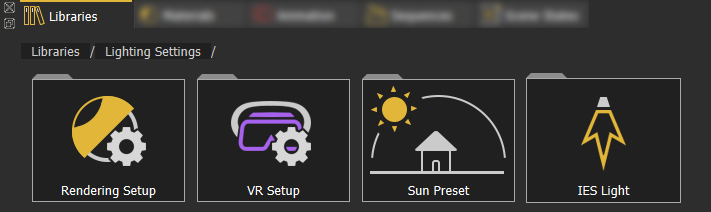
**Predefined VR Lighting Settings** are shown in the following image:
[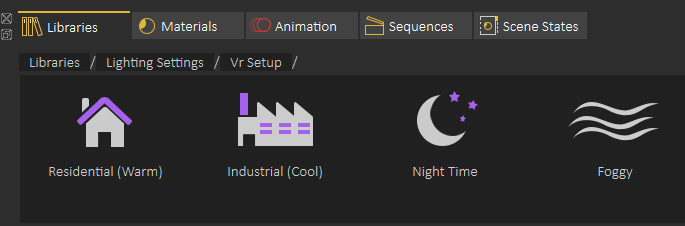](https://simlab-soft.com/help/uploads/images/gallery/2021-12/image-1640351007127.png)
The following image shows some of the **IES lights** included in SimLab Composer:
#### [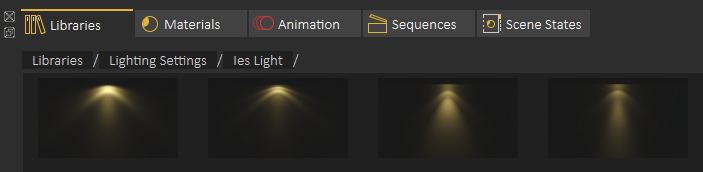](https://simlab-soft.com/help/uploads/images/gallery/2021-12/image-1640351082006.png)
Sounds
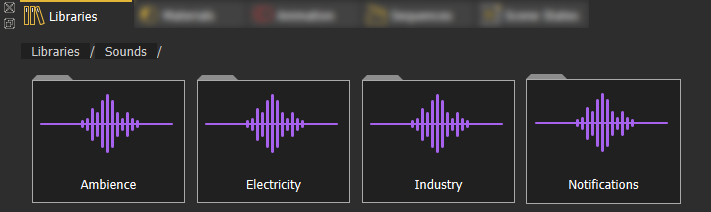
The **Sounds** library offers a collections of sound effects that can help you enhance your scene without the need to always go and search for the appropriate sounds externally.
Adding an element from Asset Libraries to a scene can be done in one of two ways: **(1)** Dragging an element from the library and dropping it in the 3D area. **(2)** Double-click the element on the Asset Library.
#### SimLab Academy
SimLab Academy includes free step-by-step tutorials with all models needed to follow along with the available tutorials.
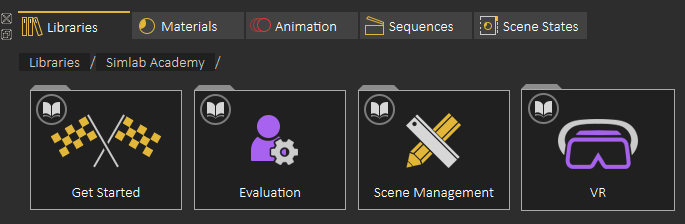
For example: to start learning VR creation, the user clicks on SimLab Academy, then selects VR.
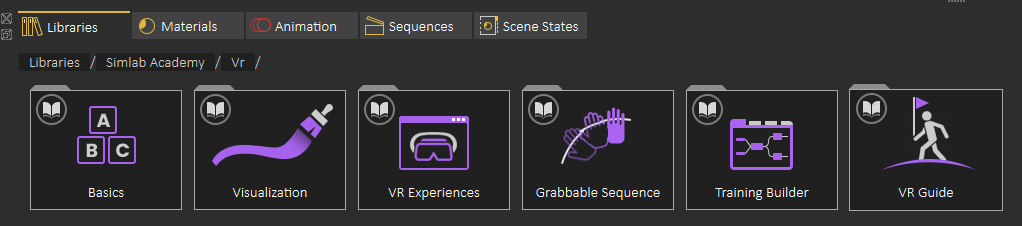
Then the user selects what he/she wants to learn such as Basics.
The following video shows SimLab Academy in action
# Material Library
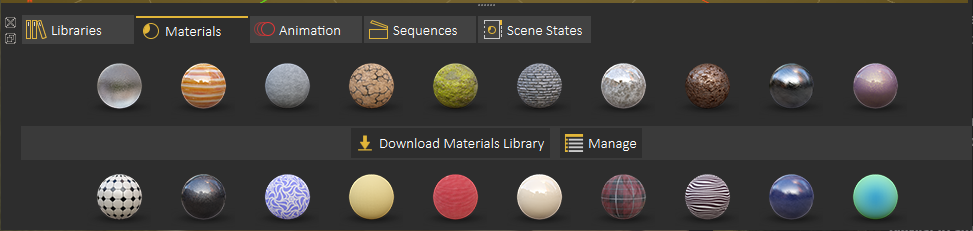
Default Material Library can be downloaded by selecting the **Material** tab in the **Library**, and clicking **Download Materials Library**.
[](https://simlab-soft.com/help/uploads/images/gallery/2021-12/image-1640363072381.png)
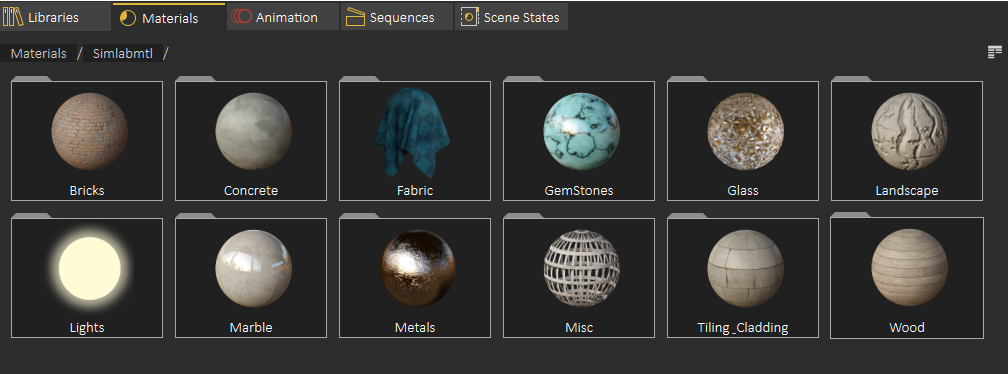
After installing the library the user can select the material group
[](https://simlab-soft.com/help/uploads/images/gallery/2021-12/image-1640360516256.png)
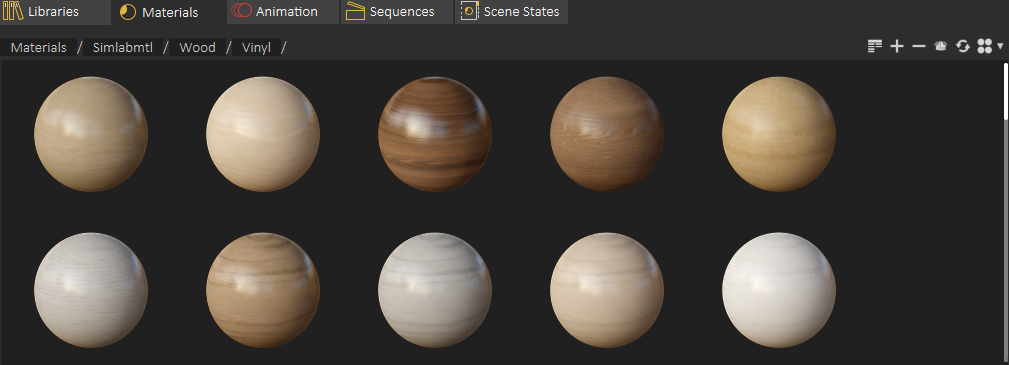
To assign a material to an object in the scene just drag the material and drop it onto that object in the **3D Area** or in the **Scene Browser**.
[](https://simlab-soft.com/help/uploads/images/gallery/2021-12/image-1640360577793.png)
The following tutorial shows the material management capabilities:
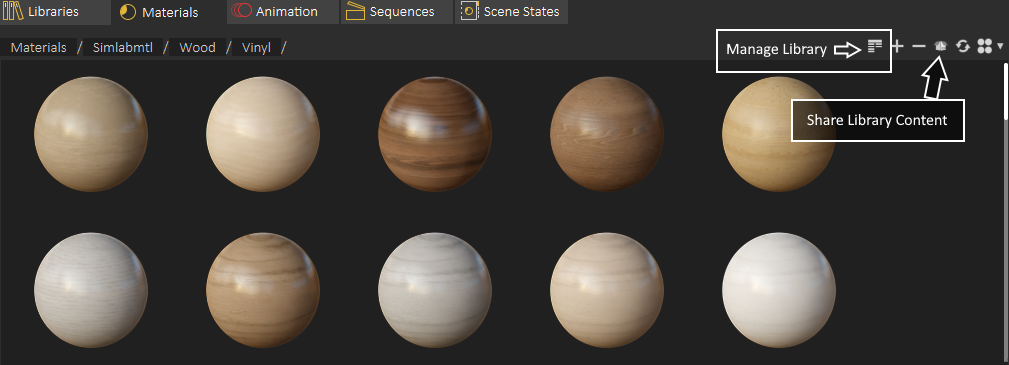
Using **+/-** at the top right side of the Materials Library the user can add new materials, and delete unused ones.
[](https://simlab-soft.com/help/uploads/images/gallery/2021-12/image-1640362266943.png)
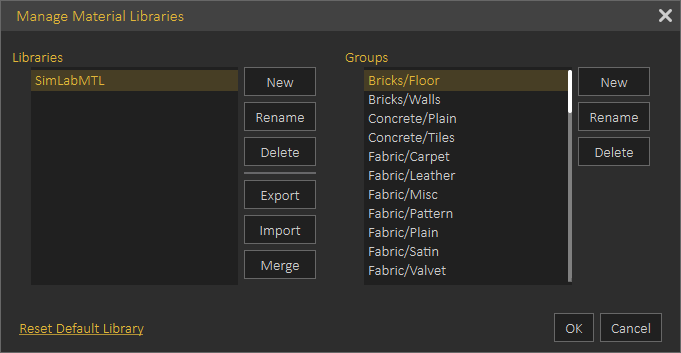
For managing Material Library the user can click on **Manage Library**, For sharing part of contents library (Materials or 3D models), the user can use **Share Library Content**
The following image shows the **Manage Library** dialog
[](https://simlab-soft.com/help/uploads/images/gallery/2021-12/image-1640362317924.png)
---
#### Share Contents
With this feature, sharing different resources is simplified significantly. The rule is clear, if a resource exists in a library, then it can be shared.
Resources can be:
Materials
HDRs
Models
Background Images
And even more...
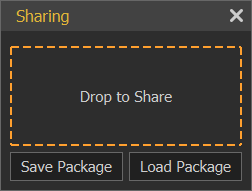
To share a resource, just drag and drop it from the **Library Panel** to the area with the title **Drop to Share,** surrounded by orange dotted border. Sharing dialog includes the following control elements, as shown in the following image:
[](https://simlab-soft.com/help/uploads/images/gallery/2022-01/image-1642008091795.png)
**Drop to Share:** Area where the user should drop in the resource to be shared
**Save Package**: Exports the recourse to be shared with colleagues and save it as \*.spk (SimLab Package).
**Load Package**: Allows the recipient to import the \*.spk package received into SimLab Composer library.
# Animation Timeline
SimLab Composer/Studio is able to Import Rigid and flexible (Joints-based rigged) bodies animations as well as create animation for objects in the animation timeline through several tools.
To access the Animation timeline, open the **Animation Tab** in the library panel at the bottom of SimLab Composer/Studio.
[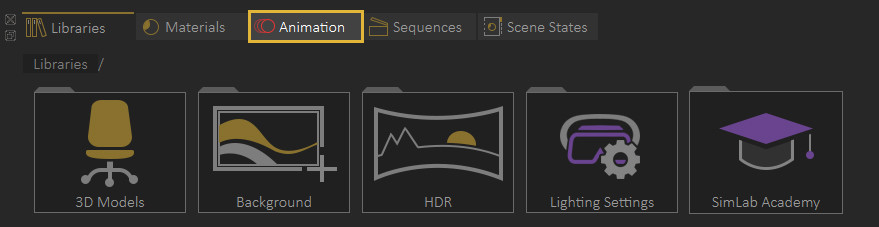](https://simlab-soft.com/help/uploads/images/gallery/2021-12/access-animation.jpg)
---
#### Animation Timeline User Interface
[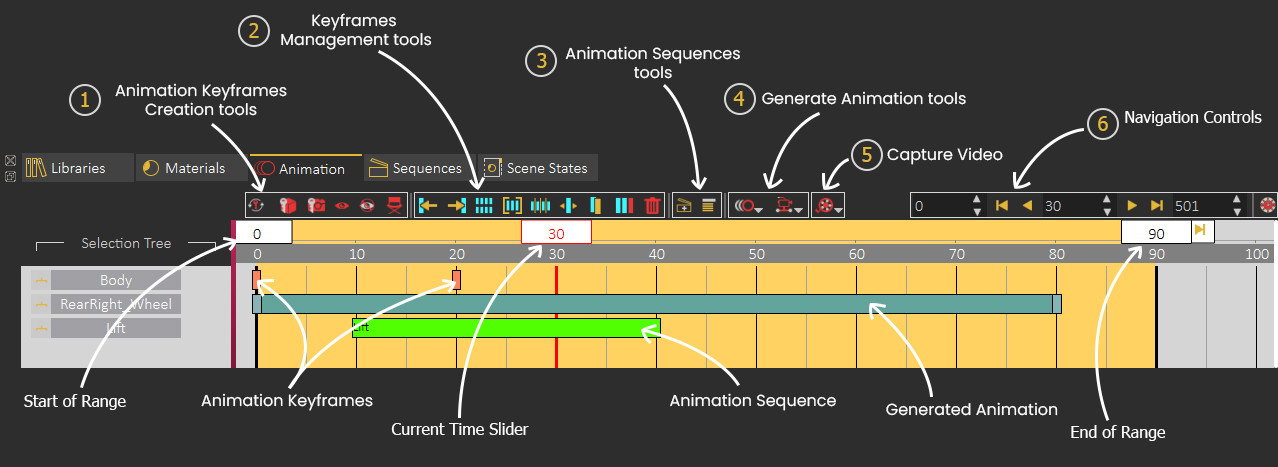](https://simlab-soft.com/help/uploads/images/gallery/2021-12/timeline-layout3.jpg)
**1. Animation Keyframes Creation tools**
Creates an animation **where a camera** revolves up to 360 degrees around its center point of view while descending downwards.
**5. Capture Video**
[](https://simlab-soft.com/help/uploads/images/gallery/2021-12/create-video-fromview.png)
Render View in VR
Renders an animated camera as a sequence of images using the SimLab VR Viewer.
Sets the end of the animation range by being dragged to a specific frame or by double clicking and entering the value numerically.
---
### Animation Creation
To create Animations in SimLab Composer/Studio there are two methods that can be followed depending on the type of animation you want to create, you can either manually create the animation by transforming objects and capturing keyframes, or you can use object and camera tools to generate procedural animation such as wheel and path animation.
Watch these tutorials to learn more about animation in SimLab Composer/Studio
##### 1. Animation Through Capturing Keyframes
If the auto key button is toggled, all you need to do to animate an object is to move the current time indicator/slider to a frame other than 0, then move, rotate or scale the object (change its transformation) and 2 key frames will be created, a key frame at frame 0 to store its initial transformation, and the second key at the current time to store the new transformation.
When playing the animation, an interpolation between the 2 keyframes will be automatically created and the object will transform from its initial state to the new state.
[](https://simlab-soft.com/help/uploads/images/gallery/2022-01/animationexample.jpg)In this example, the car object was selected, and the current time slider was moved to frame 30, then the car was moved 2 meters, so 2 keyframes were created at frame 0 and frame 30 to denote the animation of the car
In addition to the standard transformation animation, there are other attributes or elements you can animate, each with a different keyframe type representing it in the timeline.
Created when a camera has a change of transformation (position, target) along the timeline, either through capturing or using the director record tool.
##### 2. Automatic Camera and Object Animation
SimLab Composer/Studio have several tools that enable you to automatically create a procedural animation for an object or a camera without manually adjusting the time slider and changing the objects transformation.
These tools can be accessed from the Object Animation and the Camera Animations menus at the top of the timeline panel.
[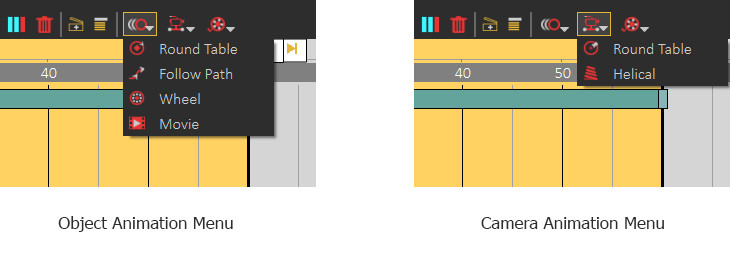](https://simlab-soft.com/help/uploads/images/gallery/2022-01/animationmenus2.jpg)
When an object or a camera is selected and one of those tools is clicked, a dialog will appear to set the parameters for the automatic animation that is to be generated.
[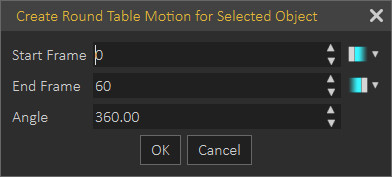](https://simlab-soft.com/help/uploads/images/gallery/2022-01/rounddialog.jpg)
This is an example of an animation dialog that appears when the user selects the round table animation. In this dialogue, the user has to specify the start frame and the end frame, as well as the angle of rotation for the object or the camera.
[](https://simlab-soft.com/help/uploads/images/gallery/2022-01/roundtableanimation.png)
The Round table animation will be represented as a single block instead of multiple keyframes, since it *cannot* be modified manually but rather through its attributes that appear in the panel to the right.
---
##### Keyframes Interpolation (Ease in and Ease out)
Animations in SimLab Composer/Studio have a linear interpolation by default, which means that objects or attributes are animated at a constant speed throughout the animation range, however, there is a way to change the interpolation of animation by setting the keyframes interpolation to to an ease in or ease out interpolation.
[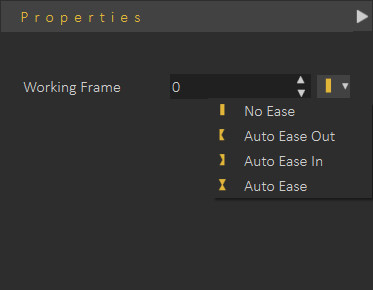](https://simlab-soft.com/help/uploads/images/gallery/2022-01/prop1.jpg)
To change a keyframe interpolation, **Select the key frame**, and from the **Properties panel** to the right, open the interpolation drop down menu and select ease in, ease out, or auto ease.
[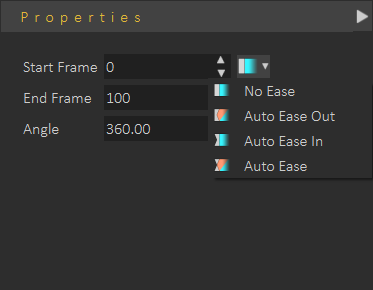](https://simlab-soft.com/help/uploads/images/gallery/2022-01/prop2.png)
To change the interpolation for an object or a camera's automatic animation, **Select animation block**, and from the **Properties panel** to the right, open the interpolation drop down menu for the start frame and select ease in, ease out, or auto ease, and the menu for the end frame to change the interpolation at the end of the animation
When choosing the **Ease out** interpolation, which should be applied at a frame at the beginning of the animation, the speed of the animation starts at 0 and then accelerates gradually to get to a constant speed.
With the **Ease in** interpolation, which should be applied to frame at the end of an animation, the speed decelerates towards 0 instead of abruptly changing to 0.
The **Auto Ease** interpolation combines both the Ease in and Ease out and is usually used for keyframes in the middle of an animation where the speed goes down as the current time slider approaches that keyframe, and it picks up again as it leaves it.
[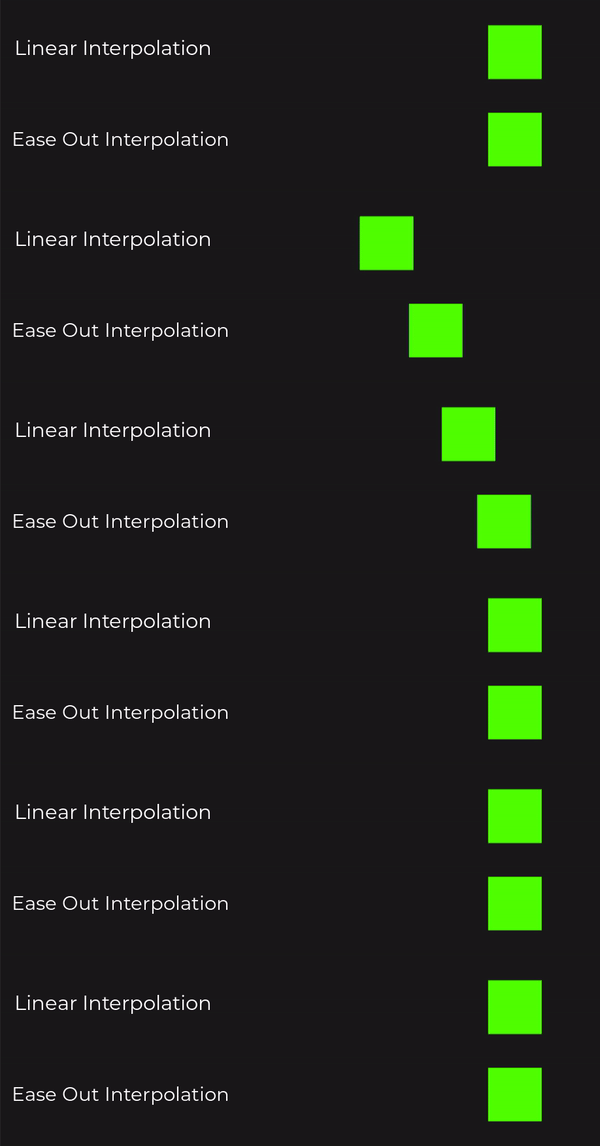](https://simlab-soft.com/help/uploads/images/gallery/2022-01/interpolation.gif)
Notice the constant speed in the default linear interpolation (top) and the acceleration in the Ease out interpolation (bottom).
---
#### **Utilizing Animation in VR**
To utilize imported or created animation in VR you need to first store it as a component named **"Animation Sequence",** and then you can either attach it to a **Play Sequence Response** in the Training Builder, or use it as a **Grabbable Sequence**.
##### Animation Sequence Creation
To create an Animation Sequences you need to select all the animation keyframes regardless of their type for all the objects you want to include in the animation sequences, then click on the **"Create Animation Sequence"** button in the animation panel.
[](https://simlab-soft.com/help/uploads/images/gallery/2022-01/create-sequencebutton.png)
[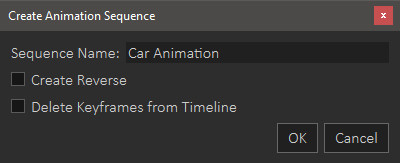](https://simlab-soft.com/help/uploads/images/gallery/2022-01/sequencecreationdialog.jpg)
In the creation Dialog, type a name for the Sequence. and choose whether you want to create a reversed version of the animation, and whether you want to delete the animation from the timeline or not.
Created Animation Sequences can be found in the Sequences tab next to the Animation tab in the bottom panel in SimLab Composer/Studio.
[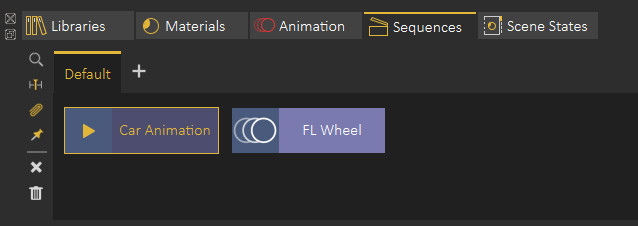](https://simlab-soft.com/help/uploads/images/gallery/2022-01/sequences-tab.jpg)
from the Sequences tab you can:
- Preview Animation Sequences.
- Attach Animation Sequences to responses in the Training Builder.
- Find the objects that are affected by the animation sequence.
- Send Animation Sequences to the timeline.
- Attach Sequence to object (in case if importing a flexible body animation and you want to attach it to a joints-rigged object).
- Make flex object stationary (in case of having a walk cycle for example, and you need to keep the walking animation but dispose of the object's translation).
##### Attaching Animation Sequence to Responses
In the Training Builder, create a Play Sequence Response, then select the Animation Sequence from the Sequences tab and then click the attach button on the Play Sequence Response.
[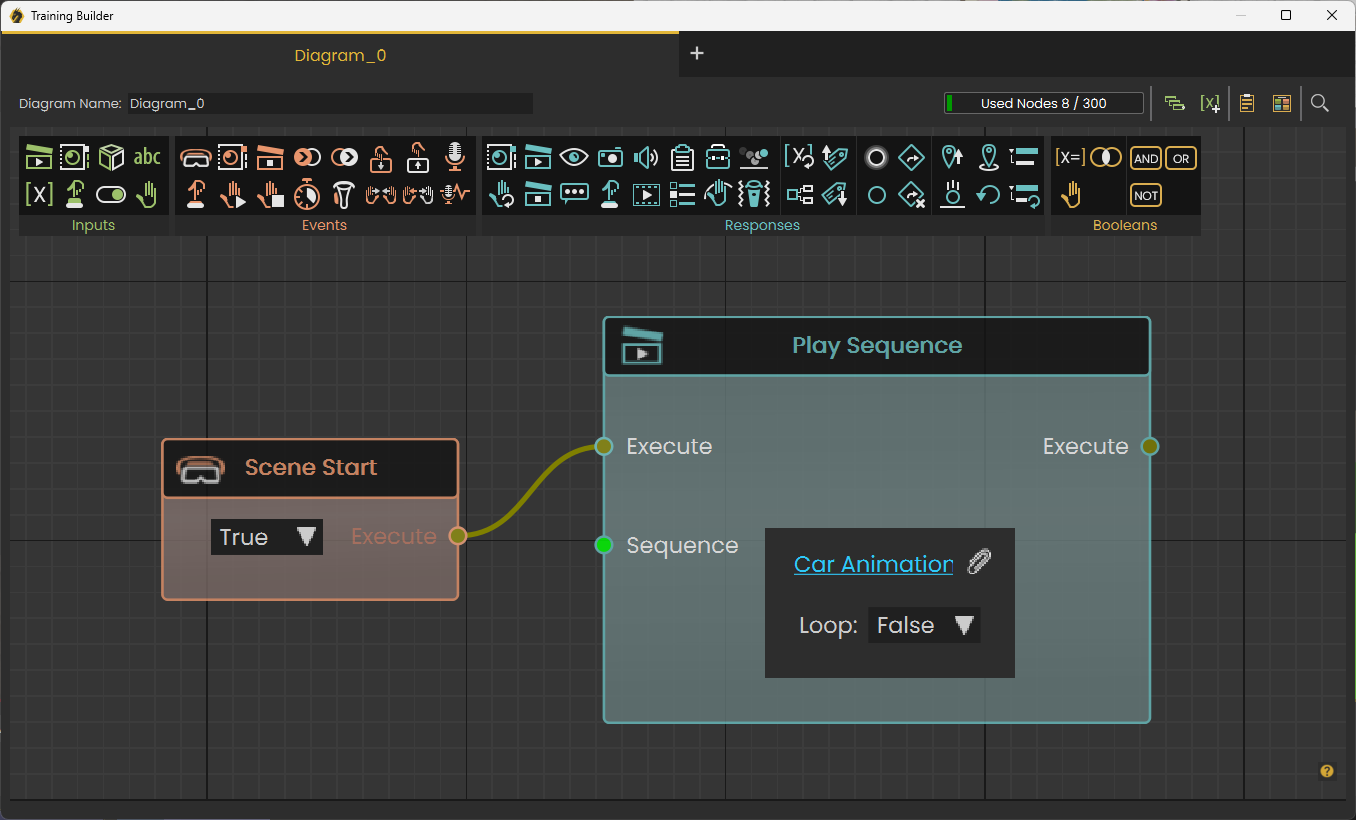](https://simlab-soft.com/help/uploads/images/gallery/2022-01/trainingbuilder.jpg)
The Animation in VR will play once the Event attach to the response occurs.
##### Grabbable Sequences
Grabbable Sequences are a type of objects grabbing that constricts the movement of the grabbable object through an Animation Sequence.
[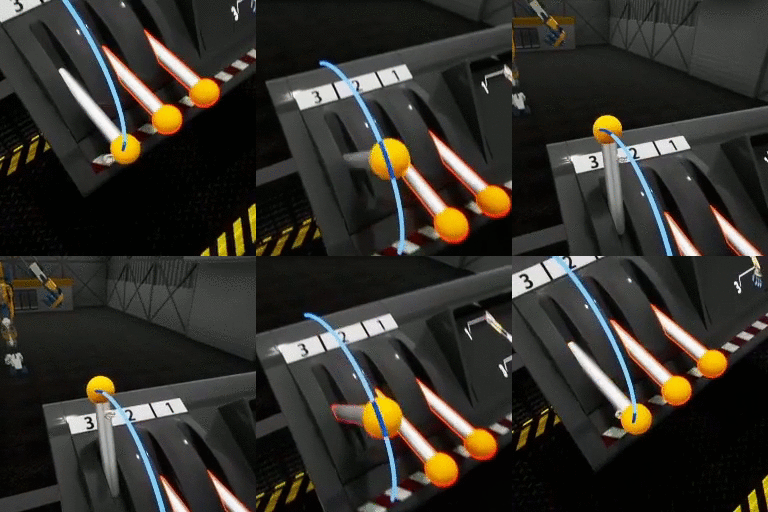](https://simlab-soft.com/help/uploads/images/gallery/2022-01/make-grabbable-sequences-256x256.gif)
A practical example would be to create a Lever's animation of it going up and down, then set it as a Grabbable Sequences where the user can grab the Lever arm but can only move it up and down in accordance with its created animation, unlike regular grabbing where the user can move and rotate the object in any direction.
To create a Grabbable Sequence from an animation Sequence follow these steps:
1. From the interactions menu select "Make Grabbable Sequence".
2. Select the 3D object that you need to make grabbable and click the check mark.
3. Select the Animation Sequence you want to attach to the object and click the check mark again.
4. Specify the grabbing visual helper's size then click the check mark again to finish the process.
# Sequence Library
The **Sequence Library** shows a list of all sequences in the scene.
[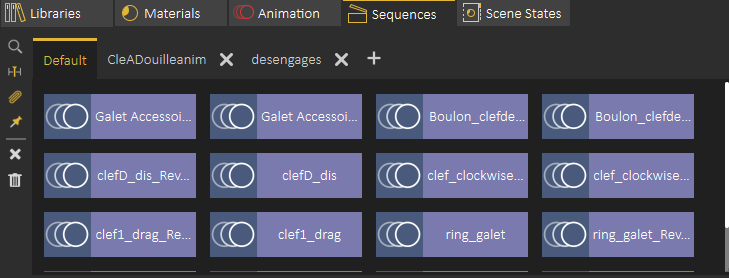](https://simlab-soft.com/help/uploads/images/gallery/2021-12/image-1640362662585.png)
**Sequence Preview**
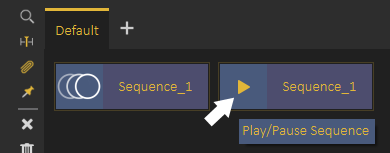
To preview a sequence without converting it into animation, the user can highlight the animation icon part of the sequence, which will be converted into a play icon, clicking the play icon will preview the sequence, as shown in the following image:
[](https://simlab-soft.com/help/uploads/images/gallery/2021-12/image-1640518756428.png)
On the left side of the Sequence library the user can do the following:
**Find affected Objects**: Focuses the view in the 3D area to the objects affected by this sequence, which makes it easy to find what objects the sequence affect in the scene.
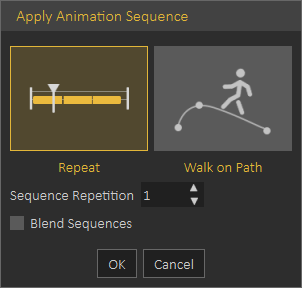
**Apply Sequence to Animation Time Line:** Adds the contents of a sequence to the animation timeline, this can also be achieved by dragging the animation and dropping it on the 3D Area
[](https://simlab-soft.com/help/uploads/images/gallery/2021-12/image-1640519040909.png)
When applying a Sequence to **Animation Timeline** the following dialog appears allowing the user to repeat the sequence multiple times. or to use it in a follow path animation.
Sequences will be added starting from the **current frame** in the **Animation Timeline**
**Attach Sequence with Object**: This option attaches selected unattached sequence to the selected object to affect it, better explained in the tutorial found below.
**Make Flex Object Stationary**: In case you have a sequence moving **VR Guide** legs , and at the same time moving it from its place, you can use this option to remove the move from place part from the sequence and make the **VR Guide move in place**, this is very useful to apply user desired motion on the **VR Guide.
Delete Selected Sequence**: Deletes the currently selected sequence
**Delete All Sequences**: Deletes all sequences in the Sequence Library
The following tutorial shows how to use the **Sequence Library** to add a **VR Guide** to the VR Experience:
**Sequence Groups**
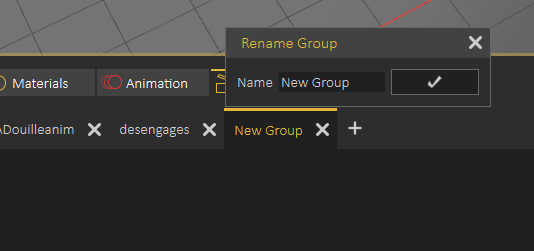
Sequences in the **Sequence Library** can be organized in groups, a new group can be added by clicking on the **+** button next to group tabs, to rename a **Sequence Group** the user needs to double click on its tab label as shown below
[](https://simlab-soft.com/help/uploads/images/gallery/2021-12/image-1640519960885.png)
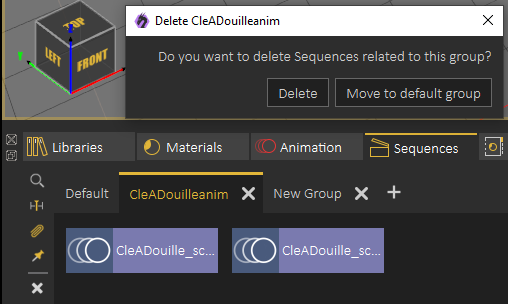
When deleting a sequence group the user will get the option to delete sequences in the group or to move them to the Default sequence group, as shown in the following image:
[](https://simlab-soft.com/help/uploads/images/gallery/2021-12/image-1640520117324.png)
# Scene States Library
[Scene States](https://simlab-soft.com/help/link/14#bkmrk-page-title) enable the user to capture different configurations for the **selected 3D model**(s) (**Object** Properties), or useful properties for the **whole scene** (**Scene** properties).
To view what is selected in a scene state, make sure nothing is selected in the scene, then click on a scene state in the Scene State Library
[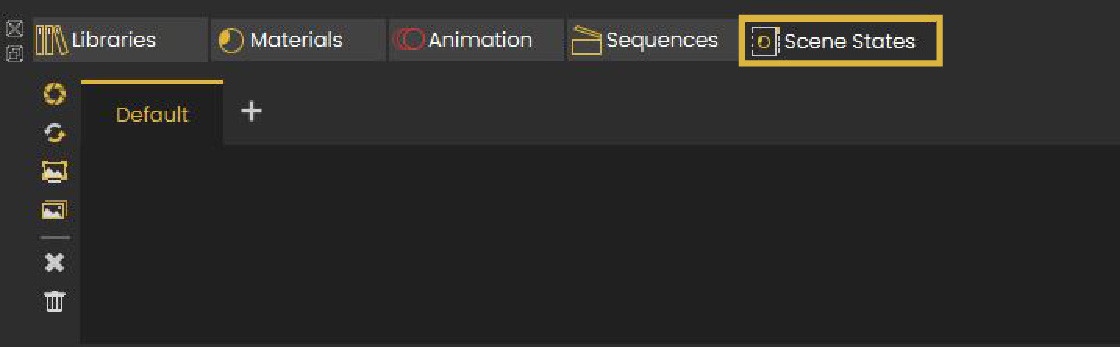](https://simlab-soft.com/help/uploads/images/gallery/2025-03/scene-state-library.JPG)
The **Properties Panel** that appears on the right side of the 3D view will allow the user to see what properties where captured in the Scene State, as well as seeing and selecting objects and groups affected by the captured Scene State.
---
Scene State Library, includes small tool buttons on the left side, allowing the user to:
1- Open the Capture Scene State Dialog
2- Recapture Scene State
3- Regenerate Selected Scene State Preview Image
4- Regenerate All Scene States Preview Images (may take long loading times)
5- Delete Selected Scene State
6- Delete All Scene States
[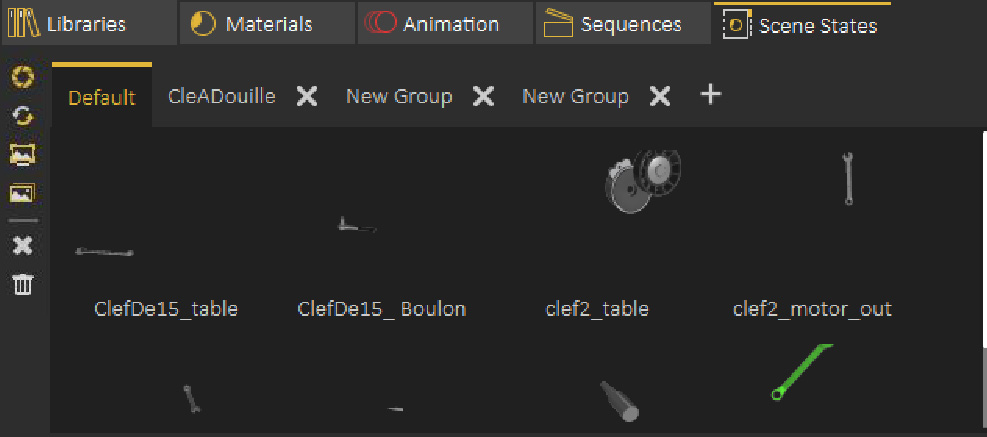](https://simlab-soft.com/help/uploads/images/gallery/2021-12/image-1640362862604.png)
**Scene State Groups**
**Scene State Groups** are very similar to **Sequence Groups Library,** they can be used to organize Scene States, a new group can be added by clicking on the **+** button next to group tabs, to rename **Scene State Group** the user needs to double click on its tab label as shown below.
[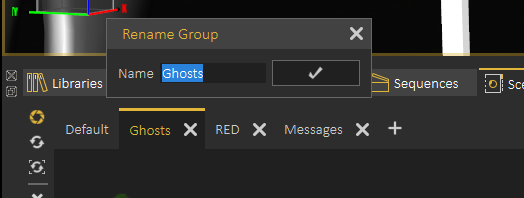](https://simlab-soft.com/help/uploads/images/gallery/2021-12/image-1640621706549.png)
When deleting a Scene State Group the user will get the option to delete Scene States in the group or to move them to the Default group
# Common Toolbar
[](https://simlab-soft.com/help/uploads/images/gallery/2021-12/image-1640264225011.png)
Common Toolbar is located in the lower part of the 3D area on top of the Library, it is always accessible to the user and it includes the following:
#### Select Object
The Default Pick mode in SimLab Composer/Studio returns the location and the normal direction at the selection point. The geometry at the picked location will be selected in the Object Tree, and its bounding box will be displayed in the 3D area.
[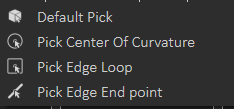](https://simlab-soft.com/help/uploads/images/gallery/2021-12/image-1640264383816.png)
To get more precise picking the user can change selection to:
**Center of Curvature:** To select center of a circle or arc
**Edge Loop:** To select center of a closed loop, like center of one of the faces of a cube
**Edge End Point:** To select the closest end of an edge
#### Window Configuration
By default the user views 1 view in the 3D area, which covers all available space, this configuration allows the user to switch to 2 or 4 views. Different views can help the user better arrange elements in the scene.
[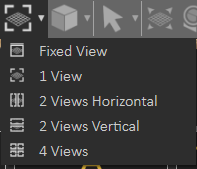](https://simlab-soft.com/help/uploads/images/gallery/2021-12/image-1640264658271.png)
The following image shows switching Window Configuration to 4 views:
[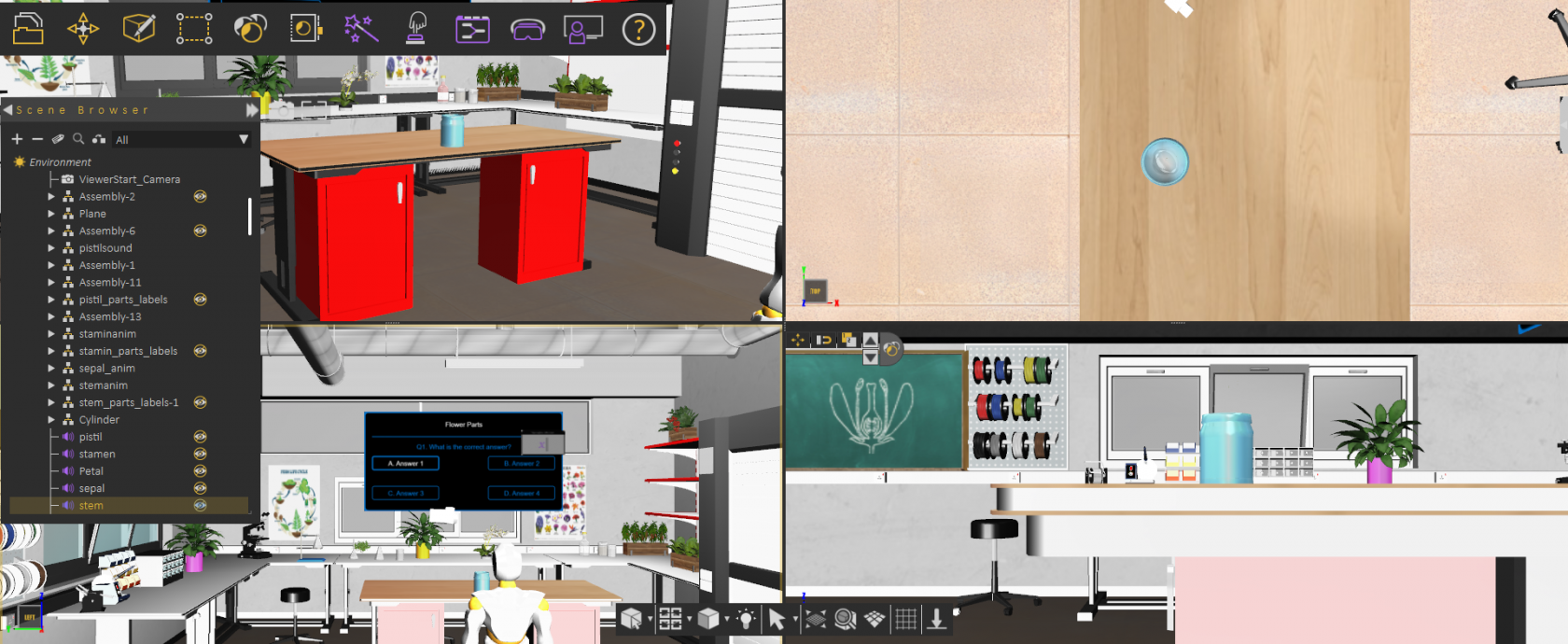](https://simlab-soft.com/help/uploads/images/gallery/2021-12/image-1640264885425.png)
#### View Mode
The default view mode in SimLab Composer/Studio is the Solid View, which displays solid models with edges hidden. The user can change the view mode to any of the available modes from this menu.
1\. **XRay View:** Gives x-ray effect to the models in the scene.
2\. **Edges Only View:** Displays only the edges of the models in the scene.
3\. **Solid Illustration:** Displays models in solid view, with their edges illustrated.
4\. **Solid View:** Displays models in shaded solid view.
[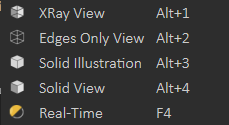](https://simlab-soft.com/help/uploads/images/gallery/2021-12/image-1640265091177.png)
The following image shows a scene in XRay View:
[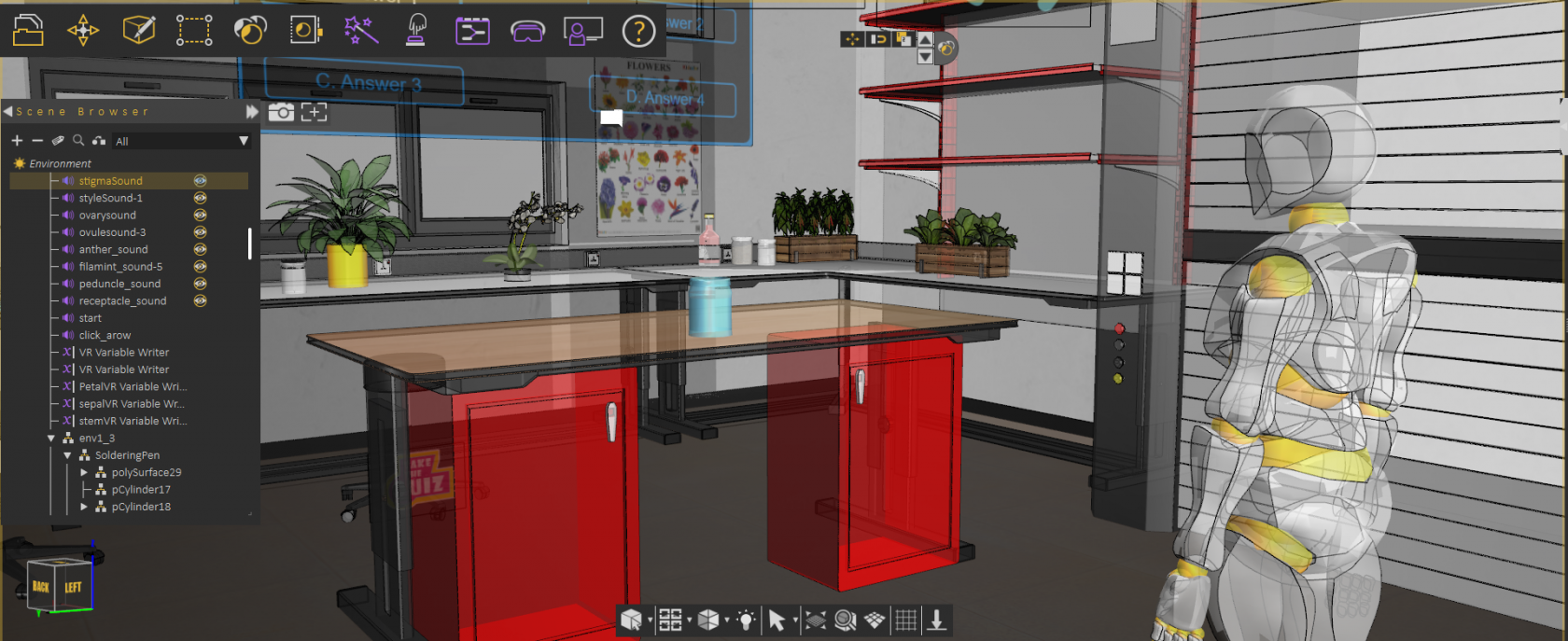](https://simlab-soft.com/help/uploads/images/gallery/2021-12/image-1640265073353.png)
#### Light On/Off
This option allows the user to turn off the default camera light in SimLab Composer/Studio to get a view better matching what the user will see in VR Viewer, or to only see lights coming from created artificial light sources (the ones found in the "Create" menu from the main toolbar).
#### View Behavior
In this menu the user can set the behavior of the mouse while interacting with the scene.
[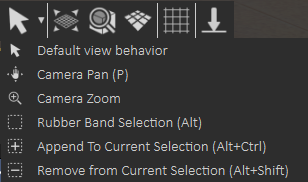](https://simlab-soft.com/help/uploads/images/gallery/2021-12/image-1640265286633.png)
**Default view behavior**
The mouse behavior will be as shown in the table below:
**Navigation**
**Mouse Button**
Pan
Middle mouse button
Rotate
Left mouse button
Zoom
Right mouse button
**Camera Pan**
Changes the behavior of the left mouse button, to Pan.
**Camera Zoom**
Changes the behavior of the left mouse button, to Zoom.
**Rubber band**
This function changes the selection mode in the 3D area and it has three options:
**Rubber Band Selection:** Changes the selection icon to a square band, allowing the user to window select more than one geometry in the 3D area.
**Append To Current Selection:** The selection icon will show a ‘+’ sign inside the square band. The user can window select more geometry in a different section of the 3D scene, without losing the previous selections.
**Remove from Current Selection:** With a ‘-‘ sign added to the band, the user can remove geometry form selection, without losing previous selections.
---
#### Fit all
Updates camera to fit all geometry in the scene within the active view area.
#### Zoom to Object
Updates the camera in the active viewport, to zoom to the selected object. In case the user presses the button without selecting an object, a message will be displayed on top of the Common Toolbar asking him to do so.
#### Switch Between Parallel and Perspective Views
Switches the camera between perspective and parallel modes, in the active viewport. For engineers who are used to parallel mode, this option would be helpful.
#### Capture View image
Captures an image for the current view from the scene, and opens a dialog to save it.
# Quick Access Toolbar
When 3D geometry is selected in the 3D area, the Quick Access Toolbar will appear, with a set of handy functions, Quick Access Toolbar will appear close to the selected geometry.
[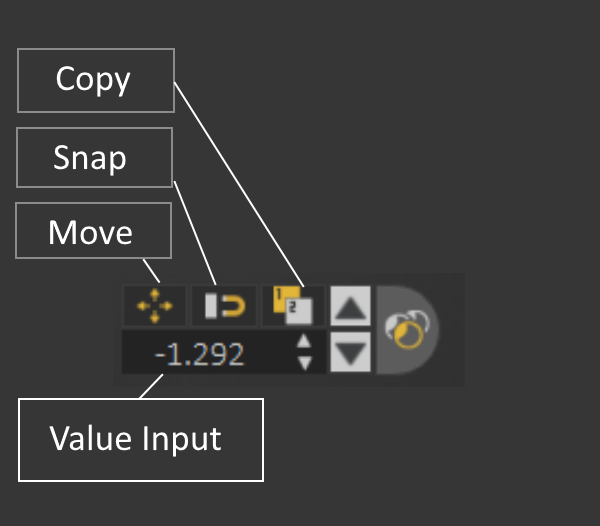](https://simlab-soft.com/help/uploads/images/gallery/2021-12/3wDquick-access.png)This options includes:
**Translate:** To show draggers needed to move the object
**Snap to Object:** To allow the user to snap the selected object to another.
**Copy:** To create a new copy of the selected geometry
**Value Input:** Allows the user to enter exact values for translation or rotation
**Material:** Opens Quick Material Access
---
**Move selection Up/Down:** It allows moving up or down in the Scene Browser based on selection, going up means selecting the parent, moving down means selecting a child, this makes it very easy to select and move through a specific part or assembly
**[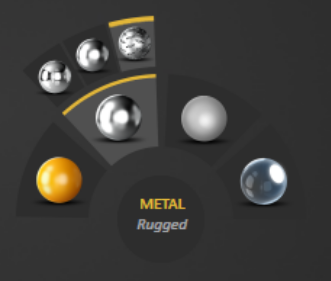](https://simlab-soft.com/help/uploads/images/gallery/2021-12/quick-access-material.png)Quick Material Access:** It makes it easy to change material finish to another type, for example you can set it to Plastic, Metal, or Glass
---
**Note:** From preferences the user can select to turn on/off appearance of Quick Access Toolbar
# Active Camera
[](https://simlab-soft.com/help/uploads/images/gallery/2021-12/active-camera.png)
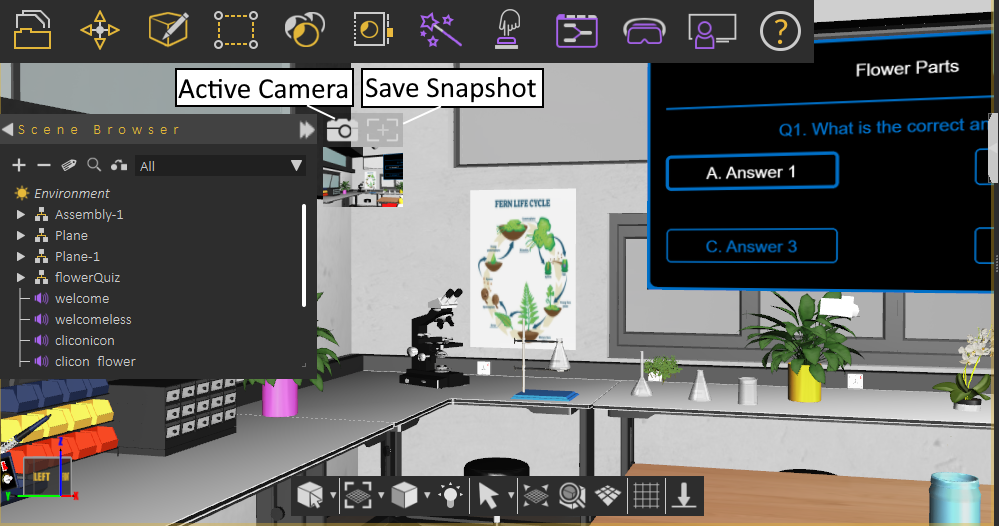
**Select Active Camera:** Selects the current active camera in the scene, and shows its properties, to make it easy to adjust those properties.
**Capture Camera Snapshot:** Saves the current camera view, and generates a new image below this button. Clicking the snapshot generated image, the camera is updated to look at the same view when the snapshot was created.
# Main Toolbar
# Main Toolbar
The main toolbar in **SimLab Composer** is located at the top of the application giving the user access to the different menus, this is the main toolbar for the VR workbench:
[](https://simlab-soft.com/help/uploads/images/gallery/2024-01/edLimage.png)
[File Menu](https://simlab-soft.com/help/books/simlab-composer-help/page/file-menu)[Move Menu](https://simlab-soft.com/help/books/simlab-composer-help/page/move-menu-RjW) [Create Menu](https://simlab-soft.com/help/books/simlab-composer-help/page/create-menu)[Geometry Menu](https://simlab-soft.com/help/books/simlab-composer-help/page/geometry-menu)[Material Menu](https://simlab-soft.com/help/books/simlab-composer-help/page/material-menu)[Scene States Menu](https://simlab-soft.com/help/books/simlab-composer-help/page/scene-states-menu)
[Render Menu](https://simlab-soft.com/help/books/simlab-composer-help/page/render-menu)[Backing Menu](https://simlab-soft.com/help/books/simlab-composer-help/page/baking-menu)[360 Image Menu](https://simlab-soft.com/help/books/simlab-composer-help/page/360-image-menu)[VR Effects/Media Menu](https://simlab-soft.com/help/books/simlab-composer-help/page/vr-effects-media-menu)[Interactions Menu](https://simlab-soft.com/help/books/simlab-composer-help/page/interactions-menu)[Training Builder Menu](https://simlab-soft.com/help/books/simlab-composer-help/page/training-builder-menu-TVO)
[Dynamic Builder](https://simlab-soft.com/help/books/simlab-composer-help/page/dynamic-builder-aMZ)
[VR Catalog Menu](https://simlab-soft.com/help/books/simlab-composer-help/page/vr-catalog-menu)[VR Viewer Menu](https://simlab-soft.com/help/books/simlab-composer-help/page/vr-viewer-menu-ocq)[VR Evaluation Menu](https://simlab-soft.com/help/books/simlab-composer-help/page/vr-evaluation)[Help Menu](https://simlab-soft.com/help/books/simlab-composer-help/page/help-menu)
# File Menu
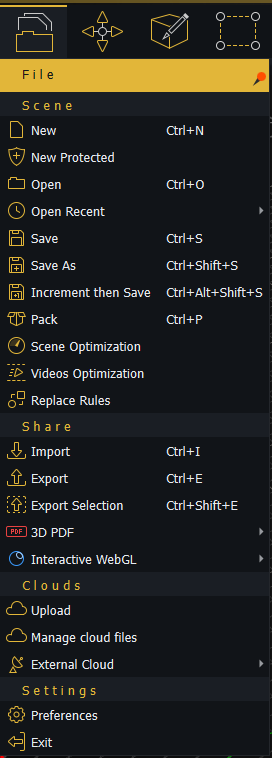
In the **File Menu,** the user can perform file and scene operations, including starting a new scene, save, import, export, and other operations. Setting general preferences is also done here.
[](https://simlab-soft.com/help/uploads/images/gallery/2026-10/filemenu.png)
### Scene Group
#### New/New Protected
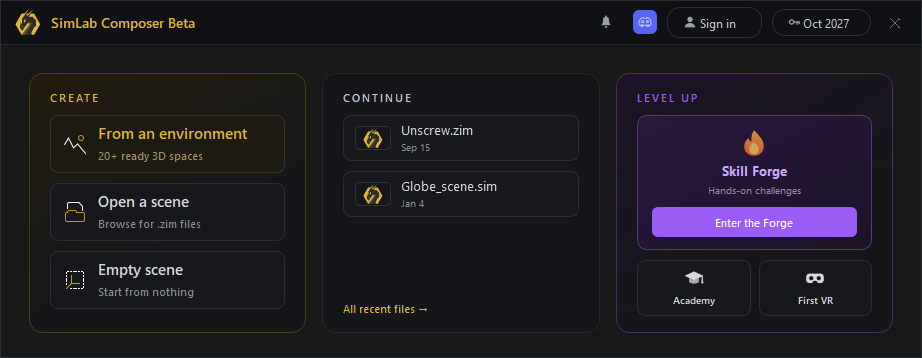
Clears the current scene, then displays **Welcome** (new scene dialog), where the user can select to open a ready-to-use environment, open a scene, or create an empty one.
Images for the last opened scenes are displayed under the Recent Files tab for quick access.
[](https://simlab-soft.com/help/uploads/images/gallery/2026-10/newscenedialog.png)
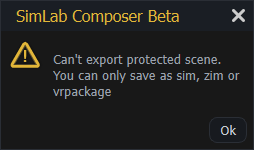
**New Protected** option is the same as creating a new scene, except that this scene can only be saved as **sim**, **zim**, or **Vrpackage**. If the user attempts to export it into any of the available formats, the below message will appear. This is done to protect users' property 3D models from being used by others.
[](https://simlab-soft.com/help/uploads/images/gallery/2026-10/uFsimage.png)
#### Open/Open Recent
**Open** will open "**Open Composer file"** dialog, where the user can browse to a \*.sim or \*.zim file to open. The **Open Recent** on the other hand will show a list of the last few \*.sim or \*.zim files that were opened.
#### **Save/Save As**
Opens **Save Composer** file dialog, where the user can select the name and location for the created \*.sim or\*.zim file format
**Note:** Sim file (\*.sim) is the native file format for Composer/Studio. It stores the scene, but it does not include contents it references in the disk space. For moving files between machines it is better to save the scene as Zipped Sim File (**\*.zim**), which collects all needed resources (textures, sounds, thumbnails, and other resources) and saves them in a single file that can be passed between machines as it is contains all what is needed.
Sim and Zim files are compatible between **SimLab VR Studio** and **SimLab Composer** in case you need to open a file for rendering, or using any other feature from SimLab Composer. Models can be moved in (\*.zim) format and both VR Studio and SimLab Composer should be of the same version.
#### Increment then Save
This feature (with **shortcut** Ctrl+Alt+Shift+S) will save new increments for the same (\*.sim) file. These increment files can be helpful in undoing a feature in a complicated scene after some time. So the user can go back to the file before the feature was added and continue from there, in other words, creating lots of backup saves in case something wrong happens.
[](https://simlab-soft.com/help/uploads/images/gallery/2022-01/image-1641204531911.png)
#### Pack
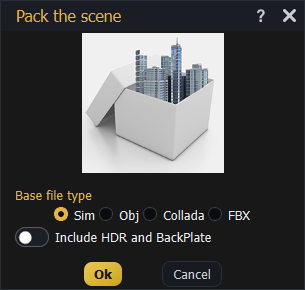
In addition to \*.zim you can use **pack the scene** to pack the model and its textures in one zip file. Supported formats to be used for Packing include **OBJ**, **Collada**, and **FBX.** This is used usually to move files to other applications on other machines.
[](https://simlab-soft.com/help/uploads/images/gallery/2026-10/N19image.png)
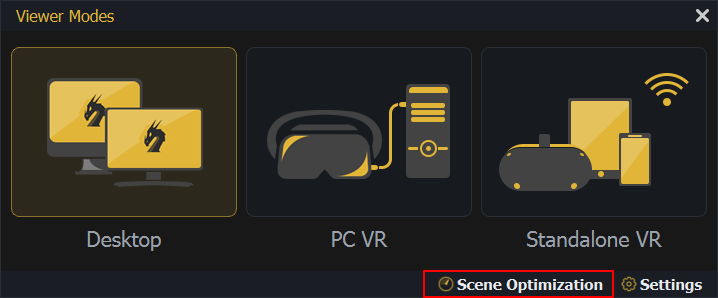
#### Scene Optimization
In VR and especially when using stand-alone devices like Quest, Pico, Android, or iOS, it is important to make sure you are not consuming a large amount of memory for textures on those devices to have a smooth VR Experience.
This option contains option for the optimization on 3D objects, texture or lights objects in the scene all in one dialog, the following video will explain the content of this dialog:
The dialog can also be accessed from **Show in Viewer** dialog, under the VR Viewer menu.
[](https://simlab-soft.com/help/uploads/images/gallery/2026-10/A1Simage.png)
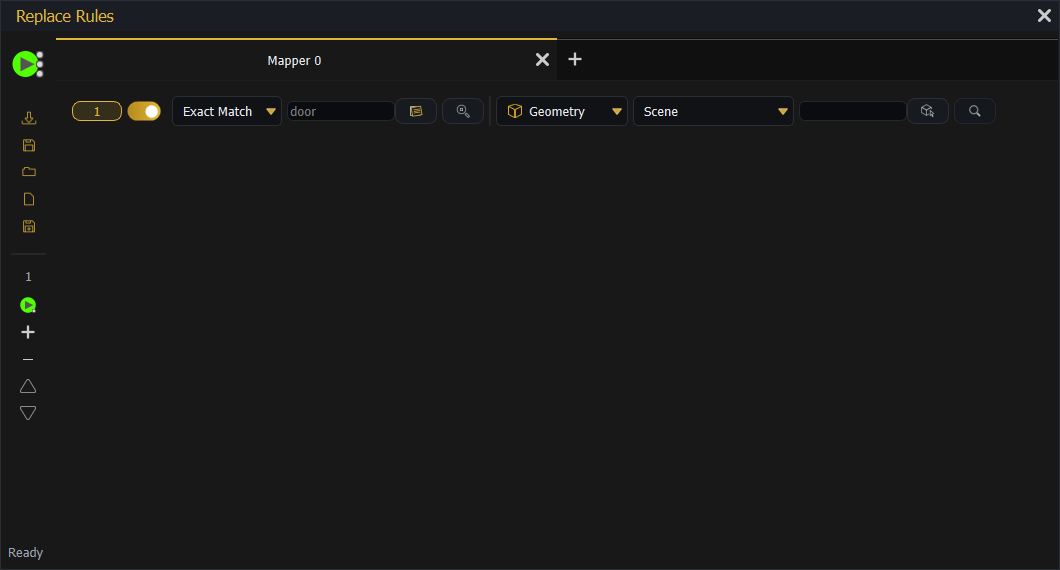
#### Replace Rules
Replace rules makes it easy to replace geometries in the imported file with new entities. For example you can replace a simple cube geometry named "fire" with [VR Fire effect](https://simlab-soft.com/help/books/simlab-vr-studio-help/page/vr-effects-media-menu#:~:text=fire%2Dand%2Dsmok-,Create%20Fire%20and%20Smoke,-Enables%20the%20user). It also supports replacing material types, for example each material that includes plastic in its name can be automatically converted to a plastic material.
This tool is usually used by 3D designers, where they do not need to repeat tasks in SimLab Composer when moving their models.
[](https://simlab-soft.com/help/uploads/images/gallery/2026-10/AK4image.png)
Share Group
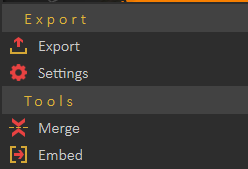
#### Import/Export
Opens the corresponding **Import/Export Geometry** dialog. The import function enables the user to build scenes of 3D models from different [file formats](http://www.simlab-soft.com/3d-products/simlab-composer-supported-3d-formats.aspx). The export function, on the other hand, enables the user to share the created 3D scenes with others in different [file formats](http://www.simlab-soft.com/3d-products/simlab-composer-supported-3d-formats.aspx "file formats").
In the Import Geometry dialog, the user can browse to 3D geometry to import. Clicking **Open** displays the Import File dialog, where the user can set different options for 3D import. General Settings include Up vector, Z axis is selected by default. The user can choose a different axis depending on the design of the imported 3D geometry.
Place in view, places the import geometry in the current view, rather than the center of the scene. Keep dynamic link, when checked keeps 3D geometry linked and automatically updates to any changes in the home CAD application.
Zoom to imported model, imports the object to the center of the scene and zooms the camera to it.
Import Measurement and annotations, will import these elements with the 3D geometry.
The Import File dialog will have more elements depending on the imported file format. The image on the left below, is for 3D PDF file import, while the one on the right is for DWG file import.
Export function will open the Export Geometry dialog, and will enable the user to export the 3D model to any of the supported file formats. For a list of supported Import/Export file formats, visit [this page](https://www.simlab-soft.com/3d-products/simlab-composer-supported-3d-formats.aspx).
#### Export Selection
The user can select specific nodes/objects from the scene to be exported. The objects will be exported to the specified folder with their names in the Objects Tree.
**Export Selection** can be used to export a single part from the 3D scene or to create a [VR Catalog](https://youtu.be/AV10SoCzp0s?t=143), from the exported selections \*.vrpackage(s). Creating VR Catalogs is a feature in SimLab Composer Ultimate edition. The following video shows export selection in action:
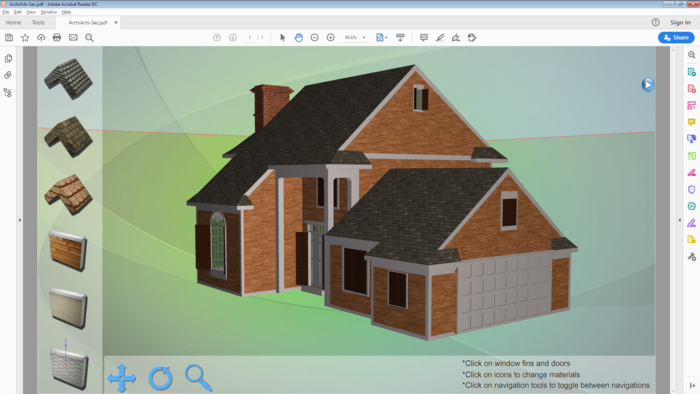
#### 3D PDF
3D Scenes created in SimLab Composer can be exported into custom-designed 3D PDF files, using SimLab Template Designer. The exported 3D PDF files can be opened using the free Acrobat reader (version 9.0 or newer), to take advantage of all the features in the generated 3D PDF file.
[](https://simlab-soft.com/help/uploads/images/gallery/2022-12/b4Oimage.png)
[](https://simlab-soft.com/help/uploads/images/gallery/2022-12/Xjsimage.png)
Features exported to 3D PDF files, as well as to HTML/WebGL files are listed in the table below.
Exported Features
3D PDF Files
HTML5/WebGL Files
3D models and Geometry
√
√
Textures
√
√
Materials and Colors
√
√
Scene States
√
√
Visualized Scene Options (Lists)
√
√
Animations
√
√
SimLab Actions
√
√
2D Polylines and Annotations
√
Cameras
√
√
Reflection Maps
√
√
Bump Maps
√
√
Custom Designed Templates
√
√
Before attempting to export to 3D PDF, the user needs to choose 3D PDF Settings and make sure to include 3D Area in the template.
Tutorial video showing how to export 3D models to 3D PDF and visualize it with others using the free Acrobat Reader.
#### 3D WebGL
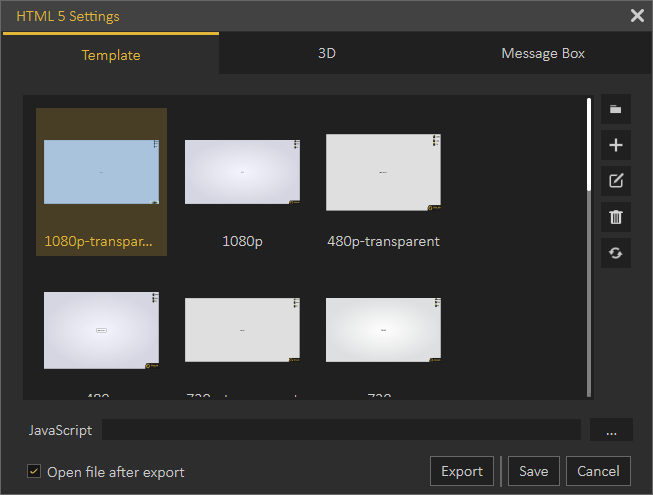
HTML5 Settings dialog enables the user to control the generated HTML file(s). Before exporting to HTML, the user needs to select a template to use for export and to set other HTML parameters.
The HTML template design is fully supported with an advanced 2D layout, the same one found in the 3D PDF template designer. Behavior Actions can be exported into HTML5/Web GL, enabling users to create an interactive 3D experience on the web. Reflection maps, sunlight, and shadows are applied to 3D models and exported to HTML, giving them a more realistic look with smoother camera navigation and better material appearance. 3D scenes can be exported into HTML5 files, the same way 3D PDF files are exported.
From 3D WebGL under the **File** menu, click **Settings** to open the HTML5 Settings dialog, where the user can select the template to use from the **Template** tab. The template tab is where the user can browse the folder containing the HTML template(s) to use, and create new templates, edit, delete, or refresh template(s).
Clicking the New button will open the SimLab Designer window. SimLab Designer is a simple application that enables users to design and save their own templates. Page size under the File menu of the template designer can be used to expand the background image when the Web GL is set to full screen. For more details about SimLab Designer, select **Designer Help** from the Settings/Help bar in SimLab Composer.
Document Javascript and 3D Javascript can be added to control both, the HTML document, and the included 3D model.
Java scripts can be applied to designed templates, to make specific actions. Details about Javascript support in WebGL can be found under Help in SimLab Scripting.
[](https://simlab-soft.com/help/uploads/images/gallery/2022-12/ug0image.png)
In the 3D tab of the HTML5 Settings dialog, the user can control the behavior/properties in the 3D area. **Keep Camera Above Ground** option, allows architects to prevent viewers of their 3D models from viewing under the buildings, also the user can show/hide the **Show** **Shadow From Sun**, the **Reflection,** and the **Sun Environment**.
The user can also select the **Navigation Mode** in the exported HTML file, spin navigation mode adds a great navigation experience. The user can set the default navigation mode for the exported 3D WebGL file and can choose to change this default mode from inside the exported 3D WebGL.
For WebGL with animations added to them, the behavior of the animation can be controlled in this tab. **Frames Per Second** controls the speed of playing animation, where 15 FPS is faster than 5. **Playing Mode** is the mode to use when the animation reaches an end. The **Repeat** option will keep on repeating the animation, from beginning to end, as long as the file is open. The **Swing** option will keep on playing the animation, from beginning to end then from end to beginning, as long as the file is open. The **Play Once** option will play the animation only once.
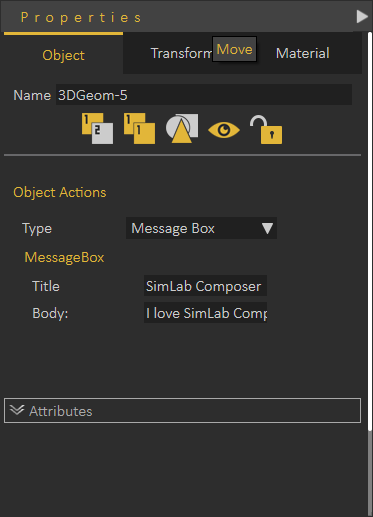
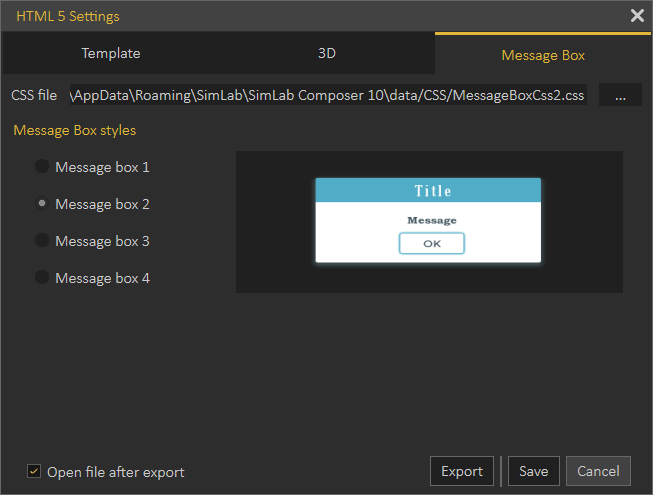
In WebGL exporter, the user can add a message box to the exported HTML by selecting **Message Box** from Action in Properties Panel for any object in the scene. Write the message body and give it a title. Here in the message box tab, the user can select the style of the message box which will be displayed in the HTML file, there are four styles to select from.
[](https://simlab-soft.com/help/uploads/images/gallery/2022-12/dGeimage.png)
[](https://simlab-soft.com/help/uploads/images/gallery/2022-12/n6ximage.png)
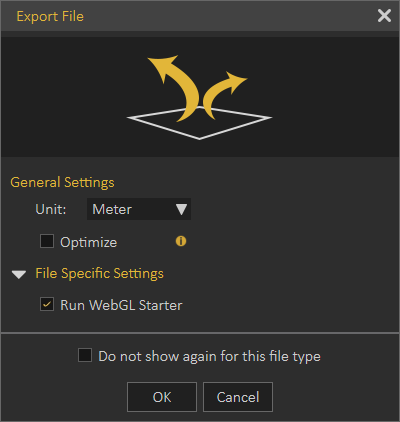
With a template selected, click **Export** from the menu or in the HTML 5 Settings dialog, then enter the name and location of the (\*.html) file and click **Save**. The Export File dialog will open, where general final settings can be checked. If the **Open file after the export** checkbox is checked then the HTML file will open.
For 3D scenes with scene states defined, the Manage Scene States dialog will appear upon clicking Save. There the user can check the scene states to include in the exported HTML file, and their order.
[](https://simlab-soft.com/help/uploads/images/gallery/2022-12/EVZimage.png)
###
### Clouds Group
#### Share to SimLab Cloud
This function enables users to share their 3D scenes as VR Package on SimLab Cloud. When selecting this option the **Login** dialog will appear, where the user can Sign Up/Sign in.
[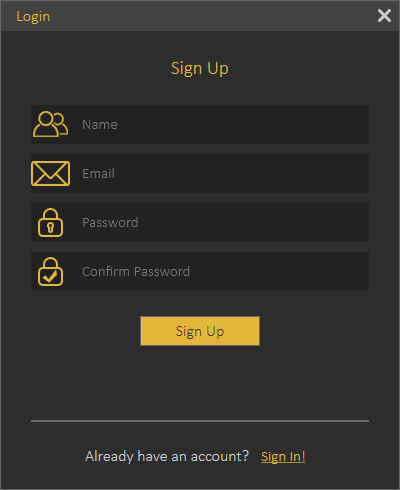](https://simlab-soft.com/help/uploads/images/gallery/2021-12/image-1639759101774.png)
Once the user logs in, the Cloud Sharing dialog will appear, allowing the user to share created 3D scenes with full features as VR Package. Full features mean all created animation, scene states, actions and more. By default, a user will start with a **trial sharing space** of 2 GB valid for 3 months.
A user can manage uploaded files by clicking the **Manage Cloud Files** button in the Cloud Sharing dialog, which will open the Sharing Manager dialog. As the sharing period or space are expired, a user can [purchase SimLab sharing keys](https://www.simlab-soft.com/technologies/simlab-sharing.aspx). To learn more about sharing methods and capabilities please refer to [this video tutorial](https://www.youtube.com/watch?v=Ujb618o3yF8) (Share VR Package section ONLY).
[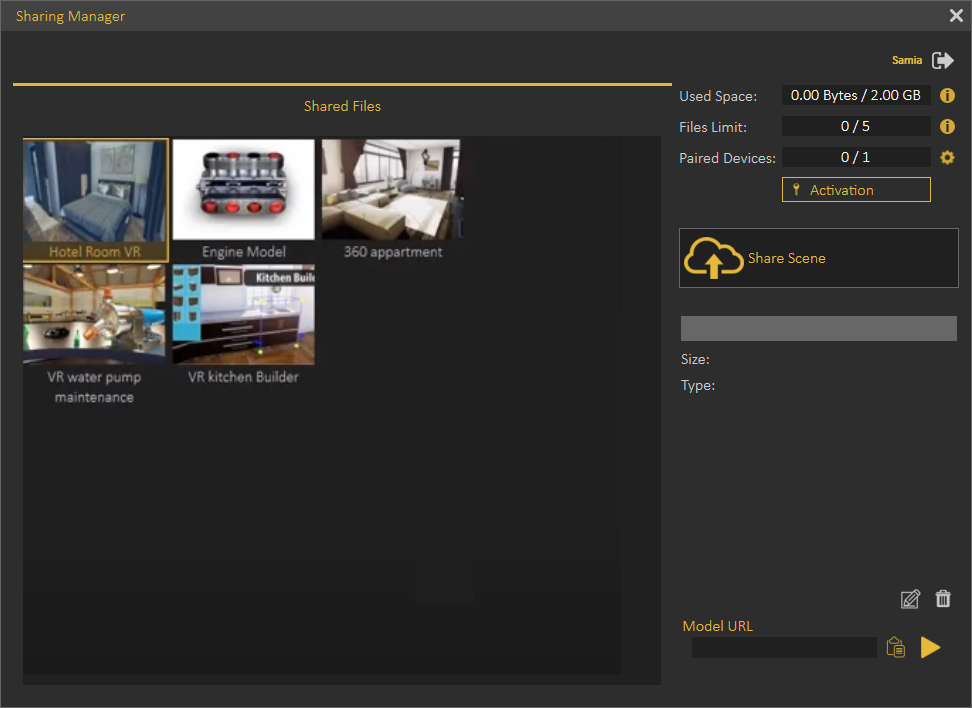](https://youtu.be/-0FJTQ0DoJU)
[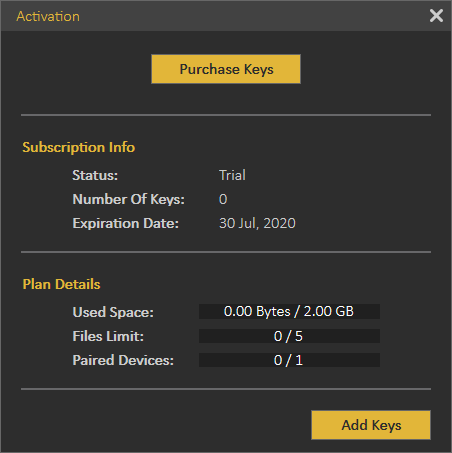](https://simlab-soft.com/help/uploads/images/gallery/2021-12/image-1639759455450.png)
### Settings
#### Preferences
Common settings for 3D scenes can be adjusted once in the Preferences dialog.
##### Appearance Tab
In this tab the user can set the preferred appearance options in SimLab Composer, including:
**Language and font:** The user can select the language and the font style to be used in SimLab Composer from the supported languages combo box, and available fonts list. Changing the language, and font takes effect **next time** SimLab Composer runs.
**Style:** Change the transparency for the Objects Tree, and set appearance for 3D area. The 3D area appearance can be set as color, or background image.
[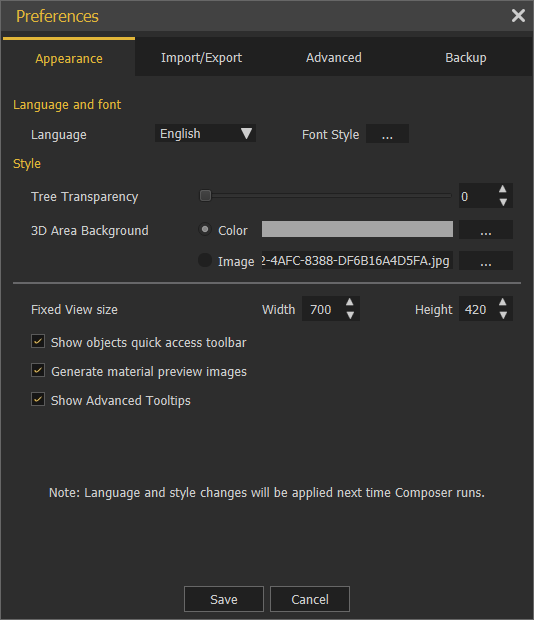](https://simlab-soft.com/help/uploads/images/gallery/2022-10/xDmimage.png)
**Show Objects Quick Access Toolbar:** shows the Quick Access Toolbar for ease of access for its objects functionalities.
**Generate material preview images:** generates preview images to the scene materials in the Scene Materials dialog.
##### Import/Export Tab
**Import measurements and text annotations:** The user can select to import measurement and text annotations created in the design CAD package.
**Import polylines** can also be checked, and the width of the imported lines can be specified.
**Automatically generate texture coordinates:** Texture coordinates for the imported geometry will be automatically generated when this option is checked.
**Scale down preview images of textures:** Reduces the size of textures images for improving interactivity.
Import/Export File dialog is shown by default. So every time the user imports or exports models/ scenes the dialogs will appear.
If "Do not show again for this file type" option in the dialog is checked, the user can click the "Show all" option and that will reset the dialogs to show for all.
[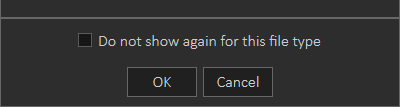](https://simlab-soft.com/help/uploads/images/gallery/2021-12/image-1639759895567.png)
[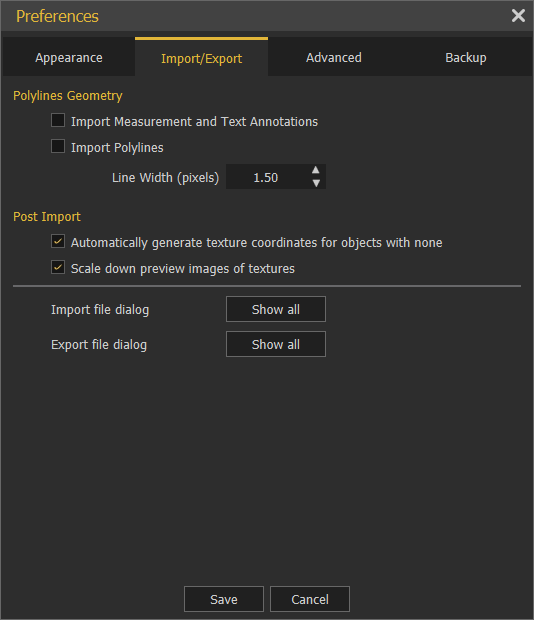](https://simlab-soft.com/help/uploads/images/gallery/2022-10/WmNimage.png)
##### Advanced Tab
[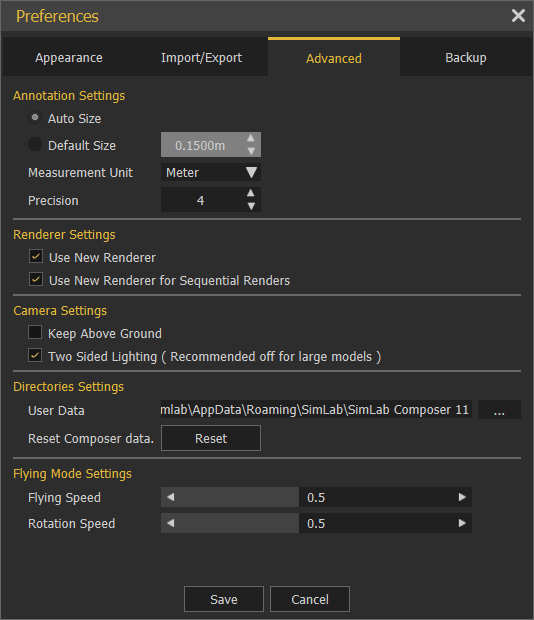](https://simlab-soft.com/help/uploads/images/gallery/2022-10/lDSimage.png)
**Annotation Settings** group: the user can select to let SimLab Composer auto set the size of the annotations, or set its **Default Size**. **Measurement Units**, and its **Precision** can also be set here.
**Camera Settings** group: has two options **Keep Above Ground**; stops the camera rotation at the ground level, and will not go below, and it is applicable to Parallel and Perspective cameras.
**Two Sided Lighting:** when checked will draw faces twice so it is always visible, it may give better visualization, but it is recommended to uncheck this option for large scenes.
**Directories Settings** group: the user may select to move the **User Data** directory to a new location, the user should copy the original data to the new location before setting the new User Data folder.
**Reset Composer data** button: will reset the composer data to its original settings.
**Flying Mode Settings** group: it allows the user to adjust flying and rotation speed while navigation inside Composer, when using the keyboard keys for moving and mouse for looking around.
##### Backup Tab
**Auto-Save** option with its attributes is in this tab. The user can enable this option here and set its properties shown in the image below:
[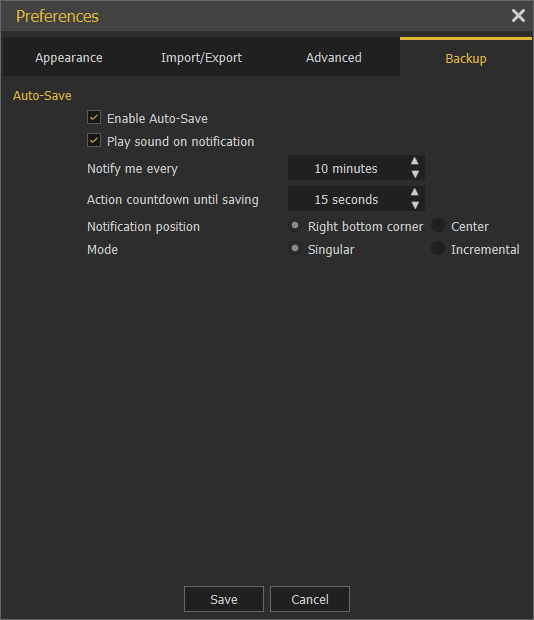](https://simlab-soft.com/help/uploads/images/gallery/2022-10/GNBimage.png)
In the image below **Enable Auto-Save** is checked with a certain notification time. **Action countdown until saving** is the start time the countdown will appear as shown below. The notification position is set to the Right bottom corner.
[](https://simlab-soft.com/help/uploads/images/gallery/2023-12/BJVimage.png)
**Singular and Incremental Auto-Save modes:** Singular keeps only one independent auto-saved file located next to the scene file. Incremental on the other hand keeps independent auto-saved files located next to the scene file.
### Exit
Will display the Save File dialog for the user to save the current scene before exiting the application.
# Move Menu
Includes all Transform/Snap/Pivot Tools necessary for positioning any geometry in a 3D scene.
[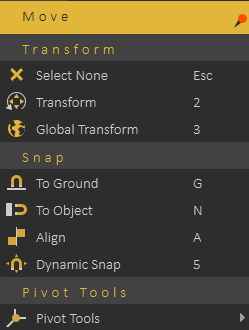](https://simlab-soft.com/help/uploads/images/gallery/2021-12/move-menu.png)
### Transform
Transform functions are used for placing 3D models.
**Select None:** will clear selection, **shortcut (Esc button)**
**Transform:** Displays transform axes on the selected object, allowing the user to move, rotate, and scale the object. The transform axis will be aligned with the object orientation as shown in the image below. **shortcut (2)**
[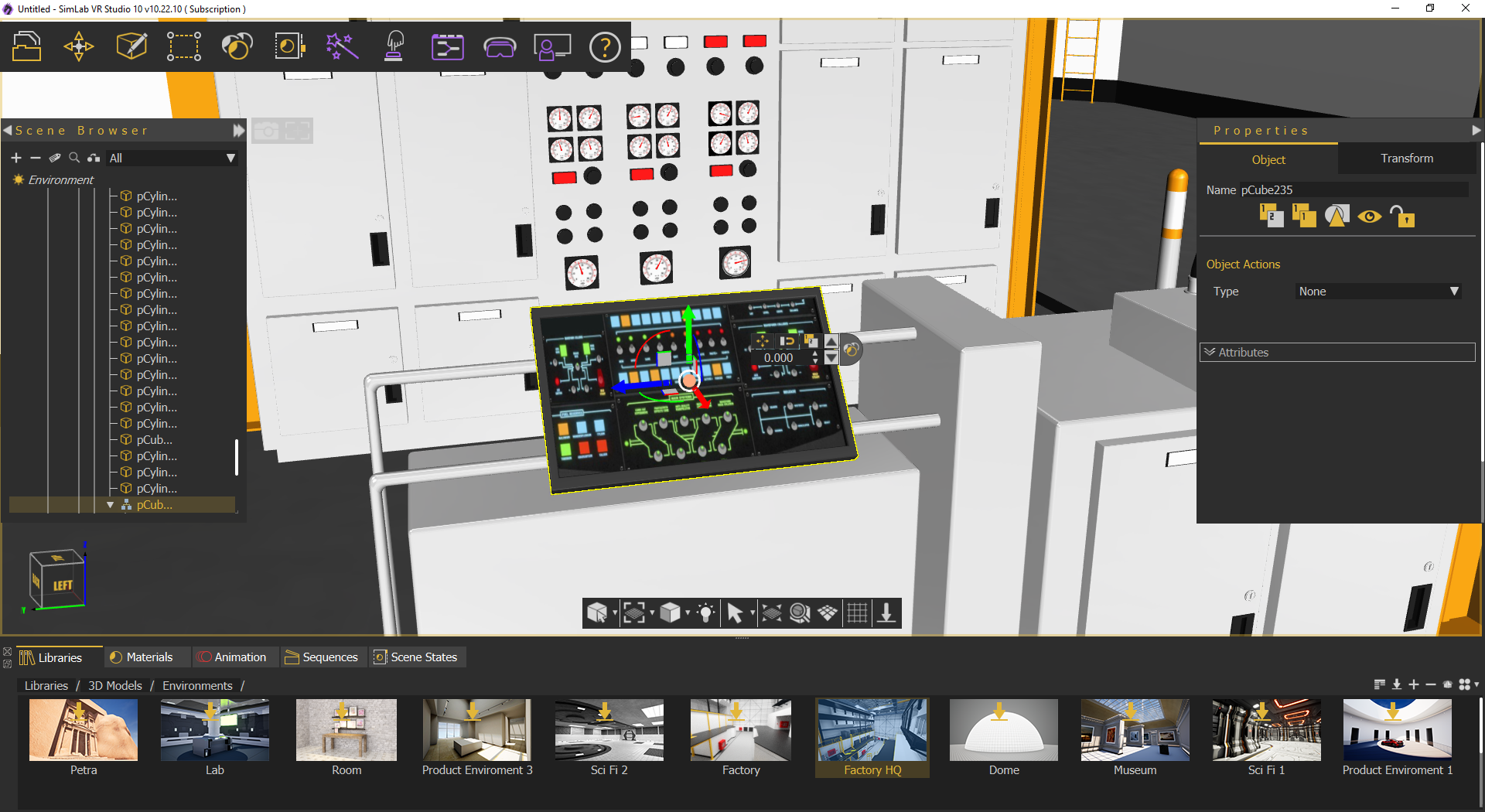](https://simlab-soft.com/help/uploads/images/gallery/2022-01/ozItransform.png)
**Global Transform:** Displays transform axes on the selected object, allowing the user to move, rotate, and scale the object. The movement axis will be aligned with world axes, so direction is not affected with selection rotation, **shortcut (3)**
[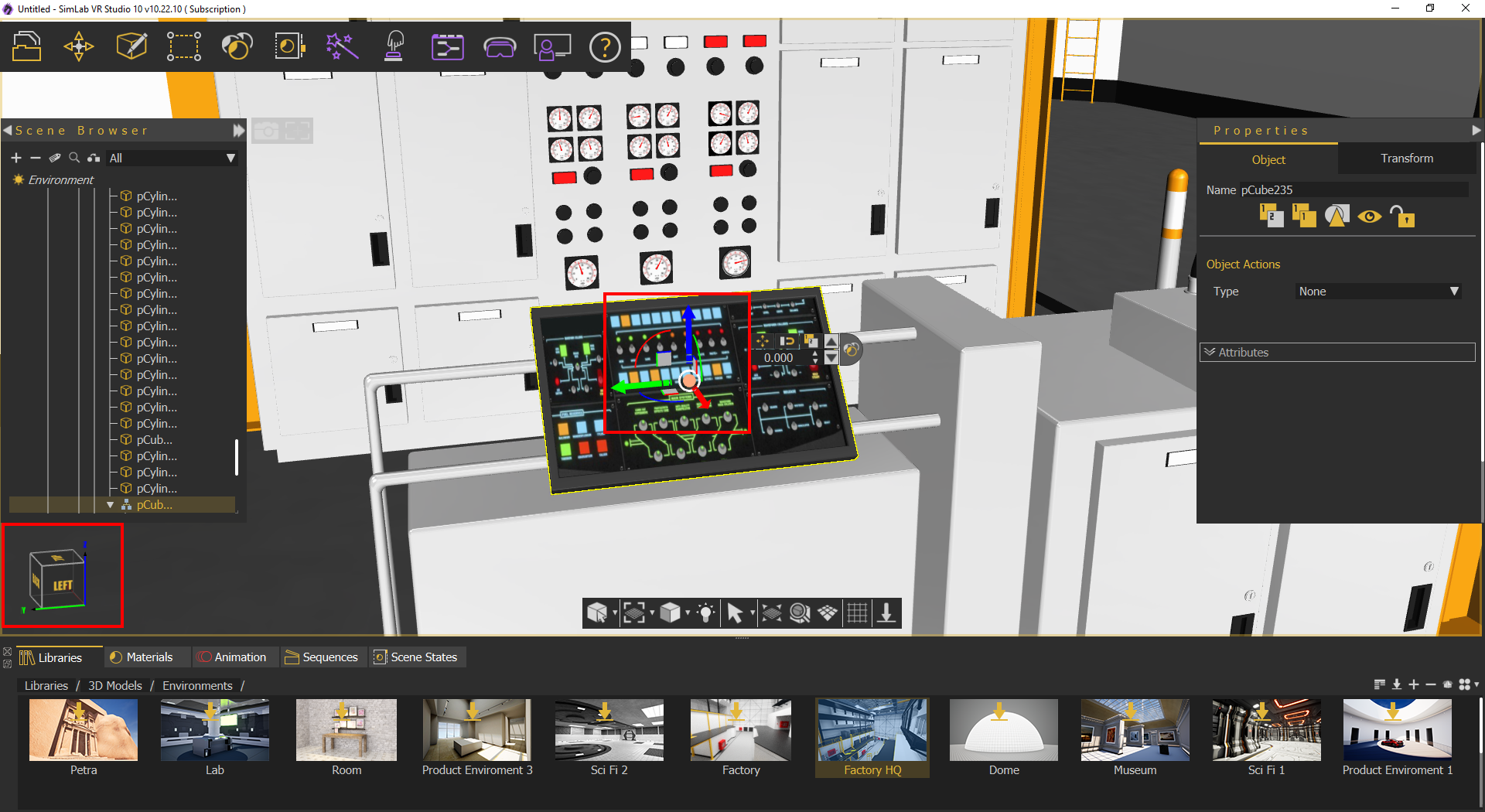](https://simlab-soft.com/help/uploads/images/gallery/2022-01/6sFglobaltransform.png)
When the user clicks any dragger, a small scroll combo box will appear in the **Quick Access Toolbar.** The user can use this box to input exact numbers for translation/rotation/scale or can just scroll up and down. If the user prefers to freely drag the 3D geometry, this can be done using the dragger in the 3D area
[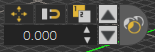](https://simlab-soft.com/help/uploads/images/gallery/2021-12/quick-access.png)
### Snap
Snap functions are used for aligning 3D models, and there are two types:
**Snap To Ground:** Snaps the selected object(s) to the ground, **shortcut (G)**
**Snap To Object:** Prompts the user to select the object to snap to, then snaps the selected object(s) to the target one, **shortcut (N)**
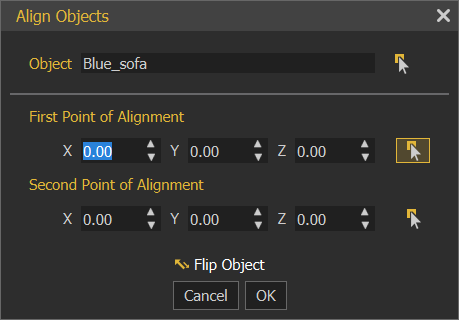
**Align:** Aligns selected object(s) along a user defined axis, can be used in conjunction with SimLab Composer's picking modes, **shortcut (A)**
[](https://simlab-soft.com/help/uploads/images/gallery/2021-12/image-1639760622084.png)
**Dynamic Snap:** A smart tool that aids the user in placing an object in accordance with its surrounding. When activated, a blue box will envelope the selected object which in turn will snap and collide with nearby objects giving the user a guide on how to place the object without penetrating other objects in the scene, **shortcut (5)**, check this [tutorial](https://youtu.be/-Ejp5m_avB8)
### Pivot Tools
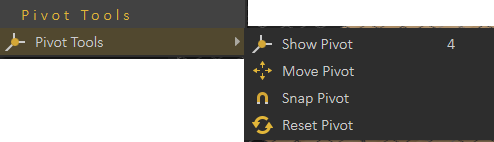
The pivot of a 3D geometry is the point around which transformations to that geometry are applied. By default pivot is in the center of the geometry, if you want to rotate the object around one of its sides instead of its center, you need to move the **pivot**.
[](https://simlab-soft.com/help/uploads/images/gallery/2021-12/image-1639760678434.png)
- **Show Pivot:** Shows pivot point for the selected geometry and grant control over its location and rotation, **shortcut (4)**
- **Move Pivot:** Allows the user to move the pivot point to another point location. The user can make use of the Pick Mode options described in the Common Toolbar, to help in selecting the point's location accurately.
- **Snap Pivot:** Requires the user to select two points, and the pivot of the 3D geometry will be snapped to the center between them. The user can make use of the Pick Mode options described in the Common Toolbar, to help in selecting points accurately.
- **Reset Pivot:** This function restores a modified pivot location to the center of the selected geometry.
# Create Menu
Enables the user to create different scene elements that can add value to 3D scenes.
[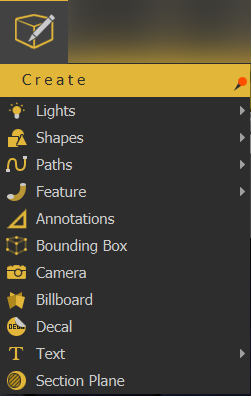](https://simlab-soft.com/help/uploads/images/gallery/2021-12/image-1639760844169.png)
### Lights
Lights menu includes the supported light types in SimLab Composer/Studio, suitable for interior scenes. Users can add any of these light sources in addition to the light sources included in the environment.
[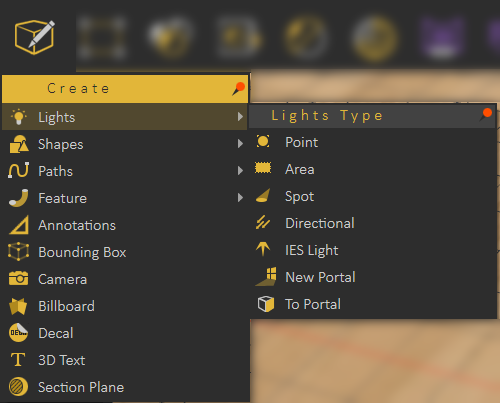](https://simlab-soft.com/help/uploads/images/gallery/2021-12/image-1639760875043.png)
#### Light sources in SimLab VR Composer:
#### Point Light
Creates a spherical Light Source geometry and adds it to the scene. Point lights can be moved and positioned, using any of the move draggers.
The light properties can be found in the **Properties Panel**, to the right of the 3D area. There, the user can edit the light properties, like changing its color, or its power. The following image shows properties of the point light.
[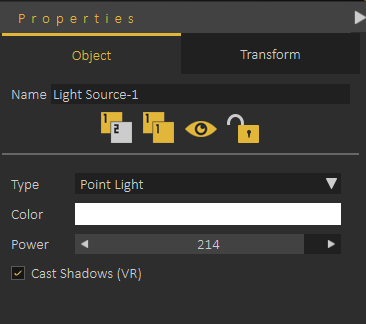](https://simlab-soft.com/help/uploads/images/gallery/2021-12/point-light-properties.png)
#### Area Light
Depending on the effect the user needs, this is another light type that can be used. Same as Point light, area lights have parameters that the user can change in the Properties Panel.
#### Spot Light
In addition to the main light properties, spot light has **blend** property that reduces the sharpness of the spot light making it blend with the environment. It also has Cone Angle property that sets the angle of the light.
#### Directional Light
Directional lights are for exterior scenes. The user can change the direction of the light but not its location. Other parameters for this light include, light color, light power, and light name.
#### IES Light
IES Lights describe light distribution, the user can create an IES light from the Create -> Lights menu or from the **Library** -> **Lighting Settings** -> **IES Light** as shown in the image below
[](https://simlab-soft.com/help/uploads/images/gallery/2021-12/ies-lights-in-library.png)
### Shapes
This menu enables users to create simple 3D shapes that can help in completing 3D scenes.
[](https://simlab-soft.com/help/uploads/images/gallery/2024-06/image.png)
The shapes are **Plane**, **Box**, **Sphere** and **Cylinder**;
[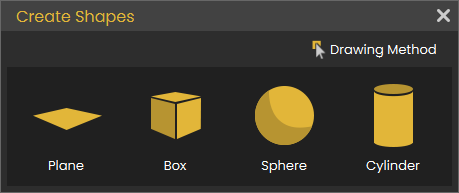](https://simlab-soft.com/help/uploads/images/gallery/2024-06/taQimage.png)
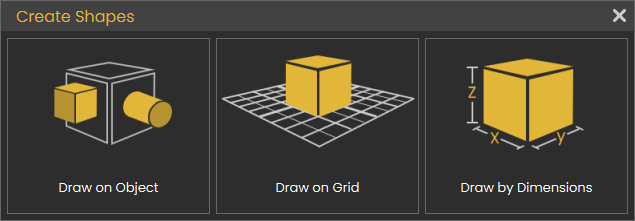
First the user needs to select the method for creating the 3D shape as follows:
#### Draw on Object
This way is useful when the object is rotated and an object needs to be added on it. Check this **[tutorial ](https://youtu.be/UswvVHItxj8)**to learn more about this function.
#### Draw on Grid
Creates 3D shapes based on the size of the grid dimensions. Select the plane to draw the 3D shape on, then select the shape. Check this [**tutorial** ](https://youtu.be/UswvVHItxj8)to learn more about this function.
#### Draw by Dimensions
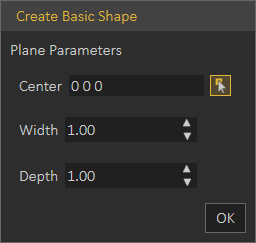
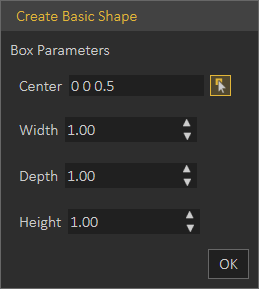
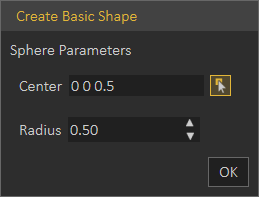
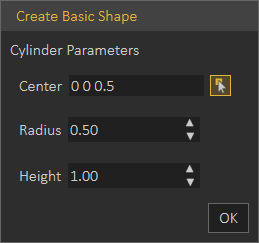
The user needs to input coordinates/dimensions for the shape to draw in the **Create Basic Shape** dialog as shown below:
**Plane:** Creates a 2D Plane, in Center field, coordinates are entered. Width and Depth values determine the size of the created plane.
[](https://simlab-soft.com/help/uploads/images/gallery/2021-12/image-1639761124355.png)
**Box:** Creates a 3D Box, in Center field, coordinates are entered. Width, Depth, and Height determine the size of the created box.
[](https://simlab-soft.com/help/uploads/images/gallery/2021-12/image-1639761135404.png)
**Sphere:** Creates a 3D sphere, in Center field, coordinates are entered. Radius determines the size of the created sphere.
[](https://simlab-soft.com/help/uploads/images/gallery/2021-12/image-1639761157362.png)
**Cylinder:** Creates a 3D Cylinder, in Center field, coordinates are entered. Radius and Height determine the size of the created cylinder.
[](https://simlab-soft.com/help/uploads/images/gallery/2021-12/image-1639761176564.png)
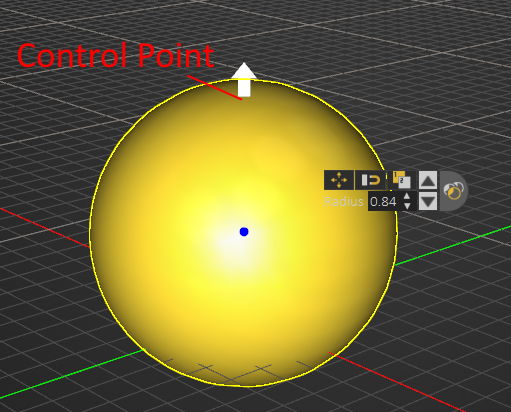
After creating a basic shape, selecting the shape will show its **Control Points** which appear in white. Picking on one of these points will change it into an arrow that can be pulled to update the size of the basic shape, as shown in the image below.
[](https://simlab-soft.com/help/uploads/images/gallery/2021-12/control-points.png)
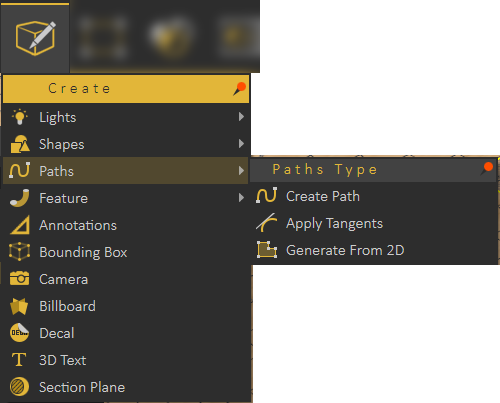
### Paths
[](https://simlab-soft.com/help/uploads/images/gallery/2021-12/image-1639761224888.png)
#### Create Path
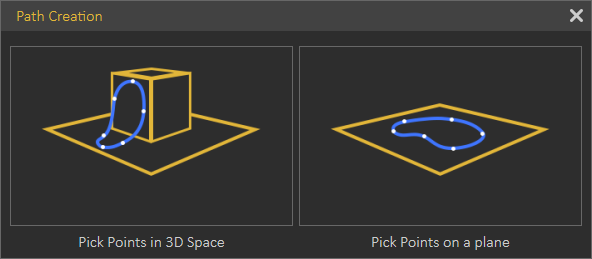
Paths created in SimLab Composer/Studio can be from points in 3D space or on a plane. So when clicking the Create Path option, the **Path Creation** dialog will open, for the user to pick 3D or planer path.
[](https://simlab-soft.com/help/uploads/images/gallery/2021-12/image-1639761239793.png)
Picking points in 3D space will create a path that is not on one plane. This can be useful to create a path for geometry to follow, or path for camera.
Picking points on a plane, requires specifying the plane to create the path on. The path and all selected points will be on this plane.
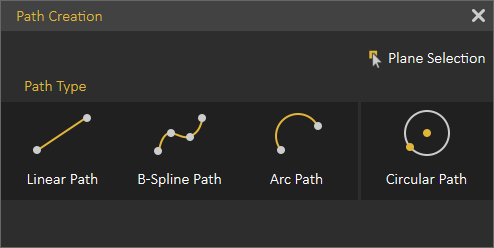
Both path creation options will open the **Path Creation** dialog shown below, where the user can create different types of paths.
[](https://simlab-soft.com/help/uploads/images/gallery/2021-12/image-1639761254612.png)
The user can select Linear Path, B-Spline Path, Arc Path, or switch between the types to have a line segment for example following a B-Spline Path.
Paths can be open or closed, clicking on the first point in the path will close the path.
##### Distribute objects on path
Users can place objects along a path with just a few clicks. This makes it faster to build scenes and add unique visual effects. Check this **[tutorial](https://youtu.be/BtGubiFDz54)**.
#### Apply Tangents
One of the points of a created path should be selected, before choosing this option. The program will ask for picking a point and normal to determine the tangent. So picking a point will modify the location of the picked path point to become tangent to the selected point.
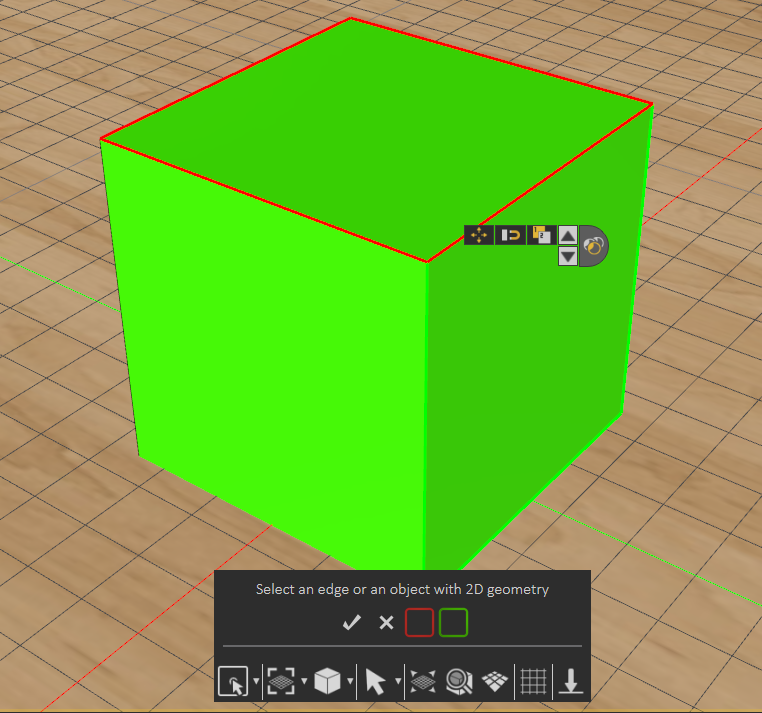
#### Generate From 2D
Creates 2D path from the outline of a selected surface. Using the Select options from the Common Tool bar can help in selecting a face, like selecting Pick Edge Loop, as shown in the image below.
[](https://simlab-soft.com/help/uploads/images/gallery/2021-12/image-1639761315580.png)
### Feature
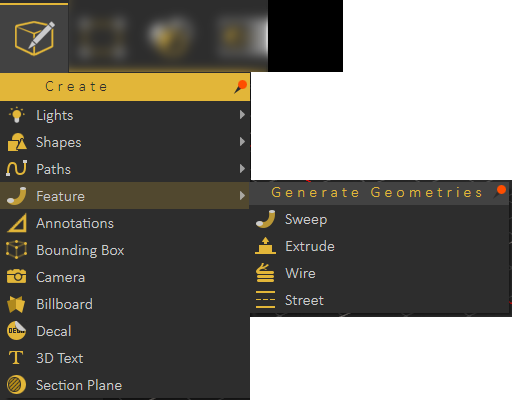
Features created in SimLab Composer/Studio allow the user to perform basic modifications and improvements to 3D models in order to improve the realism of the 3D scene without needing to revert to a CAD application.
[](https://simlab-soft.com/help/uploads/images/gallery/2021-12/image-1639761356039.png)
#### Sweep
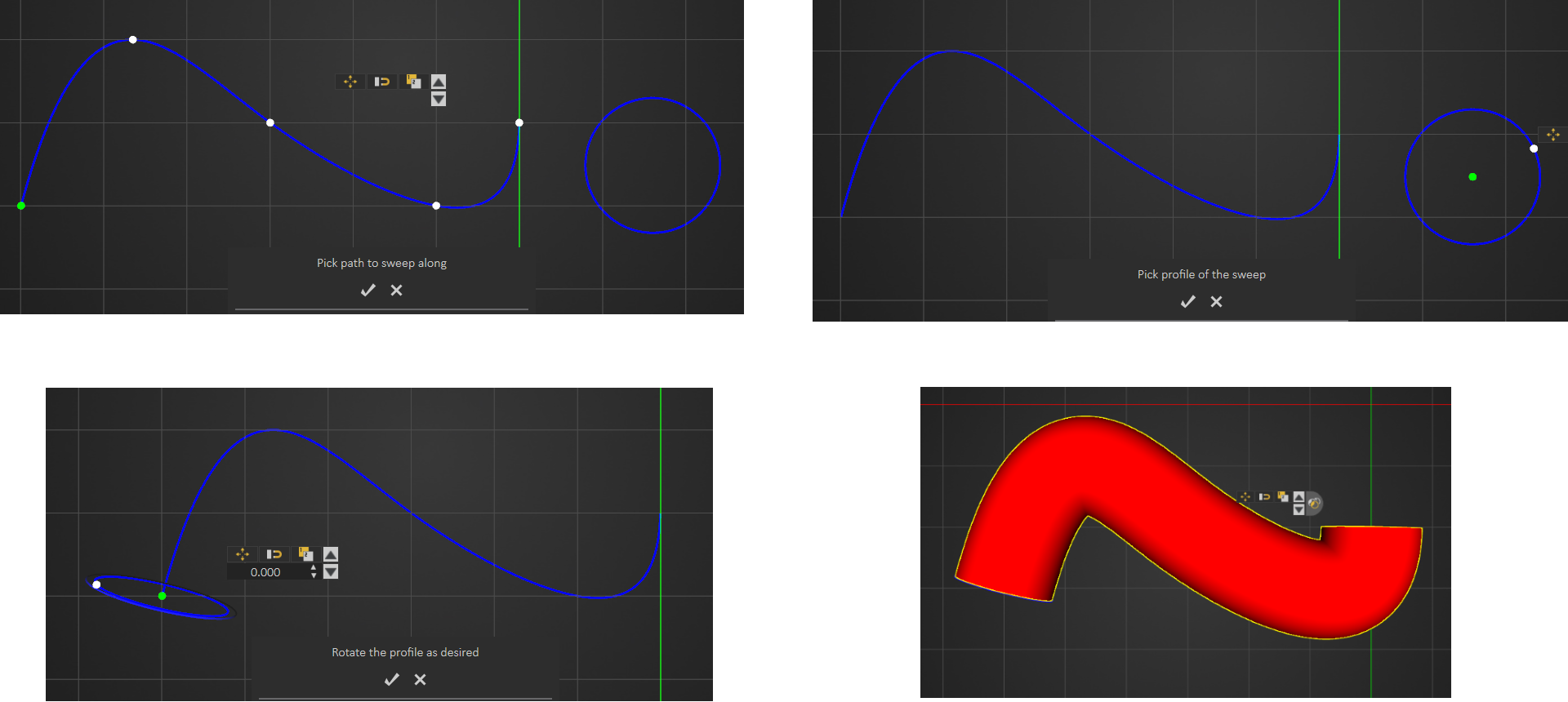
This feature enables users to extrude a shape along a created path. After creating the path and shape, select Sweep form the menu, and start by picking the path to sweep along as the message indicates. Next, select the profile to sweep, and rotate the profile as desired then click to create sweep.
[](https://simlab-soft.com/help/uploads/images/gallery/2021-12/image-1639761425121.png)
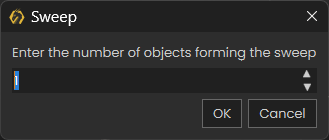
Before creating the seep the user has the option to choose the number of objects forming the sweep, as shown in the dialog below:
[](https://simlab-soft.com/help/uploads/images/gallery/2025-08/4Ulimage.png)
This will automatically split the generated sweep into multiple connected objects, based on the number entered. Each piece includes information about the previous and next parts in the sequence.
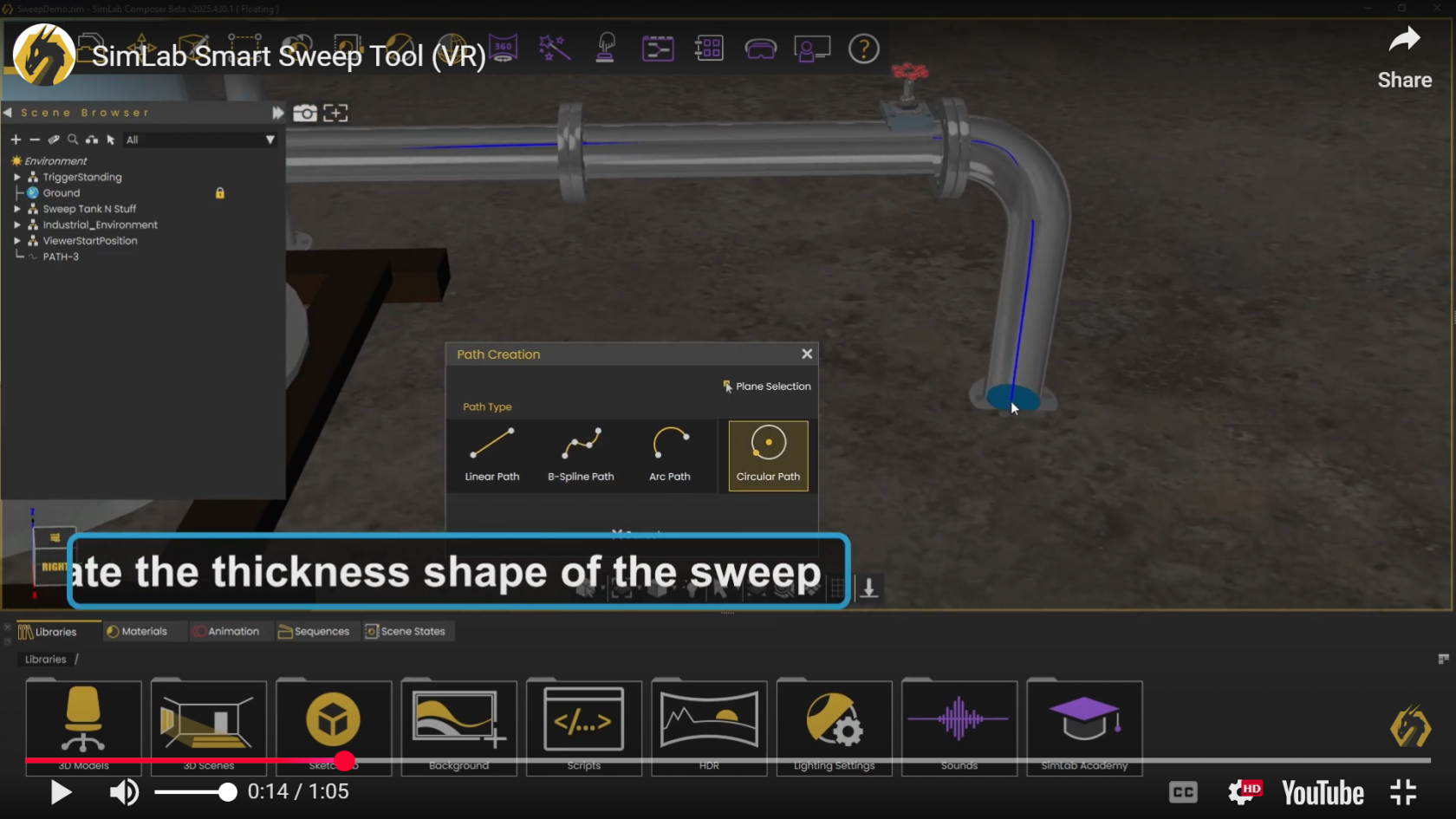
This makes it easy to create powerful visual effects—like simulating the flow of fluid through a pipe.
Watch the video below to see it in action!
[](https://www.youtube.com/watch?v=j7d-xdaI9Jg)
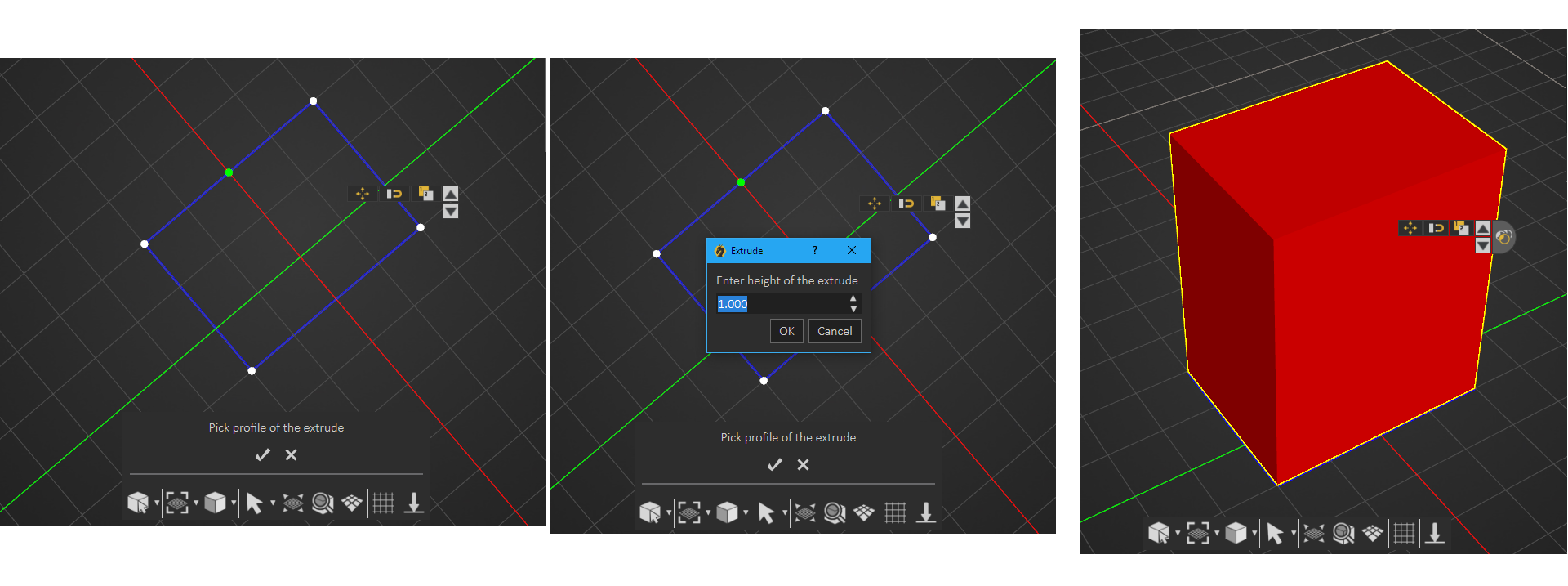
#### Extrude
Create a closed 2D shape, then in the extrude window enter the height, and a 3D object will be created. If an open 2D shape is used the created model will be hollow.
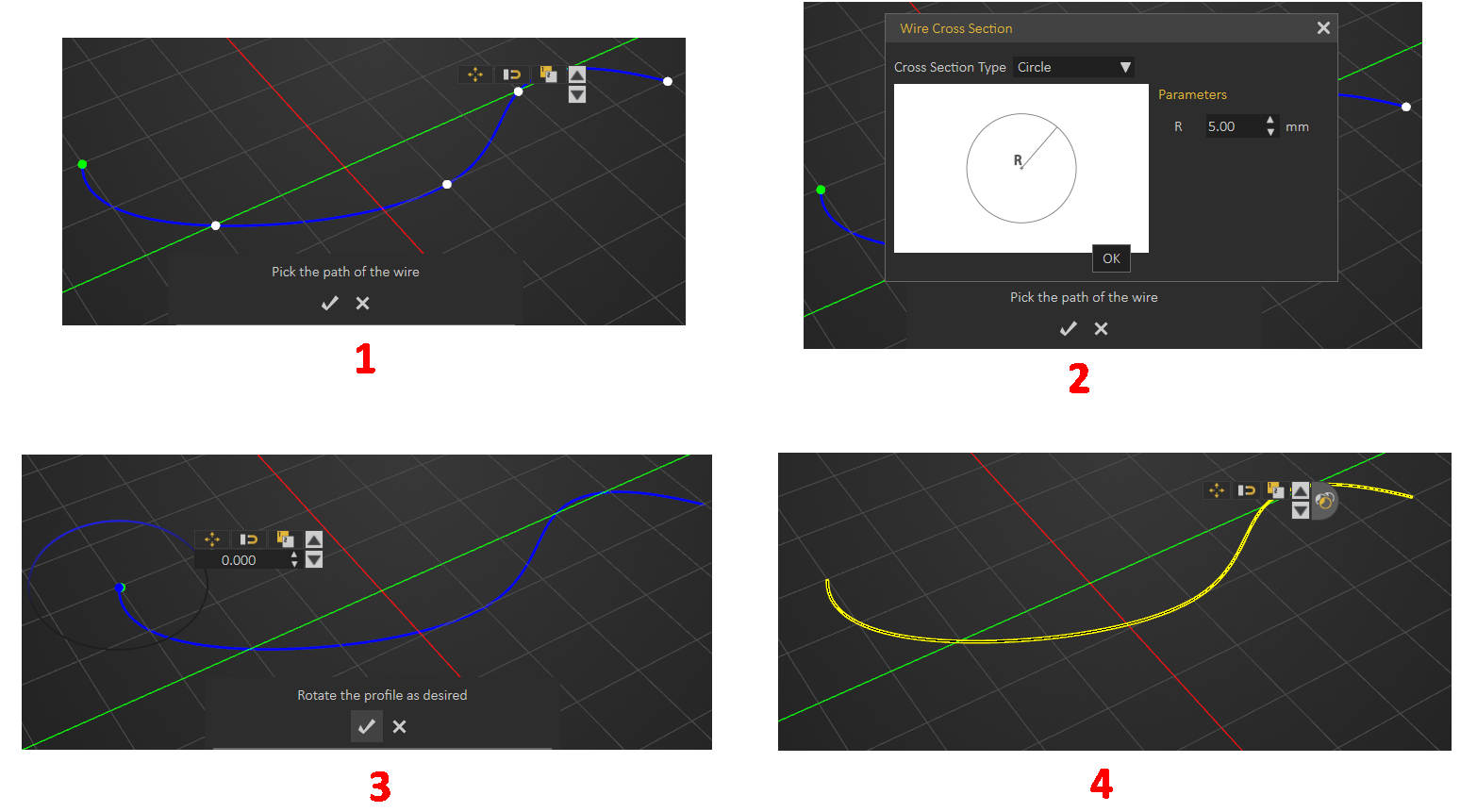
#### [](https://simlab-soft.com/help/uploads/images/gallery/2021-12/image-1639761464439.png)Wire
A path should be created first for the wire to follow, then the steps are as shown below. Check this [tutorial](https://www.youtube.com/watch?v=edGyNUfkI7k) on how to create wires.
[](https://simlab-soft.com/help/uploads/images/gallery/2021-12/image-1639761520999.png)
#### Street
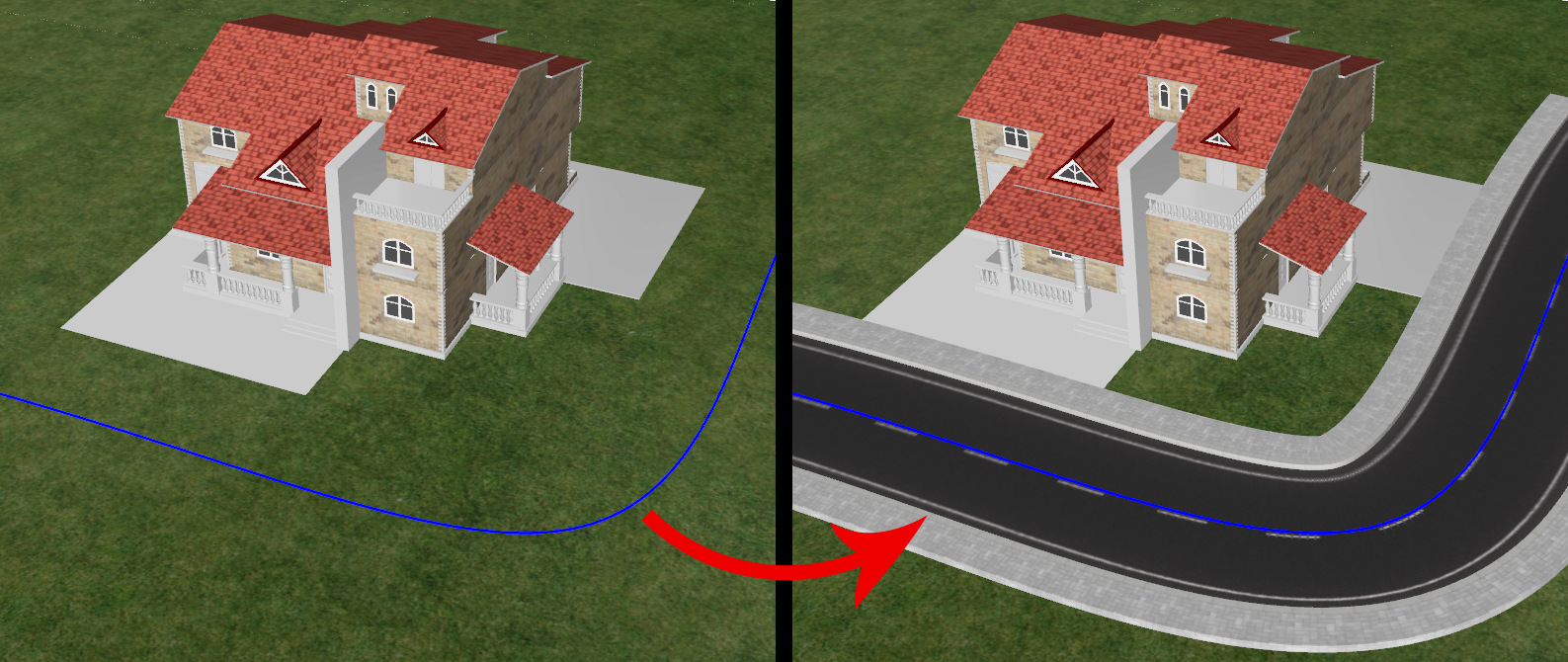
SimLab Composer's **Street** creation tool expands design capabilities effortlessly and efficiently.
[](https://simlab-soft.com/help/uploads/images/gallery/2021-12/image-1639761962818.png)
1. Create a path for the street to follow
2. Select the path then select Street under Features from the Create menu[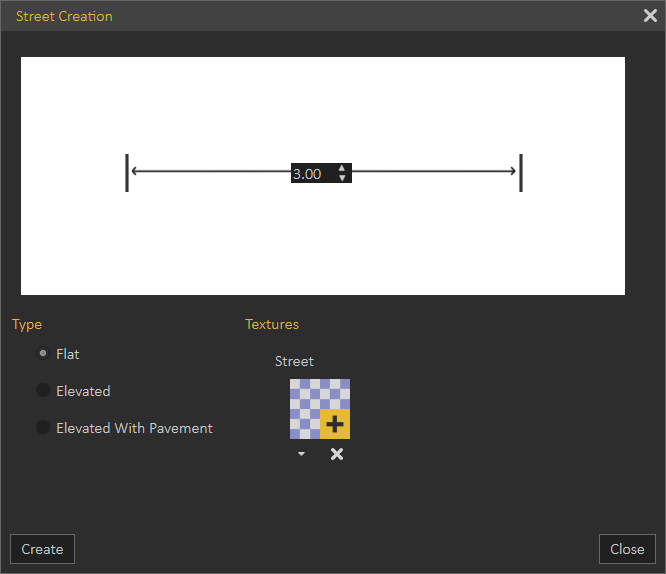](https://simlab-soft.com/help/uploads/images/gallery/2021-12/image-1639762037624.png)
3. Select the type of street from the available options
[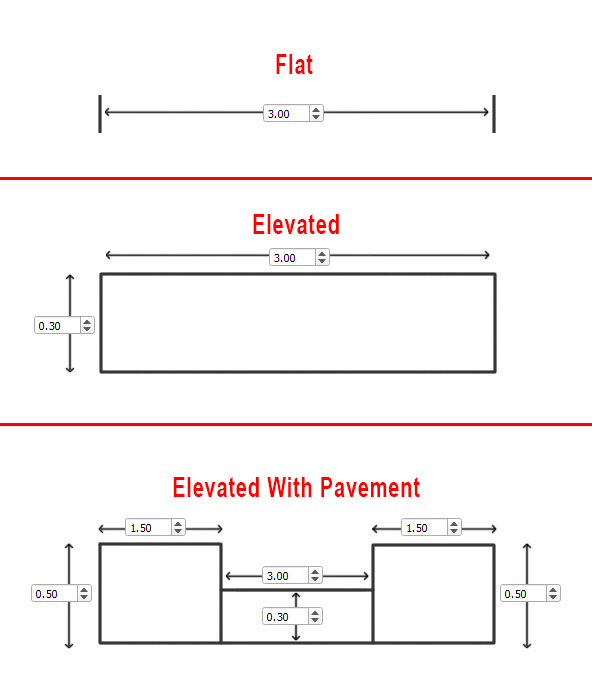](https://simlab-soft.com/help/uploads/images/gallery/2021-12/image-1639762154635.png)
4. Select texture for street and pavement once you click on (+) in the textures side of the window.
[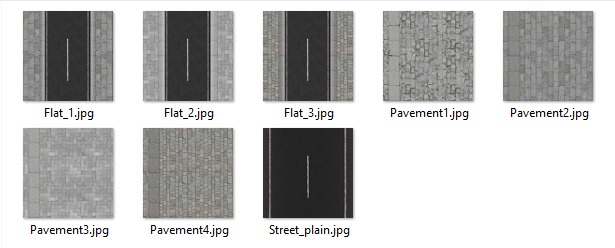](https://simlab-soft.com/help/uploads/images/gallery/2021-12/image-1639762393019.png)
5. Click Create and the street will appear in the 3D area and will be added to the Objects Tree
### Annotations
Adding annotations and measurements to 3D scenes in SimLab Composer, can create a professional presentation that facilitates communicating and sharing a design.
Upon selecting this option, 3D plane selection will appear to select the the plane on which to create the annotations. If it did not appear click on the Pick button highlighted in the image below.
Selecting the proper plane for the annotations creation is crucial in terms of where the annotations will be projected for viewing. You also have the option to offset the plane you have selected parallel to its axes. Measurement units can be changed in the dialog below.
[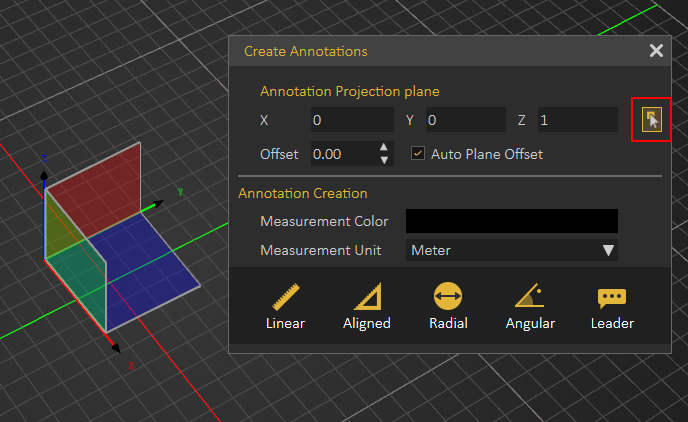](https://simlab-soft.com/help/uploads/images/gallery/2021-12/image-1639762456054.png)
Several types of annotations can be created.
- **Linear**, measures the projected width between two points and not the distance between them.
- **Aligned**, measures the distance between two points in space without projecting their location on a principal axes
- **Radial**, measures radial distance of 3D object.
- **Angular**, measures the angle between two intersecting lines.
- **Leader**, adds custom text with a pointer to the design.
### Bounding Box Group
Creates a ghost box for a single selected object or a group of objects. The ghost box can then be used in a Boolean operation to modify the geometry of objects. Select an object or group of objects, then click select Bounding Box form the Create menu. The Bounding Box will appear and will be added to the Objects Tree.
[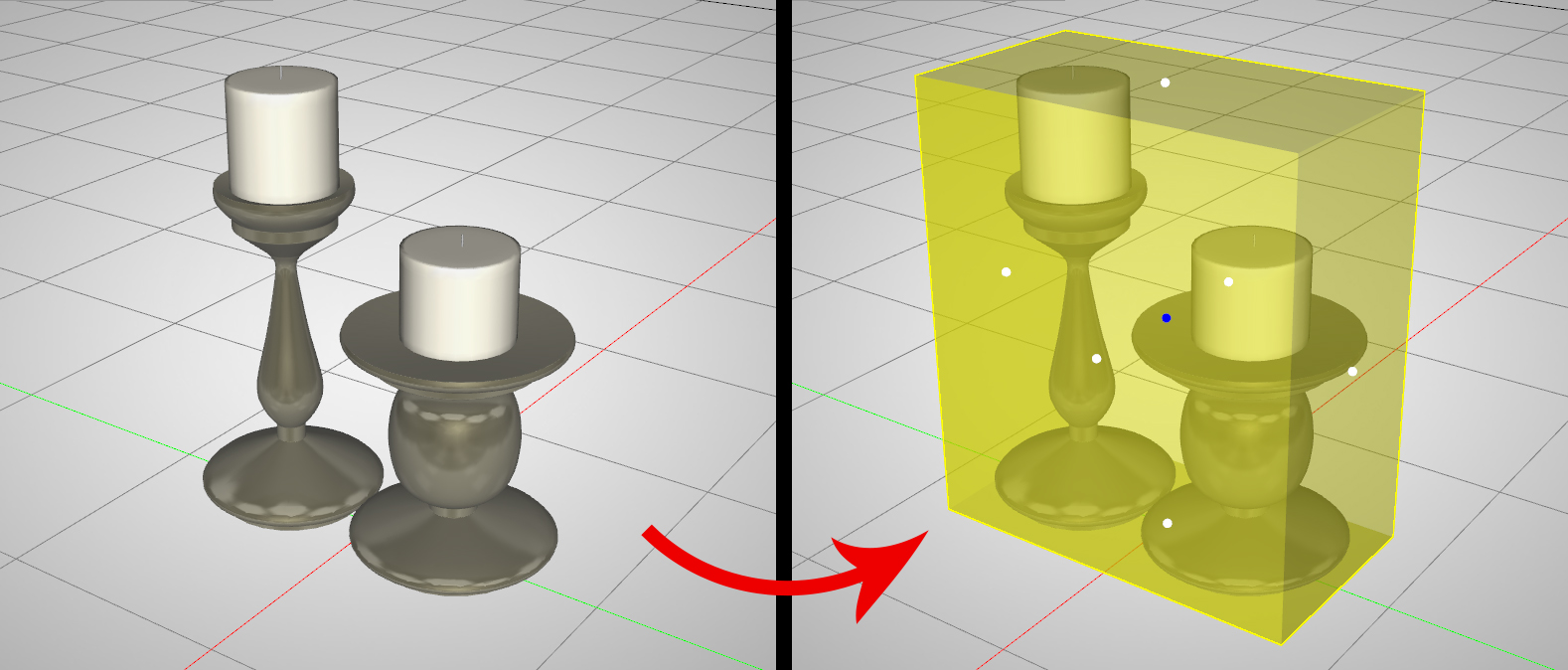](https://simlab-soft.com/help/uploads/images/gallery/2021-12/image-1639762810721.png)
### Camera
Creates a camera in the 3D area and adds it to the **Scene Browser**. All necessary functions for creating, and setting the different cameras can be found in the **Properties dialog** when the camera is selected.
[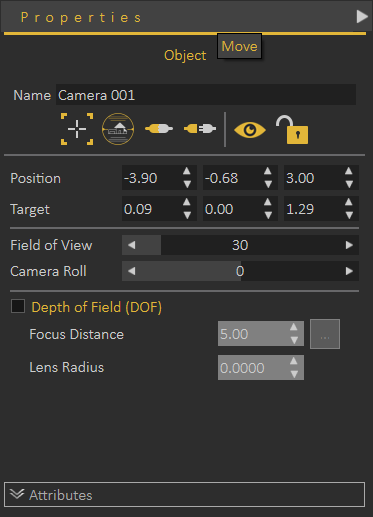](https://simlab-soft.com/help/uploads/images/gallery/2021-12/image-1639762834654.png)
### Billboard
Creates geometry that will be always aligned to the current camera. The plane geometry linked to the Billboard will rotate around the local Z axis to face the viewer at all times.
To create a Billboard, select Billboard from the Create menu, click anywhere in the 3D area to pick a position (X, Y, Z) to place the billboard at. Browse and select an image (choose PNG image format to preserve transparency). The default image will be a tree if the user didn't select an image. Enter the suitable height in meters, it takes the aspect ratio of the selected image, the width of the Billboard will be approximated automatically.
[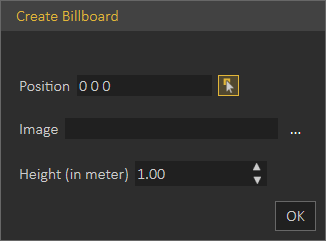](https://simlab-soft.com/help/uploads/images/gallery/2021-12/image-1639762876178.png)
[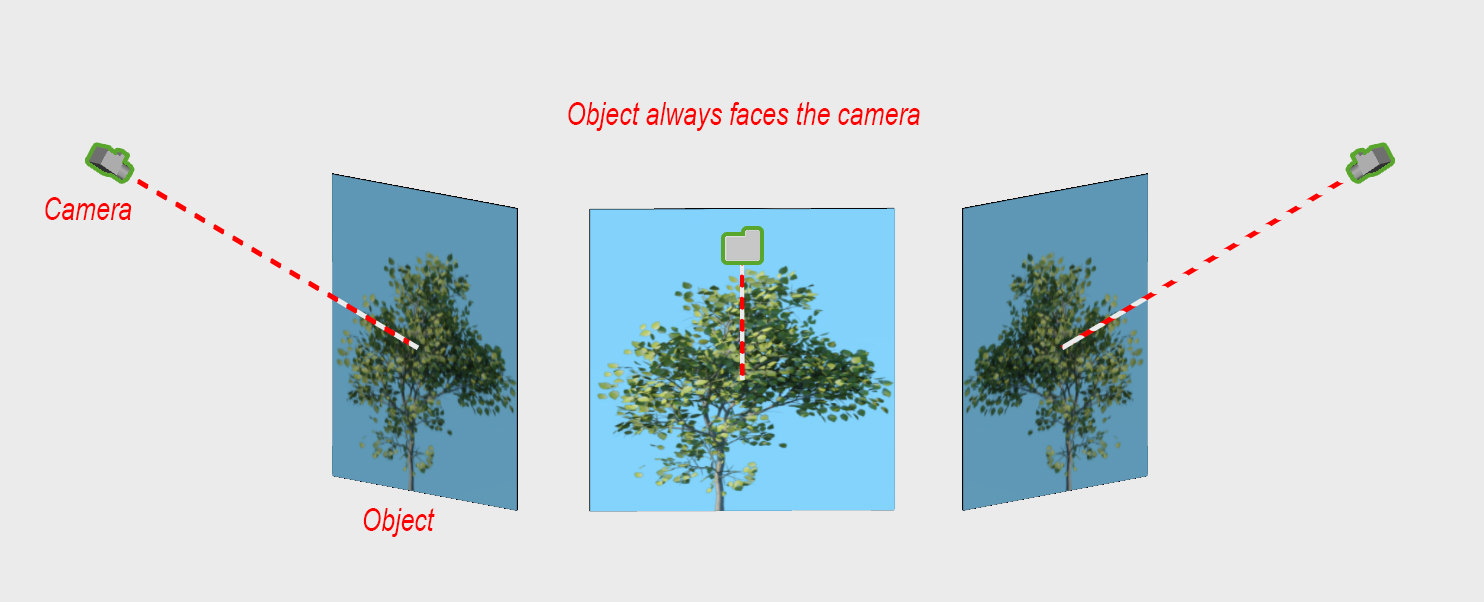](https://simlab-soft.com/help/uploads/images/gallery/2021-12/image-1639762882233.png)
The billboard object always faces the camera, to allow architects to add PNG trees and humans to the scene.
[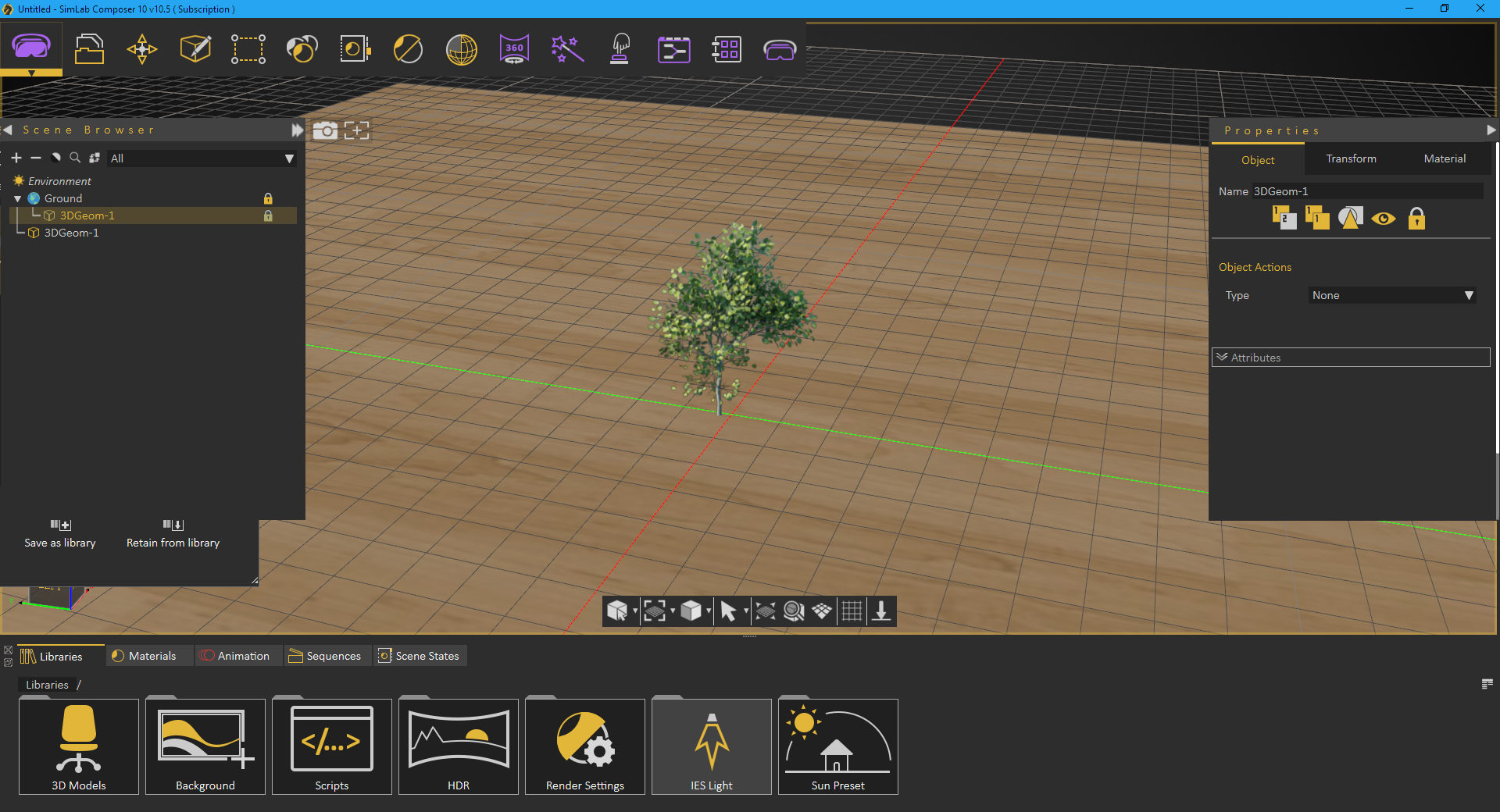](https://simlab-soft.com/help/uploads/images/gallery/2021-12/image-1639762905523.png)
### Decal
Applying a company logo, or product images to 3D models is made easier with Decal Creation from the Create menu. The parameters in the Decal window are:
- **Image:** Requires setting a valid path for a valid image file.
- **Projection Scale:** Uniform scale value applied to the decal image.
- **Display Projection Image:** Check box which if checked will display selected image for easier application.
To learn more about decal creation, check this [tutorial](https://www.youtube.com/watch?v=oIEF6iJa5gs), and this [article](https://vrforcad.com/easy-decal)
[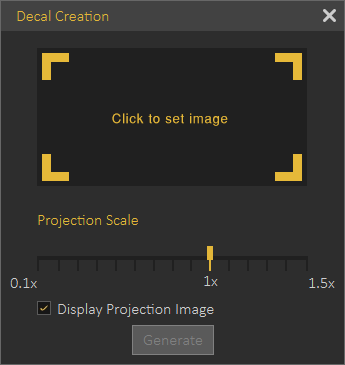](https://simlab-soft.com/help/uploads/images/gallery/2021-12/image-1639763005889.png)
### Text
#### 2D Text
Used to create 2D text, that can be formatted as in any other text editor, as shown in the dialog below. This 2D text can be saved as a \*.png Image that can be used to create Decal.
[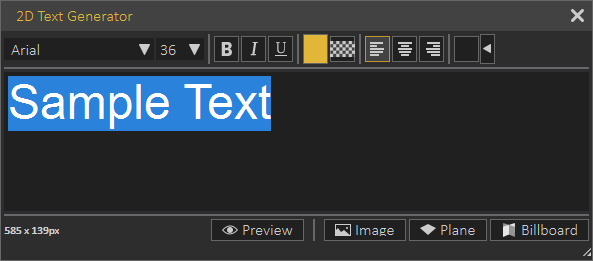](https://simlab-soft.com/help/uploads/images/gallery/2021-12/image-1639763046506.png)
A plane can be created by picking two points, in the dialog below, and the 2D text will be attached to it.
[](https://simlab-soft.com/help/uploads/images/gallery/2021-12/image-1639763073086.png)
Finally the 2D text can be added as a Billboard by selecting a position for it in the dialog shown below.
[](https://simlab-soft.com/help/uploads/images/gallery/2021-12/image-1639763087809.png)
#### 3D Text
In the **Create Text3D** dialog, the user can type in text, and select its format. Clicking OK will create 3D text parallel to the ground at the center of the 3D area. An assembly with geometry for all letters in the text will be added to the Scene Browser, and different transforms can be applied to the 3D text. A user can also change the material of the generated 3D Text, by dragging material form the materials library, and dropping it on its geometry in the Scene Browser.
[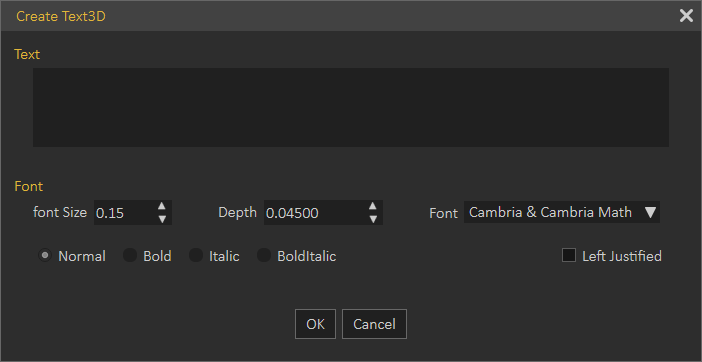](https://simlab-soft.com/help/uploads/images/gallery/2021-12/image-1639763118579.png)
To modify anything in the created 3D text, select the text in the 3D area, or from the Scene Browser, to display its properties in the Properties Panel.
[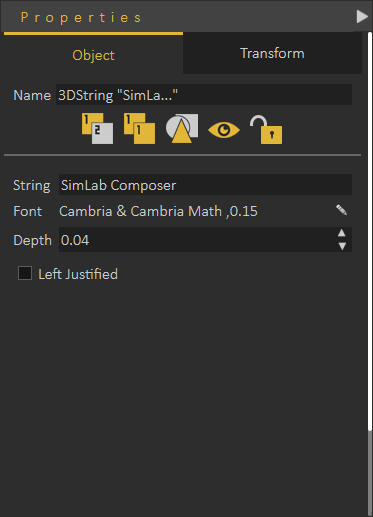](https://simlab-soft.com/help/uploads/images/gallery/2021-12/image-1639763133200.png)
### Section Plane
Section plane will be created and selected in the 3D area with the 3D dragger to enable the user to transform/rotate the section plane. Section plane effects are exported to file formats such as OBJ.
By default a section plane cuts through the whole scene. Using the [**Break By Section Plane**](https://simlab-soft.com/help/books/simlab-vr-studio-help/page/geometry-menu#:~:text=by%2Dsection%2Dpla%7D%7D-,Break%20by%20Section%20Plane,-A%20section%20plane) tool in the Geometry menu, the user can select the geometry to cut using the section plane(s).
In the image shown below a scene with three spheres inside each other and three section planes were created with different orientations. Select each section plane and use it to cut through the outside and the middle spheres. To do that go to Geometry menu and with the sphere to cut being selected, select Break by Section Plane function. This will break the geometry into two in the Scene Browser and the 3D area.
Repeating this for all three section planes will split each sphere into eight parts. Deleting/ hiding some of the parts will result in the shown image.
[](https://simlab-soft.com/help/uploads/images/gallery/2021-12/image-1639763191310.png)
# Geometry Menu
Provides the user with geometry related tools, that can be used to modify imported 3D models.
[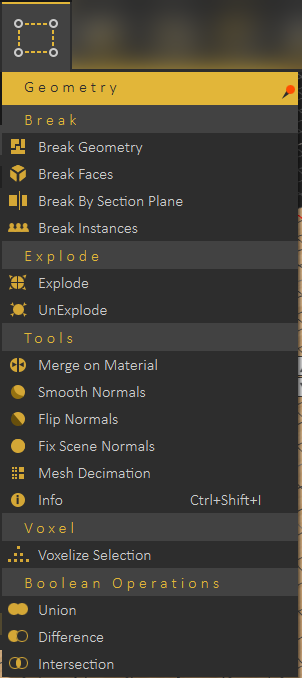](https://simlab-soft.com/help/uploads/images/gallery/2021-12/image-1639763266060.png)
### Break Group
#### Break Geometry
The smallest representation of geometry in SimLab Composer is 3D Geom, which is a geometry that has one transform and one material applied to it. All contents of 3D Geom are moved together, and have the same material.
Some model formats do not support saving **Scene Browser** structure, so when importing 3D models of those formats, 3D Geom can contain many none connected parts. The **Break Geometry** tool enables the user to break a 3D Geom that contains none connected parts into multiple 3D Geoms. Each one of the new 3D Geoms can be moved separately and can be assigned a unique material.
##### Break Faces
In case the Break Geometry tool fails, **Break Faces** will break the selected 3D model into its faces. Each face will be converted to 3D Geom, and added to the Scene Browser. Unique materials can be assigned to each face.
##### Break by Section Plane
A section plane should be created first in the scene, using [Section Plane](https://simlab-soft.com/help/books/simlab-vr-studio-help/page/create-menu#:~:text=bkmrk%2Dsection%2Dplane-,Section%20Plane,-Section%20plane%20will) function in the **Create menu**. This function requires/enables the user to select the geometry to cut through. Using the same section plane with different orientations, different cuts can be done on the geometry.
##### Break Instances
Instances in SimLab Composer are multiple duplicates of an object using the same materials structure, and same transforms as the original object. Instances are created by selecting an object then clicking **Ctrl+t**. In the below image a second water pump was created as an instance of the original one, thus they share the same material.
[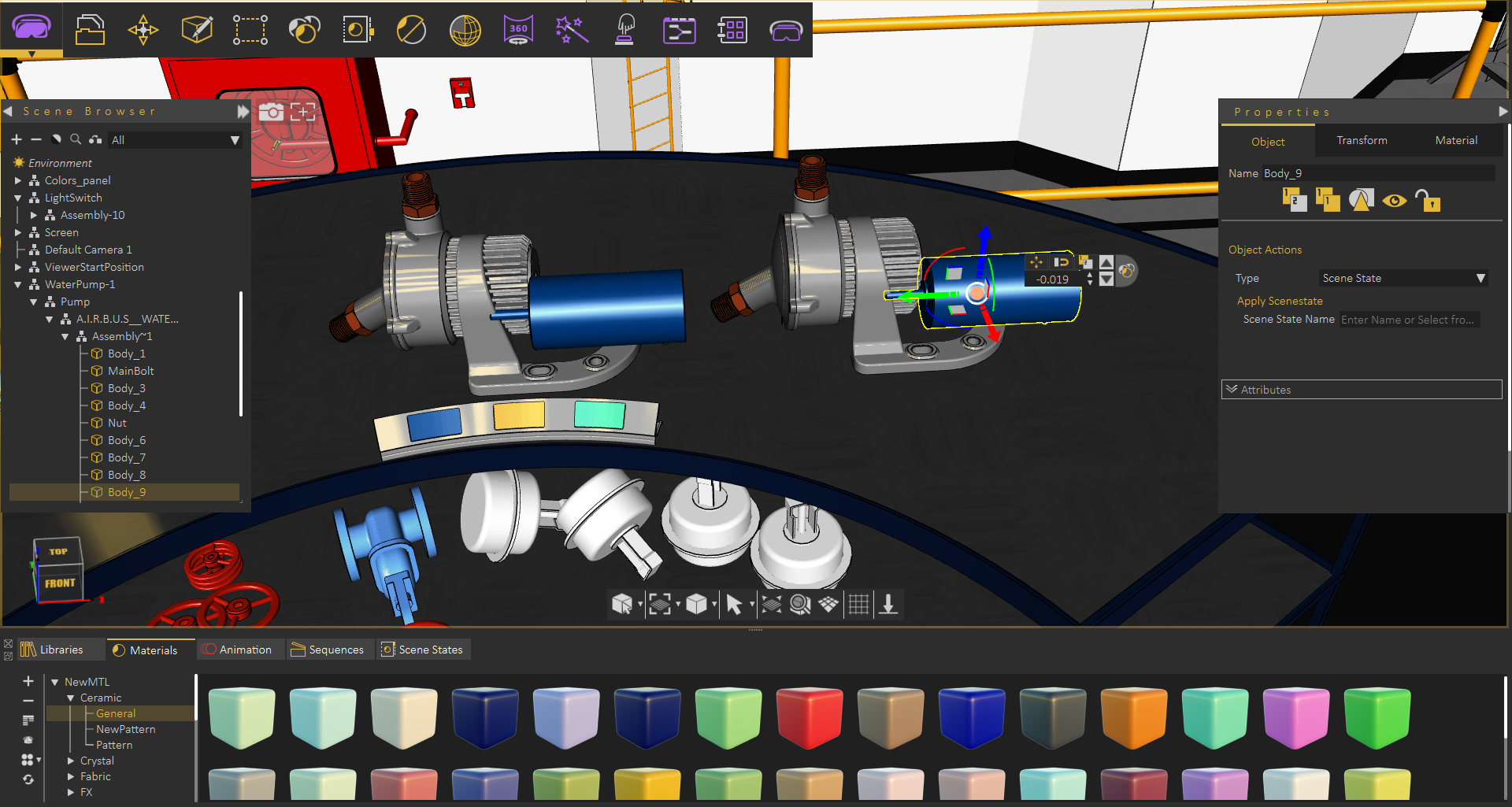](https://simlab-soft.com/help/uploads/images/gallery/2021-12/image-1639763379112.png)
Using **Break Instances** each pump can now have its own materials/transforms.
[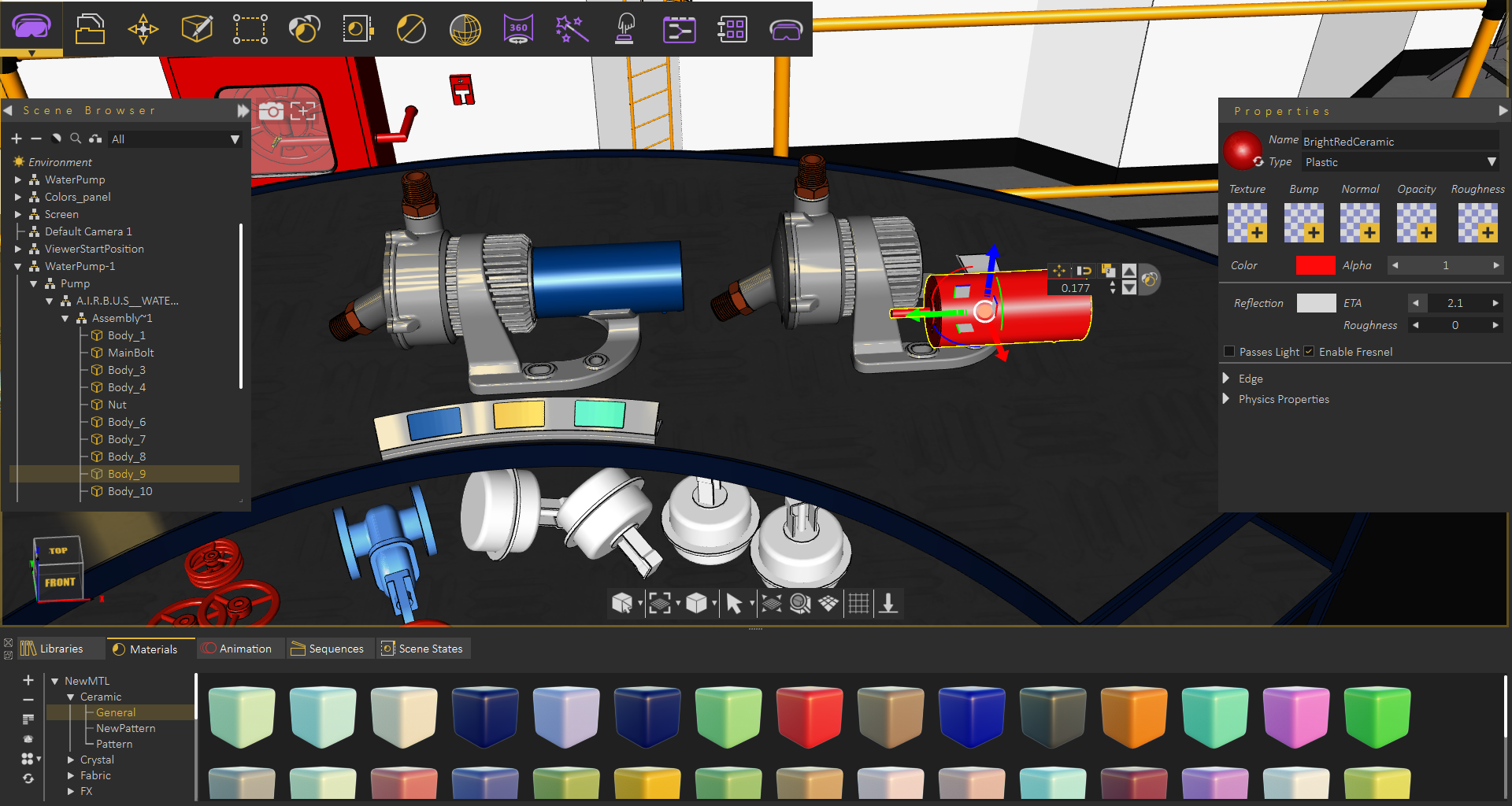](https://simlab-soft.com/help/uploads/images/gallery/2021-12/image-1639763394633.png)
### Explode Group
#### Explode / UnExplode
Can be used to show the components of an assembly. Selecting it will show geometry draggers, allowing the user to move (explode) the selected object(s) in the X, Y, and Z directions. The user can also rotate the dragger to select an arbitrary vector to be used for exploding the assembly. Check this [tutorial](https://www.youtube.com/watch?v=rZNMtariggs) for more about Explode function.
The user should click either the **Approve** or the **Decline** mark in In the central part of 3D area, when done with exploding the geometry. Clicking the red **Decline** mark will cancel the operation of creating the exploded view. After completing the explode operation the user can go back to the original model by selecting UnExplode.
[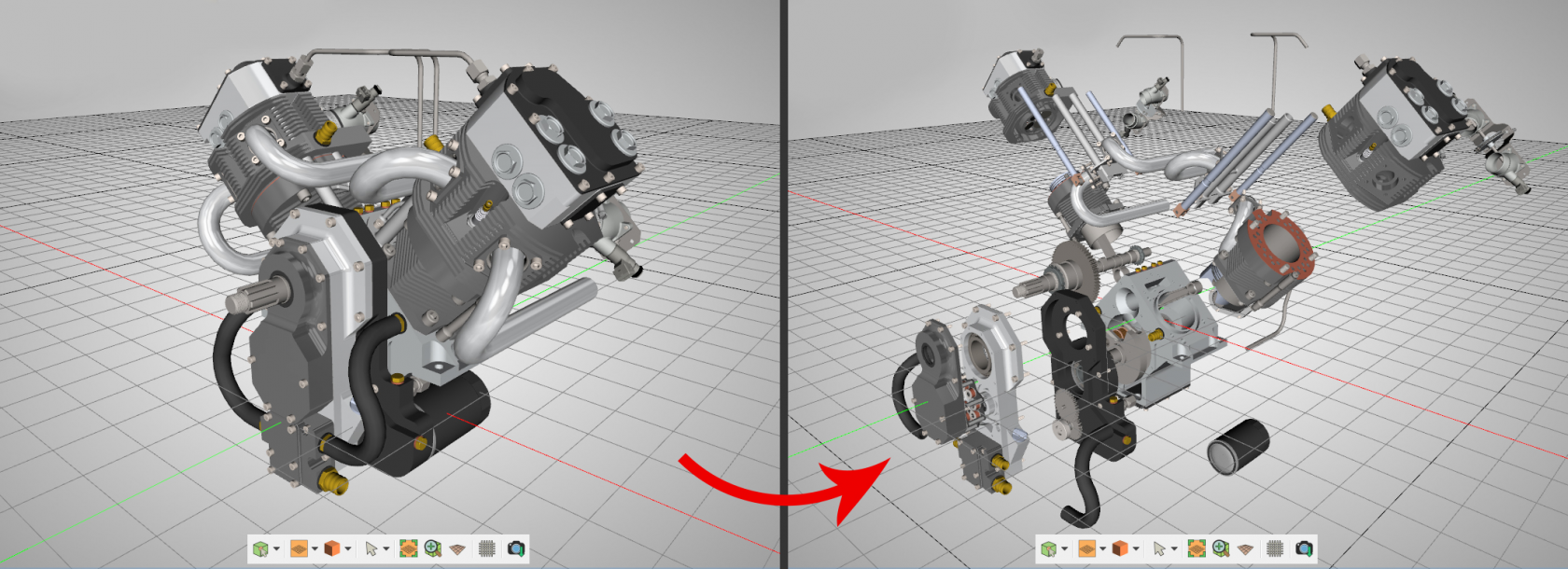](https://simlab-soft.com/help/uploads/images/gallery/2021-12/image-1639763441971.png)
### Tools Group
#### Merge on Material
With an assembly selected in the 3D area, selecting this tool will merge geometry using the same material into a single geometry.
#### Smooth Normals
This tool can be used to average the normals of the geometry to appear smoother during rendering. Also vertices having the same position and normal direction will be replaced by a single vertex, thus reduce the size and complexity of a 3D model.
#### Flip Normals
Clicking this tool will have the selected objects' normals flipped.
#### Fix Scene Normal
Generates appropriate normals for the selected geometry.
#### Mesh Decimation
Reduces the number of polygons in the selected geometry without affecting its appearance greatly.
The following tutorial shows Mesh Decimation in action, The tool can be very helpful if you need to run VR experience on memory limited devices
#### Info
Clicking this tool will display Geometrical Info dialog, showing the number of objects, vertices, and polygons in the selected geometry. Knowing the number of vertices and polygons can help a user estimate the size of the output file. This might make the user ignore some details, for sharing efficiency. **Shortcut (Ctrl + Shift + I)**
### Voxel Group
#### Voxelize Selection
Voxelizing a 3D model is rebuilding the 3D model using building blocks (voxels), like LEGO. The user can choose the building block to use for voxelization, and can choose to voxelize the whole scene, or the selected geometry. Notice that this will add a significant number of polygons to the 3D scene.
The **Voxelize Options** dialog will open, when selecting this options. The default voxel object is a cube of certain size, and the user can choose a different object shape, by clicking the **Pick voxel** option. The voxel object needs to be a geometry in the scene, and the user can just pick it.
[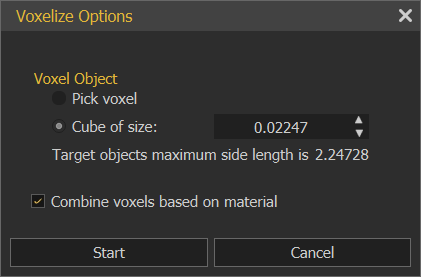](https://simlab-soft.com/help/uploads/images/gallery/2022-01/image-1641491838955.png)
The **Combine voxels based on material** option, if checked, will combine all voxels, based on material, each in one geometry in the Scene Browser.
If not checked each voxel will have its own geometry in the Scene Browser.
[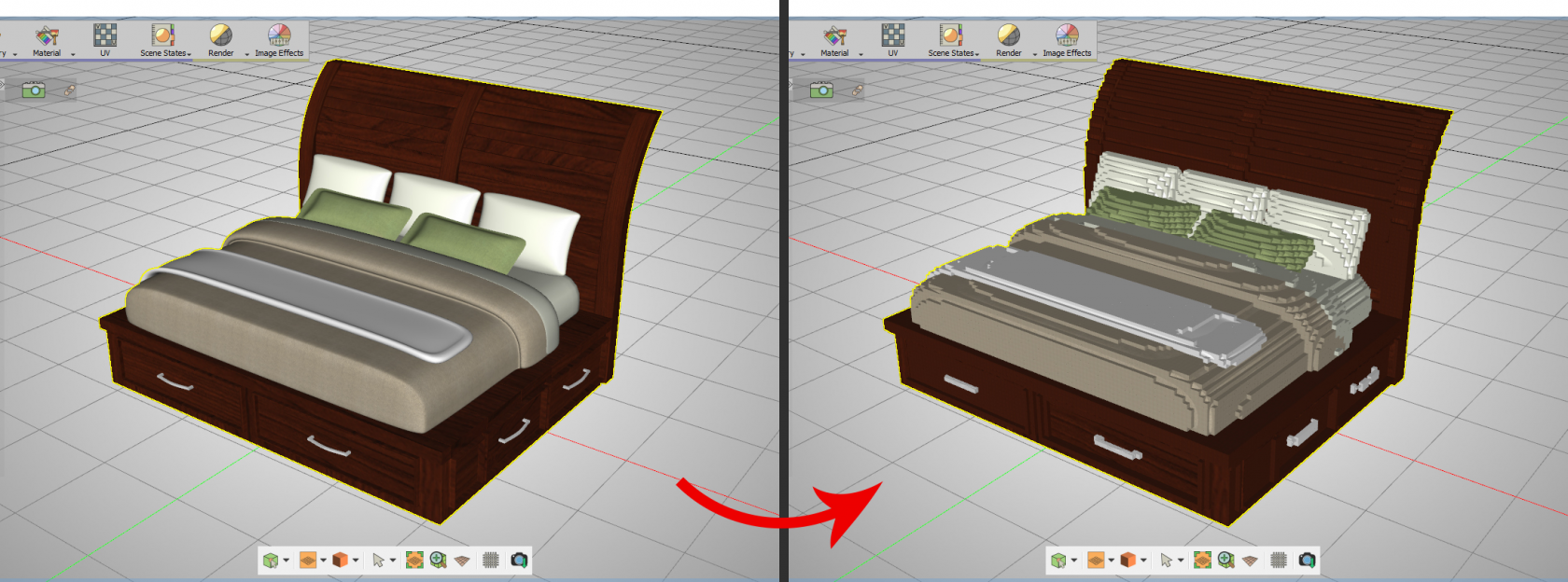](https://simlab-soft.com/help/uploads/images/gallery/2021-12/image-1639763714490.png)
To Voxelize any 3d model, follow the steps below:
1. First, export 3D model from any 3d software as one of the [Supported Import Formats](http://www.simlab-soft.com/3d-products/simlab-composer-supported-3d-formats.aspx) in Composer
2. Import your model to Composer, click File → Import, or by using Ctrl+I, then select your model format and click Open.
3. Select the 3D model in SimLab Composer and click on Geometry → Voxelize Selection. The Voxelize Options dialog will appear, where the default voxel object is a cube of certain size. **The smaller the size of the voxel the larger the size of the output file**. The user can choose a different object by clicking the Pick voxel option then select another small object eg, Sphere, Cylinder or any object in the scene, then click Start.
4. When the convert operation is complete, the new object will be added to the Scene Browser.
### Boolean Operations Group
#### Boolean Operations
Boolean operations are smart tools that ease the process of performing simple modeling tasks in SimLab Composer and without the need to go back to the CAD design application.
[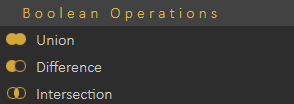](https://simlab-soft.com/help/uploads/images/gallery/2021-12/image-1639764071632.png)
- **Union:** Removes the intersecting part of two objects or set of objects, and preserves the remaining as one.
- **Difference:** Deducts the shape and volume of one object or set of objects from another object or set of objects. So it's like the first 3D object minus the second.
- **Intersection:** Preserves the intersecting part of two objects or set of objects, and removes the rest.
[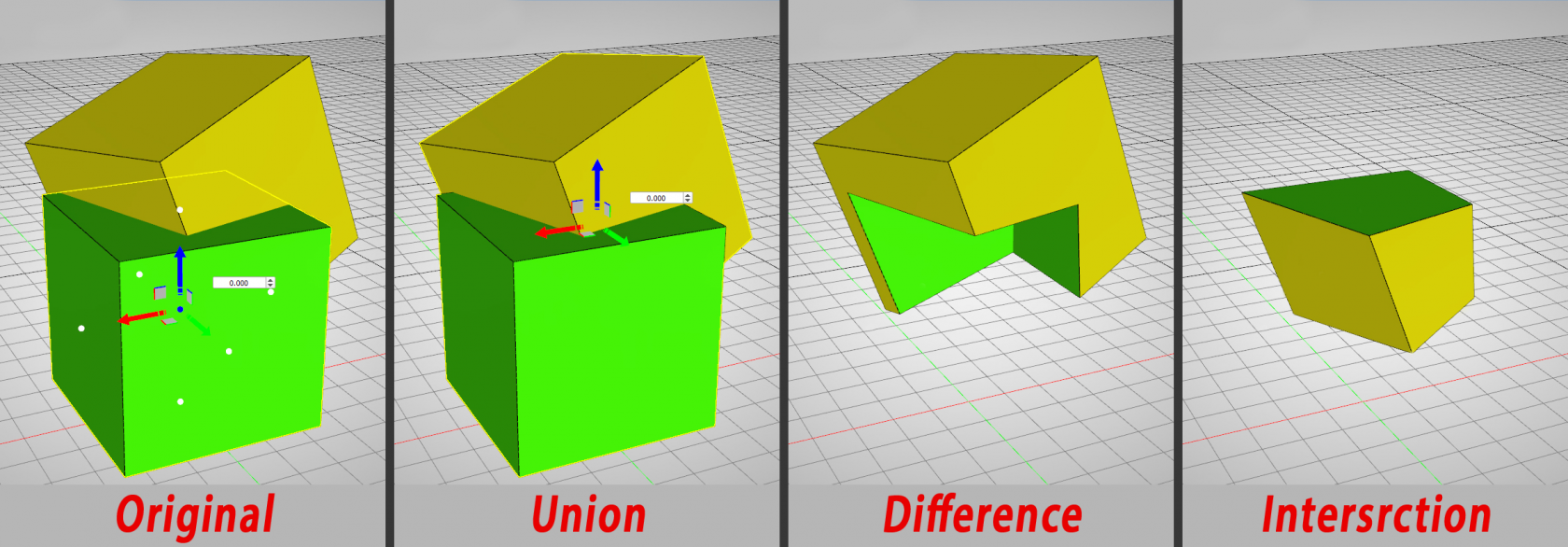](https://simlab-soft.com/help/uploads/images/gallery/2021-12/image-1639764121378.png)
# Material Menu
Includes all the functions needed for material application, and materials management. Check this [tutorial](https://www.youtube.com/watch?time_continue=46&v=_miVD1W7TdA) for more about material management.
[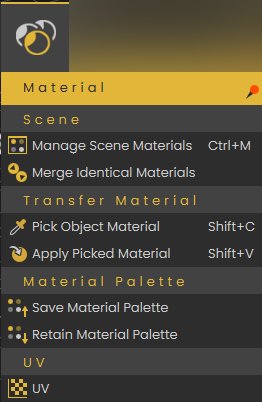](https://simlab-soft.com/help/uploads/images/gallery/2022-01/image-1641492505837.png)
### Scene Group
#### Manage Scene Materials
Scene Materials dialog includes the material functions shown in the image below. It shows all materials in the scene where the user can make changes to all of them at once.
[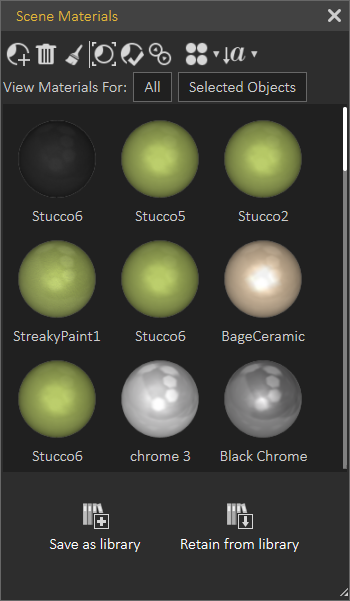](https://simlab-soft.com/help/uploads/images/gallery/2021-12/image-1639764315529.png)
- **Add Material:** Adds a new default material to the list. The new material with all of its properties will be shown in the Properties Panel of the application Interface.
- **Delete Material:** Deletes the selected material, from the list. In case the material is being used by objects in the scene, a dialog will appear asking the user to select a replacement material before the deletion.
- **Delete Unused Materials:** Deletes all materials not referenced by any object in the scene.
- **Select Objects Using Material:** This function selects all objects, in the scene using the selected material in the Scene Materials dialog. These objects-geometry will be highlighted in the Scene Browser, and in the 3D area.
- **Apply Material To Selected Objects:** To use this function the user should select object(s) first, then select a material from the Scene Materials dialog or the from the Material Library. After that he can click this function button and the selected material will be applied to the selected objects.
- **Merge Identical Materials:** In cases where more than one object in the 3D scene are using the same material, different copies of that material will appear in the Scene Materials window. This function cleans the materials dialog from unnecessary duplicates.
- **Change View:** This display option is available for the user to change the way the materials are displayed, in the Scene Materials dialog. They can be displayed as Large, or Small icons, or can be shown as a list.
- **Sort by Name/Sort by Attributes:** Two options for sorting the Scene Materials are available for the user.
##### Save as Library
After applying all materials for all geometry in a 3D scene, clicking this function will display the New Material Library window. In this window the user can input a name for the new library then click Ok. This will save the applied scene materials in a library, and it will be shown in the Current Library combo-box, and in the Manage Material Libraries panel.
##### Retain from Library
Before clicking this function button, the user should select the material library to use, in the Current Library combo-box. This function will reapply materials included in the selected library to the different geometry based on previously assigned materials names.
#### Merge Identical Materials
Cleans **Scene Materials** dialog from unnecessary duplicates.
### Material Palette Group
#### Save Material Palette
Material palette is a useful feature that SimLab Composer provides, it can save materials progress in a separate external file that can be re-applied easily.
From the material menu select Save Material Palette. Set the path and name for the file and click Save.
Reopen CAD Software and load the saved file, then from the extension menu, go to SimLab Composer integration and select Link with SimLab Composer.
As you can see the materials and textures applied in SimLab Composer, are the same materials applied in CAD Software.
#### Retain Material Palette
This function allows the user to keep applied materials in SimLab Composer to the design. Not having this option toggled will re-import the original materials from CAD Software to the design.
Select the palette file that you previously save, and set the mode to material name
[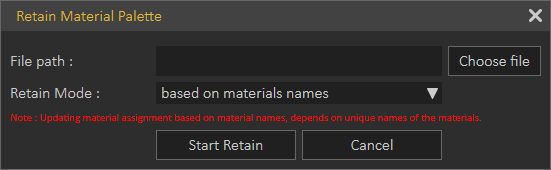](https://simlab-soft.com/help/uploads/images/gallery/2021-12/image-1639764567189.png)
### UV
Texturing is the process of applying an image to 3D object, to give it a more realistic look. Texture Coordinate menu gives the user different options to define the way the image is applied to an object.
[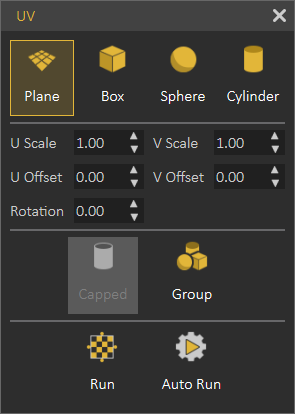](https://simlab-soft.com/help/uploads/images/gallery/2021-12/image-1639764601484.png)
# Scene States Menu
[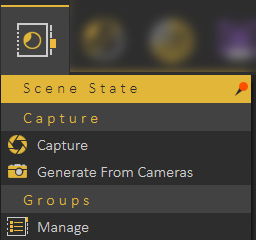](https://simlab-soft.com/help/uploads/images/gallery/2021-12/image-1639764667482.png)
### Capture
Enables the user to capture different configurations for the **selected 3D model**(s) (**Object** Properties), or useful properties for the **whole scene** (**Scene** properties). The user can check the properties to include in a scene state.
SimLab Composer and Studio's Scene States are smart in capturing attributes, they can include any combination of the listed attributes. This can be helpful in creating scene states for models with different attributes, and setups.
Scene States may include a combination of:
- Position/Transform
- Material
- Visibility
- Lighting
- Environment
- Current View (Camera)
[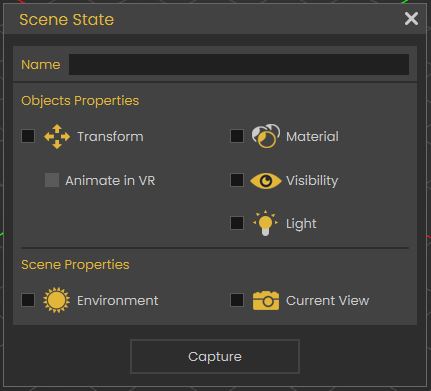](https://simlab-soft.com/help/uploads/images/gallery/2021-12/image-1639764687224.png)
After selecting what to include in the **Scene State**, the user needs to click **Capture** to capture the scene state. Captured scene states are added to the **Scene States Library**.
Scene States can be applied as **Object Actions** in the **Properties dialog**. **Apply Scene State** can also be used as a response in [**Training Builder**](https://simlab-soft.com/help/books/simlab-vr-studio-help/page/training-builder-menu-9O5)
The following tutorial shows how to use **Scene States:**
****
### Generate From Cameras
Captures scene states from the created cameras in the scene, as shown in the image below:
[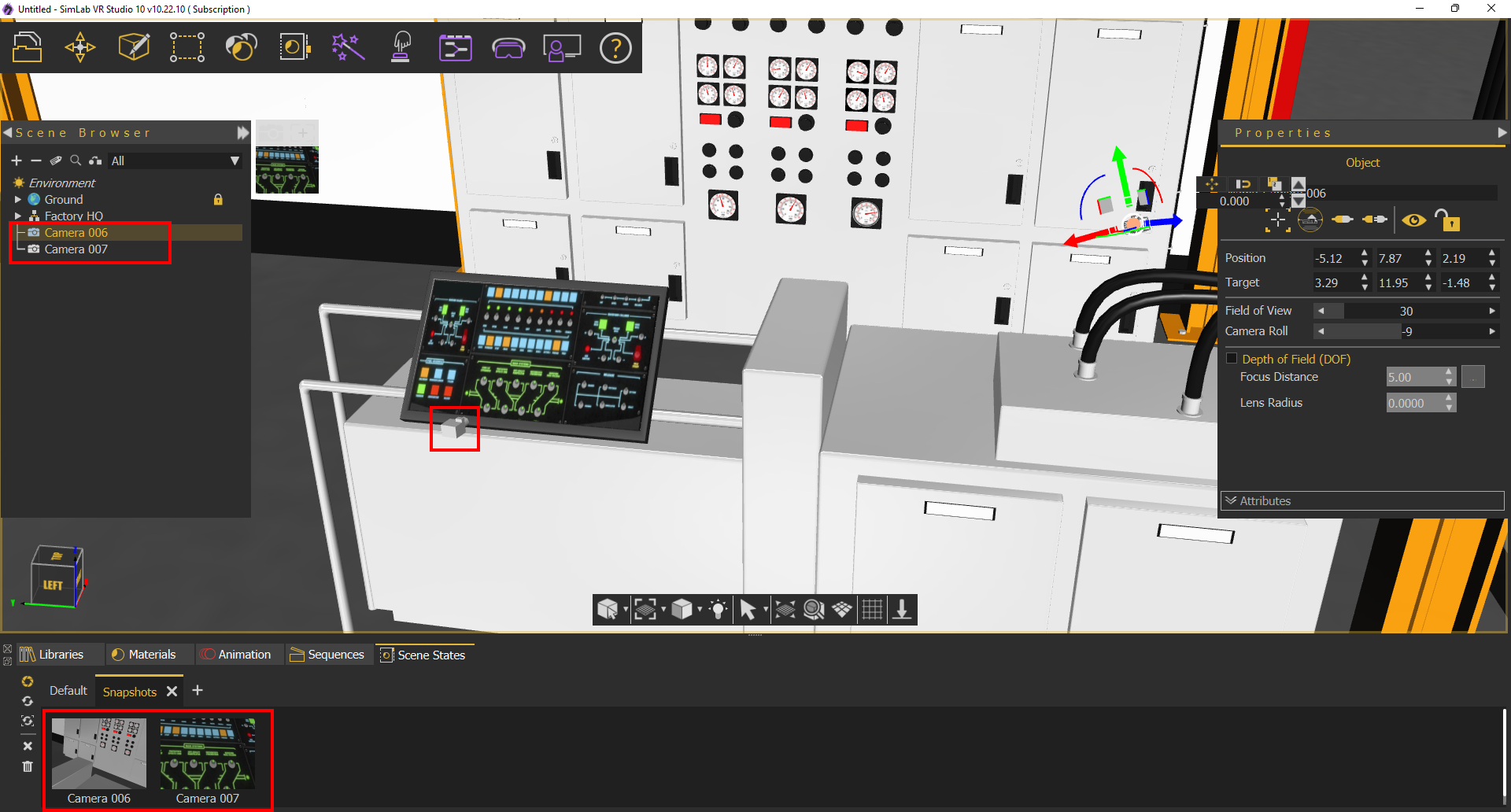](https://simlab-soft.com/help/uploads/images/gallery/2022-01/generate-from-cameras.png)
### Manage
Opens **Manage Scene States Groups** dialog box, where the user can add a new group, remove, rename, or reorder groups.
When creating a new Scene State it will be automatically added to the active group tab in the **Scene State Library**.
[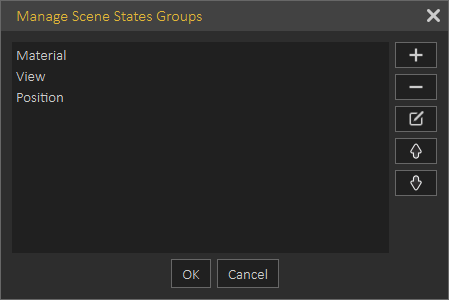](https://simlab-soft.com/help/uploads/images/gallery/2021-12/image-1640620620352.png)
# Render Menu
SimLab Composer Real-Time renderer (SimLab RT) is a powerful, fast, and easy-to-use real-time renderer; that has full integration with SimLab Composer. The renderer is optimally parallelized, so it can take advantage of all the CPUs available in the machine.
SimLab RT renderer is suitable for MCAD, interior rendering, and producing top-quality rendered images. To learn more about SimLab RT renderer, click Help in the Setting/Help menu, and select Render Help.
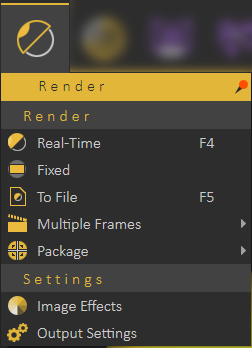
In the tutorial video below, we will show you how to import a 3D model to SimLab Composer, then shows how to assign materials, After that the tutorial teaches how to utilize the rendering capabilities of SimLab Composer.
### Render Group
#### Real-Time
Starts real-time rendering for the 3D scene, using the parameters in Render Settings. The function short-cut is F4, and RT rendering can be stopped by un-toggling the Real Time function button or pressing F4.
[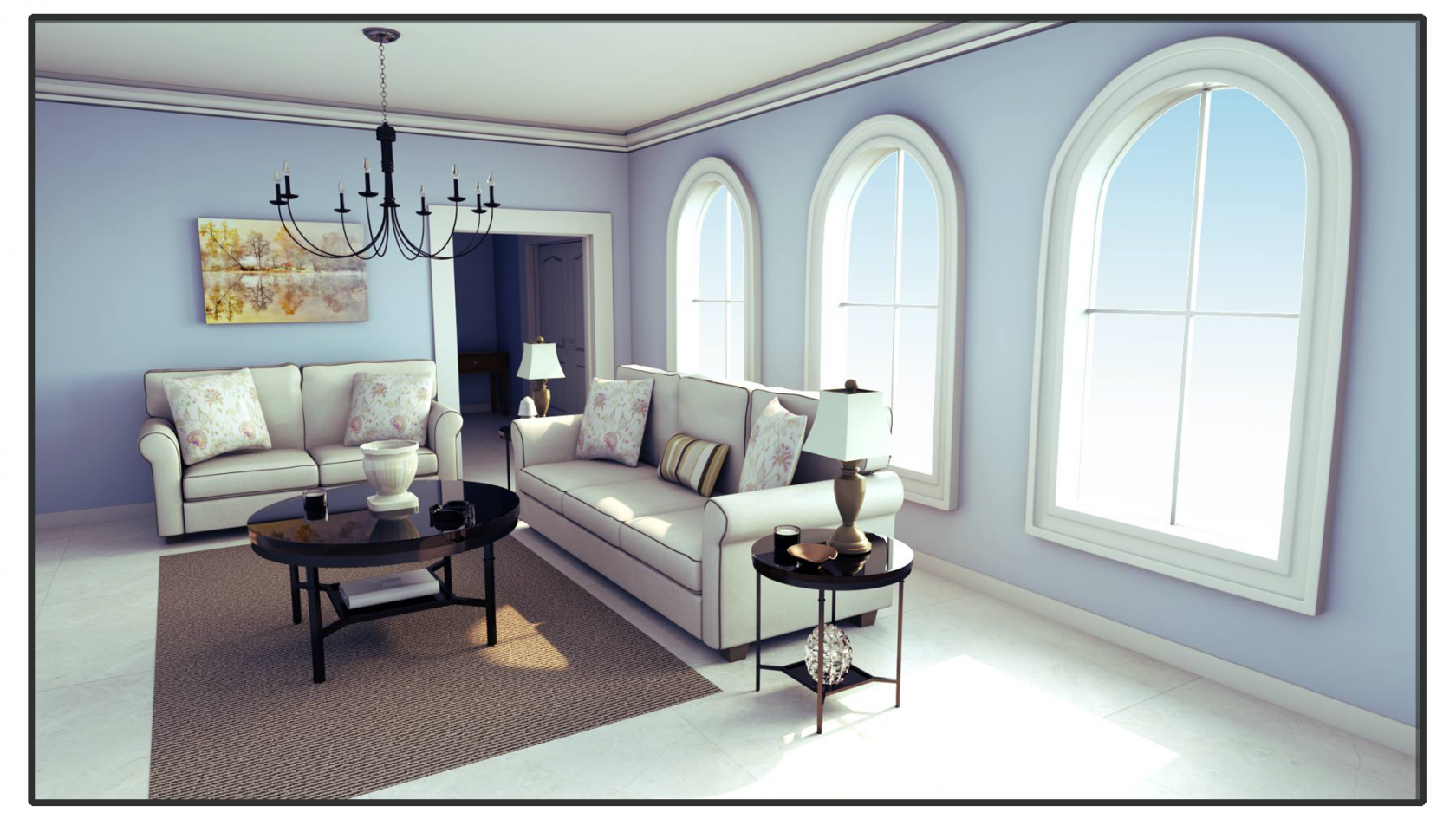](https://simlab-soft.com/help/uploads/images/gallery/2022-09/sJXimage.png)
#### Fixed
This function starts real-time rendering for the 3D scene, with a fixed image size. The image size used will be the one set in the Output Image task.
[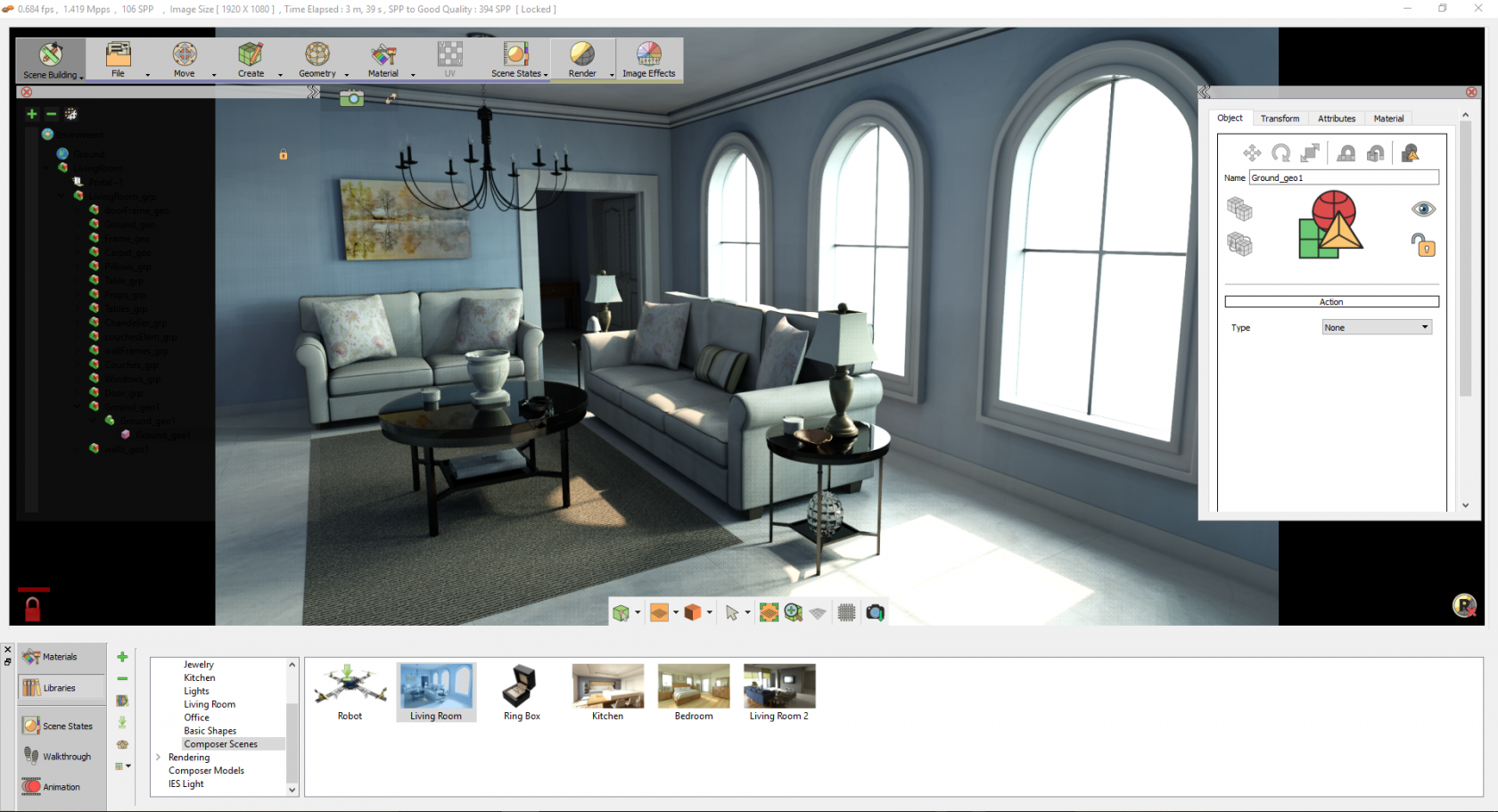](https://simlab-soft.com/help/uploads/images/gallery/2022-09/Qdfimage.png)
#### To File
Opens Render Settings dialog where the user can input the options in the fields shown in the image below, including the output folder.
This type of rendering is time-limited, with a fixed image size, as in Fixed-Render. The value to end/limit rendering time is SPP (sample-per-pixel) value. This value can be found in Render Settings under the Output Image task.
A limited-time rendering is automatically used by Animation Rendering, Scene States Rendering, and Rendering to File.
The Apply Denoise gives a crispier image with less render time.
[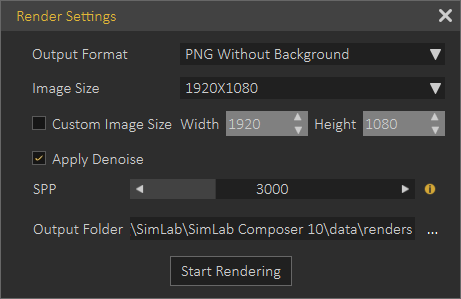](https://simlab-soft.com/help/uploads/images/gallery/2022-09/d6Pimage.png)
Check this SimLab Rendering Basics [tutorial](https://youtu.be/qv66deNF59M).
#### Multiple Frames
##### Animation
3D scenes with animation defined, clicking the Animation function will start rendering animation. Animation rendering is a limited-time rendering, from the First Frame to the Last Frame set in the corresponding spin boxes.
[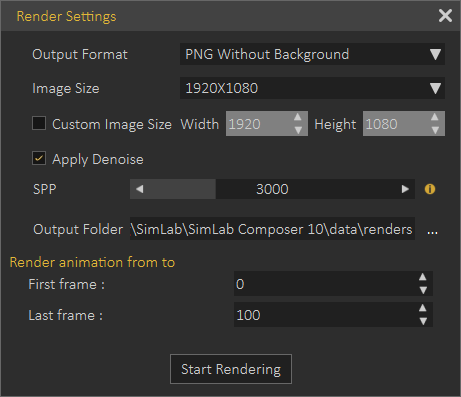](https://simlab-soft.com/help/uploads/images/gallery/2022-09/LAcimage.png)
##### Render Animation in VR Viewer
Rendering is a complex process that generates realistic images, rendered images in many cases cannot be distinguished from photos. Performing complex rendering consumes a significant amount of time.
Users interested in previewing their work quickly can use VR-based rendering that gives users great images in a very short time. It is useful for multi-iterations until the user is ready for the final animation render.
The only difference in the Render Settings dialog here is the added Use **Super Sampling** option.
[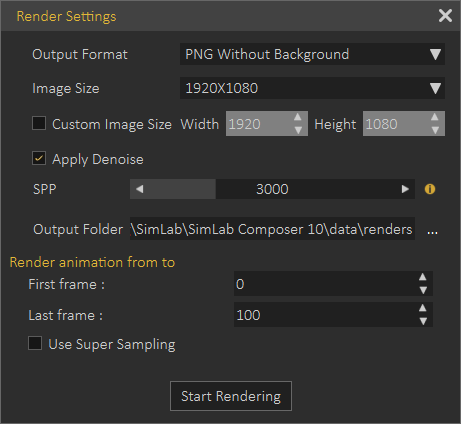](https://simlab-soft.com/help/uploads/images/gallery/2022-09/OHfimage.png)
##### Sun Study
This is useful for landscape designers, architects, and interior designers, where the user defines the initial and final sun states.
[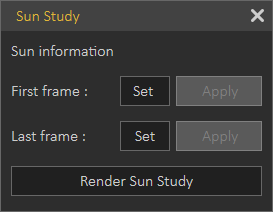 ](https://simlab-soft.com/help/uploads/images/gallery/2022-09/Us9image.png)[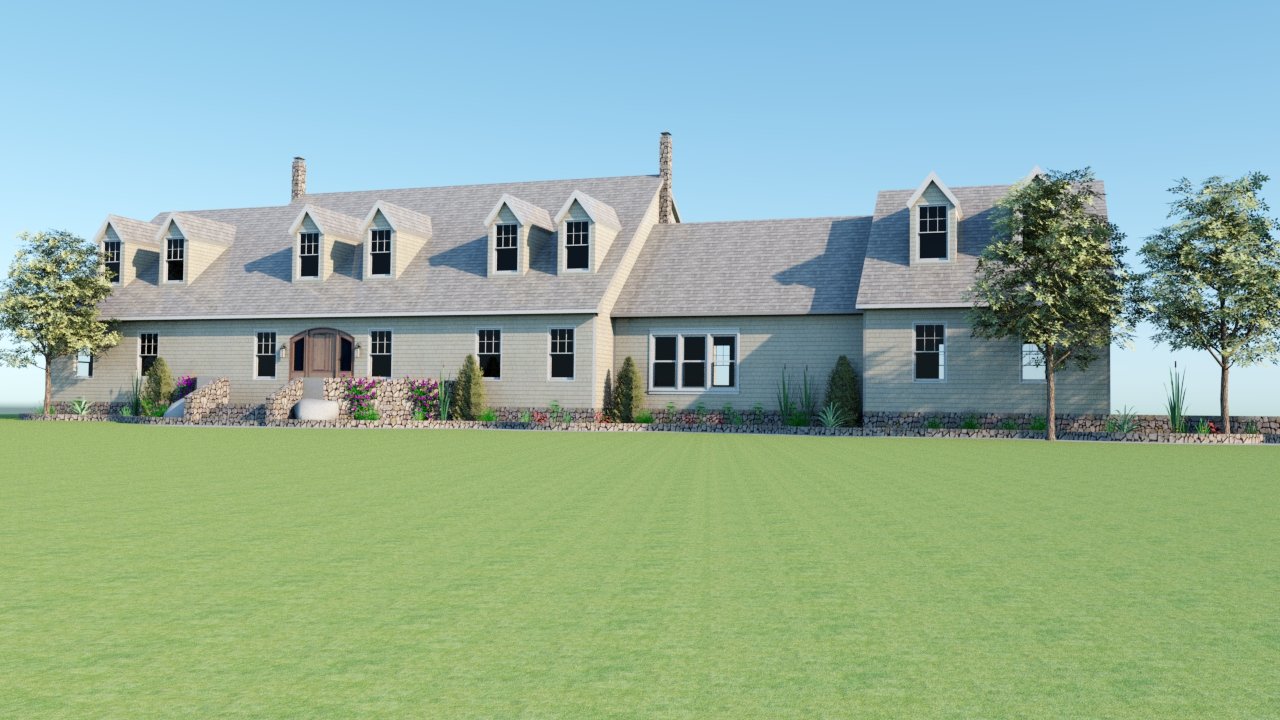](https://simlab-soft.com/help/uploads/images/gallery/2022-09/Hv4image.png)
The study shows the sun and shadow states for the scene.
##### Scene States
For 3D scenes with scene states, this function will start consecutive rendering for the scene states defined in the scene. After setting the parameters in the Render Settings dialog and clicking Start Rendering, the Manage Scene States dialog will appear for the user to check the scene states to render, and the order of rendering. Clicking Ok will start limited-time rendering based on the SPP value.
VR-based animation rendering demo video.
#### Package
##### Distribute
Distribute rendering is supported in SimLab Composer. It allows the user to distribute the rendering of complex animations, among a number of machines. With the animation ‘\*.sim’ file opened click Distribute function to open Distribute Render Animation dialog.
[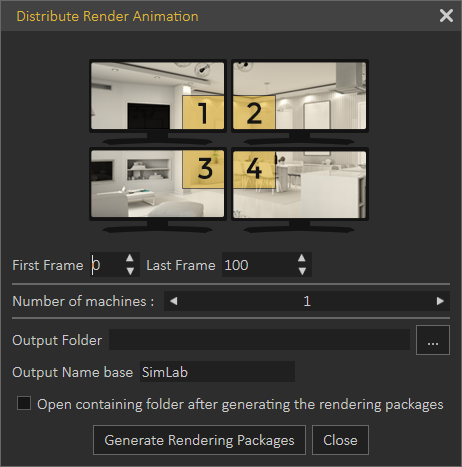](https://simlab-soft.com/help/uploads/images/gallery/2022-09/f8Mimage.png)
Fill in the required settings, and then click the Generate Rendering Packages button. The output folder containing the packages will open since the Open containing folder option was checked in the dialog.
[](https://simlab-soft.com/help/uploads/images/gallery/2022-09/WZXimage.png)
A number of (\*.srd) files equivalent to the number of machines input in the dialog, will be saved in the output folder.
Copy each file to a rendering machine that has SimLab Composer already installed. Click the Render function, in the Package group, to open its dialog. Browse to the rendering package (\*.srd) file, and select the output folder. Check the Open output folder option, and then click Start Rendering. A rendering animation progress bar will continue to appear along with rendering menus until the animation rendering is done.
[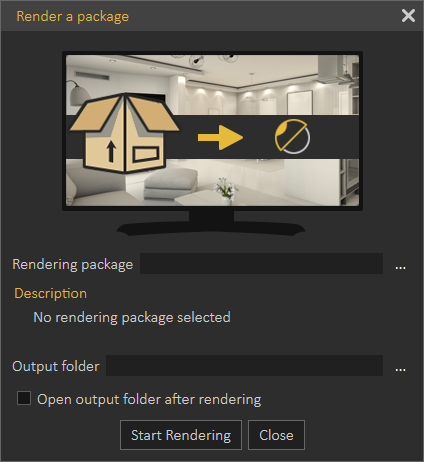](https://simlab-soft.com/help/uploads/images/gallery/2022-09/PU6image.png)
### Settings Group
#### Image Effects
SimLab Composer provides its users with image post-processing capabilities, where any combination of image effects can be applied to a rendered image. In this task, the Tree/Task panel will display the Render Settings for the image.
[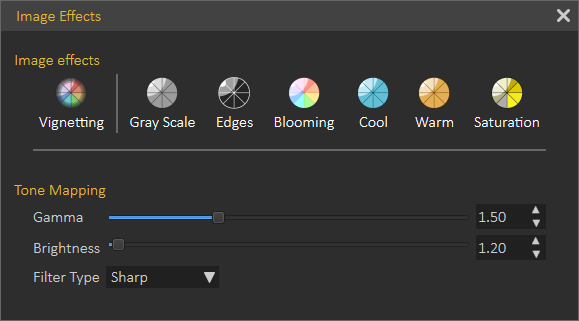](https://simlab-soft.com/help/uploads/images/gallery/2022-09/jt8image.png)
##### Vignetting
Reduces image brightness/saturation, at the periphery of the image compared to its center.
##### Gray Scale
This effect renders the image in grayscale.
##### Edges
This effect renders the current model with the edges shown.
##### Blooming
A glow was added to the rendered image. The user can change the Blur Radius, Brightness, and Opacity for this effect.
##### Cool, Warm and Saturation
These image effects can be applied by setting a delta value, and they can be applied exclusively.
#### Output Settings
In this dialog tab, the user can select the format for the output image and its dimensions. The user can also input the base file name, the output folder, and SPP to limit the rendering. The open containing folder check option will open the output folder after finishing rendering.
[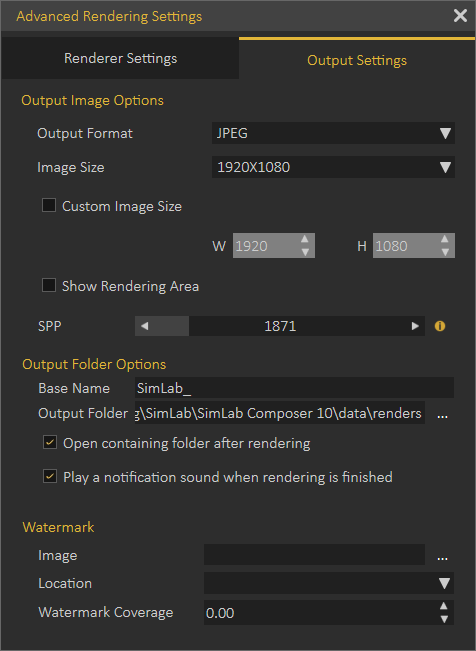](https://simlab-soft.com/help/uploads/images/gallery/2022-09/dUVimage.png)
Advanced Render Settings
In this panel, the user can set the main rendering parameters.
- Rendering modes: where the user can select from available types of rendering modes:
- Fast Path Tracer.
- MIS Path Tracer.
- Interior Renderer.
- Element Renderer.
- Light Depth: Set the amount of light energy.
- Specular Depth: Control the visual appearance of specular reflections. It represents the amount of specular reflectivity a surface has.
- Automatic locking Time (seconds); is the time in seconds after which the image will be locked for navigation, in case of Real-Time View rendering. Setting this value to Zero will disable automatic locking.
- The number of CPU cores to be ignored; is the number of CPU cores not used by the renderer. This is helpful when the user is working on other applications while rendering. Setting this parameter to 0 will use all cores for rendering.
- Navigation speed while rendering;
[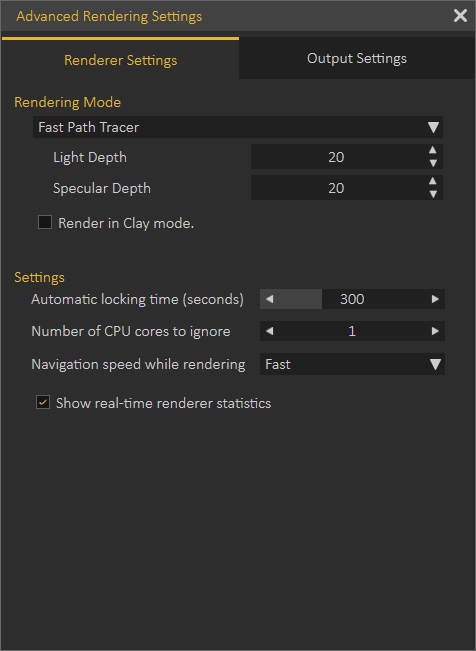](https://simlab-soft.com/help/uploads/images/gallery/2022-09/4xiimage.png)
The default values for both Light Depth and Specular Depth (which is "3") are good and commonly used. Don't change this unless you really know what you're doing.
# Baking Menu
Baking is a technology that stores lighting and shadow information within objects, and away from their materials. It means that a user can change the material and/or modify its properties even change its texture without the need to bake it again and again.
[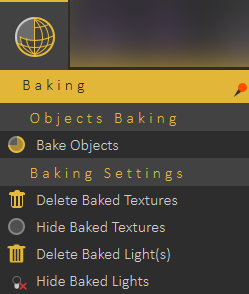](https://simlab-soft.com/help/uploads/images/gallery/2022-09/MO1image.png)
The image below shows the difference between enabling and disabling light baking.
[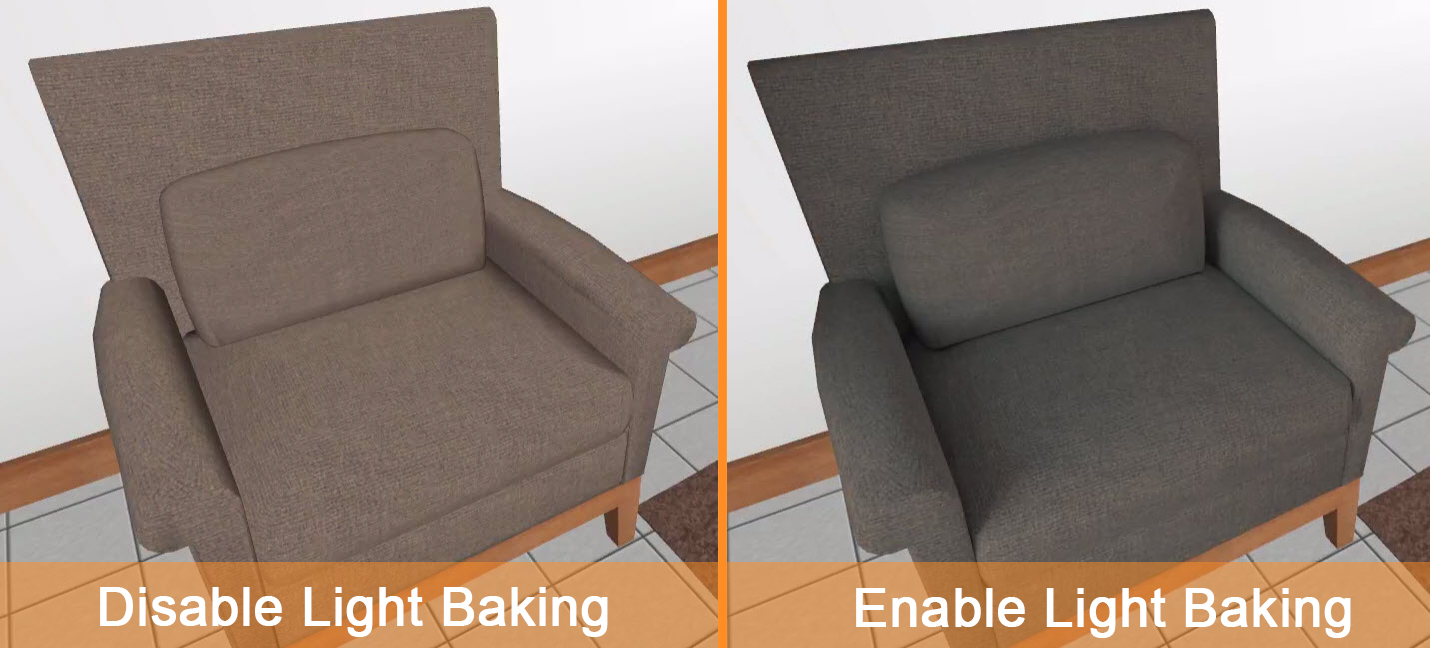](https://simlab-soft.com/help/uploads/images/gallery/2022-09/zLbimage.png)
Using Light baking for superior Mobile VR
The user can switch between the two to experience day and night views by using Sunlight or interior IES lights in the VR scene.
#### Bake Objects
Texture baking/Light backing is the process of storing rendering results as textures/lights.
[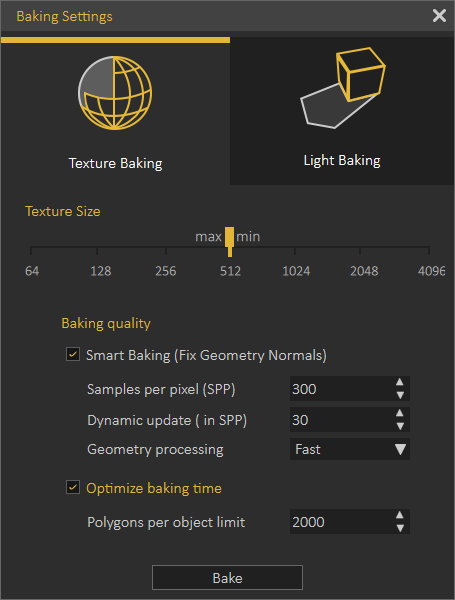](https://simlab-soft.com/help/uploads/images/gallery/2022-12/gYSimage.png)
Texture Baking, or Rendering to Texture, allows the user to create texture maps based on an object's appearance in the rendered scene. The textures are then baked into the object that is,
they become part of the object via mapping and can be used to display the textured object rapidly on 3D devices such as graphics display cards or game engines.
In other words, baked textures are those that have highlights, shadows, and shading built into the texture. It would have the highlight of the body built into the texture so it appears to be more natural or realistic looking. Therefore, it is possible to use rendering algorithms in SimLab Composer to simulate shading, shadows and bumps on the surface (or texture) of a 3D object. This process is commonly referred to as "baking" the texture. Texture baking refers to the calculation of environmental information (lights, shadows, etc) and rendering that information as a texture that can be used to make it more realistic looking.
\*\*By clicking the Smart Bake button, the Texture Baking Setting dialog box appears (as shown in the following image), the following options can be found in the Texture Baking Setting dialog box:
##### Texture Size
- Min: list menu 16, 32, 64, 128, 256, 512, 1024, 2048, or 4096 (in pixels).
- Max: list menu 16, 32, 64, 128, 256, 512, 1024, 2048, or 4096 (in pixels).
##### Baking Quality
- Sample Per Pixel (SPP): controls the quality of the texture baking.
- Dynamic Update (in SPP): controls at which rate should the texture baking results appear during the baking process.
- Geometry Processing: fast or Top Quality
##### Optimize Baking Time
Polygons Per Object Limit: enter the limit number for polygons per object.
To learn more about Texture/Light backing refer to this [tutorial](https://youtu.be/SUeyg-3kCVs).
# Help Menu
In this menu, the user has access to different sources of information about SimLab Composer.
[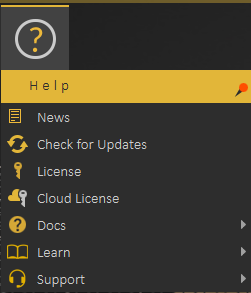](https://simlab-soft.com/help/uploads/images/gallery/2021-12/image-1640947197275.png)
#### News
Starting with News, where a dialog will be displayed including latest news regarding the application, and its updates.
#### Check for Updates
Check for Updates, as the name implies, will display the dialog with the latest release of the application.
#### License
License, displays the Registration dialog, where the user can request to start a free personal license, request a trial license, or activate a professional license. More information about Composer licensing process can be found [here](https://www.simlab-soft.com/simlab-composer-license-steps.aspx)
[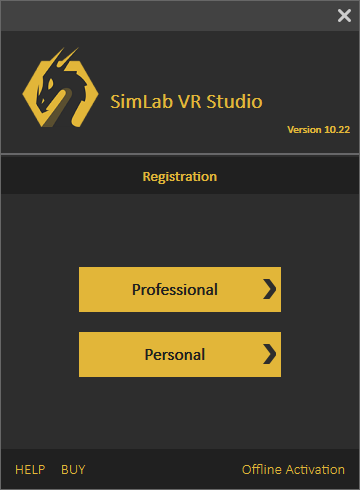](https://simlab-soft.com/help/uploads/images/gallery/2021-12/image-1640947316636.png)
#### Cloud License
[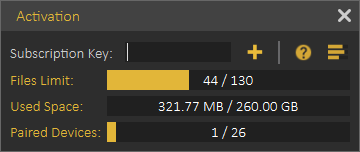](https://simlab-soft.com/help/uploads/images/gallery/2021-12/image-1640947709204.png)
**Cloud license** option allows the user to do the following:
- View current cloud account status
- Number of models uploaded
- Used cloud space
- Number of paired devices
- Add additional cloud keys to increase cloud account capacity or to extend its period.
Note: Professional software key received when ordering a license of Composer is also a valid Cloud Key, so the user can use it to activate the Cloud account. All what the user needs to do is register a Cloud account then to add the key.
#### Docs
This option provides users with a list of help links available for SimLab Composer. Including a link to this help document, and a link for more information about **SimLab [Composer](https://www.simlab-soft.com/3d-products/simlab-composer-main.aspx)**.
[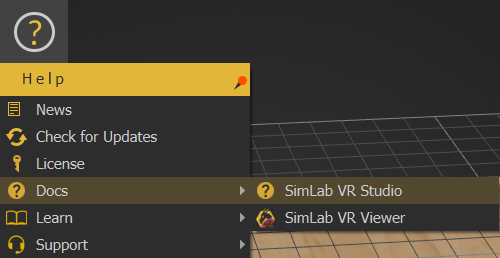](https://simlab-soft.com/help/uploads/images/gallery/2021-12/image-1639908715560.png)
#### Learn
Learn option directs users to learning resources for SimLab Composer.
[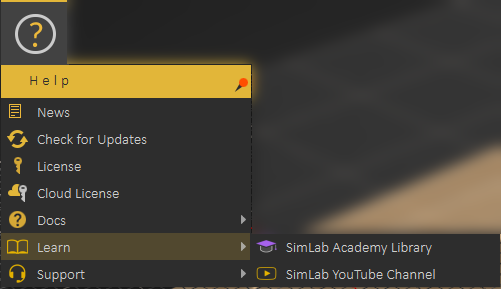](https://simlab-soft.com/help/uploads/images/gallery/2021-12/image-1640948294664.png)
SimLab Academy displays SimLab Academy in SimLab Composer library, More information about SimLab Academy can be found **[here.](https://simlab-soft.com/help/link/44#bkmrk-simlab-academy)**
[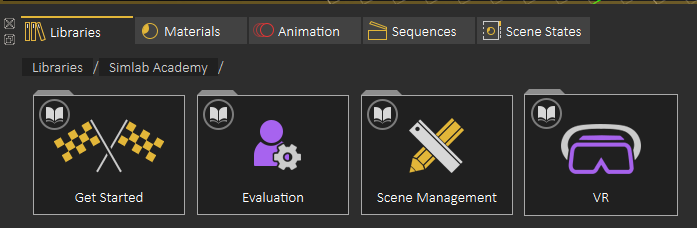](https://simlab-soft.com/help/uploads/images/gallery/2021-12/image-1640948373731.png)
SimLab [YouTube Channel](https://www.youtube.com/user/SimLabSoft) direct the user to the corresponding site.
#### Support
[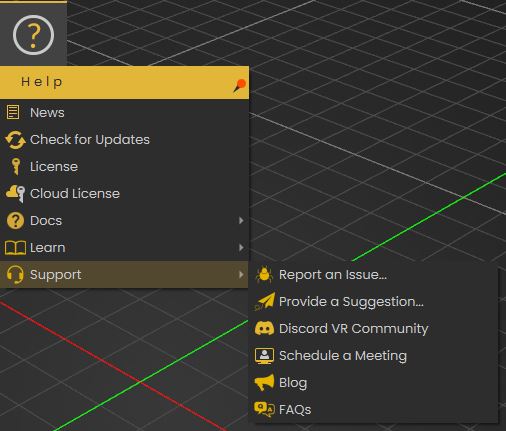](https://simlab-soft.com/help/uploads/images/gallery/2021-12/image-1640948686758.png)
Support menu allows the user to do the following:
- Report an issue
- Provide a Suggestion
- Get access to SimLab's Discord VR Community server
- Schedule a meeting
- View Blog
- View the FAQs
# VR Workbench
# 360 Image Menu
[](https://simlab-soft.com/help/uploads/images/gallery/2022-09/gzhimage.png)
**What is a 360 image?**
A 360 or panorama image, is a special type of image that allows the user to experience being inside the image in 3D. It simulates the user being in the shoes of the photographer, who took the picture, and looking around to the left, right, up and down as desired as well as sometimes zooming. The user can view the scene on a mobile, using Facebook, using other desktop viewers, or embed it into a website.
[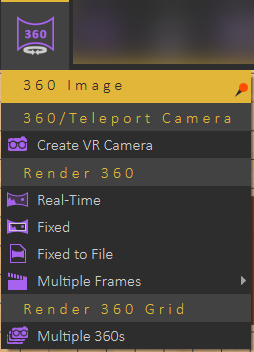](https://simlab-soft.com/help/uploads/images/gallery/2022-09/CJyimage.png)
**How to create a 360 image?**
Create a VR camera, and place it in a good position in the center of the scene. In Render Output Settings it is preferred that the output ratio be set to 2:1, SPP 3000, and Rendering Mode to Interior Renderer with Light and Specular depths set to 100. Then select Fixed to File from the 360 Image menu.
This process is shown in the following tutorial.
**Ways to share your 360 images**
1. On Facebook
2. On mobile, using SimLab VR Viewer
3. On desktop using SimLab VR Viewer
4. Adding code to embed 360 images in your website
**Sharing 360 images on Facebook**
For 360 images to be automatically detected on Facebook, width to height ratio should be 2 to 1, for example, if the width is 2000 the height of the image should be 1000. Another restriction is with maximum file dimensions of 6000 x 3000 pixels
**Sharing 360 images on Mobile**
Using the FREE SimLab VR Viewer; with a 360 image created \*.png transfer the image to a mobile, and download File Manager (Mobile, AsusTek Computer Inc.).
- Browse to the 360 image
[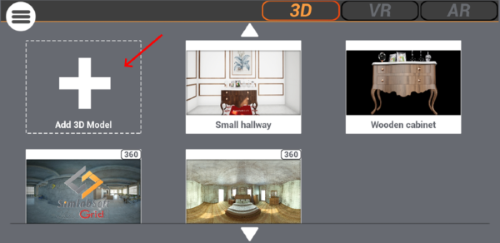](https://simlab-soft.com/help/uploads/images/gallery/2022-09/B0Cimage.png)
- Select File Manager
[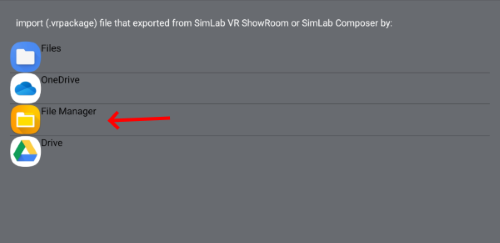](https://simlab-soft.com/help/uploads/images/gallery/2022-09/lo0image.png)
- Select the image from the list, and experiment with your 360 images!
[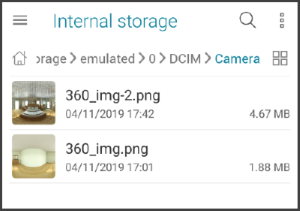 ](https://simlab-soft.com/help/uploads/images/gallery/2022-09/5IGimage.png)[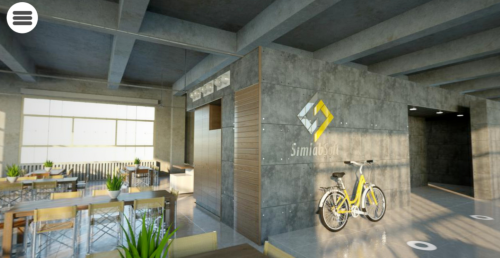](https://simlab-soft.com/help/uploads/images/gallery/2022-09/k9jimage.png)
For more details and examples on how to embed a 360 image in a website visit these links: [Link\_1](http://photo-sphere-viewer.js.org/), [Link\_2](https://github.com/JeremyHeleine/Photo-Sphere-Viewer/find/master)
Refer to SimLab 360 Technology[ page](https://www.simlab-soft.com/3d-products/360-help.aspx)
#### Multiple 360s
Multiple 360s allow users to view 360 images that have been created and move among them in VR Viewer.
To use multiple 360s, Follow the steps below:
1. Create VR Camera from the 360 Image Menu and move the camera to the proper location, duplicate the camera and add multiple cameras in the scene (At least two cameras).
2. Select Multiple 360s from the 360 Image Menu to render multiple 360 images.
3. When the renders are finished, the render result will appear in the Properties Dialog of the VR Camera under the 360 Section. There the user can preview and change the 360 images, also can make the camera position appear behind walls, and move among the 360 images in the VR Viewer (it's Not Visible by default).
[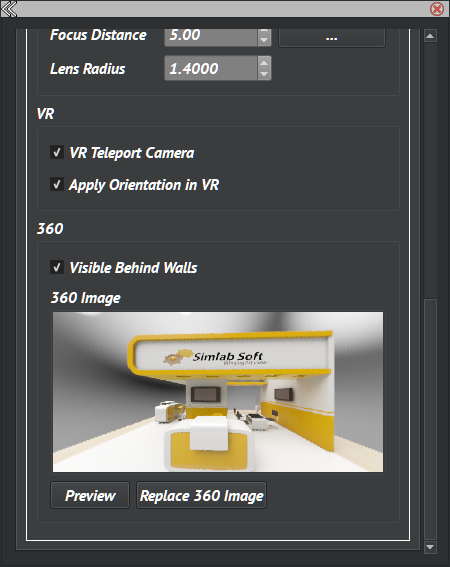](https://simlab-soft.com/help/uploads/images/gallery/2022-12/CUlimage.png)
4. To view multiple 360s in VR Viewer, select Show in Viewer from the VR Viewer menu. This will open the Viewer Modes dialog, select Desktop, then from the Start Viewer dialog select 360.
[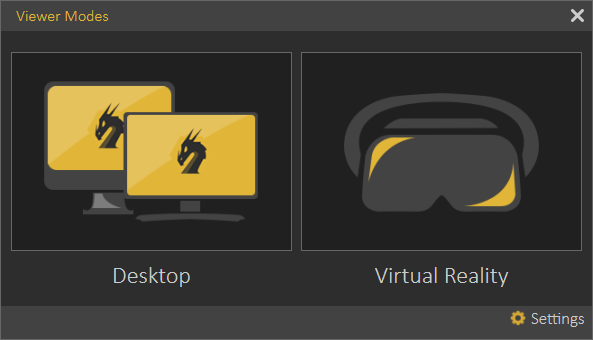](https://simlab-soft.com/help/uploads/images/gallery/2022-12/HgEimage.png)
[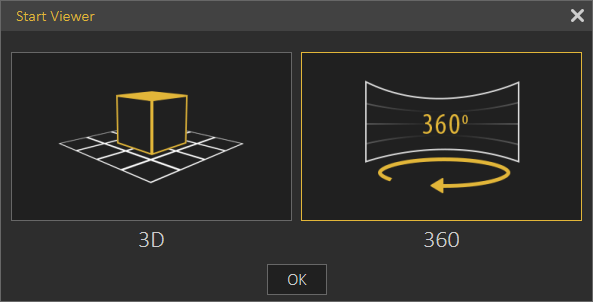](https://simlab-soft.com/help/uploads/images/gallery/2022-12/N3bimage.png)
360/Panorama Grid (How to create tutorial):
### Teleportation Points
Use Teleportation and VR cameras to navigate large scenes fast, by activating the X-ray view in SimLab VR/Desktop Viewer.
This is a guide showing the user how to walk through, and Teleport a scene
### High Dynamic Range Image (HDR) Creation
HDR (High Dynamic Range images) or environment images, is one of the preferred methods to light a 3D scene for rendering.
Originally these images were generated using specialized cameras, or through specialized software. Due to the processes involved in generating HDRs, they usually carry licenses that prevents free distribution.
SimLab Composer supports creating: 3D scene HDRs, Studio HDRs, and HDR Studio.
[](https://simlab-soft.com/help/uploads/images/gallery/2022-12/Tmyimage.png)
#### Generating HDRs with SimLab Composer
SimLab Composer makes it easy to generate HDR images, with the freedom of distributing them, as any other rendered image created using SimLab Composer. With SimLab Composer, the user can create multiple 360 render images from the VR Viewer faster and easier without consuming the processor of the device.
View the following tutorial to learn how to create HDR images using SimLab Composer.
#### Sharing HDRs
If you generate a special HDR that you want to share with other SimLab Composer users, please send an email to support@simlab-soft.com and we will be glad to share it with the community.
# VR Effects / Media Menu
This menu allows the user to add visual effects and dynamic elements to the VR Experience .
It is organized in the following groups:
- [**Particle**](https://simlab-soft.com/help/books/simlab-composer-11-help/page/vr-effects-media-menu#bkmrk-particles-group)
- **[Landscape](https://simlab-soft.com/help/books/simlab-composer-11-help/page/vr-effects-media-menu#bkmrk-landscape-group)**
- **[Media](https://simlab-soft.com/help/books/simlab-composer-11-help/page/vr-effects-media-menu#bkmrk-media-group)**
- **[UI Panels](https://simlab-soft.com/help/books/simlab-composer-11-help/page/vr-effects-media-menu#bkmrk-ui-panel-group)**
[ ](https://simlab-soft.com/help/uploads/images/gallery/2022-10/image.png)[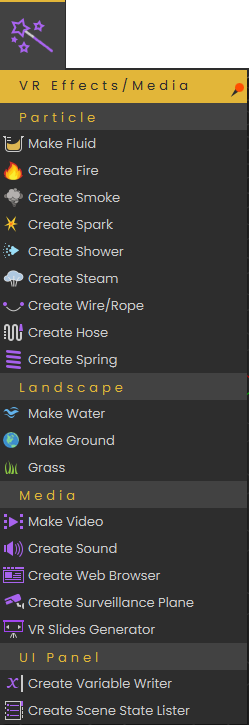](https://simlab-soft.com/help/uploads/images/gallery/2024-01/Qreimage.png)
### Particles Group
Includes the below visual effects supported in SimLab Composer/VR Studio:
[Make Fluid](https://simlab-soft.com/help/link/178#bkmrk-create-fire-and-smok)
[Create Fire](https://simlab-soft.com/help/books/simlab-composer-help/page/vr-effects-media-menu#bkmrk-create-fire-and-smoke)[Create Smoke](https://simlab-soft.com/help/books/simlab-composer-11-help/page/vr-effects-media-menu#bkmrk-create-fire-and-smok)[Create Spark ](https://simlab-soft.com/help/books/simlab-composer-11-help/page/vr-effects-media-menu#bkmrk-create-spark)
[Create Shower](https://simlab-soft.com/help/books/simlab-composer-11-help/page/vr-effects-media-menu#bkmrk-create-shower)
[Create Steam](https://simlab-soft.com/help/books/simlab-composer-help/page/vr-effects-media-menu#bkmrk-create-steam)
[Create Wire/Rope](https://simlab-soft.com/help/books/simlab-composer-help/page/vr-effects-media-menu#bkmrk-create-wire%2Frope)
[Create Hose](https://simlab-soft.com/help/books/simlab-composer-help/page/vr-effects-media-menu#bkmrk-create-hose)
[Create Spring](https://simlab-soft.com/help/books/simlab-composer-11-help/page/vr-effects-media-menu#bkmrk-create-spring)
##### Make Fluid
Enables users to convert selected 3D shapes into fluids. To learn more about this feature check the following tutorial:
##### Create Fire and Smoke
Enables the user to add fire effect to the scene, this can be a large trailing fire, a stove, or a candle.
Fire effect automatically includes smoke option to be shown with the fire. If the user wants smoke alone without fire, then **Create Smoke** can be used.
The following tutorial shows the process of creating fire and smoke in Composer/VR Studio:
#### Create Spark
Spark effect can be used to show electrical sparks, or welding effect. The following tutorial shows how to create the spark effect:
##### Create Shower
For creating moving water or liquid effect in SimLab Composer or VR Studio, this can be done using shower effect. It allows the user to control color, speed and strength of water flow. The following tutorial shows the process of creating the shower effect:
##### Create Steam
Creates steam effect in the VR Experience with the VR Properties shown below. The user can change the steam strength and color in the Properties dialog.
[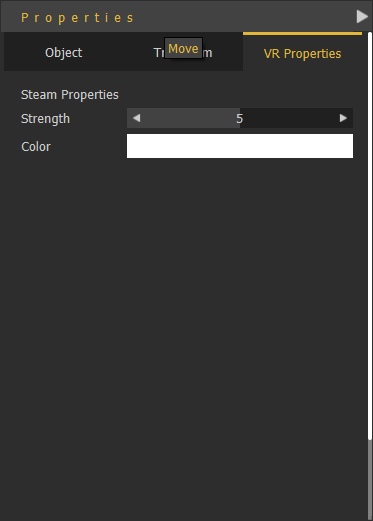](https://simlab-soft.com/help/uploads/images/gallery/2022-10/RVzimage.png)
##### Create Wire/Rope
Creates connecting wires in the scene, like connecting the soldering kit shown below with its electric plug.
[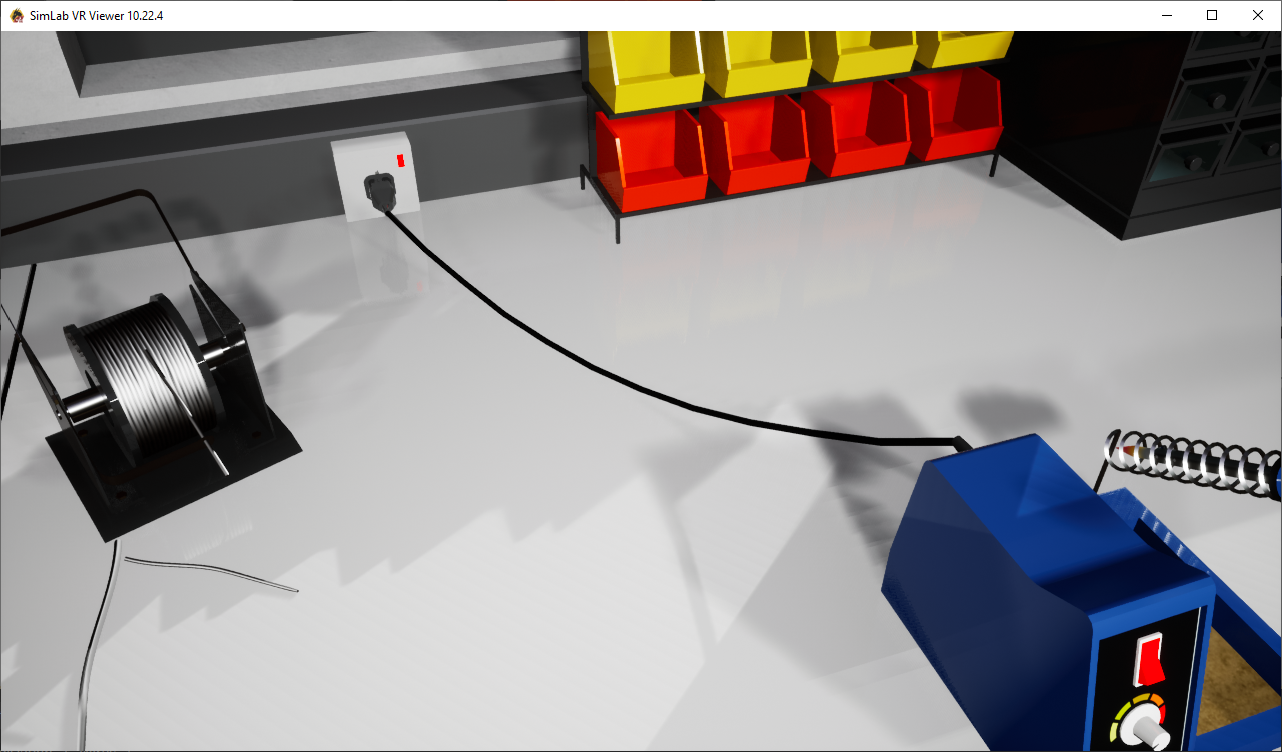](https://simlab-soft.com/help/uploads/images/gallery/2021-12/create-wire2.png)The following tutorial shows the process of creating a wire:
##### Create HoseClicking this tool will create two points in the 3D area, a start point and an end point. Adjust their location to the desired location. For more about this tool check this [tutorial](https://youtu.be/F0o_tARqGl4).
##### Create Spring
Creates a 3D spring model with the length specified by the start and end points selected by the user. A 3D Geom for the spring will be added to the Scene Browser with its two endpoints. These points can be selected and transformed, thus changing the shape/length of the spring.
[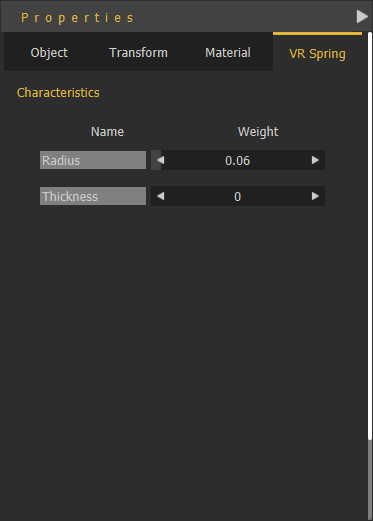](https://simlab-soft.com/help/uploads/images/gallery/2022-10/LR1image.png)With the created spring selected, its Properties panel will appear, VR Spring properties Radius, and Thickness can be edited.
### Landscape Group
#### Make Water
Make water works on one object or group of objects, the process is as follows:
1. From the **Effects** menu » select **Make Water**.
2. Select 3D object(s) to become water, then click [](https://simlab-soft.com/help/uploads/images/gallery/2022-01/image-1641559302867.png)
In the **Scene Browser** notice that the shape of the icon for the 3D object(s) has changed to a water shape.
The water settings can be adjusted from the **VR Water** tab in the **Properties** dialog. Water settings are:
- **Water Color:** The user can select a color to use for the water.
- **Water Depth,** **Water Speed, Water Turbidity, Wave Speed, Wave Size and Wave Roughness:** These parameters can be used to make more realistic water surface.
[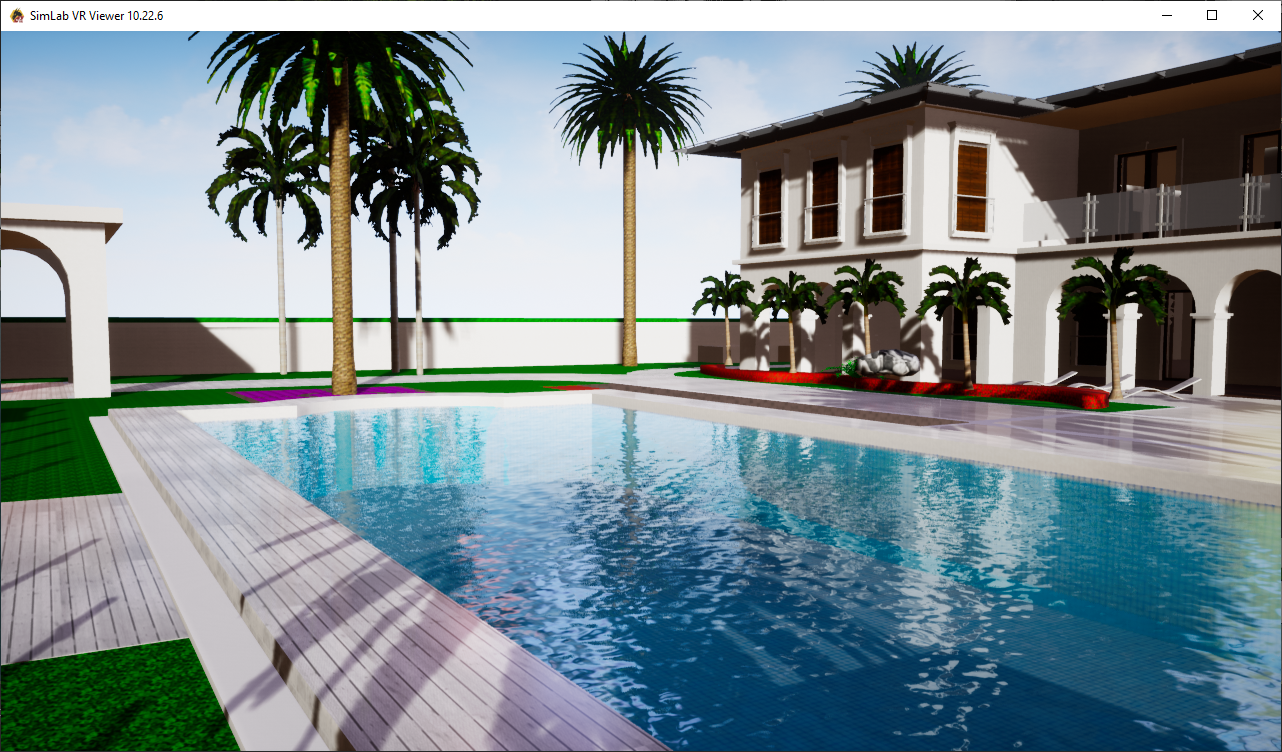](https://simlab-soft.com/help/uploads/images/gallery/2021-12/image-1640854173697.png)
To remove the water effect, from **Scene Browser,** top combo box, select VR Landscape. An 'X' mark will appear next to the water geometry, click it to remove the water effect.
[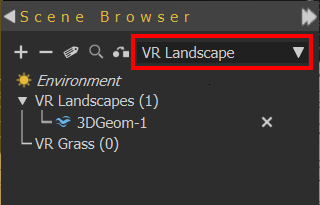](https://simlab-soft.com/help/uploads/images/gallery/2022-01/5NYremove-water.png)
#### Make Ground
Ground objects are objects the user can teleport to in VR. By default the user does not need to set ground objects. Any object with good orientation (has normal close to the up vector) is considered ground.
If the user wants to have more control and wants to prevent others from moving all around the scene, the user can use **Make Ground** to define the object(s) the user can teleport to. When **Make Ground** tool is used, **default ground is turned off**, and only objects defined as ground by the user are considered as ground
Push and hold the stick on a VR controller to activate teleportation mode. Then Release to teleport to a valid destination.
- A **green teleportation** pointer indicates possible teleportation on an object.
- A **red teleportation** pointer indicates forbidden teleportation on an object.
#### Grass
Enable users to add realistic grass effect to VR scenes. Selecting this VR effect will open the VR Grass Generator dialog.
[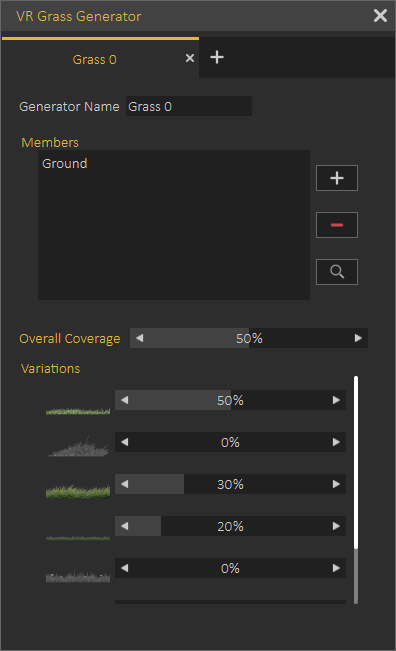](https://simlab-soft.com/help/uploads/images/gallery/2021-12/image-1640855433922.png)
VR Grass Generation dialog allows the user to control:
- Generator Name
- Geometry the grass should be added to, select the geometry then click (+)
- Overall Coverage with grass from the selected object
- The percentage of the different kinds of grass to be generated
The following video shows a sample of Grass effect in action:
The following tutorial shows how to use grass in Composer or VR Studio:
### Media Group
#### Make Video
With Make Video effect, the user can convert any 3D object to a video player. The video should be an **MP4** file.
The user can use a URL link in which case the video will be streamed during the VR Experience, or a local link for a file on the users machine. Local videos are automatically added to the VR Experience package, so the videos can still play when VR Experiences are distributed
The following dialog shows the VR Video properties:
[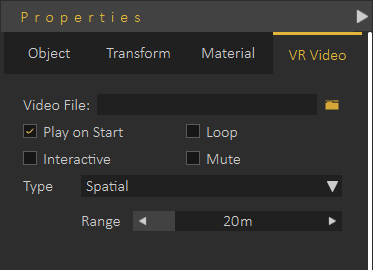](https://simlab-soft.com/help/uploads/images/gallery/2021-12/image-1639765420586.png)
To learn how to use Video effect in VR, check the following tutorial:
#### Remove Video
To remove a video click the "X" mark in the Scene Browser next to the 3D geometry including the video.
[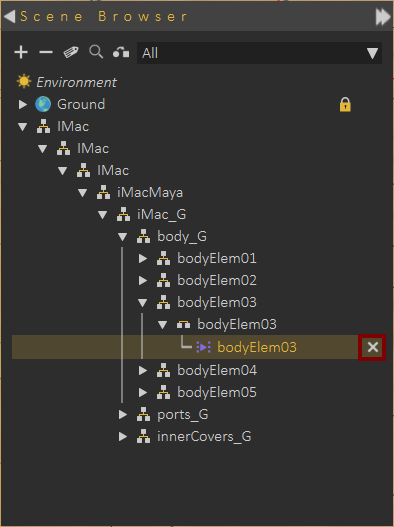](https://simlab-soft.com/help/uploads/images/gallery/2021-12/image-1639765500793.png)
**Video Action** response in VR Training Builder can be used to control the Video play in VR. It can be used to pause, play, toggle, or seek in VR, as a response to an event. For more info about Video Actions in VR Training Builder check this [tutorial](https://youtu.be/96HWC7eufGk).
#### Create Sound
This function adds 3D Sound object to the scene, and the **Scene Browser**. Selecting the 3D Sound form the tree will display its properties in the **Properties Panel**, **VR Sound** tab. The 3D sound object occupies a location in the 3D scene.
The user can determine if the sound should be played on start of the scene, or not. To be played once or in a loop.
The type of the 3D Sound can either be **Spatial**, which means the sound volume is automatically affected by the location of the 3D sound in the scene, or **Constant**. Constant sounds when played has the same volume in all areas of the scene.
[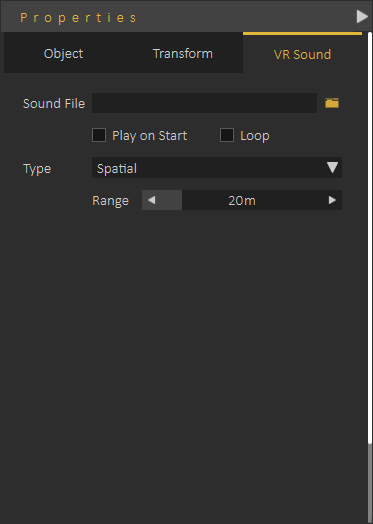](https://simlab-soft.com/help/uploads/images/gallery/2021-12/image-1640856128399.png)
For more information about VR Sound check this **[tutorial](https://youtu.be/Pv1OFdxb8dE)**
### Create Web Browser
Adds a flat screen **VR Web Browser** element to the Scene Browser, and the 3D area. In the Properties dialog under the **VR Web Browser** tab the user can input the URL for the browser to display.
[](https://simlab-soft.com/help/uploads/images/gallery/2021-12/image-1640856957969.png)
The user can change the width and height of the Web Browser plane using the white points that appear on it when selected. The web browser can be placed on a PC screen, or a full wall in the VR Experience.
[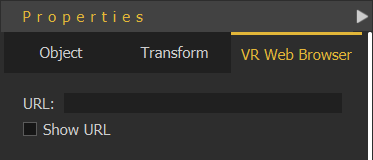](https://simlab-soft.com/help/uploads/images/gallery/2022-01/wbbvr-webbrowser.png)
#### Create Surveillance Plane
**Surveillance Plane** allows the user to view far or not easy to view parts of the scene using **a VR Camera**. VR Surveillance plane is linked to the camera so it shows what the camera is seeing. The following tutorial shows how to use **VR Surveillance.**
Creating **VR Camera** is available under **VR Viewer menu.**
[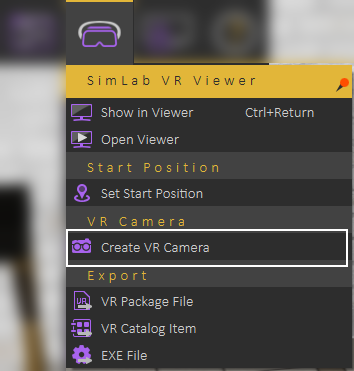](https://simlab-soft.com/help/uploads/images/gallery/2021-12/image-1640857427829.png)
#### VR Slides Generator
PowerPoint presentations or PDF files generated in the past can now be utilized easily in VR Experiences. In few clicks you will be able to get the presentation and optionally a small podium version of it for an amazing VR Experience.
VR Slides Generator tool will automatically create the needed training builder blocks to make it easy to utilize slide switching as an event, for example to show/hide a 3D object that works well with[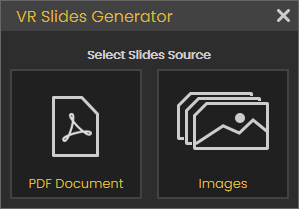](https://simlab-soft.com/help/uploads/images/gallery/2023-06/Ytximage.png) your presentation. To learn more about this tool check this **[tutorial](https://discordapp.com/channels/1062715275805470821/1072111738184552478).**
###
### UI Panel Group
#### Create Variable Writer
This tool enables the user to track the value of a **VR Variable** in the VR experience.
Click [Here](https://simlab-soft.com/help/link/22#bkmrk-variables-and-expres) to learn more about creating VR Variables.
The value of the variable will be updated dynamically, so whenever the variable value changes the variable writer will be updated to show the new value of the variable. The user can control the size, and place for the variable writer, so it can be aligned on a wall in the scene or on a monitor.
User selects which variable to view, color of the text, and prefix text.
You can also change its horizontal and vertical text alignment, check **"Max String Length"** to keep the font size fixed, and finally check **"Editable"** if you want to be able to edit the variable that it contains directly while running the VR Experience in the Viewer
#### Create Scene States Lister
Scene State Lister automates the processes of showing the **Scene States** in the scenes and allows the user to switch between them during the VR Experience.
Adding a Scene State Lister will add it to the 3D area, and the Scene Browser. The user can control **Scene State Lister** parameters from VR Scene State Lister tab in the **Properties Panel**, as shown in the following image.
[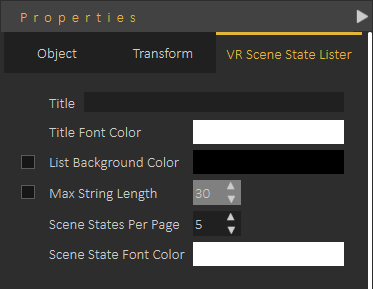](https://simlab-soft.com/help/uploads/images/gallery/2021-12/image-1640859822645.png)
The following tutorial shows how to use **Scene State Lister** in a VR Experience:
# Interactions Menu
Allows users to define interactions in VR scenes.
[ ](https://simlab-soft.com/help/uploads/images/gallery/2022-01/interactionsmenu.png)[ ](https://simlab-soft.com/help/uploads/images/gallery/2023-01/image.png)[ ](https://simlab-soft.com/help/uploads/images/gallery/2023-11/77limage.png)[ ](https://simlab-soft.com/help/uploads/images/gallery/2024-09/Lm7image.png)[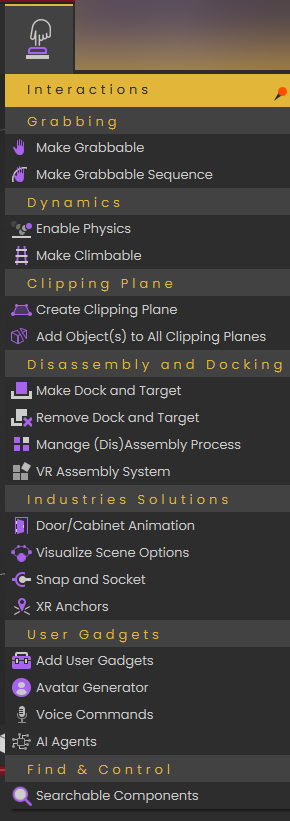](https://simlab-soft.com/help/uploads/images/gallery/2025-08/nHBimage.png)
### Grabbing Group
#### Make Grabbable
Makes selected object(s) **grabbable** in the scene. A grabbable object is an object that can be grabbed by a controller in a VR Experience or using the desktop hand and can be moved from one place to another.
[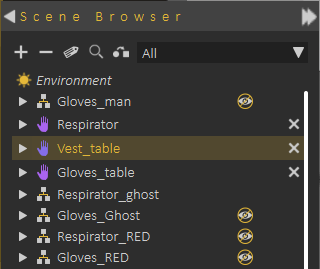](https://simlab-soft.com/help/uploads/images/gallery/2021-12/image-1640597943069.png)
Grabbable objects are highlighted clearly in the **Scene Browser**
---
Grabbable objects are highlighted in the Desktop or VR viewing modes with orange or red highlight , as shown in the following image:
[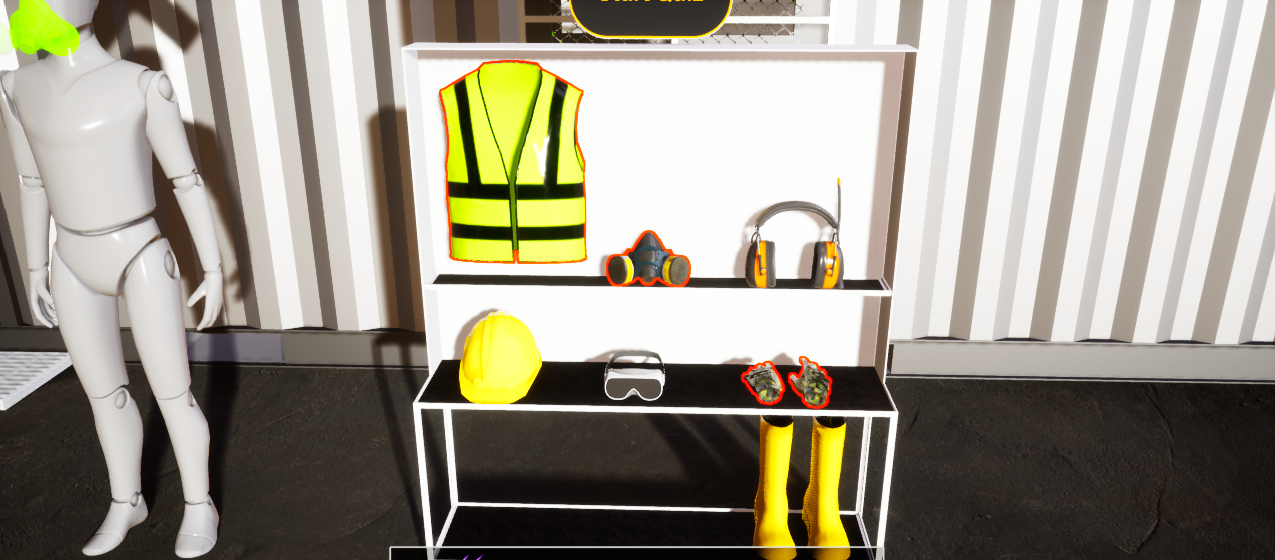](https://simlab-soft.com/help/uploads/images/gallery/2021-12/image-1640598102544.png)
#### Make Grabbable Sequence
Grabbable sequences allow users to interact with 3D object(s) in the Viewer by linking them to animation sequences. In the image below, an animation to control the arm was saved as a sequence, then linked to the arm object using **Grabbable Sequence**. When the arm is grabbed in the Viewer the path appears and the user can move the grabbed object along the path.
[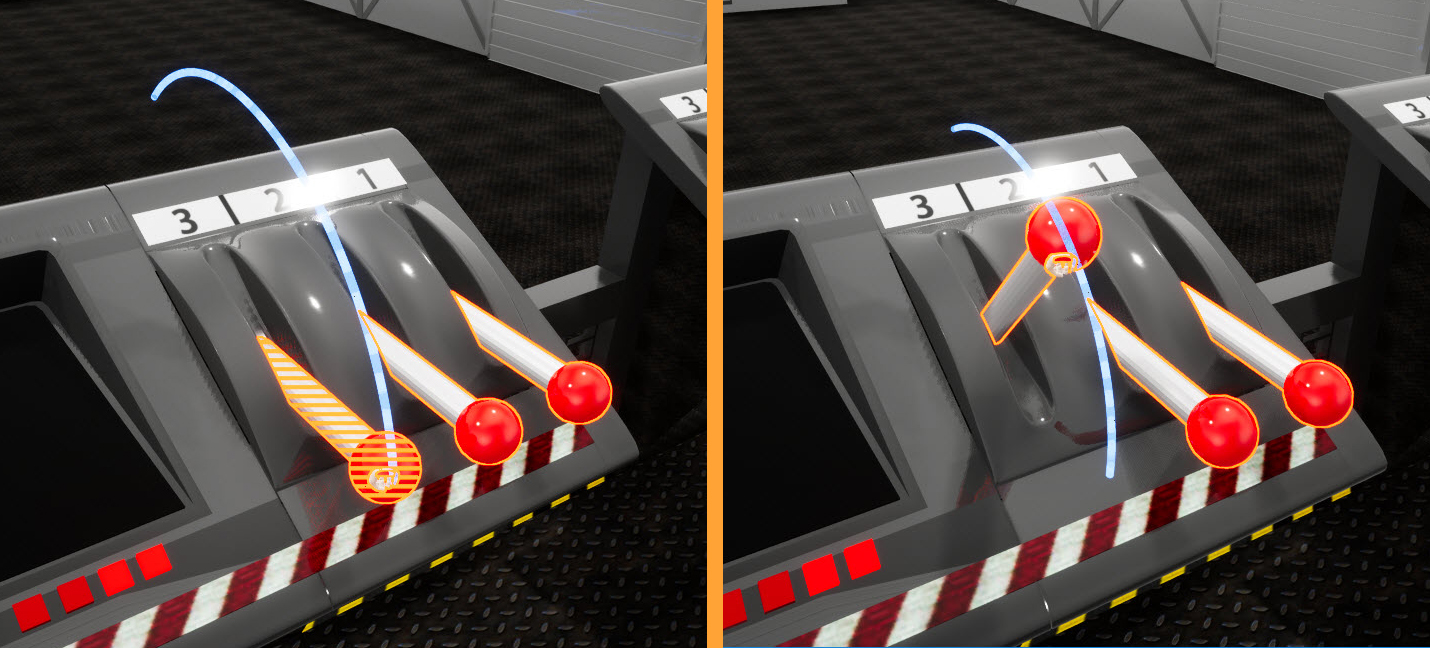](https://simlab-soft.com/help/uploads/images/gallery/2021-12/image-1639835396166.png)
The following tutorial shows how to create and use **Grabbable Sequence**
### Dynamics Group
#### Enable Physics
The physics feature allows for the object to have physical properties such as gravity, mass and friction. To add physics to an object select **Enable Physics** then select the object you want.
#### Make Climbable
With this feature, selected objects in the scene can be made climbable such as ladders. Just click **Make Climbable** and select the object you want.
Check this **[tutorial](https://youtu.be/uvifY6bfMoo)** for more about these two features.
**To adjust the Density and Restitution properties**, which impact how objects behave during physics simulations, follow these steps:
1- Choose the material(s) applied to the physics objects.
2- Navigate to the Physics properties.
3- Update the Density and Restitution values according to the instructions illustrated in the accompanying image.
**Training builder** gives the user the option to enable/disable physics on physics objects in the VR Experience.
The response for doing that is shown in the following image:
[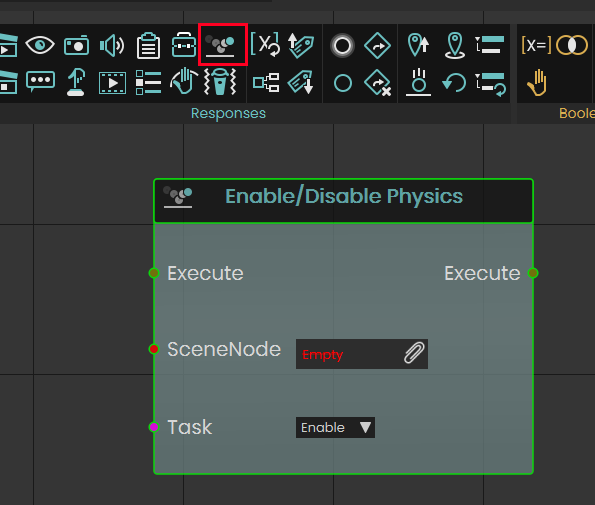](https://simlab-soft.com/help/uploads/images/gallery/2024-03/7RIimage.png)
---
### Clipping Planes
[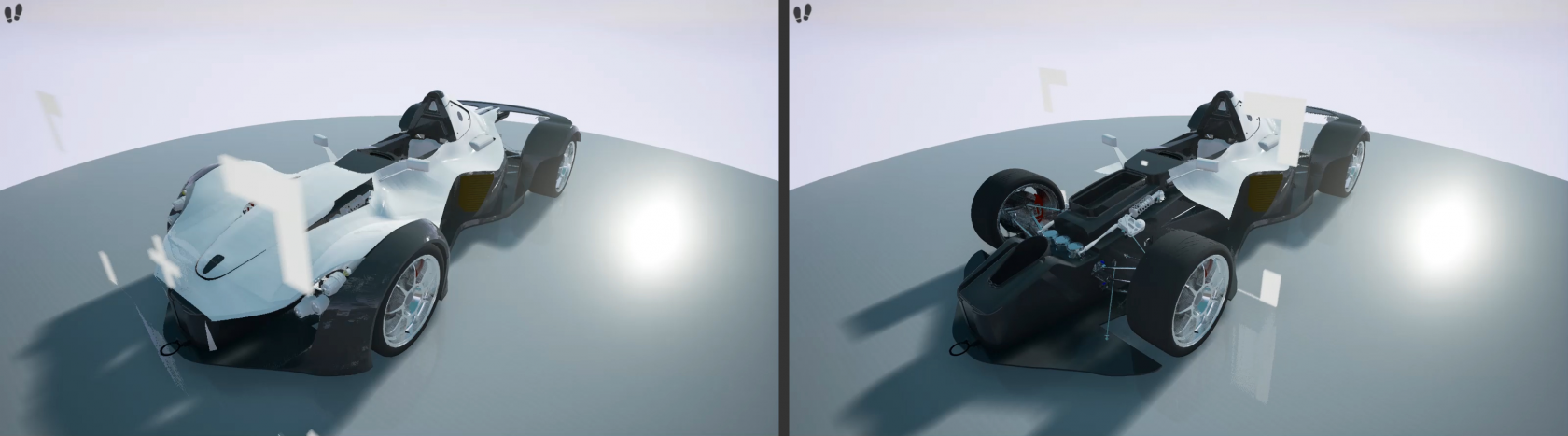](https://simlab-soft.com/help/uploads/images/gallery/2021-12/image-1639838990390.png)
Also known as Section Planes in VR, it can be static, animated, grabbable, and turned on/off dynamically. By determining the Clipping Plane and Clippable Objects the user can make clipping effects for some or all objects in the scene. The clipping plane can be static or it can be animated showing Clippable Objects as it moves, the **Clipping Planes tutorial **will show you how to use Clipping Planes and assign Clippable Objects
From **VR Clipping Plane** tab in the **Properties Panel**, the user can select to show or hide the clipping plane. The direction of the clipping plane normal determines the clipped section of the model.
[](https://simlab-soft.com/help/uploads/images/gallery/2023-01/gV7image.png)
### Disassembly and Docking Group
#### Make Dock and Target
**Dock** is the static object, and **Target** is the (**grabbable**) moving one, so Target needs to be made Grababble first. After selecting this function the user will be asked to Select Dock Node, then to Select Target Node, and last to configure object orientation.
In the VR Experience, the user grabs the **Target** and when it is released (grab ends) while it is intersecting with the **Dock**, it is moved to the docking target's predefined position.
#### Remove Dock and Target
Selecting this function will prompt the user to Select Dock Node, and Select Target Node then the relation will be removed
The following tutorial shows how to create Dock and Target interaction in SimLab Composer and Studio:
#### Manage (Dis)Assembly Process
In case the assembly/disassembly process is linear, which means it goes in a defined order this function can be used. It simplifies the process and makes it move in a very specific scenario. Highlights will guide the user throughout the assembly/disassembly process with ease and without any confusion. **Green highlight** object in an assembly refers to the currently available part of the system that can be removed. **Yellow highlight** indicates that the object can be grabbed.
**Blue highlight** in the assembly indicates that the object can be placed there.
Press Right Mouse to toggle the hand. The hand has a fixed position in the view, and will teleport to the grabbable object when you click on it, and will keep grabbing as long as you hold the button.
The assembly management interactions, and settings:
- Plus button: Adds the selected node (from the 3d area) to the disassembly diagram. If a disassembly graph node is selected, it will become the parent of the newly added node.
- Ladder button: Change the parent of selected disassembly graph nodes, a graph node must be selected before clicking this button, and the graph node selected afterward will become the new parent -or- if a blank space is selected, the graph node will become independent (with no parent).
- Red Minus button: Removes a node from the graph.
- Create new: Create a new disassembly diagram.
- Rename: Change the name of the disassembly diagram.
- Delete: Remove the disassembly.
**Note:** Training Builder can be used for creating a more open assembly/disassembly process. It can be used to define the logic for the processes, giving the user more control without forcing her/him to adjust the model structure in Scene Browser or go through a single path of exclusion.
#### VR Assembly System
Assembly/Disassembly System in SimLab Composer and Studio (Ultimate), seamlessly assemble and disassemble components with precision and flexibility.
Key Features of the New System:
**Logical Order Enforcement:** The system ensures a logical process, such as requiring screws to be removed before detaching the parts they secure. However, the sequence of removing screws is flexible, take them out in any order you prefer!
**Interchangeable Parts Recognition:** Recognizes parts like washers and screws as interchangeable, allowing substitutions as needed.
**Tool Integration:** Supports the use of tools to remove or place objects, making the process more realistic and efficient.
**Optional Ghost Guides** Enable ghosted visuals to easily identify the correct placement for objects, simplifying the assembly process.
This system is robust enough to handle even large and complex assemblies, as demonstrated in the video below.
**Support for Subassemblies**, Users can disassemble and reassemble subassemblies as needed. A subassembly must be fully reassembled before it can be placed back in the main assembly.
**Custom Control Over Assembly States**, For advanced scenarios, users can use new response options to control the state of individual parts during the assembly process.
The tutorial below demonstrates how to effectively use these features:
**select dependency mode,** In mechanical assembly, creator is able to select dependency mode, it can be All (this was the default in 14) or Any.
For example, with screws, user might need to remove all screws before taking the part, so in this case All is used. In other situations, the user might be able to disassemble a part from multiple sides. In that case, use the any option—if the part is free on the left or right, it can be taken apart, that is where Any can be used. This is shown in the following tutorial.
### Industries Solutions
SimLab Composer is continuously adding new features to make the experience of its users more joyful, and easier.
#### Door/Cabinet Animation
Automatically creates an animation for an object depending on its type. This can be useful for scenes with multiple objects of the same type. There are two main methods for defining which objects to animate:
[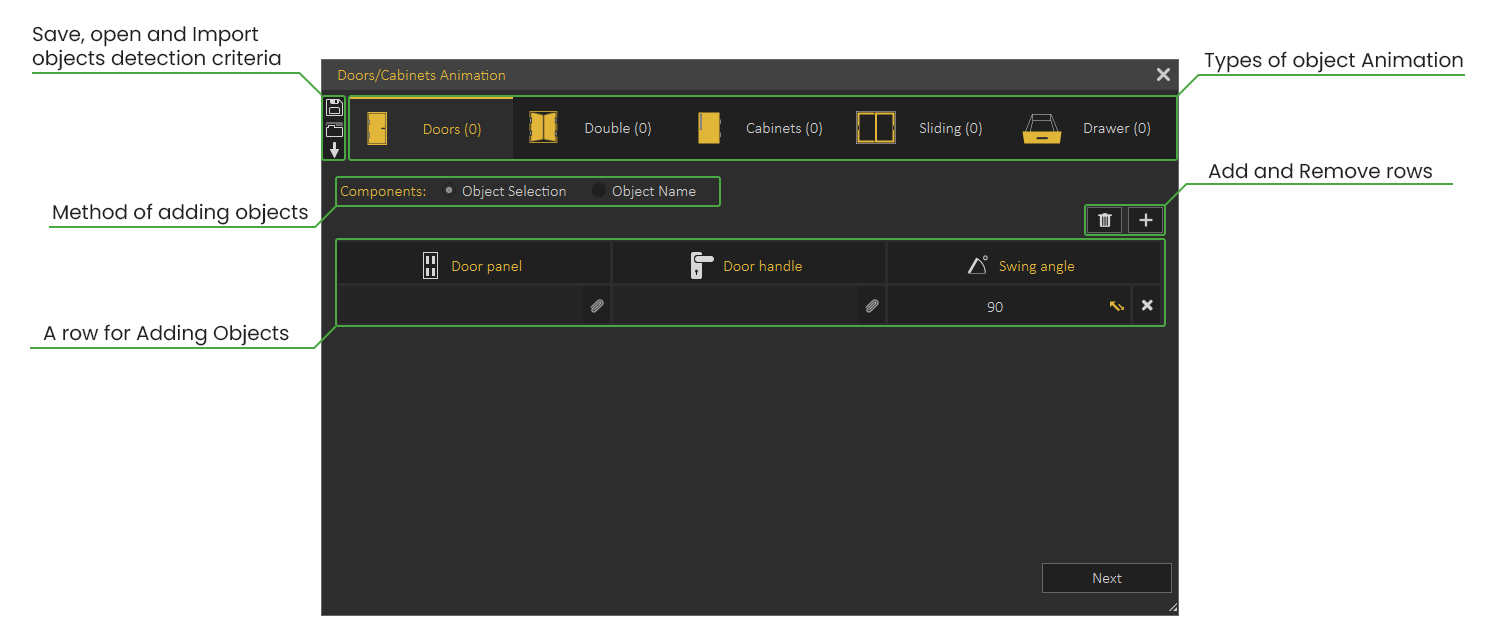](https://simlab-soft.com/help/uploads/images/gallery/2021-12/image-1639846169901.png)
##### Object Selection
With this method, the user will manually select the components in the scene to create an animation for.
This method is suitable for scenes with a small number of objects. Check the following tutorial on automatic animation for Doors/ Cabinets using the Object Selection Method
##### Object Name
With this method, the user will type in the name of the components, and the software will automatically find them in the scene and list them.
This method is more suitable for scenes with a large number of objects to animate. Check this tutorial on automatic animation for Doors/ Cabinets using the Object Name Method
##### Doors and Cabinets Settings
- **Send animation to timeline:** Enabling this option sends the created animation as keyframes to the **Animation Timeline**. This can be helpful when you intend to combine multiple animations or modify the animation further.
- **Create animation Sequences:** This option creates separate animation sequences for each object, those sequences can then be used in VR.
- **Animation sequence naming convention:** The user can select the naming method for the sequence.
- **Attach sequences:** This makes the scene ready to be used in a VR Experience. Sequences can be applied as **Actions** (executed when the user clicks on a door or panel) or as **Grabbable Sequences** (the user can open or close interactively in the VR Viewer)
- **Create reversed versions:** Reversed version of animation allows the object to go back to its original state. For example, if you have created an animation for a door opening, a reversed version of the door closing will be automatically created.
[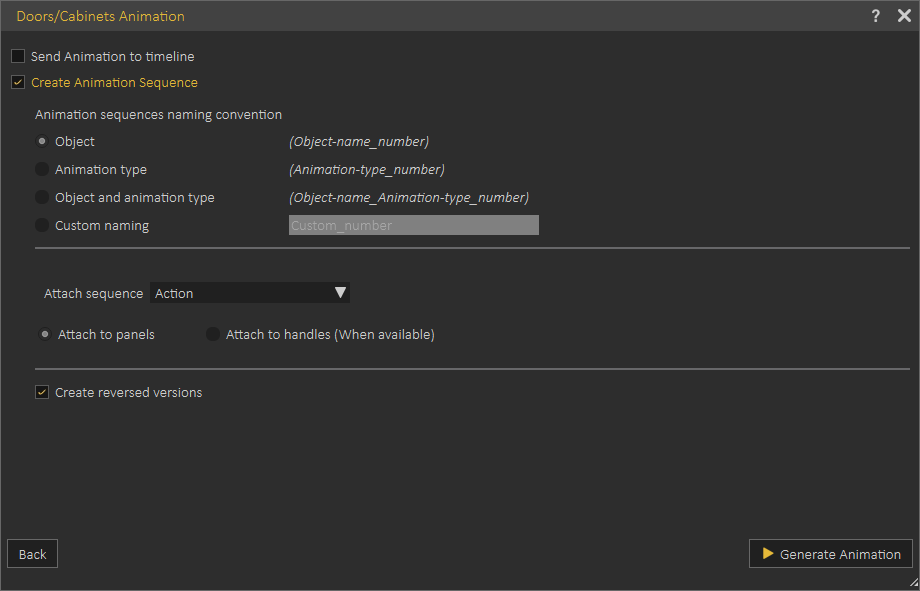](https://simlab-soft.com/help/uploads/images/gallery/2021-12/image-1640601023394.png)
#### Visualize Scene Options
Visualize scene options (scene states and animation sequences) by displaying them as entities in a 3D world for easier and more practical VR Experiences. Check this **[tutorial](https://www.youtube.com/watch?v=vaR9X_8ktP0&feature=youtu.be)** on how to visualize scene options in VR.
[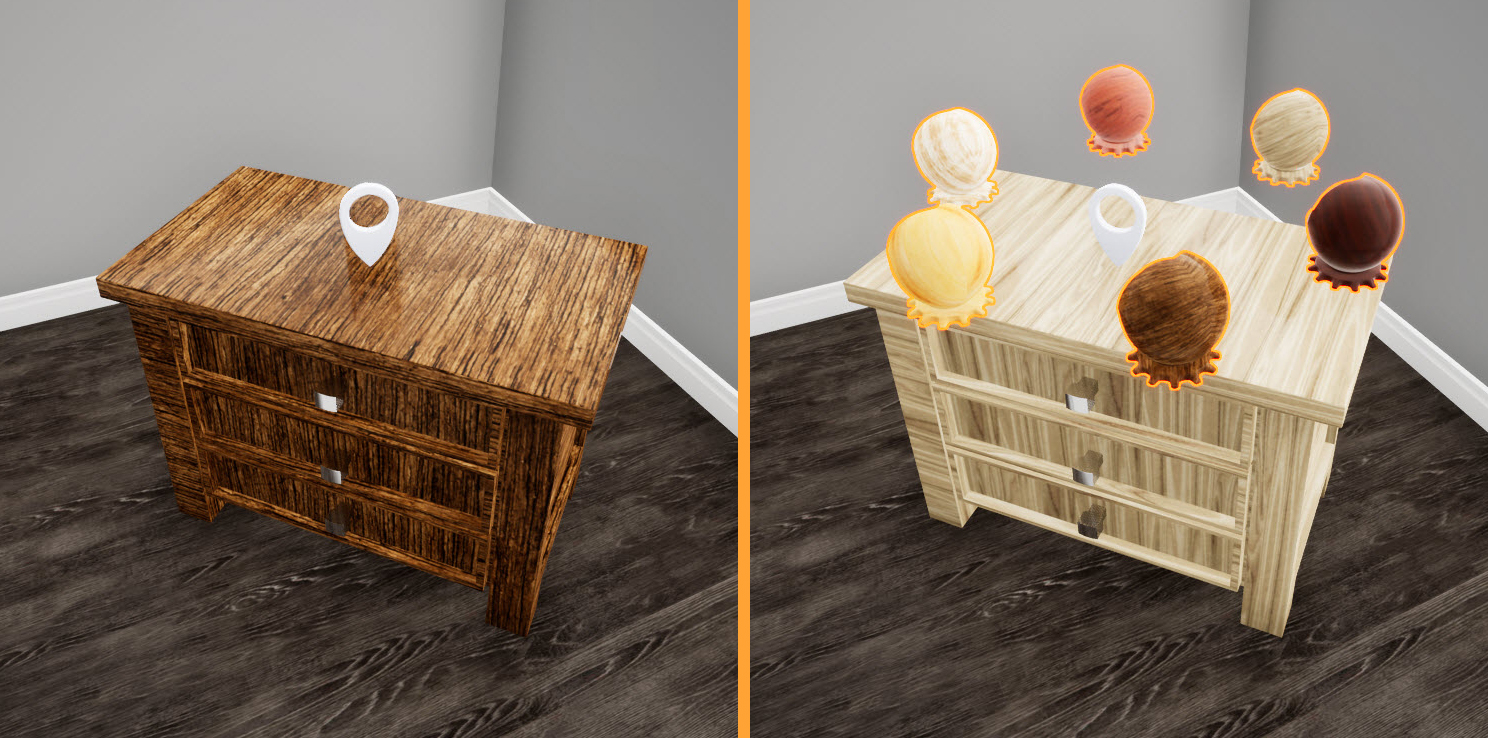](https://simlab-soft.com/help/uploads/images/gallery/2021-12/image-1639846690281.png)
Press "3" on your keyboard in the VR Viewer to show available Pins, "LBUTTON" to select Scene States/Animation Sequences that appear as entities from the Pins.
[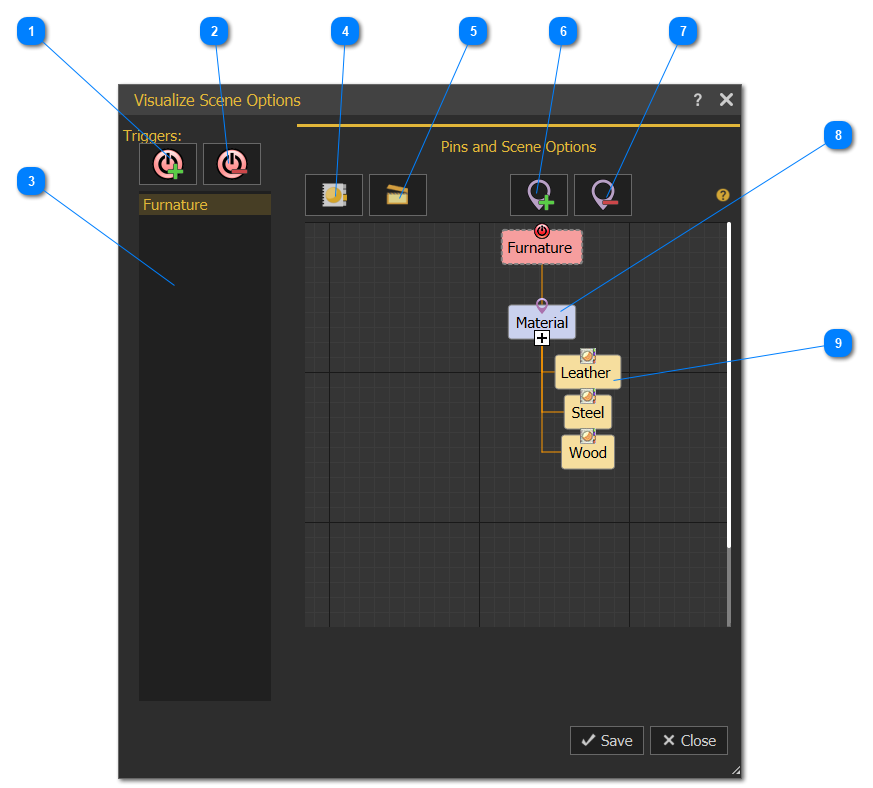](https://simlab-soft.com/help/uploads/images/gallery/2021-12/image-1639848777780.png)
1
Select a Scene Node from the Objects Tree or from the 3D area, then click this option to add a Pin to the selected node, showing its scene states if interacted by the user in SimLab VR Viewer.
2
Remove a Trigger and eliminate any associated Pins and scene options.
3
The list of Triggers.
4
Activates Scene States library to drag-and-drop Scene States from it into Pin nodes.
5
Activates Animation Sequences library to drag-and-drop Animation Sequences from it into Pin nodes.
6
Add a new Pin to the selected node to hold other scene options chosen by the user. Once added, either Scene States or Animation Sequences from their corresponding libraries can be dragged and dropped into it.
7
Remove the selected Pin node from its diagram.
8
Scene States/Animation Sequences can be dragged-and-dropped here from their corresponding libraries.
9
Added Scene States/Animation Sequences
##### Visualize Scene Options - Step by step
1. Create multiple Scene States/Animation sequences (at least two), for a 3D model.
2. From the Interactions menu click Visualize Scene Options.
3. Select the object for which to make a list, Ex: Bedside Table, select the table model then Add a Trigger by clicking [](https://simlab-soft.com/help/uploads/images/gallery/2021-12/image-1639851544234.png)
4. The object name (Bedside Table) should appear on the Pin and Scene Options side as shown in the image. [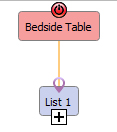](https://simlab-soft.com/help/uploads/images/gallery/2021-12/image-1639851925566.png)
5. Drag and drop created Scene States/Animation Sequence (created in step one) from their libraries into VR List1 one by one
6. The Scene States/Animation Sequence will appear under the VR List1
7. Select List 1 to display its properties, and change its name, and properties[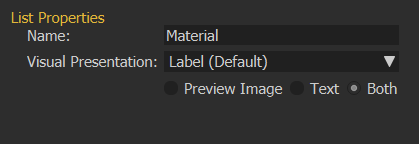](https://simlab-soft.com/help/uploads/images/gallery/2021-12/image-1639852422955.png)
####
Snap and Socket
VR Snapping feature makes building scenes in VR easier and more intuitive. Whether you're designing a kitchen or creating an educational lab, VR Snapping allows you to effortlessly add items and align them perfectly without any extra effort. Setting up VR Snapping in Composer/Studio is simple and gives you full control over how it behaves in the VR environment. Watch the video below to learn how to use VR Snapping
####
XR Anchors
When viewing scenes in XR mode on your Quest headset, you'll be able to attach 3D models to specific physical locations in the real world.
This feature enables you to:
Place training models in actual examination rooms.
Add visual highlights to real-world objects.
Visualize furniture placement in your space.
Watch the tutorial below to see XR Anchors in action.
### User Gadgets Group
#### Add User Gadgets
This function will **add** some gadgets to the **Viewer start model**, as shown in the dialog below:
[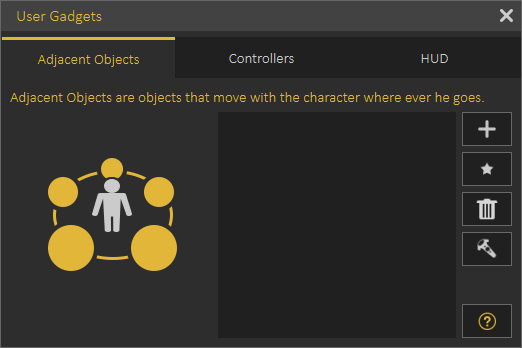](https://simlab-soft.com/help/uploads/images/gallery/2021-12/image-1640602517072.png)
**Adjacent Objects:** These are objects that move with the **Viewer start model** in the VR environment. They can be something like tools (screwdriver or hammer). Check this **[part](https://youtu.be/RagOTsIqSH0?t=118)** of the tutorial for more about Adjacent Objects.
**Controllers**: This allows the user to change the VR controllers with selected 3D models for hands, or gloves. Controllers appearance is only available in VR Mode. The following video shows the effect of using Controllers in the VR experience.
The following tutorial shows how to use controllers gadget in SimLab Composer/Studio.
**Hud:** Hud is a plane shown in front of the user so it is easy to show instructions or current status. The following video shows the Hud appearance in a VR Experience.
The following tutorial describes how to add/use **Hud** and **Adjacent Objects**
****
**Change Equipment State** response in the **Training Builder**, which can be used to control equipment state (Equipped or Unequipped) for all gadgets (**Adjacent Objects**, **Controllers**, and **Hud**)
[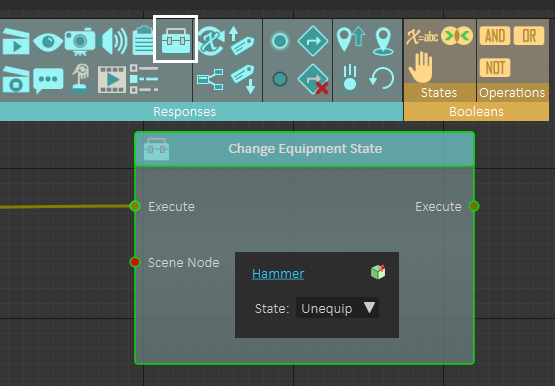](https://simlab-soft.com/help/uploads/images/gallery/2021-12/image-1640603991677.png)
#### Avatar Generator
In this dialog users can build their own avatars from a collection of Faces, Uniforms, Headwear, and Glasses. Avatars are used in VR Collaboration, in SimLab VR Viewer. For more about Avatar Types and Creation check this **[tutorial](https://www.youtube.com/watch?v=uA22RZh-rjU)**
[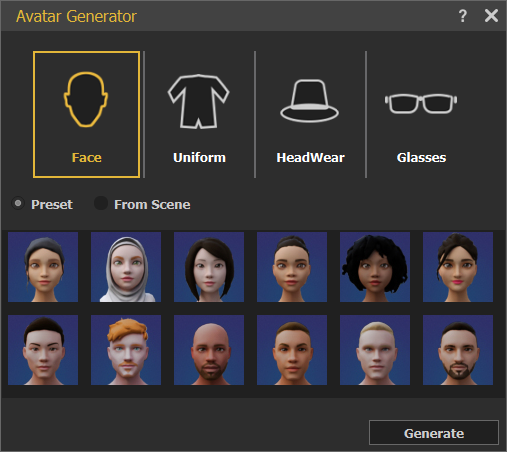 ](https://simlab-soft.com/help/uploads/images/gallery/2023-01/Bwzimage.png)[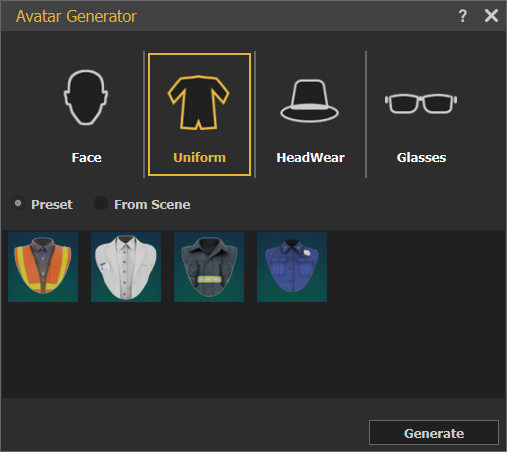](https://simlab-soft.com/help/uploads/images/gallery/2023-01/vwximage.png)
[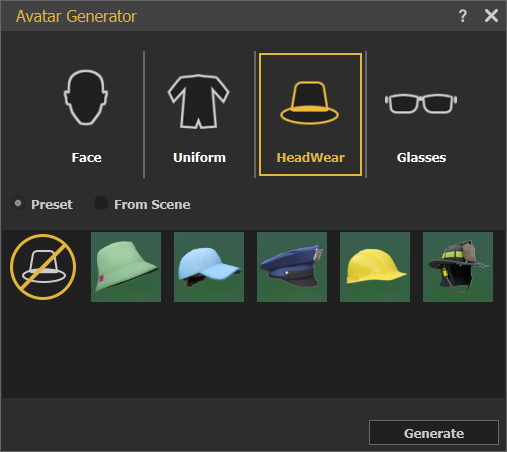 ](https://simlab-soft.com/help/uploads/images/gallery/2023-01/7iUimage.png)[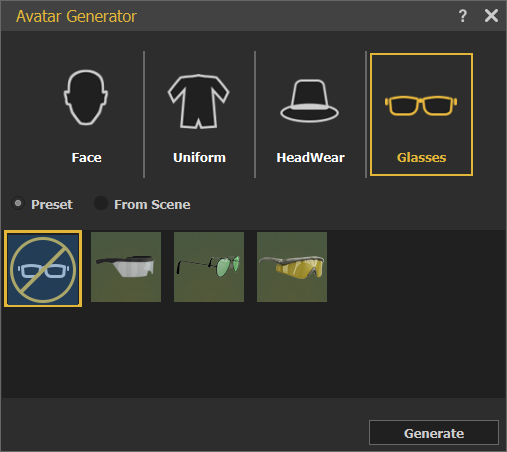](https://simlab-soft.com/help/uploads/images/gallery/2023-01/tpwimage.png)
#### Voice Commands
For improving VR based training that involves interacting with humans in the real world, voice commands support is added.
Voice commands are new events that are fired when the appropriate voice command is said in the experience. SimLab Composer will support voice commands in 20 languages
The following example shows how voice commands can be used in the VR experience.
[](https://youtu.be/7hSdzWdlI1w)
The following tutorial shows how to add voice commands in SimLab Composer/Studio:
#### AI Agents
[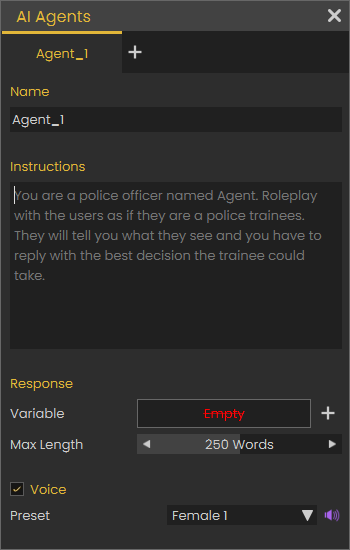](https://simlab-soft.com/help/uploads/images/gallery/2024-09/8HFimage.png)
The user can make it work with 3D Avatars, by describing the agent role, talk to it and get answers in different languages.
The following image shows how to set your OpenAI API key in the viewer
[](https://simlab-soft.com/help/uploads/images/gallery/2024-09/tpnimage.png)
With this feature To learn more about this feature check the following tutorial.
###
Find & Control
#### Searchable Components
With a complex CAD model with good tree structure, this feature can be very useful. It allows users to search for objects then show/hide, isolate, highlight, and grab them while running the experience in the Viewer
# Training Builder Menu
**Training Builder** is a **visual** tool that allows VR Experience designers to control the logic in the VR Experience without the need to write any code.
**Training Builder** allows the user to link an **Event** with **Response**(s)
An **Event** is fired when something happens in the experience, for example when the user clicks on a specific object, or when an object collides with another object. A **Response** is a reaction the VR Experience should do when an **Event** takes place.
For example, when the user clicks on Globe Object (Earth\_geo) Scene Node in the Node Triggered **Event**, it starts the rotation sequence (Play Sequence) **Response**, as shown in the following image;
[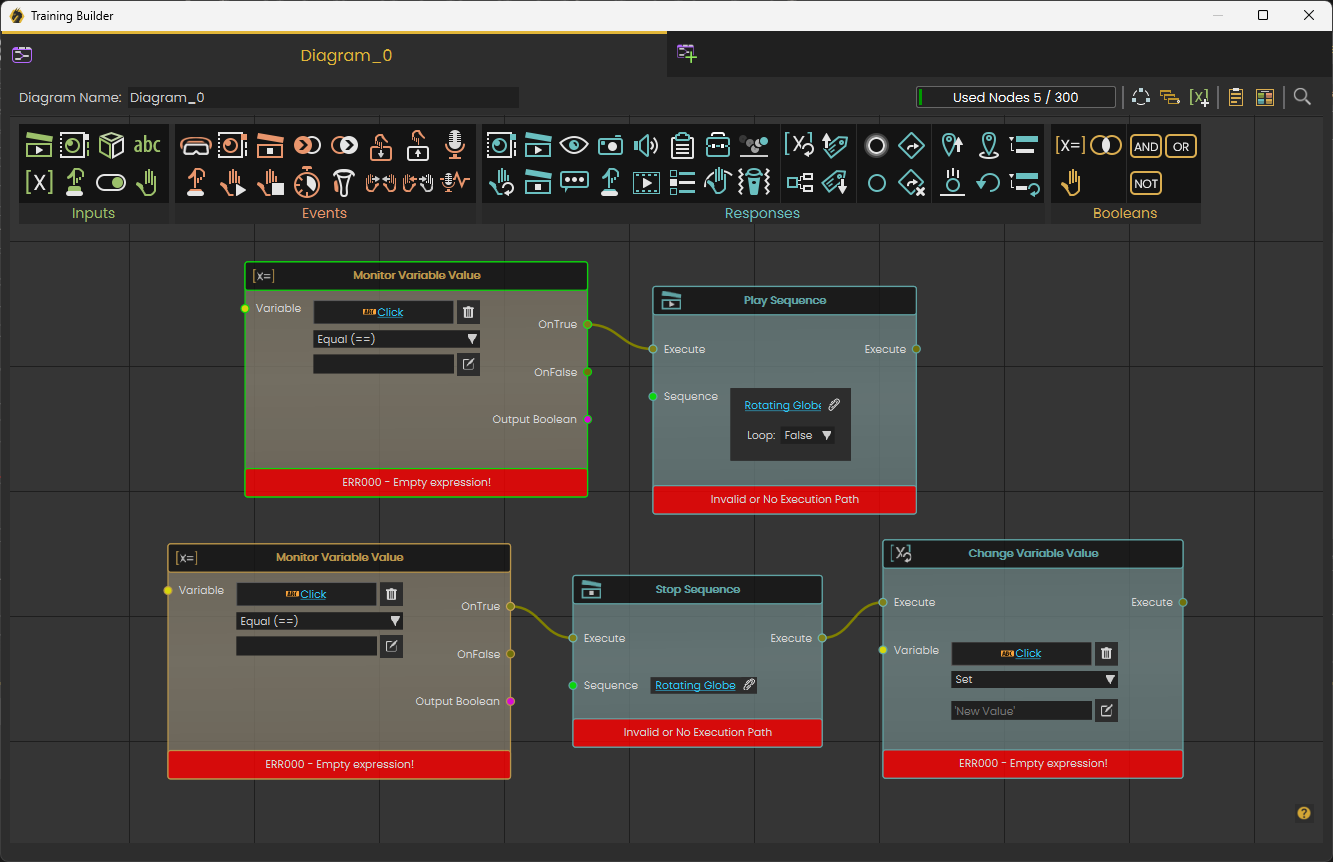](https://simlab-soft.com/help/uploads/images/gallery/2024-01/G4pimage.png)
There is no limit to the number of elements in **Training Builder**. The user can add as many elements as needed in diagrams.
Each Diagram can have up to 300 elements to keep things organized for big projects. For small projects one diagram should be enough, for larger projects the user needs to organize work by keeping up to 300 elements in each diagram.
**[Creating your first VR experience](https://simlab-soft.com/help/link/43#bkmrk-page-title) **can serve as a good first interaction with the **Training Builder** to see it in action:
The following video provides more details about using **Training Builder:**
[**SimLab Academy**](https://youtu.be/IxnOLrPTav0) (in the **Library** panel) under **VR Creation** includes a section dedicated for **Training Builder** tutorials.
[](https://simlab-soft.com/help/uploads/images/gallery/2023-12/r1jimage.png)
### Variables and Expressions
Using **Training Builder** enables users to add variables and use them in creating VR Experiences. Check this **[tutorial](https://youtu.be/vKIfpe1q-K4?t=901)** about using variables in Training Builder.
Supported variables are of the following types:
**String Variable:** Stores object names, message data, ..etc
**Number Variable:** Supports both integer and float numbers. Can be used for calculating, and storing values
**Time Variable:** Can save time at any stage of the VR Experience
#### String Variables
The initial value can be set to any string in the variable editor in the training builder.
When used in **Change Variable** response, the string should be surrounded by single quotations **(' ')**
Expression-supported operations include adding strings and substring
#### Number Variables
Initial Value can be set to any float or integer numbers, the following operations are supported for number variables
**Increment:** Adds one to the current value
**Decrement:** Subtracts one from the current value
**Time Difference:** Calculates the difference in seconds (up millisecond precision) between two-time variables
**Expression:** large number of expressions are supported, list of supported expressions can be found in the following **[link](https://www.simlab-soft.com/3d-products/vr-expressions.aspx?utm_source=Composer&utm_medium=Tooltips&utm_campaign=Tooltips)**, The following tutorial shows how expressions can be used in **Training Builder**
#### Time Variables
The initial value for all time variables is set to the start time of the VR Experience, at any point of the VR Experience the user can capture the current time and store it in a time variable
#### Variable writer
This tool enables the user to track the value of a variable in the VR Experience
The value of the variable is updated dynamically, so whenever the variable value changes the variable writer will be updated to show the new value of the variable. **Variable Writer** is available under the **[VR Effects Menu](https://simlab-soft.com/help/books/simlab-vr-studio-help/page/vr-effects-media-menu#:~:text=bkmrk%2Dpage%2Dtitle-,VR%20Effects%20/%20Media%20Menu,-This%20menu%20allows)**.
The user can control its size, and place, so it can be aligned on a wall in the scene or on a monitor, user selects which variable to view, the color of the text, and the prefix text.
### Create/Edit Variables
Variables can be created and edited by clicking the **Edit Variables** button at the top right part of the **Training Builder.** It allows the user to view/ delete/ change the initial values of existing variables, or create new variables.
Clicking '+' at the top right corner of the **Edit Variables and Initial Values** dialog will add a new variable. The user can click to change the name of the variable, select its type from the combo box, and set its initial value.
[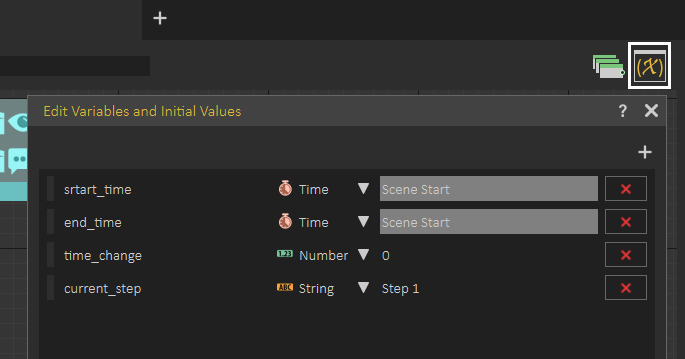](https://simlab-soft.com/help/uploads/images/gallery/2021-12/image-1640786112008.png)
#### Inputs
Inputs are entities used as triggers for actions in the **Training Builder** diagram. For example, if multiple nodes in the diagram use a **Scene Node**, it can be used as input and be connected to multiple blocks. Updating the input once will be reflected on all blocks using this input.
[](https://simlab-soft.com/help/uploads/images/gallery/2023-12/x5Oimage.png)
#### Events
Events are triggered when something happens in the VR Experience.
[](https://simlab-soft.com/help/uploads/images/gallery/2023-12/5NNimage.png)
The following image shows how to use **Scene Start** Event, which takes place as soon as the VR Experience starts, to play Sound Action **Response**.
[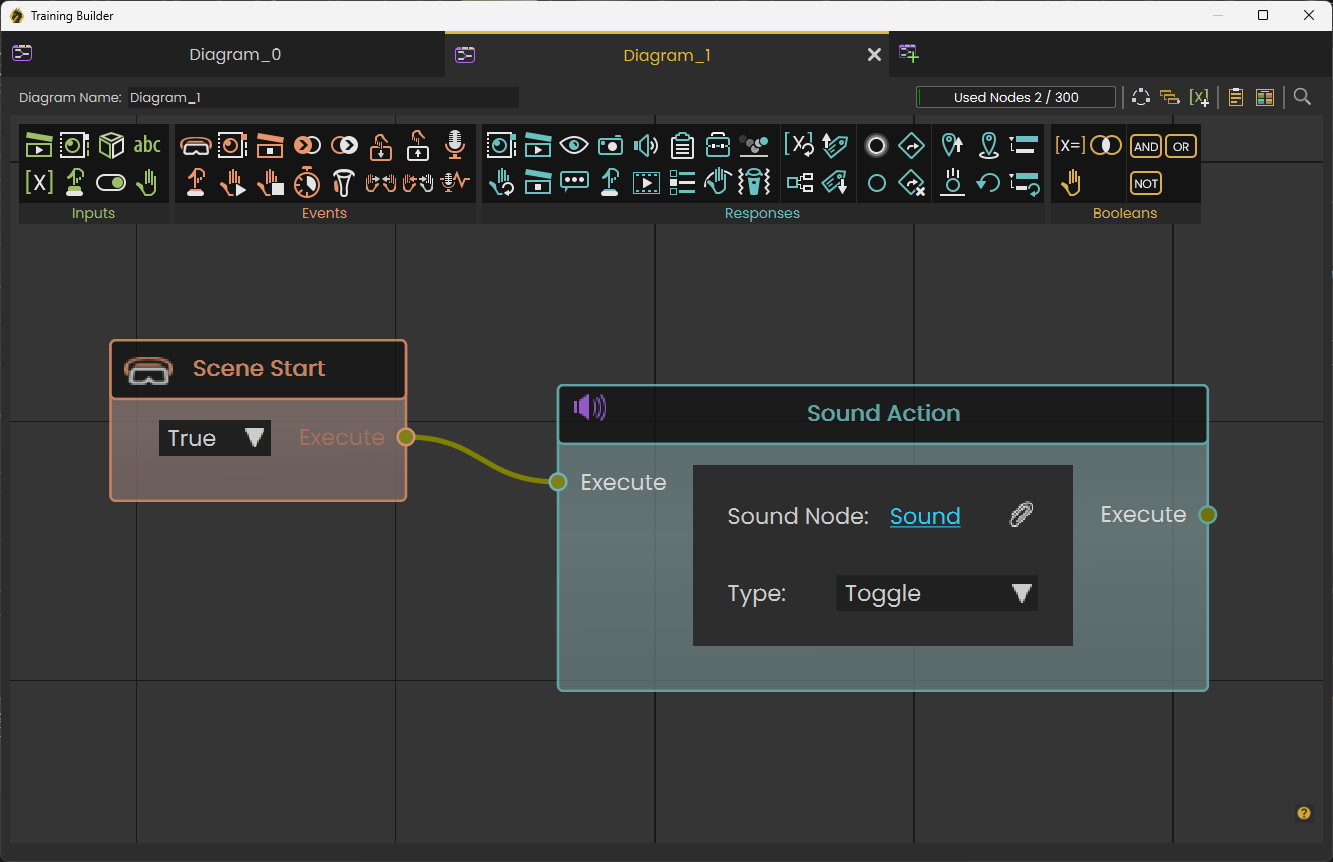](https://simlab-soft.com/help/uploads/images/gallery/2024-01/CGZimage.png)
To learn more about Grip Press event check this **[tutorial](https://youtu.be/2-m_s1rwrLc)**.
#### Responses
Responses are defined reactions to events. To link a **Response** to an event, the user needs to simply connect the Execute channel from the **Event** to the Execute channel of a **Response.** The user can connect the output Execute channel from a Response to the input Execute channel of another response to guarantee the order of execution and to link multiple responses to an **Event.**
[](https://simlab-soft.com/help/uploads/images/gallery/2023-12/KLqimage.png)
The diagram below shows responses for clicking on an object (Node Triggered)
1- Play a Sequence
2- Wait for 2 seconds
3- Hide an object from the scene
[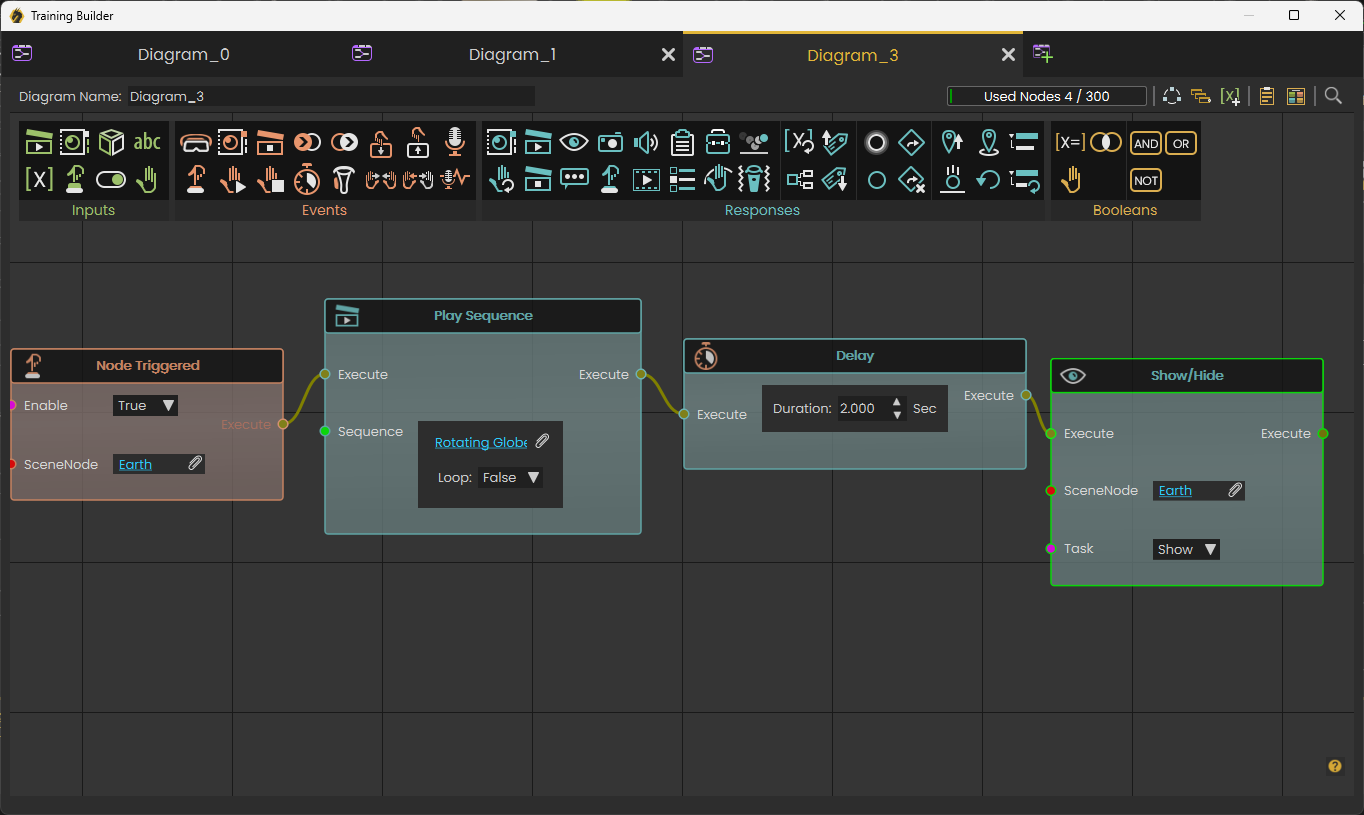](https://simlab-soft.com/help/uploads/images/gallery/2024-01/nzximage.png)
To learn more about Vibrate response check this **[tutorial](https://youtu.be/2-m_s1rwrLc)**.
#### Booleans
Booleans include two groups **States**, and **Operations.**
[](https://simlab-soft.com/help/uploads/images/gallery/2022-09/trjimage.png)
**States** are similar to events, and the current state can always be gotten from them. For example in the following image, **Objects Overlap** is shown, if the two objects Overlap you get OnTrue execution, as soon as they do not, you get OnFalse execution. The output Boolean value can be checked at any point to see if they are Overlapping on not. OnTrue or OnFlase are **only fired when the state changes.**
[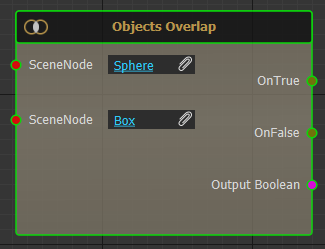](https://simlab-soft.com/help/uploads/images/gallery/2022-09/e0bimage.png)
**Operations** allow running Boolean operations on Boolean variables. Supported operations include **And**, **Or,** and **Not**
#### Templates
**Training Builder** works great for describing multiple-step training scenarios. But what if the same behavior is repeated for a class of objects? For example, if the user ends up grabbing any of the tools in the training, the response should be for it to fall to the ground, this is when templates are used.
To Create a **Template** diagram in the Training Builder click **Create Template** button at the top right side of the **Training Builder**.
[](https://simlab-soft.com/help/uploads/images/gallery/2024-01/Wphimage.png)
After clicking **Create Template**, a new **Template Diagram** is added. A template diagram is different from a regular **Training Builder** diagram in its orange background marks, and in Template Scene Node block added to it. This block can not be deleted.
[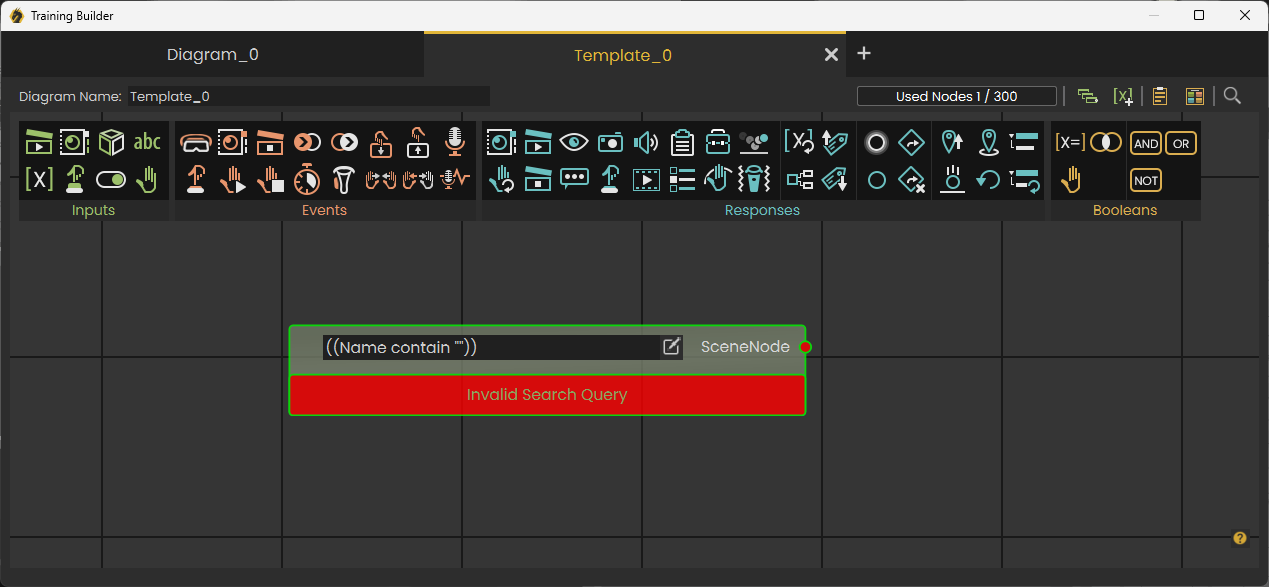](https://simlab-soft.com/help/uploads/images/gallery/2023-12/uzcimage.png)
Template Scene Node block selects a group of Nodes based on a query that can include one or more rows connected with And or Or, as shown in the following image.
[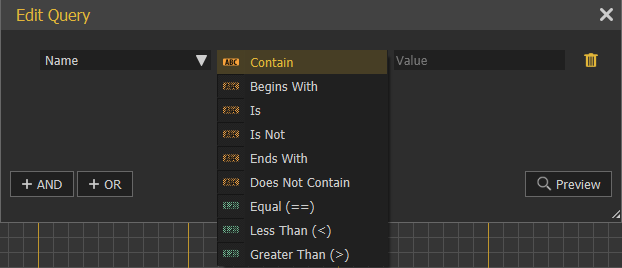](https://simlab-soft.com/help/uploads/images/gallery/2022-09/dNkimage.png)
Logic connected to the Templet Scene Node block will be applied to each Node that satisfies the selection query, for example in the previous image, each object having "box" in its name, and "wood" in the value of its material attribute will be selected.
The following tutorial shows the power of Template Diagrams in the training builder
### Advanced Features
#### Copy Part of a Diagram
To repeat the same logic for more than one object (in case templates did not do the job), part of the diagram can be copied. This is done by using the Left Mouse button to highlight the part of the diagram to copy, while the section is highlighted click **CTRL + C** to copy it, then **CTRL + V** to Paste. After that, the Scene Node Object needs to be changed, and any block needs update.
[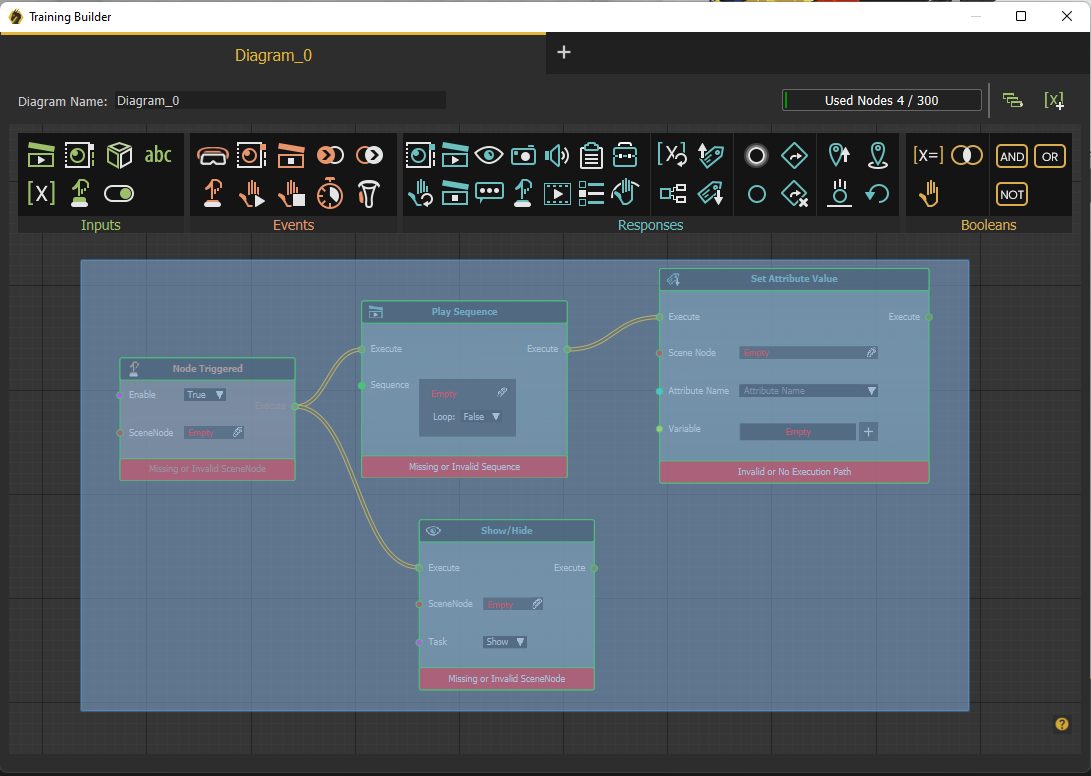](https://simlab-soft.com/help/uploads/images/gallery/2022-09/ZXlimage.png)
#### Drag/Drop of the Scene
To add inputs like a **Scene State** or a **Sequence,** the following process is used:
1- Click on Sequence from the toolbar
2- From Sequence Library select the desired Sequence
3- Click attach Sequence
As shown in the following image
[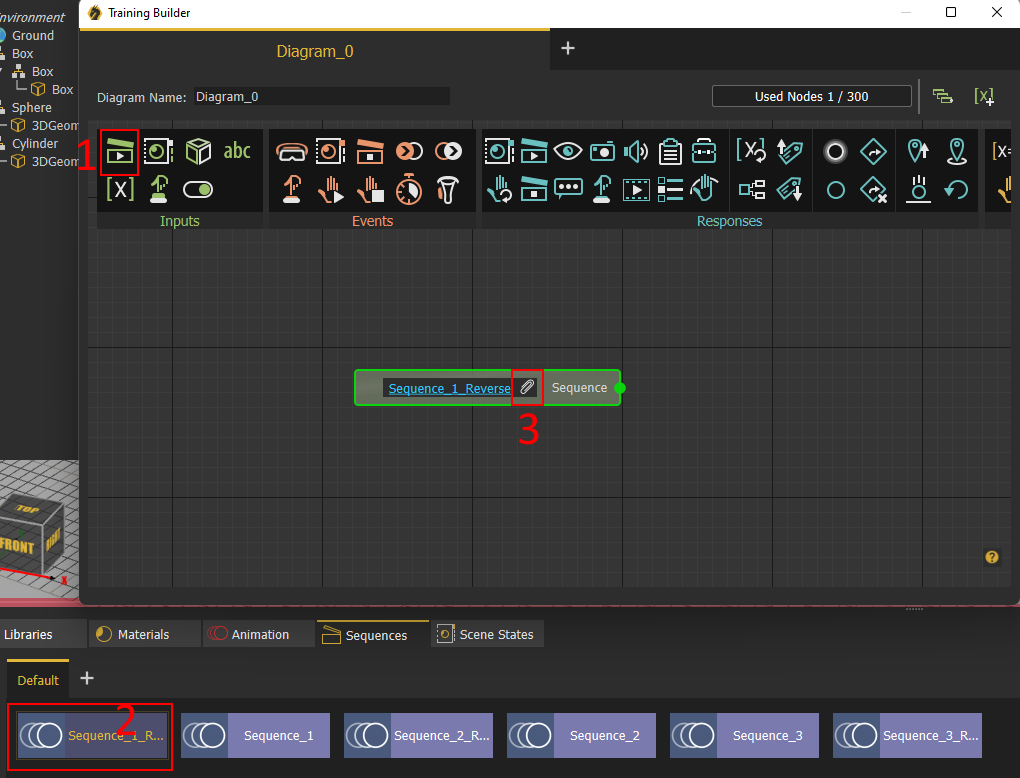](https://simlab-soft.com/help/uploads/images/gallery/2022-09/O7Dimage.png)
If you know the **Sequence** or the **Scene State** you can directly drag it from the Library and drop it on the **Training Builder**
[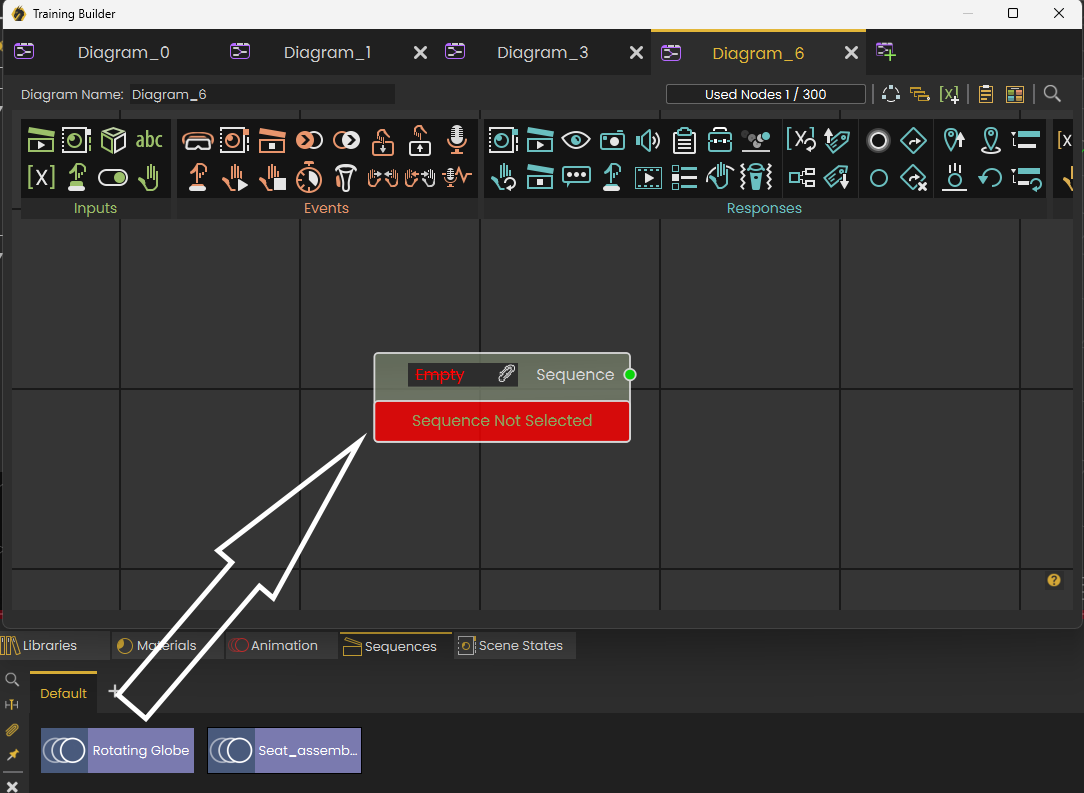](https://simlab-soft.com/help/uploads/images/gallery/2024-02/image.png)
#### Right Mouse
Clicking the Right click in the training builder shows all toolbar elements, organized, so you can add any block without moving the mouse to the toolbar.
[](https://simlab-soft.com/help/uploads/images/gallery/2024-02/i2Eimage.png)
You can also click a few characters in the filter to find an element quickly, as shown in the following image:
[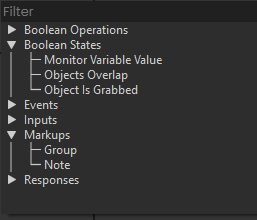](https://simlab-soft.com/help/uploads/images/gallery/2024-02/XAkimage.png)
#### Attributes
Attributes can be used with **Training Builder** in many ways:
- They can be used for creating **Template** diagrams
- They can be checked to determine behavior
- They can be used as local variables saved on each object.
It is a good idea to be familiar with attributes to create advanced VR Experiences. To learn more about attributes check the following tutorial:
### Enhancing Medical Training with VR Palpation Simulation
The Training Builder Hand Source and Events for VR medical simulations empowers VR Experience designers with unprecedented control over advanced hand skills training, particularly in processes like patient palpation.
Watch the demonstration in the video below to witness the immersive and customizable experience:
### Tools to organize Training Builder experience
Some users are creating large and complex training, and virtual reality (VR) Experiences using the training builder. To help manage these complex diagrams, the following tools have been provided:
**Notes:** Use notes to describe the logic, making it simpler for both you and others to understand and update the training builder diagrams in the future.
**Groups:** You can organize nodes into groups and give them clear names. This makes it easier to find and update the logic of your training builder.
**Search:** Suppose you've improved an animation sequence and want to replace the old one in the training builder. Use the search tool to find all instances of the old sequence and replace them with the new one.
[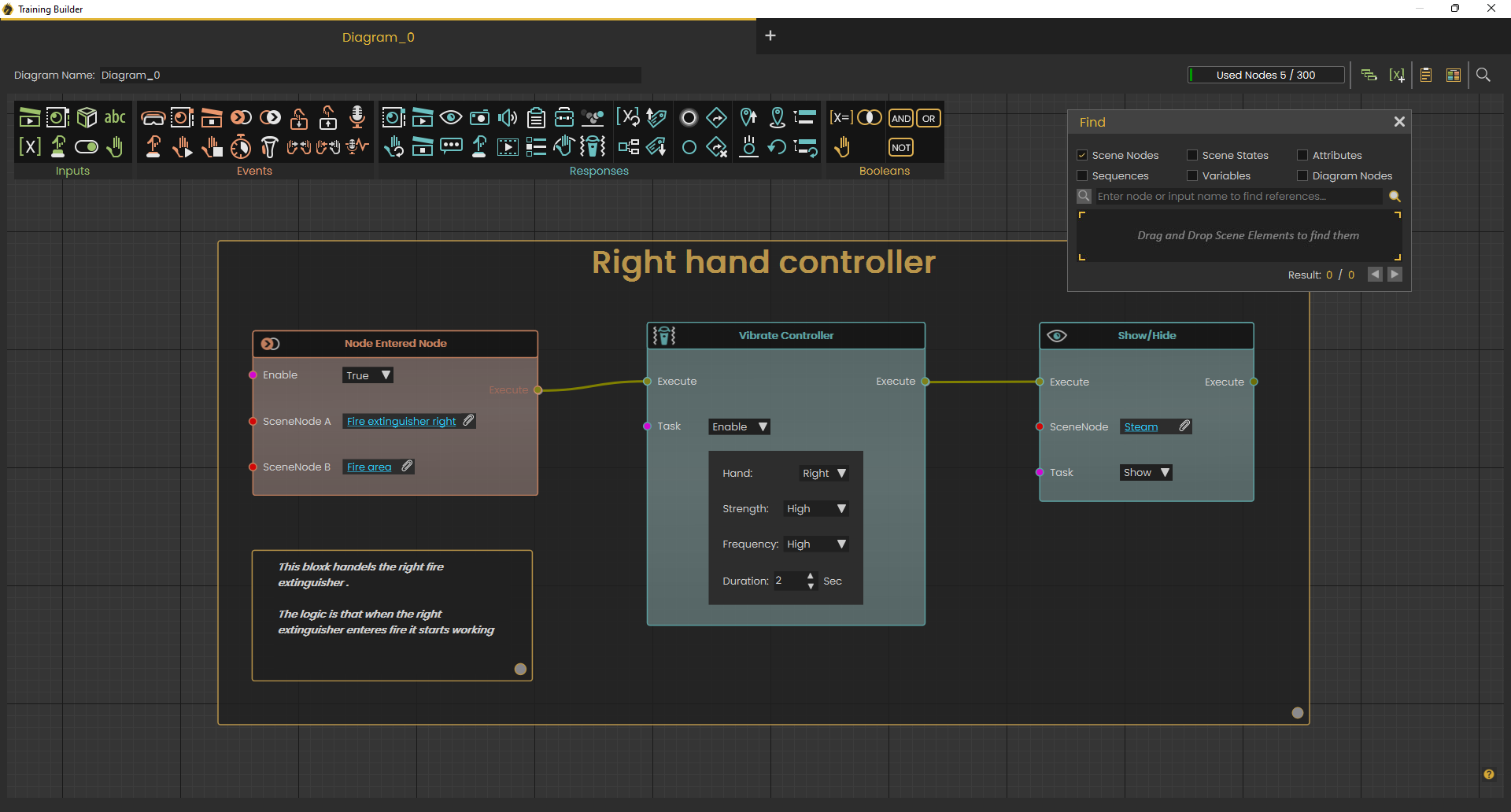](https://simlab-soft.com/help/uploads/images/gallery/2024-01/wZBimage.png)
# Dynamic Builder
In template diagrams, a user was able to define logic for a group of objects based on name, or attribute criteria. Dynamic diagrams take this to the next level, they allow defining interaction between multiple templates, in a dynamic way. What this mean is that a user can set a dynamic criteria for triggering actions and responses mainly by defining multiple queries using multiple scene nodes.When you have access to the Dynamic Builder, the default diagram will be a Dynamic diagram, and to add a new one, click the highlighted Add a new dynamic diagram button at the top right side of Training Builder diagram.
[](https://simlab-soft.com/help/uploads/images/gallery/2024-01/JwMimage.png)
A new Dynamic Diagram will open, and the Dynamic Diagram menu will appear.
[](https://simlab-soft.com/help/uploads/images/gallery/2024-01/g3Himage.png)
[](https://simlab-soft.com/help/uploads/images/gallery/2024-01/lPximage.png)
Dynamic training builder menu is divided into four groups:
#### Sources
A source is an expression that will generate a value that can be used to trigger an event in the Dynamic Builder. Sources are divided into two tabs, Main Sources and Template Sources.
##### Main Sources
[](https://simlab-soft.com/help/uploads/images/gallery/2024-01/Rq3image.png)
#### Events
Events are triggered when something happens in the VR Experience. They are arranged into two tabs Main Events and Object Interactions
##### Main Events
[](https://simlab-soft.com/help/uploads/images/gallery/2025-08/cVzimage.png)
##### Right Mouse Events
Not all events are shown in the diagram. More are put under mouse right click menu as shown below:
[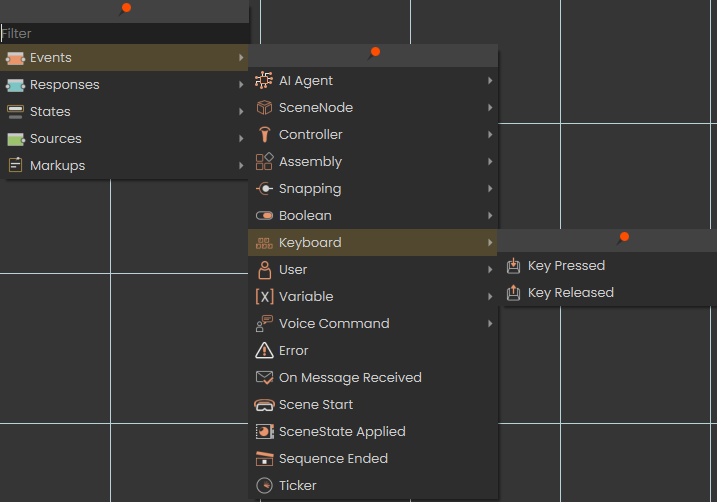](https://simlab-soft.com/help/uploads/images/gallery/2025-08/9zbimage.png)
**Key Pressed/Key Released**
To learn more about this event check this [tutorial](https://youtu.be/ACQPYu1sdf0).
#### Responses
Responses in SimLab Dynamic Builder are arranged in a number of tabs to make it easier to use.
##### Main Responses
[](https://simlab-soft.com/help/uploads/images/gallery/2025-08/QCWimage.png)
##### Objects Behavior
[](https://simlab-soft.com/help/uploads/images/gallery/2025-08/uNbimage.png)
##### Animation Sequences
[](https://simlab-soft.com/help/uploads/images/gallery/2025-08/PPcimage.png)
Numbers
[](https://simlab-soft.com/help/uploads/images/gallery/2024-01/qMgimage.png)
##### String
[](https://simlab-soft.com/help/uploads/images/gallery/2024-01/SxOimage.png)
##### Time Variable
[](https://simlab-soft.com/help/uploads/images/gallery/2024-01/Vehimage.png)
##### Media
[](https://simlab-soft.com/help/uploads/images/gallery/2025-08/S6qimage.png)
##### Attributes
[](https://simlab-soft.com/help/uploads/images/gallery/2024-01/T8simage.png)
##### User
[](https://simlab-soft.com/help/uploads/images/gallery/2025-08/LZGimage.png)
##### AI Agents
[](https://simlab-soft.com/help/uploads/images/gallery/2025-08/kNzimage.png)
##### Scene Management
[](https://simlab-soft.com/help/uploads/images/gallery/2025-08/o2simage.png)
#### States
[](https://simlab-soft.com/help/uploads/images/gallery/2024-01/2nQimage.png)
The following video shows the behavior in action, if you do not get why this is useful, do not worry about it for now.
In the future when you create more dynamic experiences, you will be glad to have this at your disposal.
The following diagram shows how loop end is used, it is combined with the fact that in Dynamic Builder the show message strings can also be dynamic, so we can show a message depending on the execution of the experience
[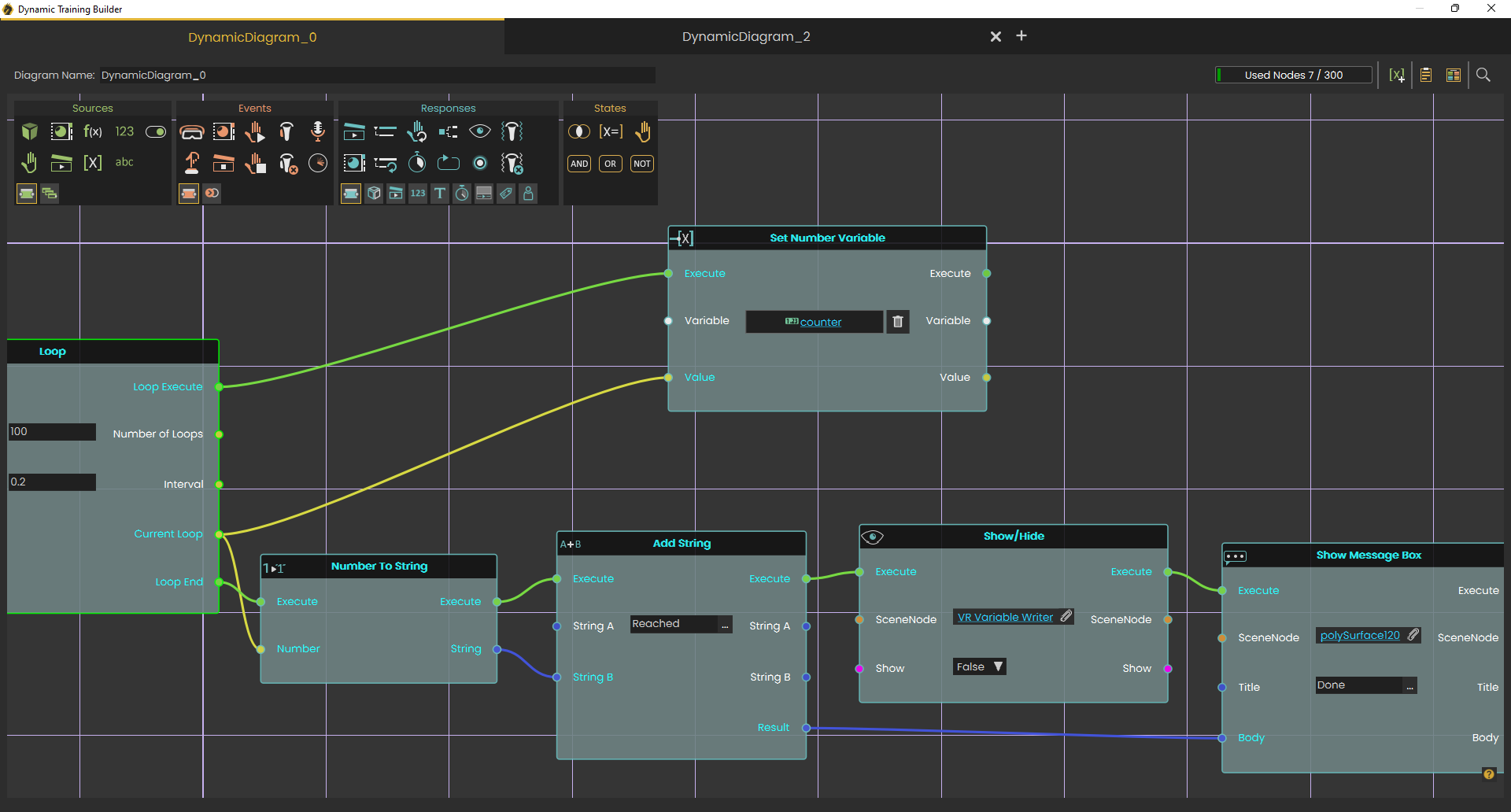](https://simlab-soft.com/help/uploads/images/gallery/2024-01/RLMimage.png)
#### Markups
VR experiences are valuable assets that include custom logic created by users. As more users build advanced experiences—and as these experiences are shared and used over time by multiple creators—we’ve added colored **groups** and **notes** to help manage them better. These features make it easier to organize related logic into groups and add clear descriptions for each section in the Training Builder. Check this [tutorial](https://www.youtube.com/watch?v=p9SMynLbRQY).
[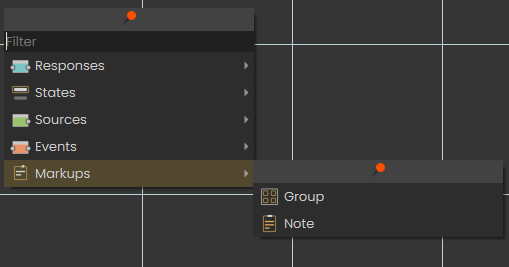](https://simlab-soft.com/help/uploads/images/gallery/2025-08/6BBimage.png)
# VR Catalog Menu
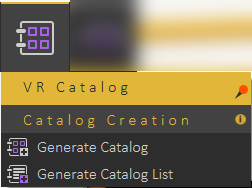
#### Generate Catalog
With this feature, users can insert ready models into the scene such as tables, chairs, doors, trees, and much more directly in VR Viewer without the need to go back to SimLab Composer and run the Viewer again. Also, new models can be added to the Catalog and shared with others online.
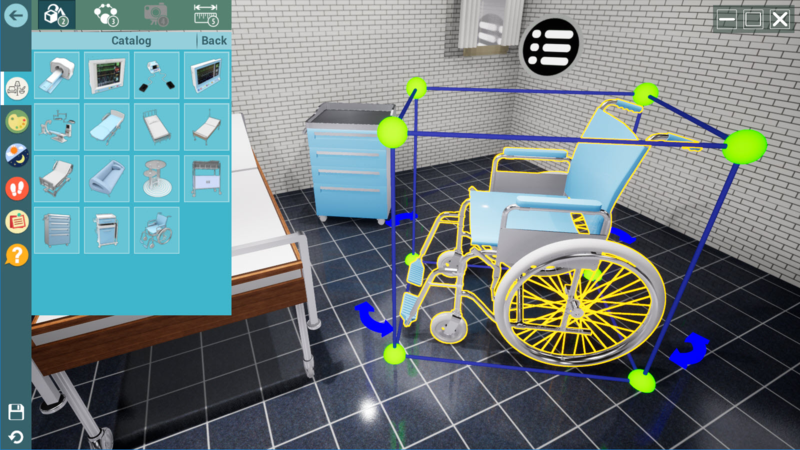
To create a VR Catalog in Simlab Composer/Studio for VR Viewer follow the steps below:
1. Export your scenes/models as a .vrpackege into the same folder in your device as shown in the screenshot below:
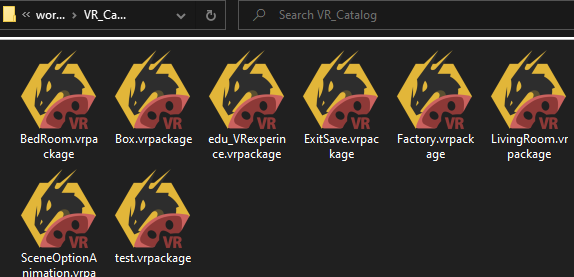
2. Create a preview image (PNG) for the catalog to display in the catalog menu in VR Viewer, a square image with a size of 256x256 pixels is recommended.
3. Select **Generate Catalog** and select the folder containing the VR Packages, and select the preview image. Give a name to the catalog, and click **Generate**. The new "\*.vrcatalog" will be created in the same folder where the "\*.vrpackege" models are saved.
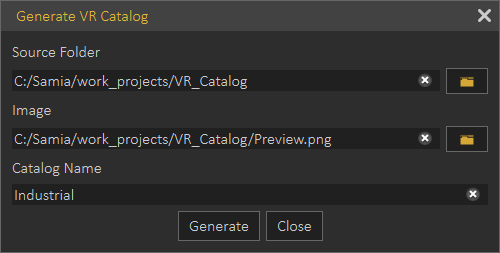
4. From the object tree select **Environment**, then in the Properties dialog/VR tab, select **Add from file** (The folder icon) then select the (\*.vrcatalog) created.
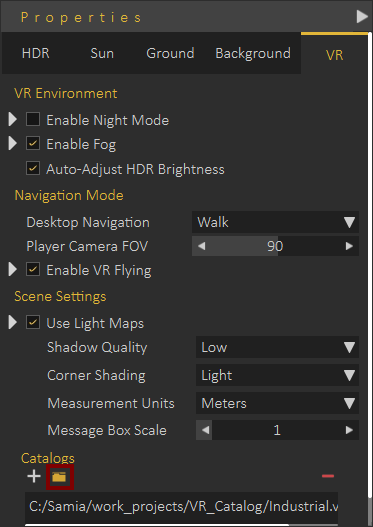
The (\*.vrcatalog) file can be uploaded online to a website, and its URL can be added by pressing the plus icon.
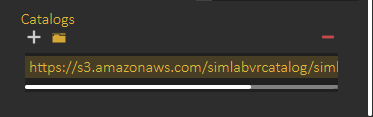
Now all models in the Industrial catalog we created, will appear in the Catalog menu in the VR Viewer, just one click on the model to insert it into the scene.
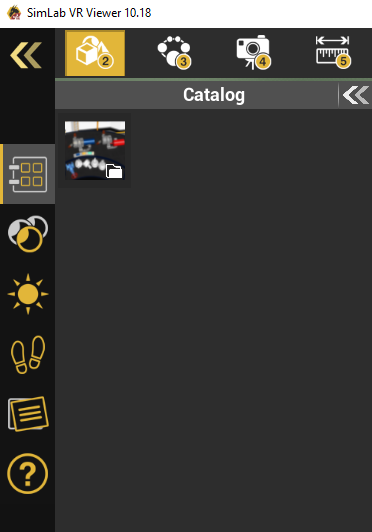
#### Generate Catalog List
In this dialog the user can add more than one (\*.vrcatalog) file from a local computer or website "as a URL link", then **Save** it as a .vrcataloglist. This catalog list can be loaded into other scenes to be used in VR Viewer.
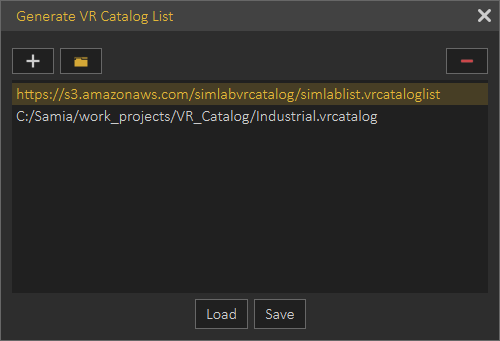
The tutorial below shows how to use models from the VR Catalog in SimLab VR Viewer.
The tutorial below shows how to load and use more than one VR catalog in SimLab VR Viewer.
You can visit the VR Catalog web page on our website by this [link.](http://simlab-soft.com/technologies/simlab-vr-catalogs.aspx)
# VR Viewer Menu
VR Viewer menu is where the user can export 3D scenes into \*.vrpackage file format, and view it in either Desktop Or VR Mode.
[ ](https://simlab-soft.com/help/uploads/images/gallery/2021-12/image-1640857539747.png)[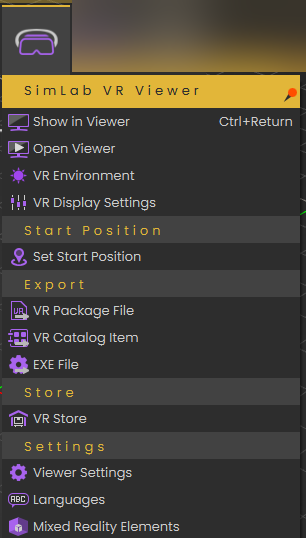 ](https://simlab-soft.com/help/uploads/images/gallery/2024-10/j9cimage.png)
### Show in Viewer
SimLab VR Viewer enables users to experience rich and interactive environments in three navigation modes
- **Desktop:** Game-like controls using keyboard and mouse, with viewer running on Windows or Mac.
- **PC VR:** For VR headsets connected to a PC like Rift S, VIVE, VIVE Pro, or Quest connected with a link cable
- **Standalone VR:** For standalone headsets like Pico, Quest (not connected to PC), Android, and iOS
[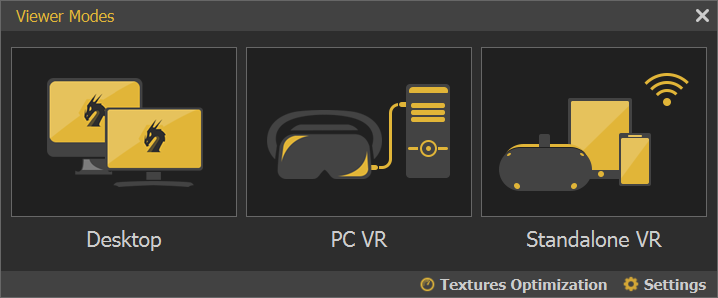](https://simlab-soft.com/help/uploads/images/gallery/2021-12/image-1639929466797.png)
#### Texture Optimization
More information about Textures Optimization can be found **[here](https://simlab-soft.com/help/link/9#bkmrk-textures-optimizatio)**
#### Settings
**Optimize Package:** Optimize package merges all objects sharing the same material into one object, which in turn speeds up the experience and smooths it significantly, especially when the model has a large number of objects. Optimize package will affect static objects only, so if you have objects that have animation, scene states, or are part of any interaction they will be excluded from the process and any interactions in VR will occur without any problems.
**VR Viewer Only:** When checked, the exported VR Package can not be imported by SimLab Composer
**Enable VR Menu:** The experience designer can control what the user running the VR Experience will be able to view, or how the user can interact with the scene in the VR Viewer
[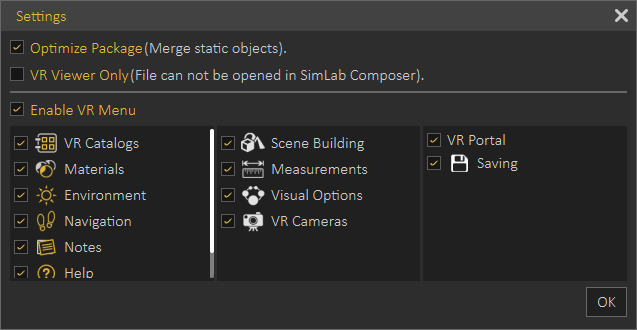](https://simlab-soft.com/help/uploads/images/gallery/2021-12/image-1639929500514.png)
### Open Viewer
Opens the stand-alone VR Viewer, viewer can be then used to open a VR Package, or to share a VR Package with others.
### VR Environment[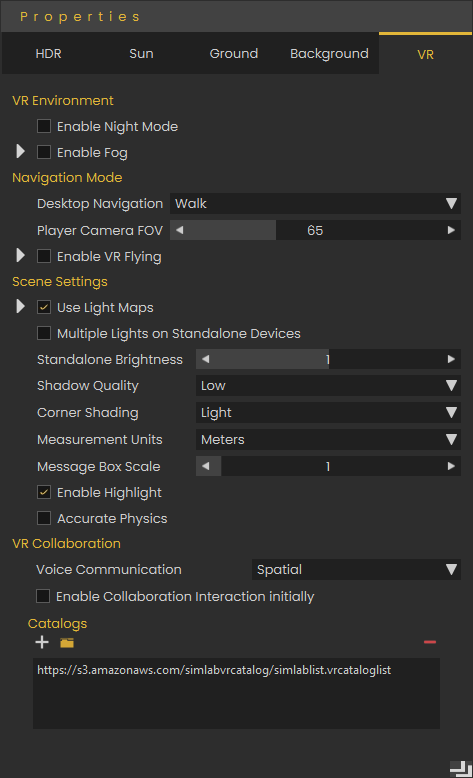](https://simlab-soft.com/help/uploads/images/gallery/2024-10/xUPimage.png)
Displays the Properties dialog at the right side of the application window. In this dialog with its different tabs the user can change settings for application/ VR environment.
We will explain some settings which may not have a clear meaning:
Under the **HDR** tab, **"Auto Adjust HRD Brightness (VR)"** will put a limit on the brightness of the HDR when running the VR Experience on the Viewer, if you want to have high brightness for the Viewer, you should disable this setting.
The **Ground** tab affects only Rendering and thus is only found in Composer.
Under the **VR** tab, let's clarify the following settings:
**"Enable VR flying":** Since users can't switch between navigation modes while running experiences in VR mode, this is the setting to make the VR Experience run with flying navigation mode On.
**"Use Light Maps":** Allows you to use baked lighting, either created in SimLab Composer or imported with the model. Light maps simulate lighting effects without requiring real-time calculations, reducing performance demands and ensuring a smoother VR Experience, especially on lower-end devices.
**"Multiple lights on Standalone Devices":** This affects artificial lights (lights that you add from the "Create" menu), it will enable or disable them when specifically running them on standalone devices, since these lights can heavily affect the performance on them.
**"Enable Highlights":** This will enable/ disable the highlights that you see on objects that you can interact with or grab. **"Accurate Physics":** If you have physics in you experience, this will increase the accuracy by making more calculations for the simulation of physics, but with a cost on performance.
**"Adding Catalogs":** Catalogs are specialized asset collections that can be created in SimLab Composer and uploaded online for easy access. This feature allows you to link external assets to a scene, enabling users to import them dynamically during the VR experience runtime. Unlike standard assets, catalogs can be stored and retrieved from an online repository, making them accessible across multiple projects and devices.
### VR Display Settings
The user can adjust the display settings in the VR Viewer using the below dialog. Check this [**tutorial** ](https://youtu.be/sNY0MvYIXyA)for more information.
[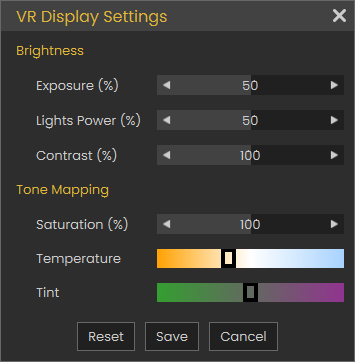](https://simlab-soft.com/help/uploads/images/gallery/2024-10/t3Bimage.png)
###
### Set Start Position
Loads the **Viewer Start** model, clicking on any place in the scene after clicking **Set Start Position** will snap the Viewer Start model to the picked location. The **Viewer Start** model defines the start place for the VR Experience viewer and the orientation at the experience will start at.
[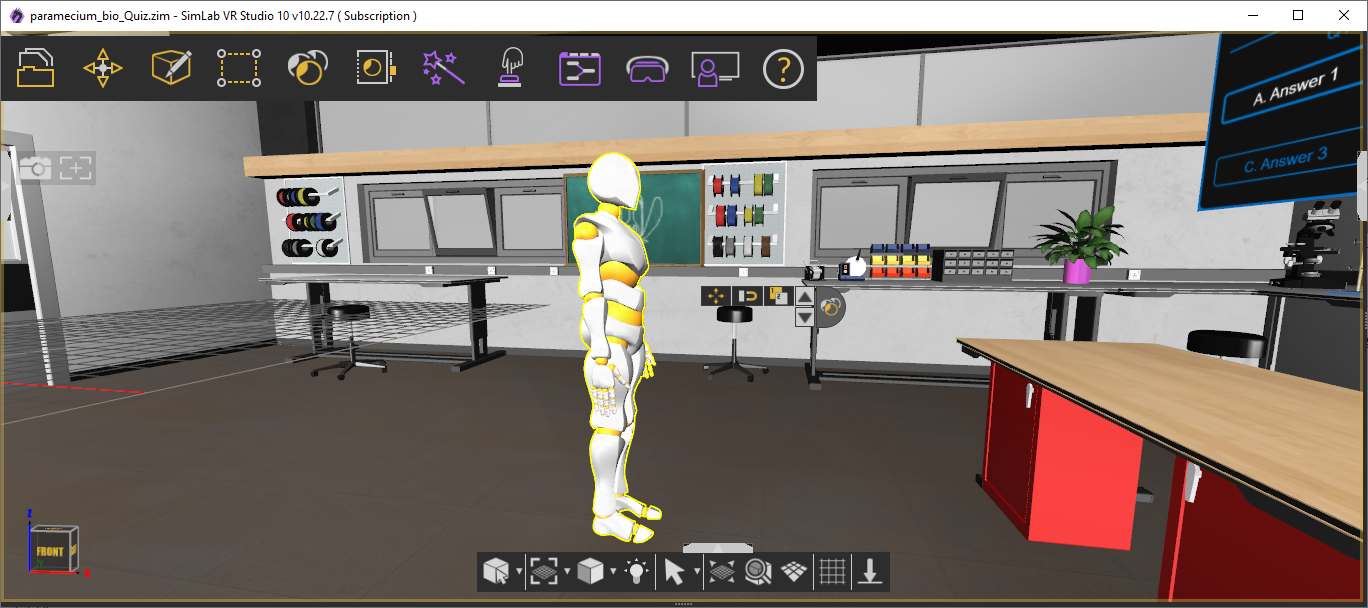](https://simlab-soft.com/help/uploads/images/gallery/2021-12/image-1640952738805.png)
If **Viewer Start** model was already added to the scene, no new model will be added and the user can directly click to snap the **Viewer Start** model.
Users starting the VR Experience without calling Set Start Position will automatically have **Viewer Start** model added to the scene and will be able to set its location in the scene.
**Viewer Start** model can be used in **Training Builder,** for example, **Viewer Start** model is used in **Node Entered Node** Event, in **Training Builder** diagram, to turn lights on, when a VR Experience user enters a room.
[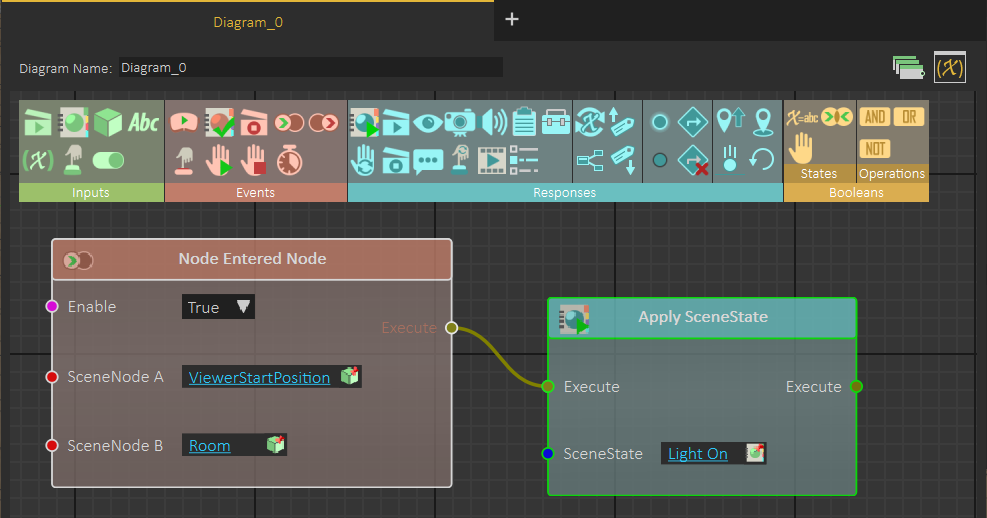](https://simlab-soft.com/help/uploads/images/gallery/2021-12/image-1640952473898.png)
### Create VR Camera
Creating **VR Camera** adds a new **VR Camera** to the scene. The user should place the camera and set its orientation, currently selected **VR Camera** appears in wireframe mode.
[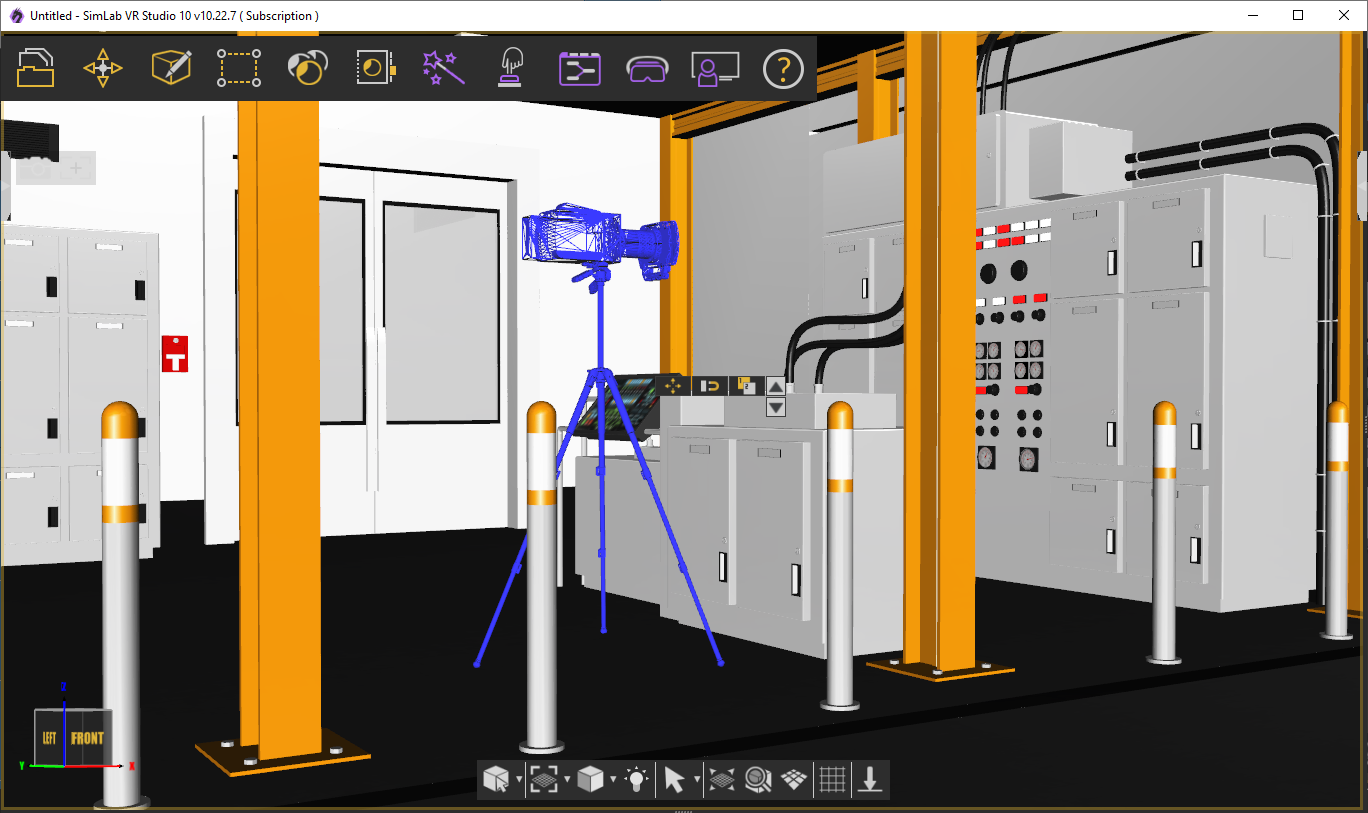](https://simlab-soft.com/help/uploads/images/gallery/2021-12/image-1640953465481.png)
User can place multiple **VR Cameras** in the scene, while running the VR Experience the user can activate the **Camera Teleport** mode, by clicking on it, or using the **shortcut (4),** as shown in the following image
[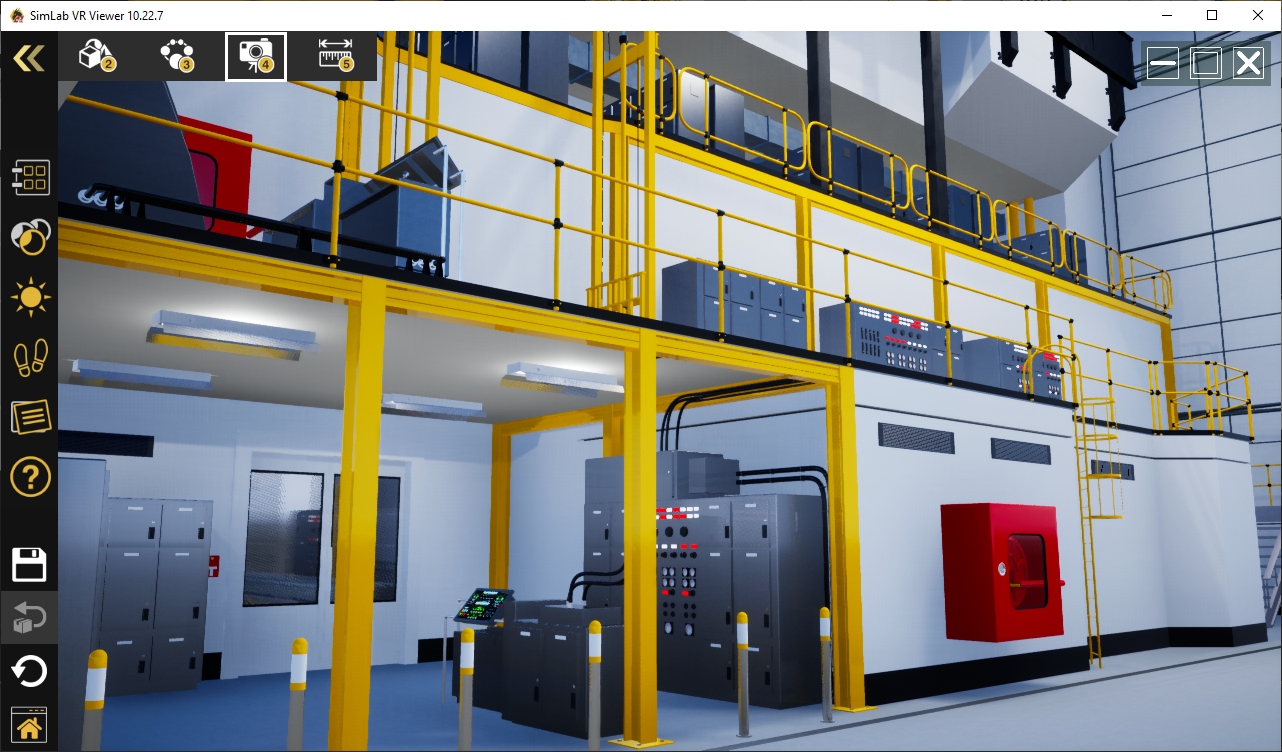](https://simlab-soft.com/help/uploads/images/gallery/2021-12/image-1640954049910.png)
When starting **Camera Teleport** mode, the scene turns into a ghost view, **VR Cameras** are shown as white spheres, and hovering over one of the spheres shows the view from the camera's perspective, clicking on the white sphere moves the user to the **VR Camera's** location.
[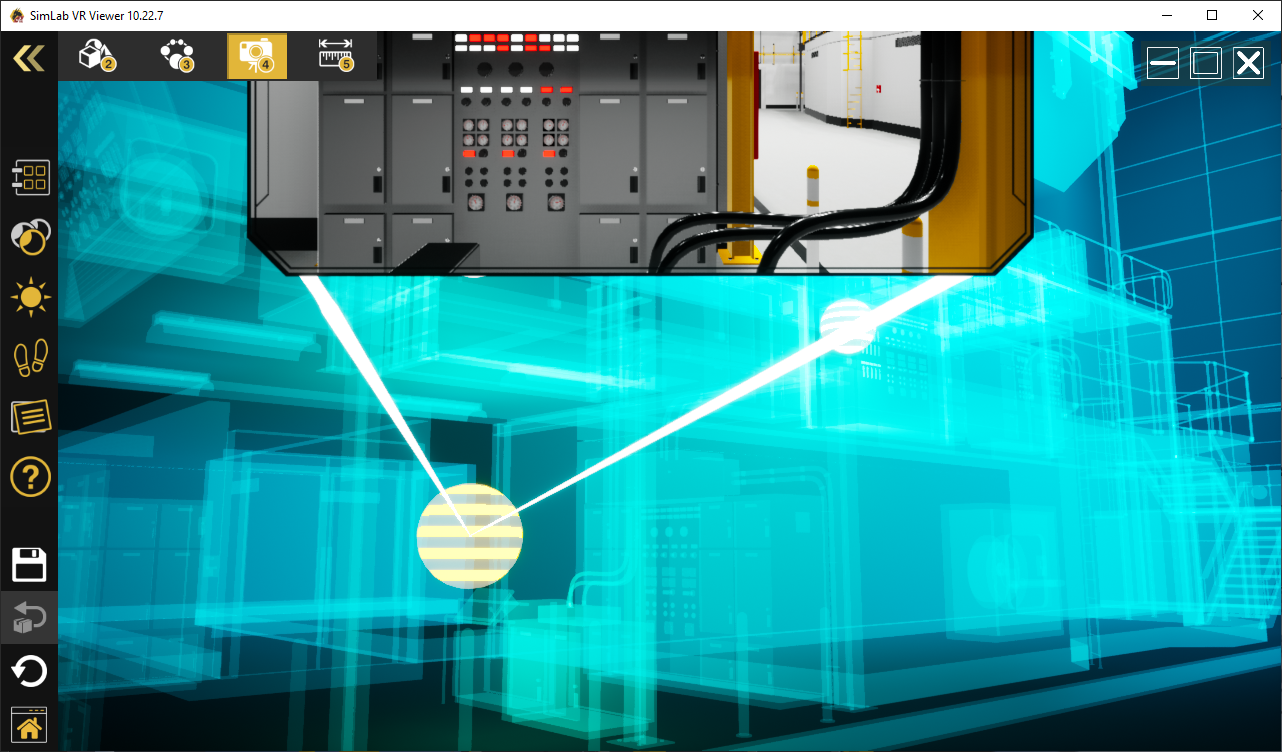](https://simlab-soft.com/help/uploads/images/gallery/2021-12/image-1640954119879.png)
VR Camera can also be used in **Training Builder,** in the **Teleport to Camera** response block. When this response is called, the viewer is moved from the current location to the location of the **VR Camera** connected to the response block
[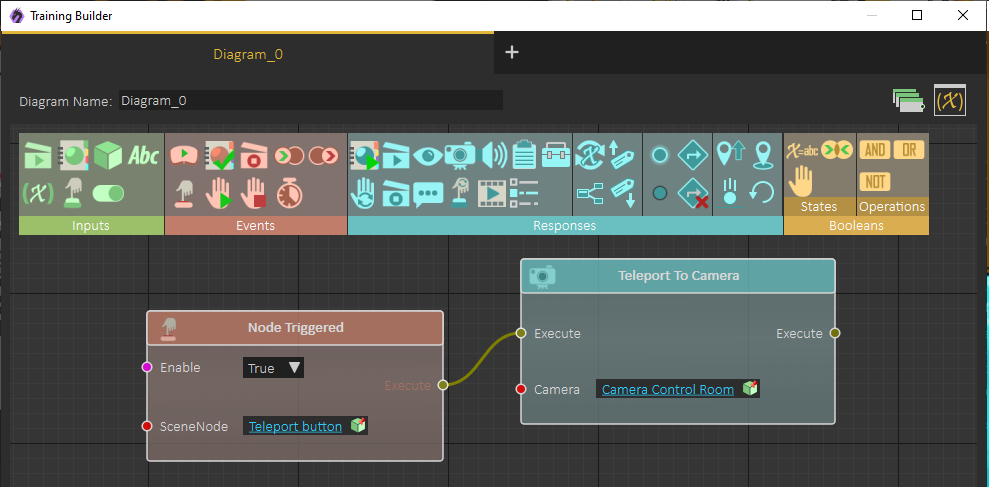](https://simlab-soft.com/help/uploads/images/gallery/2021-12/image-1640954432540.png)
When moving the viewer to a **VR Camera**, we can select to align the viewer orientation with the orientation of the **VR Camera**, this is done by checking the option **Apply Orientation** in the VR Camera **Properties Panel,** as shown in the following image:
[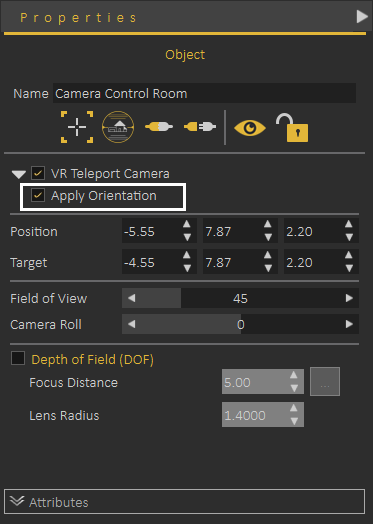](https://simlab-soft.com/help/uploads/images/gallery/2021-12/image-1640954703768.png)
**VR Camera** can also be linked to the **Surveillance Plane** under the **VR Effects** menu, to learn more about using **VR Camera** with a **VR Surveillance** camera use the following **[link](https://simlab-soft.com/help/link/51#bkmrk-create-surveillance-)**
### Export VR Package
Export the current scene as a VR Package (\*.vrpackage), which can be opened using the free **SimLab VR Viewer.** When exporting the **VR Package** the user can set:
- Title
- Publisher
- Description
- Preview image
[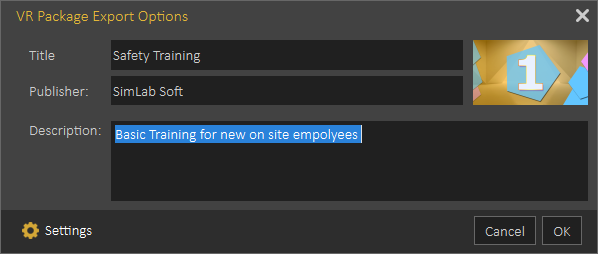](https://simlab-soft.com/help/uploads/images/gallery/2021-12/image-1640958886443.png)
This information will be visible in the **VR Viewer** to help users to find the correct VR Experience.
### Export VR Catalog Item
**VR Catalog Items** are very similar to **VR Packages,** and they share the same extension (\*.vrpackage), the only difference is that they will not require adding **Viewer Start** model, as they are not planned to be used as stand-alone VR Experiences, they are created to be used in VR Catalogs, visible while running the VR Experience, as the one shown in the image below:
[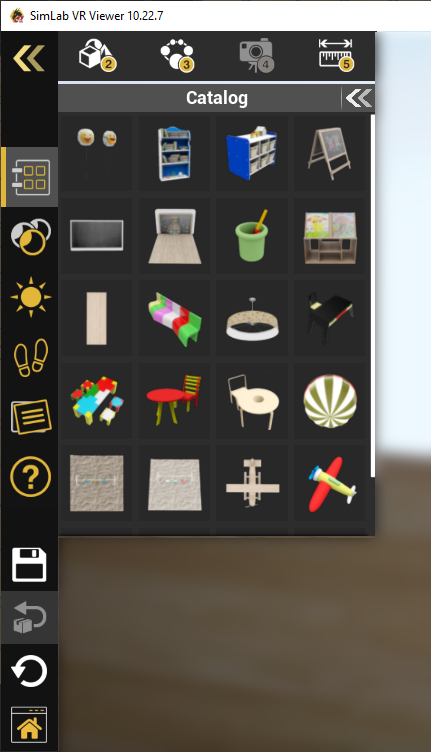](https://simlab-soft.com/help/uploads/images/gallery/2021-12/image-1640959394922.png)
Creation of new VR Catalogs requires the ultimate edition of SimLab Composer
### Export EXE File
EXE files can be exported from the Windows version of **SimLab Composer**, they are similar to **VR Packages**, as they include the current scene. EXE files can be shared with users who do not have **VR Viewer** installed.
Upon clicking on the EXE, it will try to find **VR Viewer**, if found it will use it and open the scene. If **VR Viewer** was not found, it will automatically install the latest version of **VR Viewer**, then it will use it and open the scene, which makes it easier to share VR Experiences with new users.
### VR Store
Designed to simplify the process for VR Experience designers to market and sell their creations. In earlier versions, we tested a VR warehouse model, but based on feedback from designers, it was clear that they preferred licensing their VR Experiences instead of selling zim files. This allowed them to retain copyrights for the zim files, enabling them to build new experiences on top of them or customize them for specific users. SimLab **VR Store** addresses these concerns by offering an alternative avenue for marketing and selling VR Experiences, while still maintaining the availability of traditional methods. This new feature is particularly advantageous for larger organizations, providing them with an easier way to sell their VR content and gain more visibility. Any experiences created using the free SimLab Composer and VR Studio, after undergoing the review process, will be showcased in the **VR Store**. These experiences can be either paid or free and will appear without watermarks. This flexibility is beneficial for new users who want to start showcasing their work without any initial financial investment, and it also caters to the needs of educational institutes. The **VR Store** is intended for creators, and we welcome any notes, requests, or feedback from users. Your input is valuable in helping us refine and improve this platform to better serve the VR community. Please feel free to share your thoughts with us.
[](https://simlab-soft.com/help/uploads/images/gallery/2024-01/ufGimage.png)
Check this **[article](https://blog.simlab-soft.com/how-to-protect-your-vr-product-and-prevent-copyright-infringement/)** to learn how to protect your VR product and prevent Copyright infringement.
### Viewer Settings
This option gives users quick access to viewer settings, to check and update those settings before exporting the VR Package.
[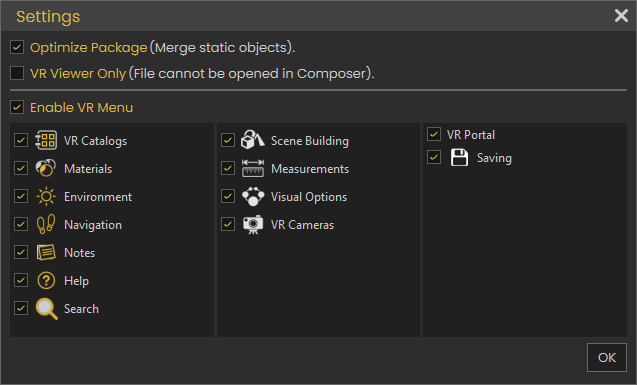](https://simlab-soft.com/help/uploads/images/gallery/2024-01/OzUimage.png)
### Languages
[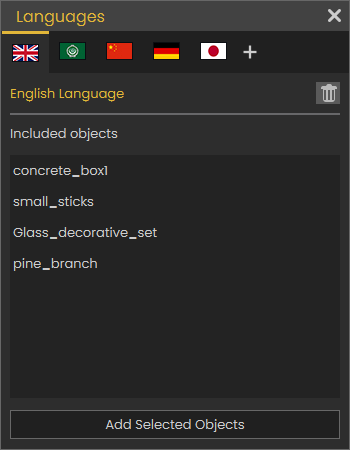](https://simlab-soft.com/help/uploads/images/gallery/2023-12/62Zimage.png)
This option allows the user to make the VR Experience support multiple languages, the user defines special objects for each language, those objects can be Objects, Videos, Sounds, Presentations, or Text.
When starting the experience, the use will select the language he/ she prefers to run the experiences in, all objects in other languages will be automatically deleted, so the VR Experience will run in the selected language.
The following video shows how to use multiple language support
### Mixed Reality Elements
The Quest 2 and Quest 3 now offer mixed reality support, enabling users to engage in interactive experiences while maintaining visibility of their actual surroundings.
With the Mixed Reality option, designers can specify the environmental elements within the experience. When users run the experience in Mixed Reality (MR) or Augmented Reality (AR) mode, these elements will be concealed, whereas they will be visible in other modes. This flexibility empowers designers to craft a unified experience that seamlessly transitions across Virtual Reality (VR), Mixed Reality (MR), or Augmented Reality (AR) modes.
[](https://simlab-soft.com/help/uploads/images/gallery/2023-12/twkimage.png)
The following tutorial shows how to use the MR elements:
In addition to single user MR mode, MR mode can be used in collaboration, the following tutorial shows how users located in the same room perform synchronization to work effectively in the MR mode.
# VR Evaluation
[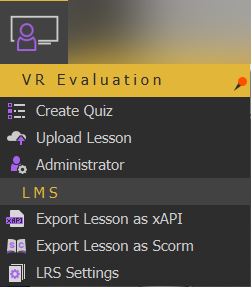](https://simlab-soft.com/help/uploads/images/gallery/2021-12/image-1639929586893.png)
The VR Evaluation menu gives the user access to the full VR Evaluation process which includes
Creating Quizzes/Surveys
Distributing VR experiences to students
Viewing Results
**[VR Evaluation Chapter](https://simlab-soft.com/help/link/28#bkmrk-page-title)** goes through the process of creating and distributing a successful VR Evaluation.
# Animation Workbench
The animation workbench in SimLab Composer offers multiple tools that facilitate animating objects and cameras in the 3D scene. They provide a way to create videos and movies as well as walkthroughs.
# Object Menu
Functions in this menu assist the user in creating common object animation quickly and efficiently.
[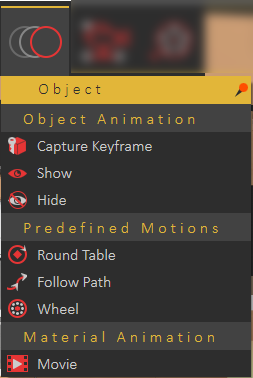](https://simlab-soft.com/help/uploads/images/gallery/2022-12/b1cimage.png)
### Object Animation Group
#### Capture Keyframe
Creates a keyframe at the location in the timeline, for the selected object. If no object is selected a message will appear indicating the need to select one.
[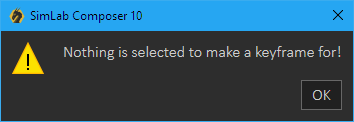](https://simlab-soft.com/help/uploads/images/gallery/2022-09/khCimage.png)
#### Show/Hide Object Animation
Selecting a 3D object at any frame other than zero and clicking Hide from the Object Animation group, will add a keyframe at that location and the object will be hidden there. Another keyframe will be added at frame zero, with the object shown. Using these two functions hide/show animations can be created easily.
[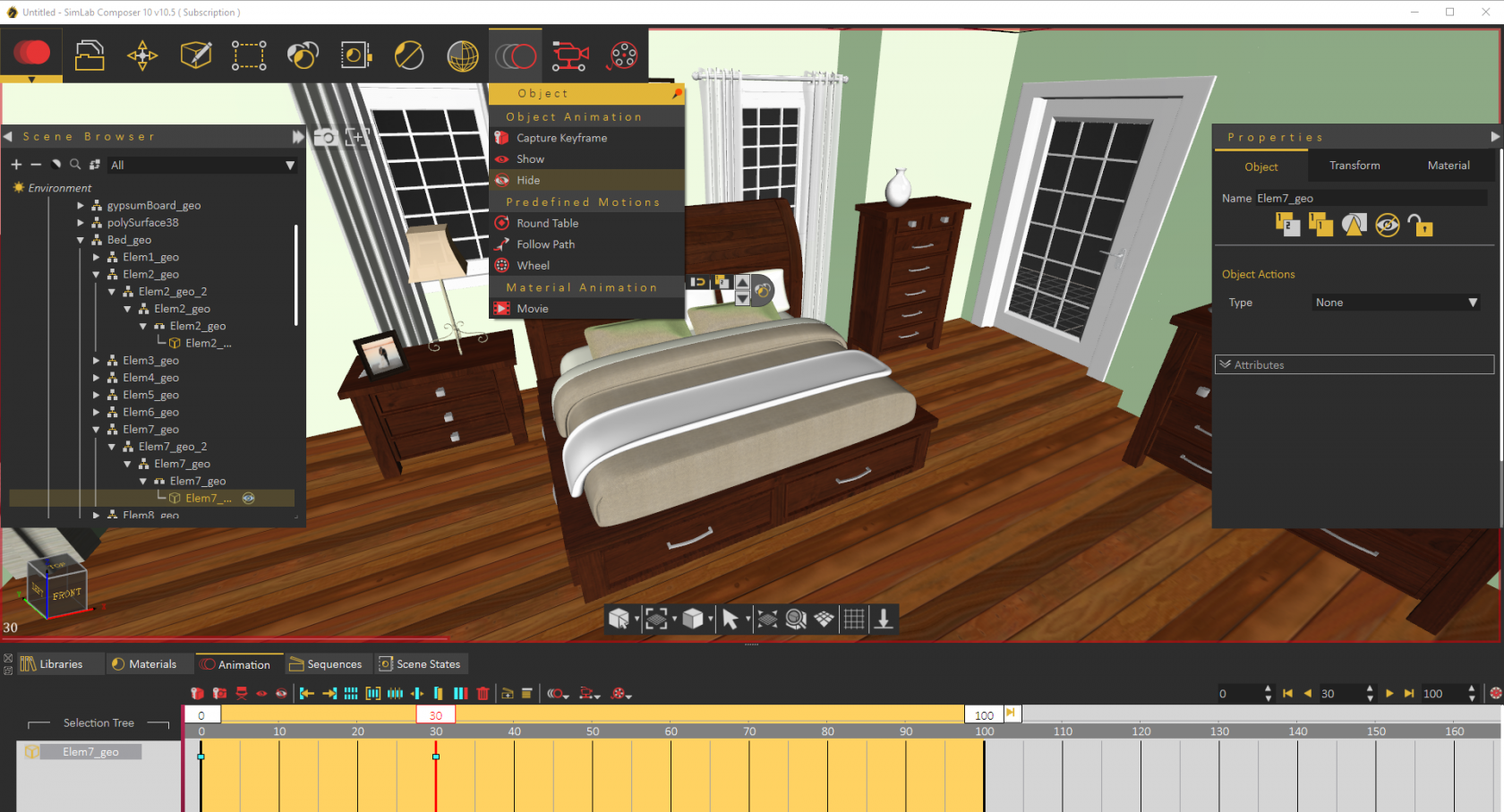](https://simlab-soft.com/help/uploads/images/gallery/2022-09/qIvimage.png)
### Predefined Motions Group
#### Round Table
Round Table Object animation rotates the selected object by default, 360 degrees around the global z-axis. The animation starts at frame 0 and ends at the last specified frame. Selecting the green animation line of the object in the Time Line, will display the animation parameters in the Properties Panel of the application interface, as shown in the image below. The user can select to change the Start/End frames, as well as the angle of rotation.
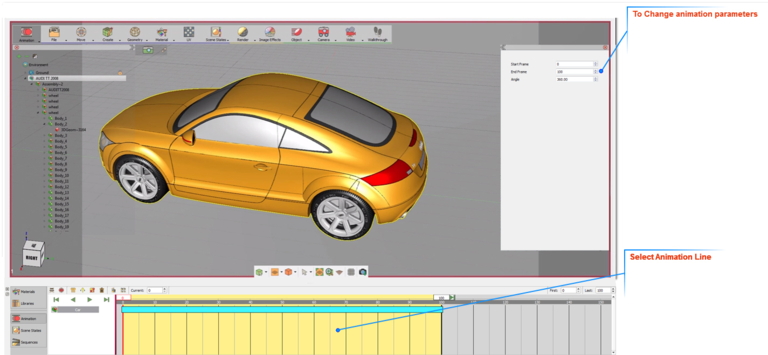
#### Follow Path
Path animation can be used to make an object follow a predefined path. This object can be a 3D object, a camera, or a light in the scene.
[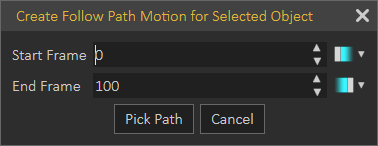](https://simlab-soft.com/help/uploads/images/gallery/2022-12/xM8image.png)
#### Wheel
Wheel Animation is useful for rotating object(s) around a selected axis. To create wheel animation the user needs to select the object(s) to be rotated, then click this function button. In the image shown below, one of the tires was selected. To be able to precisely select the wheel’s center, change the pick mode to Pick Center of Curvature. This will generate edges for the whole scene and will select the center of the selected curvature precisely. The wheel animation dialog will appear where the user can set the animation parameters.
Select the start frame for the animation, the end frame, and the number of revolutions. The number of revolutions is the number of full rotations to be done by the selected object(s). The user can also select the rotation direction to be Clockwise or Counter Clockwise, the direction is determined using the right-hand rule around the rotation axis, which always points out of the geometry.
[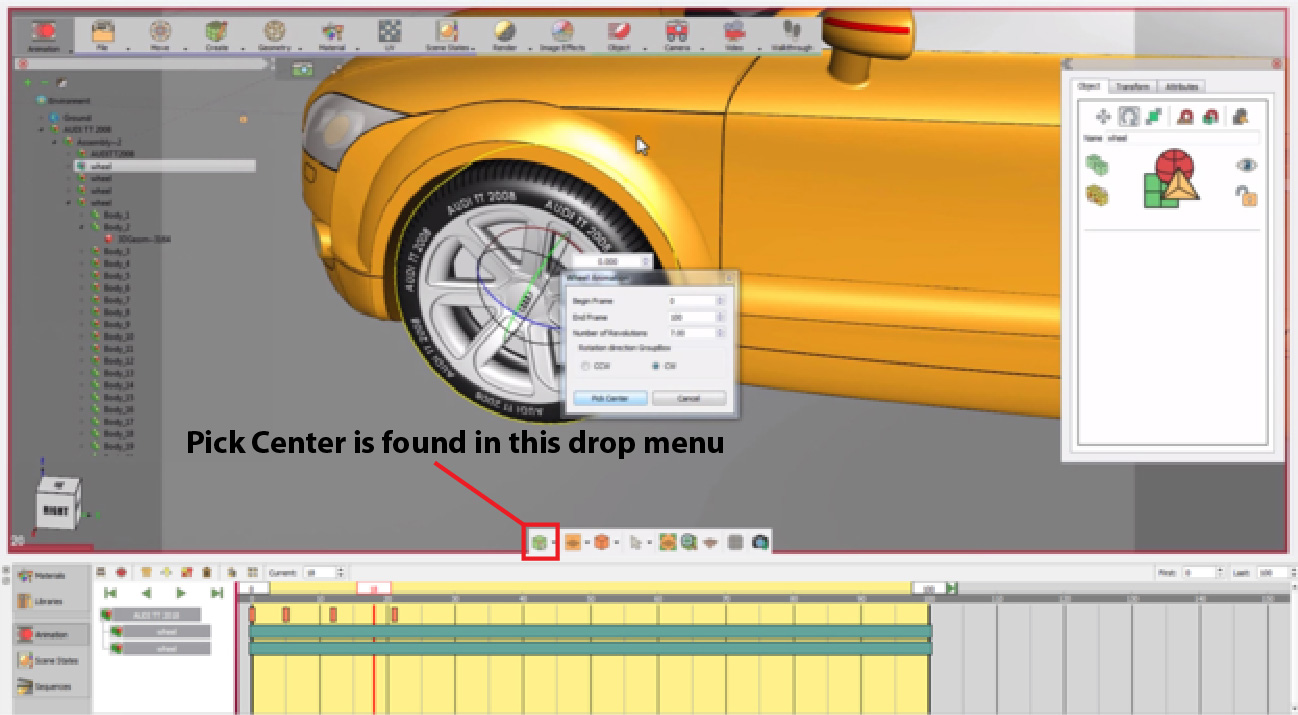](https://simlab-soft.com/help/uploads/images/gallery/2022-12/KTRimage.png)
Click Pick Center, and select the circle of the tire. The normal of the circle’s center will be highlighted, click the approve icon to end the process. As can be seen in the image, an animation line for the Tier has been added to the timeline.
Selecting this green line will display wheel animation parameters, in the Properties Panel of the SimLab Composer interface. The user can change the Start and End frames for the animation, as well as the angle of rotation. In the Wheel Animation dialog shown above, the Number of Revolutions was set to 10. This will result in 10 \* 360 = 3,600 angles of rotation.
[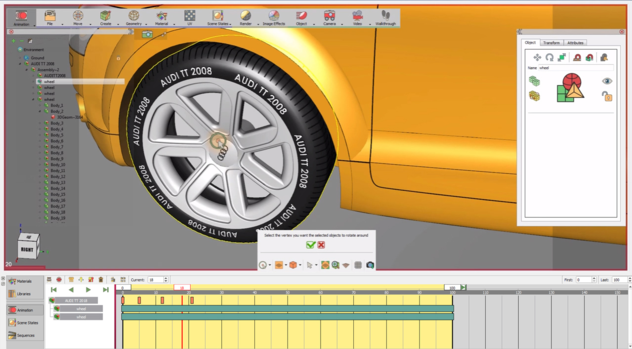](https://simlab-soft.com/help/uploads/images/gallery/2022-12/0gCimage.png)
Following the same steps, the user can create wheel animations for the other three tires.
### Material Animation Group
Movie Textures are animated textures that are created from a video file, they can be applied to objects while being in the Animation workbench.
To add an animated texture, you have first to select an object and then click above the Movie button. The Material Animation dialog box appears (as shown in the following image) asking the user to specify a movie and to enter inputs as desired.
[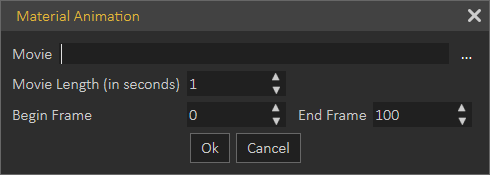](https://simlab-soft.com/help/uploads/images/gallery/2022-12/YLrimage.png)
The Material Animation dialog box consists of the following fields and buttons:
- **Movie:** Browse and select the desired movie from your disk drive.
- **Movie Length:** Enter the length of the movie (in seconds).
- **Begin Frame:** Determine the frame where you would like to start showing the texture in the animation timeline.
- **End Frame:** Determine the frame where you would like to finish showing the texture in the animation timeline.
- **OK:** Confirm and accept settings.
- **Cancel:** To abort the operation.
Supported file types are MP4, avi, or flv.
# Camera Menu
In this Panel, the user can create keyframes camera animations and use predefined camera animation functions.
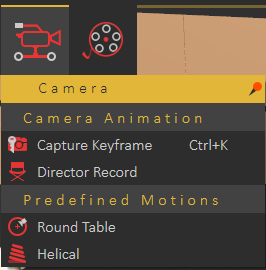
#### Camera Animation Group
##### Capture Keyframe
Captures the current view in the 3D area with an animated camera, and creates a keyframe at the current location on the animation timeLine.
##### Director Record
Director camera gives the user the ability to create animations that combine views from multiple animated cameras/views in a scene. Clicking the Director Record button will create a new camera named director camera and adds it to the Object Tree. The director camera will start recording the views from the existing camera in the active view.
#### Predefined Motions Group
##### Round Table
This function creates a camera animation, for the whole scene, that rotates 360 degrees around the global Z axis. By default, this animation starts at frame 0 and ends at the last frame of the animation.
##### Helical
Creates an animation that rotates the camera 360 degrees around the global Z axis, with translation from the current elevation of the camera to the ground (Z = 0), suitable for showing high buildings.
# Video Menu
The video menu enables the user to capture animation from scene view in VR Viewer, and save the resulting rendered images.
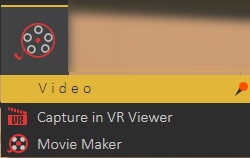
#### Capture in VR Viewer
Enables users to render animation quickly in the VR Viewer, to share it with others, as rendered images and videos. Render Settings dialog will open, where the user can select the frames to include in the generated video/images. Upon clicking Start SimLab VR Viewer will open, and the rendered images will be generated and saved to the folder specified in the Output Settings under the Render menu.
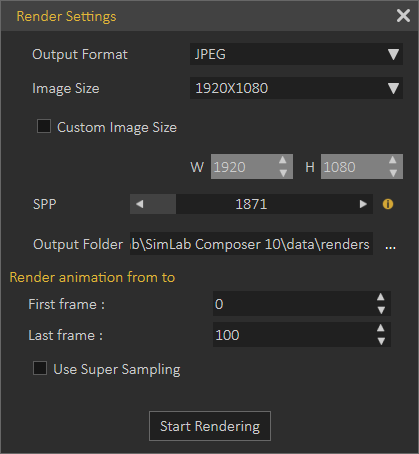
If the Super Sampling option is checked, the generated images will be rendered in a bigger size in the viewer, and then compressed. This option will reduce pixelation and will give clearer images.
#### Movie Maker
This function enables users to create videos of several output formats from sequential rendered images (rendered animation). SimLab Movie Maker dialog will open, where the user can select the frames to include in the generated video, add audio files to the generated movies, and select output formats and their folder location.
[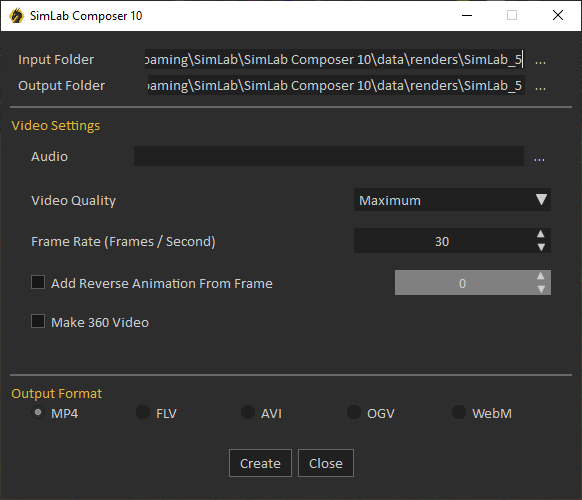](https://simlab-soft.com/help/uploads/images/gallery/2022-12/osoimage.png)
# Animation Timeline
The timeline is a dynamic diagram that holds editable keys denoting any animation created in the scene. SimLab Composer can produce an image sequence of the animation and is able to convert the sequence to a video file that can be easily viewed externally.
Check this animation video [tutorial](https://youtu.be/y1J7AG9IXo0)
[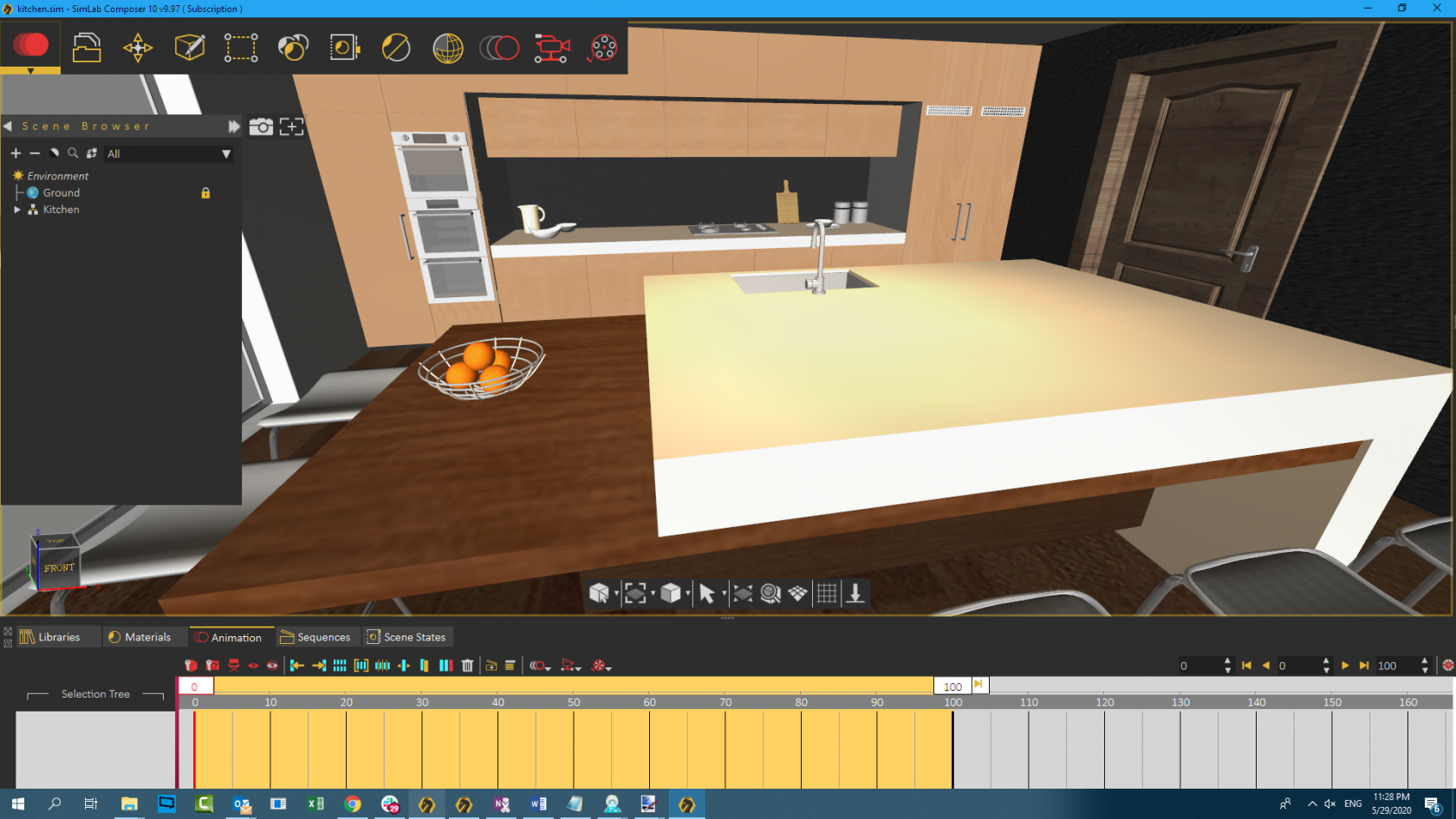](https://simlab-soft.com/help/uploads/images/gallery/2022-09/iozimage.png)
With SimLab Composer, **Skeleton joints controller animations** can also be created for 3D models with rigs. A rig is a digital skeleton that is used to animate 3D models imported in fbx, gltf, and usdz formats. Check this Skeleton joints [tutorial](https://youtu.be/gVx_ujJJf-8)
# Sequence Timeline
Create an Animation Sequence
Users can create interactive animation sequences that can be implemented in VR experience in Simlab Viewer. Go to the animation workbench to reveal the timeline where animation keyframes and sequences can be created and managed.
Select the animation keyframes created in the scene and click Create an Animation Sequence icon, to open the dialog shown below. Enter the name of the new sequence, the user has the option to create a reverse of the created sequence, and to delete keyframes from the timeline after the sequence creation.
[](https://simlab-soft.com/help/uploads/images/gallery/2025-03/sy6o08image.png)
[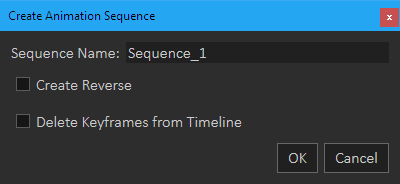](https://simlab-soft.com/help/uploads/images/gallery/2022-12/Kswimage.png)
##### Show Animation Sequences List
The user can view the created sequences by switching to the Sequences tab in the bottom panel, or by clicking Show Animation Sequence List in the Sequence Timeline. Once clicked the dialog below will appear.
- Show as animation: If you delete the keyframe from the timeline, by clicking on this button you can return the keyframe again on the timeline.
- Delete: Erase the selected sequence from the list.
- Manage Groups: Gives the user options to create, delete and rename Sequence groups.
[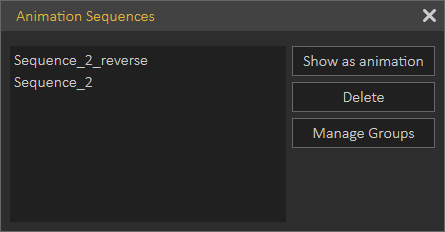](https://simlab-soft.com/help/uploads/images/gallery/2022-12/eXkimage.png)
##### Capture morphing animation
SimLab Composer allows the user to control what morphing parameters to save in the keyframe. This enables mixing multiple animations, and is shown in the following video:
Video tutorials to create animation sequences for VR are below:
# Animation Auto Ease Options
An auto ease option specifies the speed curve of an animation. SimLab Composer comes with various predefined motions, a motion is the type of generated animation that is used for creating predefined animations such as a round table, follow path wheel motions for the selected object, and round table and helical motions for cameras.
#### Regular keyframes
SimLab Composer has three types of ease that automatically adjusts the influence into and out of a keyframe to smooth out sudden changes in translation, rotation, and scale. these options are auto ease-out, out ease-in, and auto ease. With these options, users can ease the speed of an object when coming into or out of a keyframe or both, where (auto ease out) is used to ease speed coming out of a selected keyframe, (auto ease in) is used to a speed coming into a selected keyframe, and (ease) is used to a speed coming both into and out of a selected keyframe.
With animation ease options, you can easily achieve smoother and more realistic motion for geometries and cameras in your 3D scenes.

1. Regular Keyframe
2. Selected keyframe (appears in blue)
3. Previous keyframe
4. Next keyframe

1. Regular keyframe
2. Predefined keyframe
3. Previous keyframe
4. Next keyframe
5. Selected Keyframe (appears in blue)
6. Start frame
7. End frame
##### Possible Symbols for Regular Keyframes with and without Ease Effect
**No Ease**
- Regular animation keyframe without any ease type applied.
- Maintains constant speed at the keyframe itself from the direction of the previous keyframe.
- Maintains constant speed from the keyframe itself to the direction of the next keyframe.
**Ease-out**
- Regular animation keyframe with ease out applied.
- Acceleration.
- Maintain constant speed at the keyframe itself from the direction of the previous keyframe.
- Accelerate (speed up or increase speed) from the keyframe itself to the direction of the next keyframe.
**Ease-in**
- Deceleration.
- Regular animation keyframe.
- Decelerate (slowdown or decrease speed) at the keyframe itself to the direction of the previous keyframe.
- Maintain constant speed from the keyframe itself to the direction of the next keyframe.
**Ease**
- Deceleration then acceleration.
- Regular animation keyframe.
- Decelerate (slowdown or decrease speed) at the keyframe itself to the direction of the previous keyframe.
- Accelerate (speed up or increase speed) from the keyframe itself to the direction of the next keyframe.
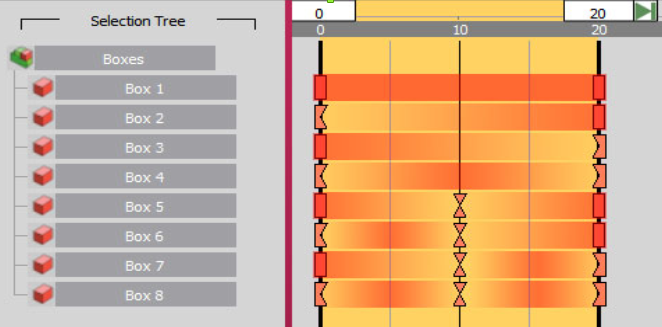
In the image above, the darker the red gradient color, the faster the object is.
The first keyframe of Box 2 has a speed of 0 with an influence of 100% on its right side. Auto Ease Out automatically adjusts the influence out of a keyframe. The object gradually accelerates as it leaves the first keyframe until it reaches the last keyframe, where it reaches its maximum speed. Keep in mind that Auto Ease Out requires an existing next keyframe in order to take effect.
The first keyframe of Box 3 has a speed of 0 with an influence of 100% on its left side. Auto Ease In automatically adjusts the influence into a keyframe. The object starts at its maximum speed and slows down as it approaches the last keyframe. Keep in mind that Auto Ease In requires an existing previous keyframe in order to take effect.
Both of first and last keyframes of Box 4 have a speed of 0 with an influence of 50% on the right side of the first frame and the left side of the last frame. This automatically adjusts the speed of change, which accelerates as animation retreats from the first keyframe until it reaches a maximum speed at frame number 10 and from there decelerates as animation advances toward the last keyframe.
The middle keyframe of Box 5 has a speed of 0 with an influence of 50% on both sides. The object slows down as it approaches the middle keyframe and gradually accelerates as it leaves. Keep in mind that Auto Ease requires existing previous and next keyframes in order to take effect on both sides of the selected keyframe.
#### Predefined Motions
SimLab Composer comes with various predefined motions. A Motion is a type of Composer-generated animation that is used for creating predefined animations such as Round Table, Follow Path, Wheel motions for the selected object, and Round table and helical motions for cameras. In the case of predefined motions, start and end frames have a speed of 0 with a default influence of 25% on sides that falls within an animation sequence itself. The symbol of predefined motion provides a simple visual representation that indicates the relative speed at each particular frame within it.
##### Possible Parts of Predefined Symbols with One of Ease Effects
The symbol of predefined motion on the animation timeline consists of:
1. The animation sequence itself.
2. Start frame, which acts as a regular keyframe.
3. End frame, which also acts as another regular keyframe.
##### Possible Symbols for Predefined Keyframes with and without Ease Effect
**No Ease**
- Start frame of a predefined animation keyframe.
- Maintain constant speed at the first frame of the motion itself from the direction of the previous keyframe.
- Maintain constant speed from the first frame of the motion itself to the direction of the end frame of the motion itself.
**No Ease**
- Predefined animation keyframe.
- End frame of a predefined animation keyframe.
- Maintain constant speed at the end frame of the motion itself from the direction of the first frame of the motion itself.
- Maintain constant speed from the end frame of the motion itself to the direction of the next keyframe.
**Ease Out Acceleration**
- Start frame of a predefined animation keyframe.
- Maintain constant speed at the first frame of the motion itself from the direction of the previous keyframe.
- Accelerate (speed up or increase speed) from the first frame of the motion itself to the direction of the end frame of the motion itself.
**Ease in Deceleration**
- End frame of a predefined animation keyframe.
- Decelerate (slowdown or decrease speed) at the end frame of the motion itself from the direction of the first frame of the motion itself.
- Maintain constant speed from the end frame of the motion itself to the direction of the next keyframe.
**Ease in Deceleration**
- Start frame of a predefined animation keyframe.
- Decelerate (slowdown or decrease speed) at the first frame of the motion itself from the direction of the previous keyframe.
- Maintain constant speed from the first frame of the motion itself to the direction of the end frame of the motion itself.
**Ease Out Acceleration**
- End frame of a predefined animation keyframe.
- Maintain constant speed at the end frame of the motion itself from the direction of the first frame of the motion itself.
- Accelerate (speed up or increase speed) from the end frame of the motion itself to the direction of the next keyframe.
**Ease Deceleration then Acceleration**
- Start frame of a predefined animation keyframe.
- Decelerate (slowdown or decrease speed) at the start frame of the motion itself from the direction of the previous keyframe.
- Accelerate (speed up or increase speed) from the start frame of the motion itself to the direction of the end frame of the motion itself.
**Ease Deceleration then Acceleration**
- End frame of a predefined animation keyframe.
- Decelerate (slowdown or decrease speed) at the end frame of the motion itself from the direction of the start frame of the motion itself.
- Accelerate (speed up or increase speed) from the end frame of the motion itself to the direction of the next keyframe.

Box 1 has a predefined motion with no ease effects. Box 2 has a predefined motion with ease-out only. Box 3 has a predefined motion with ease-in only. Box 4 has a predefined motion with ease-out and ease-in effects.
In the tutorial video below, we will show you how to use an animation auto ease types:
# Simulation Workbench
The Simulation Workbench can be available and accessed based on the acquired license. If you have already purchased the corresponding license, you can find this workbench on the Workbenches Bar within SimLab Composer GUI.
# Simulation Toolbar
[](https://simlab-soft.com/help/uploads/images/gallery/2022-09/C1Pimage.png)
SimLab Composer can be used to model the behavior of objects in 3D space. Using its powerful physics engine to allow simulation of the way bodies of many types are affected by a variety of physical stimuli, provided to simulate physical systems such as Rigid Body Dynamics in real-time and considering collision detection. The Simulation Workbench is dedicated to executing physical and mechanical simulations within the SimLab Composer application.
The image below shows the workspace of the Simulation Workbench, where the Solid Editing panel is active by default. The workspace presents the Simulation toolbar, the Geometries Tree, Solids Tree grouped with the Links Tree.
The Geometries Tree only appears in Solid Editing mode (When the Solid Editing dialog is open).
[](https://simlab-soft.com/help/uploads/images/gallery/2022-09/simlationwb.jpg)
[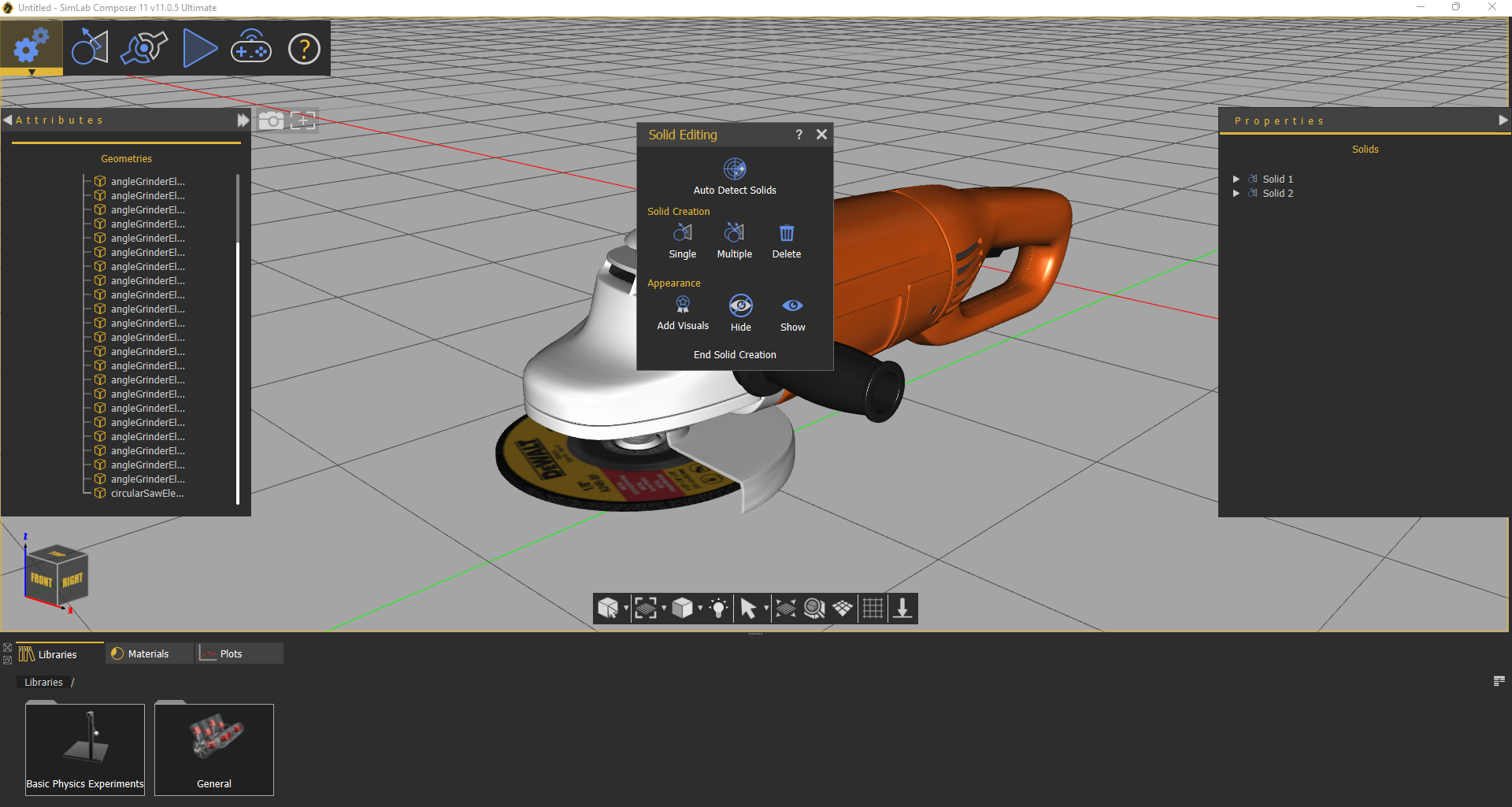](https://simlab-soft.com/help/uploads/images/gallery/2022-09/CSSimage.png)
Simulation toolbar menus:
1. Solids menu: Geometries are defined and classified, where each solid contains either one
geometry or a group of geometries.
2. Links menu: Properties of solids and relationships between each other are set.
3. Simulation menu: Where simulation is controlled and executed.
4. Interactive menu: To allow the user to control machines using a Keyboard, or a Joystick.
Check this mechanical simulation video
# Solids Menu
To create a simulation the first step is to convert the 3D design to solid parts that can be physically simulated. This can be done either manually by selecting the parts and converting them to solids, or by clicking on Auto Detect Solids which will automatically detect the objects in the scene and convert them to solids.
The solids Editing panel includes the following functionalities, as shown in the image below:
- Auto Detect Solids
- Solid Creation
- Appearance
[](https://simlab-soft.com/help/uploads/images/gallery/2022-09/06qimage.png)
The Geometries Tree and the Models Library are associated with the Solids Tab. Once the Solids Tab is activated, they will be displayed on the left side and bottom of the application window, respectively.
### Auto Detect Solids
Automatically identify and classify a model's geometries and assemblies into solids, by running an algorithm, where each solid contains either one geometry/assembly or a group of geometries/assemblies.
In the image below, the simulation workspace with an imported model is shown. Solids in the model has been detected and shown in the Solids Tree.
[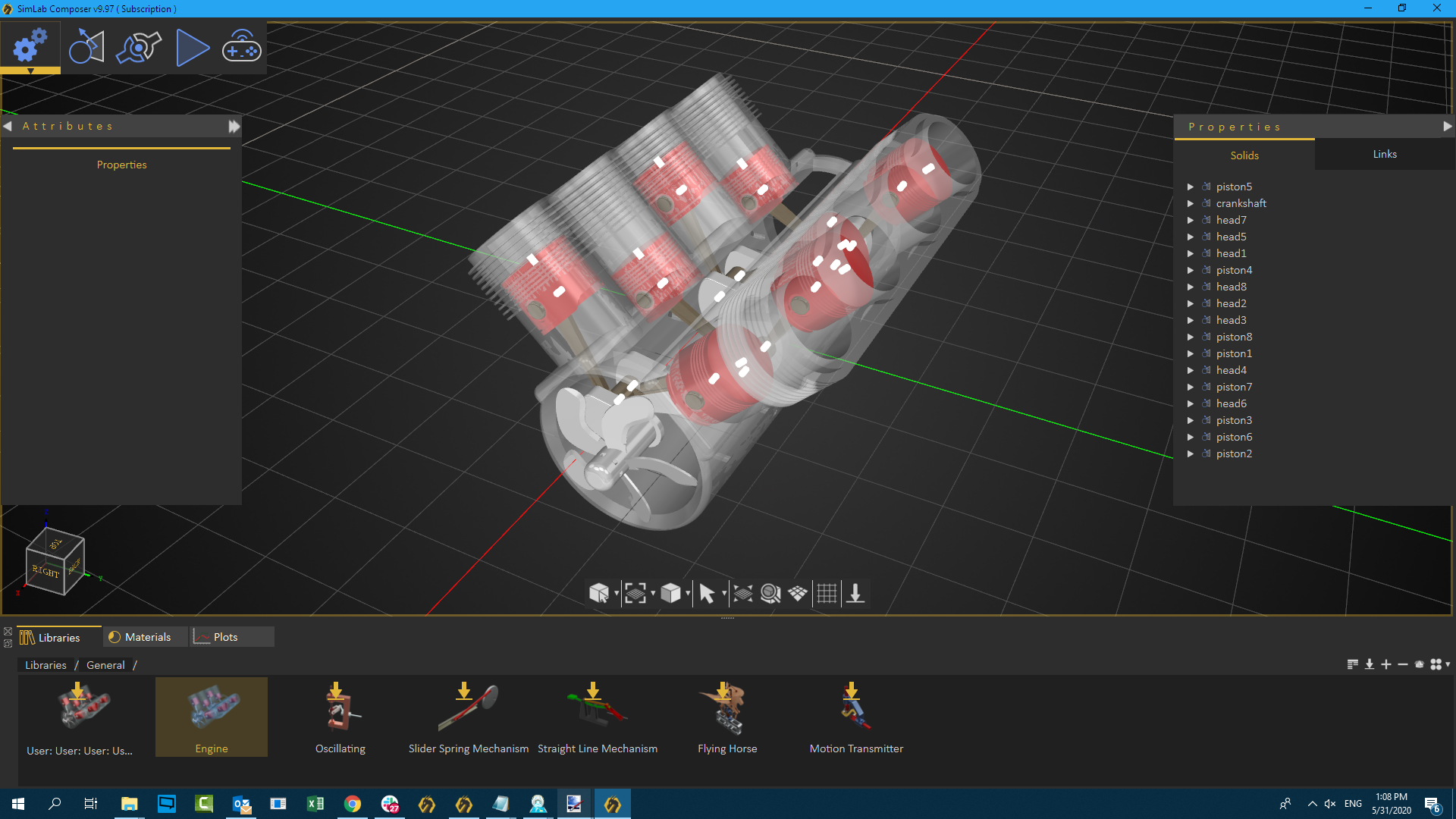](https://simlab-soft.com/help/uploads/images/gallery/2022-09/ihBimage.png)
If the imported model is from an analytical file format like STEP, this algorithm makes use of the solids hints already embedded in an object to identify it as a solid.
In some cases, the automatic detection method may not yield the required results, the manual method for creating solids gives the user more control over solid creation.
### Solid Creation
Sometimes more control over solids creation may be needed. So rather than using the automatic detect function, Solid Creation section functions in the Solid Editing dialog are needed.
- Single: Manually creates a solid from the selected geometries or assemblies, geometry or an assembly can be selected either using the Geometries Tree or from the 3D Area. Multiple geometries can be selected from the Geometry Tree by holding the Ctrl key on the keyboard and clicking the desired geometries, then pressing the Create Solid button in order to create the desired solid. After clicking the Single button, only one solid will be created and all of its corresponding geometries will disappear from the Geometry Tree and move to the Solids Tree.
- Multiple: Manually create solids from selected geometries or assemblies. After clicking the Multiple buttons, multiple solids will be created and all of the corresponding geometries will disappear from the Geometry Tree and move to the Solids Tree. [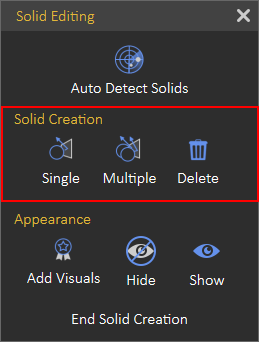](https://simlab-soft.com/help/uploads/images/gallery/2022-09/7pyimage.png)
### Appearance
Sometimes, you may want a certain object to inherit the movement of a specified solid without including it in the equations of motion used by the corresponding solver, here the Manipulation Toolbar comes in handy. You find only one button in the Manipulation Toolbar, as shown in the following image:
[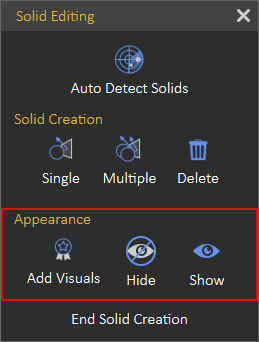](https://simlab-soft.com/help/uploads/images/gallery/2022-09/PkAimage.png)
#### Add Visuals
Attaches selected geometry to an existing solid as a visualization object for visualization purposes that are not included in the simulation calculations. To add visuals, select the desired object(s) from the Geometry Tree, then click the Add Visuals button. Once it is[](https://simlab-soft.com/help/uploads/images/gallery/2022-09/GJVylximage.png) clicked, the Select Solid dialog box appears for the user to select the desired solid to attach visuals.
A solver is a component in SimLab Composer. SimLab Composer provides a library of solvers, each of which determines the time of the next simulation step and applies a numerical method to solve the set of equations that represent the model.
The Visual Icon appears next to the visual object's name in the Solids Tree. You can toggle this icon to turn it back as a normal object combined with the solid.
Visual elements can be disabled or enabled in the Solids Tree only if the Solids Tab is activated.
#### Hide / Show
This tool makes work easier while creating solids in complex models. It is considered a handy tool while working in simulation, where the user can hide/show objects in the 3D area.
# Simulation Trees
There are three kinds of tree views in the Simulation Workspace:
[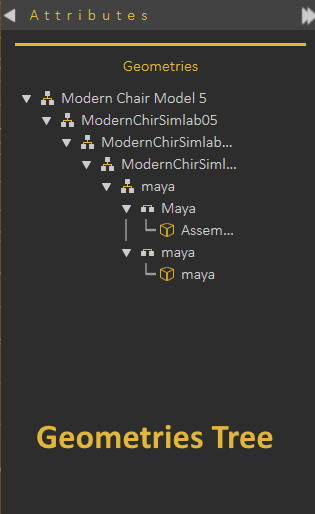](https://simlab-soft.com/help/uploads/images/gallery/2022-09/geometriestree.jpg) [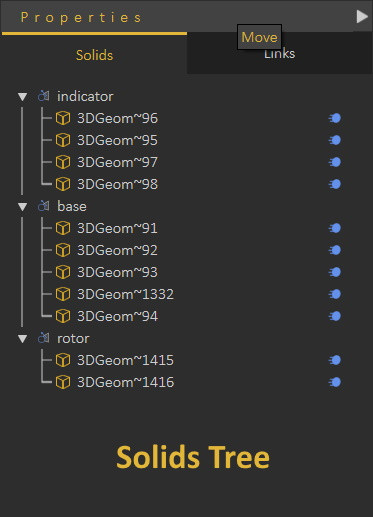](https://simlab-soft.com/help/uploads/images/gallery/2022-09/solids-tree.jpg) [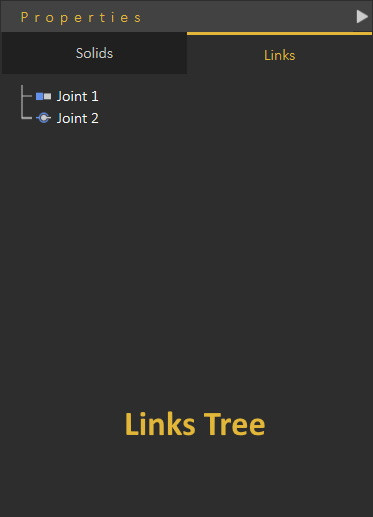](https://simlab-soft.com/help/uploads/images/gallery/2022-09/links-tree.jpg)
### Geometries and Solids Trees
Both Trees show a hierarchical outline view of geometries and solids existing in the scene. Each geometry/solid branch or node can have a number of subitems, this is often visualized by an indentation in a list. A geometry/solid can be expanded to reveal subitems, if any exist, and collapsed to hide subitems. Geometries/Solids Trees allow the user to easily manage and navigate objects in them.
In the image below, the Geometries Tree is shown located at the left side of the application window, and the Solids Tree is at the right side. Both trees will appear when the Solid Editing dialog is open. Solids are included in the simulation calculations, while geometries are not. Using the functions in the Solid Editing dialog, a user can transfer objects from one tree to the other.
[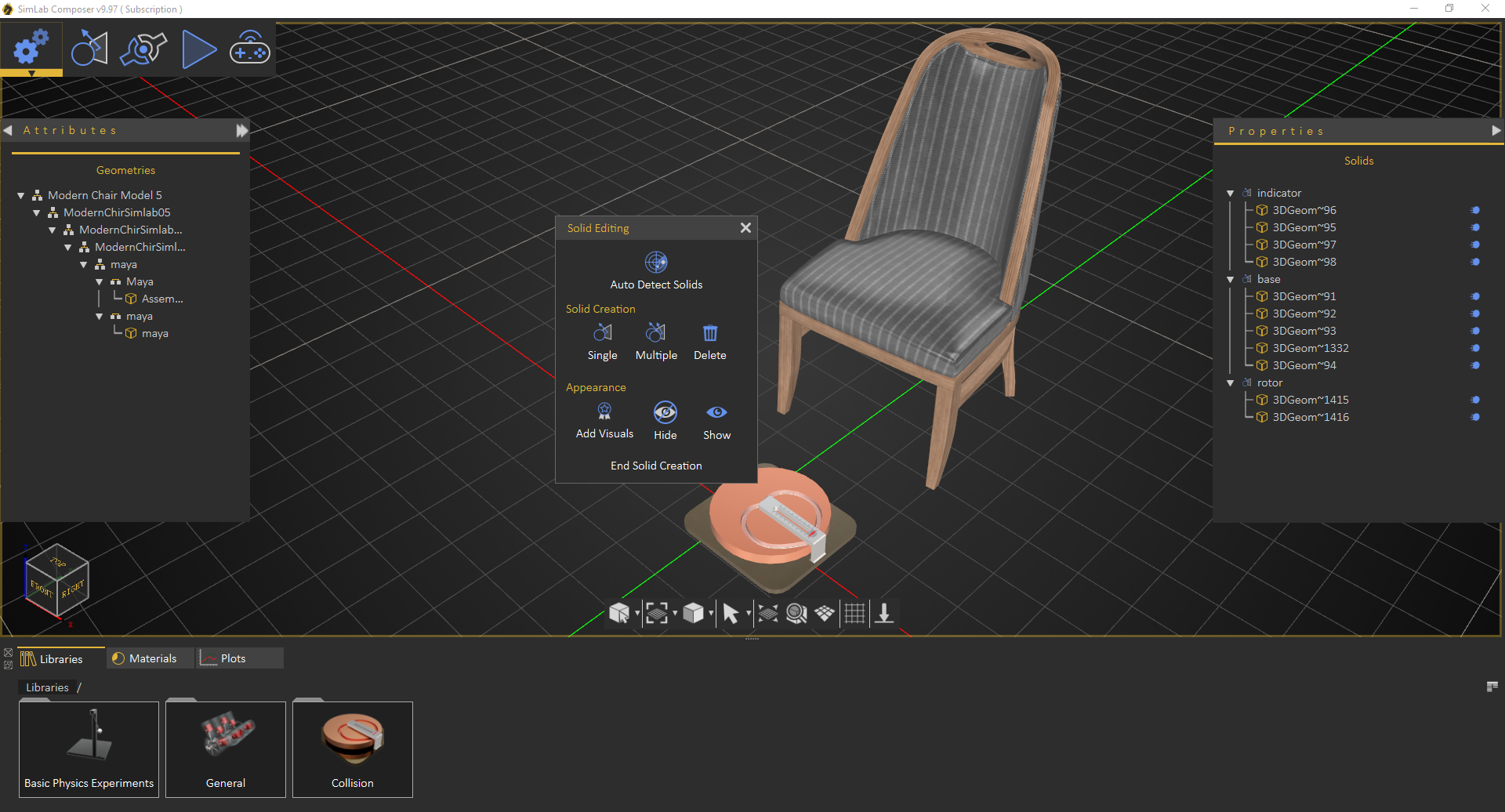](https://simlab-soft.com/help/uploads/images/gallery/2022-09/Q8zimage.png)
### Links Tree
When the Solid Editing dialog is closed, the geometries tree will be hidden, and the Links Tree will appear grouped with the Solids Tree. It is a graphical control element that presents a list of created links connecting solids in the scene. Selecting a link in the tree will display its properties in the Attributes dialog on the left for the user to edit.
[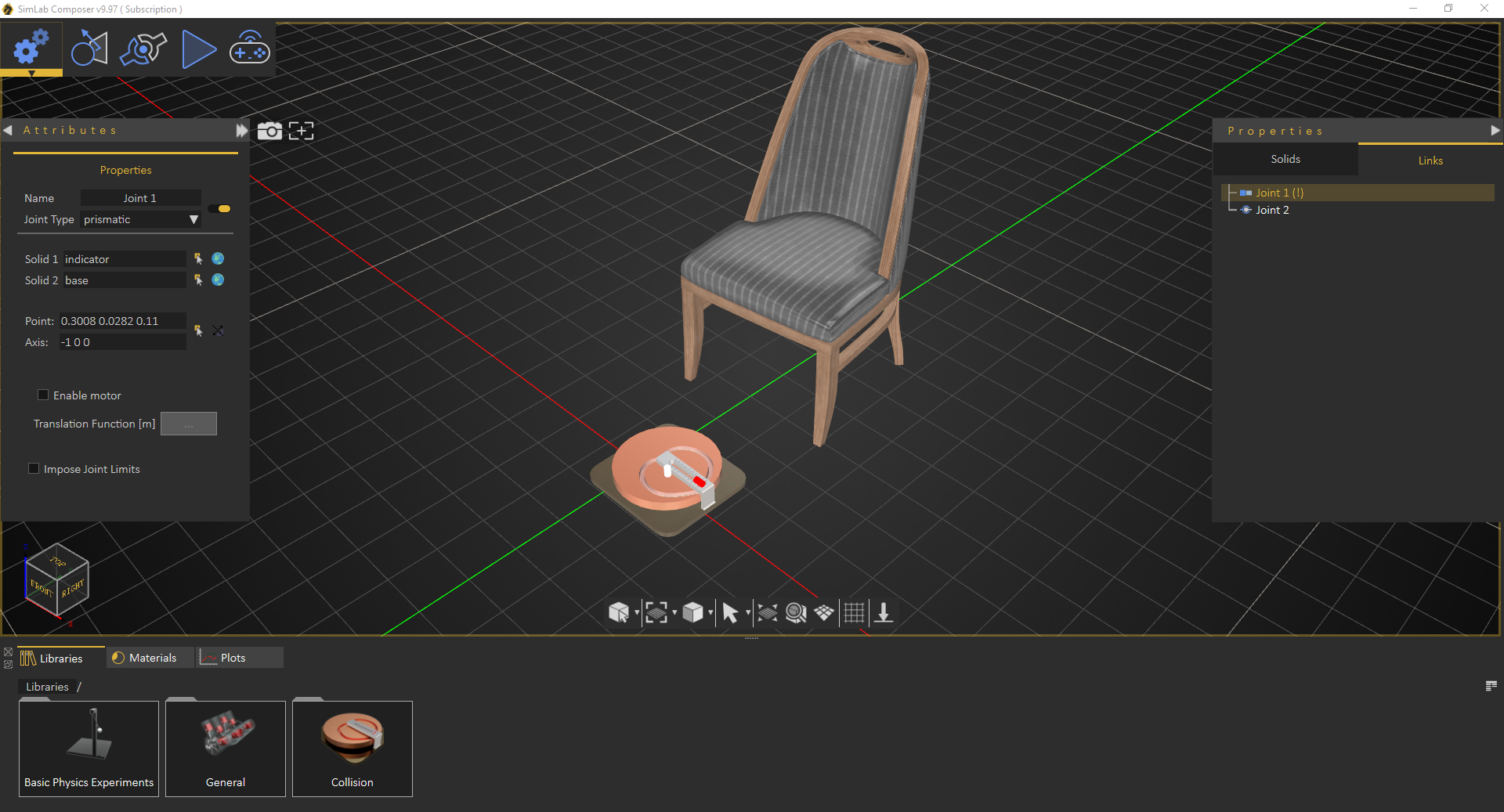](https://simlab-soft.com/help/uploads/images/gallery/2022-09/L8cimage.png)
### Models Library
The Models Library acts as a container for pre-installed simulation models that come with the Simulation Edition of SimLab Composer, distributed into three groups: Basic Physics Experiments, General, and Collision (as shown in the following image). It is located at the bottom of the Solids workspace. You can choose any model of the provided sample just to run it as it is or edit it as you wish.
[](https://simlab-soft.com/help/uploads/images/gallery/2022-09/QOsimage.png)
The toolbar of the Models Library is located horizontally on its right side:
- Manage Library: Launches Manage Library dialog that gives the user options to create, delete and rename model groups which are presented by tabs.
- Download Contents: This task is the same as in the Material Panel described in Navigator Panel.
- Add New: Allows the user to add newly created simulation models to any activated model tab within the Models Library.
- Delete Item: This command discards the selected model from the panel of the activated tab.
- Share Contents: This task is the same as in the Material Panel described in Navigator Panel.
- Change View: This task is the same as in the Material Panel described in Navigator Panel.
The Models Library is only associated with the Solids tab, it appears once the Solids tab is activated. By default, it also appears when you switch to the Simulation workbench.
# Links Menu
In simulation, the behavior of a solid is governed by two things, the first is the total external forces affecting it, and the second is the link that defines the relationship between it and another different solid that acts as a constraint that is enforced.
Using the Links Menu, a user can add joints, springs, forces, torques, and other constraints to control the mechanical behavior. The Links Menu contains the following Groups:
The ground always exists in simulation although it isn't visible to the user.
The Lock Icon is different in the simulation. Locking an object makes it invulnerable to any external force.
In SimLab Composer, every simulation case requires creating solids but creating Links is optional (it depends on the nature of the simulation). A Link defines the relationship of two solids to each other. Consider these prerequisites when you start every simulation project.
The simulation process is very conservative!
Before building a simulation, make sure that it is satisfactory and complete and does not require modifications outside the Simulation Workbench.
### Joints Group
A joint is something like a hinge, which is used to connect two solids. It is a relationship that is enforced
[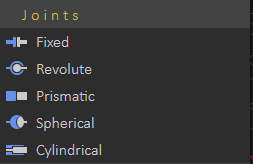](https://simlab-soft.com/help/uploads/images/gallery/2022-09/Nm2image.png)
between two bodies so that they can only have certain positions and orientations relative to each other. To create a joint between two solids, choose the joint type from the Links Menu, the joint will be added to the Links Tree, and its properties will appear in the Properties Panel on the left.
- Fixed: Maintains a fixed relative position and orientation between two solids, in practice, using this joint is rare. If two bodies are needed to be glued together, it is better to represent them as a single solid when deciding that both of the solids hold the same properties during the simulation session.
- Revolute: Also called pin joint, is a one-degree-of-freedom kinematics pair used in mechanisms. Revolute joints provide a single-axis rotation function used in many places such as door hinges, folding mechanisms, and other uni-axial rotation devices.
- Prismatic: Also called slider joint, provides a linear sliding movement between two bodies. The two joined solids have their rotation held fixed relative to each other, and they can only move along a specified axis, chosen by the user while specifying the joint properties.
- Spherical: Also called a ball and socket joint, is a joint in which the ball-shaped surface of a solid fits into the cup-like indentation of another solid. This type of joint allows the solid to move at a 360-degree angle—with more freedom than other joints.
- Cylindrical: A two-degrees-of-freedom kinematics pair used in mechanisms. Cylindrical joints provide a single-axis sliding function as well as a single-axis rotation, providing a way for two rigid bodies to translate and rotate freely.
A selected Joint requires its properties to be set in order to work appropriately.
### Geometric Group
The Geometric group is concerned with shape, size, the relative position of solids, and the properties of 3D space. Considers questions of relative position or spatial relationship of geometric figures and shapes.
- Distance: Creates a link between two solids based on maintaining a certain distance between them at all times during the simulation.[](https://simlab-soft.com/help/uploads/images/gallery/2022-09/Gzaimage.png)
- Path: Specify a path in the scene for the solid to follow during the simulation
### Spring Group
Creates a spring link between two points that the user selects. A spring is an elastic object used to store mechanical energy. The user needs to input the properties of the spring in the Properties dialog, Spring Constant, Damping, and Resting Length in order to work properly.
[](https://simlab-soft.com/help/uploads/images/gallery/2022-09/gz7image.png)Check this **[tutorial](https://youtu.be/lCmCRO4r8Q4)** for more about spring creation and simulation.
### Force/Torque Group
A user can affect the behavior of a certain solid by applying an external force or torque on it.
- Force: Applies an influence (push or pull) that tends to change the motion of an object [](https://simlab-soft.com/help/uploads/images/gallery/2022-09/EiAda5image.png)
including to begin moving from a state of rest, i.e. to accelerate. In other words, a force can cause an object with mass to change its velocity. A force has both magnitude and direction.
- Torque: applies an influence that produces a change in the rotational speed of an object.
The Properties Panel of the Force/Torque appears on the left side of the screen as shown in the image below:
- Name: Where the user specifies a name for the new force or torque.
- Mode: This section allows the user to change between force and torque modes.
- Application Space: The user specifies whether the force or torque will follow the affected solid as it moves (Local), or stay static on the original point of application (World).
- Affected Solid: Where the user selects the affected solid.
- Location: Where the user selects the application point and axis for force or torque, in addition to that the ability to flip the force or torque direction.
- Magnitude Function: This edit button, if clicked, displays the Function Editor dialog box where the user specifies and selects the desired magnitude function for force or torque.
[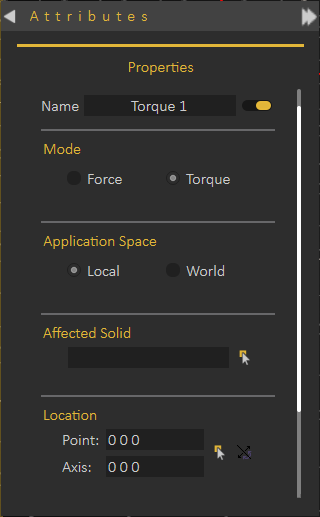](https://simlab-soft.com/help/uploads/images/gallery/2022-09/a7Aimage.png)
The Force/Torque Function Editor dialog box appears when you click over the edit button of the Magnitude Function. This dialog box is shared by both of Force and Torque, it contains the following parameters:
- Motion Function: Constant, Ramp, 3-4-5 Polynomial, Polynomial, Sine, Derivative, Integration, or Sequence.
- Constant.
- Ramp: Initial Value and Slope.
- 3-4-5 Polynomial: Amount of Displacement and Duration of Motion.
- Polynomial: C0, C1, C2, C3, C4, and C5.
- Sine: Amplitude, Phase, and Frequency.
- Derivative: Choose Function.
- Integration: Choose Function, Constant (C0), Lower Limit (X1), and Upper Limit (X2).
- Sequence: Select Sequence.
Function Plot: Start, End, Step, Plot Area, and Update buttons.
The Function Editor dialog box of the Magnitude Function for Force and Torque is the same Function Editor dialog box of the Motor Function for Prismatic and Revolute Joints.
[](https://simlab-soft.com/help/uploads/images/gallery/2022-09/Y6Eimage.png)
### Gears Group
A Gear or Cogwheel is a rotating machine part having cut teeth, or cogs, which mesh with another toothed part to transmit torque, in most cases with teeth on the one gear being of identical shape, and often also with that shape on the other gear. To create a gear between two solids, you must choose the type of gear from the Gears group then the Gear Properties panel will appear on the left side.
Gears group is located on the Links menu. You find two buttons in this group, as shown in the image. A brief description of each button, supported by the SimLab Composer's simulation engine, is given as follows:
- Gear (Gear Train or Transmission): Two or more gears working in a sequence. Such gear arrangements can produce a mechanical advantage through a gear ratio and thus may be considered a simple machine. Geared devices can change the speed, torque, and direction of a power source. The most common situation is for a gear to mesh with another gear.
- Rack and Pinion: A gear can also mesh with a non-rotating toothed part, called a rack, thereby producing translation instead of rotation. A rack is a toothed bar or rod that can be thought of as a sector gear with an infinitely large radius of curvature. Torque can be converted to linear force by meshing a rack with a pinion: the pinion turns; the rack moves in a straight line. Such a mechanism is used in automobiles to convert the rotation of the steering wheel into the left-to-right motion of the tie rod(s). Racks also feature in the theory of gear geometry, where, for instance, the tooth shape of an interchangeable set of gears may be specified for the rack (infinite radius), and the tooth shapes for gears of particular actual radii are then derived from that. The rack and pinion gear type is employed in a rack railway.
### Pulley Group
A pulley is a wheel on an axle or shaft that is designed to support movement and change of direction of a cable or belt along its circumference. Pulleys are used in a variety of ways to lift loads, apply forces, and transmit power. To create a Pulley between two solids, you must choose the link type from the Pulley toolbar then the Pulley Properties Panel will appear on the left side.
Pulley group is the rightmost group on the Links menu. You find only one button in this group, as shown in the following image. A brief description of the button, supported by the SimLab Composer's simulation engine, is given as follows:
- Pulley: A pulley may also be called a sheave or drum and may have a groove between two flanges around its circumference. The drive element of a pulley system can be a rope, cable, belt, or chain that runs over the pulley inside the groove.
# Simulation Menu
After defining the required solids and their relationships using joints, forces, and torques, the model is ready to perform the simulation and see the results. This can be done in the Simulation menu where the simulation is controlled and executed.
- Start/Stop
- Parameters Menu
- Collisions
- Post Processing [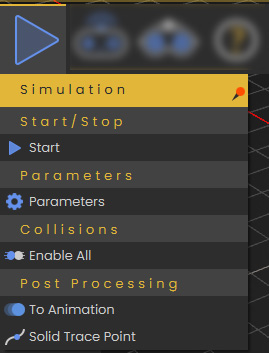](https://simlab-soft.com/help/uploads/images/gallery/2022-09/FNNimage.png)
### Start/Stop
Start/Stop: Allows the user to choose one of two predefined options (Start and Stop). The icon of which changes with each click and cycles between two states, the currently displayed value presents the next state.
Before running the simulation, you may need to alter the default simulation setting to what fits the application of your project exercise (Simulation Parameters are discussed in the next section "Parameters Group").
### Parameters
Often you need to change the simulation parameters before attempting to run a simulation or after stopping a simulation in order to configure the settings to what suits your requirements. The Parameters Group is located next to the Start/Stop Group. You find only one button in this group, as shown in the image below:
Parameters: The Parameters button allows you to set up options related to the utilized solver and other various general and advanced options.
The Simulation Parameter dialog box appears when the Parameters button is clicked. This dialog box is a preference panel containing multiple panels, using tabs as a navigational widget for switching among three
sets of settings. The three tabs are General, Solver, and Advanced.
The General Tab includes the following setting fields, as shown in the following image:
1. Time Step: This numerical field is used by the chosen solver to determine the time step (in seconds) between iterations, reducing this value often produces more accurate results, but this requires executing additional calculations that affect the simulation speed and the size of the generated data. The default value is 0.001.
2. End time: This numerical field tells the selected solver at which time (in seconds) the simulation will be stopped. Its default value is 10.
3. Recording Simulation Results: This numerical field is used to ignore storing parts of the simulation data, and only saves data at a point after each interval specified (in time steps) by the user. It is usually used when the time step is very small, and the resulting data is very large. Its default value is 1.
4. Gravity: X, Y, and Z: Specify (in m/s2: meter per second squared) the gravitational acceleration in X, Y, and Z directions. The default values are 0, 0, and -9.80, respectively.
- The Solver Tab includes the following setting fields, as shown in the following image:
[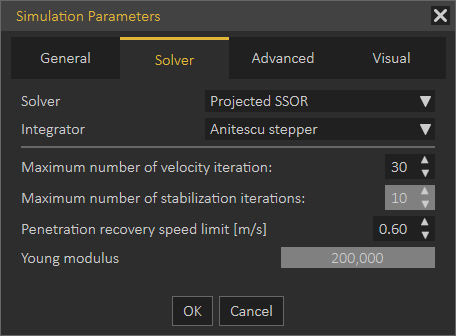](https://simlab-soft.com/help/uploads/images/gallery/2022-09/qKgimage.png)
1. Solver: Projected SSOR, Projected MINRES and DEM. (the default solver is Projected SSOR)
2. Integrator: Anitescu Stepper and Tasora Stepper (the default integrator is Anitescu Stepper)
3. Maximum Number of Velocity Iteration: (the default value is 30)
4. Maximum Number of Stabilization Iteration: Only associated with the Tasora Stepper Integrator. (the default value is 10)
5. Penetration Recovery Speed Limit: Only associated with the Anitescu Stepper Integrator (in m/s: meter per second) (the default value is 0.6)
6. Young Modulus: Only associated with the DEM Solver, only enabled if the DEM Solver is chosen. (the default value is 200000)
- The Advanced Tab includes the following setting fields, as shown in the following image:
[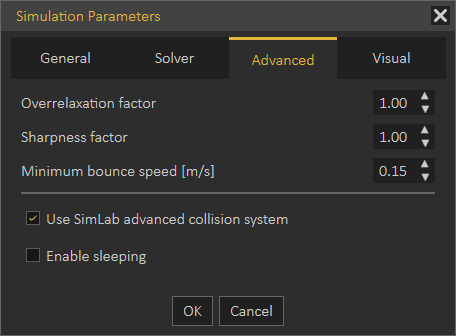](https://simlab-soft.com/help/uploads/images/gallery/2022-09/GHjimage.png)
1. Overrelaxation Factor: This option is associated with the Projected SSOR solver (the default value is 1)
2. Sharpness Factor: This option is associated with the Projected SSOR solver (the default value is 1)
3. Minimum Bounce Speed: This option is associated with all of the Solvers (in m/s: meter per second). (the default value is 0.15)
4. Use SimLab Advanced Collision System: This checkbox is enabled by default
5. Enable Sleeping: This checkbox is disabled by default
- The Visual Tab includes the following setting fields, as shown in the following image:
[](https://simlab-soft.com/help/uploads/images/gallery/2022-09/ziximage.png)
### Collision
Enable All: This toggle button allows you to choose one of two predefined options (Enable All and Disable All). The icon of which changes with each click and cycles between two states; the currently displayed value presents the state which will be applied if the user clicked it. By default, collision is disabled.
SimLab Composer allows you to enable and disable each Solid individually by using its independent Solid Properties Panel.
### Post Processing
The user can always benefit from the saved result of the most recent successful simulation, either in exporting it to animation or plotting its generated data on charts.
To Animation: The To Animation button automatically exports the simulation results of the latest simulation session as an animation in the Animation Workbench.
Solid Trace Point: Attaches a visual guide on a solid's surface, the trace point's movement can be analyzed using plots to study the behavior of the solid at that point.
In order to review or edit the frames of your recorded animation, go to the Animation Timeline which you can find at the bottom of the Animation Workbench.
In order to plot your simulation data, go to the Charting Area, which you can find at the bottom of the Simulation Workbench.
# Interactive Menu
Simulation mode has been developed for real-time interactive simulation. The new version of SimLab Composer takes Simulation to the next level, interactive simulation was added to allow the user to control machines using a Keyboard, or a Joystick.
It is designed to work with the Xbox One Controller, and the possibility to work with other game controllers such as the PS3 game controller.
[](https://simlab-soft.com/help/uploads/images/gallery/2022-09/yHjimage.png)
Tutorial for VR Interactive Simulation:
### Start/Stop Group
You can start or stop the run of an interactive simulation by clicking over the Start/Stop button (as shown in the following image):
- Start/Stop: Either start or stop the Interactive Simulation.
[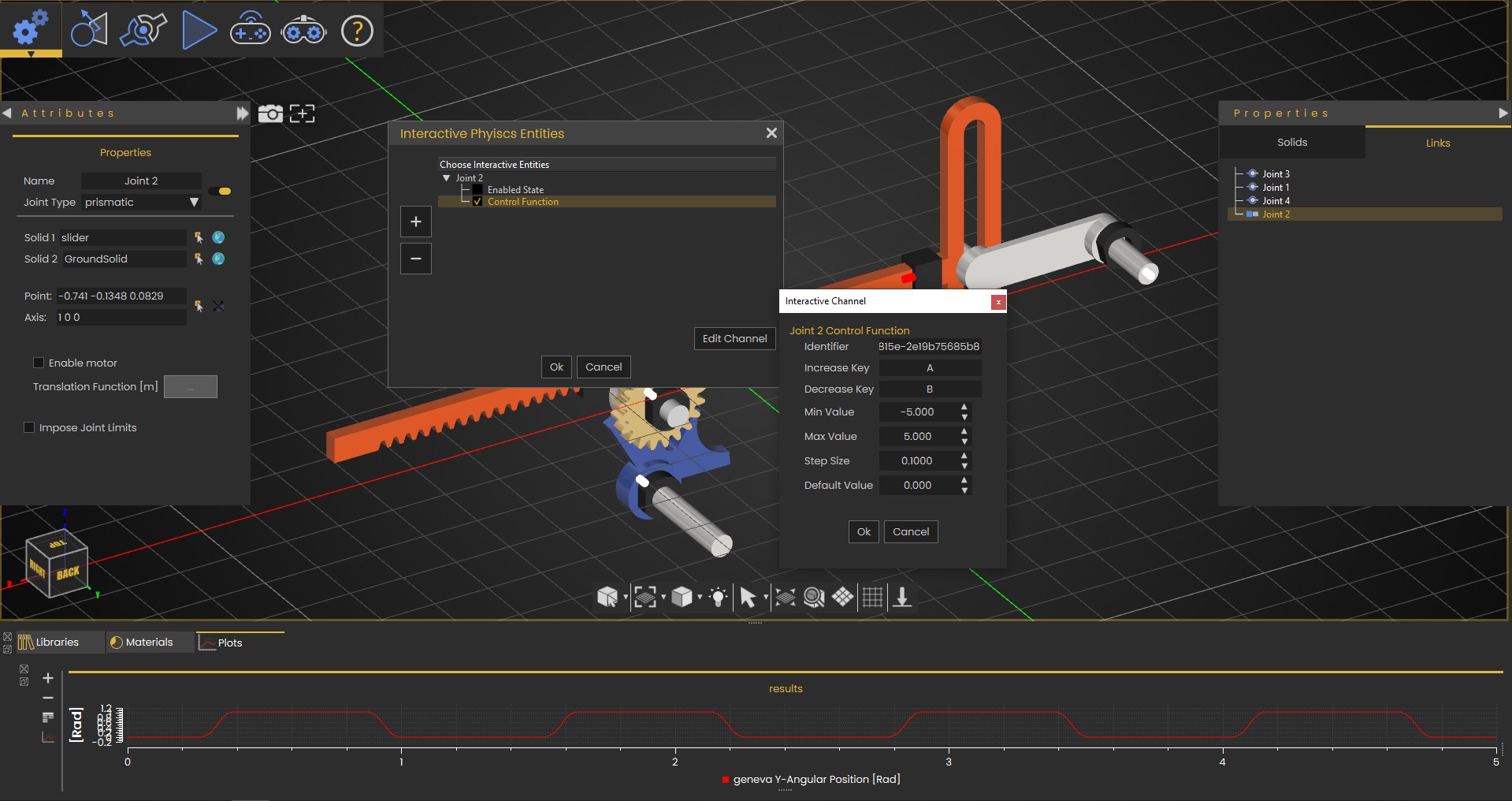](https://simlab-soft.com/help/uploads/images/gallery/2022-09/qX6image.png)
Interactive Simulation supports pointer devices, sliders, keyboards, and joysticks.
### Design Group
- Design Panel: A button that launches the Interactive Physics Entities dialog box.
- Parameters: A button that launches the Simulation Parameters dialog box.
The Design Tab includes the following setting fields, as shown in the following image:
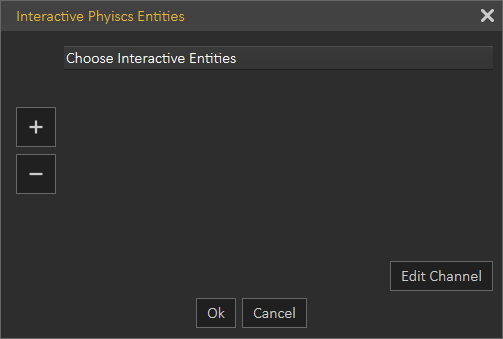Plus: Click it then choose a solid from the Solids Menu to add it.
Minus: Remove an entity from this list.
OK: To confirm and accept settings.
Cancel: To abort the operation.
#### Control Function
- Rotation
- Speed
- Torque
- Identifier (necessary for executing interactive simulations via a WebSocket server)
- Increase Key
- Decrease Key
- Min Value
- Max Value
- Step Size
- Default Value
[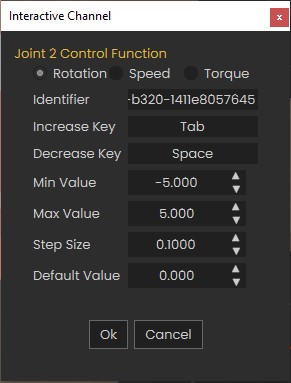](https://simlab-soft.com/help/uploads/images/gallery/2025-02/screenshot-2025-02-02-120858.jpg)
#### Control State
- Identifier (necessary for executing interactive simulations via a WebSocket server)
- On Key
- Off Key
- Default State
[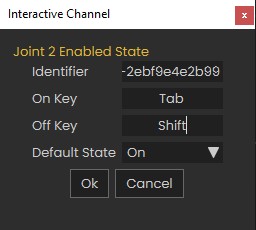](https://simlab-soft.com/help/uploads/images/gallery/2025-02/screenshot-2025-02-02-120946.jpg)
The interactive Simulation Parameter dialog box appears when the Parameters button is clicked. This dialog box is a preference panel containing multiple panels, using tabs as a navigational widget for switching among three sets of settings. The tabs are General, Solver, Advanced and Visual.
The Simulation Parameters dialog box is the same as the Simulation Parameters dialog box found in the Simulation Tab except for the General tab.
Interactive Simulation supports pointer devices, sliders, keyboards and joysticks.
[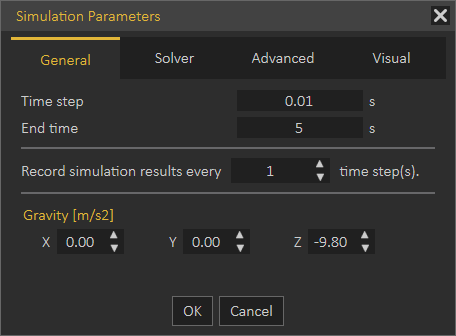](https://simlab-soft.com/help/uploads/images/gallery/2022-09/g0aimage.png)
### Forward (Support Sliders, Keyboard, and Console Controller)
The Interactive mode for simulation supports game controllers in addition to the standard input peripherals.
The Xbox One Controller is the primary controller for Microsoft Xbox One console. The Xbox One Controller is powered by 2 AA batteries, however, the Micro USB port can be used to power the controller, instead of its wireless connectivity.
(the Microsoft Xbox One controller)
Also, the Sony PS3 Controller is the primary controller for Sony Playstation 3 console. The Sony Playstation Controller features an internal built-in battery, however, the USB mini-B to USB-A cable can be used to connect the controller to the PC by wire instead of its independent Bluetooth connection.
(Sony Playstation controller)
SimLab Composer offers direct support for the controller of Microsoft Xbox one. On the other hand, the controller of Sony PS3 requires third-party software to work properly with SimLab Composer on a PC. For more information, contact us at (support@simlab-soft.com)
Through GUI (Slider Bars)
The horizontal slider lets you set or adjust a value by moving an indicator. This control is a horizontal slider with a handle that can be moved right and left on a bar to select a value. The bar allows you to make adjustments to rotation or speed values throughout a range of pre-defined values. It allows you to alter the movement speed while being in the scene by decreasing it by dragging to the left (Slower) or increasing it by dragging it to the opposite direction (Faster).
Controller sticks are sensitive. So take advantage of this property when designing a panel of increase and decrease keys for the interactive entities for controlling control functions
Plotting Library
For the purpose of simulation data analysis and post-processing, the user can use this graphical technique for representing a simulation data set as a graph, showing the relationship between two or more variables. The visual presentation of different functions is very useful for users who can quickly derive an understanding as a short path to gain insight in terms of testing assumptions, model selection, relationship identification, factor effect determination, etc. as shown in the following image a Plotting Area of two graphs.
The panel of the Plotting Library is located vertically on its left side, presenting the following four buttons:
[](https://simlab-soft.com/help/uploads/images/gallery/2022-09/iq8image.png)
- Add New Plot Tab: This button allows the user to add a new plot tab to Plotting Library.
- Delete Current Plot Tab: This button allows the user to delete the activated Plot Tab.
- Manage Library: The user can add multiple graphs assigned to present the desired simulation data. Four types of chart formation are available, as shown in the following image Single Plot, Dual Vertical Plots, Dual Horizontal Plots, and Four Plots.
- Manage Curves: This launches the Manage Curves dialog box, letting the user plot selected channel(s) on the desired graph area.
The Plotting Area is only associated with the Simulation Tab, it appears at the bottom of the Simulation Workbench once the Simulation Tab is activated.
# Co-Simulation
***Note:** The Co-Simulation feature does not support collaboration in SimLab VR Viewer.*
The interactive co-simulation feature in SimLab Composer and the SimLab VR Viewer allows you to control simulations directly from the VR Viewer. The viewer sends commands to SimLab Composer, which performs the necessary calculations and updates the transformations of the solids displayed in the viewer. By using a bidirectional WebSocket connection, you can manipulate simulations in real time, creating a seamless link between mechanical simulation and VR visualization.
A tutorial is available to guide users through the process of blending VR and mechanical simulations in SimLab Composer. This step-by-step walkthrough ensures that engineers can quickly adopt the feature and take full advantage of its capabilities.
The Co-Simulation menu provides users with various options to facilitate simulation tasks. Below are the options available in this menu:
[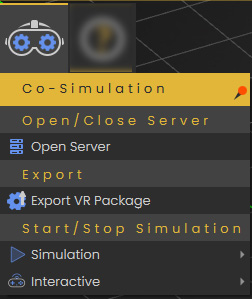](https://simlab-soft.com/help/uploads/images/gallery/2022-09/yHjimage.png)
1. **Open/Close Server**
- Use this option to open or close the local WebSocket server dedicated to passive and interactive real-time simulation. WebSockets enable two-way interactive communication sessions between a client application (SimLab VR Viewer or a web client) and a local host (SimLab Composer).
2. **Export VR Package**
- This option allows you to export the current simulation as a simulation-compatible VR Package.
3. **Simulation Sub-Menu
[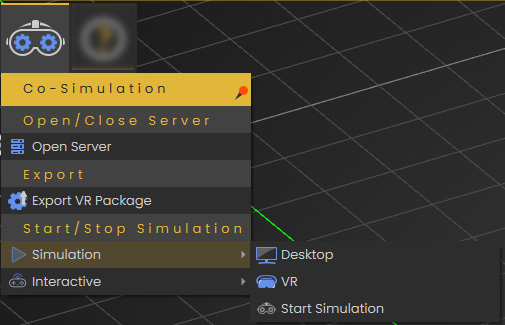](https://simlab-soft.com/help/uploads/images/gallery/2022-09/yHjimage.png)**
- **Desktop**
- Simulate in SimLab VR Viewer using desktop mode.
- **VR**
- Simulate in SimLab VR Viewer using virtual reality mode (VR headset).
- **Start Simulation**
- Initiate the simulation process using the local WebSocket server.
4. **Interactive Sub-Menu
[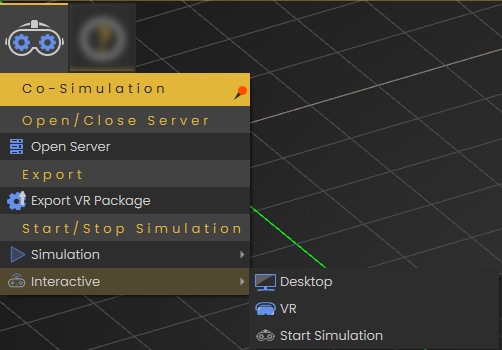](https://simlab-soft.com/help/uploads/images/gallery/2022-09/yHjimage.png)**
- **Desktop**
- Interact with the simulation in SimLab VR Viewer using desktop mode.
- **VR**
- Interact with the simulation in SimLab VR Viewer using virtual reality mode (VR headset).
- **Start Simulation**
- Start interactive simulation using the local WebSocket server.
# Automation Workbench
# Introduction
SimLab Composer allows using Python, and Java Scripts to automate processes, both scripts automation is supported in two modes:
1. Command line (for batch processing a large number of files). This includes command line without scripting using -ie command, and with scripting using Python, and Java scripts.
2. Interactive mode (from inside the GUI of SimLab Composer)
[](https://simlab-soft.com/help/uploads/images/gallery/2023-12/Mo1image.png)
Scripting is supported in the **Ultimate edition** of SimLab Composer
### Command line without scripting
Open the command line window, by typing "cmd" in Start. Go to the directory where SimLab Composer was installed, the default installation directory is "C:\Program Files\SimLab\SimLab Composer 10" to go there type **cd C:\\Program Files\\SimLab\\SimLab Composer 10**
With actual file locations, the below line will convert RubikCube.obj 3D models into RubikCube.skp in the indicated folders. Don't forget " "
-ie "C:\\Users\\simlab\\Desktop\\Delete\\RubikCube.obj" "C:\\Users\\simlab\\Desktop\\Delete\\RubikCube.skp"
Check this **[article](https://vrforcad.com/approaches-to-automatically-do-things-with-simlab-composer)** for more ab out the command line-based methods, also for commands on Mac.
### Command line Python Scripts
Python scripts can be run from the command line using the following command
```
SimLabComposer.exe -py “File.py”
```
So if the user named a script as example.py, and saved it in folder C:\Scripts, The user should use the following command
```
SimLabComposer.exe -py “C:\Scripts\example.py”
```
#### Passing arguments to Python Scripts
Passing arguments to a script makes it dynamic, and reusable without the need to change its code.
```
scene =Scene()
runtime =RunTime()
scene.reset()
fileName= runtime.args.getAsString("-path")
scene.importFile(fileName)
```
#### Interactive Scripting - Running Python script interactively
The user can run Python Scripts interactively in different ways:
1. Select a script from the scripting library, drag it, and drop it on the 3D area [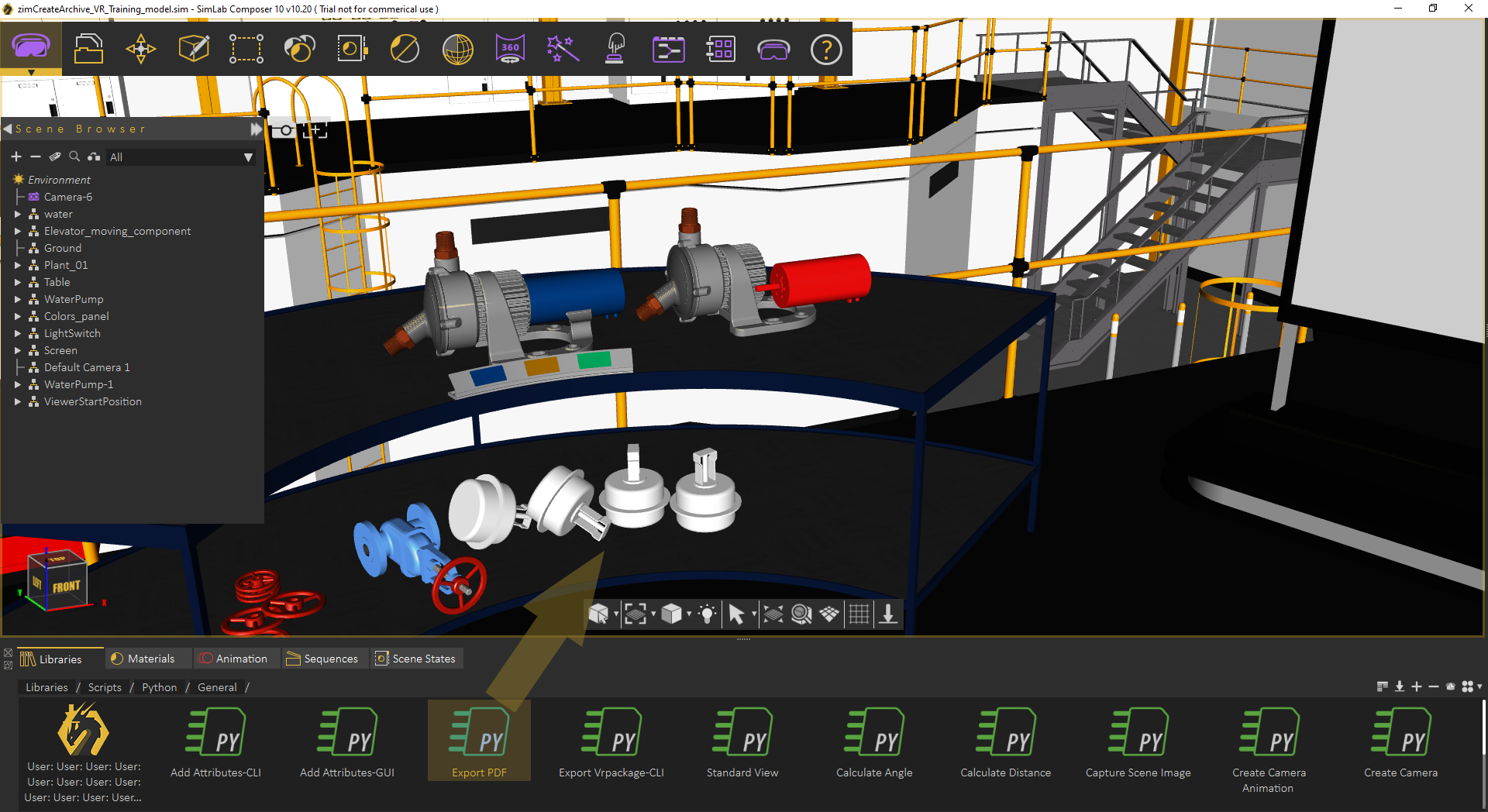](https://simlab-soft.com/help/uploads/images/gallery/2022-09/o48image.png)
2. Select a script from the library, then from the Script menu, click Run [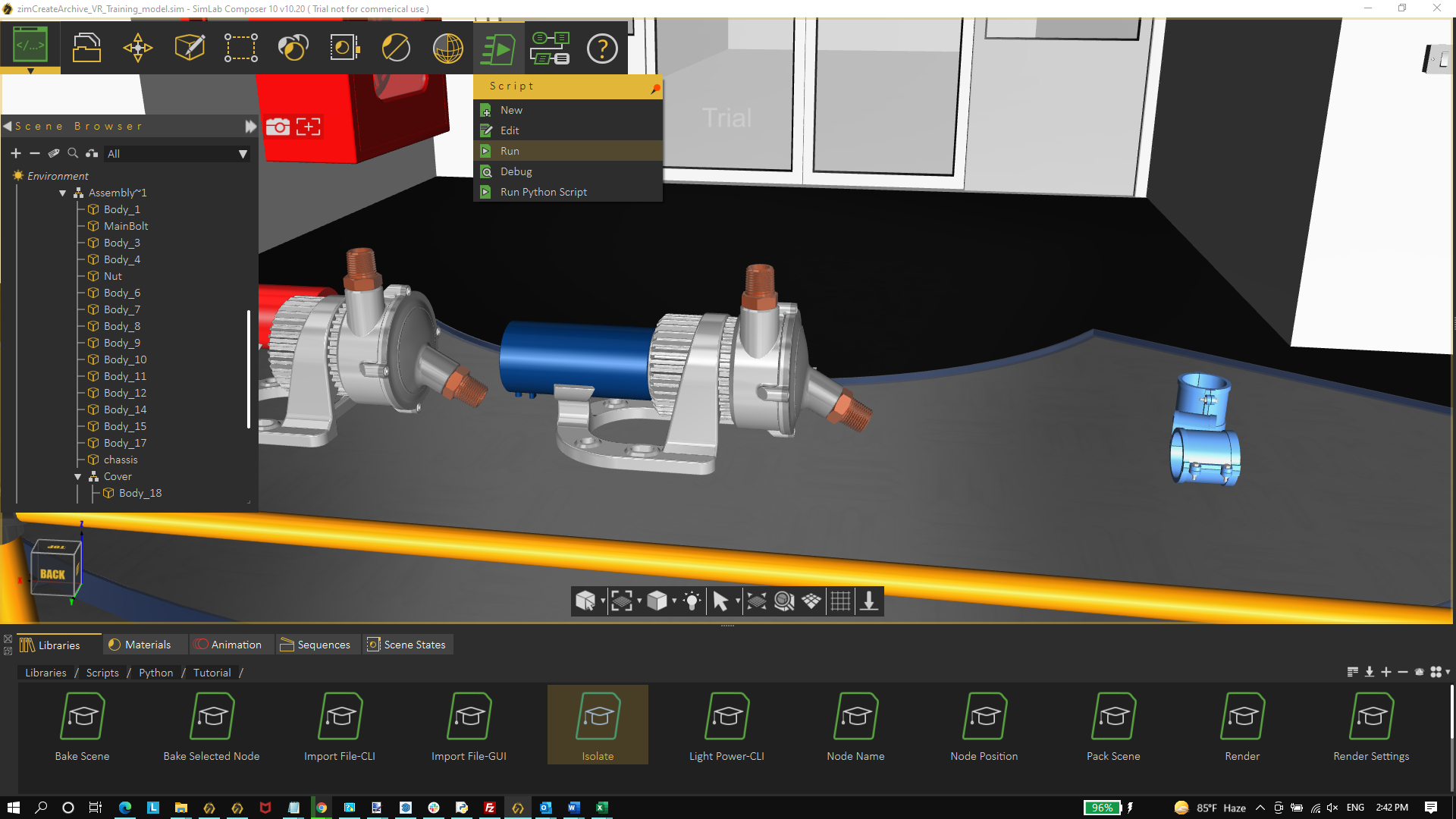](https://simlab-soft.com/help/uploads/images/gallery/2022-09/Fe1image.png)
3. Select the node/geometry to Isolate from the 3D area or the Object Tree, then click OK.
[ 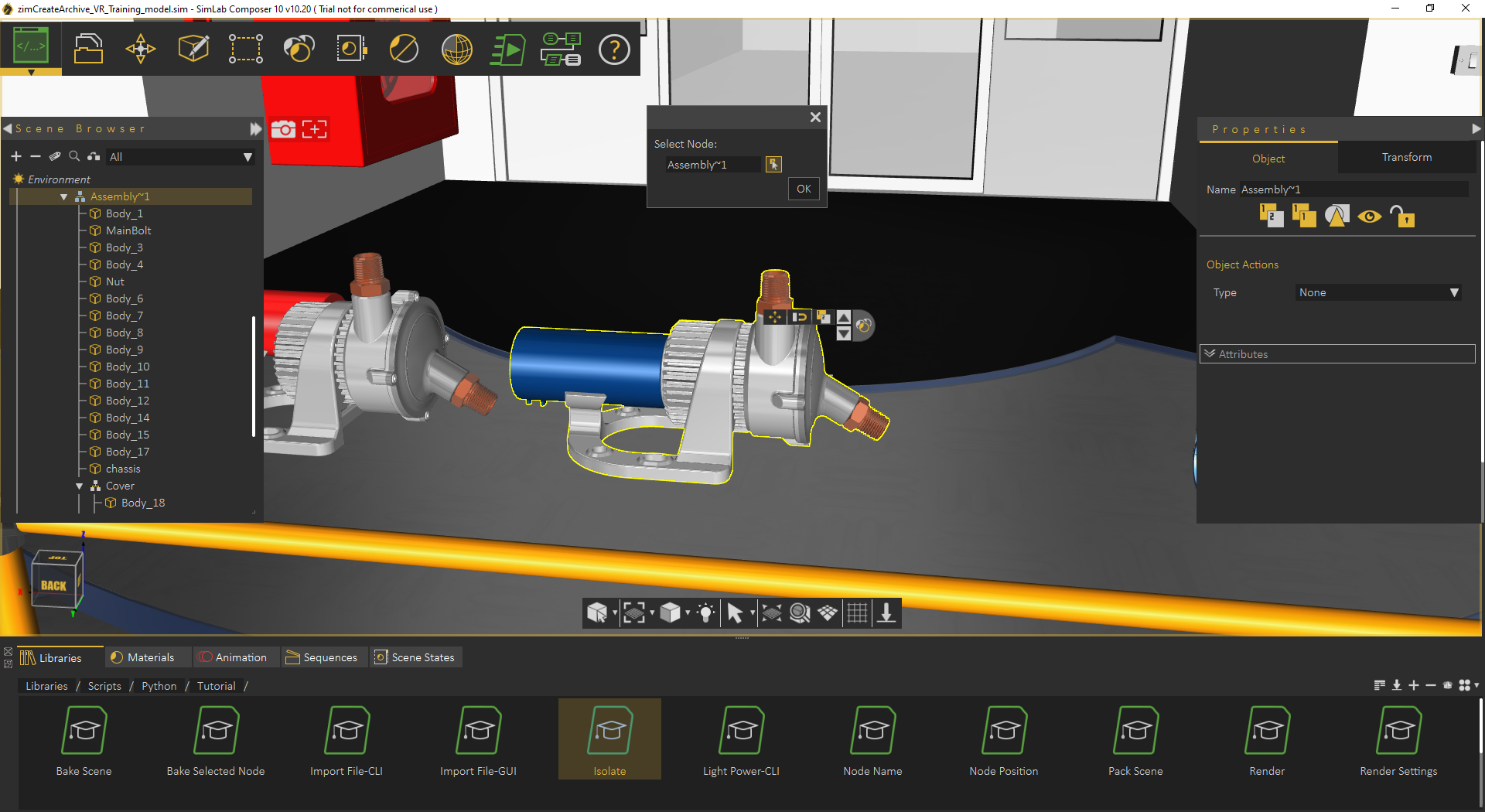 ](https://simlab-soft.com/help/uploads/images/gallery/2022-11/image.png)[ ](https://simlab-soft.com/help/uploads/images/gallery/2022-11/x8Pimage.png)[ ](https://simlab-soft.com/help/uploads/images/gallery/2022-11/x8Pimage.png)
[ ](https://simlab-soft.com/help/uploads/images/gallery/2022-11/x8Pimage.png)
#### My first Python script / Python Scripts using GUI input
The following script gets the location to save the rendered image, using a GUI dialog. Renders the current scene, saves the resulting image in the selected location, and finally displays a dialog indicating that rendering is done.
```
from simlabpy import *
scene = Scene()
runtime = RunTime()
render_path = runtime.ui.getSaveFileName("Exported rendered image location:", "", "*.jpg;;*.png")
scene.render(render_path)
runtime.ui.alert("Rendered image was created.")
```
For a list of supported Python scripting commands visit this [page](https://www.simlab-soft.com/3d-products/docs/help/scripting/English/Python-Scripting-Documentation/index.html)
Check out a blog about [the approaches to automatically do things with SimLab Composer](https://blog.simlab-soft.com/approaches-to-automatically-do-things-with-simlab-composer/).
[](https://blog.simlab-soft.com/approaches-to-automatically-do-things-with-simlab-composer/)
# Visual Scripting
Visual Scripting in SimLab Composer is a tool created to minimize the programming effort for non-technical users with no coding skills. Therefore, instead of writing the computer code in a text editor, the Visual Scripting tool allows the user to develop her\\his desired programs via block diagrams using a graphical user interface. This makes the code easier to be written as well as to be understoodز Any designer, artist, or animator reading the diagrams can quickly grasp the flow of logic therein.
### Getting Started
Select Visual Scripting from the automation workbench, the window shown below will appear with the following main parts:
**1**) Options to ‘Run’ the existing flow, ‘Create’ a new flow, ‘Open’, or ‘Save’ flows.
**2**) The Main Object Groups Bar, which includes the category titles of all the available sources and functions.
**3**) For each Object Group, corresponding ‘Sources’ and ‘Functions’ are available.
**4**) The ‘Work Space’, where blocks can be dragged, dropped, and linked to create the desired flow charts.
[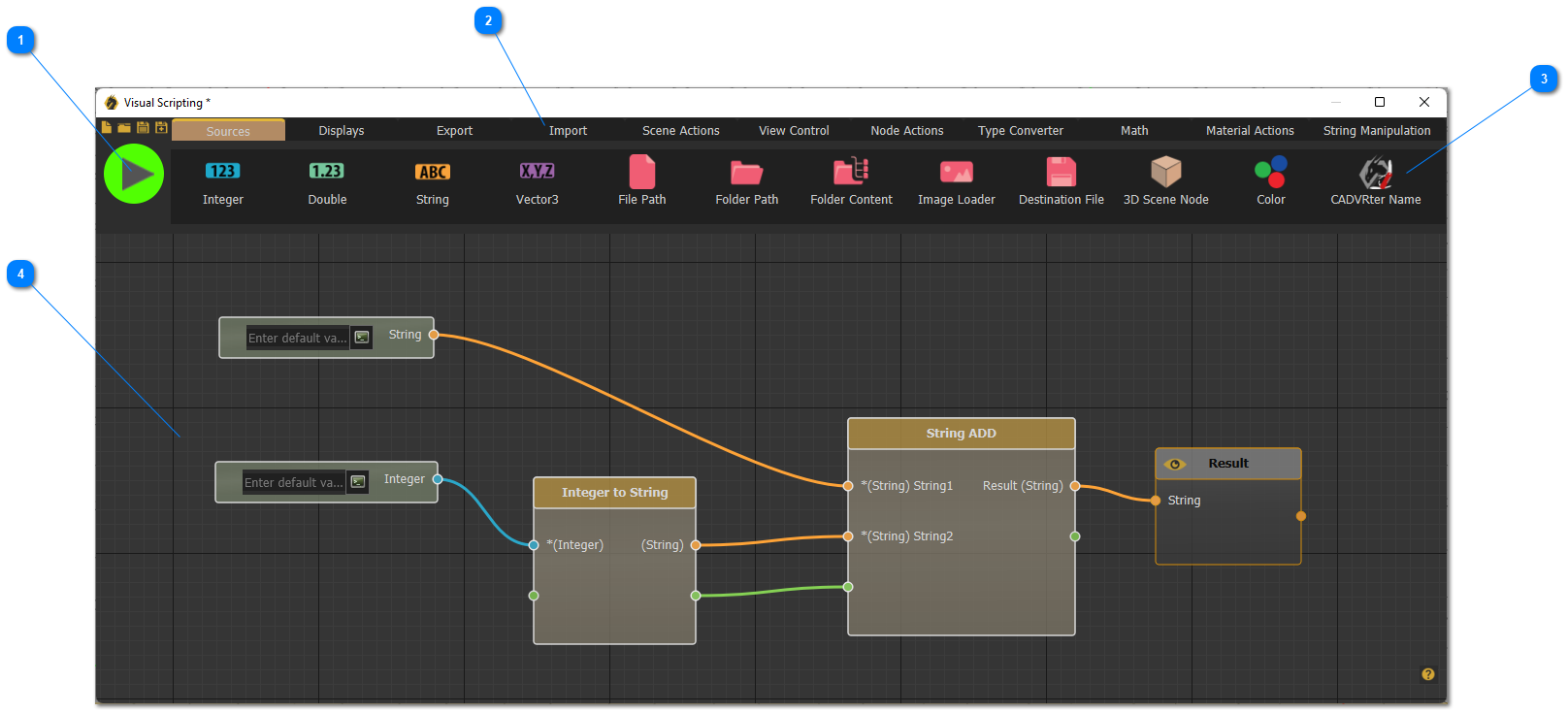](https://simlab-soft.com/help/uploads/images/gallery/2022-09/aGydrex-first-topic-screen.png)
Any flow in the Visual Scripting should consist of three main components: source, smart block, and connections.
A) Source: Sources are used to define file paths and/or 3D nodes to be used as inputs for different blocks in the diagram. Users can find several source types in the sources tab.
B) Block: Blocks are basically functions that (can) take inputs and produce outputs. Each block performs a single process, for example, the block on the left side in the previous figure takes an integer number as input and converts it to a string as an output. Users can find several block types categorized into different tabs throughout the Main Object Groups Bar.
C) Connections: Connections are used to make the whole flowchart meaningful by linking sources and blocks. They thus define which sources and blocks are connected, accordingly, they arrange the execution order of the block diagram. The green parts on the blocks are not essential but they are very important to ensure the right execution order and to create dependencies between the blocks. To make the process easier for users. Ports on each block are colored based on the data type that should be passed through them.
After completing the flow diagram, hit the run button to start the execution, and a pop-up message will appear once the execution completes. Flowcharts can be saved and shared to be used in different projects.
To learn more about Visual Scripting in SimLab Composer, check the tutorial below, and visit the SimLab Visual Scripting web **[page](https://www.simlab-soft.com/technologies/simlab-visual-scripting.aspx)**
# Accompanying Applications
# SimLab CADVRter
It's a standalone tool included with SimLab Composer Mechanical and Ultimate Editions. It is an application created to convert any supported file format individually (single file at a time) or collectively (multiple files at a time) to any supported file format in one shot, besides its ability to convert most CAD files to VR-ready walk-throughs possible to be exhibited on regular monitors and VR headsets.
SimLab CADVRter comes by default with SimLab Composer, where the user can have it installed after the installation process of SimLab Composer is completed. The user can access the application from the desktop shortcut created by the installer of SimLab Composer, or alternatively from the installation directory of SimLab Composer, where it can be usually found in the following directory path:
C:\\Program Files\\SimLab\\SimLab Composer 10\\SimLabCADConverter.exe
To learn more about this tool visit this [page](https://www.simlab-soft.com/cadvrter.aspx?locale=en).
# SimLab WebGL Starter
To learn more about this tool visit this **[page](https://www.simlab-soft.com/technologies/simlab-webgl.aspx?locale=en)**, and for running WebGL locally refer to this **[article](https://vrforcad.com/running-webgl-files-locally?utm_source=free_tools)**.
# Administrator
This tool is used for evaluating/surveying users in quizzes/surveys. Clicking Administrator from the VR Evaluation menu will open the Login dialog below.
[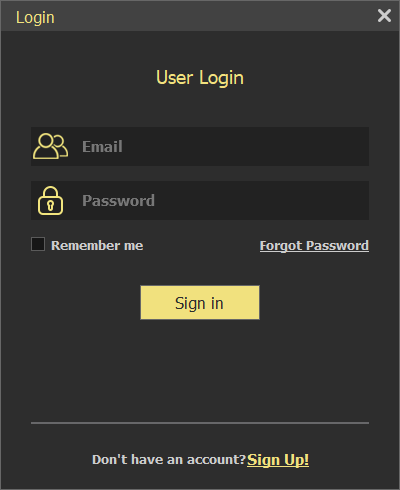](https://simlab-soft.com/help/uploads/images/gallery/2022-09/3yXadminlogin.png)
To have access to the evaluation tool the user needs to be part of an **organization**, creating an organization and managing users in an organization is done through **SimLab Admin**, from under the VR Evaluation menu.
After logging in with a registered email address and password the Create Organization dialog below will appear to enter the name of the organization.
To learn more about how to set up and manage an organization check this [tutorial](https://www.simlab-soft.com/3d-products/academy-video.aspx#xu4__7yRtAo)
[](https://simlab-soft.com/help/uploads/images/gallery/2022-09/Vwdimage.png)
# VR Viewing
# VR Viewing
[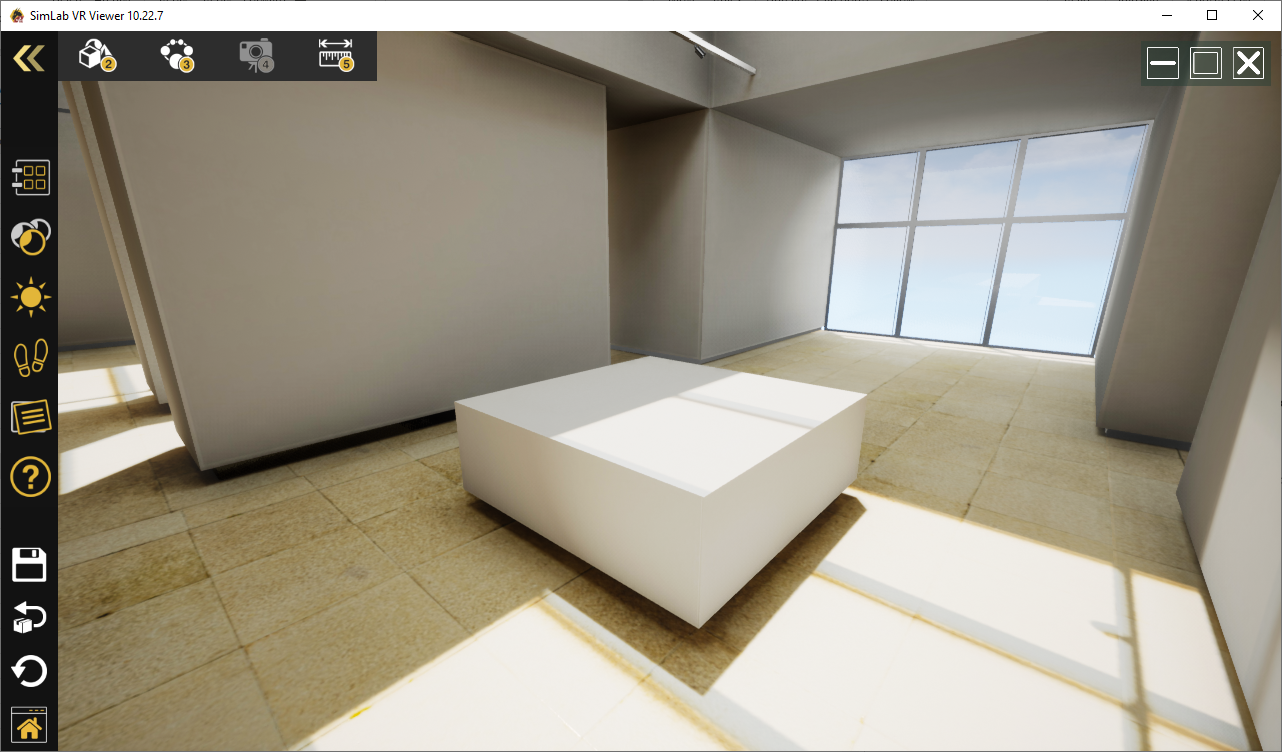](https://simlab-soft.com/help/uploads/images/gallery/2022-01/image-1641041099294.png)
Using the Free SimLab **VR Viewer** users can view and showcase VR Experiences on all devices.
SimLab **VR Viewer** is Free and supports all VR Experiences created using Composer, or other SimLab Soft products like **SimLab VR Plugins**.
Free VR Viewer is supported on:
- Desktop Windows
- Desktop Mac.
- PC-connected VR headsets
- Vive
- Vive Pro
- Quest (with the link)
- Rift S
- Mixed reality sets
- Standalone VR headsets
- Quest
- Pico
- Android
- iOS
The latest version of VR Viewer can be downloaded from the following **[link](https://www.simlab-soft.com/technologies/simlab-showroom.aspx)**
---
#### SimLab Cloud Sharing
SimLab Cloud Sharing is a cloud service that is already included with a SimLab Composer License. It allows the user to do the following:
1- Upload VR Experiences
2- Share VR Experiences with others
3- Synchronize VR Experiences across different machines
The user can use the same key received for Composer to activate **SimLab Cloud Account**.
Check the following [**link** ](https://www.simlab-soft.com/technologies/simlab-sharing.aspx)to learn more about what benefits you get with your **SimLab Cloud Account.**
**Upload VR Experiences**
By default, the user will be able to upload up to 10 VR Experiences, with space of up to 20GB. The user can remove models and upload new ones while keeping the uploaded number of models up to 10.
In case a user wants to add more space to the **SimLab Cloud Account**, a new cloud key can be ordered from the following [**link**](https://www.simlab-soft.com/technologies/simlab-sharing.aspx)
**Share VR Experiences with others**
Uploaded VR Experiences can be shared with other users. You can share with any number of users, who do not need to have a **SimLab Cloud Account** license to view VR Experiences. Uploaded experiences can be shared with specific users from **VR Viewer**, or can be shared as a weblink ready to be sent by email to any person with or without VR Viewer.
**Note**: only VR Experiences with Evaluation require additional an additional **SimLab Cloud Account** which can be ordered from the following [**link**](https://www.simlab-soft.com/3d-products/vr-studio-buy.aspx)
**Synchronize VR Experiences across different machines**
When users log in using the same **SimLab Cloud Account** on any other machine, any user will have access to all VR Experiences uploaded to that **SimLab Cloud Account**. This makes it very easy to synchronize models between multiple viewers and makes it very easy to move VR Experiences from **PC** or **Mac** to stand-alone devices like **Quest**, **Pico**, **Android**, or **iOS**
The following tutorial describes the basics of Sharing using **SimLab VR Viewer**
****
# VR Evaluation
# Introduction
Evaluation allows measuring the performance of the user by using
- [Quizzes](https://simlab-soft.com/help/link/30#bkmrk-page-title)
- [Surveys](https://simlab-soft.com/help/link/32#bkmrk-page-title)
- [User Defined Evaluation](https://simlab-soft.com/help/link/33#bkmrk-page-title)
To have access to the evaluation tool you need to be part of an **organization**, creating organization and managing users in an organization is done through **SimLab Admin**, which is included in **SimLab Composer/VR Studio**.
VR Experiences can be distributed to end users using **SimLab VR Viewer**, or **LMS** (Learning Management System). Any **LMS** supporting **xAPI (Tin Can)** or **Scorm** can be used to distribute VR Experiences to users
In case of no LMS system available, **SimLab VR Viewer** can be used. It includes all what is needed to distribute VR Experiences and VR based Training.
After users run the experience, results can be accessed using **SimLab Admin**.
- [Getting started with VR Evaluation](https://simlab-soft.com/help/books/simlab-composer-help/page/getting-started-with-vr-evaluation)
- [Creating Quiz](https://simlab-soft.com/help/books/simlab-composer-help/page/creating-quiz-Pne)
- [Creating Survey](https://simlab-soft.com/help/books/simlab-composer-help/page/creating-survey)
- [Pre/Post Question Events](https://simlab-soft.com/help/books/simlab-composer-help/page/prepost-question-events)
- [Creating User Defined Evaluation](https://simlab-soft.com/help/books/simlab-composer-help/page/creating-user-defined-evaluation)
- [Distributing VR experiences](https://simlab-soft.com/help/books/simlab-composer-help/page/distributing-vr-experiences)
- [Viewing results](https://simlab-soft.com/help/books/simlab-composer-help/page/viewing-results)
- [Advance xAPI LRS settings](https://simlab-soft.com/help/books/simlab-composer-help/page/advanced-xapi-lrs-settings)
# Getting started with VR Evaluation
To create a VR Experience that includes evaluation you need to be part of an **organization,** which you can be invited to by any **admin** of the organization (each organization can have one or more admins), or you can create an organization using **SimLab Admin**
**SimLab Admin,** allows the admin to define and manage **Admins**/ **Teachers**
For creating lessons and distributing them to students, the user needs to be an **admin** or a **teacher** in the organization. **Admin** has the extra ability of adding and managing other users.
The following tutorial shows the process of creating an organization using **SimLab Admin,** and adding new **admins** and **teachers:**
In addition to creating organizations and defining users, SimLab Admin allows the creation of **Groups** and **Courses**.
**Group** is a collection of **courses** that makes it easy to find them. Educational institutes can for example create groups Like **Summer 2023**
A **Course** is a collection of lessons that serves a purpose, it can be something like **Math 101,** or **Safety introduction**.
When a **lesson** is created it should be added to a **Course**, which is a part of a **Group**.
When creating an organization, a default **Group** and **Course** are added, which can be renamed. Other **Groups** and **Courses** can be added too.
# Creating Quiz
Each Quiz created using Composer/VR Studio may include one or two types of questions
1- **Multiple Choice Question**
2- **Interactive Question**
In a **Multiple Choice Question** the student needs to select the correct answer from any number of choices (from 2 for true/ false question, to any number of choices defined by the instructor).
In an **Interactive Question** the student should select the correct 3D model representing the correct answer.
For the Quiz the teacher can determine the time limit for the student. If the student did not submit answers before this time, answers will be automatically submitted by the end time. The teacher has the option of keeping time open.
VR Experiences can have one or multiple quizzes and/ or surveys. The teacher can determine when a quiz or survey is started, the VR Experience can show material then run a quiz, or it can start with a quiz of survey
The following tutorial shows how to create a quiz using **SimLab Composer/VR Studio:**
# Creating Survey
Each Survey created using Composer/VR Studio may include a mix of three types of questions:
1- **Multiple Choice Question**
2- **Interactive Question** 3- **Star Rating**
In a **Multiple Choice Question** the student needs to select one of the available choices.
In an **Interactive Question** the student should select the 3D model from the scene.
In a **Star Rating**, the user needs to rate the experience (out of 4, 5, or 10 stars), based on the designer's choice
Unlike Quizzes, surveys do not have a correct answer, but it shares with Quizzes other features.
# Pre/Post Question Events
**Training Builder** is needed to determine when to start a Quiz or Survey in the scene. Starting a Quiz and Survey can take place after the student learned new material, or even at the start of the scene if this is simply a Quiz VR Experience.
This is not the only place you need to make Quiz or Survey utilize the **Training Builder**. For a special question you may need to arrange the scene in a specific way, or make sure the student look in a specific direction, for those situations you can use **Pre/Post Question Events**.
This is done by clicking on **Pro/Post Question Event** button on Quiz/Survey dialog
[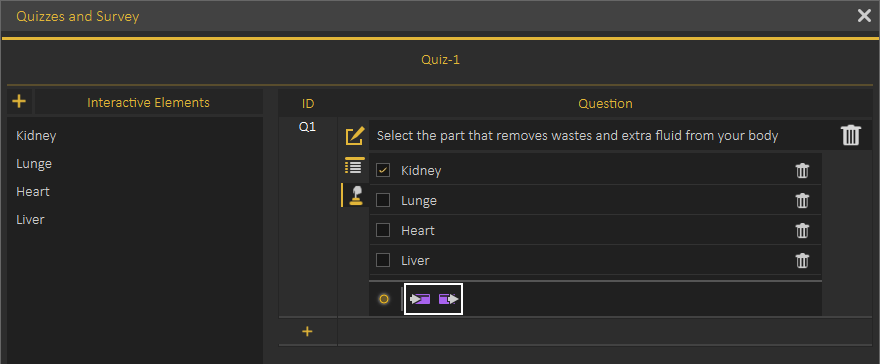](https://simlab-soft.com/help/uploads/images/gallery/2021-12/image-1640878206402.png)
If this is the first time **Pro/Post Question** **Event** button is clicked a new event is added to the **Training Builder** as shown in the following image:
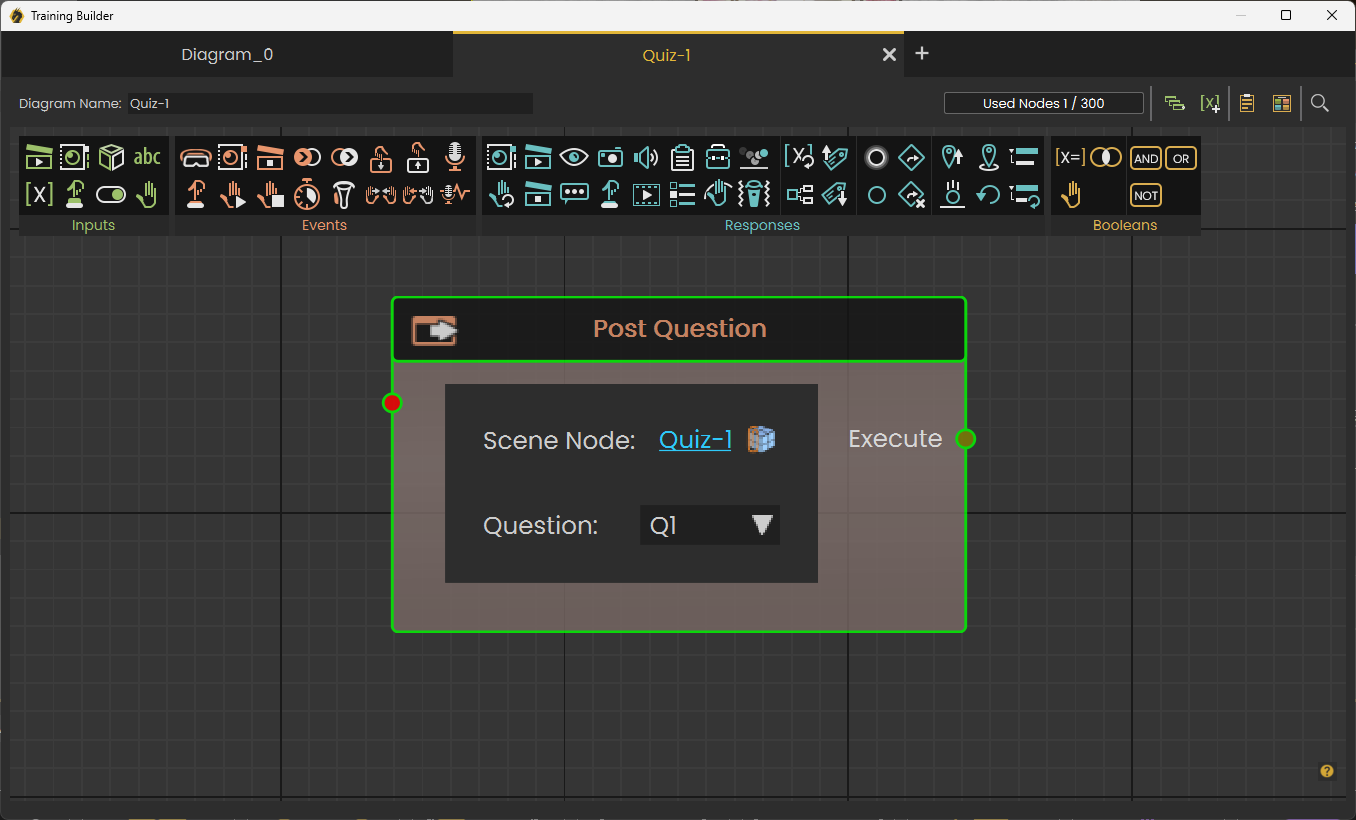
This event can be used to execute all preparations needed for the question.
If it was clicked before it will open the **Training Builder** and focus on the **Pre Question Event** so user can check it, or update it.
**Post Question Events** work in the same way, the only difference is that they are called when the user ends the question, so they are usually used to restore state of the scene if needed.
# Creating User Defined Evaluation
In addition to using Quizzes to evaluate participants in VR, you can create your own customized evaluation criteria through the **Report Response**.
[](https://simlab-soft.com/help/uploads/images/gallery/2023-12/yiZimage.png)
Report is a Response in the **Training Builder** that can be connected to any event, and upon the occurrence of the connected event, it will submit a "User defined status".
[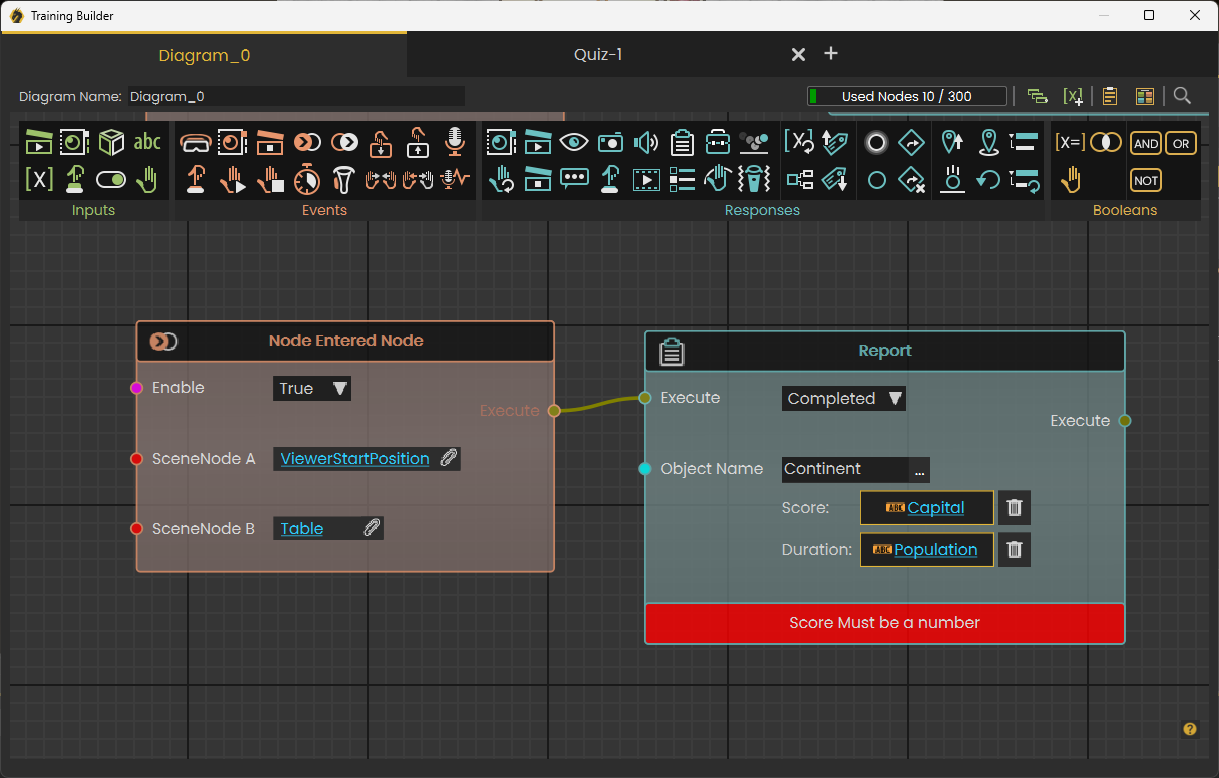](https://simlab-soft.com/help/uploads/images/gallery/2023-12/xskimage.png)
In this example, the Report Response will be triggered once the user enters the object named "Table", and it will report the completion of "Continent", and submit the value of the variable "Capital" as the facing continent, and the value of the Variable "Population" as the duration.
---
#####
#####
##### Report Response Types
There are 4 types of reports that can be submitted using the Response Node :
**1. Completed[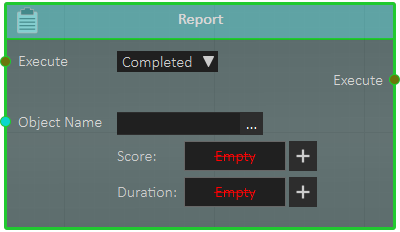](https://simlab-soft.com/help/uploads/images/gallery/2022-01/image-1641199484238.png)**
The Completed Response will report the status "Completed" with an object name that would describe what has been completed, you can also attach a variable to the "Score" field to report a numerical value, as well as a variable to the "Duration" field to report a time interval.
**2. Passed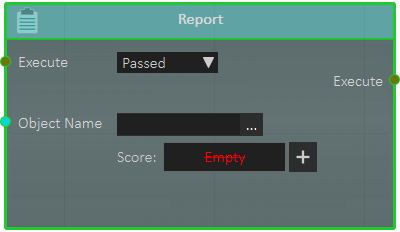**
The Passed Response will report the status "Passed" with an object name that would describe what the user has passed, as well as score, when you attach a variable to the "Score" field to report a numerical value.
**3. Failed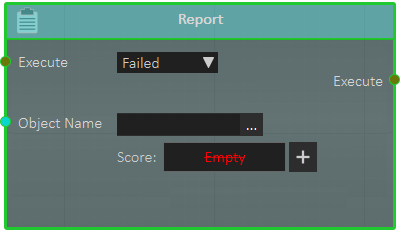**
The Failed Response will report the status "Failed" with an object name that would describe what the user has failed in, as well as score, when you attach a variable to the "Score" field to report a numerical value.
**3. Scored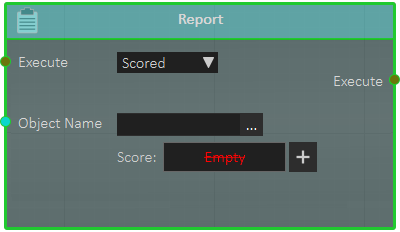**
The Scored Response will report the status "Scored" with an object name that would describe what the user has scored in, as well as the numerical value of the score through attaching a variable to the "Score" field.
---
##### Report Response Versatility
The Report Response, unlike Quizzes, is very versatile and can be used to report the status of any event throughout the VR Experience. You can, for example, have multiple reports for each phase of the experience, or different reports for the same event but are triggered under different conditions.
[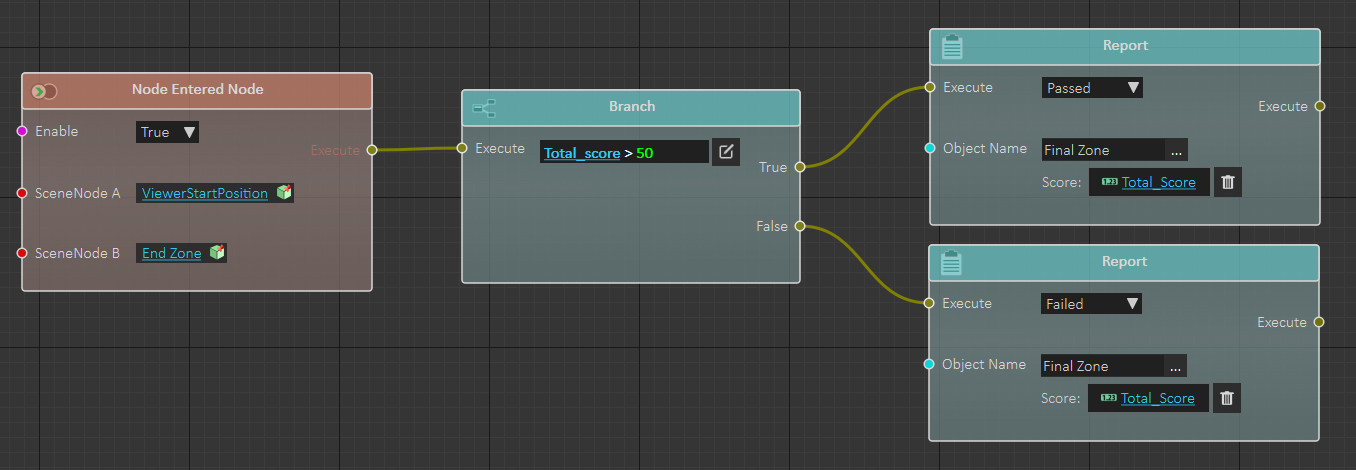](https://simlab-soft.com/help/uploads/images/gallery/2022-01/multireports.jpg) In this example, 2 Report Responses are connected to the same event, but each will be submitted depending on the value of the variable "Total\_score" which will determine whether the user has passed or failed.
To learn more about utilizing the Report Response in VR, watch the following tutorial video:
# Distributing VR experiences
#### Distribution methods
VR experiences created using **Composer/VR Studio** can be shared using SimLab **VR Viewer**, or **LMS** (Learning Management System)
If your organization is already using an LMS, then you may want to utilize it to distribute VR Experiences, if you do not know what an LMS is, or your organization does not have one then you can complete the task using **SimLab VR Viewer**
#### Distribution using SimLab VR Viewer
SimLab **VR Viewer** includes all the tools needed to upload VR Experiences and share them with user(s) or groups. The process is described in the following tutorial:
#### Distribution using LMS
Both **Composer** and **VR** **Studio** support exporting VR Experiences as xAPI (Tin Can) or Scorm packages, both xAPI and Scorm are standards utilized in most LMS systems, if your LMS system supports xAPI or Scorm simply you need to export the VR Experience to the correct output supported by your LMS
##### VR Experience to xAPI
The following tutorial teaches the user how to export the VR Experience as an xAPI package and how to use it in TalentLMS:
#####
##### VR experience to SCORM
The following tutorial teaches the user how to export the VR Experience as a SCORM package and how to use it in Moodle:
Most modern LMS system supports at least one of the two, xAPI or Scorm.
The following tutorial shows how to run VR Eperiences in BlackBoard (BB) LMS
# Viewing Results
After students run VR Experiences including evaluation, teacher can use **SimLab Admin** to view results. To do this, the teacher starts **SimLab Admin,** then logs in to his account.
From **SimLab Admin** the teacher selects the **Group** and **Course** under which the **Lesson** she/he wants to view its results, exists.
By double clicking, the teacher can view results for Quizzes, Surveys, and User defined measurements
The teacher can view **Firs trial**, **Last trial**, or **Highest trial** (assuming multiple trials are allowed), teacher can set passing mark which is by default 50% of the full score, the teacher can export results to CSV file
The following tutorial shows how to use **SimLab Admin** to view results:
# Advanced xAPI LRS Settings
By default SimLab Soft will send the evaluation results into its own secured LRS, however If you have a setup of your own LRS with your LMS, you can configure your experiences to send the results into your own LRS.
#### **How to send results into your own LRS:**
- Go to SimLab Composer/VR Studio.
- Go to **VR Evaluation > LRS Settings**.
[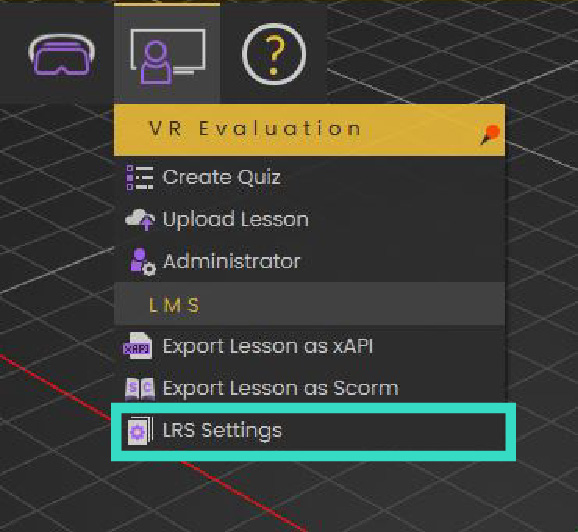](https://simlab-soft.com/help/uploads/images/gallery/2022-12/asset-1.png)
- Choose **custom** LRS settings and **fill** your LRS Authentication information.
[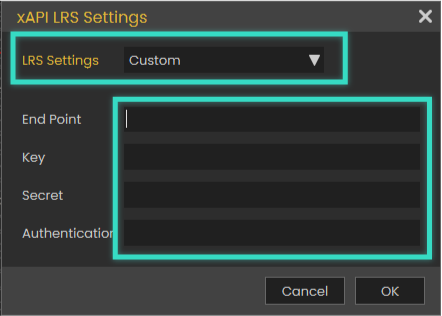](https://simlab-soft.com/help/uploads/images/gallery/2022-12/asset-2.png)
**After doing so, any VR Experience you create should send its result into your LRS system.**
By defining custom LRS settings, It's your responsibility to receive and keep the data on your LMS, SimLab Soft will not save or backup the data anywhere on its VR platform.
# Keyboard Shortcuts
**Function**
**Shortcut**
Create New Scene
\[Ctrl\] + \[N\]
Open Scene
\[Ctrl\] + \[O\]
Save Scene
\[Ctrl\] + \[S\]
Pack The Scene
\[Ctrl\] + \[P\]
Import Geometry
\[Ctrl\] + \[I\]
Export
\[Ctrl\] + \[E\]
Exit
\[Ctrl\] + \[Q\]
Undo
\[Ctrl\] + \[Z\]
Redo
\[Ctrl\] + \[Y\]
Make Instance
\[Ctrl\] + \[T\]
Duplicate Selection
\[Ctrl\] + \[C\]
Show Scene Materials
\[Ctrl\] + \[M\]
Capture Camera Key Frame
\[Ctrl\] + \[K\]
Capture Scene State
\[Ctrl\] + \[D\]
Show/Hide the training builder
\[Ctrl\] + \[B\]
Geometrical Info
\[Ctrl\] + \[Shift\] + \[I\]
Real-Time View
F4
Render to File
F5
Select
Esc
Show/Hide Quick Access Toolbar
1
Transform 3D
2
Global Transform
3
Show Pivot
4
Dynamic Snap
5
Change World Center
C
Capture (Scene State) From Selection
D
Freeze/UnFreeze
F
Snap To Ground
G
Hide
H
Isolate
I
Snap To Object
N
Camera Pan
P
Show
S
Set Camera Target Into Selected Geometry Center
V
Delete
Del
Top View
\[Ctrl\] + 1
Bottom View
\[Ctrl\] + 2
Front View
\[Ctrl\] + 3
Back View
\[Ctrl\] + 4
Right View
\[Ctrl\] + 5
Left View
\[Ctrl\] + 6
Default View
\[Ctrl\] + 7
Fit All
\[Ctrl\] + \[F\]
Zoom To Object
\[Ctrl\] + \[J\]
Go To First Frame
Home
Play/Stop Animation
Space Bar
Go To the Last Frame
End
Move 10 Frames Forward
Page Up
Move 10 Frames Backward
Page Down
Rubber Band Selection
Alt
Xray View
Alt + 1
Edges Only View
Alt + 2
Solid Illustration View
Alt + 3
Solid View
Alt + 4
Append To Current Selection
Alt + Ctrl
Remove From the Current Selection
Alt + Shift
# System Requirements
Hardware and software requirements for installing SimLab Composer are as follows:
#### PC:
Intel or AMD processor
Any graphics card with 1 GB or more (either dedicated or shared)
8 GB of RAM or more
4 GB of free hard disk space
Monitor resolution of 1440 X 900 or greater
Windows 64-bit (10, 11, or higher)
#### macOS:
Intel-Based or Arm-Based Mac (with Rosetta 2).
8 GB of RAM or more
4 GB of free hard disk space
Monitor resolution of 1440 X 900 or greater
MacOS version is 14.0 on higher
Necessary URLs, IP-areas, Ports, .. which needs to be released by firewall