# Assets Library
The libraries tab has assets categorized into groups: 3D Models, 3D Scenes, Sketchfab, VR Warehouse, Backgrounds, Scripts, HDR, Lighting Settings, Sounds, and SimLab Academy..
[](https://simlab-soft.com/help/uploads/images/gallery/2025-09/ONkimage.png)
#### 3D Models
The 3D Models category provides the user with stock 3D models to compose scenes out of them.

#### 3D Scenes
The 3D Scenes category contains complete environments to be used for desktop and VR Experiences.

#### Sketchfab
The Sketchfab library allows users to display 3D, VR, and AR content from the Sketchfab platform website right in-app without the need for an Internet browser. The user is allowed to browse, review, and instantly download public models into an open scene.

#### Backgrounds
The Backgrounds category consists of image and spherical backgrounds.
#### Scripts
The Scripts category is where the user finds ready-to-run Python scripts that automate certain tasks in SimLab Composer.
Distribute on path, is one example of these powerful Python scripts. It enables users to place objects along a path with just a few clicks. This makes it faster to build scenes and add unique visual effects.
#### HDR
The HDR (High Dynamic Range) category has various options to select from.

#### Lighting Settings
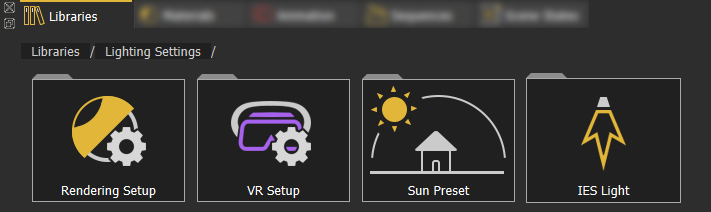
The Lighting Settings category provides lighting presets for rendering, VR, sun, and IES.
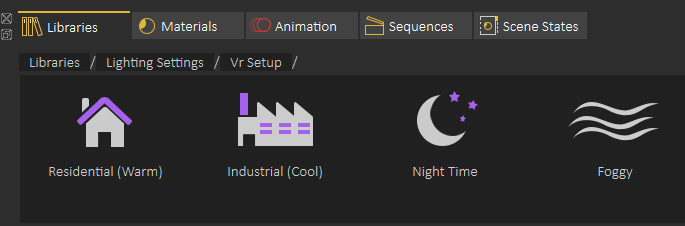
**Predefined VR Lighting Settings** are shown in the following image:
[](https://simlab-soft.com/help/uploads/images/gallery/2021-12/image-1640351007127.png)
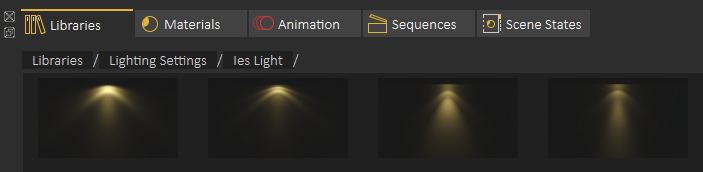
The following image shows some of the **IES lights** included in SimLab Composer:
#### [](https://simlab-soft.com/help/uploads/images/gallery/2021-12/image-1640351082006.png)
Sounds
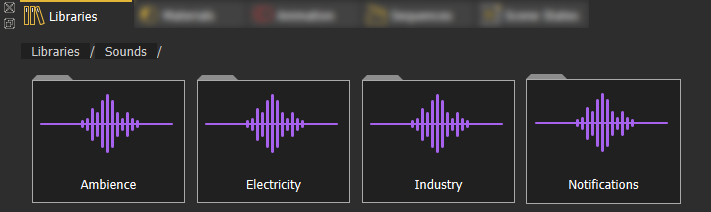
The **Sounds** library offers a collections of sound effects that can help you enhance your scene without the need to always go and search for the appropriate sounds externally.
Adding an element from Asset Libraries to a scene can be done in one of two ways: **(1)** Dragging an element from the library and dropping it in the 3D area. **(2)** Double-click the element on the Asset Library.
#### SimLab Academy
SimLab Academy includes free step-by-step tutorials with all models needed to follow along with the available tutorials.
For example: to start learning VR creation, the user clicks on SimLab Academy, then selects VR.
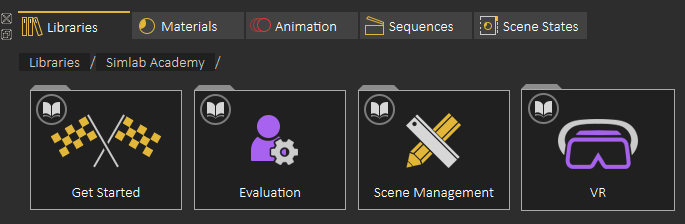
Then the user selects what he/she wants to learn such as Basics.
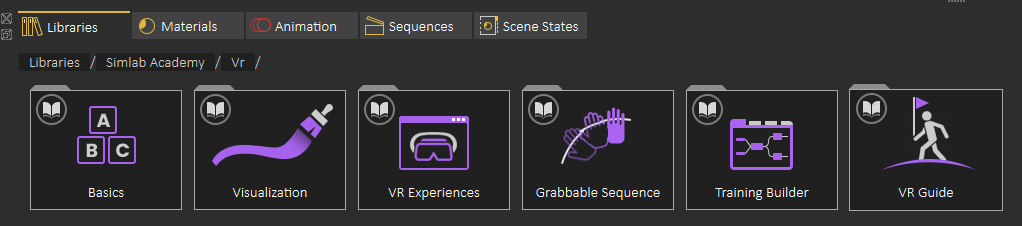
The following video shows SimLab Academy in action