# Introduction

<div id="bkmrk-simlab-composer-allo">SimLab Composer allows using Python, and Java Scripts to automate processes, both scripts automation is supported in two modes:</div><div id="bkmrk-">  
</div><div id="bkmrk-command-line-%28for-ba"><div><div>1. Command line (for batch processing a large number of files). This includes command line without scripting using -ie command, and with scripting using Python, and Java scripts.
2. Interactive mode (from inside the GUI of SimLab Composer)

</div></div></div>[![image.png](https://simlab-soft.com/help/uploads/images/gallery/2023-12/scaled-1680-/Mo1image.png)](https://simlab-soft.com/help/uploads/images/gallery/2023-12/Mo1image.png)

Scripting is supported in the **Ultimate edition** of SimLab Composer

### Command line without scripting

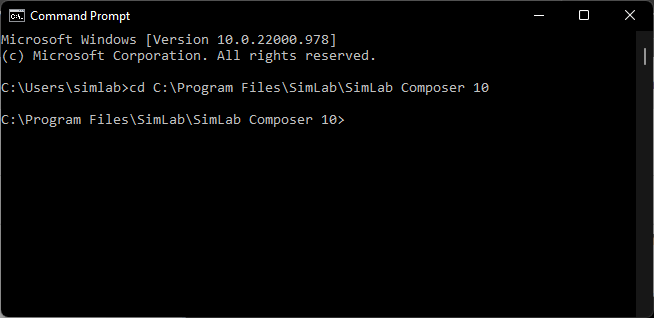
<div id="bkmrk-open-command-line-wi">Open the command line window, by typing "cmd" in Start. Go to the directory where SimLab Composer was installed, the default installation directory is "C:\Program Files\SimLab\SimLab Composer 10" to go there type **cd C:\\Program Files\\SimLab\\SimLab Composer 10** </div><div id="bkmrk--1">  
</div>[![image.png](https://simlab-soft.com/help/uploads/images/gallery/2022-09/scaled-1680-/KBaimage.png)](https://simlab-soft.com/help/uploads/images/gallery/2022-09/KBaimage.png)

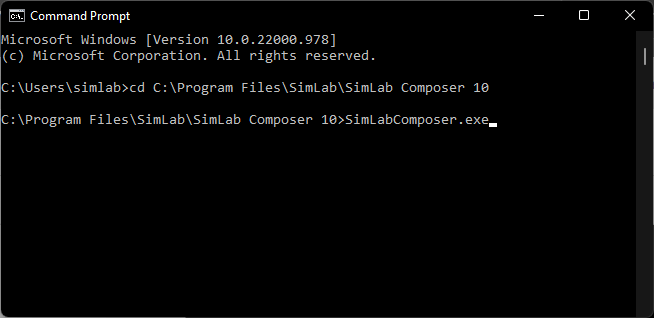
<div id="bkmrk-to-run-import%2Fexport">Now to run import/export functions in SimLab Composer, type Sim.. then start clicking the Tab button, until SimLabComposer.exe appears. </div>[![image.png](https://simlab-soft.com/help/uploads/images/gallery/2022-09/scaled-1680-/kvOimage.png)](https://simlab-soft.com/help/uploads/images/gallery/2022-09/kvOimage.png)

<div id="bkmrk-type-in-the-code--ie">Type in the code -ie &lt;import_file&gt; &lt;export_file&gt;</div><div id="bkmrk--5">  
</div><div id="bkmrk-with-actual-files-lo">With actual file locations, the below line will convert RubikCube.obj 3D models into RubikCube.skp in the indicated folders. Don't forget " "</div><div id="bkmrk--6">  
</div>-ie "C:\\Users\\simlab\\Desktop\\Delete\\RubikCube.obj" "C:\\Users\\simlab\\Desktop\\Delete\\RubikCube.skp"

Check this **[article](https://vrforcad.com/approaches-to-automatically-do-things-with-simlab-composer)** for more ab out the command line-based methods, also for commands on Mac.

<div id="bkmrk--7"></div>### Command line Python Scripts

<div id="bkmrk-python-scripts-can-b"><div><div>Python scripts can be run from the command line using the following command</div><div>  
</div></div></div>```
SimLabComposer.exe -py “File.py”
```

<div id="bkmrk-so-if-the-user-named"><div><div>So if the user named a script as example.py, and saved it in folder C:\Scripts, The user should use the following command</div><div>  
</div></div></div>```
SimLabComposer.exe -py “C:\Scripts\example.py”
```

#### Passing arguments to Python Scripts

Passing arguments to a script makes it dynamic, and reusable without the need to change its code.

```
	
scene =Scene()
runtime =RunTime()
scene.reset()
fileName= runtime.args.getAsString("-path")
scene.importFile(fileName)
```

#### Interactive Scripting - Running Python script interactively

The user can run Python Scripts interactively in different ways:

1. Select a script from the scripting library, drag it, and drop it on the 3D area [![image.png](https://simlab-soft.com/help/uploads/images/gallery/2022-09/scaled-1680-/o48image.png)](https://simlab-soft.com/help/uploads/images/gallery/2022-09/o48image.png)
2. Select a script from the library, then from the Script menu, click Run [![image.png](https://simlab-soft.com/help/uploads/images/gallery/2022-09/scaled-1680-/Fe1image.png)](https://simlab-soft.com/help/uploads/images/gallery/2022-09/Fe1image.png)
3. Select the node/geometry to Isolate from the 3D area or the Object Tree, then click OK.

[ ![image.png](https://simlab-soft.com/help/uploads/images/gallery/2022-11/scaled-1680-/image.png) ](https://simlab-soft.com/help/uploads/images/gallery/2022-11/image.png)[ ](https://simlab-soft.com/help/uploads/images/gallery/2022-11/x8Pimage.png)[ ](https://simlab-soft.com/help/uploads/images/gallery/2022-11/x8Pimage.png)

[ ![image.png](https://simlab-soft.com/help/uploads/images/gallery/2022-11/scaled-1680-/x8Pimage.png)](https://simlab-soft.com/help/uploads/images/gallery/2022-11/x8Pimage.png)

#### My first Python script / Python Scripts using GUI input

The following script gets the location to save the rendered image, using a GUI dialog. Renders the current scene, saves the resulting image in the selected location, and finally displays a dialog indicating that rendering is done.

```
from simlabpy import *

scene = Scene()
runtime = RunTime()
render_path = runtime.ui.getSaveFileName("Exported rendered image location:", "", "*.jpg;;*.png")
scene.render(render_path)
runtime.ui.alert("Rendered image was created.")
```

For a list of supported Python scripting commands visit this [page](https://www.simlab-soft.com/3d-products/docs/help/scripting/English/Python-Scripting-Documentation/index.html)

<p class="callout info">Check out a blog about [the approaches to automatically do things with SimLab Composer](https://blog.simlab-soft.com/approaches-to-automatically-do-things-with-simlab-composer/).</p>

[![image.png](https://simlab-soft.com/help/uploads/images/gallery/2022-12/scaled-1680-/L9rimage.png)](https://blog.simlab-soft.com/approaches-to-automatically-do-things-with-simlab-composer/)