# Scene Browser
[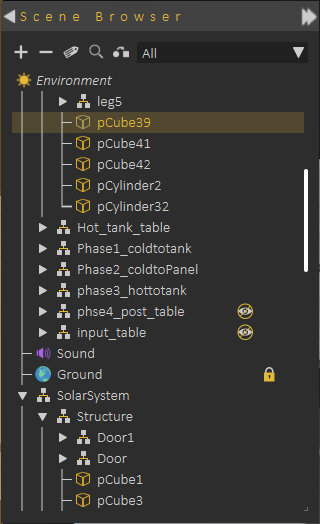](https://simlab-soft.com/help/uploads/images/gallery/2021-12/scene-browser.png)**Scene Browser** lists all elements in the scene and shows clear tree structure of the models, where the user can view parent/child relationships.
When a **parent** in the Scene Browser is selected and hidden/deleted, the effect is automatically applied to all its **children** so they are automatically hidden/deleted.
**Scene Browser** allows using **Shift** or **Ctrl** to select multiple items.
Changing **parent**/**child** relationship in Scene Browser can be done easily by **dragging** an object or group off objects and **dropping** them onto a new parent.
**+/-** buttons on top of the Scene Browser allows expanding all level in the tree (**+ button**) , or closing all and keeping just the top level (**- button**)
**Environment** at the top of the **Scene Browser**, always exists and can not be deleted. When you click on **Environment** in the Scene browser, **Properties Panel** is updated to show the properties of the environment, which allows you to make changes.
[](https://simlab-soft.com/help/uploads/images/gallery/2021-12/scene-browser-right-click.png)
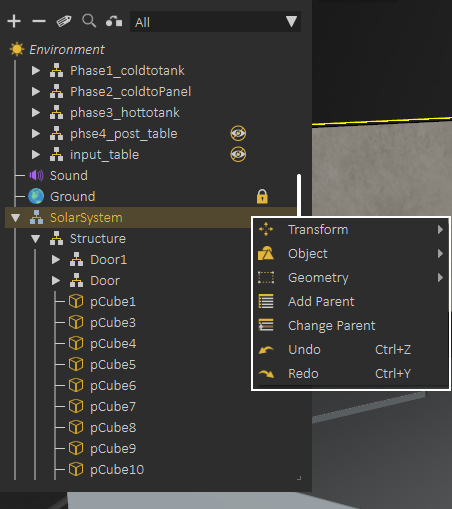
Selecting object(s), then **right clicking**, shows a helping menu allowing quick actions like **Hide/Show** object(s), **Change parent**, **Add parent**, or perform a **geometry operation**.
---
[](https://simlab-soft.com/help/uploads/images/gallery/2021-12/scene-browser-filter.png)
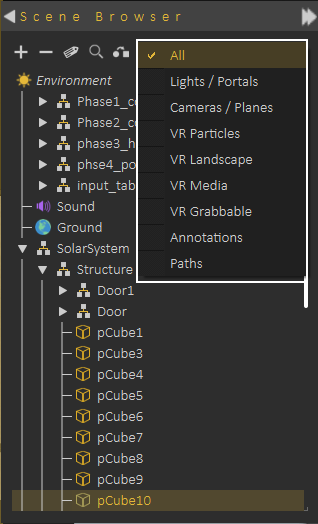
Scene Browser uses icons to identify the object types, but even with icons for large scenes it may not be easy to find the object(s) you are looking for. For helping in this task Scene Browser provides two options:
**Scene Browser Filters:** Select filter to show only object(s) of specific type, for example select Lights filter to view all lights in the scene.
**Searching Scene Browser:** By clicking the search button the user can search for objects in the Scene Browser based on **names** or **object attributes**
The size and location of the Scene Browser can be changed easily, as well as choosing whether to hide it or not. Its appearance can be changed from File -> Preferences, Appearance tab, where Tree Transparency can be changed.
---
**Attributes Manager**
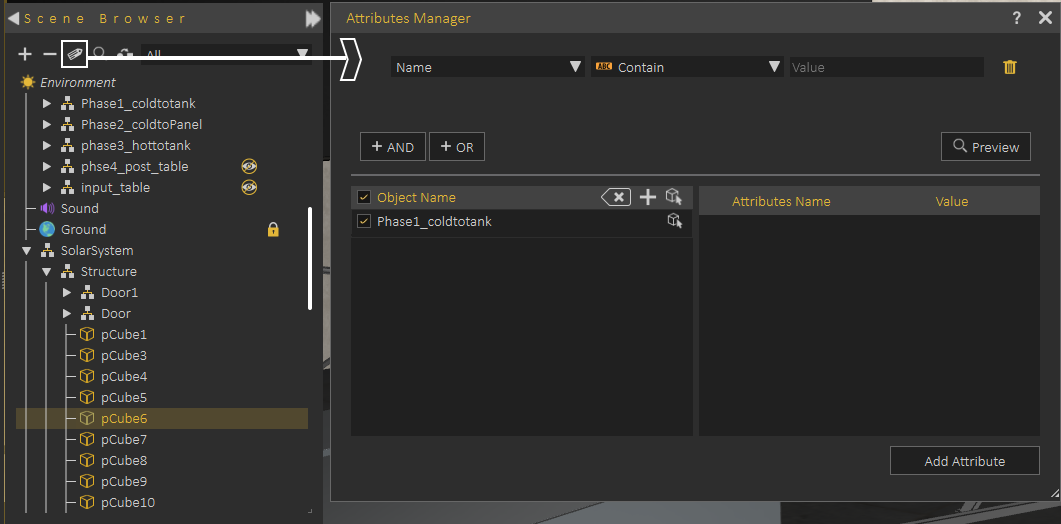
From the top bar of Scene Browser, **Attribute Manager** can be started. **Attribute Manager** allows viewing attributes attached to objects in the scene, and updating them.
[](https://simlab-soft.com/help/uploads/images/gallery/2021-12/scene-browser-attributes-manager.png)
The following tutorial shows how to use **Attribute Manager**.
**Selection Sets**
Makes selecting multiple objects more convenient. Usually, users select objects using the tree structure in SimLab Composer. This works well for single selections but can be tricky for multiple selections. Sometimes users want to select multiple objects repeatedly without changing the tree structure. For example, selecting all car wheels or the tops of multiple desks while keeping their original organization.
The solution - **Selection Sets**, allows users to save groups of objects which can be quickly selected whenever needed. It doesn't alter the original tree structure, so objects still move and behave correctly.
The following tutorial demonstrates how to use these Selection Sets effectively in SimLab Composer: