# Scene States Menu
[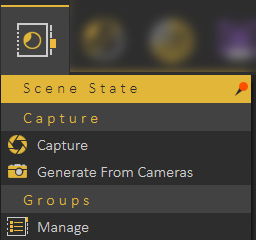](https://simlab-soft.com/help/uploads/images/gallery/2021-12/image-1639764667482.png)
### Capture
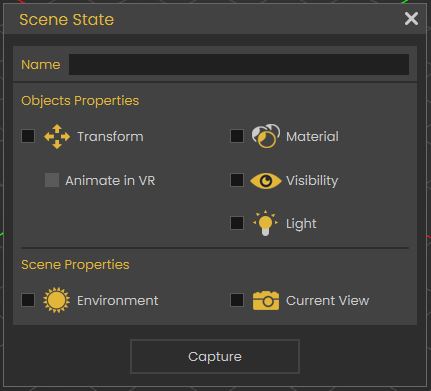
Enables the user to capture different configurations for the **selected 3D model**(s) (**Object** Properties), or useful properties for the **whole scene** (**Scene** properties). The user can check the properties to include in a scene state.
SimLab Composer and Studio's Scene States are smart in capturing attributes, they can include any combination of the listed attributes. This can be helpful in creating scene states for models with different attributes, and setups.
Scene States may include a combination of:
- Position/Transform
- Material
- Visibility
- Lighting
- Environment
- Current View (Camera)
[](https://simlab-soft.com/help/uploads/images/gallery/2021-12/image-1639764687224.png)
After selecting what to include in the **Scene State**, the user needs to click **Capture** to capture the scene state. Captured scene states are added to the **Scene States Library**.
Scene States can be applied as **Object Actions** in the **Properties dialog**. **Apply Scene State** can also be used as a response in [**Training Builder**](https://simlab-soft.com/help/books/simlab-vr-studio-help/page/training-builder-menu-9O5)
The following tutorial shows how to use **Scene States:**
****
### Generate From Cameras
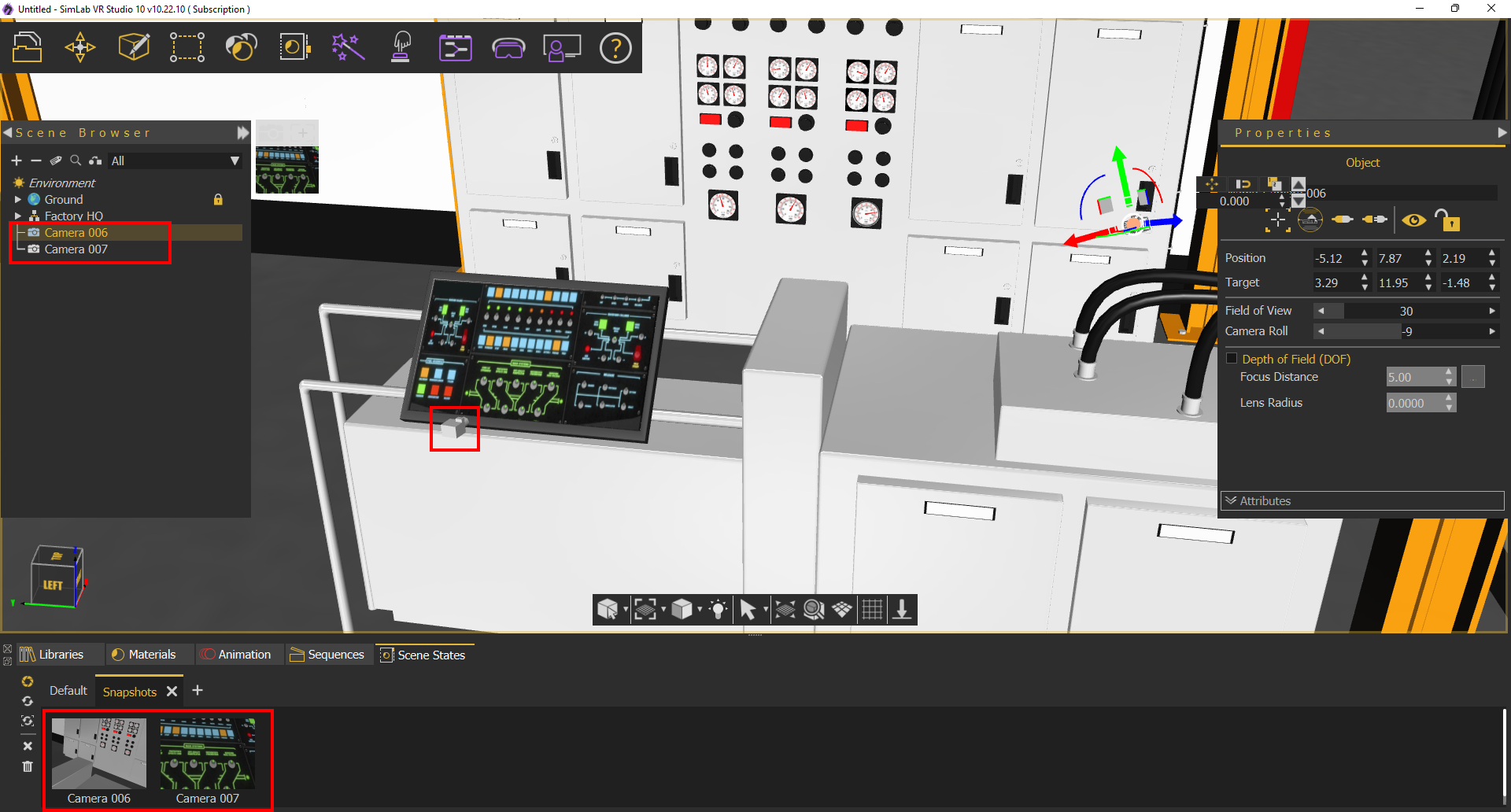
Captures scene states from the created cameras in the scene, as shown in the image below:
[](https://simlab-soft.com/help/uploads/images/gallery/2022-01/generate-from-cameras.png)
### Manage
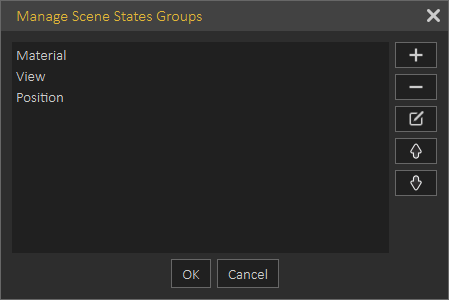
Opens **Manage Scene States Groups** dialog box, where the user can add a new group, remove, rename, or reorder groups.
When creating a new Scene State it will be automatically added to the active group tab in the **Scene State Library**.
[](https://simlab-soft.com/help/uploads/images/gallery/2021-12/image-1640620620352.png)