# Selling on SimLab VR Store
#### [](https://simlab-soft.com/help/uploads/images/gallery/2024-03/store-sell-0.png)
####
You can publish VR Experiences created with SimLab VR Studio and SimLab Composer on SimLab VR Store. If you don't know how to create VR experiences, [you can start here](https://simlab-soft.com/help/link/43#bkmrk-page-title).
#### **Uploading VR Experiences**
Uploading Steps:
**[](https://simlab-soft.com/help/uploads/images/gallery/2024-03/store-sell-1.png)**
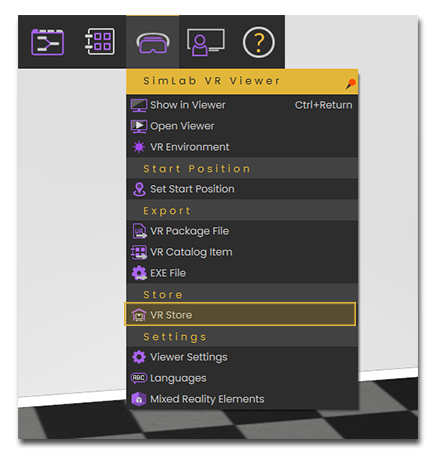
**1.** While the created VR Experience is open in SimLab Composer or VR Studio, Go to the VR Viewer menu and select **VR Store**.
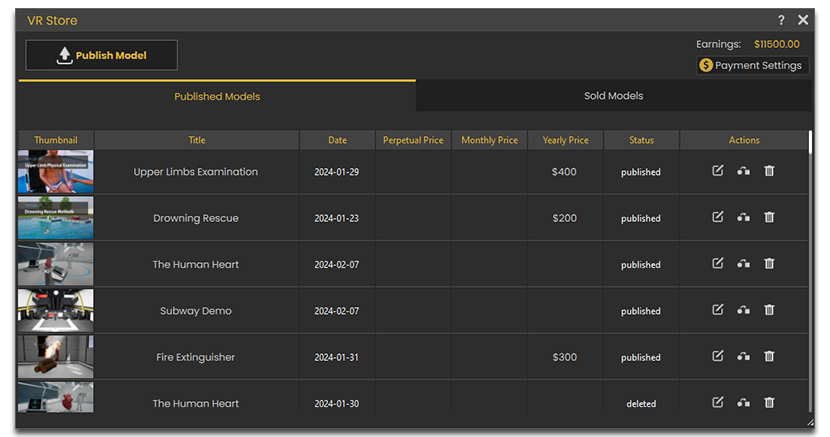
**2.** If you are already logged in to your SimLab Account click **Publish** in the top left corner.
[](https://simlab-soft.com/help/uploads/images/gallery/2024-03/store-sell-2.png)
**[](https://simlab-soft.com/help/uploads/images/gallery/2024-03/store-sell-3.png)**
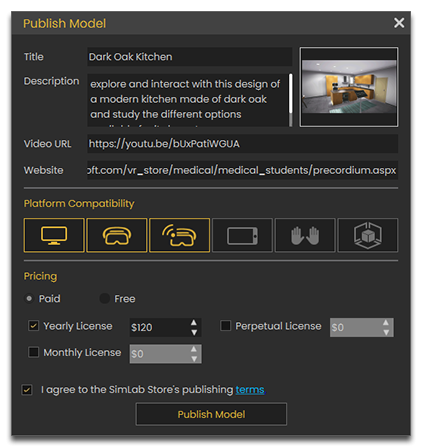
**3.** Fill in the title, description, a video link and a website link if available for the VR Experience, as well as an image for the experience's thumbnail and then select the compatible platforms and set the pricing for the VR Experience, then click **Publish Model**.
After Publishing a model, SimLab team will review it then approve it, and once it has been approved, it will be visible in the store and available for purchase.
#### **Managing Store Items**
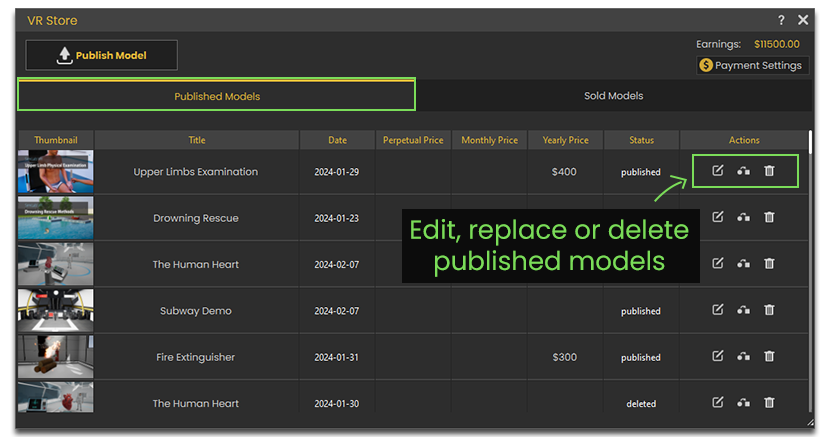
To view and edit models that you have uploaded to the store, simply open the VR Store from SimLab Composer or VR Studio, and you will find your models under the **Published models Tab**.
[](https://simlab-soft.com/help/uploads/images/gallery/2024-03/store-sell-2.png)
To view sold models, switch to the **Sold Models Tab** in the VR Store.
[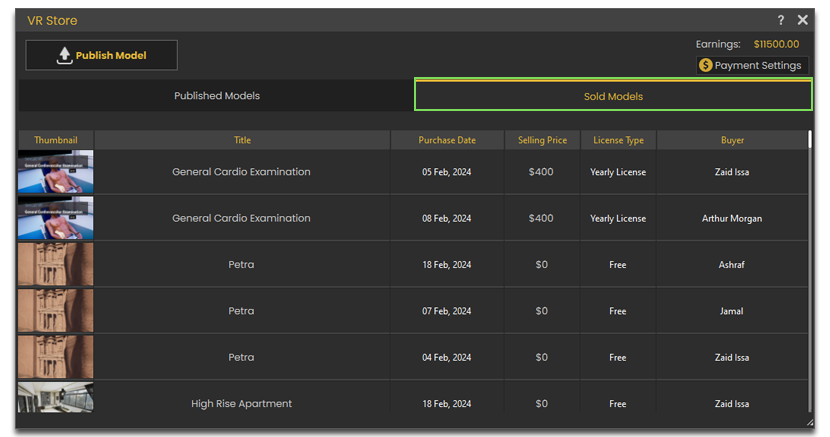](https://simlab-soft.com/help/uploads/images/gallery/2024-03/store-sell-2.png)
#### **Collect Earnings (Add Payment Info)**
To collect earnings you need to setup your **Payment Info**, follow the steps below to do that:
[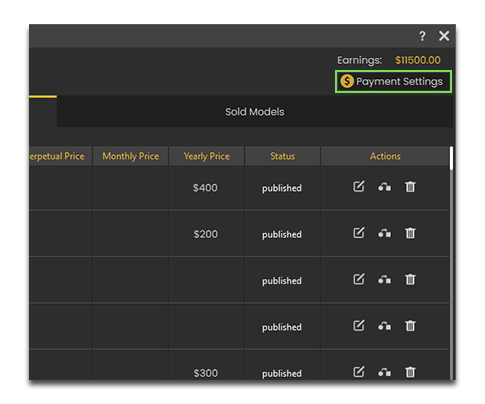](https://simlab-soft.com/help/uploads/images/gallery/2024-03/cOEstore-sell-6.png)
**1.** From VR Store Click **Payment Settings** in the top right corner.
[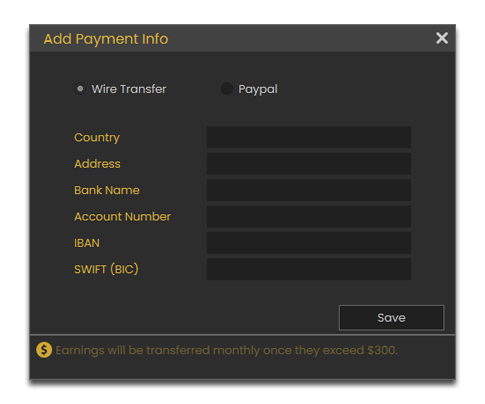](https://simlab-soft.com/help/uploads/images/gallery/2024-03/store-sell-7.png)
**2.** Select either **Wire Transfer** or **Paypal** and fill in the required info then click **Save.**
You will collect earnings **monthly** and only when they exceed **300$.**
---
#### Publishing Guidelines
[](https://simlab-soft.com/help/uploads/images/gallery/2024-03/publish.png)
Before publishing a VR Experience, it is a good idea to have it optimized to insure compatibility on multiple platforms, [Click Here](https://simlab-soft.com/help/books/simlab-store/page/publishing-guidelines) to learn more about optimization and explore the general guidelines of publishing on VR Store.
Also make sure that you read the [VR Store Agreement](https://www.simlab-soft.com/vr_store/agreement.aspx) before publishing content on the store.