# Asset Library
The libraries tab has assets categorized into groups: 3D Models, 3D Scenes, Sketchfab, Backgrounds, HDR, Lighting Settings, Sounds, and SimLab Academy.

#### 3D Models
The 3D Models category provides the user with stock 3D models to compose scenes out of them.

#### 3D Scenes
The 3D Scenes category contains complete environments to be used for desktop and VR Experiences.

#### Sketchfab
The Sketchfab library allows users to display 3D, VR, and AR content from the Sketchfab platform website right in-app without the need for an Internet browser. The user is allowed to browse, review, and instantly download public models into an open scene.

#### Backgrounds
The Backgrounds category consists of image and spherical backgrounds.
#### HDR
The HDR (High Dynamic Range) category has various options to select from.

#### Lighting Settings
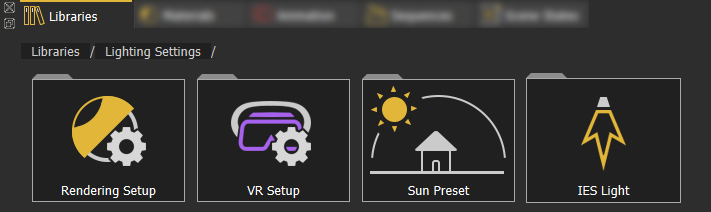
The Lighting Settings category provides lighting presets for rendering, VR, sun, and IES.
[](https://simlab-soft.com/help/uploads/images/gallery/2021-12/image-1640350910700.png)
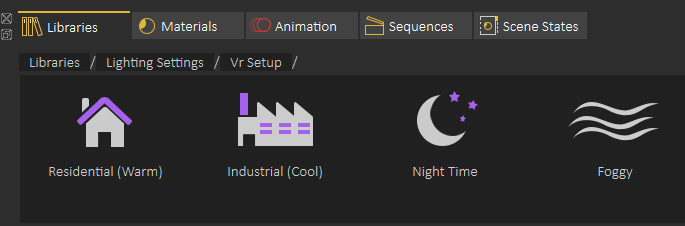
**Predefined VR Lighting Settings** are shown in the following image:
[](https://simlab-soft.com/help/uploads/images/gallery/2021-12/image-1640351007127.png)
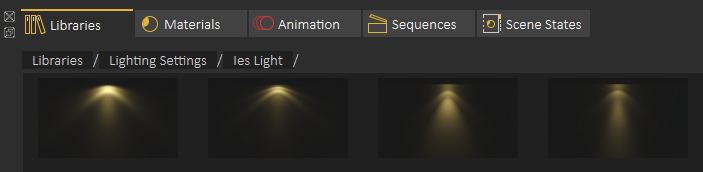
The following image shows some of the **IES lights** included in SimLab Studio:
[](https://simlab-soft.com/help/uploads/images/gallery/2021-12/image-1640351082006.png)
#### Sounds
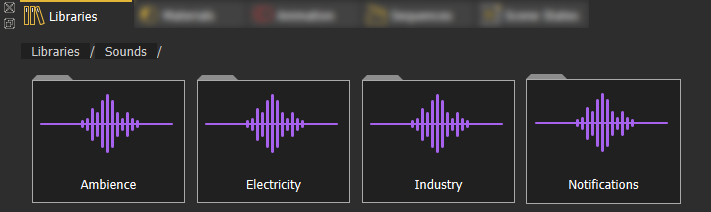
The **Sounds** library offers a collections of sound effects that can help you enhance your scene without the need to always go and search for the appropriate sounds externally.
Adding an element from Asset Libraries to a scene can be done in one of two ways: **(1)** Dragging an element from the library and dropping it in the 3D area. **(2)** Double-click the element on the Asset Library.
#### SimLab Academy
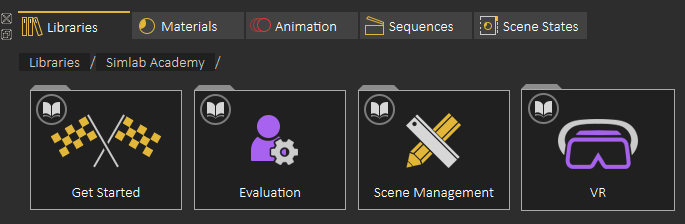
**SimLab Academy** includes free step-by-step tutorials with all models needed to follow along with the available tutorials.
For example: To start learning VR creation, click on **SimLab Academy**, then select **VR.**
[](https://simlab-soft.com/help/uploads/images/gallery/2021-12/image-1640351448881.png)
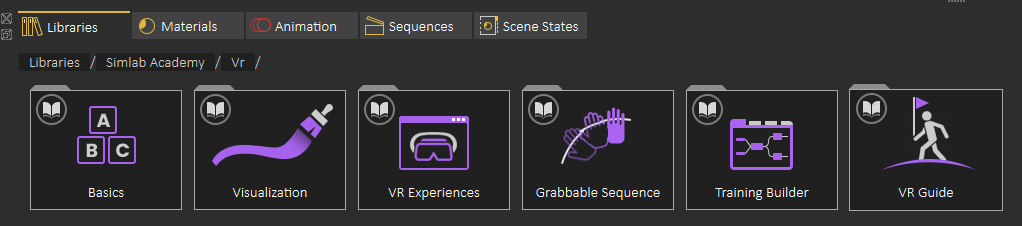
Then select what you want to learn, like **Basics**
[](https://simlab-soft.com/help/uploads/images/gallery/2021-12/image-1640351492765.png)
The following video shows SimLab Academy in action: