# Main Window
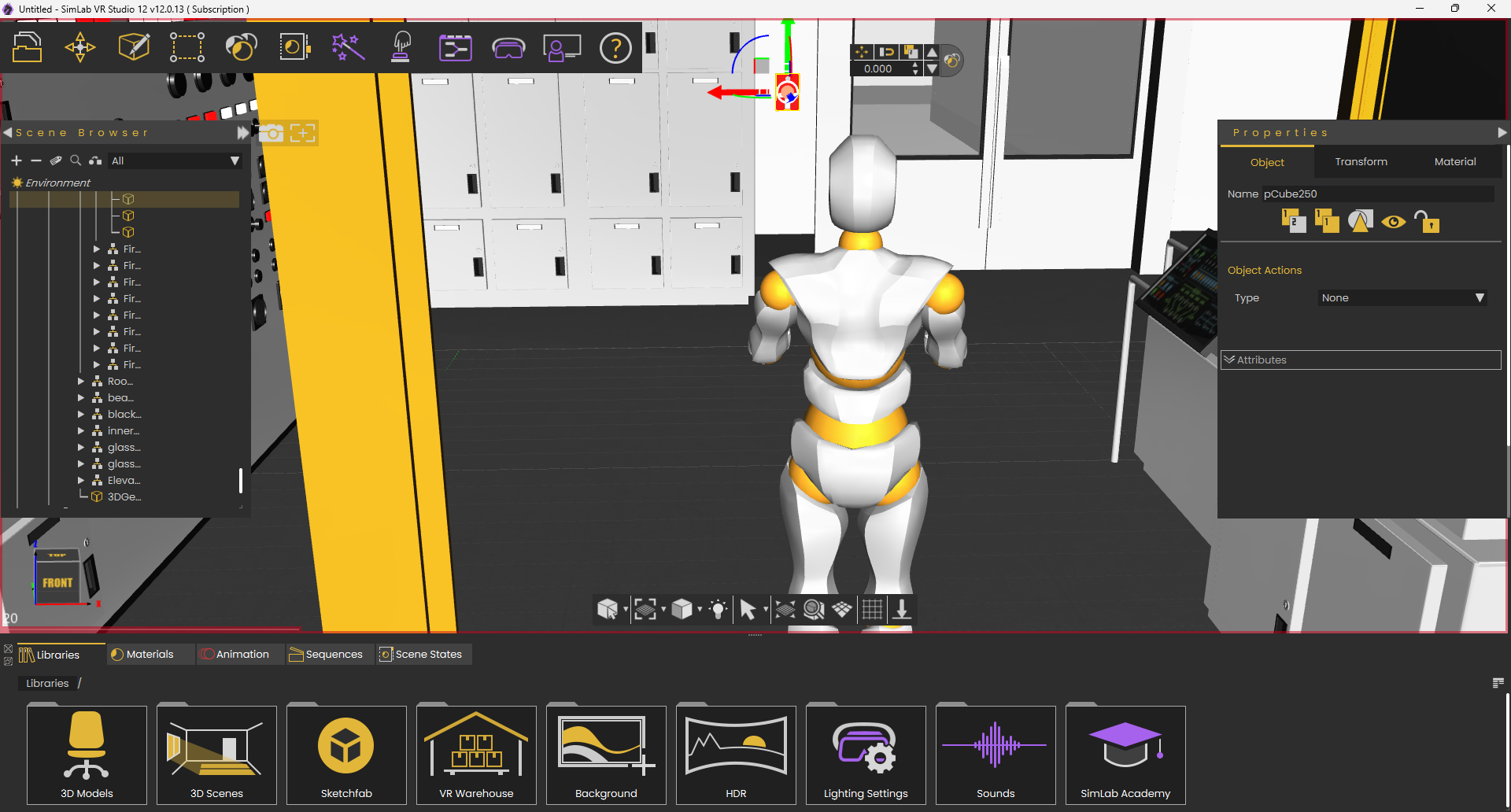
SimLab VR Studio's **Main Window** is where all the work is done. The largest part of the Main Window is the **3D Area**, where the user views and interacts with 3D models.
The following is a sample view of SimLab VR Studio Main Window in action
[](https://simlab-soft.com/help/uploads/images/gallery/2024-04/Pasimage.png)
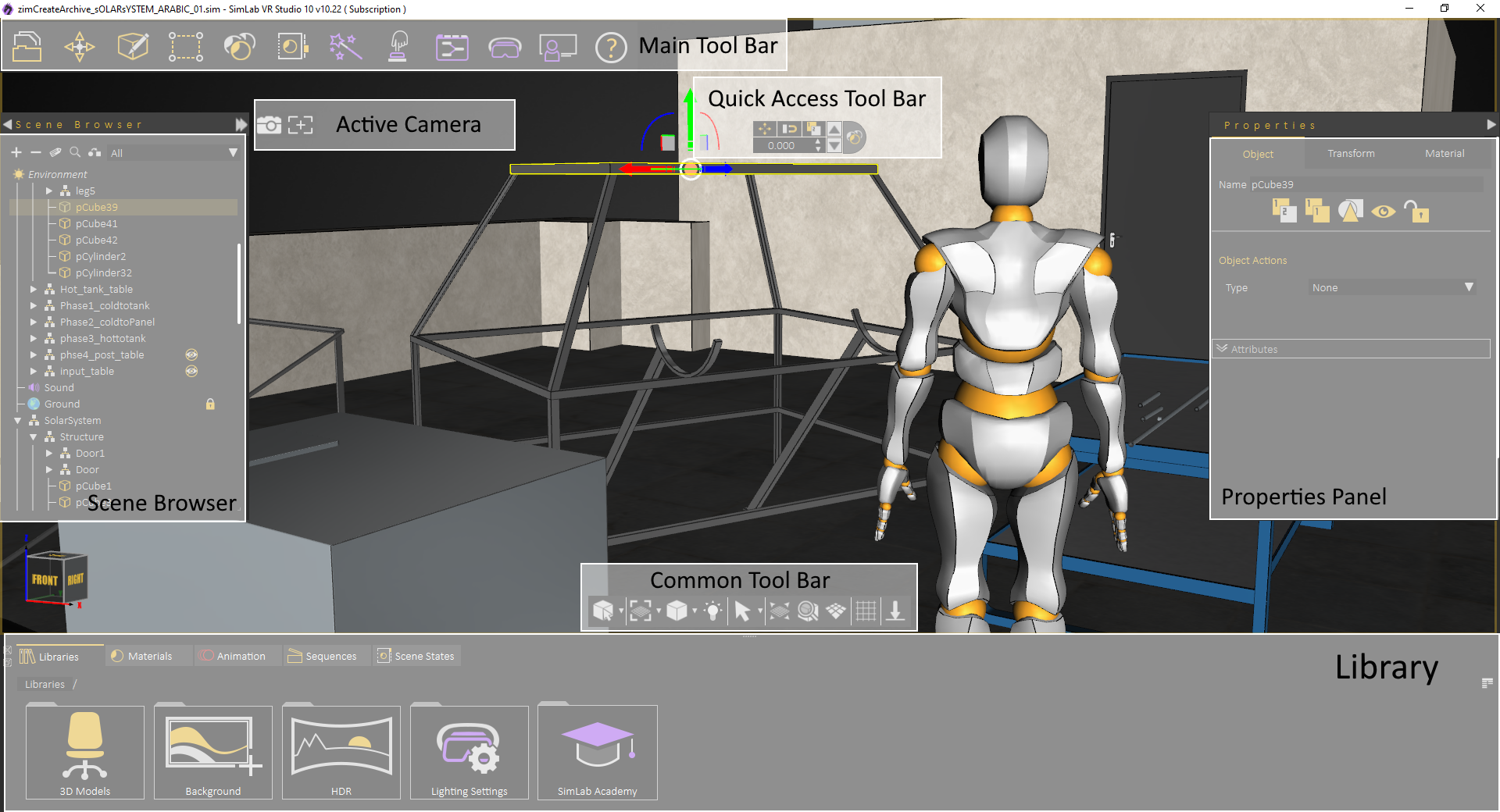
In addition to the 3D Area, Main Window includes the following components:
- [Main Toolbar](https://simlab-soft.com/help/books/simlab-vr-studio/page/1-main-tool-bar)
- [Scene Browser](https://simlab-soft.com/help/books/simlab-vr-studio/page/2-scene-browser)
- [Properties Panel](https://simlab-soft.com/help/link/38#bkmrk-page-title)
- [Library ](https://simlab-soft.com/help/link/44#bkmrk-page-title)
- [Assets Library](https://simlab-soft.com/help/link/55#bkmrk-page-title)
- [Material Library](https://simlab-soft.com/help/link/56#bkmrk-page-title)
- [Animation](https://simlab-soft.com/help/link/50#bkmrk-page-title)
- [Sequences Library](https://simlab-soft.com/help/link/57#bkmrk-page-title)
- [Scene States Library](https://simlab-soft.com/help/link/58#bkmrk-page-title)
- [Common Tool Bar](https://simlab-soft.com/help/link/40#bkmrk-page-title)
- [Quick Access Tool Bar](https://simlab-soft.com/help/link/41#bkmrk-page-title)
- [Active Camera](https://simlab-soft.com/help/link/42#bkmrk-page-title)
These components are shown in the following image:
[](https://simlab-soft.com/help/uploads/images/gallery/2021-12/vr-studio-gui-2.png)
#### Message Area
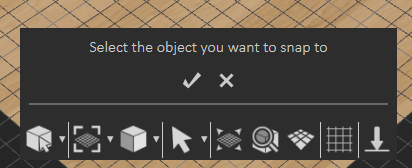
Some functions in SimLab Studio require the user to make some kind of action/selection. In this area of the application interface, messages will be displayed to inform the user of the required action.
[](https://simlab-soft.com/help/uploads/images/gallery/2022-10/DwCimage.png)
#### Orientation Cube
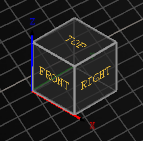
This cube can be used to orbit the 3D model or view the scene from different positions. Click on the faces of the cube to access standard orthographic views.
[](https://simlab-soft.com/help/uploads/images/gallery/2022-10/J6Ximage.png)