# Accessing files on Quest, Android, Pico, and iOS without a network connection
To show models on Quest to users in trade shows where they do not have fast and reliable internet connections, we implemented the solution in the following way:
1- Upload your model(s) to the cloud, this can be done from Composer, VR Studio, or the VR Viewer while you are logged into your account
2- Log in to your account on Quest, now you will be able to see your models including the ones you just uploaded.
3- Select the model you want to enable access to even offline and click on the green button Enable Offline as shown in the following image
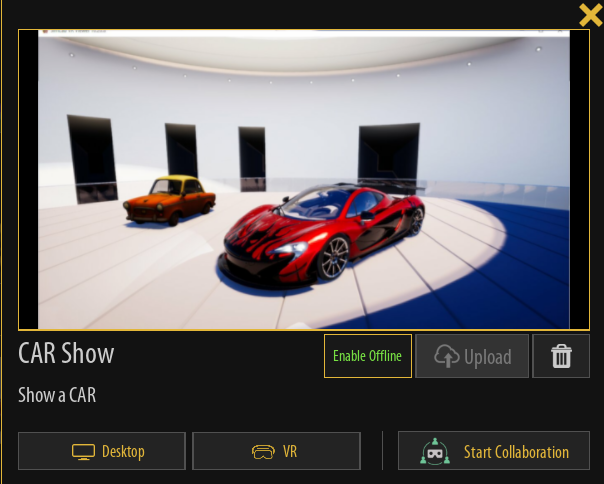
Next time when you start the viewer, models will show even without logging in or having an internet connection, you will be able to run models offline.