# Running Shared VR Experiences
#### Accessing the Shared VR Experience
Once you are Signed in to your account in **SimLab VR Viewer**, click on the **Shared Models** tab.
[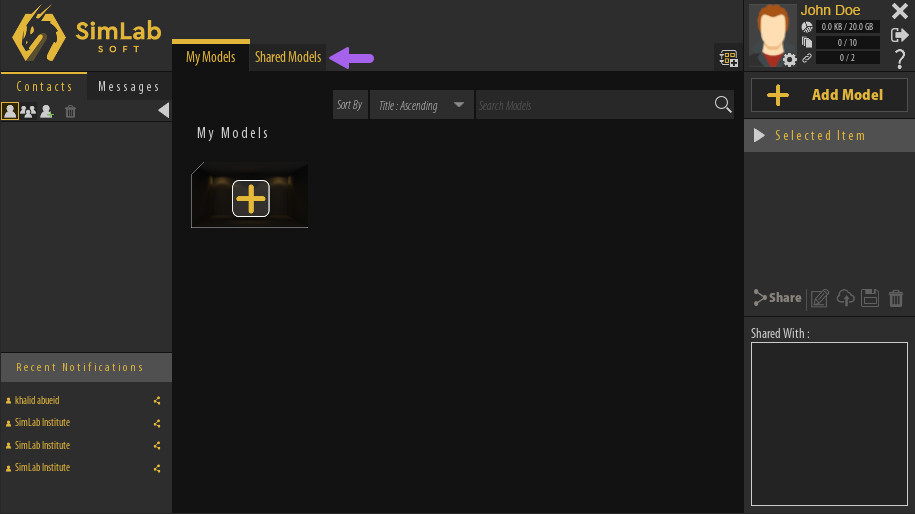](https://simlab-soft.com/help/uploads/images/gallery/2022-01/sharedmodels.jpg)
In the Shared Models tab, you will find all the VR Experiences that are shared with you, **Click on the Item** you want to view to select it.
[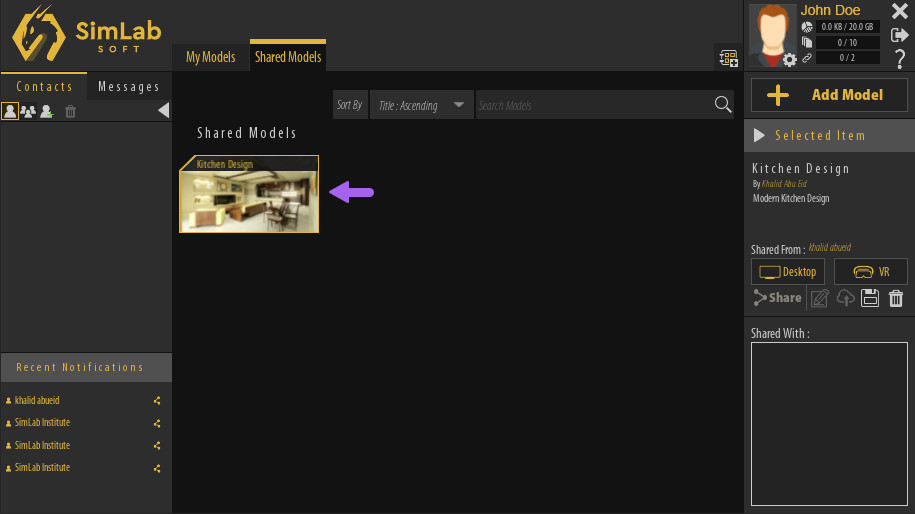](https://simlab-soft.com/help/uploads/images/gallery/2022-01/selectmodel.jpg)
---
#### Running The VR Experience
[](https://simlab-soft.com/help/uploads/images/gallery/2022-01/selectmodel-panel.jpg)
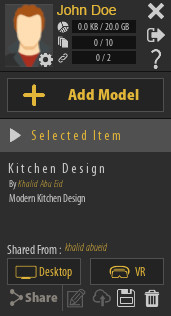
Once a VR Experience has been selected, its name and description along with the name of the person who shared it with you will be displayed in the **Selected Item Panel** to the right, additionally, you will find 2 buttons to run the experience in **Desktop Mode** or **VR Mode**.
#####
##### Desktop Mode
If you are using a **Windows** or M**acOS** computer and you do not have a VR headset, you can run VR Experiences in Desktop Mode where you will be using the mouse and keyboard to navigate the scene and interact with objects.
##### VR Mode
With VR Mode you can run the VR experience using PC VR headsets which are VR headsets that are attached with a cable to a computer.
Supported VR devices are :
[](https://simlab-soft.com/help/uploads/images/gallery/2022-01/vive.png)
**HTC Vive** / **HTC Vive Pro**
[](https://simlab-soft.com/help/uploads/images/gallery/2022-01/oculus.png)
**Oculus Quest** / **Oculus Quest 2** / **Oculus Rift** / **Oculus Rift S**
[](https://simlab-soft.com/help/uploads/images/gallery/2022-01/pico.png)
**Pico Neo 2** / **Pico Neo 3**
[](https://simlab-soft.com/help/uploads/images/gallery/2022-01/mixed-reality.png)
**Windows Mixed Reality**
#####
##### Pairing Wireless Devices
If you are using a standalone VR Headset such as Oculus Quest and Pico in wireless mode or a mobile device, you can use pairing to access your models through those devices.
before you pair your wireless device you need to first install the SimLab VR Viewer on those devices, **[click here](https://simlab-soft.com/technologies/simlab-showroom.aspx)** to download the VR Viewer for wireless devices.
Once you have installed SimLab VR Viewer on wireless devices, follow these steps :
1. Run the VR Viewer on you computer first and from the top right corner click the **Pairing button**.
[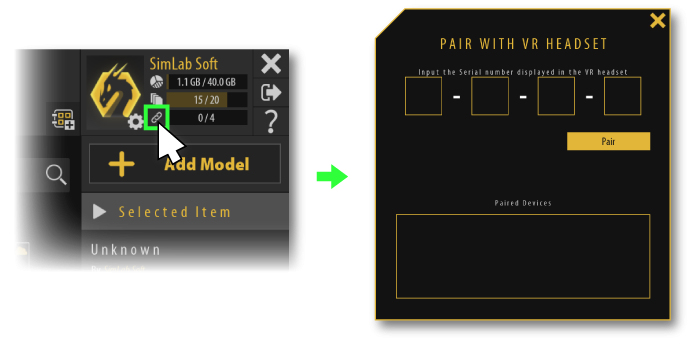](https://simlab-soft.com/help/uploads/images/gallery/2022-01/pair1.png)
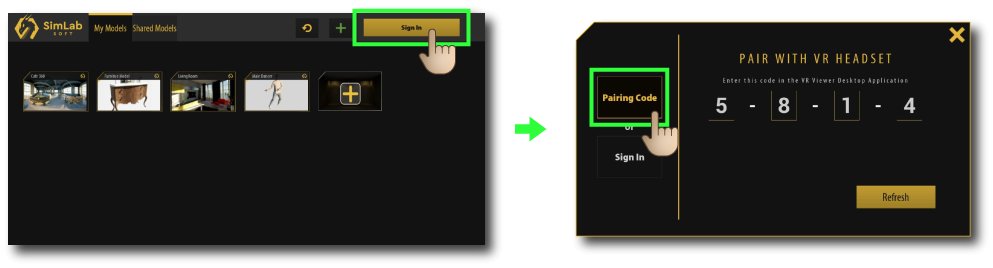
2\. Run SimLab VR Viewer on the wireless device and click on **Sign in** at the top Right corner
[](https://simlab-soft.com/help/uploads/images/gallery/2022-01/pair2.png)
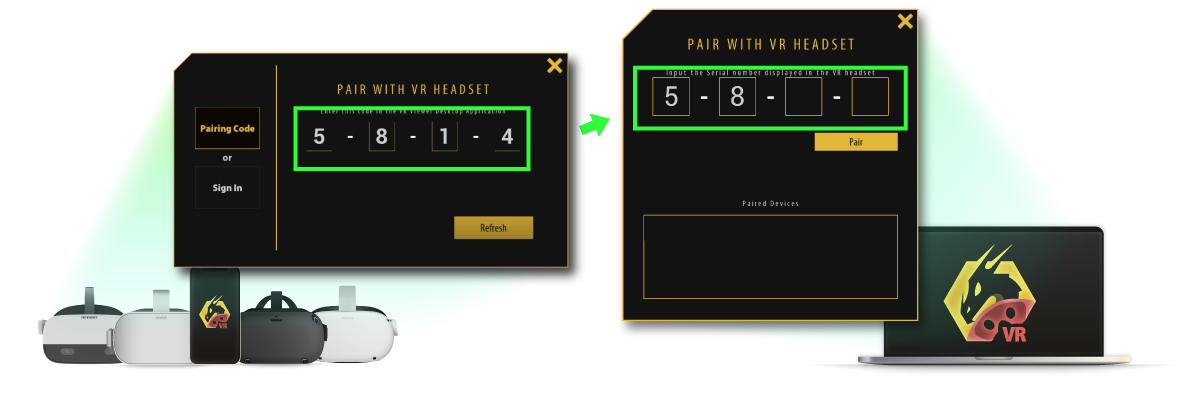
3\. Insert the pairing code that shows on your device into your PC.
[](https://simlab-soft.com/help/uploads/images/gallery/2022-01/pair3.png)
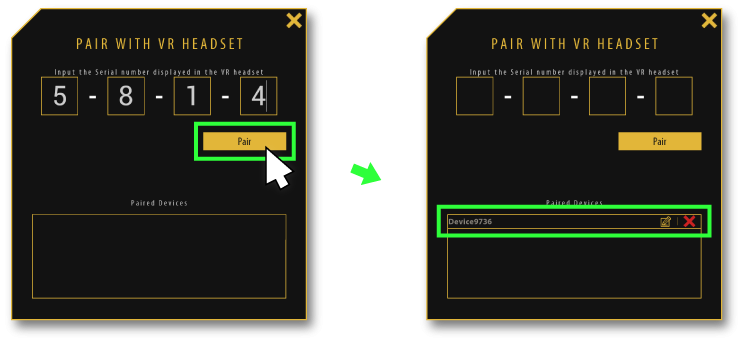
4\. Click **pair**, then the device should appear on the pairing devices list, you can rename it or delete it from this list as well.
[](https://simlab-soft.com/help/uploads/images/gallery/2022-01/pair4.png)
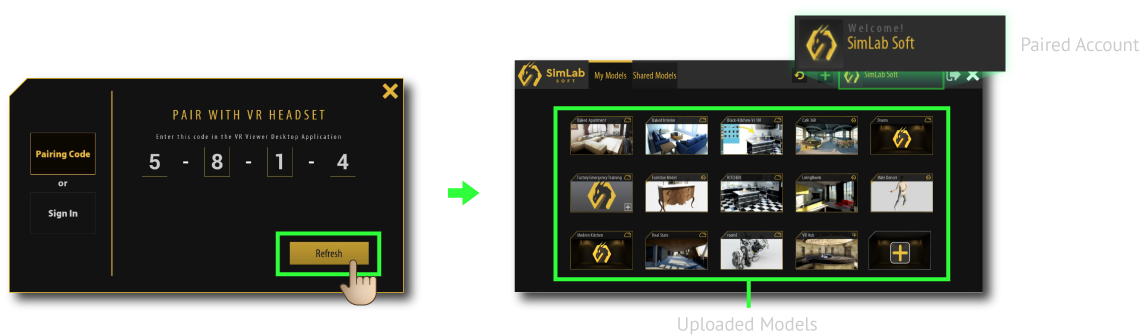
5\. **click the Refresh button** on your device, then all of the shared models will be displayed.
[](https://simlab-soft.com/help/uploads/images/gallery/2022-01/pair5.png)
6\. Select the desired model to run it on the wireless device.