# Contacts and Sharing
To Share VR Experiences with others through SimLab VR Viewer you need to first add them as contacts.
#### Adding Contacts
[](https://simlab-soft.com/help/uploads/images/gallery/2022-01/add-contact.jpg)
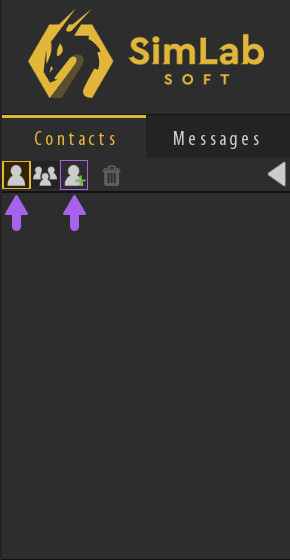
To Add Contacts, in the Contacts panel to the left make sure that the **Contacts List** is toggled on, then click on the **"Add Contact"** Icon.
[](https://simlab-soft.com/help/uploads/images/gallery/2022-01/addcontact2.png)
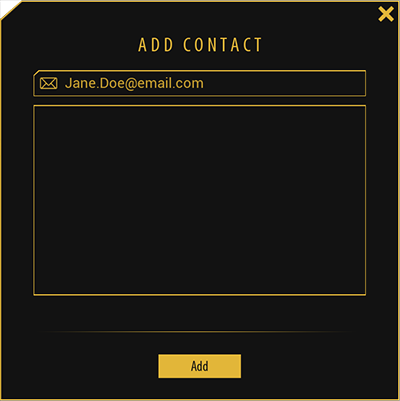
In the "Add Contact" dialogue, type the email address of the user you want to add as a contact to your list, then click on the Add button.
Note : You can add multiple contacts at the same time by separating their email addresses with a **"comma"** in the email field.
[](https://simlab-soft.com/help/uploads/images/gallery/2022-01/add-contact2.jpg)
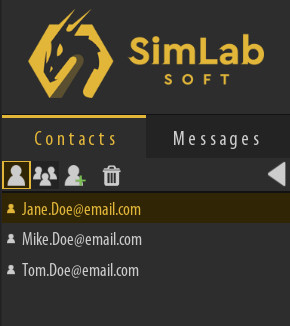
Added contacts will be displayed in the "Contacts" list as email addresses if they do not have an active SimLab Account.
Once they activate their account, their names will be displayed instead of email addresses.
Note : An email will automatically be sent to the contacts you add, inviting them to activate their SimLab cloud account in case they do not have an existing account.
---
####
#### Creating Groups
To manage contacts more efficiently, you can assign them to groups in order to easily share VR Experiences with them.
[](https://simlab-soft.com/help/uploads/images/gallery/2022-01/create-group.png)
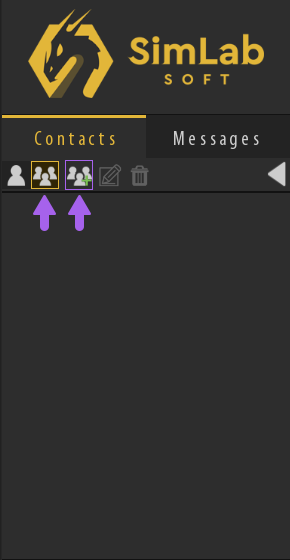
To create a **Group**, in the **Contacts** panel to the left make sure that the **Groups List** is toggled on, then click on the **"Add Group"** Icon.
[](https://simlab-soft.com/help/uploads/images/gallery/2022-01/create-group2.png)
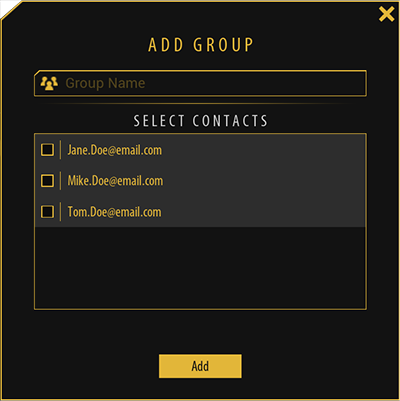
In the **Add Group** dialogue, type in a name for the group then select the contacts that wish to add to that group.
[](https://simlab-soft.com/help/uploads/images/gallery/2022-01/groupcreated.jpg)
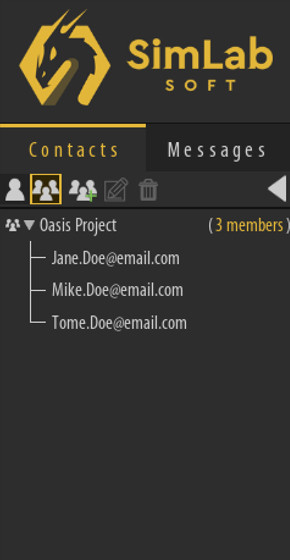
Once the group is created, you will find it when toggling the Groups list view in the contacts panel.
###
###
[](https://simlab-soft.com/help/uploads/images/gallery/2022-01/addmultipletogroups.png)
##### Adding Multiple Users to a Group
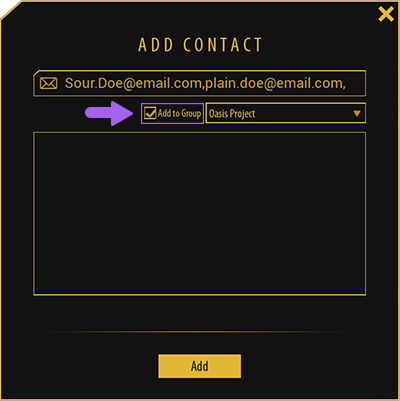
After creating a group you will be able to add multiple contacts to that group, to do so, toggle on the **Contacts List** then click on the **Add Contacts** icon.
In the **Add Contacts** dialogue, enable the **"Add to Group"** option and select the desired group, and in the email field, type or paste the email addresses separated by a "**Comma**", then click **Add**.
---
###
Sharing VR Experiences
Now that you have learned how to add contacts and groups, you can now Share VR Experiences with other users.
[](https://simlab-soft.com/help/uploads/images/gallery/2022-01/sharebutton.jpg)
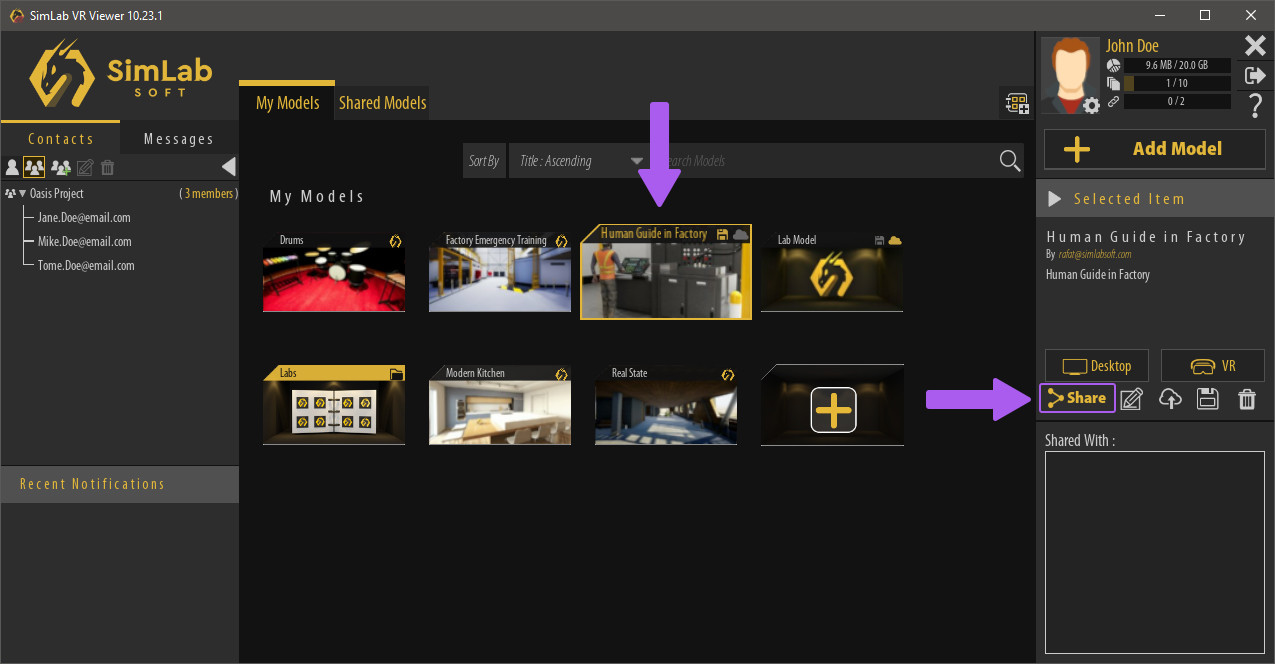
To Share a VR Experience, select it, then from the "Selected Item" Panel to the right, Click **Share**.
[](https://simlab-soft.com/help/uploads/images/gallery/2022-01/sharedialog1.png)
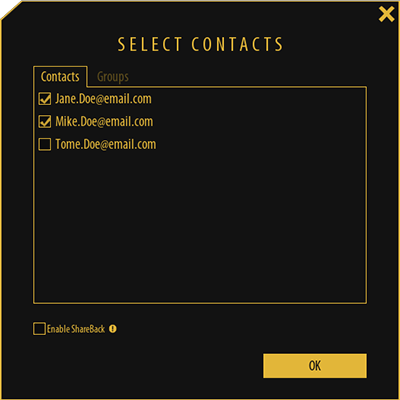
From The Share Dialog, you can either select to share the VR experience with users from the contacts list, or share it with groups by switching to the groups and selecting a group.
Click **OK** to Share the VR Experience.
##### **ShareBack**
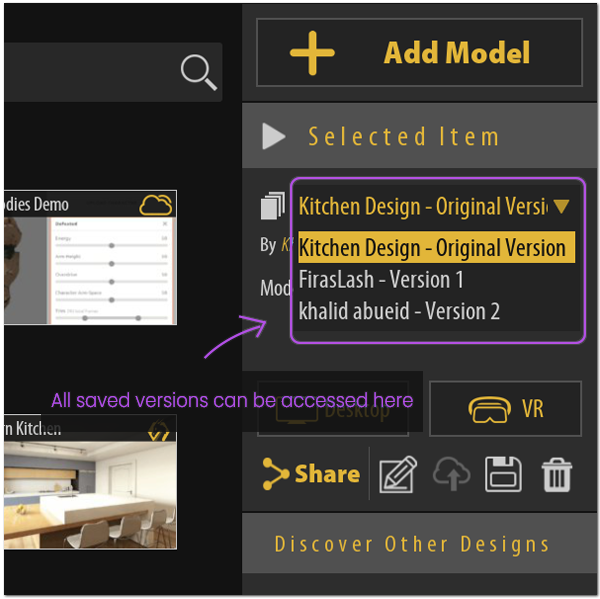
The ShareBack option, when enabled, allows the user that you shared the VR experience with to send back the VR experience to you with any modifications or notes that have implemented to the VR Experience.
[](https://simlab-soft.com/help/uploads/images/gallery/2022-01/shareback1.png)
The Shared back VR Experience will appear to you as an additional version of the VR Experience and it wont affect the original Shared VR Experience.
Watch This Video To learn more About Sharing and using ShareBack.
---
### Messages
SimLab VR Viewer allows you to send and receive messages from contacts through the **Messages** Tab in the panel to the left.
[](https://simlab-soft.com/help/uploads/images/gallery/2022-01/messages.jpg)
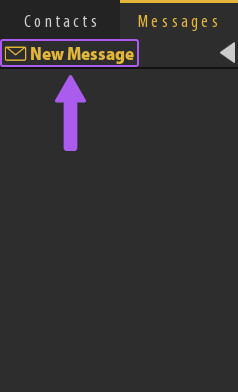
To send a message, Switch to the messages Tab and Click on **"New Message".**
[](https://simlab-soft.com/help/uploads/images/gallery/2022-01/message-contact.png)
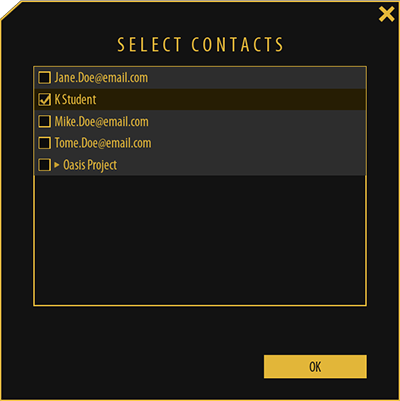
From **Select Contacts** dialog, select the contacts you wish to send a message to, and click "OK".
[](https://simlab-soft.com/help/uploads/images/gallery/2022-01/messaged2.jpg)
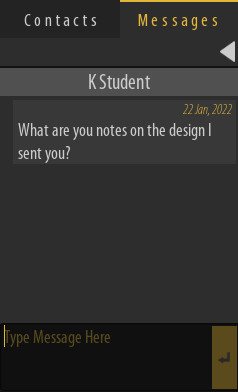
Once you have selected a contact, you can now message him by typing in the text field at the bottom then click "**Send"** or by pressing "**Enter"** on the keyboard.
[](https://simlab-soft.com/help/uploads/images/gallery/2022-01/messagereceived3.png)
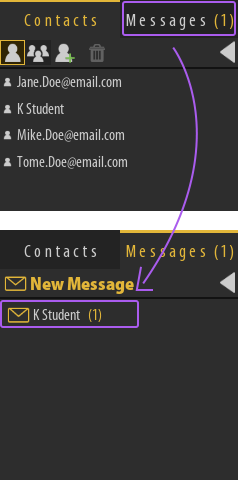
When you receive a message a notifications with the number of received messages will appear next to the **Messages** tab title.
Switch to the messages tab and you will find the active messaging sessions with the number of messages next to it, click it to view the received messages