# VR Viewer Settings
#### Graphics Quality
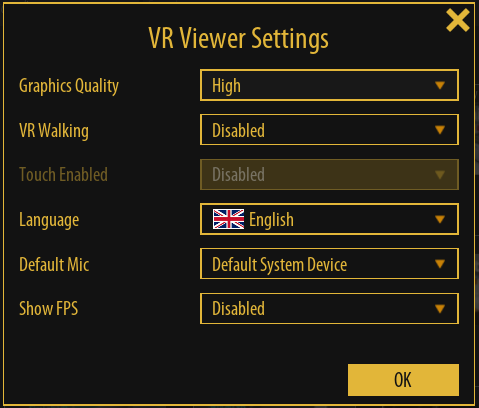
Users can control the rendering quality from the viewer settings.
Running a PC with good video card on desktop the user can switch to **Ultra** rendering, which takes advantage of the new lumen rendering in unreal 5.
[](https://simlab-soft.com/help/uploads/images/gallery/2024-01/9sqimage.png)
####
#### VR Walking
Enable/disable walking with controllers in VR.
#### Touch Enabled
Enable touch screen (if using a PC connected to a touch screen)
#### Language
Select the interface language (Users in different countries asked for that).
#### Default Mic
Select the default Mic for notes, and voice commands
#### Show FPS
If the user finds experience to be slow for providing great FPS for VR, the value can be lowered in settings to get a smooth VR Experience.