# SimLab VR Viewer for Students and Trainees
# Signing Up
#### Students and Trainees
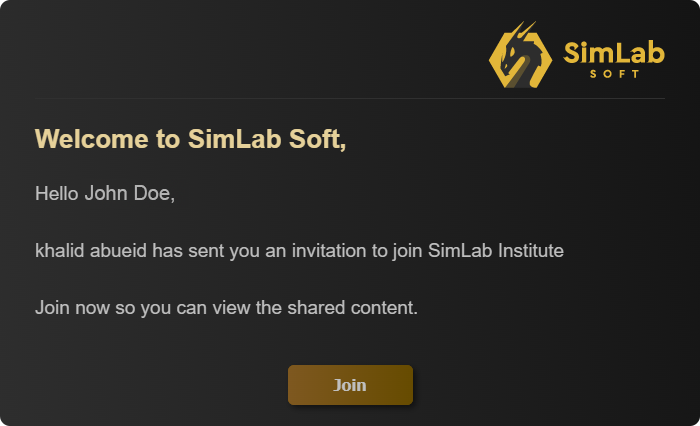
If you are a Student and Trainee and a Teacher or an Administrator has shared a VR Lesson with you, you will receive an email requesting you to join the organization and activate your account to be able to view the shared VR Lesson.
[](https://simlab-soft.com/help/uploads/images/gallery/2022-01/student-join.png)
From the received email, click **Join**.
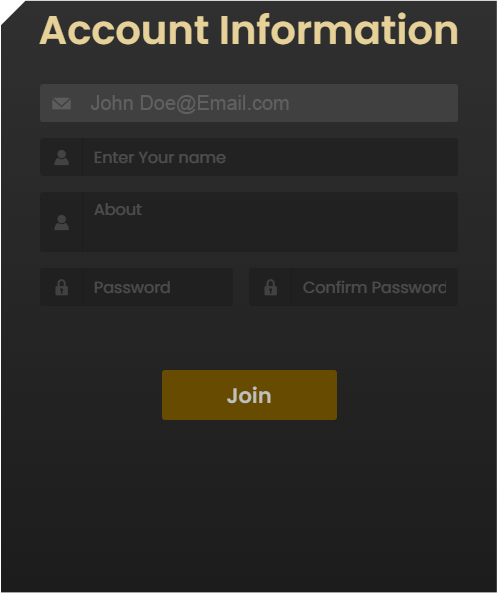
once you click Join, the account information dialogue will appear.
[](https://simlab-soft.com/help/uploads/images/gallery/2022-01/client-joindialogue.png)
Fill in your Name, a brief biography and a password to activate your account and join the organization.
---
Once you have Joined the Organization, the next step is to download the **SimLab VR Viewer.**
In the same email you received you will find a link to download the SimLab VR Viewer, or you can [**Click here**](https://simlab-soft.com/technologies/simlab-showroom.aspx?utm_source=Invitation_Sharing&utm_medium=email) to download it.
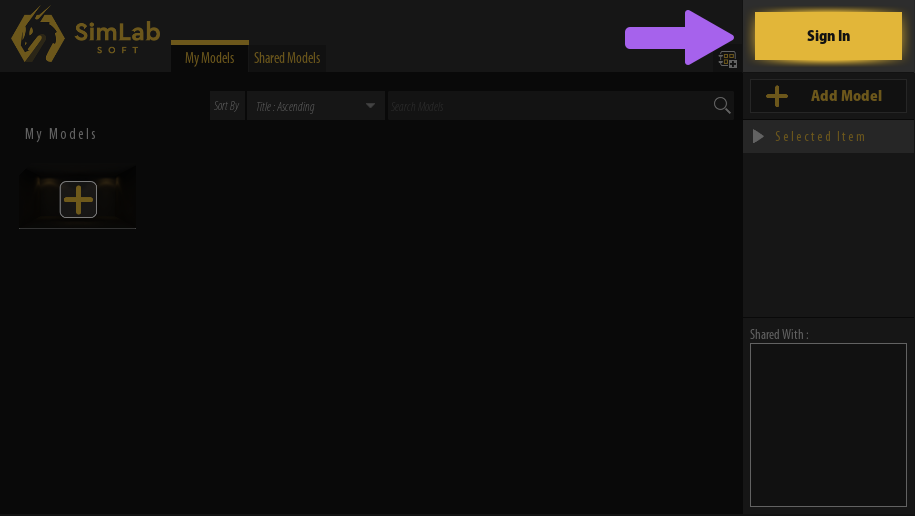
Once downloaded and installed, Run the SimLab VR Viewer and in the top right corner, click **Sign In.**
**[](https://simlab-soft.com/help/uploads/images/gallery/2022-01/slv-sign-in-button.png)**
In the Sign in dialogue, enter your email address and the password you have created for your account and click **Sign In**.
# Running Shared VR Lessons
#### Accessing the Shared VR Experience
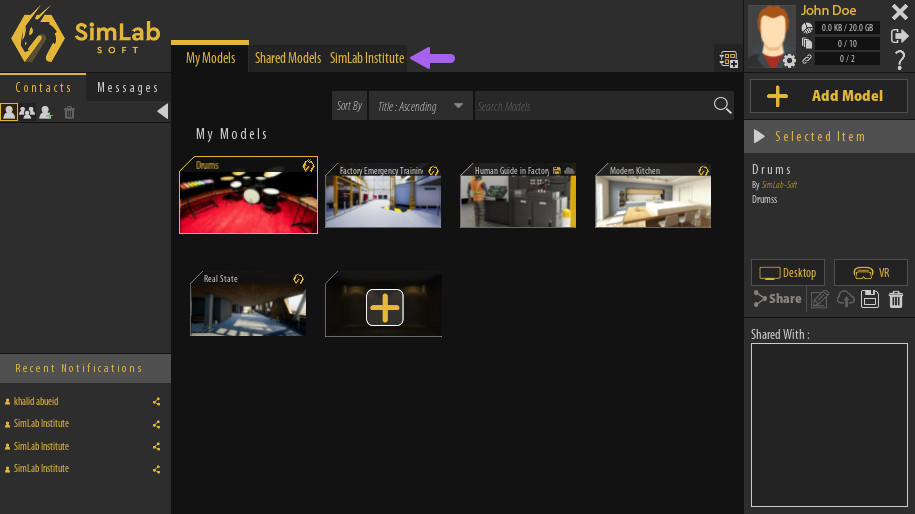
Once you are Signed in to your account in **SimLab VR Viewer**, click on the tab that has your **organization's name.**
[](https://simlab-soft.com/help/uploads/images/gallery/2022-01/oragnization-tab.jpg)
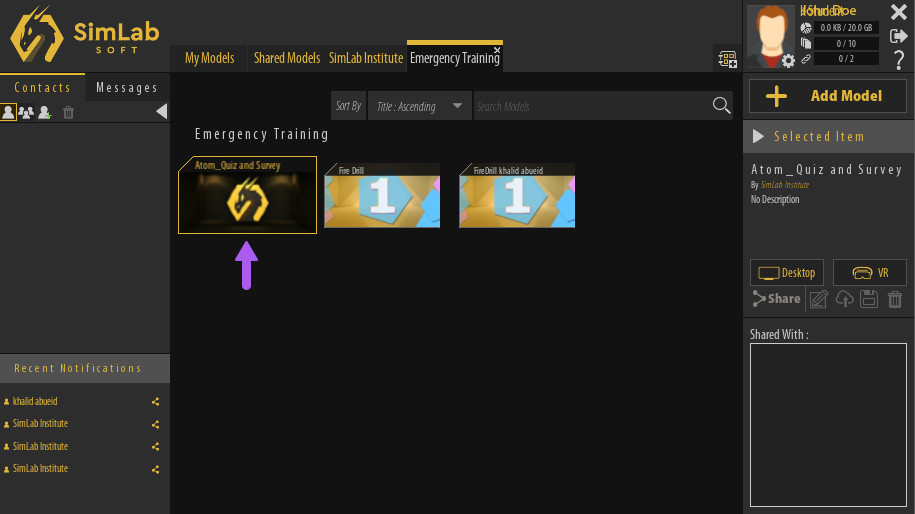
In the Organization Tab, you will find the courses that you're a part of, double click the course to view its content, then **select the VR Lesson** you want to view.
[](https://simlab-soft.com/help/uploads/images/gallery/2022-01/coursecontent.jpg)
---
#### Running The VR Experience
[](https://simlab-soft.com/help/uploads/images/gallery/2022-01/selectmodel-panel.jpg)
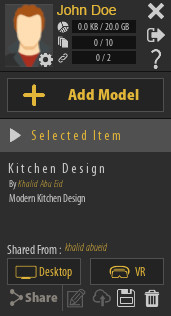
Once a VR Lesson has been selected, its name and description along with the name of the person who shared it with you will be displayed in the **Selected Item Panel** to the right, additionally, you will find 2 buttons to run the Experience in **Desktop Mode** or **VR Mode**.
##### Desktop Mode
If you are using a **Windows** or **macOS** computer and you do not have a VR headset, you can Run VR Experiences in Desktop Mode where you will be using the mouse and keyboard to navigate the scene and interact with objects.
##### VR Mode
With VR Mode you can run the VR experience using PC VR headsets which are VR headsets that are attached with a cable to a computer.
Supported VR devices are :
[](https://simlab-soft.com/help/uploads/images/gallery/2022-01/vive.png)
**HTC Vive** / **HTC Vive Pro**
[](https://simlab-soft.com/help/uploads/images/gallery/2022-01/oculus.png)
**Oculus Quest** / **Oculus Quest 2 / Oculus Quest 3** / **Oculus Rift** / **Oculus Rift S**
[](https://simlab-soft.com/help/uploads/images/gallery/2022-01/pico.png)
**Pico Neo 2** / **Pico Neo 3**
[](https://simlab-soft.com/help/uploads/images/gallery/2022-01/mixed-reality.png)
**Windows Mixed Reality**
#####
##### Pairing Wireless Devices
If you are using a standalone VR Headset such as Oculus Quest and Pico in wireless mode or a mobile device, you can use pairing to access your models through those devices.
before you pair your wireless device you need to first install the SimLab VR Viewer on those devices, [Click here](https://simlab-soft.com/technologies/simlab-showroom.aspx) to download the VR Viewer for Wireless devices.
Once you have installed SimLab VR Viewer on wireless devices, Follow these steps :
1. Run the VR Viewer on you computer first and from the top right corner click the **Pairing button**.
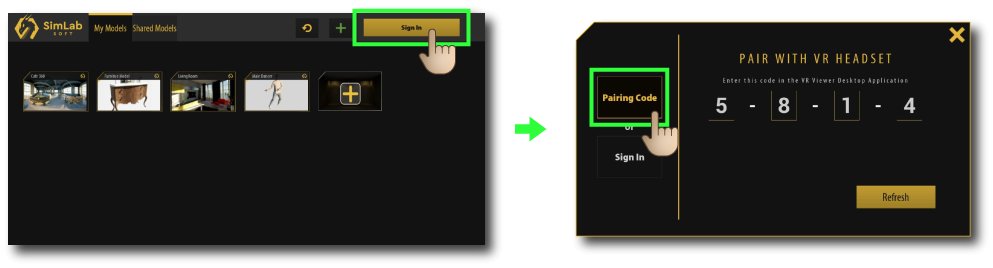
2\. Run SimLab VR Viewer on the wireless device and click on **Sign in** at the top Right corner
[](https://simlab-soft.com/help/uploads/images/gallery/2022-01/pair2.png)
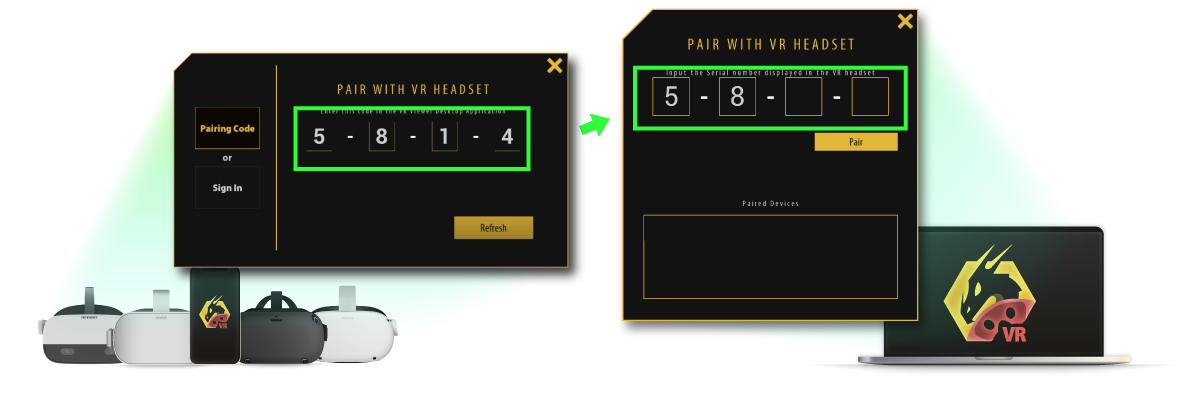
3\. Insert the pairing code that shows on your device into your PC.
[](https://simlab-soft.com/help/uploads/images/gallery/2022-01/pair3.png)
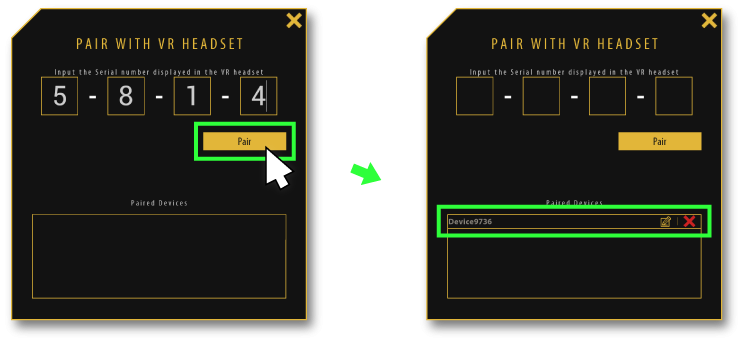
4\. **Click pair**, then the device should appear on the pairing devices list, you can rename it or delete it from this list as well.
[](https://simlab-soft.com/help/uploads/images/gallery/2022-01/pair4.png)
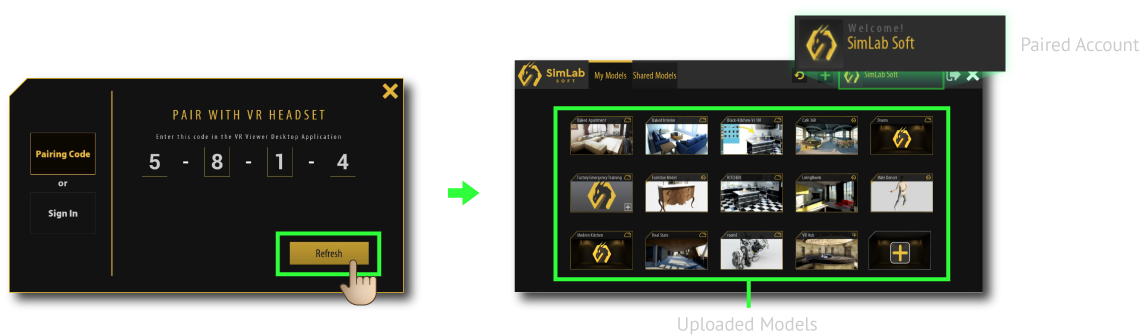
5\. **Click the Refresh button** on your device, then all of the shared models will be displayed.
[](https://simlab-soft.com/help/uploads/images/gallery/2022-01/pair5.png)
6\. Select the desired model to run it on the wireless device.
# VR Lesson Navigation and Interactions
### Desktop Mode
If you are running the VR Lesson in Desktop Mode, you are going to be using the mouse and keyboard to navigate the scene and interact with objects.
Watch This tutorial to learn about Desktop navigation
##### Movement
**Move around :** **W A S D** keys or the **Arrows** on the keyboard.
**Sprint :** Hold "Shift" on the keyboard while moving.
**Look around:** Move the mouse.
**Jump :** Spacebar.
##### Trigger objects
To trigger an object in the scene, hold the left click and aim towards an object then release to trigger it.
##### Grabbing and Grabbable Sequences
To grab objects freely or to use Grabbable Sequences, aim at an object then right click to reveal the grabbing hand, then hold left click to grab an object.
### VR Mode
If you are running the VR Lesson in VR Mode, you are going to be using the **controllers** to navigate and interact with objects.
Watch This tutorial to learn about VR navigation
##### Movement
**Move around :**
- Physically moving around will move you in VR.
- Use the Arrows or W A S D on the Keyboard (In case the VR headset is connected to the desktop).
**Look around :**
- Move your head physically to look around you in VR.
- Move the joystick or the track pad left and right.
- Move the Mouse (In case the VR headset is connected to the desktop).
**Teleporting :** Hold the joystick or the trackpad on your controller then aim towards a location on the ground then release to teleport there.
**Flying :** When flying is enabled, push the joystick or the trackpad on the left controller and aim the joystick in the direction you want to fly towards.
##### Trigger objects
To trigger an object in the scene, hold the trigger button on the controller and aim towards an object then release to trigger it.
##### Grabbing and Grabbable Sequences
To grab objects freely or to use Grabbable Sequences, let the virtual controller in VR reach and touch the target object and while it intersects the object hold the trigger button on the controller.
# Running xAPI/ SCORM Lessons on Quest/ Pico/ IOS/ Android
### You can run lessons on Quest and Pico devices using the VR viewer as follows:
#### Copying lesson link from the browser:
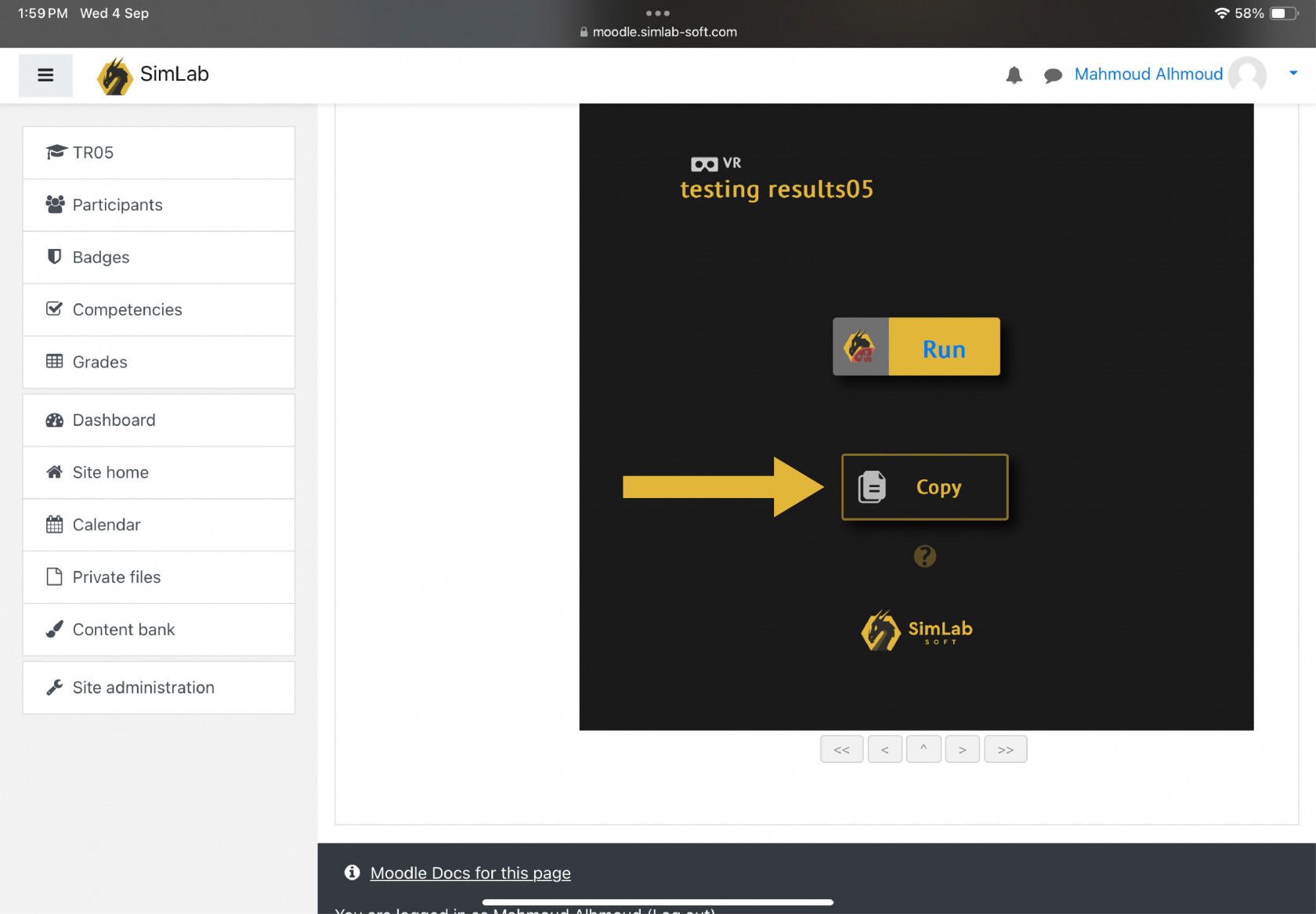
Using the web browser of the device, reach the lesson page on it's website (e.g: Moodle), then press on the "copy" button indicated in the following image to copy the URL of the lesson to paste it into the VR viewer
[](https://simlab-soft.com/help/uploads/images/gallery/2024-09/copy-image.jpg)
####
#### Pasting the URL into the VR Viewer:
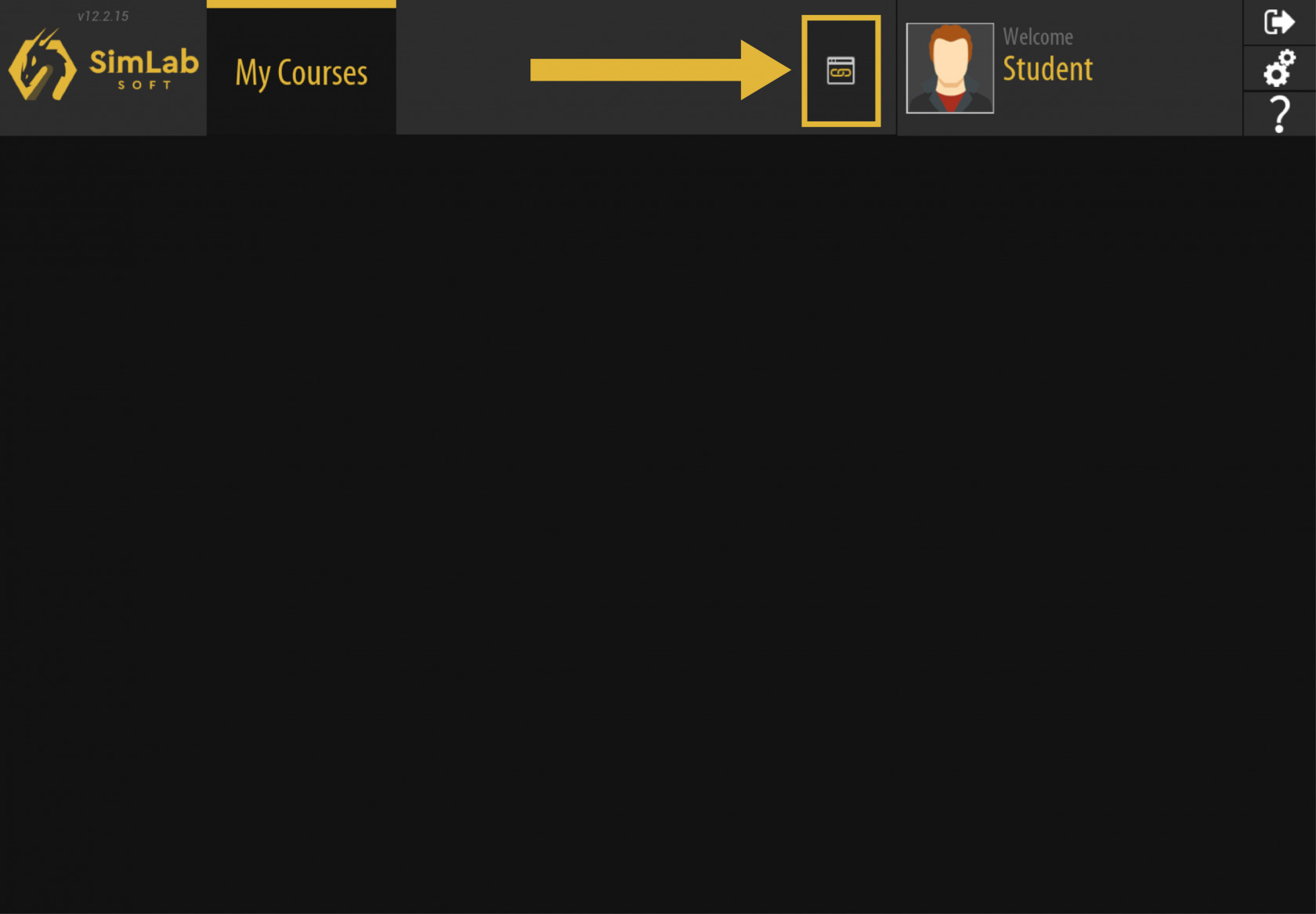
Now in the VR viewer, press on the indicated button in the following image to open the window where you can paste the URL
[](https://simlab-soft.com/help/uploads/images/gallery/2024-09/url-image.jpg)
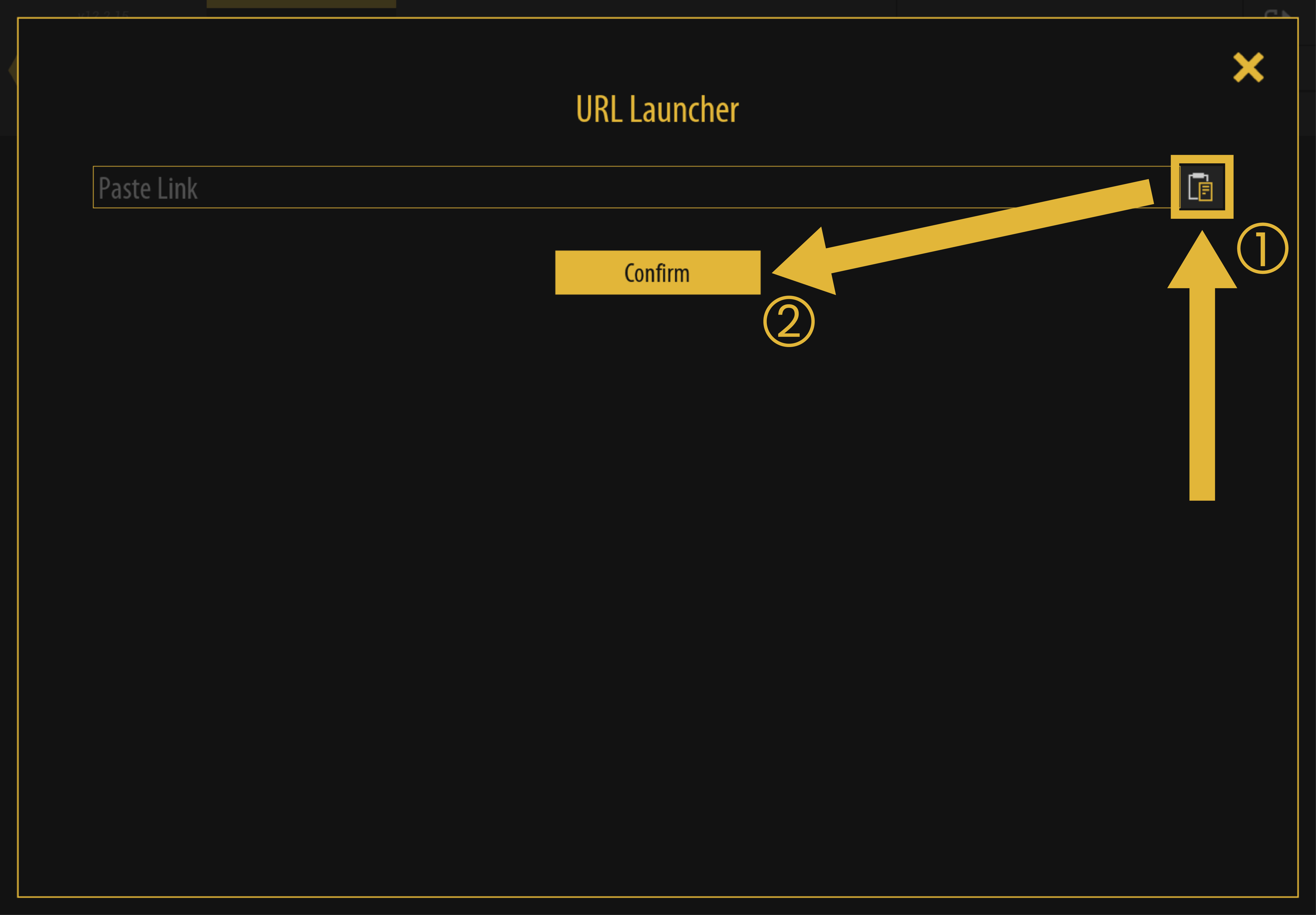
Now press on the indicated image in the following image to paste the URL, then press on "confirm"
[](https://simlab-soft.com/help/uploads/images/gallery/2024-09/paste-image.jpg)
Now the VR lesson should download and run on your device.
####
#### How to come back to this help page through the lesson page:
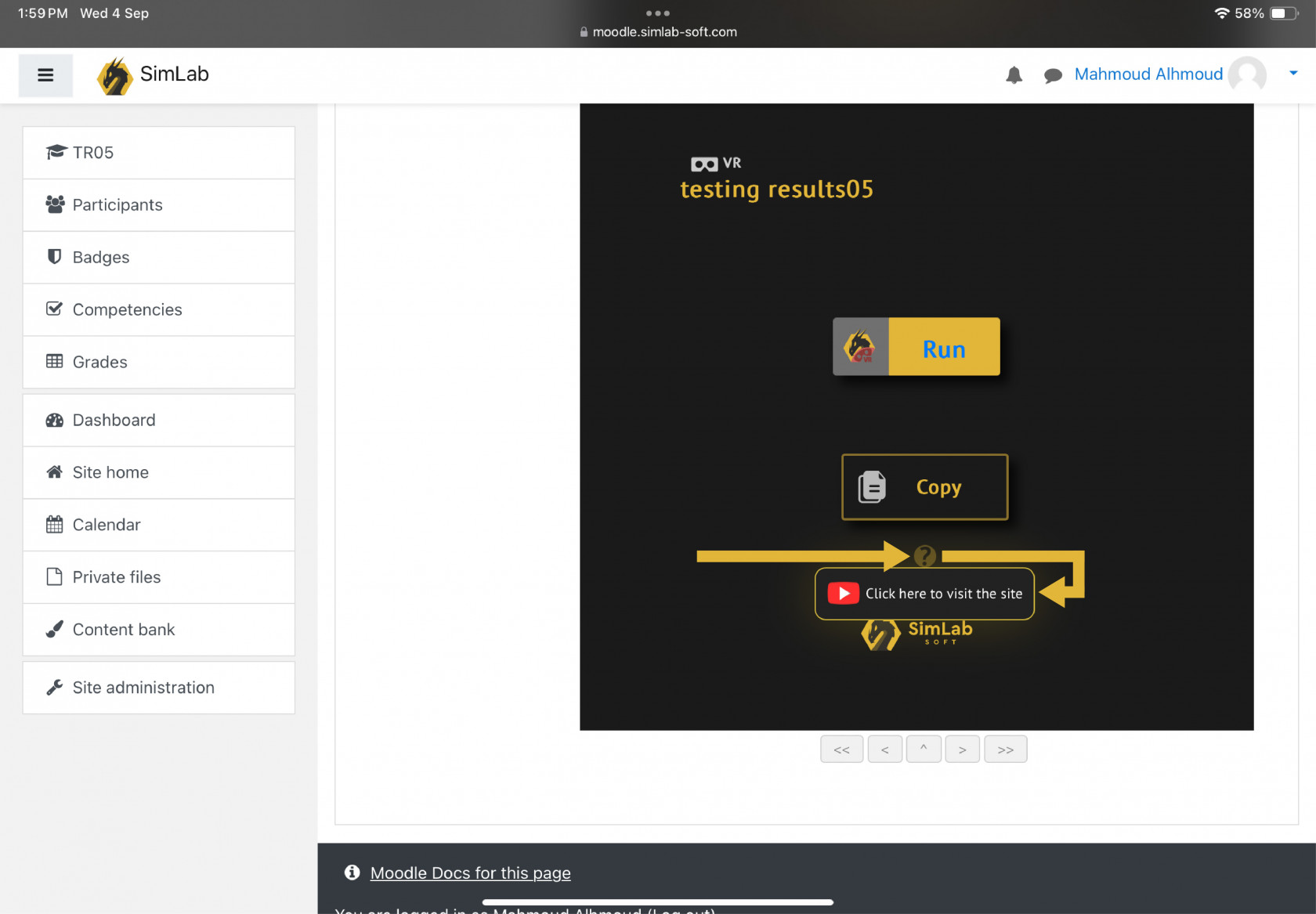
You can come back to this page by hovering over the question mark icon then pressing on "click here to visit the site" indicated below
[](https://simlab-soft.com/help/uploads/images/gallery/2024-09/doc-image.jpg)
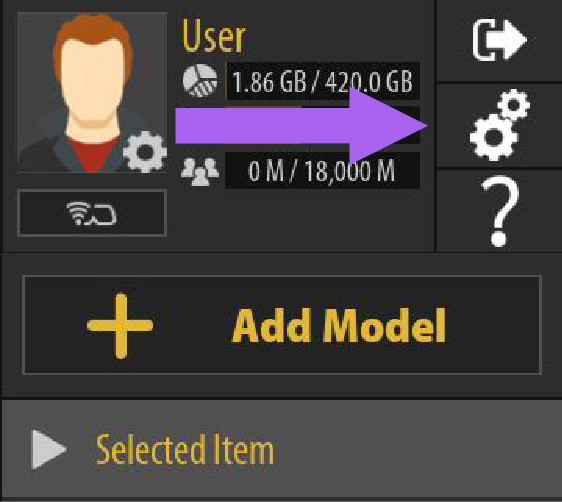
# VR Viewer Settings
####
#### [](https://simlab-soft.com/help/uploads/images/gallery/2024-10/settingsa-01.jpg)
####
#### Graphics Quality
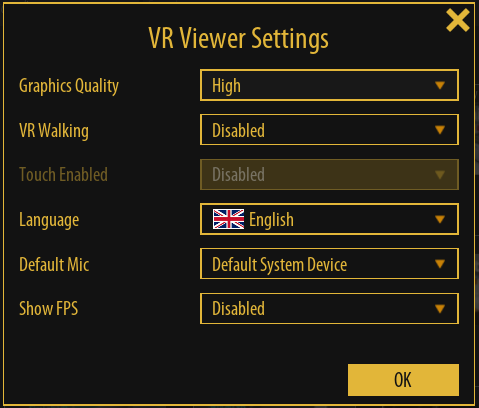
Users can control the rendering quality from the viewer settings.
If Running a PC with good video card on desktop the user can switch to **Ultra** rendering, which takes advantage of the new lumen rendering in unreal 5.
[](https://simlab-soft.com/help/uploads/images/gallery/2024-01/9sqimage.png)
####
####
#### VR Walking
Enable/disable walking with controllers in VR.
#### Touch Enabled
Enable touch screen (if using a PC connected to a touch screen)
#### Language
Select the interface language (Users in different countries asked for that).
#### Default Mic
Select the default Mic for notes, and voice commands
#### Show FPS
Show/ hide FPS counter on the screen
If the user finds experiences to be slow for providing great FPS for standalone VR headsets, some options can be changed from the composer when making the experience, check the last segment of [**this page**](https://simlab-soft.com/help/books/simlab-composer-help/page/properties-panel)
# Accessing files on Quest, Android, Pico, and iOS without a network connection
To show models on Quest to users in a trade show where they do not have a fast and reliable internet connection, we implemented the solution in the following way:
1- Upload your model(s) to the cloud, this can be done from Composer, VR Studio, or the VR Viewer while you are logged into your account
2- Log in to your account on Quest, now you will be able to see your models including the ones you just uploaded.
3- Select the model you want to enable offline access to and click on the green button "Enable Offline" as shown in the following image
Next time when you start the viewer, models will show even without logging in or having an internet connection, you will be able to run models offline.
# Mixed Reality Collaboration Support
When users are not physically in the same location, the process is straightforward. Simply select Mixed Reality (MR), enable Avatars, and initiate VR Collaboration. Each user will then be able to view the models they are working on, observe Avatars representing other collaborators, and seamlessly engage in collaboration.
However, if users are physically present in the same location and wish to collaborate, a few additional steps are required. They should choose MR, and deactivate Avatars (as they can see other users). They need to synchronize their physical locations with the MR positions.
For full understanding of the process, refer to the following video.