# Signing Up
#### Students and Trainees
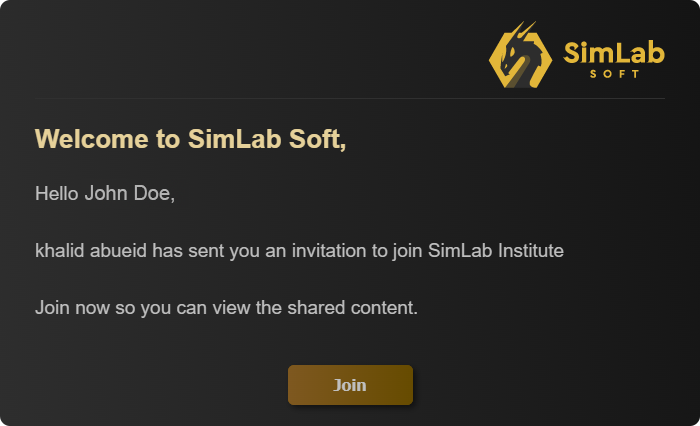
If you are a Student and Trainee and a Teacher or an Administrator has shared a VR Lesson with you, you will receive an email requesting you to join the organization and activate your account to be able to view the shared VR Lesson.
[](https://simlab-soft.com/help/uploads/images/gallery/2022-01/student-join.png)
From the received email, click **Join**.
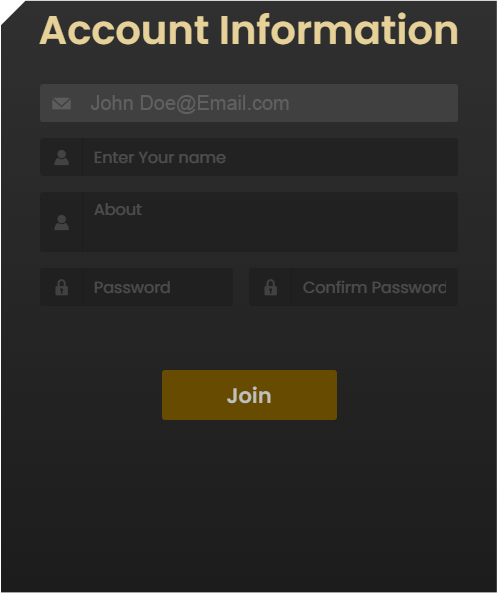
once you click Join, the account information dialogue will appear.
[](https://simlab-soft.com/help/uploads/images/gallery/2022-01/client-joindialogue.png)
Fill in your Name, a brief biography and a password to activate your account and join the organization.
---
Once you have Joined the Organization, the next step is to download the **SimLab VR Viewer.**
In the same email you received you will find a link to download the SimLab VR Viewer, or you can [**Click here**](https://simlab-soft.com/technologies/simlab-showroom.aspx?utm_source=Invitation_Sharing&utm_medium=email) to download it.

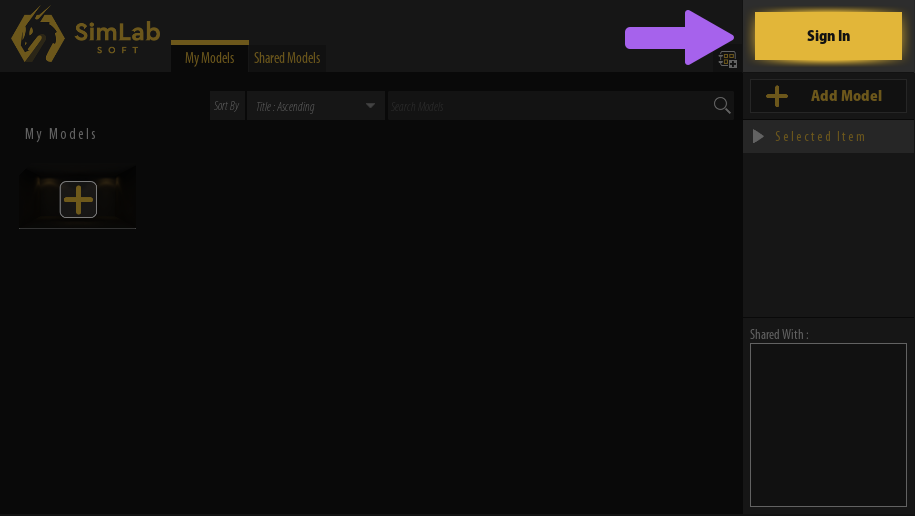
Once downloaded and installed, Run the SimLab VR Viewer and in the top right corner, click **Sign In.**
**[](https://simlab-soft.com/help/uploads/images/gallery/2022-01/slv-sign-in-button.png)**
[](https://simlab-soft.com/help/uploads/images/gallery/2022-01/credientialsdialogue2.png)
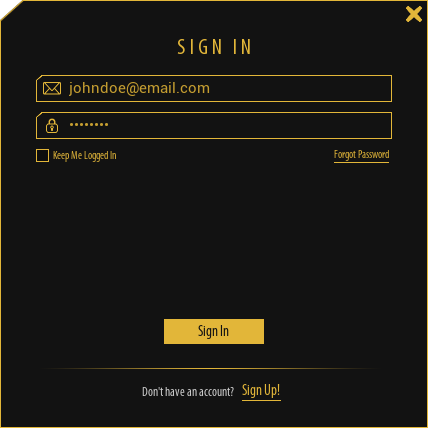
In the Sign in dialogue, enter your email address and the password you have created for your account and click **Sign In**.