# Changing 3D Avatar
### What are 3D Avatars?
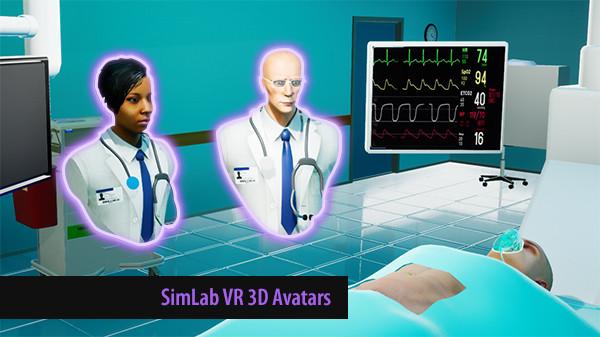
3D Avatars are the Visual representation of participants in VR Collaboration Sessions, they are used to drastically increase the level of immersion in a VR Experience.
[](https://simlab-soft.com/help/uploads/images/gallery/2022-11/splash1.jpg)
---
### Changing the 3D Avatars
[](https://simlab-soft.com/help/uploads/images/gallery/2022-11/default.jpg)
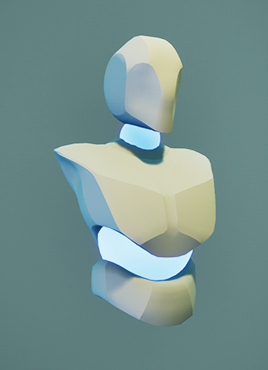
By default, all the participants in a VR Collaboration Session will have a generic 3D Avatar with a unique glowing color for each participant.
To change the default 3D Avatar, the user has to access the **User Settings** from SimLab VR Viewer.
[](https://simlab-soft.com/help/uploads/images/gallery/2022-11/profilebutton.png)
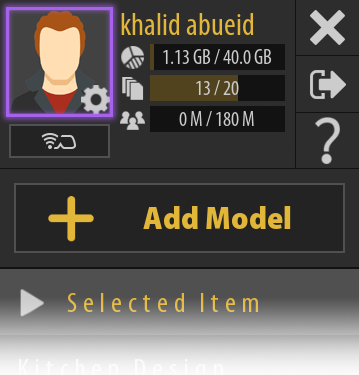
To access the User Settings, Log in in to your SimLab Account in SimLab VR Viewer, **click on the profile image** in the top right corner**.**
[](https://simlab-soft.com/help/uploads/images/gallery/2022-11/usersettings.jpg)
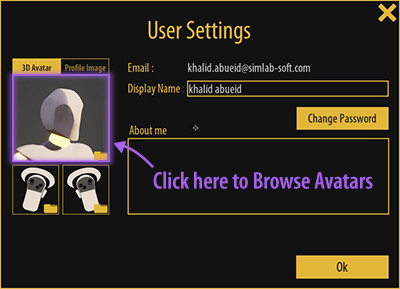
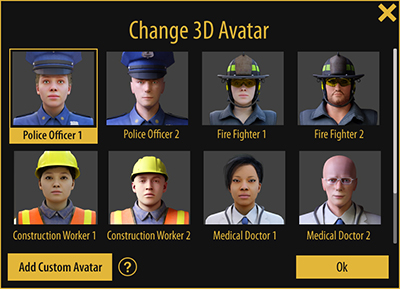
In the User Settings dialogue, click on the **Avatar image** to open the avatar browser.
[](https://simlab-soft.com/help/uploads/images/gallery/2022-11/usersettings.jpg)
From the Avatar Browser, select on of the available avatars and click **"OK"** to set it as your 3D avatar.