Joining a Scheduled VR Collaboration Session (Android)
Learn how download and install Simlab VR Viewer on your device, as well as joining a schedules VR Session through contact invitation or using a link invitation.
Installing SimLab VR Viewer
 |
This chapter guides you through installing the SimLab AR/VR Viewer on Android devices (smartphones and tablets). SimLab VR Viewer is a free, essential cross-platform application required to run, view, and participate in VR experiences, including collaboration sessions and viewing shared SimLab VR packages (.vrpackage files). |
Download and Installation
The SimLab AR/VR Viewer is installed directly from the respective app stores. Click the appropriate link below to navigate to the download page:
| Platform | Download Source | Link |
| Android | Google Play Store | Download for Android |
-
Open the appropriate store (Google Play) on your device.
-
Search for "SimLab AR/VR Viewer".
-
Tap the Install or Get button to download and install.
System Requirements
| Specification | Android Minimum |
| OS Version | Android 8.1 (API 27) or later |
| Processor | 64-bit Arm-based CPU |
| RAM | 4 GB or more |
| Storage | Sufficient free space for the application and VR experience files (.vrpackage). |
Joining as a contact
This section details how to join a VR collaboration session on Android when you have been invited as a contact by the host/administrator. This assumes you already have a SimLab account registered with the email address the invitation was sent to.
Joining via In-App Notification (SimLab VR Viewer)
If you are signed into the SimLab VR Viewer, the application will provide real-time notifications about scheduled sessions you are invited to.
Prerequisites:
-
SimLab AR/VR Viewer is installed and running on your system.
-
You are Signed In to the SimLab AR/VR Viewer application.
Action (In-App Join):
-
Notification Prompts: The Viewer will display timed messages leading up to the scheduled start time:
-
Example: At 4:45 PM for a 5:00 PM session, you will receive a notification stating you have 15 minutes before the session starts. A similar prompt will appear at the 5-minute mark.
-
-
Host Initiates Session: When the host/administrator clicks Start Collaboration within their SimLab VR Viewer, you will receive the final launch prompt in the Viewer.
-
Message: "[Host Name] has invited you to join a Collaborative VR Experience session."
-
-
Tap the 'Join' Button: Tap the Join button within the notification window to immediately launch and enter the collaborative VR session lobby.

Joining via SimLab Dashboard (VR Collaboration Scheduling Page)
All scheduled collaboration invitations can be managed and joined directly from the SimLab Soft website using your mobile browser.
Action (Dashboardl):
-
Open your mobile web browser and navigate to the SimLab Soft website.
-
Log in to your SimLab account.
-
Navigate to the VR Collaboration Scheduling Page.
-
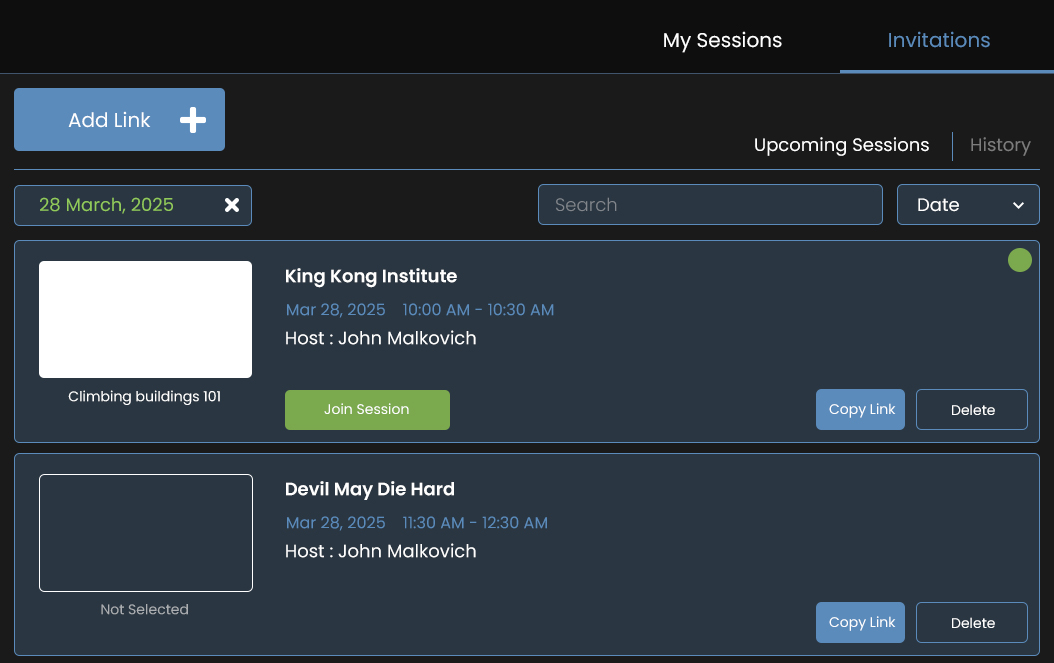
Locate the Invitation tab or button.
-
View List of Sessions: A list will display all collaboration sessions you are invited to.
-
Locate Active Session: Sessions that are currently active or running will feature a Join Session button.
-
Tap 'Join Session': Clicking this button will initiate the launch of the SimLab AR/VR Viewer application on your mobile device, and you will be connected to the collaboration lobby.
Joining via Email Invitation Link
You can bypass the in-app experience and join directly using the link provided in the email invitation.
Action (Email Link):
-
Open the invitation email sent by the host/administrator. The email will contain the session details and a direct invitation link.
-
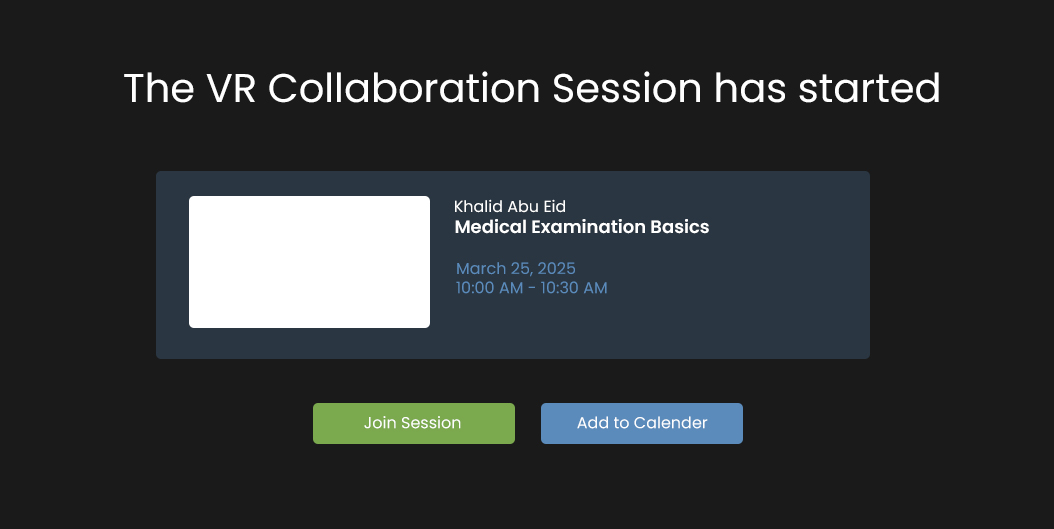
Tap the Invitation Link inside the email. This will open a web page in your default browser.
-
Web Page Validation: The web page will display the session details and the countdown until the start time.
-
Tap 'Join Session' Button:
-
If you are currently logged in to the SimLab website: Tapping Join Session will automatically launch the installed SimLab AR/VR Viewer application and place you into the collaboration lobby.
-
If you are not logged in: You will be prompted to enter your SimLab account credentials (email and password) before the Viewer application is launched.
-
Joining using a Link invitation (Guest/Ad-Hoc)
This method allows a user to join a VR collaboration session using a direct link distributed through any communication medium (email, chat, SMS, etc.), irrespective of whether they are a pre-existing SimLab contact or have a registered SimLab account.
Prerequisite:
-
SimLab AR/VR Viewer is installed on your mobile device.
Method A: Joining via the Web Invitation Link
Accessing the Session Link:
Action:
-
Tap the Invitation Link provided by the host/administrator.
-
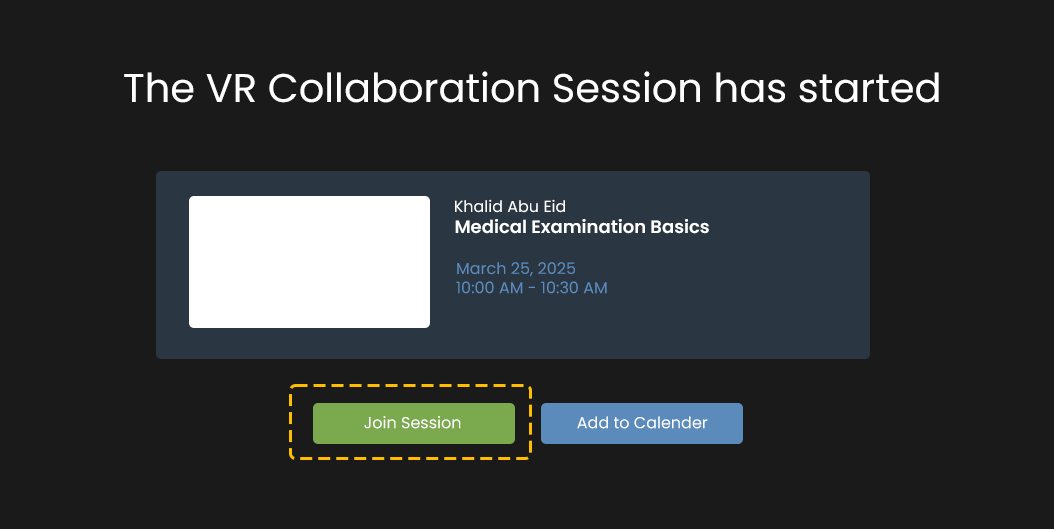
A dedicated web page will open in your browser, displaying:
-
Session Information: Session Name, Host's Name, Date, Time, and a countdown timer until the session starts.
-
The page will feature two main buttons: Join Session and Add to Calendar.
-
Joining the Session (Account vs. Guest):
Tapping the Join Session button will open a dialogue prompting you to either Login or Continue as a Guest.
| Option | Action Required | Result |
| Login | Enter your registered SimLab account email and password. | The SimLab AR/VR Viewer will launch, and you will proceed to the Lobby. Once the host starts the session, you will receive an in-app notification to Join the session. |
| Continue as a Guest | Provide an active Email Address and a Name (for identification within the session). | The SimLab AR/VR Viewer will launch, and you will proceed to the Lobby. You will receive an in-app notification when the session starts. Additionally, the provided email address will be used to create a new SimLab account, and you will receive a separate email containing an autogenerated password. It is highly recommended to change this password after your initial login. |
Adding the Session to Your Calendar:
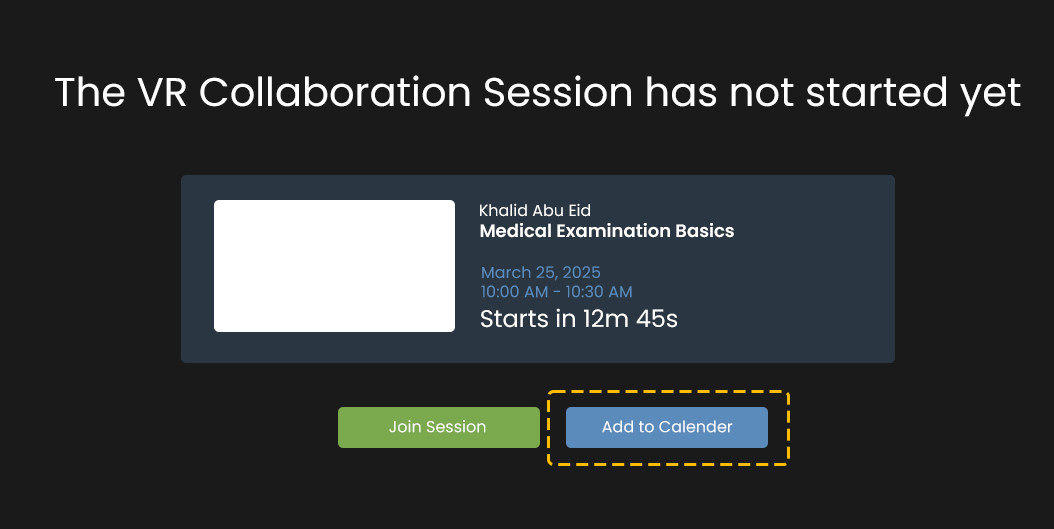
If you wish to save the session details for future access, use the Add to Calendar option.
Action (Add to Calendar):
-
Tap the Add to Calendar button on the invitation link's web page.
-
Authentication: You will be prompted to log in to your SimLab account if you are not already signed in.
-
SimLab Dashboard Redirect: Upon successful login, you will be redirected to the SimLab Dashboard page.
-
The session will be recorded as an event in the Invitations tab on the VR Collaboration Scheduling Page. You can use the Join Session button on this tab to join the collaboration when it is active.
Method B: Joining via the URL Launcher
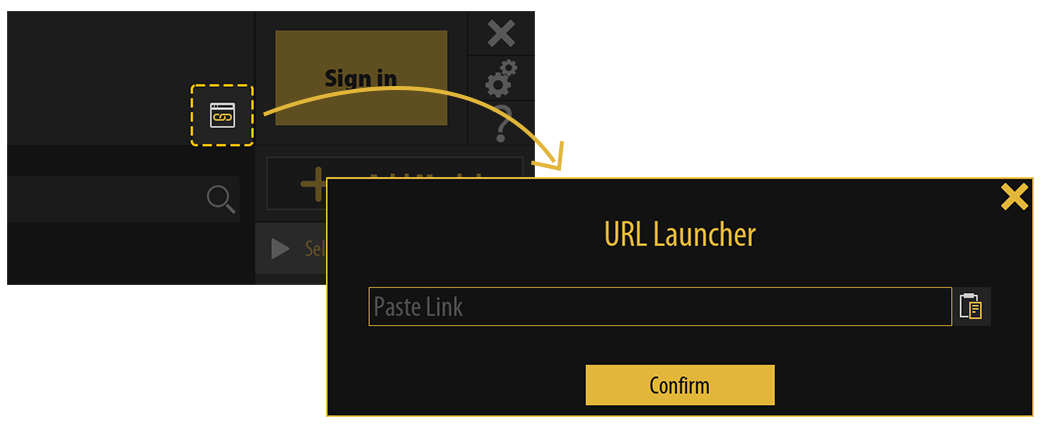
This method allows you to join a session directly within the SimLab AR/VR Viewer application, bypassing the web browser flow.
Action:
-
Launch the SimLab AR/VR Viewer application.
-
Locate the URL Launcher button (typically found in the interface) and tap it.
-
A dialogue window will pop up. Paste the Invitation Link (the full URL provided by the host) into the designated field.
-
Tap Confirm.
Result:
-
If you are Signed In: You will immediately connect to the session as your registered account and enter the Lobby.
-
If you are Not Signed In: A prompt will appear asking you to either Login or Continue as a Guest (which functions identically to the web method).
-
In either case, you will enter the Lobby screen to load the VR experience before the session officially begins.