Scheduling a VR Collaboration Session
Scheduling a collaboration session
This procedure details how to set up a multi-user VR Collaboration session using the SimLab Dashboard (website).
Steps to Schedule a Session
1. Access the Schedule Page:
-
-
Log in to the SimLab Dashboard.
-
Navigate to the My Sessions page (if you aren't already there).
-
Click the Schedule + button located above the calendar.
-
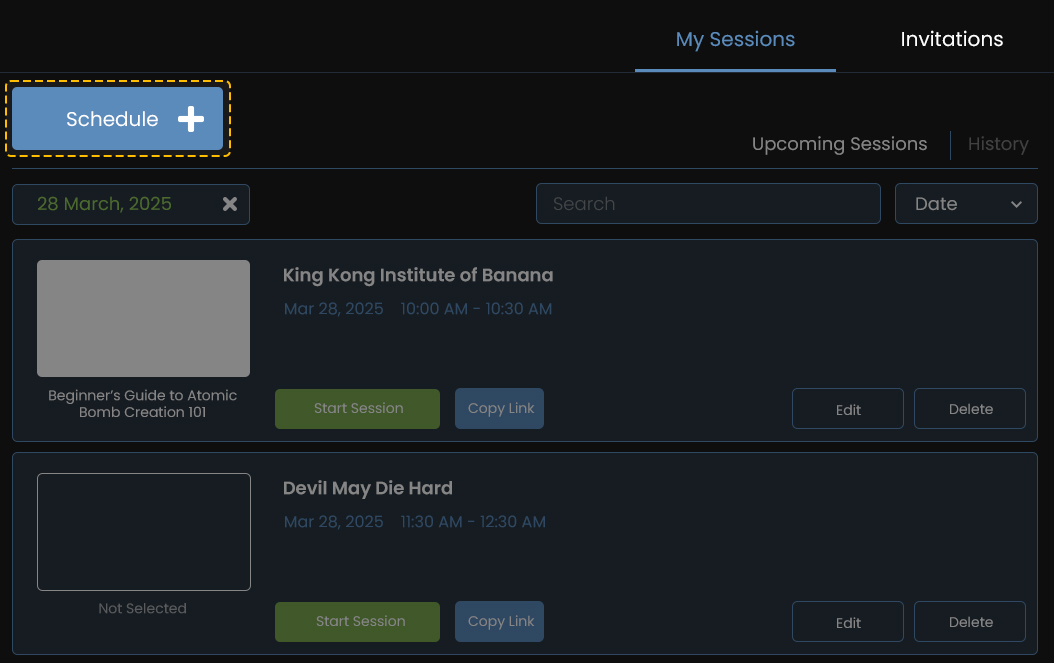
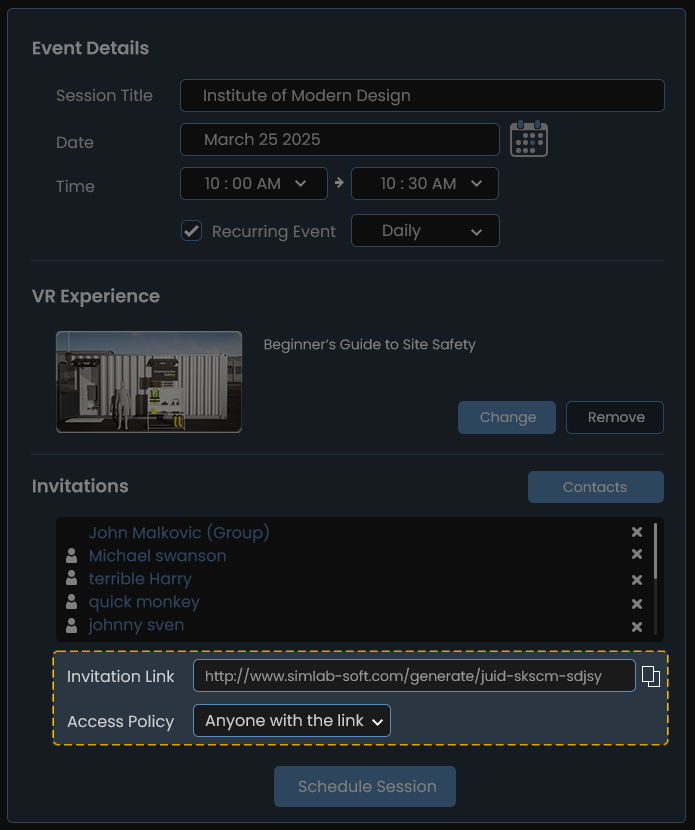
2. Enter Event Details (Refer to Web_Schedule.jpg and Web_Schedule_Groups.jpg):
-
-
Session Title: Enter a descriptive name for your session.
-
Date & Time: Select the desired Date and Time for the session.
-
Recurring Event (Optional): Check the box and select a frequency (e.g., "Daily") if the session should repeat.
-

3. Select VR Experience (Optional):
-
-
Under the VR Experience section, click the Change button.
-
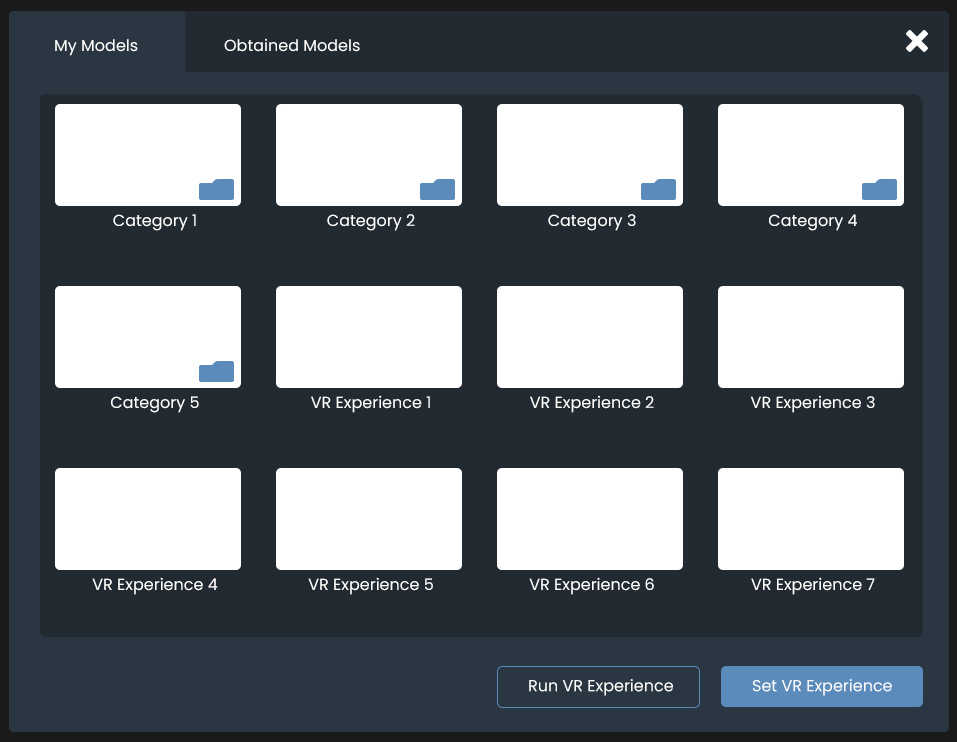
A pop-up will appear showing your available models/experiences .
-
Click on the desired model.
-
Click Set VR Experience.
-
4. Invite Participants:
-
-
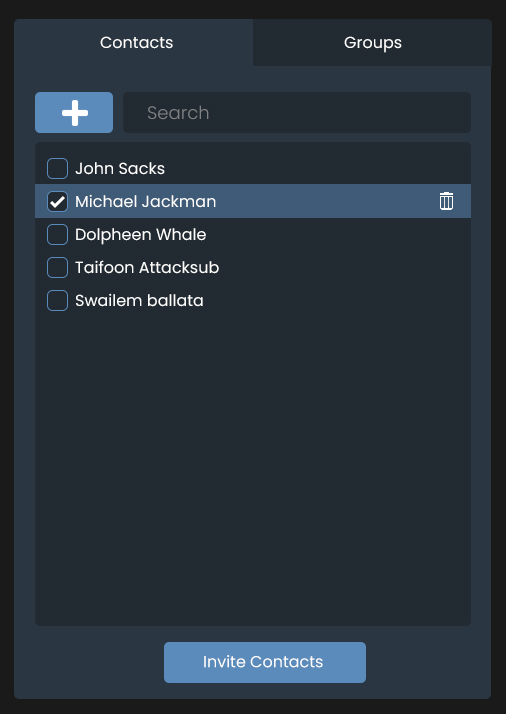
Click the Contacts Button to display your contacts manager.
-
Check the boxes next to the names or groups you wish to invite (e.g., "Michael Jackman" or "Testing Group").
-
Click the Invite Contacts button at the bottom of the panel. The invited users will appear under the Invitations list.
-
5. Review Invitation Settings:
-
-
Invitation Link: This link allows external users to join.
-
Access Policy: Choose who can join ("Anyone with the link" or "Contacts only").
-
6. Finalize Schedule:
-
-
Click the Schedule Session button.
-
Starting a scheduled collaboration session
As the host, you have two methods to start a scheduled session, even if the scheduled time has not yet arrived.
Method 1: Starting from the SimLab Dashboard (Website)
This method provides the most control and can be used to start a session before its scheduled time.
-
Access My Sessions: Log in to the SimLab Dashboard and navigate to the My Sessions tab.
-
Locate the Session: Find the session you wish to start under the Upcoming Sessions list.
-
Start the Session: Click the green Start Session button next to the event title.
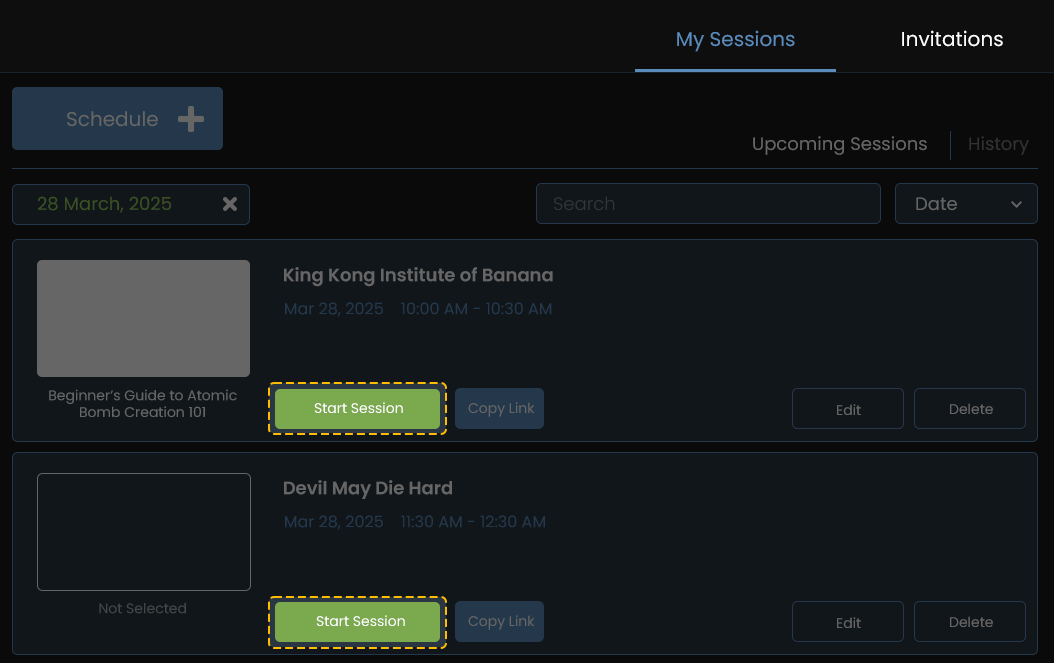
The session will immediately start for all invited and joining participants.
Method 2: Starting from SimLab VR Viewer (VR Application)
When the scheduled time arrives, the VR Viewer application will prompt the host to start the session.
-
Wait for Notification: At the scheduled time of the session (e.g., 10:00 AM on March 28, 2025), a pop-up message will appear inside your SimLab VR Viewer application.
-
Click Start: The message will contain a button labeled Start. Click this button to instantly initiate the VR Collaboration session.