Joining using a Link invitation (Guest/Ad-Hoc)
This method is for when the host only sends you a direct link. Since the Pico VR browser does not easily launch VR apps from web links, you must first register the link using a helper device or manually enter the URL.
Prerequisites:
-
The host sends you the invitation link via email or chat.
-
You must access the link on a PC or mobile device (Method A) or manually type it in VR (Method B).
Method A: Registering the Link to Your Account (Recommended)
Use a PC or mobile device to register the link, which converts the invitation into a registered session, allowing the Pico headset to treat you as an invited contact.

Action (on PC/Mobile Device):
-
Click the Invitation Link provided by the host on your PC or Mobile Device.
-
On the web page that opens, click the Add to Calendar or Add Link button.
-
Log In: If prompted, log into your SimLab account.
-
The session is now registered in the Invitations tab on the SimLab Dashboard.
Joining the Session (in Pico VR Headset):
-
Put on your Pico VR Headset and launch the SimLab VR Viewer while logged into the same account.
-
Because the session is registered to your account, when the host starts the session, you will receive the in-app notification (as described on Page 2).
-
Click Join to enter the Lobby.

Method B: Joining via the URL Launcher (Manual Input)
This method lets you bypass the web registration by entering the link directly in the VR Viewer.
Action (in Pico VR Headset):
-
Launch the SimLab VR Viewer application.
-
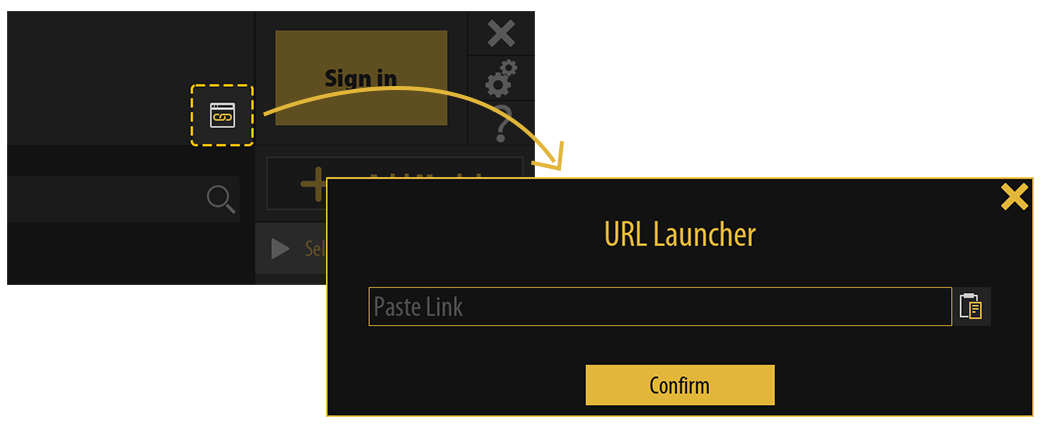
Locate and click the URL Launcher button (often a small icon or button).
-
Use the VR keyboard to type or paste the Invitation Link into the dialogue window.
-
Click Confirm.
Result:
-
You will be taken to the Lobby screen where the VR experience will load, and you can join the session. If you were not already signed in, you may be prompted to Login or Continue as a Guest.