
VR for Revit

Revit VR Creation
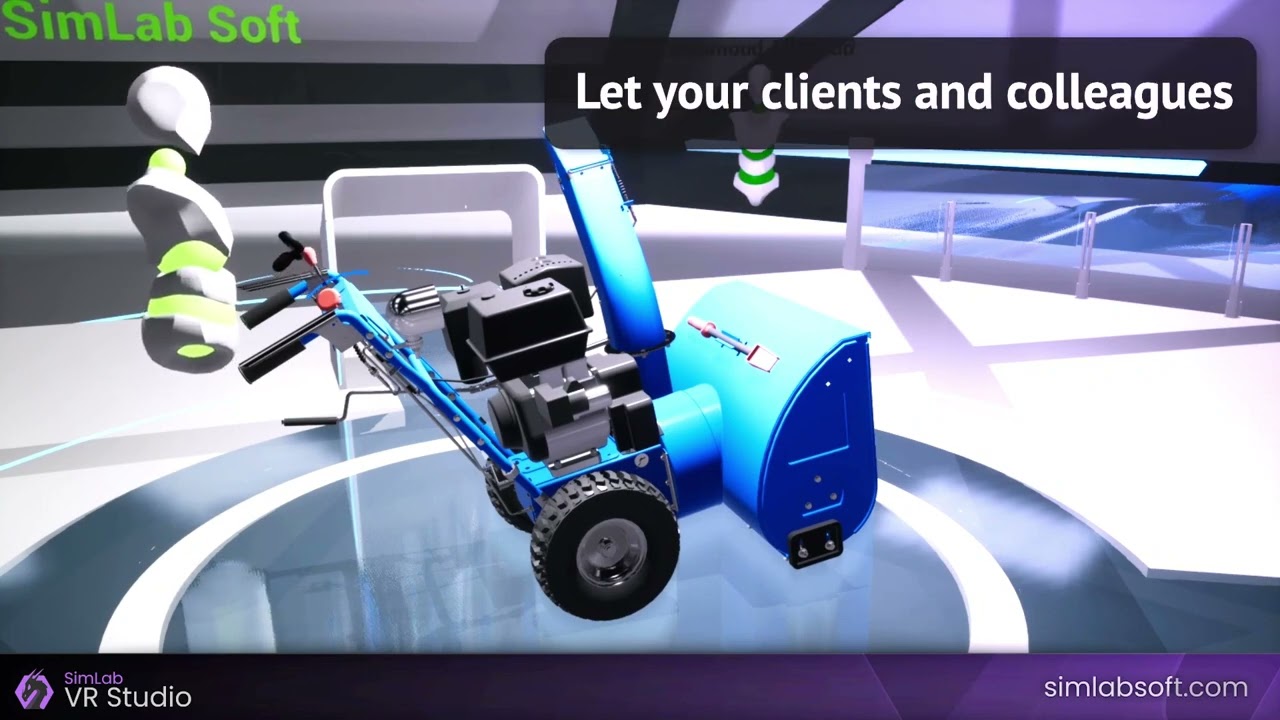
After Coordinating all data inputs into your architecture scenes including BIM. your best choice is to add interactivity to your Revit designs in order to show it, Your best solution for that is SimLab Soft VR, we provide you with a complete platform to learn, create, and share Interactive VR Experiences in the easiest way possible. It includes a library of 3D models, importing and exporting over 30 formats, tools for creating immersive interactive virtual tours, ability to configure products. It is optimized for desktop computers, mobile devices, and Oculus, HTC Vive, and Pico devices.
Can be
Shared On

macOS

win 64

iOS

Android

VIVE

Oculus Devices

Pico VR

Mixed Reality

Easy Steps?
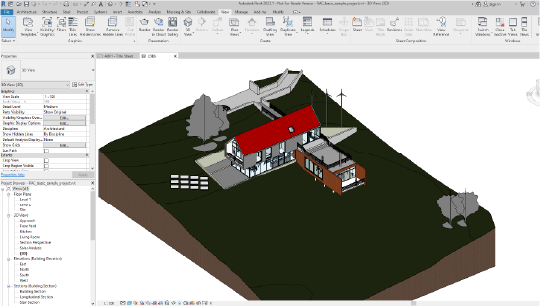
Save the Revit model as *.dwf or *.fbx, *.dwfx
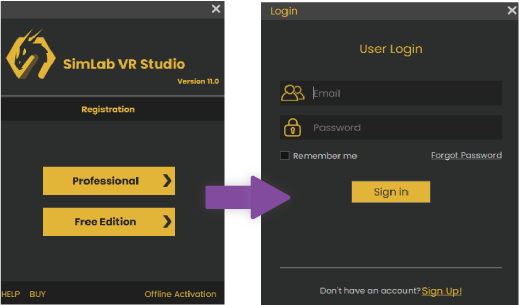
Open the VR Studio and sign up/sign in to your account
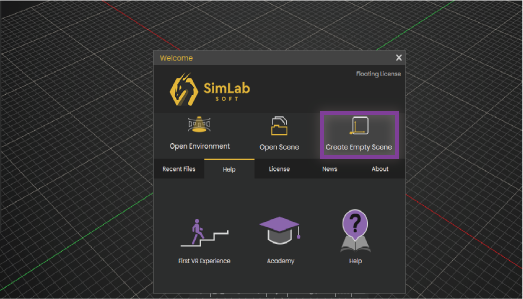
Click on "Create Empty Scene" button
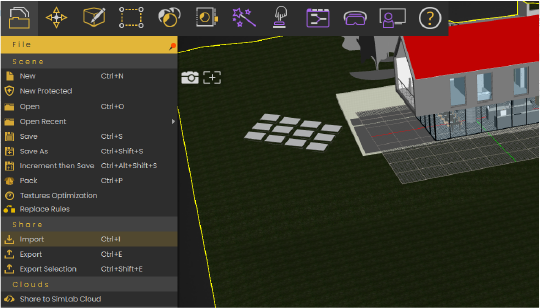
After that go to "File > Import", and choose the model saved in step 1
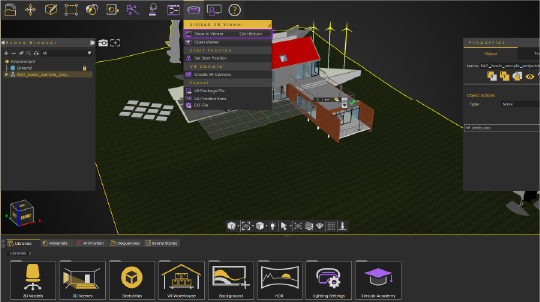
Go to VR Viewer " > Show in Viewer"
Note: If SimLab VR Viewer is not installed, VR Studio will give you a link to install it first
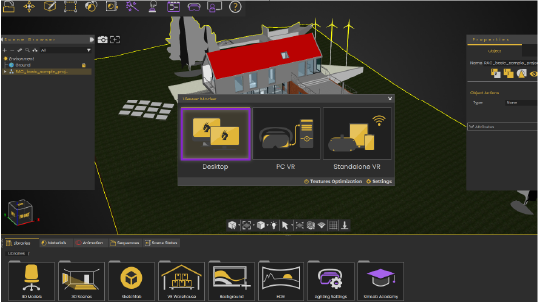
Three options available for vieweing the model; Desktop, PC VR, and Standalone VR. let's choose for now "Desktop", for more details about the three ways here is the link
For Sharing And VR Collaboration:
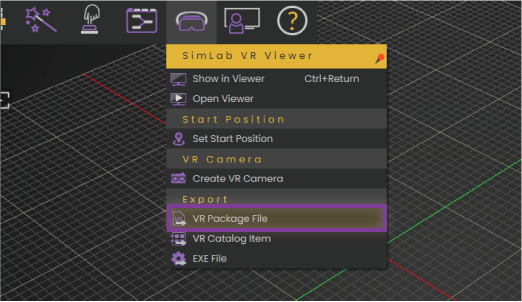
Go to "VR Viewer > export > VR Package File"
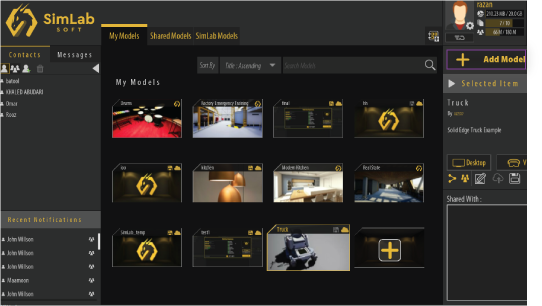
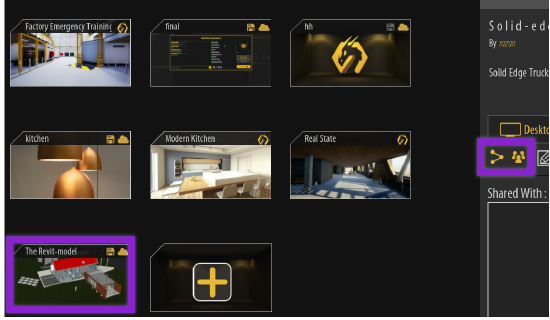
Now choose the model you uploaded, and click on the share icon or invite for collaboration, for more information about sharing click here, for more information about collaboration click here
What do you get when integrating SimLab with Revit?
After importing Revit With a few clicks to SimLab VR Studio, you can have an interactivity scene ready to be viewed on VR and shared with others with the following properties



Import rigid and flexible animations modify them, and play and control them inside VR

Add customizable visual effects to your scenes and bring life to them.
Make objects clickable and assign actions to them in seconds.

Ultimate control of your environment and lightning

A large set of VR-ready assets of 3D models, materials lightening, environments, and more

The most comprehensive visual tool to create interactions and logic in a VR experience.

Create functional, interactive, safe, and effective VR vocational training.
Utilize object BIM attributes to make dynamic behaviors for objects in your scenes.

Define specific checks and events in the VR experience so you can track viewers' achievements and progress.

SimLab Cloud Sharing
Uploading a lesson to SimLab Cloud, VR experiences on SimLab Cloud can be shared with others and viewed using the SimLab VR Viewer
FAQ
- How I can run my VR experience on the Oculus Quest / Pico device?
Simply upload your VR experience to your account using SimLab VR Viewer on your desktop, then on SimLab VR Viewer on the VR headset, sign in to your SimLab account and run your experience.

- What are the supported 3D file formats?
A wide range of 3D file formats are supported for import/export, for a list of the supported formats in SimLab VR Studio, please visit our Supported 3D Formats Page.
- How i can start a VR Collaboration session/experience?
To start a collaboration session, follow the instructions in this guide.
- How many users i can invite to my VR session? is it free?
You can start with the free edition of SimLab VR collaboration which will give you the ability to create as many VR collaboration sessions as you want and you can invite 1 person/session for a total of 3 hours of sessions per month, for more details here is the link.
- How I can create basic VR experiences?
You can follow our guide for creating your first VR; Creating your first VR Experience.
- What is VR Training Builder?
VR training builder is a very easy-to-use node editor that enables you to build logic and scenarios in your VR scenes and control different objects and interactivities just by dragging and connecting simple functional nodes together.
- What's a vrpackage file?
The vrpackage file is a 3D VR scene that has been created using SimLab Composer, it is one file that contains all of the scene elements including the 3D models, textures, environment settings, interactive elements, and even the package information such as the title and the description. The vrpackage file can be opened by SimLab VR Viewer which is available for PCs, smartphones, and VR headsets. SimLab VR Viewer is the core of SimLab Sharing, it’s where you upload, manage, and share the VR scenes.
- What is SimLab VR Cloud Sharing?
SimLab Cloud Sharing is a place to upload your VR scenes where they can be accessed from different platforms, to share your visualization outputs into your devices and with other users, more information can be found here.