
Integration
 Open External Connection

SimLab Composer 14 introduces WebSocket support, enabling seamless integration with external systems allowing it to work with external hardware, co-simulation engines, and websites, unlocking numerous possibilities.
The WebSocket nodes (Open External Connection, Send Message, and On Message Received) are exclusively available in the Ultimate Edition.
The Open External Connection node enables the opening of a WebSocket connection to an external system. When the Auto Handle Lua is set to true, incoming messages containing Lua scripts will be automatically executed. This allows for real-time interaction between SimLab Composer and external systems, such as co-simulation engines or hardware, with the ability to dynamically execute Lua code as part of the interaction.
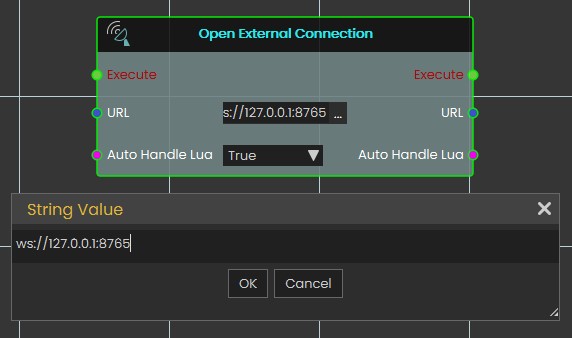
Input Ports:
- Execute
- URL: WebSocket URL that includes the server IP address, port, channel (optional). Example: ws://server1.simlab-soft.com:8765/robots_1
- Auto Handle Lua: Incoming messages containing Lua scripts will automatically execute those scripts If enabled (True).
Output Ports:
- Execute
- URL
- Auto Handle Lua
 Report Completed
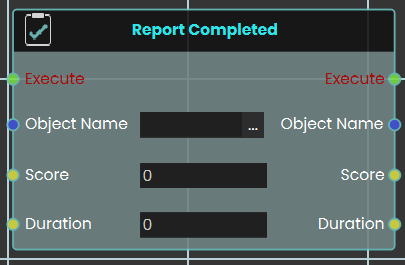
The Report Completed node functions similarly to the Report Score node, but it records both a score and a completion time simultaneously. It is ideal for finalizing tasks, exams, or training scenarios where both accuracy and speed are evaluated. Like the Report Score node, the recorded data is safely stored and utilized within the SimLab VR Assessment Portal for instructor review.
Key parameters:
-
Object Name: The name of the exam, task, or entity being evaluated.
-
Score: The numerical score or grade achieved.
-
Duration: The total time taken to complete the evaluated task.
 Report Score
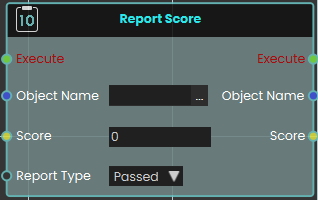
The Report Score node enables the system to register and record a specific value as a score when the node is executed. This is highly useful for tracking user performance, evaluating task completion, or logging quiz results within a training scenario.
The node utilizes the following key parameters to define the recorded data:
-
Object Name: Specifies the name of the exam, task, or specific entity being evaluated.
-
Score: The numerical input field where the final score value is passed or entered.
-
Report Type: A dropdown menu that determines the classification or outcome of the score. The available options are Passed, Scored, and Failed.
The node stores the score and its associated information to be used primarily in the SimLab VR Assessment Portal, where instructors and administrators can securely view and evaluate the reported values.
Example
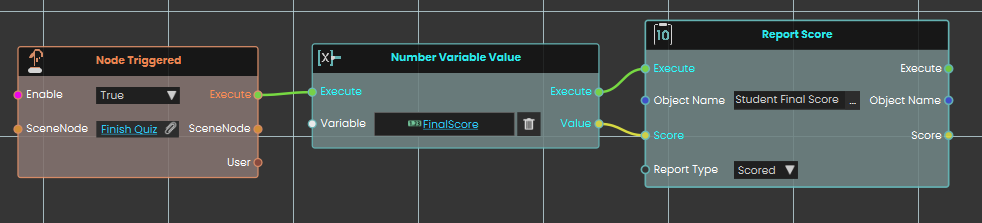
In this example, the system records a student's final score the moment they finish a test.
-
Upon interacting with the "Finish Quiz" object, the Node Triggered event initiates the execution flow.
-
The Number Variable Value node is used to retrieve the current numerical value stored in the
FinalScorevariable. -
This retrieved value is passed directly into the Score input of the Report Score node.
-
The Report Score node is configured with the Object Name set to "Student Final Score" and the Report Type set to "Scored," which officially logs the student's result into the system's evaluation records when executed.
 Send Message
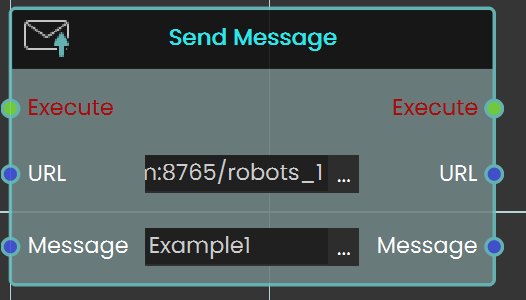
The Send Message node allows you to communicate with the WebSocket server by sending messages. It is essential to ensure that the message format follows the protocol that the server and other clients can process. This node enables real-time interaction with external systems, making it possible to transmit data or commands to connected servers or clients.
Input Ports:
- Executive
- URL: WebSocket URL that includes the server IP address, port, and channel (optional). Example: ws://server1.simlab-soft.com:8765/robots_1
- Message
Output Ports:
- Execute
- URL
- Message
No Comments