Media
 Message Box \ Show Message Box
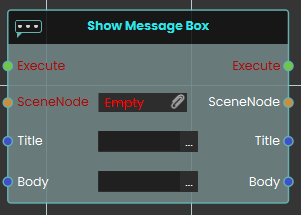
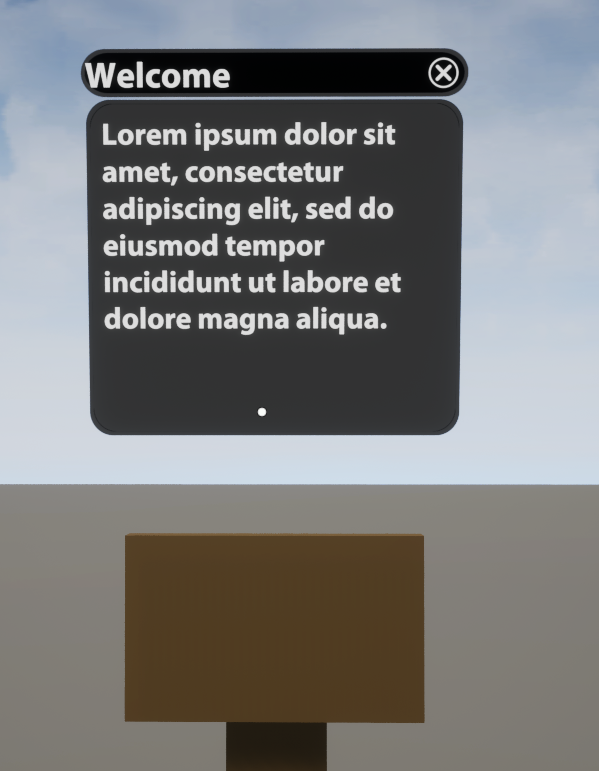
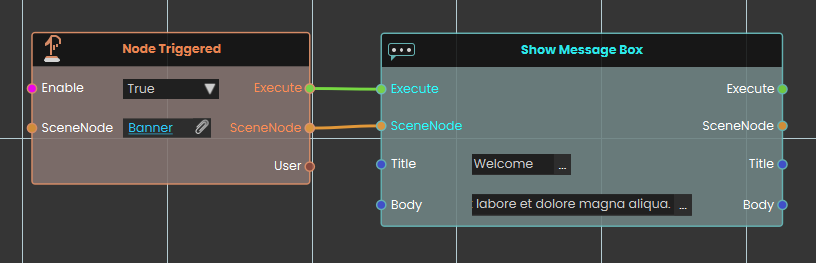
The Show Message Box node displays a floating text panel directly above a specific 3D object in the VR scene. Once activated, the node takes the targeted SceneNode input and generates a visible UI element containing the text strings provided in the Title and Body inputs, to provide contextual information or instructions to the user.
 Message Box \ Hide Message Box
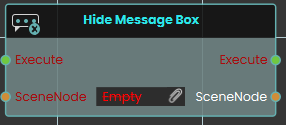
The Hide Message Box node removes an active text panel currently displayed above a specific 3D object. When activated, the node takes the targeted SceneNode input and immediately dismisses its attached message box from the user's view.
 Set Web Browser URL
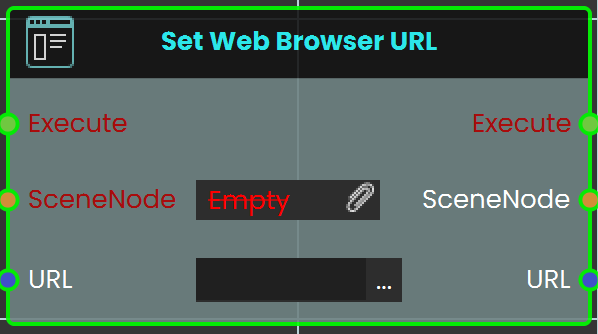
The Set Web Browser URL node sets the URL for a web browser within the VR Experience. This node enables users to open and navigate to a specified webpage, making it possible to display web content like videos or instructional resources directly within the VR environment.
Example
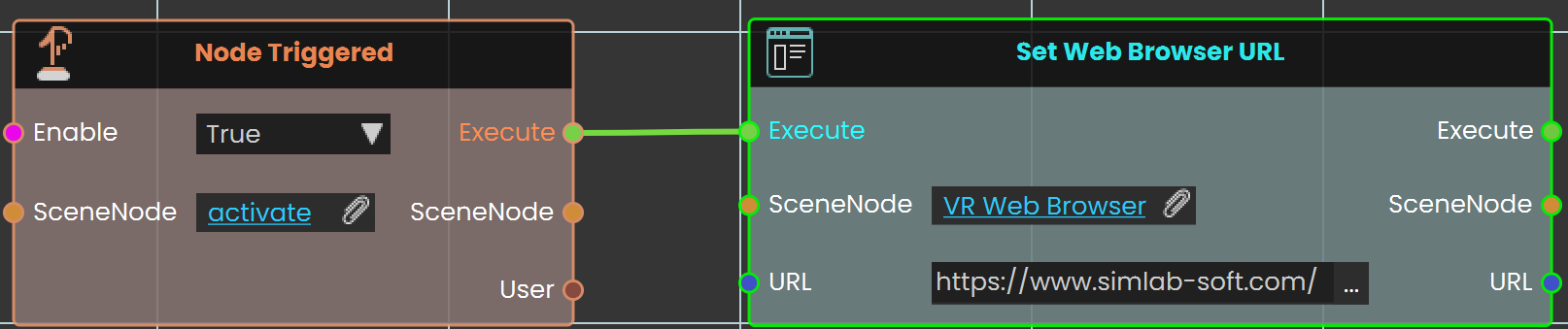
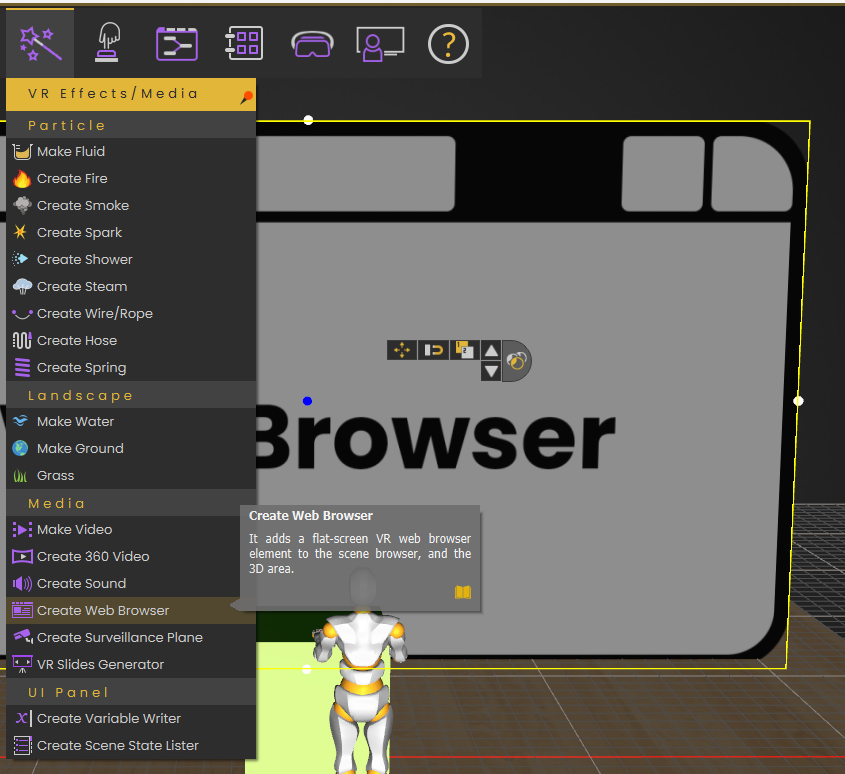
In this example, the Set Web Browser URL node is used to open the SimLab website. The Node Triggered event is activated when the user triggers an object named "activate." As soon as the object is triggered, the Set Web Browser URL node is triggered, setting the URL to the SimLab website. The website then loads and is displayed on a web browser plane within the VR environment.

 Load Web Browser HTML
Shows a page you write yourself on a web browser in the VR Experience, instead of opening a website.
What it does
Where Set Web Browser URL sends a web browser to a website address, this node gives the browser the page itself: you type the page's content as HTML text, and the browser shows it straight away. Nothing is downloaded from the internet, so it's a good way to show short instructions, step lists or results that you build inside your diagram.
While your page is showing, the browser hides its address bar, and your page takes priority over any website address the browser was given. To go back to a website, run this node again with HTML left empty: the browser then shows its web address again.
Inputs
| Port | Type | What to connect |
|---|---|---|
| Execute | Trigger | Wire this from the previous node's Execute output. |
| SceneNode | Scene node | The web browser object in your scene that should show the page. Something must be connected here: with nothing connected, the node stops with an error. |
| HTML | Text | The page to show, written as HTML. Leave it empty to stop showing your page and go back to the browser's web address. |
Outputs
| Port | Type | What you get |
|---|---|---|
| Execute | Trigger | Fires once the node has finished. |
| SceneNode | Scene node | The same web browser you connected, so you can wire it into the next node. |
| HTML | Text | The same HTML text you entered. |
Example
| SceneNode input | The web browser plane from the Set Web Browser URL example |
| HTML input | <h1>Step 2: Close the valve</h1><p>Turn the red valve clockwise until it stops.</p> |
| SceneNode output | The same web browser plane, now showing the “Step 2” page |
| HTML output | The same HTML text |
Tips
- URL not changing? If Set Web Browser URL seems to do nothing, a page from this node is probably still showing. Run Load Web Browser HTML with an empty HTML first, then set the URL.
- One step at a time. In a step-by-step training, run this node at the start of each step with that step's instructions, so the same browser always shows what to do next.
 Set Camera FOV
Changes how wide a Camera placed in your scene sees, so the pictures it takes show more or less of the scene.
What it does
Sets the field of view (FOV) of a Camera object in the scene, in degrees, replacing the value you gave that camera in the Composer. A small FOV zooms in on a detail; a large FOV takes in more of the room. Every picture a Capture Camera to File node takes with this camera afterwards uses the new value.
This only changes the camera's own view. Nothing on any user's screen changes — to change how wide a user sees, use Set Player FOV instead. If nothing is connected to Camera, or the object connected isn't a camera, nothing changes, and the Execute output still fires.
Inputs
| Port | Type | What to connect |
|---|---|---|
| Execute | Trigger | Wire this from the previous node's Execute output. |
| Camera | Scene node | The Camera object in your scene whose field of view you want to change. Required. |
| FOV | Number | The new field of view, in degrees. Use a value from 1 to 170; smaller numbers zoom in, larger numbers show more. |
Outputs
| Port | Type | What you get |
|---|---|---|
| Execute | Trigger | Fires once the node has finished. |
| Camera | Scene node | The same camera you connected, so you can wire it straight into the next node (for example Capture Camera to File). |
| FOV | Number | The same field of view you entered. |
Example
| Camera input | The Inspection Camera placed above the workbench |
| FOV input | 35 — a close-up of the part on the bench |
| Camera output | The Inspection Camera, ready for Capture Camera to File |
| FOV output | 35 |
Tips
- Zoom in, then zoom back out. Set a small FOV, take the close-up with Capture Camera to File, then run Set Camera FOV again with the camera's usual value (for example
90) so later pictures go back to its normal view. - Keep it between 1 and 170 degrees. A value outside that range isn't used; the picture falls back to a standard 90-degree view instead.
No Comments