
Media \ Screenshot
These nodes take pictures during an experience. Capture Picture shows a camera’s view on an object in the scene, while Take Screenshot to file and Capture Camera to File save a PNG image file that you can then report to a dashboard or upload to SimLab Cloud.
What's on this page
- Capture Picture
- Take Screenshot to file — Saves a picture of exactly what a user is seeing as a PNG image file, ready to report on a dashboard or upload to your Cloud Files.
- Capture Camera to File — Saves a picture of what a camera in your scene sees as a PNG image file, ready to report on a dashboard or upload to your Cloud Files.
 Capture Picture
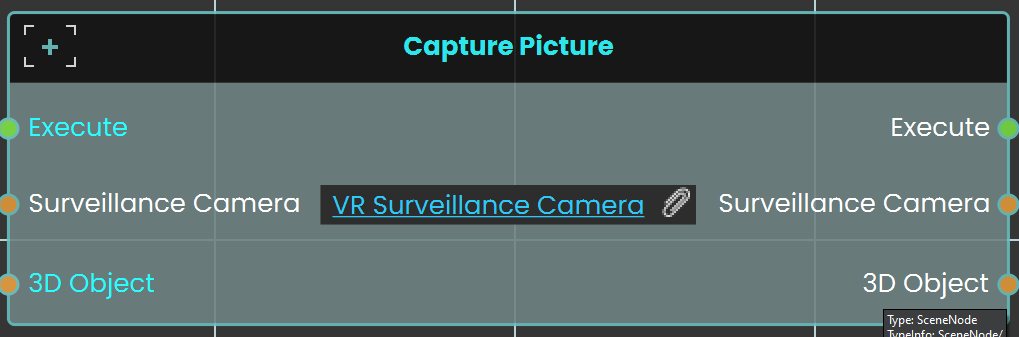
The Capture Picture node is used to capture an image from a camera within the scene, and the captured image can then be displayed on a 3D object within the scene. This allows the user to take snapshots and show them in the VR environment, such as displaying a captured image on a screen or other surface.
Example
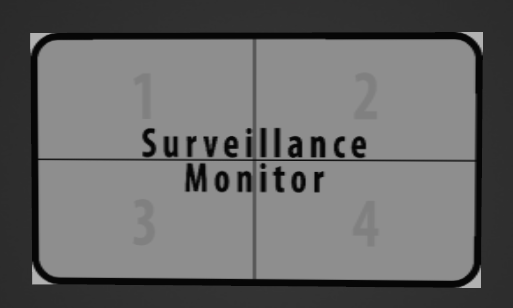
A Surveillance Monitor is first created to display the captured images. This monitor is then attached to the VR camera.
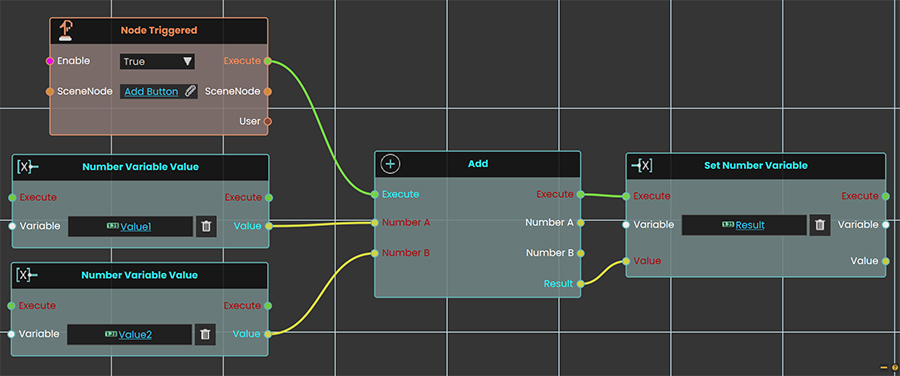
In this example, the Capture Picture Node is used to capture an image on a picture frame model when the user triggers the Activate event. Before that, the Cast SceneNode is used to identify the picture frame as a 3D object, as the Capture Picture Node only works with 3D objects.
 Take Screenshot to file
Saves a picture of exactly what a user is seeing as a PNG image file, ready to report on a dashboard or upload to your Cloud Files.
What it does
This node takes a screenshot of the user’s own view and saves it as a PNG image among the running experience’s resources — the same place Stop Sound Recording saves its recordings. The picture is taken on that user’s own device, so it shows the scene from where they are standing and looking at that moment. Use Capture Camera to File instead when you want the view of a fixed camera in the scene, which is the same for everyone.
The node waits until the picture is saved (up to about 10 seconds) and then gives you its name back, ready to pass to a Report Dashboard File node (to show it as an image on your dashboard) or a Cloud Upload node (to send it to a folder of your Cloud Files). Unlike Capture Picture, which shows a surveillance camera’s picture on a 3D object in the scene, this node does not change anything in the scene. If the picture is not saved in time, the node still carries on, but Success comes out false.
Inputs
| Port | Type | What to connect |
|---|---|---|
| Execute | Trigger | Wire this from the previous node’s Execute output. |
| User | User | The user whose view you want to save. If you leave this port unconnected, you can pick an option on the node itself: Host Only (the default) or All Users, which saves a screenshot of each user’s own view on that user’s device. |
| FileName | Text | Optional. The name to save the picture under, such as final_step. Give just a name, not a folder; .png is added for you when you leave off the extension. Leave it empty for a time-stamped name such as screenshot_20261022_143005.png. Saving again with the same name replaces the earlier picture. |
Outputs
| Port | Type | What you get |
|---|---|---|
| Execute | Trigger | Fires once the picture has been saved on the user’s device, or after about 10 seconds if it was not. Check Success to tell which. |
| User | User | The same user you connected, so you can pass it on to the next node — for example to the User of Report Dashboard File. |
| FileName | Text | The name the picture was saved under, including .png, such as final_step.png. Wire it into the FileName input of Report Dashboard File or Cloud Upload. |
| Success | True / false | True when the picture file was saved. False when it was not saved in time. |
Example
| User input | Host Only — the trainee running the experience |
| FileName input | final_step |
| FileName output | final_step.png |
| Success output | true |
Tips
- Check Success first. Wire Success into a Branch node and only report or upload the file when it is true.
- Keep the same user. Each screenshot is saved on its own user’s device. When you report it with Report Dashboard File, connect this node’s User output to that node’s User input so the right person’s picture is sent.
- One picture per run, or many? A fixed name such as
final_stepkeeps only the latest picture. Leave FileName empty when you want to keep every picture under its own time-stamped name.
 Capture Camera to File
Saves a picture of what a camera in your scene sees as a PNG image file, ready to report on a dashboard or upload to your Cloud Files.
What it does
This node takes a picture through a camera you placed in the scene, looking the way that camera looks and using its field of view, and saves it as a PNG image (1920 × 1080) among the running experience’s resources. The camera’s own marker is hidden for the shot, so it never blocks the picture. Because the camera stands still in the world, the picture is the same no matter who is in the session — use Take Screenshot to file instead when you want what one person is seeing.
Once the file is saved, you get its name back, ready to pass to a Report Dashboard File node (to show it as an image on your dashboard) or a Cloud Upload node (to send it to a folder of your Cloud Files). Unlike Capture Picture, which shows a surveillance camera’s picture on a 3D object in the scene, this node does not change anything in the scene. If no camera is connected, or the picture could not be saved, the node still carries on, but Success comes out false.
Inputs
| Port | Type | What to connect |
|---|---|---|
| Execute | Trigger | Wire this from the previous node’s Execute output. |
| Camera | Scene node | Connect a Camera node — the camera in your scene whose view you want to save. Required. |
| FileName | Text | Optional. The name to save the picture under, such as inspection_view. Give just a name, not a folder; .png is added for you when you leave off the extension. Leave it empty for a time-stamped name such as camera_20261022_143005.png. Saving again with the same name replaces the earlier picture. |
Outputs
| Port | Type | What you get |
|---|---|---|
| Execute | Trigger | Fires once the picture has been saved, or straight away if it could not be taken. Check Success to tell which. |
| FileName | Text | The name the picture was saved under, including .png, such as inspection_view.png. Wire it into the FileName input of Report Dashboard File or Cloud Upload. It is empty when no camera was connected. |
| Success | True / false | True when the picture file was saved. False when no camera was connected or the picture could not be saved. |
Example
| Camera input | The Overview Camera placed above the assembly table |
| FileName input | inspection_view |
| FileName output | inspection_view.png |
| Success output | true |
Tips
- Check Success first. Wire Success into a Branch node and only report or upload the file when it is true.
- Change the framing. The picture uses the field of view the camera was given in SimLab Composer. Use a Set Camera FOV node before this one to zoom in or out.
- One picture per run, or many? A fixed name such as
inspection_viewkeeps only the latest picture. Leave FileName empty when you want to keep every picture under its own time-stamped name. - In a shared session, the picture is saved once, on the host, so leave the User of Report Dashboard File on Host Only.
No Comments