
AI Agent
 AI Agent Reset Chat History

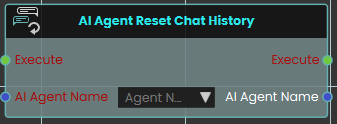 The AI Agent Reset Chat History node enables the system to clear and reset the ongoing conversation history for a specific AI Agent. It is typically used when you want the AI to start a completely fresh interaction or switch to a new scenario without being influenced by the context of any prior messages.
 AI Agent Send Message
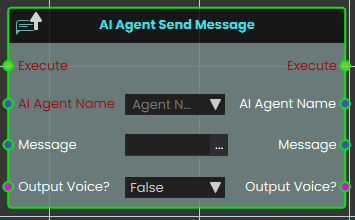
The AI Agent Send Message node enables the system to send a specific text message to an assigned AI Agent for processing. The Output Voice? boolean parameter that dictates how the AI agent will deliver its response:
-
False: The AI agent will respond with text.
-
True: The AI agent will process the text message and respond with generated voice audio.
 AI Agent Send Voice Message
Has one of your scene’s AI agents deliver a pre-recorded voice file to a user.
What it does
This node tells the AI agent you name to play a voice file for a user. You choose which agent speaks, who hears it, and which sound file to use. It’s a handy way to have an agent greet someone, give an instruction, or read out a scripted message without typing live text.
The node only sends the message — it doesn’t change the agent, the user, or the voice file in any way. Every value you feed in is also handed straight back out, so you can pass the same agent, user, or file along to the next node in your sequence.
Inputs
| Port | Type | What to connect |
|---|---|---|
| Execute | Trigger | Wire this from the previous node’s Execute output. |
| AI Agent Name | Text | The name of the AI agent that should speak. Pick one of the agents set up in your scene. |
| User | User | The person who should hear the message. Leave it on Host Only to send it just to the host, or connect a user to target someone specific. |
| Voice File | Text | The name of the voice file the agent should play. |
| Output Voice? | True / false | Set to true to have the message played aloud as voice, or false to send it without sound. Defaults to true. |
Outputs
| Port | Type | What you get |
|---|---|---|
| Execute | Trigger | Fires once the node has finished. |
| AI Agent Name | Text | The same agent name you connected, passed along so you can reuse it. |
| User | User | The same user you connected, passed along unchanged. |
| Voice File | Text | The same voice file name you connected, passed along unchanged. |
| Output Voice? | True / false | The same true/false setting you connected, passed along unchanged. |
Example
| AI Agent Name input | Guide |
| User input | Host Only |
| Voice File input | welcome_message.wav |
| Output Voice? input | true |
| Voice File output | welcome_message.wav |
 AI Agent Start Listen

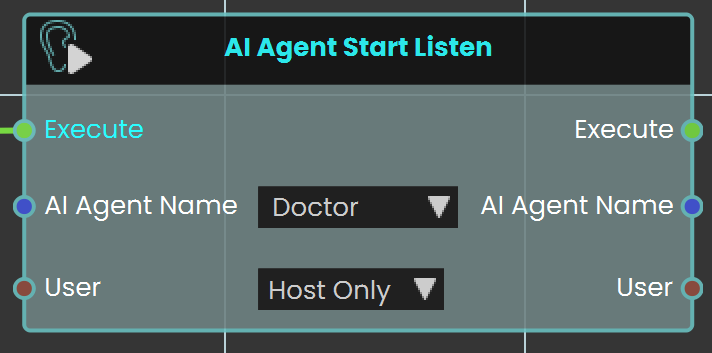
The AI Agent Start Listen node is used to make the AI start listening to the user. When activated, this node enables the AI to process and listen to spoken input from the user, allowing for interactive conversations and commands within the VR environment.
Example
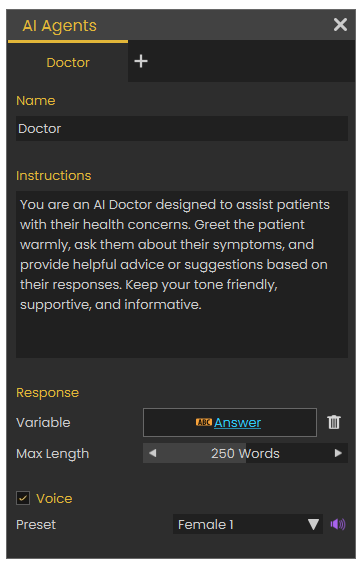
In this example, an AI Doctor is set up in the AI Agents window. This window can be accessed by clicking the Interaction icon in the viewport menu, then select the AI Agents, and then add the AI name with the desired instructions in the Instructions field. A variable is created to store the AI's responses.
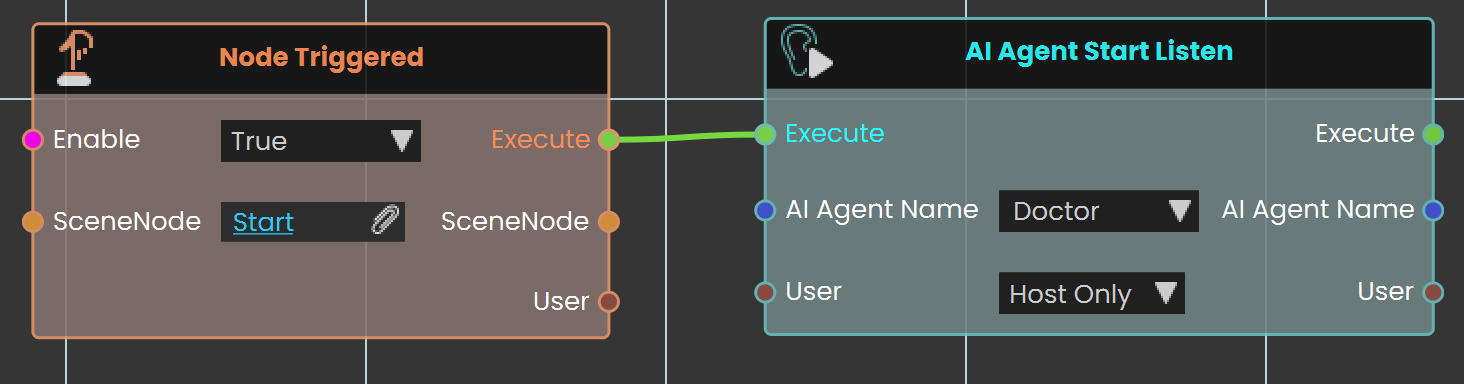
The AI Agent Start Listen node is used to make the AI Agent named Doctor start listening to the user when the object named "Start" is triggered. This setup enables the AI to process and listen to user input as soon as the trigger event is activated.
 AI Agent Stop Listen
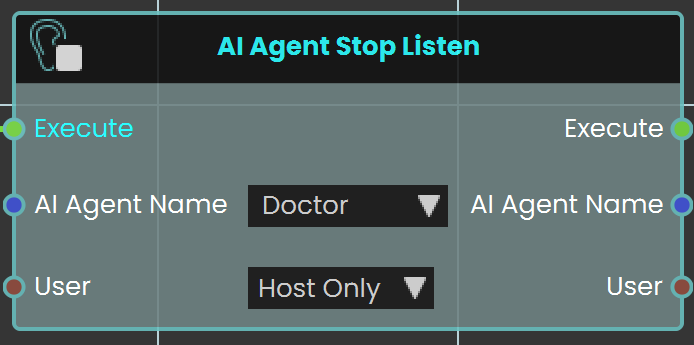
The AI Agent Stop Listen node is used to make the AI stop listening to the user. When activated, this node halts the AI’s ability to process further user input, allowing the AI to respond based on the information gathered up to that point.
Example
In this example, an AI Doctor is set up in AI Agents window. This window can be accessed by clicking the Interaction icon in the viewport menu, then select the AI Agents, and then add the AI name with the desired instructions in the Instructions field. A variable is created to store the AI's responses.
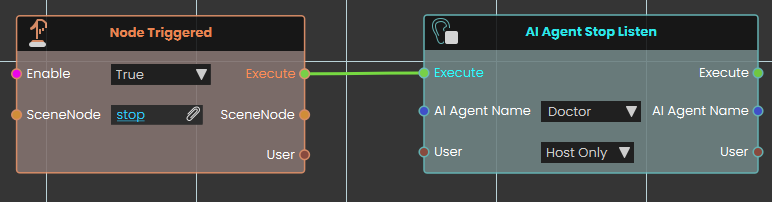
The AI Agent Stop Listen node is used to stop the AI Agent from listening to the user when the "Stop" trigger event occurs. This allows the AI agent named Doctor to respond based on the input received before listening was stopped.
AI Agent Stop Listen (Text)
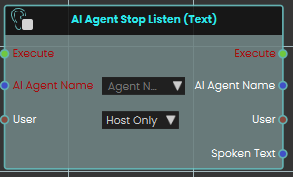
The AI Agent Stop Listen (Text) node is used to make the AI stop listening to the user. When activated, this node halts the AI’s ability to process further user input, allowing the AI to respond based on the information gathered up to that point.
This node has an extra output "Spoken Text", when the node is activated, it outputs the input audio in text format.
 Has Valid AI Key
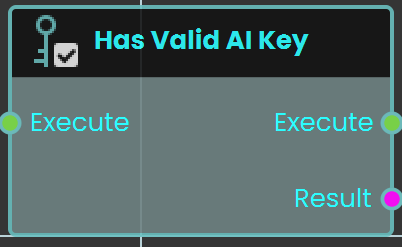
The Has Valid AI Key node checks whether a valid AI key is available for AI-related features in Sim Lab Composer. This node ensures that AI functionalities can operate properly by verifying the presence of an active and valid AI key.
Example

In this example, the Has Valid AI Key node is used at the start of the scene to check if the user has an activated AI key. The node is connected to a Branch node, where the False output (indicating no valid AI key) triggers a message in front of the user, informing them that the AI key must be activated.
 Set AI Key
Gives your experience an AI key, so its AI agents can answer without each user having to enter a key of their own.
What it does
Choose a key in the AI Key field. The list shows the AI keys saved on your SimLab account, by name and provider. To add one, pick New key at the end of the list, or create it on your SimLab account page under API Keys → AI. The experience keeps only a reference to the key, not the key itself.
When the node runs, it fetches the key from SimLab, checks it with the AI provider, and makes it available to every AI agent that uses that provider. The person running the experience must be signed in to SimLab — with any account, not necessarily yours. Success tells you whether it worked. It is false when the field is empty, when the key can’t be fetched (nobody is signed in, or the key was removed, switched off or has expired), or when the provider rejects the key. In a multi-user session, the key is fetched and used only by the host, who talks to the AI for everyone; the other participants never receive the key itself.
If an AI agent has no key for its provider — this node wasn’t run, or its key didn’t work — the agent falls back to the OpenAI key the person running the experience entered in the Viewer’s settings, if they have one.
Inputs
| Port | Type | What to connect |
|---|---|---|
| Execute | Trigger | Wire this from the previous node’s Execute output. |
| AI Key | Text | The key to use. Pick one of your saved AI keys from the list, or create one with New key. The saved key already knows its provider. |
Outputs
| Port | Type | What you get |
|---|---|---|
| Execute | Trigger | Fires once the key has been fetched and checked with the AI provider, usually a moment after the node starts. It fires whether or not the key worked, so check Success. |
| Success | True / false | true if the key is ready for your AI agents. false if the field was empty, the key couldn’t be fetched, or the provider rejected the key. For the other participants in a multi-user session, it tells you whether the host could fetch the key. |
Example
| Execute input | Wired from the Scene Start event |
| AI Key input | The saved key “Patient Sim – OpenRouter”, picked from the list |
| Success output | true |
Tips
- Don’t keep a pasted key. If you paste a provider key straight into the field, Composer offers to store it on SimLab for you — accept. If you decline, the key itself travels inside the experience file, and the node shows a warning.
- Gemini, OpenRouter and other providers. Create the key as an OpenAI key with Custom endpoint set to the provider’s address, then give the agent the matching Provider in Set AI Agent Model. The addresses are listed under Using AI Providers and API Keys in SimLab Composer on this page.
- Set the key once, at the start. Run this node from Scene Start, then use Success (or the Has Valid AI Key node) to tell the user when AI features aren’t available.
- Older experiences may contain the previous version of this node, which had a separate Provider input and took the key itself. It keeps working; new graphs should use this one.
 Set AI Agent Model
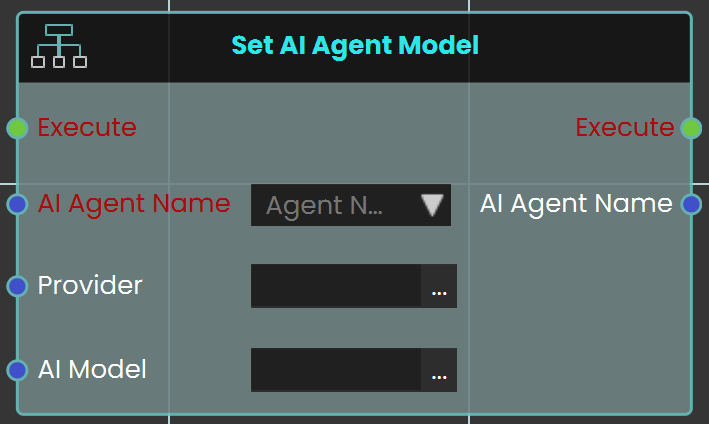
The Set AI Agent Model node is used to assign a specific AI provider and model to an AI agent in your VR experience. This ensures the AI agent will operate using the selected provider and model for any interactions that occur in the scene. You can choose the AI agent you have created, specify the provider (OpenAI, Gemini, or OpenRouter), and define the model name.
Example
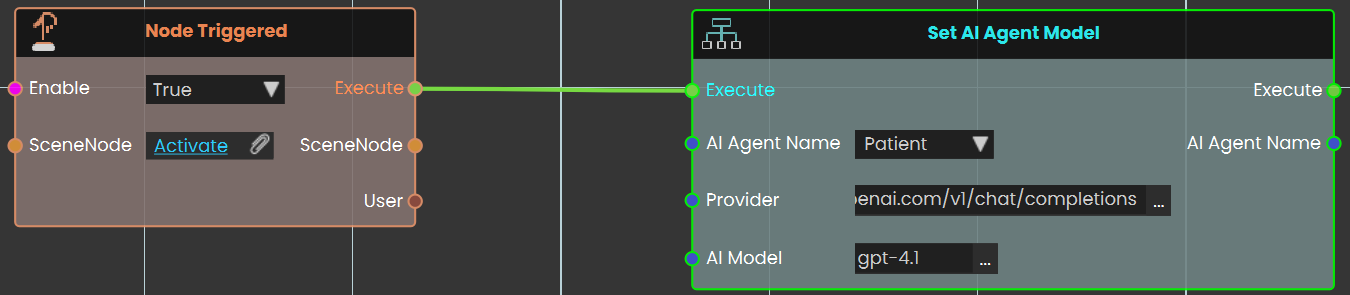
In this example, the Set AI Agent Model node is triggered by pressing a button in the VR scene. When the button is clicked, the node assigns the “Patient” AI agent to the OpenAI provider and sets the model to GPT‑4. This setup allows the AI agent to function with the defined provider and model as soon as the event is triggered.
Check this tutorial for more about this node.
Using AI Providers and API Keys in SimLab Composer
The AI agents in your VR experiences can use OpenAI, or any provider with an OpenAI-compatible address such as Google Gemini and OpenRouter. Setting one up takes three steps:
- Save the key. On your SimLab account page, open API Keys → AI → New AI key (or pick New key in the Set AI Key node). Paste the key from your provider. For OpenAI, that’s all. For another provider, open Custom endpoint and enter its Base URL from the list below.
- Set AI Key — pick that saved key in the node, so the experience gives it to its agents.
- Set AI Agent Model — set the agent’s Provider to the matching Provider URL below, and choose a model.
The two addresses must match exactly. An agent uses the key whose Base URL, followed by /chat/completions, is its Provider URL. If they differ even slightly, the agent doesn’t get your key and falls back to the OpenAI key the person running the experience entered in the Viewer’s settings, if any.
Providers and models
The models below are examples. Providers add and retire models often, so check your provider for the current names.
1. OpenAI
- Base URL: leave Custom endpoint empty
- Provider URL:
https://api.openai.com/v1/chat/completions - Models:
gpt-4.1,gpt-4,gpt-3.5-turbo
2. Google Gemini
- Base URL:
https://generativelanguage.googleapis.com/v1beta/openai - Provider URL:
https://generativelanguage.googleapis.com/v1beta/openai/chat/completions - Models:
gemini-2.0-flash
3. OpenRouter
- Base URL:
https://openrouter.ai/api/v1 - Provider URL:
https://openrouter.ai/api/v1/chat/completions - Models:
nvidia/llama-3.3-nemotron-super-49b-v1:free
What each key can do
- OpenAI keys work with chat, text-to-speech and speech-to-text.
- Gemini and OpenRouter keys work with text chat only.
No Comments