
Execution
 Branch on Expression
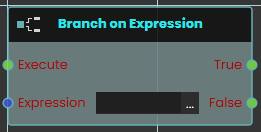 The Branch on Expression response enables the user to evaluate an expression with the possible outputs of True or False each time the event connected to it is triggered. Once the response is executed, the result of the evaluation can be acquired through the True or False ports.
Example
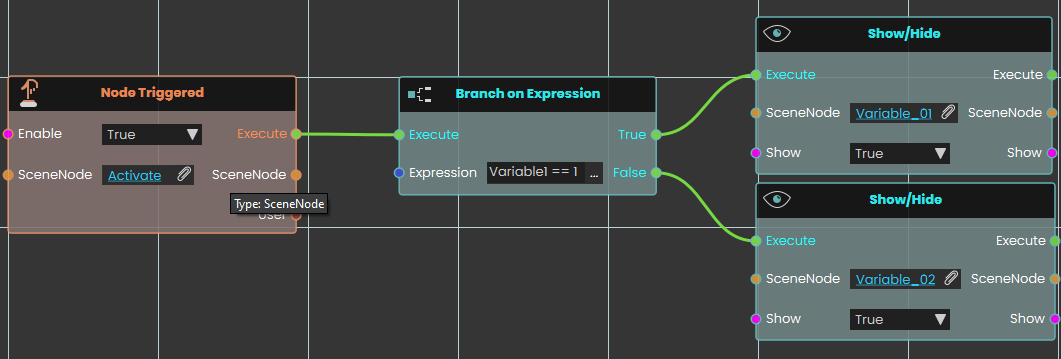
In this example, a Branch on Expression response is used to evaluate an expression once the user triggers the object named Activate. The result of the expression, which will be either True or False, if the result was true, the object named "Variable_01" will be shown, if it was false, the object named "Variable_02" will be shown.
 Delay
Delay

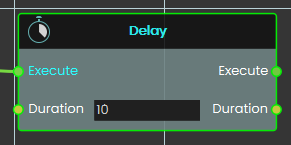
The Delay node waits for the specified Duration (in seconds), then executes the node linked to its Execute output.
Duration can be an integer or a float less than one to achieve sub-second delays.
 Loop
Loop
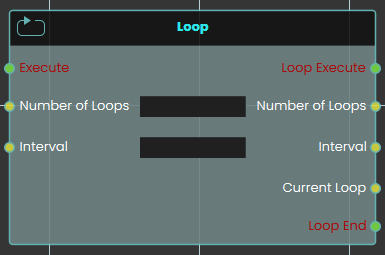
The Loop node enables the user to repeatedly execute a connected response for a specified number of times as defined in the Number of Loops field. Each time the event connected to the loop is triggered, the response is executed repeatedly, and the loop continues until the assigned number of repetitions is completed.
Example
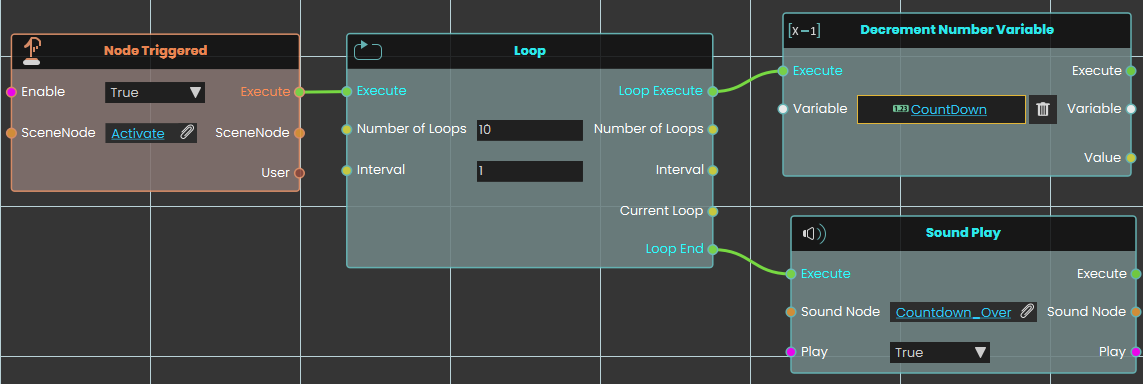
In this example, a Loop node is used to repeatedly execute the connected response that decreases the value of a number variable by one. The Decrement response is repeated for the number of times specified in the Number of Loops field, with the duration between each repetition set in the Interval field. Once the assigned number of repetitions is completed, the sound named Countdown_Over plays.
 Run Script
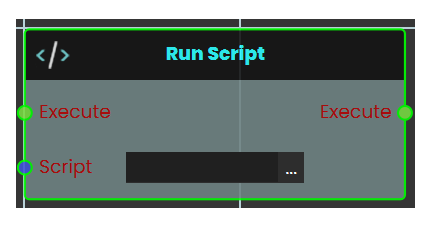
The Run Script node allows the user to execute advanced functions using the Lua programming language. This node provides flexibility by enabling custom scripts to be triggered when an event occurs. Allowing for complex operations and logic to be carried out as defined in the script. This node is ideal for scenarios requiring functionality beyond the standard nodes, offering advanced customization and control over the system.
You can read about Lua Scripting in SimLab Training builder through the following Blog:
 Trigger Custom Event

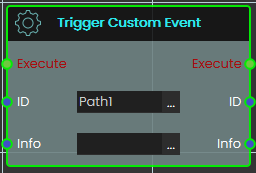
Calling this Trigger Custom Action will execute the corresponding Custom Action event (based on the matching ID), passing along any optional information provided in the info field.
This is useful when you want multiple paths in your experience to produce the same response — without duplicating it each time.
Branch
Sends the action down one of two paths depending on whether a yes/no value is true or false.
What it does
Branch is a fork in the road for your scene’s actions. When it runs, it looks at the yes/no value wired into Condition. If that value is true, it fires the True path; if it’s false, it fires the False path.
Exactly one of the two paths fires every time — never both, and never neither. This lets you say “if this is the case, do these steps; otherwise, do those steps instead.” Branch only chooses a direction; it doesn’t change the value you give it.
Inputs
| Port | Type | What to connect |
|---|---|---|
| Execute | Trigger | Wire this from the previous node’s Execute output. |
| Condition | True / false | The yes/no value to test. Wire in anything that gives a true/false result — for example a check on whether a door is open or whether a score has passed a target. |
Outputs
| Port | Type | What you get |
|---|---|---|
| True | Trigger | Fires when the Condition is true. Wire the steps you want to run in that case here. |
| False | Trigger | Fires when the Condition is false. Wire the steps you want to run in that case here. |
Example
| Condition input | true |
| True output | Fires — the steps wired here run (for example, play a success sound). |
| False output | Does not fire this run. |
Tips
- Leave the False path empty if you only care about acting when the Condition is true — nothing happens on that side and the rest of your scene carries on.
- To choose between more than two paths, chain several Branch nodes together, sending the False path of one into the next.
Do Then
Splits one trigger into two that fire in a guaranteed order — first the “Execute” output, then the “Then” output, right after.
What it does
When this node runs, it fires its “Execute” output first and then immediately fires its “Then” output. Use it when you want two things kicked off from a single trigger and you care which one starts first.
The node only controls the order the two outputs fire in — it does not wait for the work wired to “Execute” to finish before firing “Then.” The “Then” output always fires, no matter what happens on the “Execute” side. This node doesn’t change or hold onto any of your scene data; it simply directs the flow.
Inputs
| Port | Type | What to connect |
|---|---|---|
| Execute | Trigger | Wire this from the previous node’s Execute output to run this node. |
Outputs
| Port | Type | What you get |
|---|---|---|
| Execute | Trigger | Fires first. Wire this to the steps you want to start before the “Then” steps. |
| Then | Trigger | Fires right after “Execute,” without waiting for the “Execute” steps to finish. It always fires. Wire this to the steps you want to start second. |
Example
| Execute input | Triggered when a button in the scene is clicked |
| Execute output | Fires first — starts playing a door-opening animation |
| Then output | Fires right after — shows a hint label to the user |
Tips
- Reach for this when two actions share one trigger and you want a reliable order — the “Execute” output’s steps always start before the “Then” output’s.
- Remember that “Then” does not wait for the “Execute” side to finish. If you need the second action to begin only after the first one has fully completed, drive it from the end of the first chain instead.
No Comments